
Android App campaigns
Use this guide for the following Google Ads setup:
- What you advertise: An Android app on Google Play.
- Campaign type: App campaigns for installs (UAC). They show your ads in Google Search, Google Play, YouTube, and other apps and websites. Each ad leads to the Google Play page of your app.
In Adapty Attribution, App campaigns for installs (UAC) only work for Android apps. To advertise an iOS app or a web funnel, use Search and Performance Max campaigns.
How it works
When you connect your App campaigns to Adapty Attribution:
- Google receives trial and purchase events from Adapty.
- Using the information from Adapty, Google bids for people who are likely to start a trial or buy a subscription, not just install your app.
- Adapty Attribution shows the revenue and ROAS of each campaign, ad group, and ad, with the spend that Adapty pulls from Google Ads.
In this guide, you create an App Link ID in Google Ads and add it to Adapty Attribution. Through this link, Adapty sends each new install to Google. If the user came from an App campaign ad, Google returns the campaign, ad group, and ad to Adapty.
Before you begin
Make sure that:
- Your app is on Google Play, released in production or in an open test with no tester limit.
- The Adapty SDK in your app has Adapty Attribution enabled.
- You have a Google Ads account in Expert Mode, so that you can create App campaigns.
- Your Google Ads account has a payment method.
- Your Google account, such as you@appname.com, has the Admin access level in your Google Ads account. You need this access level to create the App Link ID.
- Your Google account is connected to Adapty Attribution.
Set up the App Link ID and the campaign
Through your connected Google account, Adapty refreshes the spend of your campaigns every 4 hours. App campaigns also need a link for the app itself, called an App Link ID. Through this link, Adapty sends installs, trials, and purchases of your app to Google. You don’t need a new link for each campaign.
If you already run App campaigns for your app, choose which campaign to use with Adapty Attribution. Create a new campaign, otherwise you can’t take full advantage of the Adapty Attribution capabilities.
| Campaign | Installs and revenue in Adapty Attribution | Google optimizes for trials or purchases | Steps to follow |
|---|---|---|---|
| An existing campaign | ✅ without past installs | ❌ | Steps 1–3 |
| A new campaign (recommended) | ✅ | ✅ | Every step of this guide |
1. Create the configuration in Adapty Attribution
-
Switch to the app that you want to advertise.
-
Go to Integrations > Google Ads. On the App Campaigns tab, click Create configuration.

-
Copy the Provider ID value. You need it to create the App Link ID in Google Ads.
2. Create the App Link ID in Google Ads
- Click the Tools icon and select Data manager.
- Click + Connect Product, select Third-party app analytics, and click Continue.
- Click Create link ID.
- From the provider list, select Other provider and paste the Provider ID you copied from Adapty Attribution.
- Select Android as the platform and find your app in the Look up your app field.
- Click Create link ID and copy the generated link ID.
Google Ads shows the link ID as Unverified until it receives the first event from Adapty.
3. Add the link ID to Adapty Attribution
-
Go back to the configuration that you created in step 1. Paste the link ID into the Android App Link ID field. You can only use each link ID in one configuration.

-
Select which events Adapty sends to Google. To report revenue to Google for started trials, set up Revenue override. To only send Google the trials that users keep, set up Qualified trial.
-
Click Save.
4. Send test events
The first time Google Ads receives an event, Google creates a conversion action that counts the event. To have the conversion actions ready before you create the campaign, send a test event for each event to optimize for:
- In the configuration, click Send test event.
- For the event to optimize for, select or type its Google event name, such as
in_app_purchase. Then, click Send. Adapty reports the result in a notification. - If the conversion action for the event doesn’t appear in Google Ads after a successful test event, import the event as a conversion action. Google describes the steps in Measure app conversions with third-party app analytics.
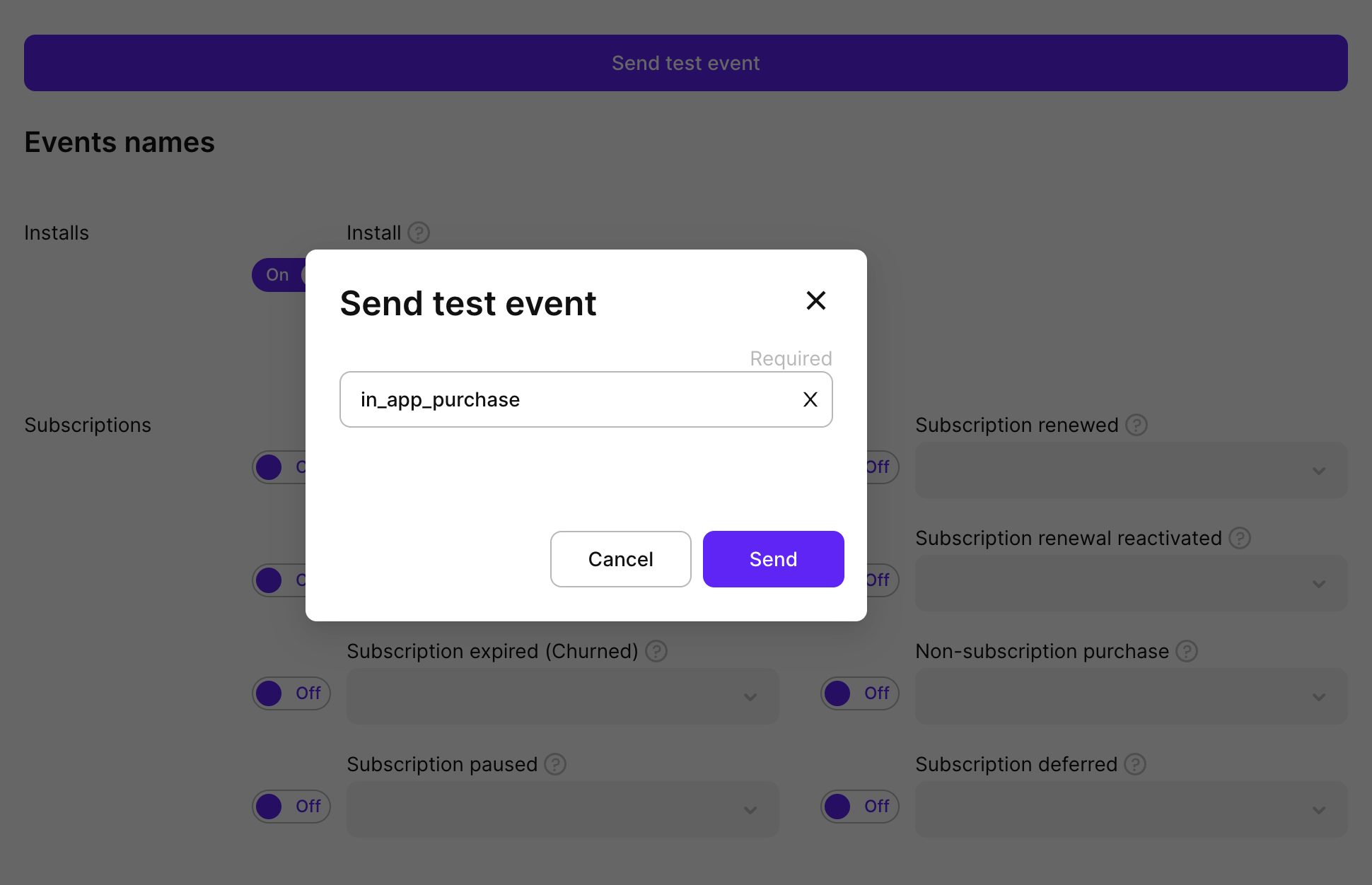
For Google Ads to accept the first installs from the campaign, publish it after a test event succeeds. A new link ID takes about 24 hours to activate in Google Ads, so test events can fail until then. If a test event fails, follow Test event fails for a new link ID.
5. Optimize your campaign for trials or purchases
By default, Google counts the events from Adapty in reports, but doesn’t use them to optimize bidding. To change this for the event to optimize for, edit the conversion action that counts it:
- In Google Ads, go to Goals > Conversions > All conversions.
- Click the conversion action to optimize for.
- Select the Settings tab.
- Click the Action optimization setting. Select Primary action used for bidding optimization, and click Save.
6. Create and publish a new App campaign
Create a new App campaign, even if you already run App campaigns for your app. Google advises against changing the event to optimize for in a running App campaign.
- In Google Ads, open the Campaigns menu and select Campaigns. Click the plus button and select New campaign.
- Select App promotion as the objective, and App installs as the campaign subtype.
- Select Android as the platform. Then, find your app by its name, package name, or publisher.
- Enter a campaign name and click Continue. Then, select the locations to target.
- Select the languages of your ads. Google doesn’t translate them.
- On the Budget and bidding page, select In-app actions from the What do you want to focus on? dropdown.
- Under Which actions are most important to you?, select the conversion action that you edited in step 5. Google recommends one action per campaign.
- Enter the target cost per action. If you already run campaigns, base the amount on the Cost per trial or Cost per subscription that Adapty Attribution analytics shows for them.
- Set the daily budget to at least 10 times the target cost per action, as Google recommends.
- Add your ad assets: a few headlines, descriptions, images, and videos. Google assembles the ads from them.
- Click Publish campaign.
After you publish
- Wait for the ad review: Google reviews each ad before it runs. During the review, the ad status is Under review. Most reviews finish within one business day. Once the ad passes the review, its status changes to Eligible, and the ad starts to run.
- Avoid large changes while Google learns: Google bidding usually needs 1–2 weeks to learn which clicks bring the conversions that Adapty sends to Google. If you edit the campaign in this period, you can disrupt the learning. Keep the event to optimize for unchanged. Adjust the budget or the target cost per action by no more than 20% at a time.
- See the installs, revenue, and ROAS in Adapty Attribution: Open Adapty Attribution analytics. Adapty refreshes the spend, impressions, and clicks from Google Ads every 4 hours.
Troubleshooting
Test event fails for a new link ID
A new link ID takes about 24 hours to activate in Google Ads. Until then, Google Ads rejects events from Adapty, so a test event fails even if the setup is correct.
Wait 24 hours and send the test event again. Don’t replace the link ID in the meantime: a new link ID takes another 24 hours to activate.
If the test event still fails after 24 hours, verify the Android App Link ID field in the configuration. It must contain the link ID from Data manager, not another Google Ads identifier.
Once a test event succeeds for each event to optimize for, continue with Optimize your campaign for trials or purchases.
Google Ads shows no conversions from Adapty
To see the conversions that Adapty sends to Google, in Google Ads, go to Goals > Conversions > All conversions. If the event to optimize for has no conversions there, make sure that:
- A test event succeeded for the event.
- Google optimizes bidding for the event.
- You selected the conversion action in your App campaign, under Which actions are most important to you?.
App campaigns show fewer installs from the EEA and the UK
To protect the privacy of users in the European Economic Area and the United Kingdom, Adapty marks the events it sends to Google as not consented for ads. As a result, Google may credit fewer of their installs to your App campaigns. Your setup works as intended.