
Manage segments in a flow in Adapty Mail
In Adapty Mail, a flow connects a trigger to a campaign, and a user segment decides who receives it.
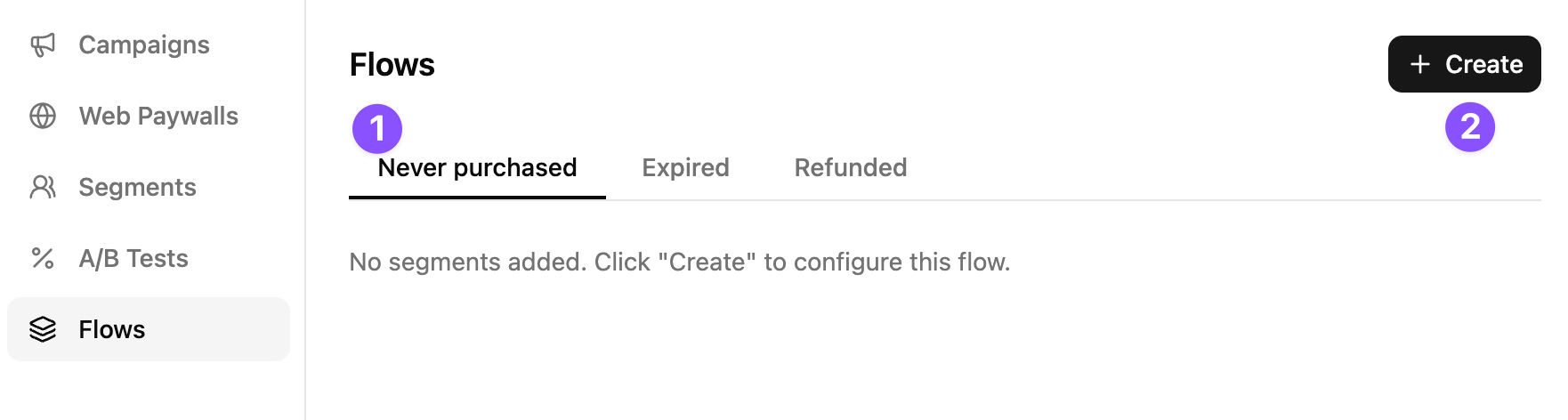
A trigger is the event that starts a flow. Each trigger has its own tab, where you pair segments with the campaigns they receive, in order of priority.
This guide covers how to add, reorder, edit, and remove those segments. See Flows for a higher-level overview of the concepts involved.
Add a segment to a flow
-
In Adapty Mail, go to Flows and open the trigger you want to configure.
-
Click Create to open the dialog.
-
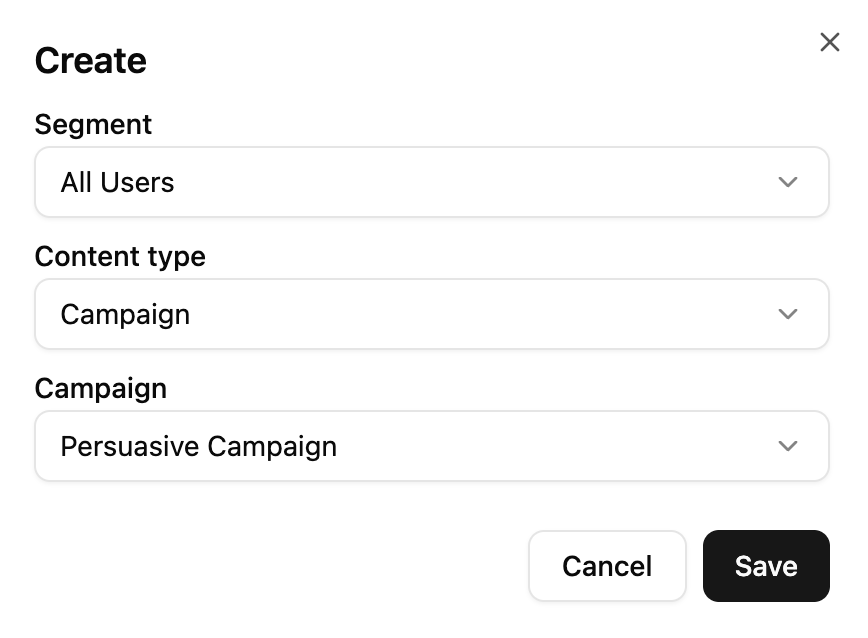
In the dialog:
- Segment: Pick a segment, or All Users as a catch-all.
- Content type: Campaign for a single campaign, or A/B Test to compare multiple — see A/B testing.
- Campaign: Select the campaign to send. The list offers only the campaigns written for this trigger — see purpose.
-
Click Save.
The flow goes live the moment you save. Users who hit the trigger and match the segment start receiving the campaign from that point on, with the first email arriving after its Delay.
Change priority
To reorder, drag the handle on the left of any row.
All Users, if present, must have the lowest priority — be the final entry for the trigger. Otherwise the flow won’t save.
Change what a segment receives
Click Change content on a row to reopen the dialog with its current values pre-filled. You can change the segment, content type, and campaign, then click Save to apply.
A segment paired with an A/B test can only be edited while the test is in the draft state. Once the test is launched, its content is locked until you finish it.
Remove a segment from a flow
Open the row’s actions menu and click Delete. There’s no confirmation dialog — the row is removed immediately.
- Segments paired with a campaign: Can be removed at any time.
- Segments paired with a live A/B test: Can’t be removed. Finish the test first using Finish A/B test.
Removing a segment stops new users from entering the sequence. Users already mid-sequence may continue receiving their scheduled emails — there’s no automatic cancellation.