
Images, videos, and icons
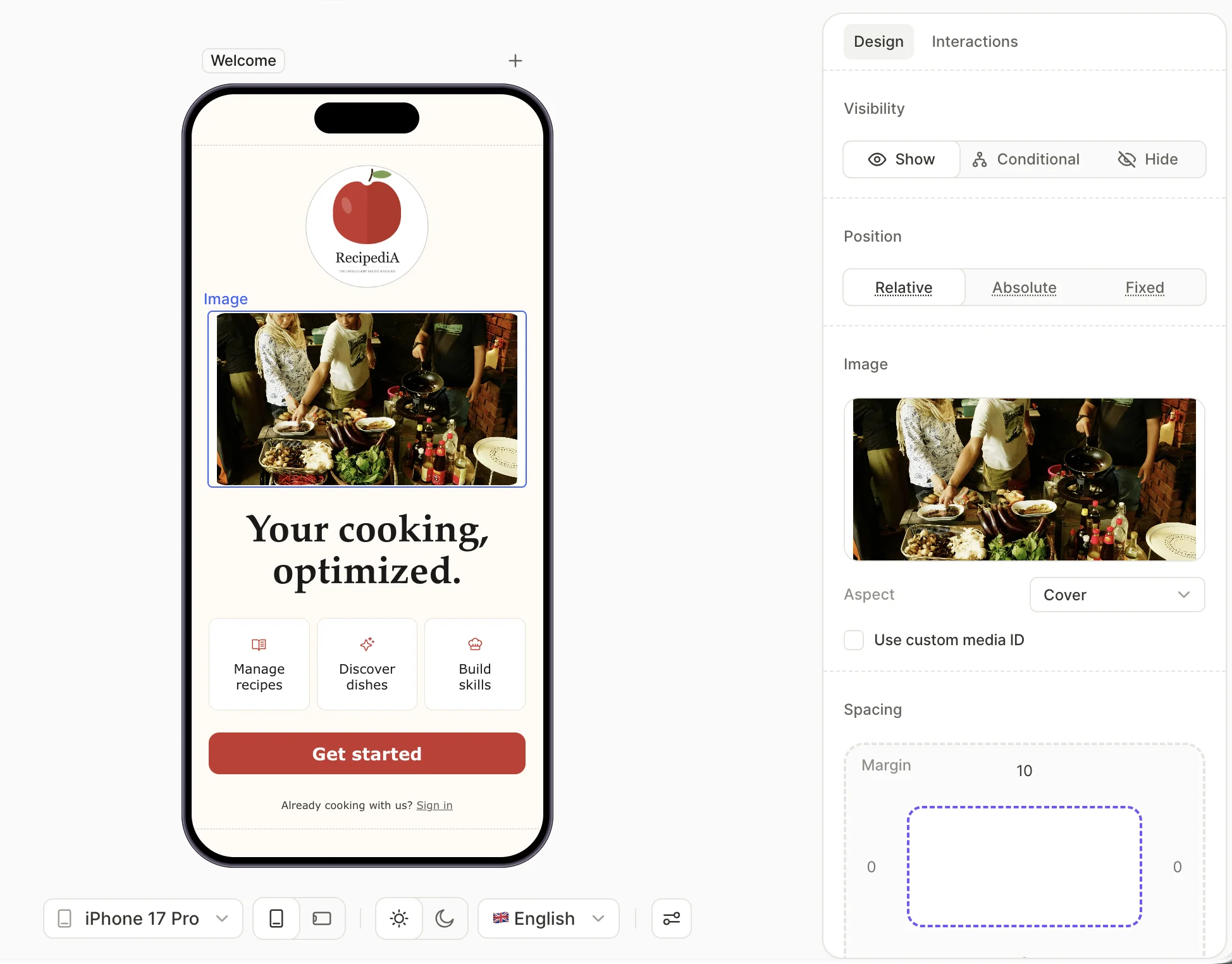
The Flow & Paywall Builder includes three media element types under the Media category: Image, Video, and Icon.
To make an image or video cover the entire screen — including the areas behind the notch and the home indicator — position it as fixed with all offsets at 0 and select Ignore safe area. See Layout and positioning.
Image
Upload a .JPG, .PNG, or .WEBP file up to 20 MB.
Animated GIFs and WEBPs aren’t supported. To add motion, use a Video element instead.
To place your content over a full-screen image, build a hero image from a screen background and a sliding sheet.
- Content mode — controls how the image fills its container when you set its height. See Image sizing.
- Use custom media ID — see Custom media ID below.
Image sizing
An image has its own proportions, and the box you give it may not match them. Set the width first, then decide the height:
- Auto height. The image keeps its shape: the height follows from the width you set. Content mode turns off, because there is nothing to crop.
- Fixed or Fill height. The box gets proportions of its own, and Content mode resolves the mismatch:
- Fit. Scales the whole image inside the box and leaves empty space.
- Fill. Crops whatever overflows. Default.
To keep an image uncropped at every screen width, use Fill width with Auto height. With a fixed height, the crop at the top and bottom changes from one screen size to the next.
Video
Upload an .MP4 or .WEBM file up to 50 MB and no longer than 30 seconds. The minimum video resolution is 640x640 pixels.
- Aspect — controls how the video fills its container when you set its height. See Video sizing.
- Loop — replay the video continuously. On by default.
- Use custom media ID — see Custom media ID below.
Videos do not play in the editor preview — the canvas shows a still frame. On the device at runtime, the video plays muted by default. With Loop on, it repeats indefinitely.
Video sizing
A video has its own proportions, and the box you give it may not match them. The height decides what happens:
- Hug height. The height follows the video’s own proportions.
- Fixed or Fill height. The Aspect property resolves the mismatch:
- Fit. Scales the whole video inside the box and leaves empty space.
- Fill. Crops whatever overflows. Default.
When Adapty can’t read a video’s proportions on upload, it warns you: “Could not determine video dimensions. Set a fixed height to ensure the video displays correctly.” Give the video a fixed height, or make sure a container that holds it has one. Otherwise its height may collapse to 0.
Trigger an action when the video ends
Main article: Actions
The Video element supports an On playback finished trigger that fires when the video reaches the end. Set it up in the Interactions panel to navigate to another screen, reveal a CTA, or run any other action.
Icon
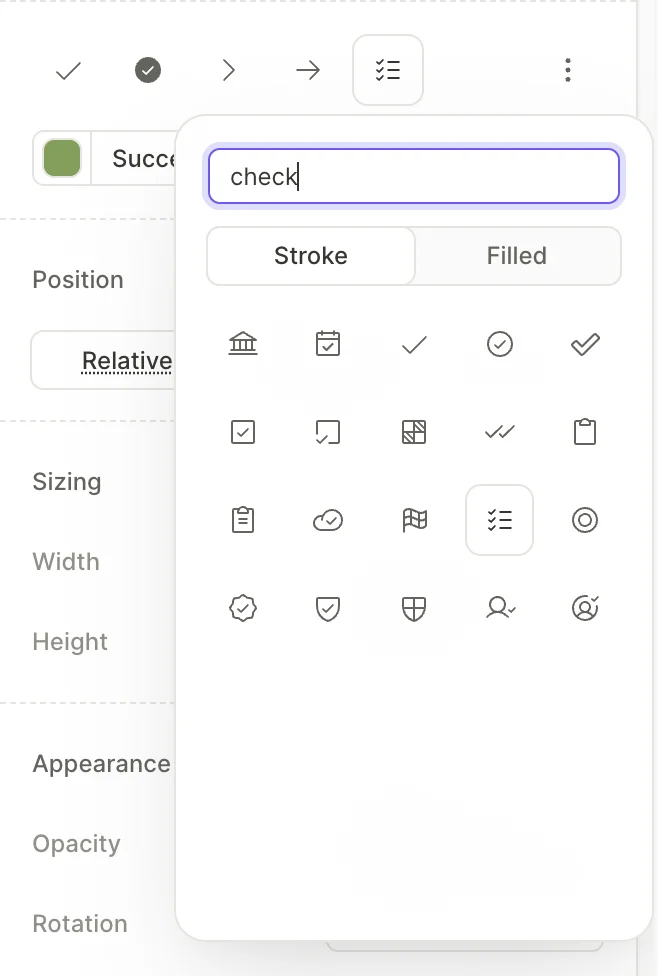
Pick from the bundled Tabler Icons library, with thousands of icons in two visual styles:
- Stroke — outline only.
- Filled — solid fill.
Search the picker by keyword to find an icon. Set the icon’s color in the Color picker — pick a saved color style or set a custom color.
Localize media
Main article: Add a locale
Image and Video elements can hold a different file per locale:
- If the Localizations panel is open, close it to show the property panel.
- In the bottom toolbar, set Locale to the target locale.
- Select the element. Then, in the property panel, upload the localized file.
- When you’re done, set Locale back to the default locale. While another locale is set, text you edit in the property panel changes that locale’s translation.
In a locale without its own file, the element shows the default locale’s file. You can also upload a file for each locale in the Localizations panel.
Limitations
You can’t localize the following:
- Icons
- A screen’s or a container’s Fill — this covers screen backgrounds and a container’s own background image or video, set from the Fill section. To vary an image or video by locale, add it as a standalone Image or Video element instead — those support a locale-specific file, as Localize media describes.
- Custom media IDs
Custom media ID
You can also set a custom media ID for an image and video background.
Tag an image or video element with a custom media ID to swap it at runtime from your app code. Use this for personalized visuals — for example, showing the user’s selected avatar.
The media you upload in the Flow & Paywall Builder serves as the fallback. If your code doesn’t provide media for the ID at runtime, the fallback renders instead.
A custom media ID can only swap a file for another of the same type — an image for an image, a video for a video. If the types don’t match, the fallback renders.
To enable a custom media ID on an Image or Video element:
- Select the Use custom media ID checkbox under the upload area.
- Enter a media ID.
- Upload a fallback image or video.
In your app code, fetch media by its ID — see Customize assets for the SDK API.
To make the first screen of a flow render instantly, tag its heavy images and videos with custom media IDs and have your developers bundle those files with the app. See Show first-screen media from the app bundle.