Create segments based on Apple Ads attribution in Adapty Ads Manager
You can create user segments directly from Adapty Ads Manager by selecting campaigns, ad groups, or keywords and turning them into segments in a few clicks. It makes it easy to personalize paywalls and offers based on an acquisition source, without setting up segment conditions manually.
After creating a segment, you can use it to assign different products and prices, run A/B tests, and customize paywall appearance.
To create a segment for each campaign from a script or an AI coding tool, use adapty asa segments create in the Adapty CLI. It builds the same segment as this window.
Use cases
Here are some examples of how segments created from Apple Ads data can be used in practice:
-
Keyword-based paywalls. Show a feature-focused paywall to users from high-intent keywords, and a general paywall to users from broader discovery keywords.
-
Campaign-level offers. Offer longer trials or special pricing to users from selected Apple Ads campaigns, while keeping a standard offer for other users.
-
Creative-to-paywall consistency. Route users from ad groups promoting specific features to paywalls that highlight those features first.
-
High-ROI campaign optimization. Show a premium-first, full-price paywall to users from campaigns that consistently drive higher lifetime value.
Create segments
To create a segment from Adapty Ads Manager:
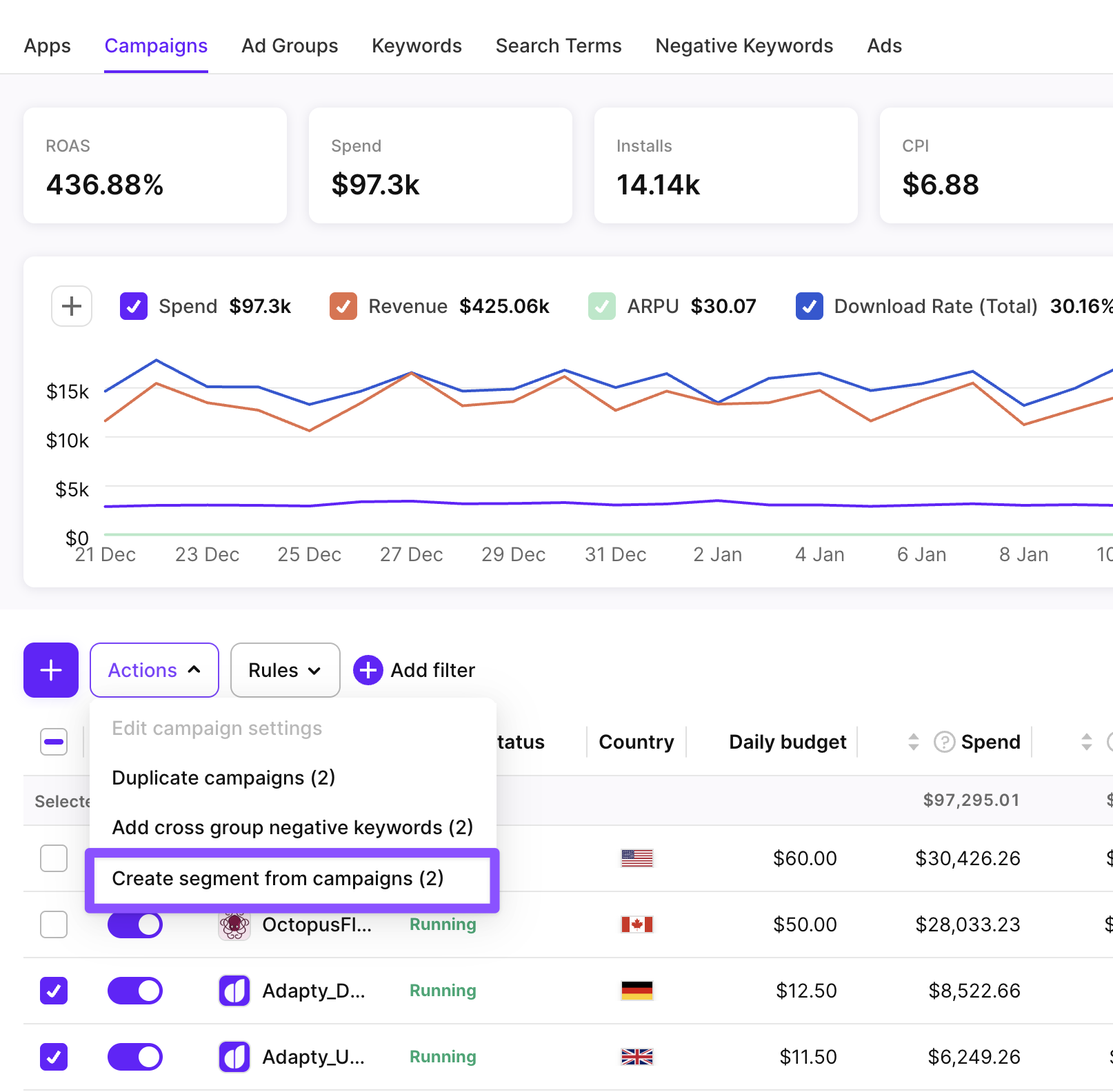
- Go to Ads Manager and switch to Campaigns, Ad groups, or Keywords tab. Select checkboxes next to the entities you want to use. Note that, if you select several entities, they will be used to create one segment for all of them and not one segment for each entity.
- Click Actions > Create segment from campaigns/ad groups/keywords.
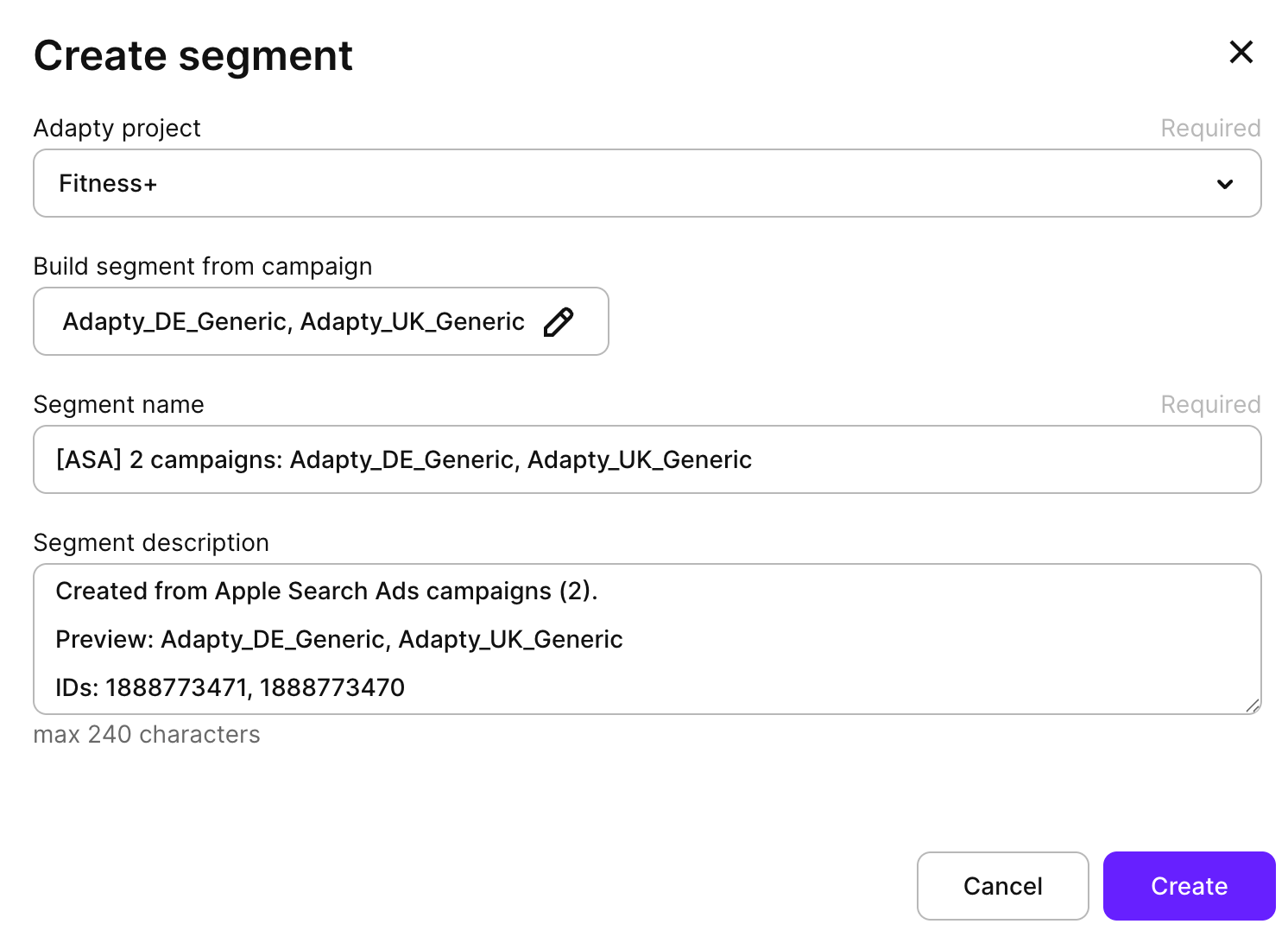
- If needed, update the segment details in the Create segment window:
- Adapty project: App in Adapty in which you want to create this segment.
- Build segment from campaign/ad group: When creating a segment from campaigns or ad groups, you can adjust selected campaigns or ad groups at this step.
- Segment name
- Segment description
- Click Create.
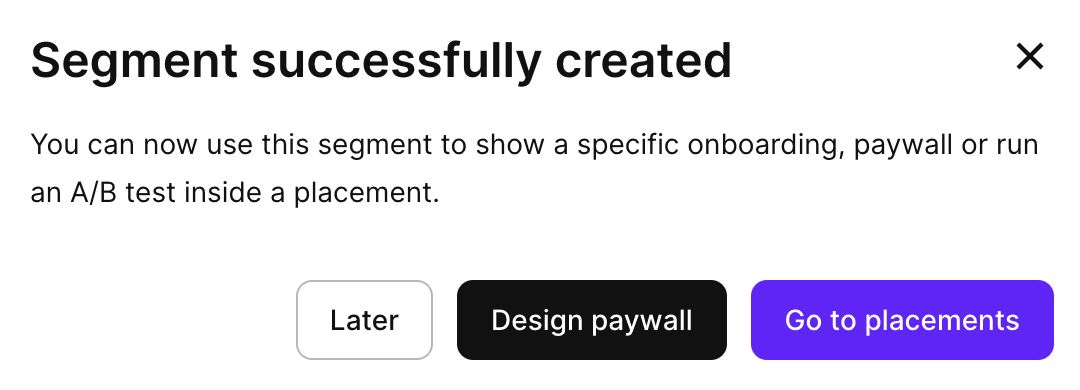
- Now, when your segment is created, you can prepare to use it:
- Add it to a placement to use with an existing paywall or onboarding
- Design a new paywall or onboarding that will be displayed to users in the segment
- Run an A/B test