
Localize emails in Adapty Mail
To reach recipients in their own language, localize your campaigns. Adapty Mail translates a campaign’s emails with AI and sends each recipient the version in their device language, or English if the campaign doesn’t have it. One campaign holds every translation you add to it, so you don’t need a campaign or a segment for each country.
You can localize any campaign, marketing or transactional. Each campaign has its own translations: neither the project nor the flow has default languages, and every new campaign starts in English only. In an A/B test, each variation is a separate campaign, so you need to localize every variation for the same audiences. That way, the test compares the emails themselves — not the different markets.
To translate several campaigns into several languages in one go, ask an AI assistant connected to the Adapty Mail MCP server. It runs one translation per campaign and language, saves each one, and reports which languages failed.
What is and isn’t translated
Adapty Mail translates:
- The subject and the preheader
- The body text and the plain-text version
- Button text
- Image alt text
- Text on the hero image
Adapty Mail keeps as is:
- Links and the email destination
- Placeholders, such as
{{ company_address }} - Layout and styles
- The logo and every image other than the hero image
Translate a campaign
Each campaign has its own translations: Adapty Mail doesn’t apply the same language selection to other campaigns.
-
In Adapty Mail, go to Campaigns and open an existing campaign — or create a new one.
-
Scroll to the Emails section of the campaign editor and click Localize. This opens the language selection menu.
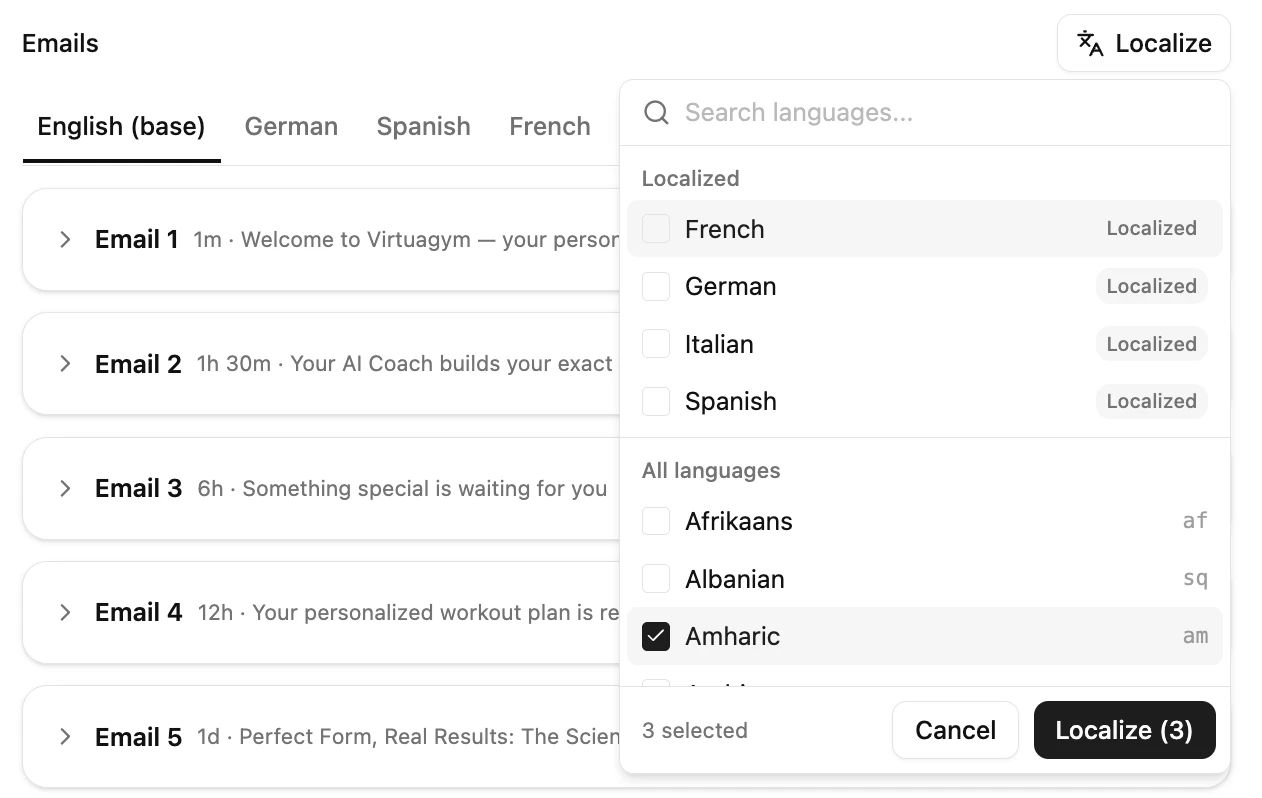
Select languages
To select the best languages for your audience, check your analytics to determine the most common locales.
Adapty Mail matches recipients by device language, not by country: a recipient in Germany with their device set to English gets the English emails. This data comes from Adapty, from FunnelFox, or as device_info.locale in Adapty Mail API requests. FunnelFox sends the browser language as the locale.
Adapty figures out the user’s locale with the following actions:
- Adapty Mail takes the locale from the profile’s newest device. A profile can have several devices, such as a phone and a laptop. If the newest one didn’t send a locale, Adapty Mail uses the next newest device that did. If no device sent one, the recipient gets the English emails.
- It looks for an exact match among the campaign’s translations, such as
pt-BR. If there’s none, it looks for the locale without the region, such aspt. - If nothing matches, the recipient gets the English emails.
Adapty Mail sets the language once, when the recipient enters the flow. The whole sequence goes out in that language, even if their device language changes later.
In the language list, select the languages to localize the campaign into.
Regional varieties
Portuguese and Chinese each appear twice in the language list. To reach every recipient who uses one of these languages, select both entries:
- Brazilian Portuguese and Portuguese: Recipients only get Brazilian Portuguese when their device language is Brazilian Portuguese (
pt-BR). All other recipients with a Portuguese device language get Portuguese, the European variety. Brazilian recipients get it too when the campaign has no Brazilian Portuguese. - Chinese (Traditional) and Chinese (Simplified): Recipients only get Chinese (Traditional) when their device language is set to Chinese (Taiwan) (
zh-TW). All other recipients with a Chinese device language get Chinese (Simplified), whatever its script. Taiwan recipients get it too when the campaign has no Traditional version.
Every other language has one variety for all regions:
- English: Both
en-USanden-GBget the same emails. So do recipients whose device language you didn’t localize the campaign into, and profiles without a locale. - Spanish: The language list has a single Spanish entry, with no Latin American variant. It covers every Spanish device language, such as
es-MXandes-ES.
Add translations
-
In the language list, select your languages and click Localize. Wait for the translation to finish. While it runs, you can’t edit the English source or save the campaign. You can leave the page: Adapty Mail keeps the translations for 2 hours. If you come back later, the translations are gone — click Try again to localize again. In a new campaign, keep the browser tab open.
-
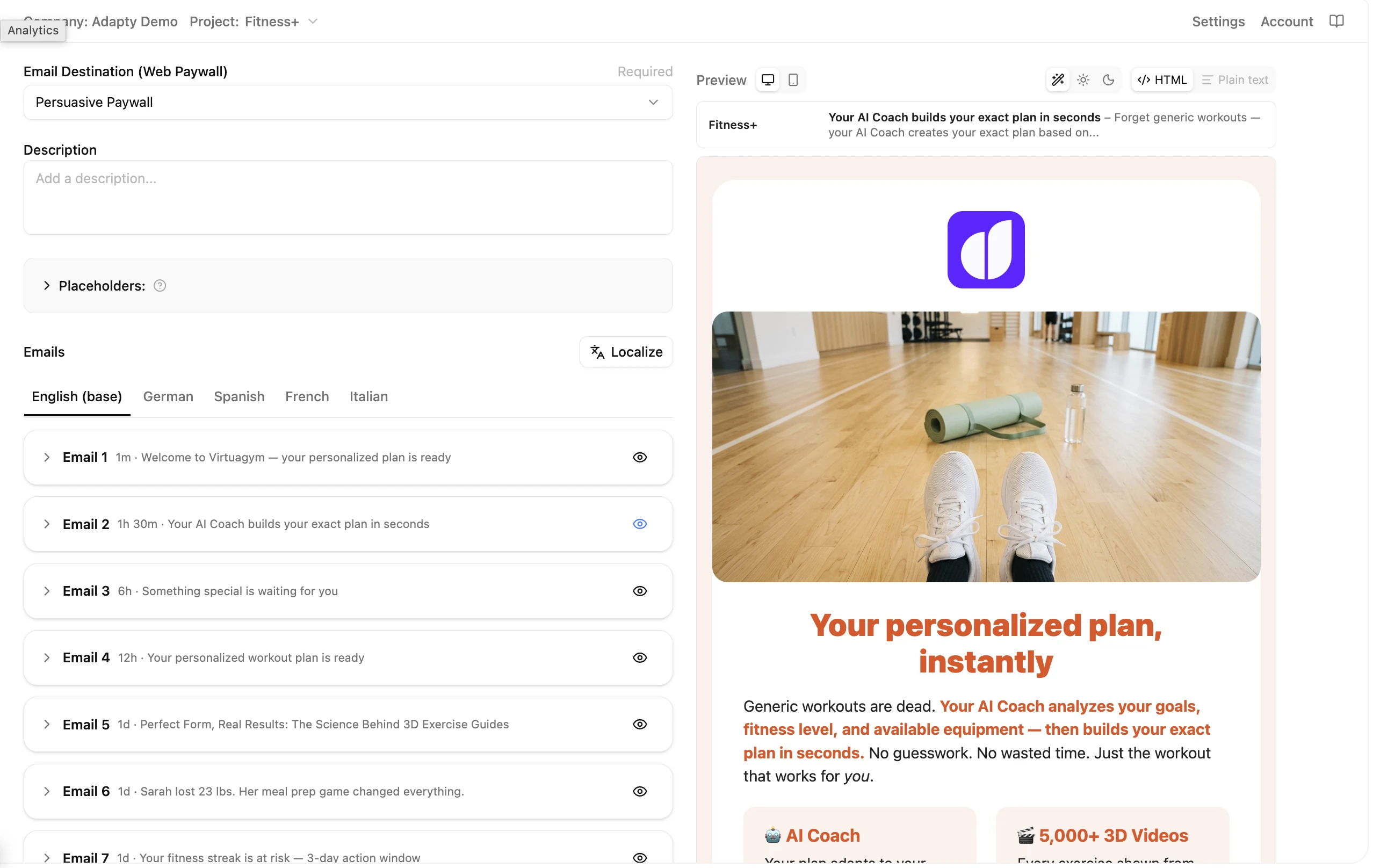
Review each localized version:
- To see an email the way recipients will, on its card, click .
- To receive the email in your inbox, click Send test email.
- Review the text on each hero image, and make sure that nothing else on it changed. To translate the email again, including the text on its hero image, on its card, click Re-localize this email.
- Review brand names, product names, prices, and dates in each translation. Adapty Mail doesn’t verify them after translation.
- To manually correct a translation, edit the email’s Subject, Template HTML, or Plain text. The Delay always matches the source email.
-
When you’re done, click Save or Create. Make sure to save before you leave or reload the page: these translations are only available in your browser.
A translation you add to a live campaign only reaches recipients who enter the flow after you save the campaign. Recipients already in the flow keep getting the emails in the language they started with.
Translation verification
Adapty Mail compares every translated email with the English email. Only the text can change: the translation keeps the same paragraphs, images, and buttons, in the same order, with the same links and placeholders. If anything else differs, such as an extra paragraph, Adapty Mail translates the email again. If the email keeps failing, the whole translation fails, and you can try again. Adapty Mail doesn’t check hero images in translations, so review them yourself.
Compare performance by language
To compare how your emails perform in each language, open Analytics and select Email language from the Group by dropdown. To limit the comparison to one campaign, click Add filter > Campaigns and select the campaign.
Email language is the language each email went out in, not the device language of the recipient. The English row includes emails to recipients without a matching translation, and every email sent before October 6, 2026.
Manage translations
Translation badges
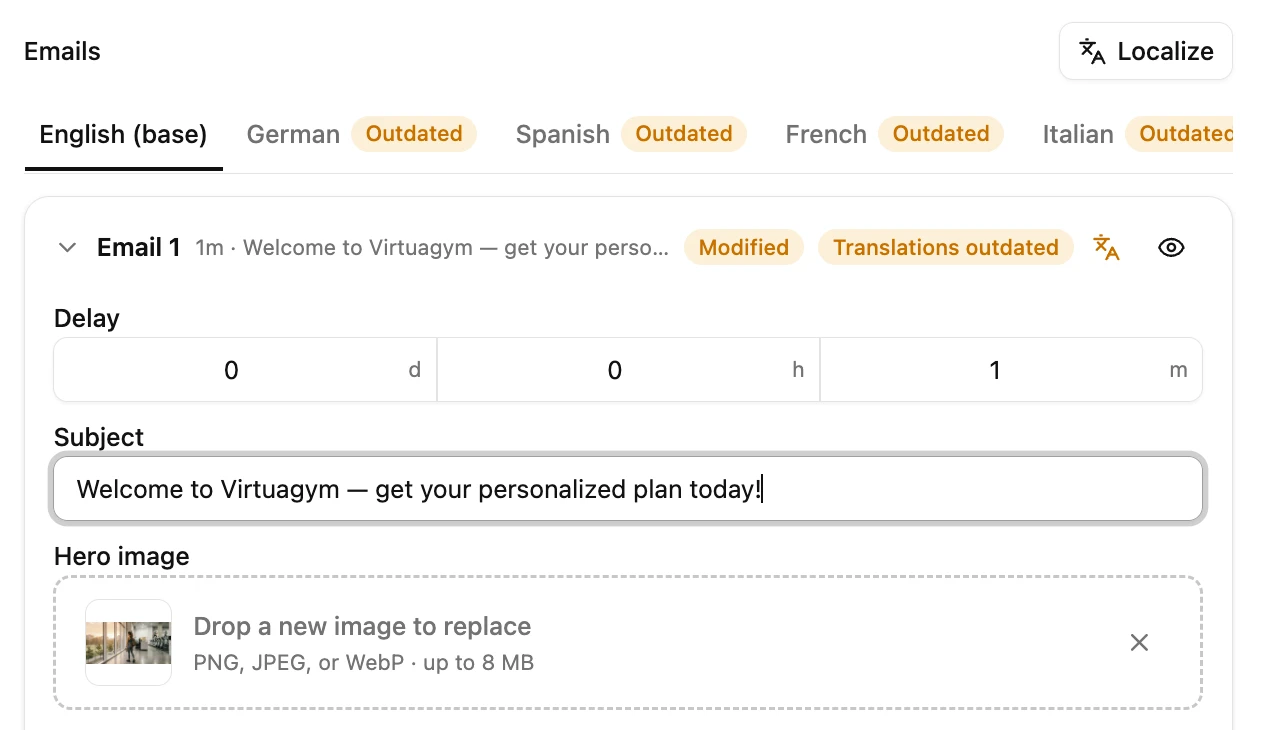
Badges on language tabs and email cards show the state of each translation:
| Badge | Shows on | Meaning |
|---|---|---|
| New | Language tab, any email card | Adapty Mail adds the translation or email when you save. |
| Modified | Language tab, any email card | The changes to this translation or email apply when you save. |
| Outdated | Language tab, translated email | The English email changed after Adapty Mail translated it. |
| Not translated | English email | At least one translation doesn’t have this email yet. |
| Translations outdated | English email | This email is outdated in at least one translation. |
Update translations
When you change the source email’s subject, HTML, or plain text, or regenerate the email, its translations keep the previous text. Adapty Mail marks them as Outdated. A new hero image works differently: every translation shows the new image right away, with the original image text (if any).
To translate emails again, click one of the following controls:
- Update translations on a source email. Translates that email wherever it’s outdated.
- Re-localize this email on a translated email. Translates only that email.
- Re-localize on a language tab: Translates every email in that translation.
Then save the campaign. If you generate the whole sequence again, and save, Adapty Mail removes every existing translation.
Remove translations
To remove a translation from a draft, on its tab, click Remove. Adapty Mail removes it when you save.
In a live or inactive campaign, you can’t remove a translation, add an email, or remove an email. To make these changes, update any Outdated translations and save the campaign. Then duplicate it and treat the copy as a different campaign. Recipients already in the original’s sequence keep receiving the original’s emails.
Duplicating a campaign resets its translation status. Outdated copy appears current. Double-check the translations before you activate the duplicate campaign.
Limitations
- Images aren’t localized, except the hero image: If the logo or another image contains visible text, it remains in its original language.
- You can’t edit the hero image in a translation: To change it, upload another image to the source email, then re-localize the email in each translation.
- Pages aren’t localized: Adapty Mail only translates emails. The double opt-in confirmation page and the unsubscribe page stay in English for every recipient.
- The destination doesn’t get the language: Every translation links to the same destination, and Adapty Mail doesn’t pass the email language to it.
Troubleshooting
- A recipient receives the campaign in English instead of their language: When the recipient entered the flow, their locale didn’t match any of the campaign’s translations under the matching rules. To see which language they got, open the profile’s journey: it shows the subject of every email sent. Common causes:
- The profile has no locale: For profiles you send through the Adapty Mail API, include
device_info.locale. - The device uses another language: The device language decides, not the country.
- The regional version is missing: For example, the campaign has Brazilian Portuguese, and the device uses
pt-PT. Add Portuguese. - The recipient started before you added their translation: They get the English emails until their sequence ends.
- The profile has no locale: For profiles you send through the Adapty Mail API, include
- Recipients get an outdated translation after you edit an English email: Your edit to the subject, HTML, or plain text only changes the source email. Its translations stay as they were, and Adapty Mail marks them with the Outdated badge. To apply your changes to every translation, update the translations and save the campaign. Emails sent from then on use the updated translations. Emails that already went out don’t change.
- A translation shows the hero image with text in English: Adapty Mail translated the email before you changed the hero image of the source email, or before October 6, 2026. On the email card, the Hero image row reads Same as English. To translate the text on the image, re-localize the email and save the campaign. Emails sent from then on use the new version.
- The Save or Create button is disabled: Adapty Mail is translating, or a translation is missing one of the English emails. A translation lacks an email after you add an email to a localized draft. In that translation’s banner, click Localize it, or Localize them for several emails.
- A translation failed: If one email or its hero image fails, Adapty Mail discards the whole translation into that language: the campaign keeps the previous translation, or doesn’t get one. The other translations from the same run appear on their tabs. To keep them, save the campaign. If a run doesn’t finish within 10 minutes, Adapty Mail discards its result. To retry, in the Couldn’t localize notice, click Try again.
- A campaign generated in another language has an English (base) tab: Before localization launched on October 1, 2026, Adapty Mail could generate a campaign in another language. Each of these campaigns now has an English version, and the original language is one of its translations. Recipients with that device language still receive the original emails, and everyone else receives the emails in English.