
Show and hide elements on demand, with a delay or an animation
Use the Show element and Hide element actions to reveal or hide an element without conditional visibility.
- The trigger determines what causes the element to appear or disappear — a button click or a screen change.
- The delay setting determines the time period between the trigger and the action taking effect.
- The animation setting determines the visual effect (default: Fade in / out).
Transitions between screens have their own animations. To move users off a splash or loading screen without a tap, delay a Navigate to Screen action.
Show or hide an element
By default, every element on a screen appears when the screen opens and stays visible until users leave the screen. With Show element and Hide element actions, you control when and how an element appears or disappears. For example, you can:
- Show a close button a few seconds after the screen opens.
- Fade in a headline instead of showing it at once.
- Hide a hint when users tap its close icon.
Triggers
Each trigger fires at a different moment:
| Moment | Trigger | Add it to |
|---|---|---|
| The screen opens | On Screen Appear | Any element on the screen, even the one the action shows |
| Users tap | On Tap | Any visible element that users tap, such as a button |
| A video ends | On Playback Finished | The video |
| A Countdown timer ends | On Timer End | The timer, with its Visibility set to Show so that the trigger fires |
| Users change or submit an input field | On Changed or On Submit | The input field |
Setup
The steps are the same for every trigger:
- Select what the table lists for the moment you need, such as a button.
- In the Interactions panel, add the trigger with a Show element or Hide element action.
- In the Elements dropdown, select what to show or hide.
- Select each element from step 3 and open the Design panel. If the action shows it, set Visibility to Hide; if the action hides it, set Visibility to Show. If several actions change it, follow this rule for the action that runs first. A Show element action has no effect on anything already visible. To edit a hidden element later, in the Layers panel, select it: the canvas doesn’t show it.
- To see the result, test the flow on a device. The canvas doesn’t run actions. On the device, a hidden element takes no space, so the content around it moves when it appears and after it disappears.
Follow the steps above to set up the Show element or Hide element action. Then, change its settings:
- Delay — show an element a few seconds after the screen opens
- Animation — animate an element as it appears or disappears
Show an element a few seconds after the screen opens
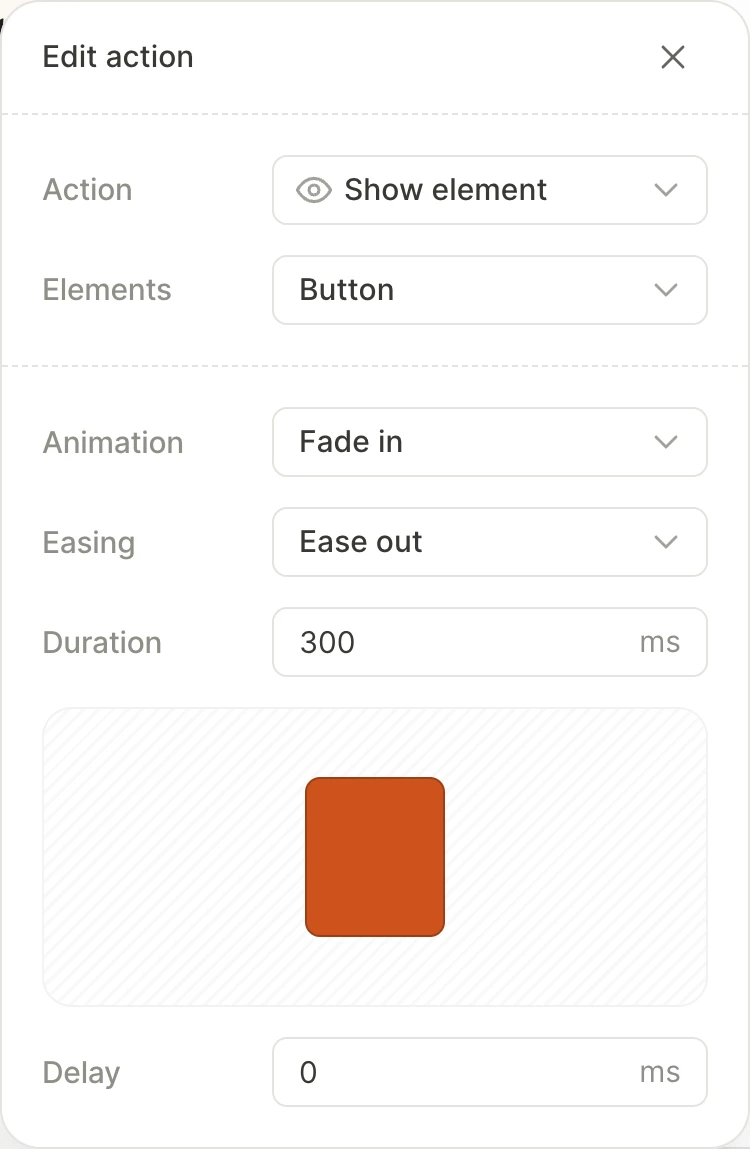
The Delay field sets how long the action waits after its trigger fires (up to 5000 ms). For example, to show a close button three seconds after the screen opens, use the On Screen Appear trigger and set Delay to 3000 ms. Use whole seconds: on iOS, a delay rounds up to a whole second.
To see the delay, test the flow on a device: the Edit action window doesn’t preview it.
For a delay longer than 5 seconds, show the element when a Countdown timer ends.
Animate an element as it appears or disappears
The Edit action window has the following animation settings:
| Setting | What it changes |
|---|---|
| Animation | How the element appears or disappears: None, Fade in or Fade out, Rise, or Pop |
| Easing | How the speed changes during the animation: Linear, Ease in, Ease out, or Ease in-out |
| Duration | How long the animation lasts, up to 5000 ms |
| Distance | For Rise: how far the element moves, 1–200 px |
| Start scale | For Pop: the smallest size of the element, 0.1–0.99 of its full size |
The Edit action window loops a preview of the animation. Users can only tap an element after it has fully appeared, so keep Duration short for a button.
An action that targets several elements animates them together. To animate them one after another instead, add an action per element, each with a longer Delay than the one before.
When animation and delay don’t apply
In three cases, Animation and Delay have no effect:
- An element with conditional visibility: Actions that target the element show or hide it at once. To animate or delay it, remove the condition: set Visibility to Show or Hide.
- A reusable component: An element inside a component, or any target of an action inside one, appears or disappears at once.
- A bottom sheet: The sheet opens and closes with its own motion, without a delay.
In all three cases, the Edit action window still shows Animation and Delay, and you see no warning when you publish.