
Flow version history
View the version history of a flow and look at every version in detail. As you explore previous versions, your current draft and the current live version stay unchanged. When you’re ready, restore the version you want and publish it.
To open the list of versions, in the top bar of the Flow & Paywall Builder, click Version history. The list replaces the right-hand panel. To close it, click Version history again.
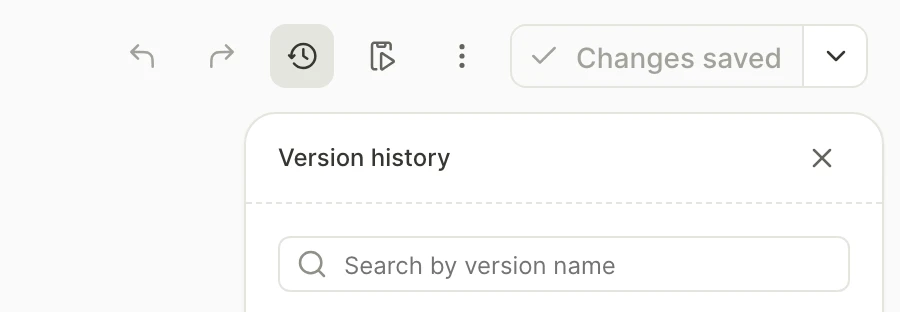
Find the version you need
If you never published the current flow, the version history is empty.
Otherwise, the published versions appear in chronological order, with the latest one on top.
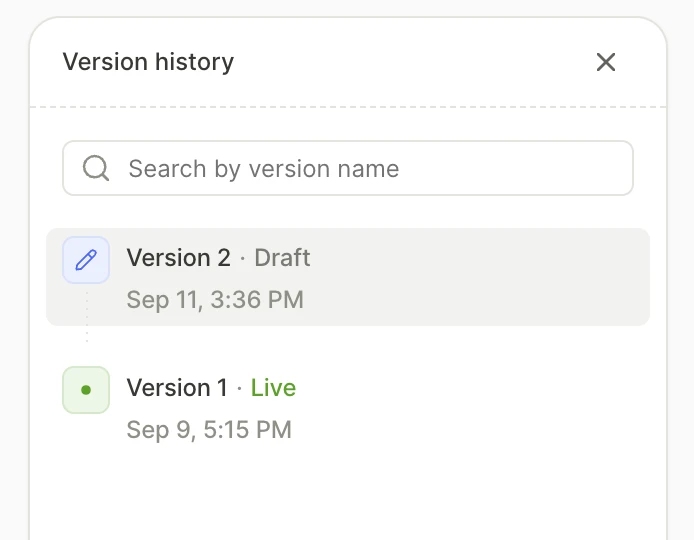
The list highlights the version that is currently open. Read the label to see the status of each version:
- Draft: The version you’re editing.
- Publishing…: A draft that is being published.
- Publish failed: A draft that didn’t publish. Find and fix the cause, then publish it again.
- Live: The version users see.
- No label: A version that was live before.
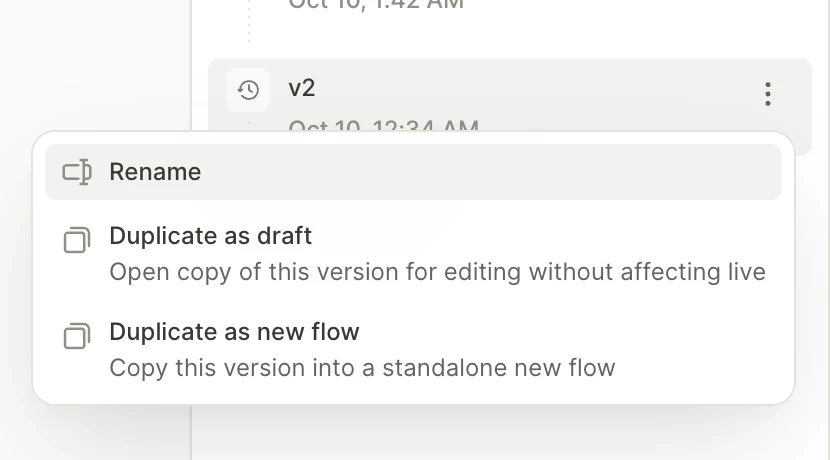
To find a particular version in the list, search for it by name. When you publish a major update, give the new version a descriptive name, so you can quickly find and restore it later. To rename a version, open the context menu of its entry, and select Rename.
View an earlier version
To preview a version, click its row. The version opens read-only: you can look through its screens and elements, but you can’t change anything.
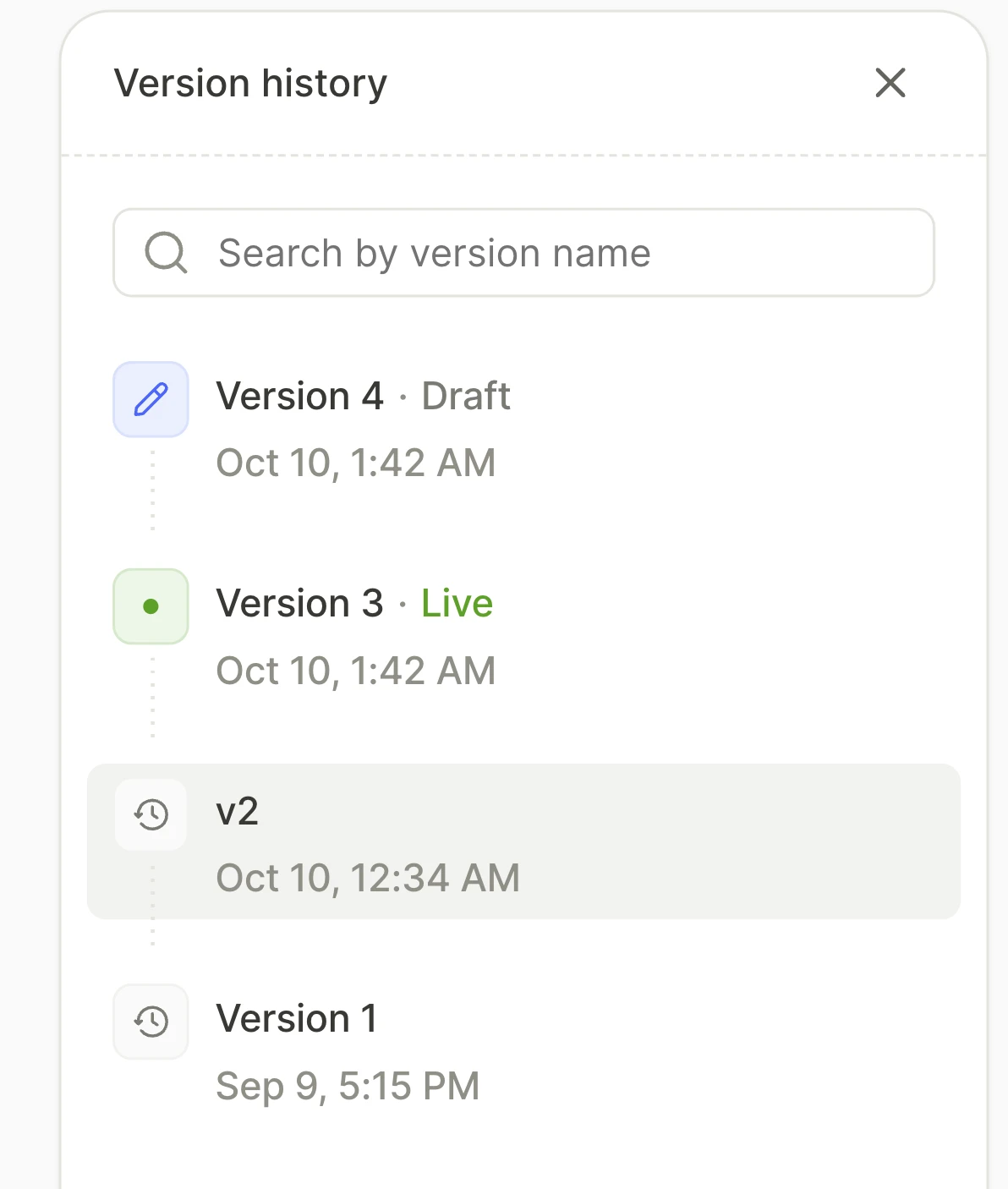
To inspect element properties, close the Version history panel. The preview stays open.
To open the version in the Adapty mobile app, click Test on device, then scan the QR code or open the link.
To return to your latest draft, click Back to current version.
Restore an earlier version
Restoring a version within the same flow replaces your current draft. To keep the draft, duplicate it as a new flow before you restore.
You can take one of two routes to restore a previous flow version. Find the necessary version entry, open its context menu and select one of the options:
- Duplicate as draft: Restore the version within the same flow. If the flow has a draft, confirm with Replace draft. The restored version does not go live until you publish it again. Available for the Live version and the versions that were live before.
- Duplicate as new flow: Restore the version as a new flow. The original flow stays unchanged, and keeps the latest draft. The new flow opens in a new tab.
Restore one screen or element
To restore a single screen or element, preview an earlier version, select the element you need, and copy it with a keyboard shortcut (Cmd/Ctrl+C). Go back to the latest draft and paste it there. If the copy uses something you deleted since that version, such as a font or text style, replace the references — otherwise you can’t publish the flow.
Limitations
You can’t:
- Restore an earlier state of your draft. To reverse recent edits, use undo. To discard all changes made since the version was published, restore the Live version.
- Rename, restore, or duplicate a version of an archived flow. To use these actions, make the flow active first.
Troubleshooting
| Symptom | Cause | Fix |
|---|---|---|
| When you publish the restored version, the Can’t publish yet dialog appears. | The newly restored version uses a product or offer that no longer exists. | Replace the product reference and fix any other existing issues. |
When you restore an earlier version, you see the error This flow configuration was already updated by …. | A teammate changed the draft after you opened the flow. | Reload the page, then restore it again. |