
Submit your iOS app to the App Store
Once your Adapty integration is tested and working, you’re ready to upload your build to App Store Connect and submit your app for Apple review.
Before you submit, make sure you’ve completed the Release checklist to verify your Adapty integration, purchase flows, and store review requirements.
Upload your build to App Store Connect
Step 1. Archive your app in Xcode and upload it to App Store Connect
- In Xcode, set the build destination to Any iOS Device (arm64).

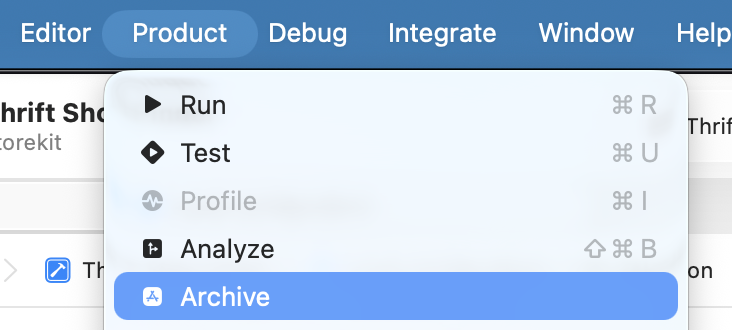
- Select Product > Archive from the top menu bar.
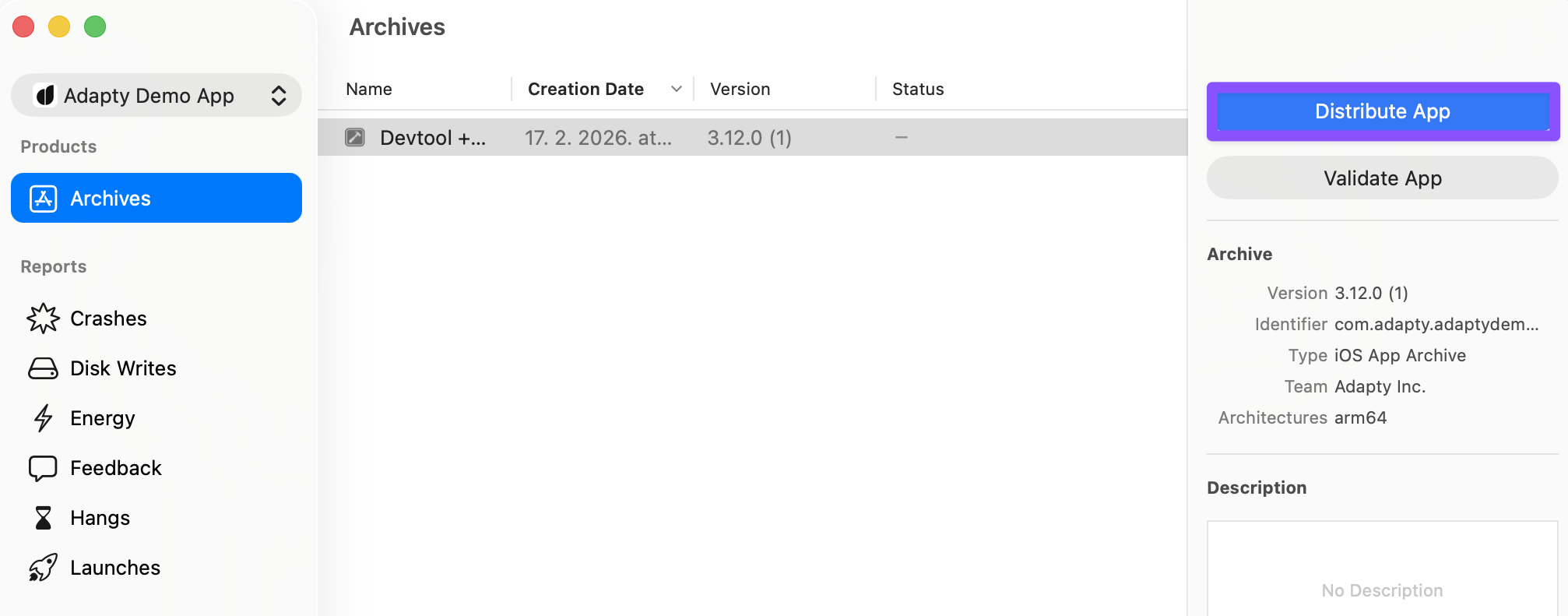
- Wait for the archiving process to complete. The Organizer window opens automatically. Select your archive and click Distribute App.
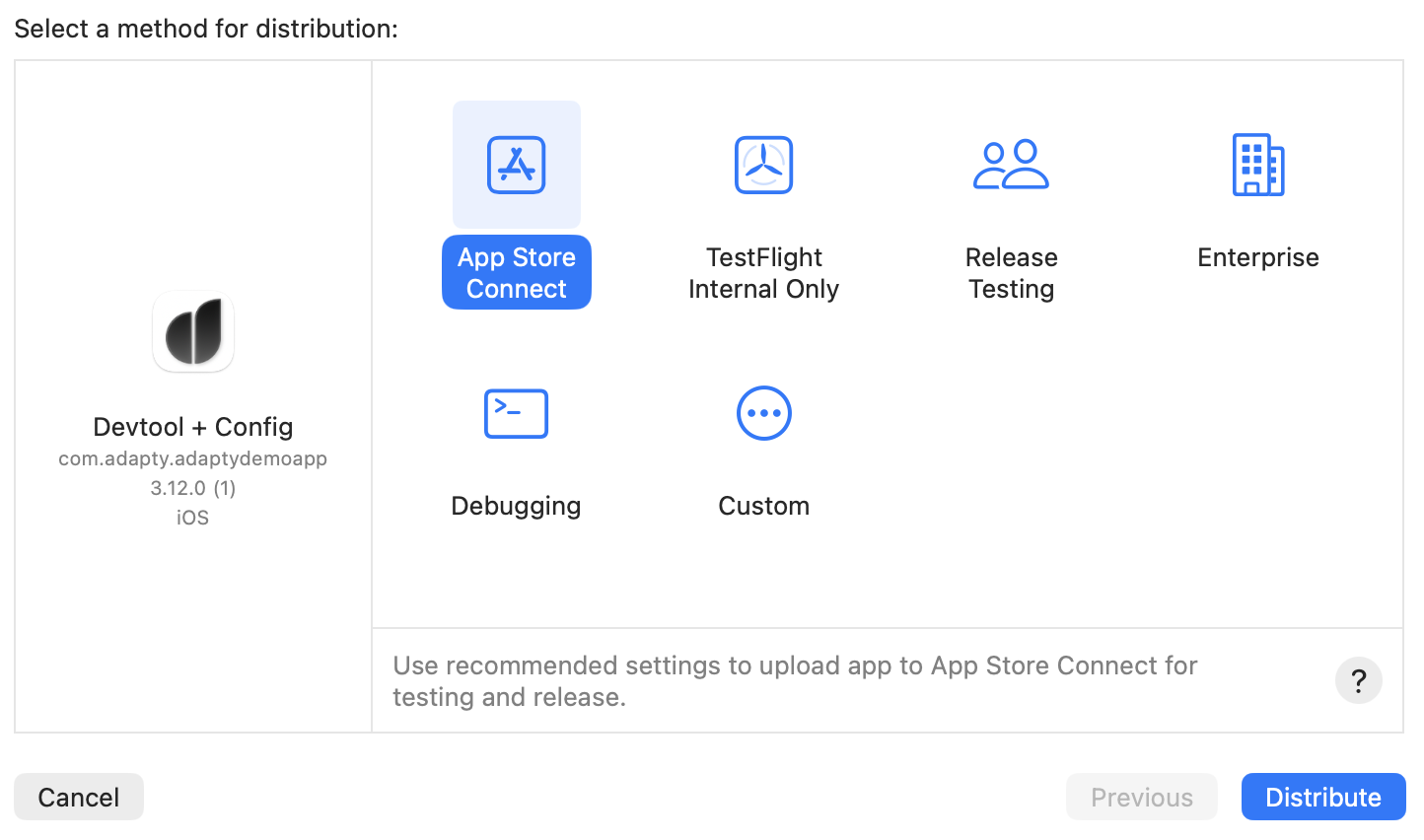
- Choose App Store Connect as the distribution method. Follow the prompts to complete the upload.
The upload may fail if required assets are missing, such as an app icon or launch screen. Check the Xcode error log for details.
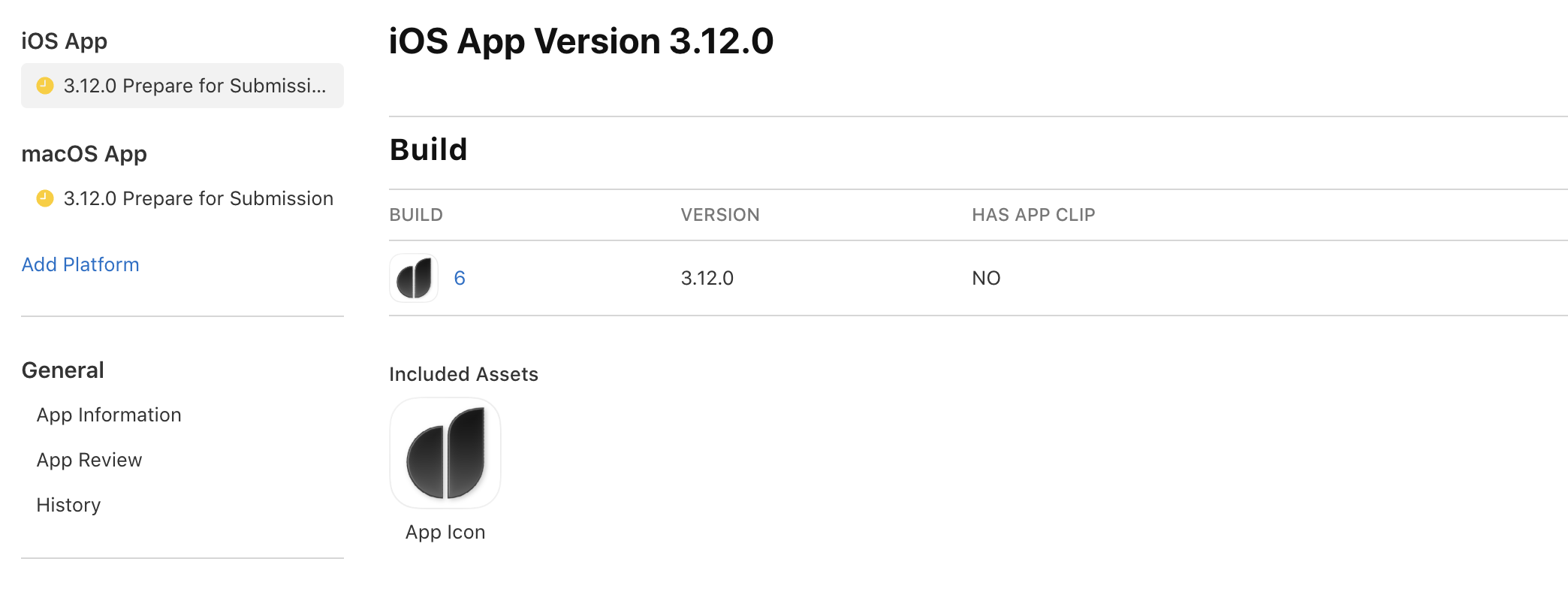
Step 2. Check the build in App Store Connect
- Go to App Store Connect and open your app.
- Scroll to the Build section. Ensure that the build you just uploaded appears there.
It may take a few minutes for the build to appear in App Store Connect after uploading.
Submit your app and products for review
After the build appears in the Build section, attach your in-app subscriptions and submit the app for Apple review.
Step 1. Attach products to the submission
Each subscription must have the Ready to Submit status in App Store Connect before you can attach it. If a subscription is still in draft or missing metadata, it won’t appear in the list.
- On the same page, scroll to the In-App Purchases and Subscriptions section.
- Click Select in-app purchases or subscriptions.
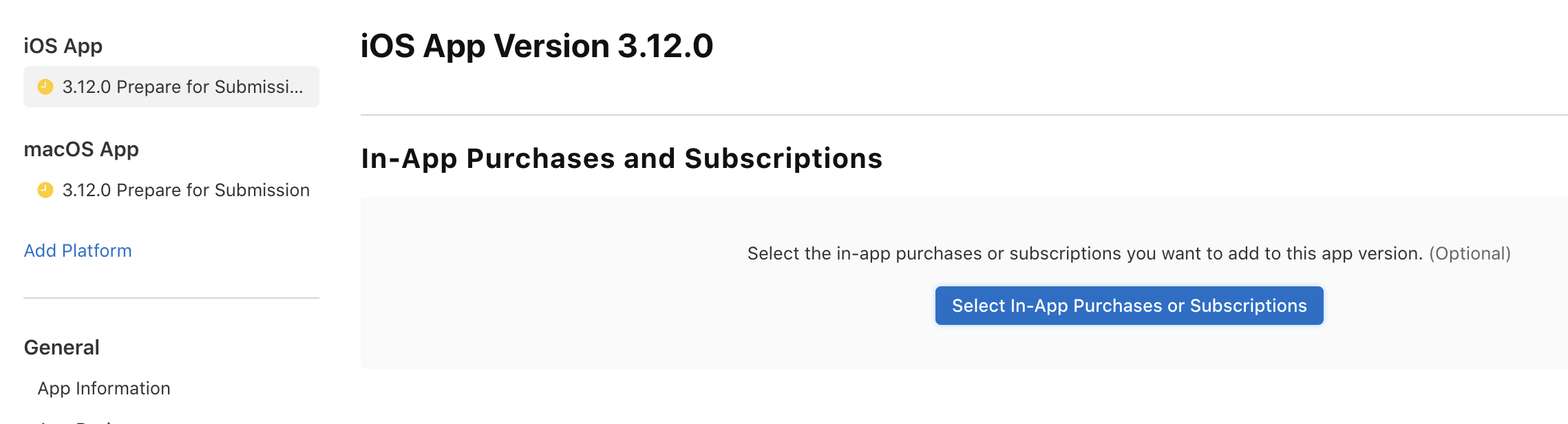
- Select all products you want to include in this submission and click Done.
Step 2. Submit for review
- Complete all required fields on the page (description, screenshots, keywords, etc.).
- In the App Store Version Release section, select whether you want to release your app automatically, manually, or on schedule after it is approved.
- Click Add for Review, then click Submit to App Review.
Apple reviews apps within 1–2 days, though review times may vary.
Verify your app in production
After Apple approves your app:
- Make a real purchase (or wait for your first user to purchase).
- Open the Event Feed in the Adapty Dashboard and confirm that production transaction events appear.
- Check that subscription events (renewals, cancellations) flow correctly — these depend on App Store server notifications being configured.
If production events don’t appear, verify your App Store connection configuration.
Next steps
Your app is live. Start growing your subscription revenue:
- A/B testing: Experiment with different paywalls to find what converts best.
- Analytics: Track subscription metrics like MRR, churn, and conversion.
- Integrations: Send subscription events to analytics and attribution platforms.