
Show a strikethrough price with a discount badge
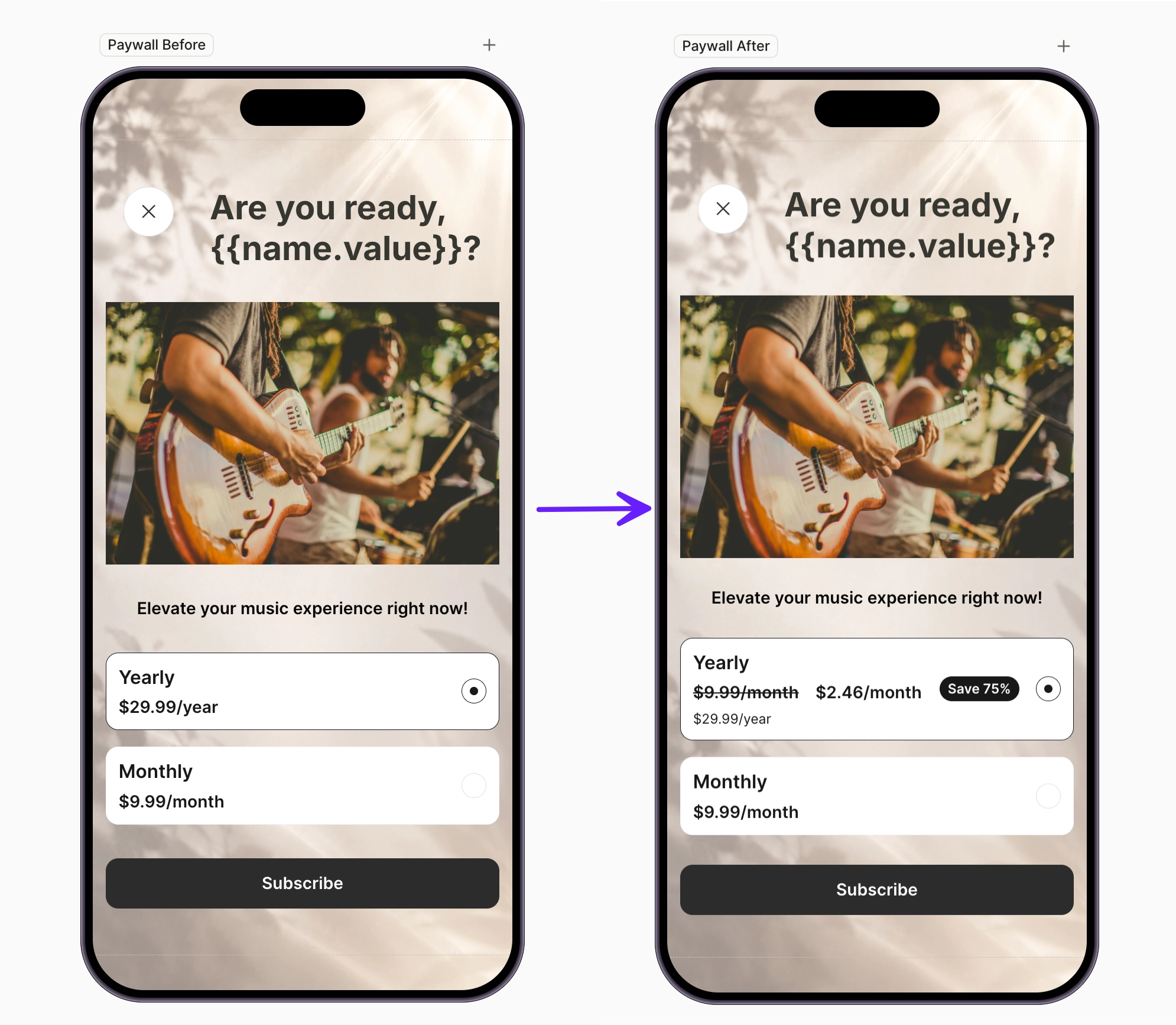
A crossed-out price next to the real one makes the discount visible at a glance. This recipe reworks a yearly product card to show what the subscription would cost per month on the monthly plan — struck through — next to the yearly plan’s effective monthly price, topped with a discount badge.
Strikethrough formatting applies to a whole text element — you can’t cross out a variable inside a larger text. That’s why the crossed-out price lives in its own text element, side by side with the discounted price in a horizontal container.
If an inflated “before” price for the same product is enough — for example, double the current price, crossed out — add the ready-made Old Price element instead. This recipe covers the case where the crossed-out price is another product’s real price.
Before you start
- Build a paywall screen with products — for example, follow Create a basic paywall screen. This recipe assumes the paywall offers a yearly and a monthly product.
1. Stack the price rows
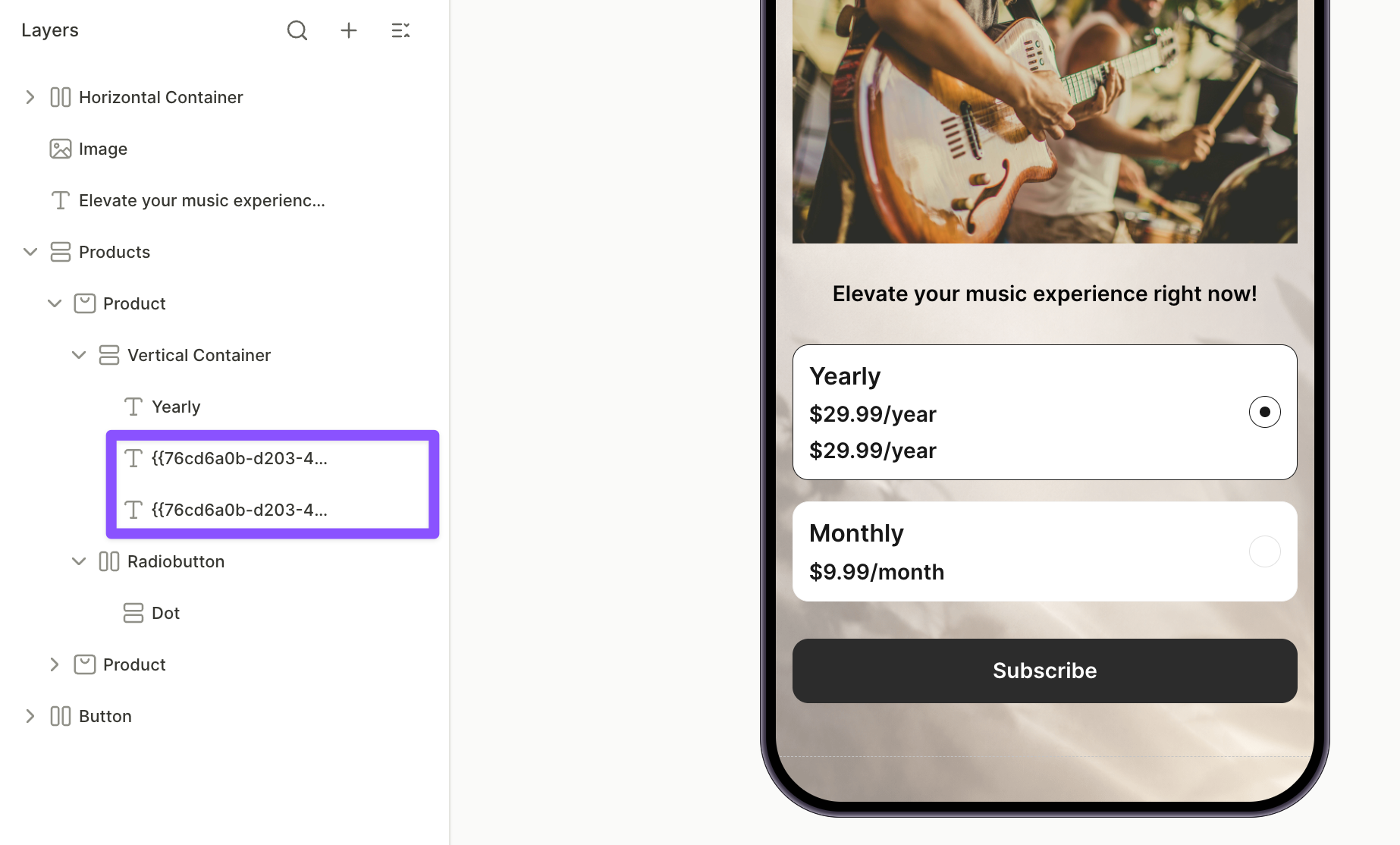
The yearly card starts with a single price line — the yearly product’s prod_price variable followed by /year, which renders as, for example, $29.99/year. Add a second line above it for the monthly pricing.
- In the Layers panel, select the price text inside the yearly product card. It already sits in the card’s vertical container, so the copy will stack under it.
- Click the three-dot menu on the layer and choose Duplicate. The copy appears below the original. In the next step, the top text becomes the monthly price row; the bottom one keeps the yearly price.
2. Split the monthly row into two prices
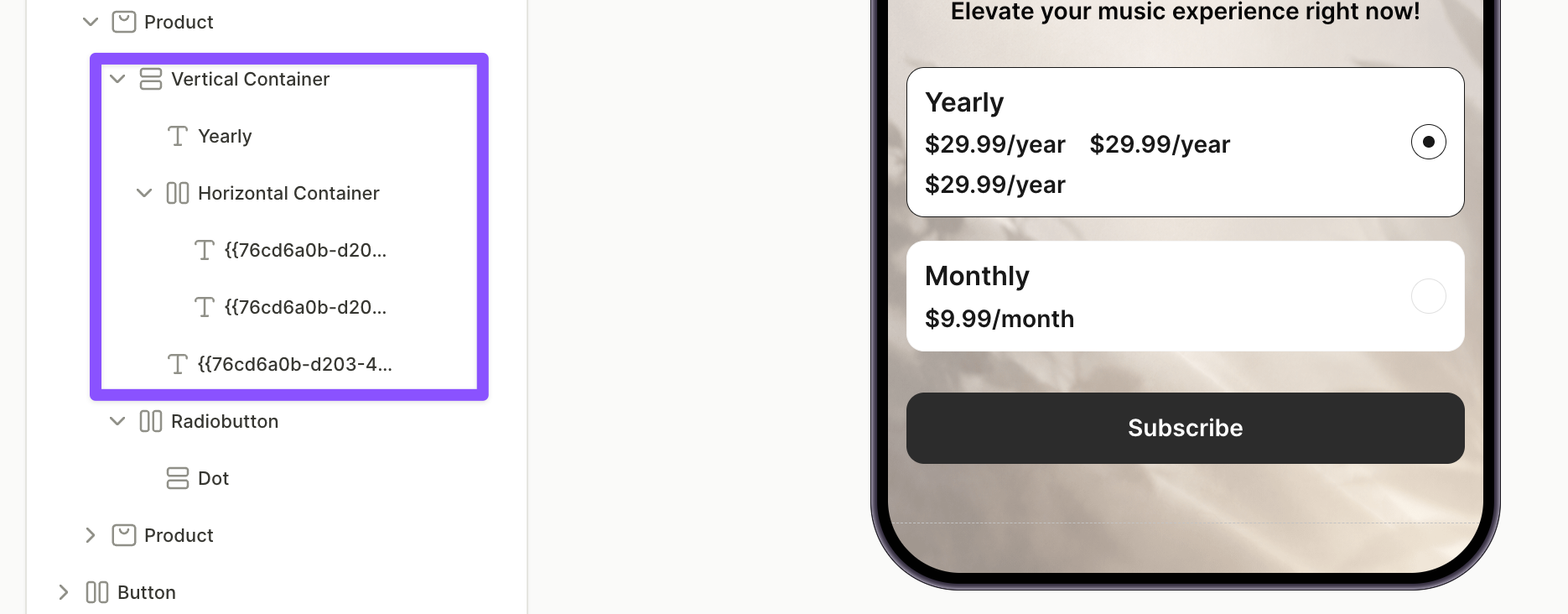
The monthly row holds two text elements: the crossed-out monthly-plan price and the yearly plan’s per-month price.
The variable picker only offers prices of products that are present on a flow screen. To reference a product that isn’t in the flow, create an empty screen, add a Products element there, and assign the product to it. Make sure no navigation action leads to that screen.
-
Select the top text element, click its three-dot menu, and choose Wrap > Wrap in Horizontal Container.
-
Click the three-dot menu on the text layer inside the new container and choose Duplicate.
-
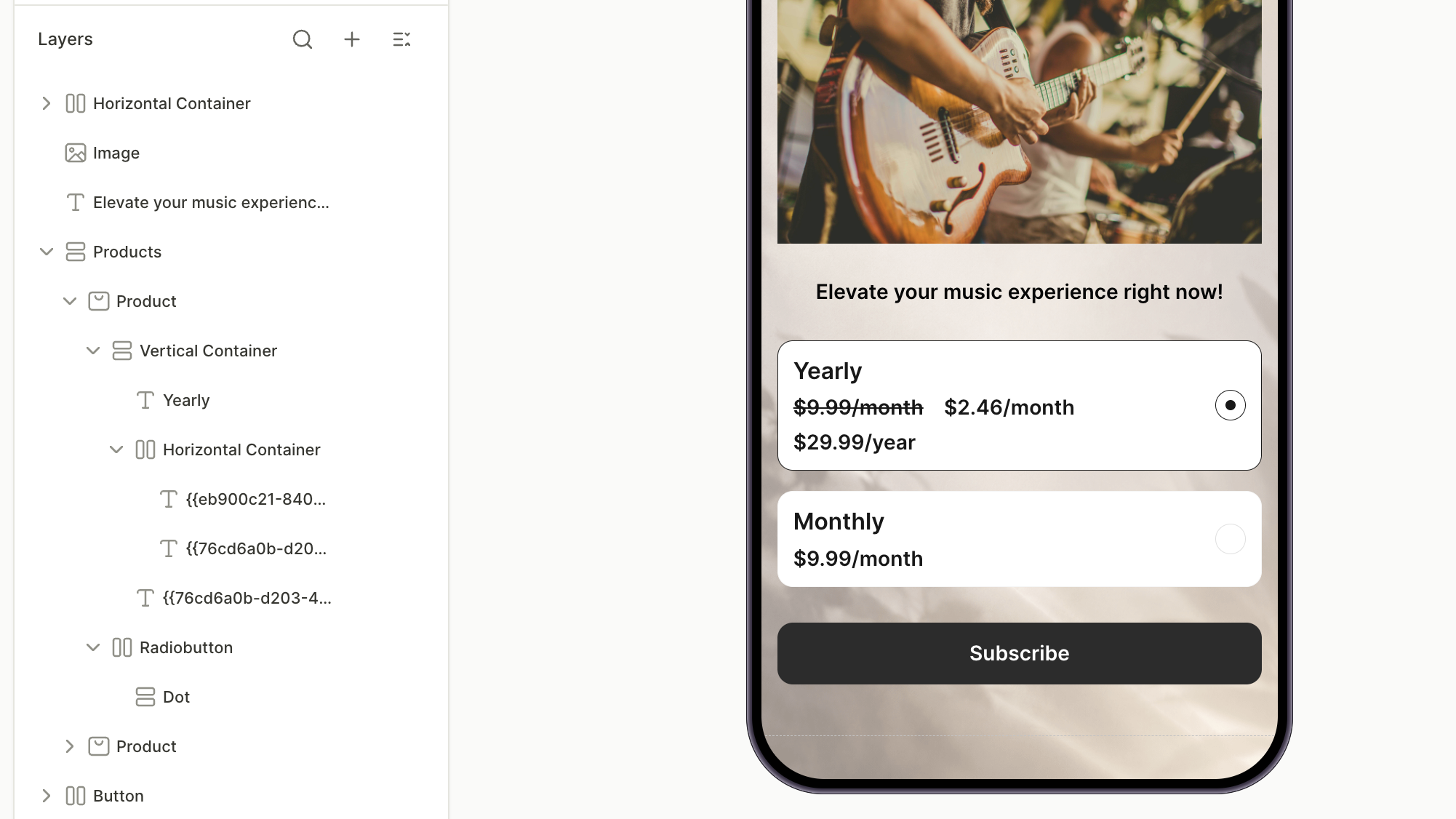
Select the first text element and clear its Content field. Click the variable icon
 , pick the monthly product, then pick its
 prod_price_per_monthattribute. Type/monthafter the variable. -
On the Design tab, under Typography, set Decoration to Strikethrough (see Styles and appearance — Decoration).
-
Select the second text element and replace its content the same way, but pick the yearly product’s
prod_price_per_monthattribute. Type/monthafter the variable.
3. Tone down the yearly price
The duplicated monthly prices inherited the original price styling, so all three prices currently share the same size and weight. Make the yearly price more subtle so the monthly row stands out.
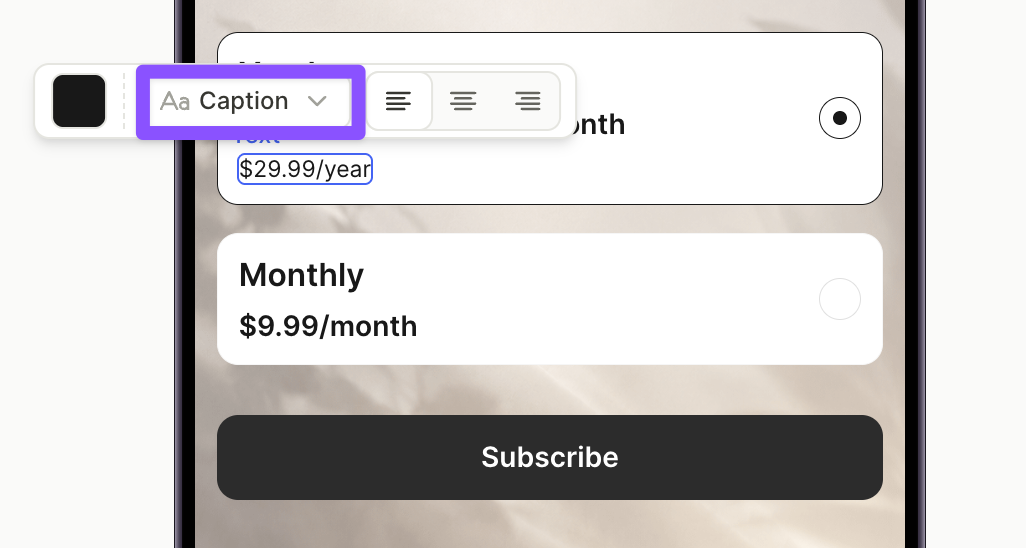
- On the canvas, select the bottom text element — the yearly price.
- In the toolbar above the element, open the text style dropdown and pick a subtler style — for example, Caption. Or, select a different style under Typography on the Design tab.
4. Add the discount badge
The badge highlights the saving next to the prices.
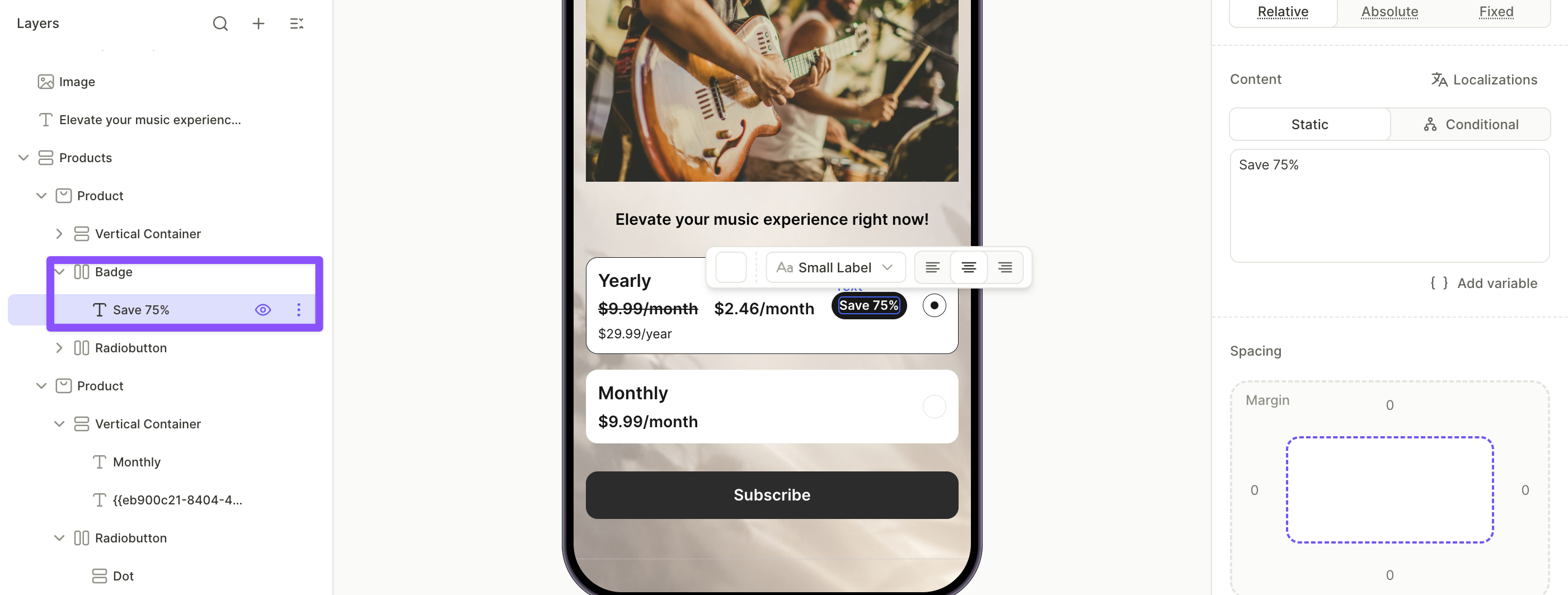
- Click + > Badge.
- In the Layers panel, drag the badge inside the yearly product, between the vertical container with the prices and the radio button.
- Select the badge’s text layer and edit the Content field — for example,
Save 75%.
There’s no variable for the discount percentage — calculate it from your prices and enter it as static text.
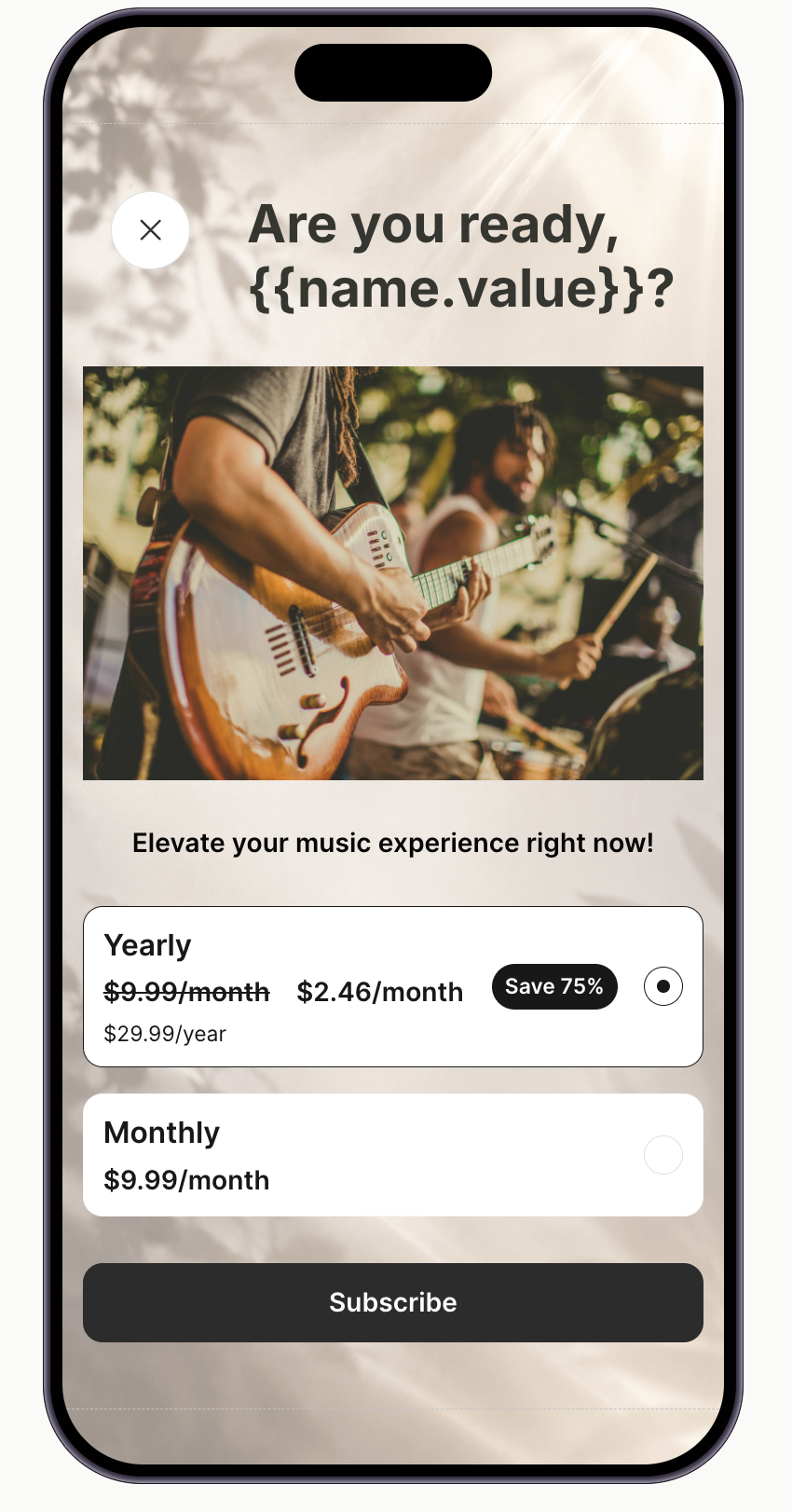
Now the yearly card anchors its price against the monthly plan: the crossed-out monthly price, the yearly plan’s effective monthly price, and the discount badge sit on one line, with the full yearly price below.
Next steps
- Save and publish your flow.
- Add the flow to a placement to start showing it to users.