
Element states
Interactive flow elements change their look based on user actions: a tapped quiz option becomes Selected, a focused input becomes Active. Some states are condition-driven — for example, you can disable a button. Style each state separately to give users visual feedback without app code.
Available states by element kind
| Element kind | Built-in states | Addable states |
|---|---|---|
| Selectable elements | Default, Selected | Disabled |
| Inputs | Default, Active, Invalid | Disabled |
| Any element with a tap interaction — buttons, images, icons, containers, and so on | Default | Disabled |
| Progress indicator steps | Completed, Current, Upcoming | — |
Addable states don’t appear by default — open States settings to add them. They are condition-driven: you define when they activate.
How to style a state
-
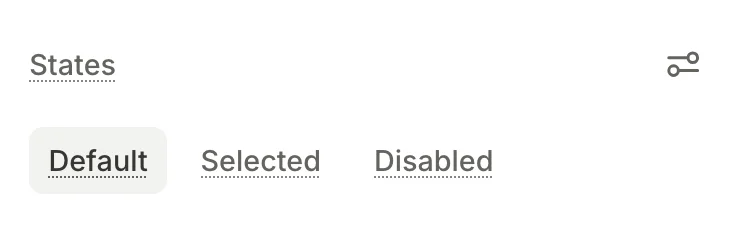
Select an element. The States section in the right panel lists the states the element supports.
-
In the States section, activate the target state. Add the condition-driven Disabled state if needed.
-
Change any property — fill, border, typography, and so on. The change is scoped to that state.
Nested elements become stateful alongside the parent. Any change to a child is scoped to the parent’s active state.
-
The Builder applies the matching style at runtime.
Selectable element states

Selectable elements — quiz options, products, tabs, toggles and checkboxes, and any custom selectable element — have two states out of the box:
- Default: The element’s resting appearance.
- Selected: Applies when the user taps the element. The Builder reverts to Default when the user de-selects the element.
In a single-choice group, selecting one element de-selects the others. Multi-choice groups let several be Selected at the same time. Toggles are independent — selecting one has no effect on its siblings. See group types.
To reuse state-specific styles, add them to one element, such as a product card. Then ask the AI Editor to apply them to the other elements. State-specific styles don’t carry over between siblings on their own.
Input states
- Default: The input’s resting appearance.
- Active: Applies while the input is focused.
- Invalid: Applies when the input’s content fails validation. For example, when an email field doesn’t contain
@. See Input validation. - Disabled: The input is not interactive. Add this state manually; see Condition-driven Disabled state.
Style each state the same way as a selectable element: activate the target state, change properties.
Condition-driven Disabled state
The Disabled state prevents the user from interacting with an element. Unlike Default, Selected, Active, or Invalid, the Disabled state does not activate on its own — it requires a user-defined trigger condition.
Disabled is available on:
- Inputs: Any input field — text, email, password, number, phone, date and/or time.
- Selectable elements: Quiz options, products, tabs, toggles and checkboxes, and any custom selectable element.
- Any element with a tap interaction: For example, a button, image, or icon that triggers a navigation action.
Add the Disabled state
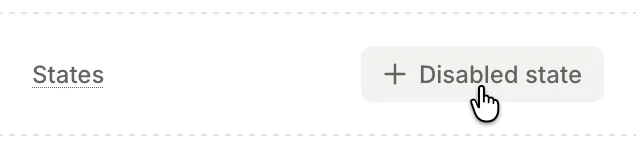
To add and configure a Disabled state:
- Select the target element.
- In the States section, click Settings .
- Choose Add Disabled state. The Disabled state appears in the States section.
- Next to the new Disabled state, click Edit conditional state .
- Add a condition. If you want to disable the submit button unless the input passes validation, compare the input’s
isValidvariable tofalse. - Style the Disabled state to visually communicate the restriction (for example, lower the opacity).

The Adapty SDK evaluates the condition at runtime and applies the Disabled state when appropriate — no app code needed.
Step states for progress indicators
Main article: Progress indicators
Progress indicators show users how far they’ve gotten in an onboarding flow. Each step has three states:
- Completed: Steps the user has passed.
- Current: The user’s current step.
- Upcoming: Steps the user hasn’t reached yet.