
Brand in Adapty Mail
A brand is a consolidated profile that Adapty Mail builds from your app’s public sources — App Store or Google Play listing, landing page, terms and privacy pages, and social profiles. It drives email copy, tone, visuals, web paywall content, and the demo. One brand per project; every downstream feature reads from the same profile.
Open the brand from the Brand entry in the Adapty Mail sidebar.
- If the page opens to a filled-in profile: Adapty Mail built it from your Adapty project’s store URL when you signed up. Review and refine it.
- If the page opens to a setup screen: No brand exists yet — see Set up from scratch. Standalone signups always start here, and so does an Adapty project with no store URL, such as a web-to-app funnel.
What’s in a brand profile
A brand has 13 sections. Adapty Mail uses these directly in email and web paywall generation.
- Identity: App name, short description, tagline.
- Visual identity: Logo, seven colors (primary, background, secondary, accent, text, CTA background, CTA text), heading and body fonts, and a free-text style note.
- Audience: Demographics, languages, markets.
- Features: Each feature has a name, the benefit it delivers, and an optional description.
- Insights: Unique value proposition, observations, common objections paired with counters, and tags.
- Brand voice: Tone, formality level, vocabulary, emotional register.
- Voice samples: Sample headlines, sample CTAs, and tone presets used during email generation.
- Social proof: User count, rating, rating count, press mentions, key metrics. The App Store rating is a count-weighted average across 20 major storefronts — Apple publishes no worldwide figure, and a single storefront undercounts by orders of magnitude.
- Social links: Twitter, Instagram, TikTok, YouTube, Facebook, LinkedIn.
- Legal: Terms URL, privacy URL, support email.
- Reviews: User reviews extracted from the store source — content, author, rating, source. Review text and author names stay exactly as written, in their original language, so a brand profile in English can still hold Spanish or Turkish reviews.
- Pain points: Pain statements grounded in reviews or social signal.
- FAQ: Questions and answers used in email content and web paywall sections.
Edit a section manually
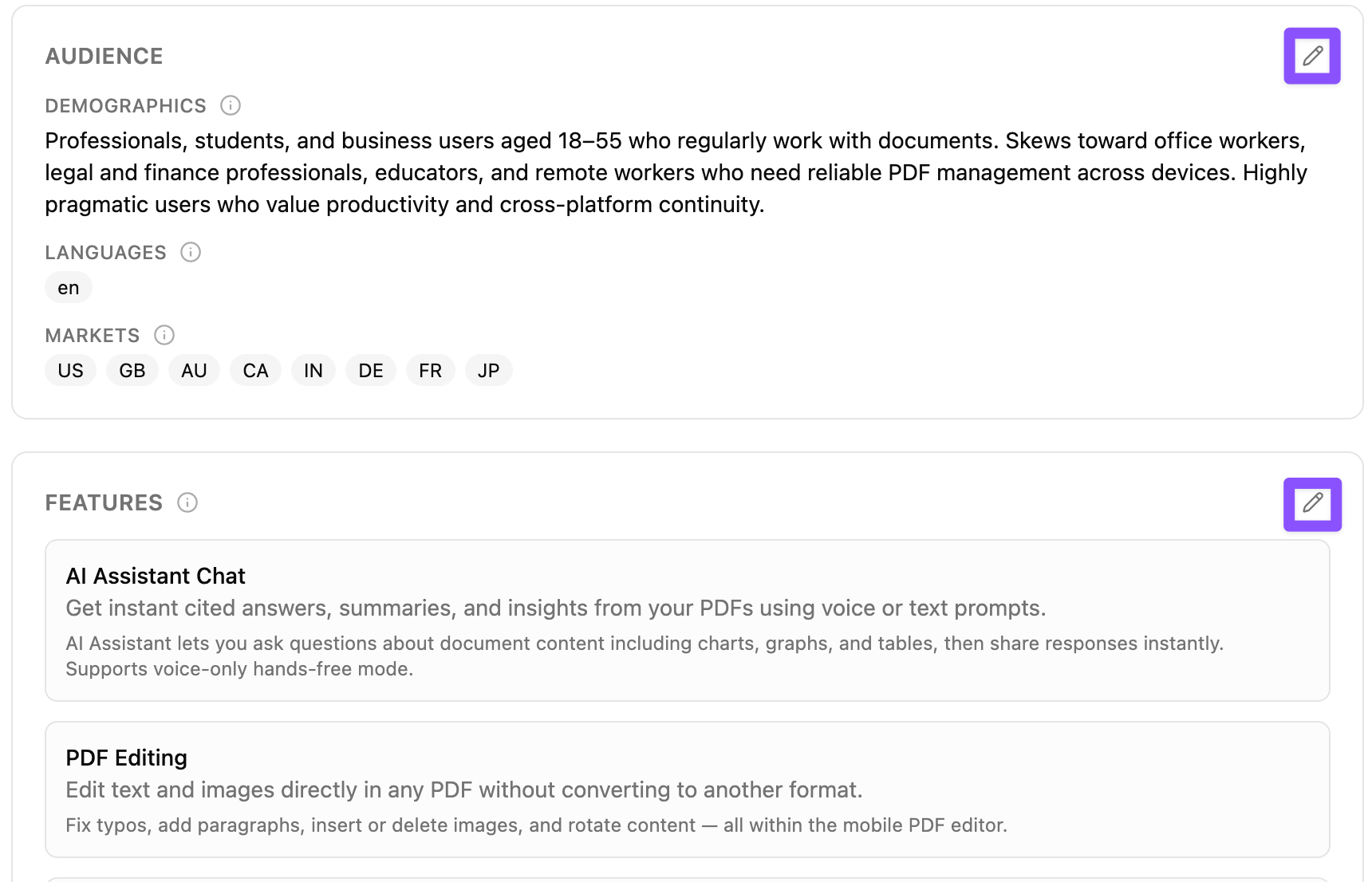
Every section in the brand view has an Edit button. Clicking it opens an inline editor for that section.
-
Click Edit on the section you want to change.
-
Update the fields, then click Apply at the bottom of the editor. The section closes and its new values join the page’s draft, marked by the Unsaved draft banner at the top.
-
Click Save in the draft banner to commit every applied section. Click Discard to drop them all.
Only one section can be open at a time. If you try to open a second section, the first one prompts you to finish or cancel.
Edits are paused while a source is processing — a finishing source could overwrite your in-progress changes. Any open editor closes automatically when processing starts, and the Save button stays disabled in the draft banner until processing finishes.
Logo, colors, and fonts
The Visual identity editor is the one section that isn’t plain text fields:
- Logo is the first control in the editor, a drop area: drop an image on it or click to pick one. PNG, JPEG, and WebP up to 8 MB are accepted, and a PNG or WebP keeps its transparency. Once a logo is in place, the area previews it and offers Remove logo; dropping another image replaces it.
- No logo URLs: The field takes an image uploaded to this project or nothing at all, which is why Adapty Mail copies your store icon onto its own storage when it builds the brand — see How brand assets reach your emails.
- Colors is a grid of seven swatches — Primary, Background, Secondary, Accent, Text, CTA background, CTA text. Each pairs a color picker with a hex field, so you can eyedrop a shade or paste an exact value like
#aabbcc. - Heading font, Body font, and Style are free text. Fonts take a family name, and Style takes a short description such as Modern, minimalist.
Every one of these feeds both email generation and the web paywall, so a color you correct here changes the next campaign and the next generated paywall alike.
Refine with AI
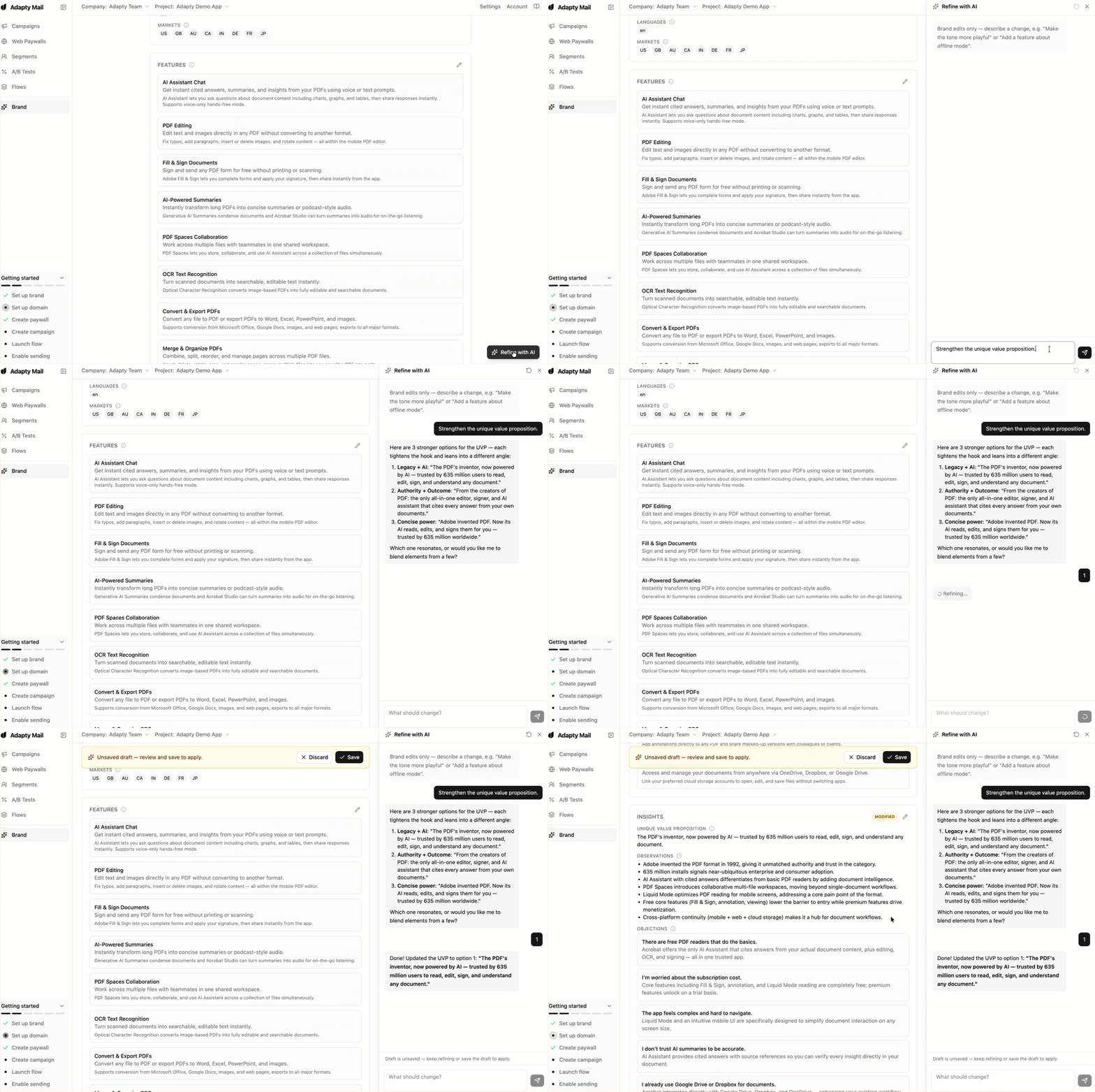
The Refine with AI button in the bottom-right opens a chat panel beside the brand. Use it to describe changes in plain language; the AI proposes a refined draft you can save or reject.
- Click Refine with AI.
- Describe the change. The chat scope is brand edits only — it won’t answer general questions or rewrite copy outside the brand profile.
- Review the proposed draft in the main view. Adapty Mail highlights changed sections.
- Click Save in the draft banner to apply, or Discard to keep the saved brand.
Useful prompts:
- “Make the tone more playful.”
- “Add the offline mode feature.”
- “Strengthen the unique value proposition.”
- “Rewrite the audience description for a US market.”
Add more sources
The store source seeds the profile. Additional source types refine specific sections — landing pages improve visual identity and copy, terms and privacy pages improve legal links, social profiles improve voice samples and social proof.
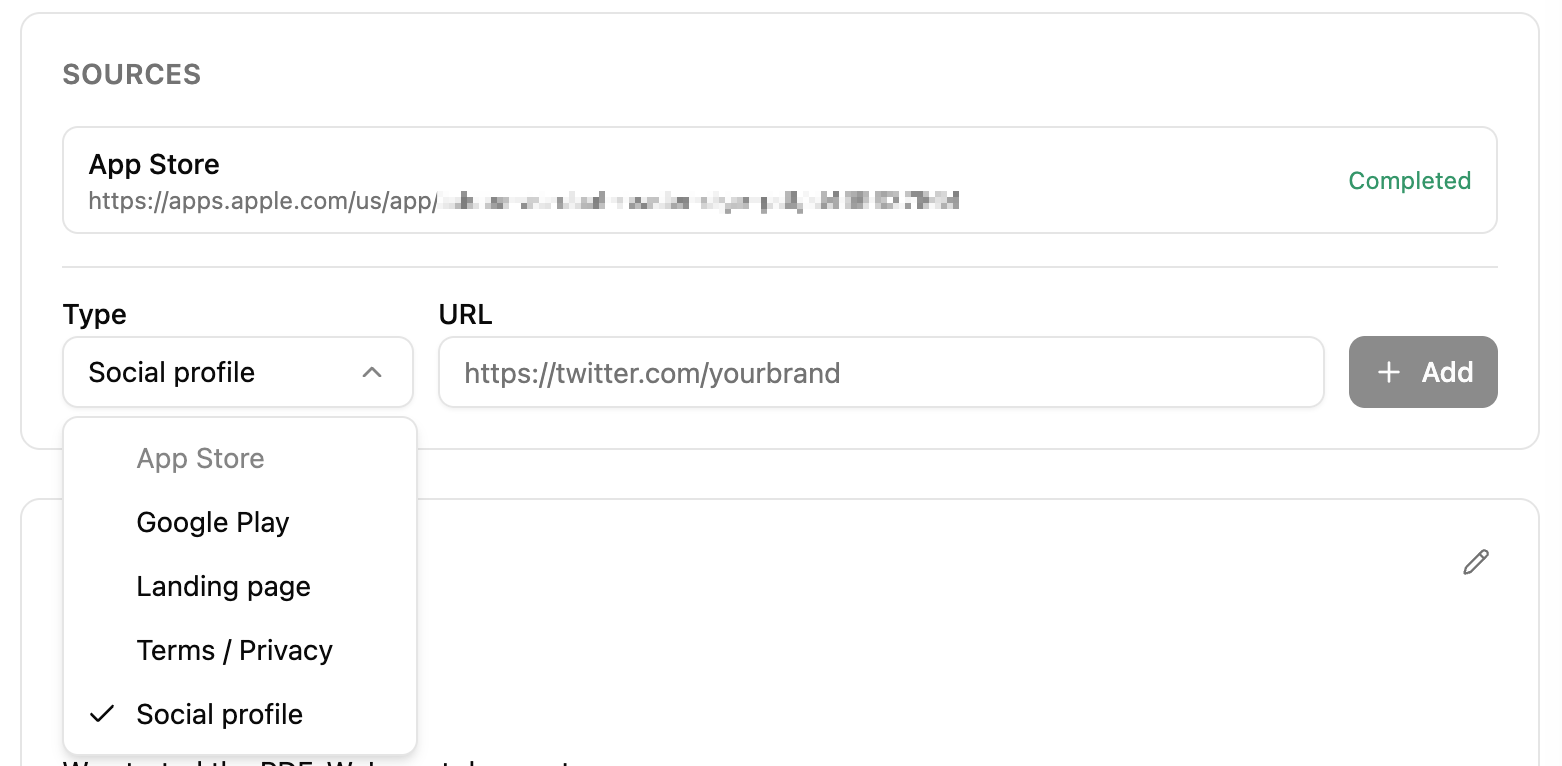
In the brand view, the Sources panel lists every source and an Add form below it. Pick a type, paste the URL, and click Add.
- App Store:
https://apps.apple.com/... - Google Play:
https://play.google.com/store/apps/details?id=... - Landing page: Your marketing site, for example
https://yourapp.com. - Terms / Privacy: A direct link to your terms or privacy page.
- Social profile: Twitter, Instagram, TikTok, YouTube, Facebook, or LinkedIn URL.
Only one source per type. The selector disables a type once a source of that type is in flight or completed. To replace a source, delete the brand and re-onboard — individual sources can’t be removed.
Set up from scratch
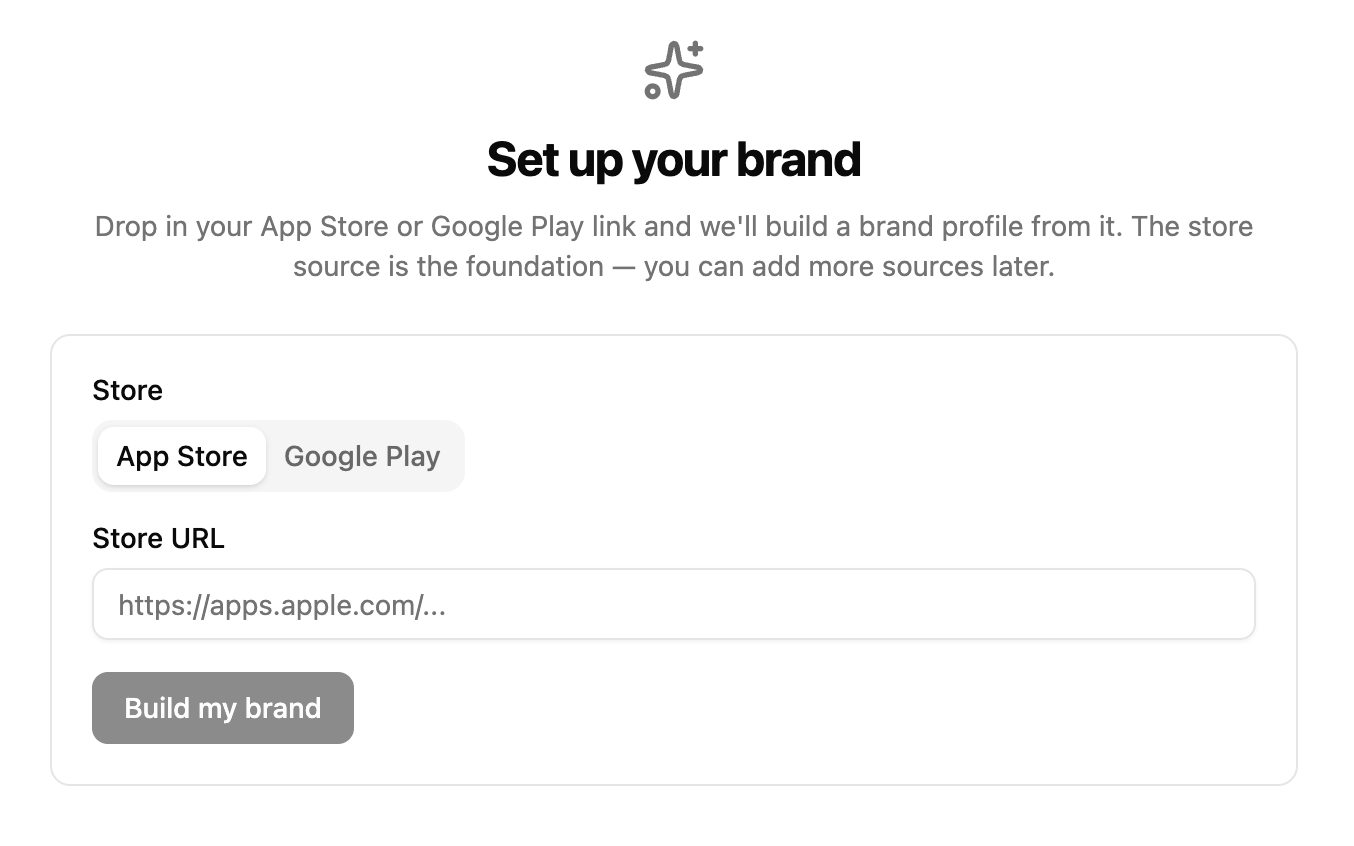
If your project doesn’t have a brand yet — every standalone signup, and any Adapty project without a store URL — the Brand page opens to a setup screen. The store source — App Store or Google Play — is the foundation; other source types can be added afterward.
-
Pick the store (App Store or Google Play) and paste the listing URL.
-
Click Build my brand. Adapty Mail fetches the page, parses reviews, and infers your brand voice. Processing usually takes under a minute.
-
When processing finishes, the brand view opens with all 13 sections populated.
If a source fails (invalid URL, unreachable page, parser error), the screen shows the error message and a Try again button. Fix the URL and resubmit.
Where the brand is used
Brand is consumed by every downstream feature that needs to know what your app sounds like and looks like:
- Email generation: Copy, tone, visuals, sender block, and hero imagery all read from the brand. See Create a campaign.
- Web paywall builder: Brand is a prerequisite for paywall generation — without
brand_saved, generation is blocked. See Set up checkout. - Onboarding: The Set up brand step in the onboarding checklist toggles to complete when a brand exists.
How brand assets reach your emails
When Adapty Mail builds the brand, it copies your app icon onto its own storage instead of hot-linking it from the store’s CDN, so an email body doesn’t pull images from a third-party host. At send time it rewrites that URL once more, to the go. host of the sending domain carrying the email — so recipients load your logo and hero images from your own domain.
Copy is baked into a campaign when it’s generated, but the logo, brand name, and postal address are resolved per send. Change any of the three and Adapty Mail applies the new value to every email still scheduled, with no regeneration.
Delete a brand
The Delete brand action lives in the Danger zone at the bottom of the brand view.
- Click Delete in the Danger zone section.
- Confirm in the dialog.
Deletion removes the brand profile and every source. There’s no undo — to recover, paste an App Store or Google Play URL on the start screen and onboard from scratch.
Existing campaigns keep the copy they were generated with, but the logo and brand name resolve at send time — with the brand gone, emails still scheduled go out without either. New campaigns and paywall generations are blocked until you re-onboard a brand.
Limitations
- One brand per project: Each Adapty Mail project has a single brand. To target a different app, create a new project.
- A store listing starts every brand: The setup screen takes an App Store or Google Play URL and nothing else. Landing pages, terms pages, and social profiles refine a brand that already exists; none of them can create one.
- One source per type: A brand can have at most one App Store, one Google Play, one landing page, one terms/privacy, and one social profile source.
- No per-source removal: Individual sources can’t be removed from the UI. Use Delete brand if a source needs to be replaced.
- Editing paused during processing: Section edits, refine-chat saves, and brand deletion are all blocked while a source is in
pendingorprocessingstate. - Failed sources stay listed: A source in
failedstate stays visible in the panel with its error message. Submit the same type again to retry — the failed entry is replaced when a new schedule succeeds.