
Reuse elements across flows
Most paywalls in an app share the same parts: the plan selection, the trial timeline, the comparison block. Rebuilding those by hand in every flow is slow, and the copies drift apart. The flow-generator skill can save any piece of a flow to a file and add it to another flow — in the same app or a different one — resolving the colors, fonts, icons, and product bindings that piece depends on.
The saved file is plain JSON. Keep it next to your app code, commit it, or send it to a teammate.
This is part of the flow-generator skill, so there is nothing extra to install — follow the flow-generator installation steps and you have it. It saves changes to flows in your dashboard, so run it against a draft first and review the result in the Flow & Paywall Builder before you publish.
What it’s for
- A component library your team actually shares. Save the plan selection once. Every new flow starts with the real thing instead of an approximation.
- Fix it once, push it everywhere. Correct the trial timeline in one flow, save it, and add it to the others.
- Move a proven block into a new app. A block that converts in one app is a reasonable starting point in the next. The skill rebinds its products to the destination app’s catalog.
- Keep one design system in step. Save just the colors and text styles — no elements at all — and apply them to another flow.
How to use it
Ask for it in plain language. The skill does the rest.
Save a piece of a flow
Save the plan selection from my Premium paywall so I can reuse it.The skill writes one file and prints its full path, so you always know which file to commit or send on. It also summarizes what went in — how many elements, and how many colors, text styles, groups, and products came with them.
It asks one question: whether you’ll reuse this inside the same app or anywhere. The file is complete either way, so a wrong answer costs nothing.
You can save an element and everything inside it, a whole screen, a reusable component, or a theme on its own.
Add it to another flow
Add the two-plan selection to my onboarding paywall, above the CTA.Before writing anything, the skill shows you a plan: exactly where the block will land, what it adds, which colors and text styles it takes from the destination instead of its own, and any IDs it has to rename to avoid a collision. It also prints the copy it is importing, so you can catch text that belonged to the old flow.
Anything it can’t resolve by itself — a product missing from this app’s catalog, a variable with no source here — is listed separately, as something for you to finish rather than something it guessed at.
Read the plan, then say go. The skill writes the draft and renders the screen so you can see the result.
Examples
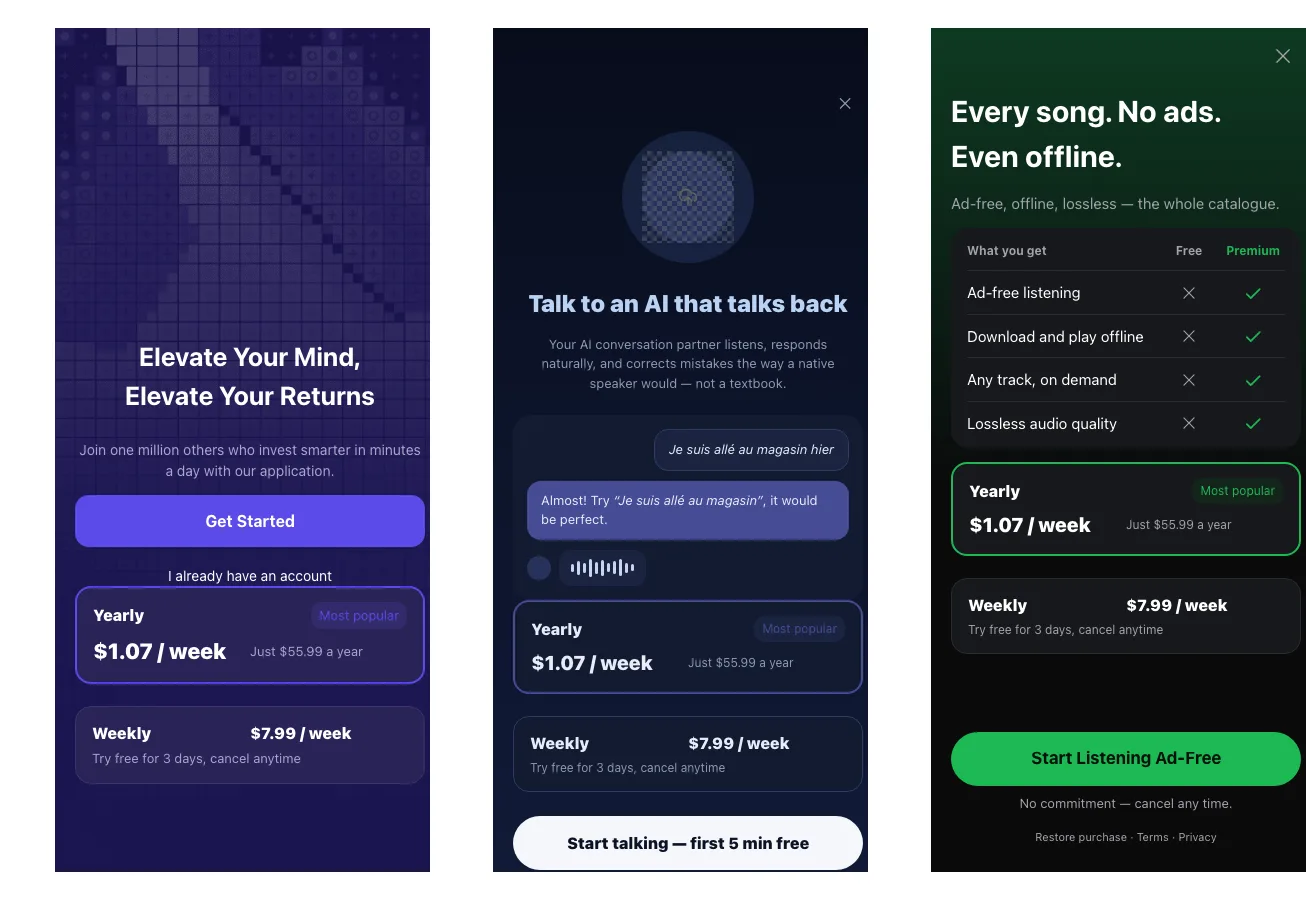
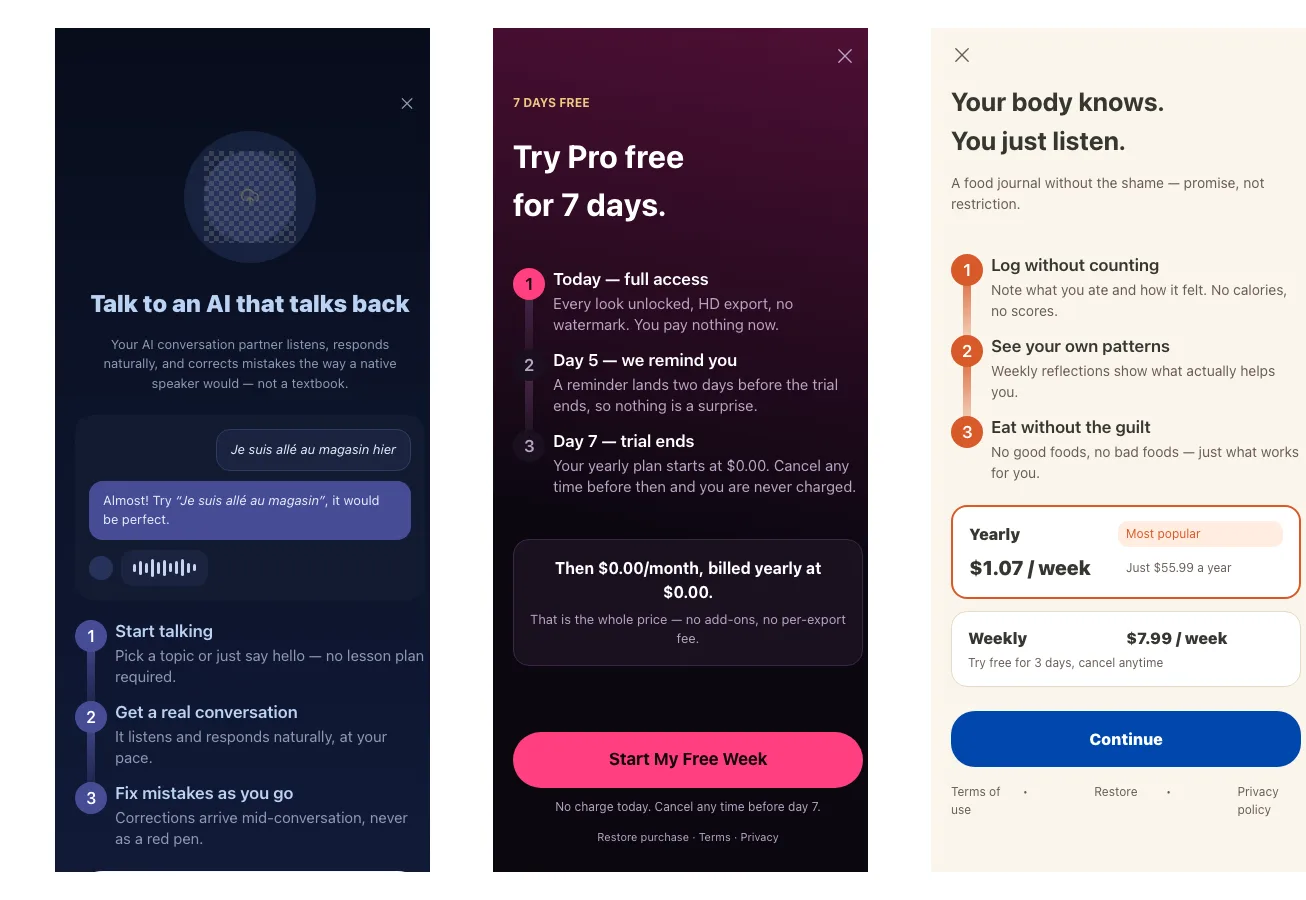
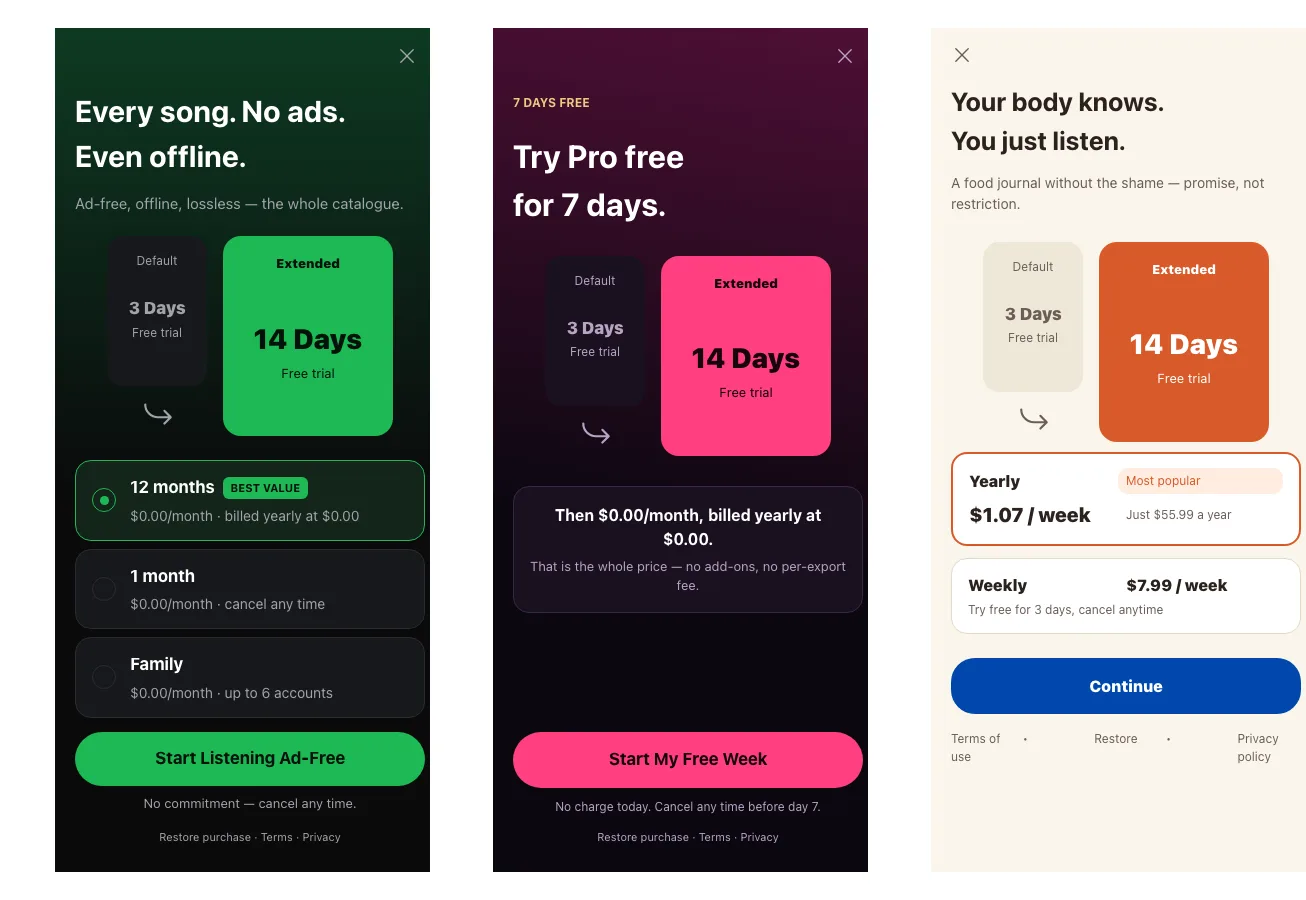
Each row below is one saved element added to three different flows. Nothing was rebuilt — the same file produced all three, and the skill fitted it to each destination.
A two-plan selection, in an investing app, a language app, and a music app. The cards keep their structure and take each app’s accent color.
A trial timeline. The structure travels; the copy stays specific to each product, because three numbered steps mean nothing if they describe the wrong app.
A trial comparison. This one has no products and no variables, so it moves between apps unchanged.
How it works
A saved element rarely stands alone. It points at colors, text styles, fonts, icons, products, and variables that live elsewhere in the flow. The skill sorts those into two kinds.
Things it can carry. Colors, text styles, fonts, and icons travel inside the file, complete with their definitions. At the destination:
| The destination | What happens |
|---|---|
| Already means the same thing by that name | Reuses it |
| Uses that name for something different | Adopts the destination’s value, and tells you |
| Has never heard of it | Adds the definition from the file |
Adopting is usually what you want: a card moved into another app should look like that app. Both values appear in the plan, so you can override the choice.
Things it can’t carry. A product ID, a variable’s source, a Navigate to screen target — these point at something specific to a flow or an app. The skill rebinds them where it can, and lists what it can’t under NEEDS YOU rather than guessing.
Before the draft is saved, the skill re-checks the whole flow: every reference resolves, every locale is filled, no ID collides, and the result still passes the publish check. Anything left over is disclosed, never fixed silently.
What to check
- Copy is about a product. A block that reads well on the flow it came from can be wrong on the flow it lands in. The plan prints the text it’s importing, under
WILL SAY, so you can catch it before the write. - Prices are variables, not text. If the destination doesn’t have the product a price refers to, the price renders empty. The plan says so.
- Sizing can depend on context. An element sized to fill its old container may stretch in the new one. The rendered preview is what catches this.
Limitations
- Products don’t cross apps by themselves. The skill matches your store product IDs to rebind them, and if a product doesn’t exist in the destination app, it strips the binding and tells you to attach one.
- Videos and custom fonts stay manual. Neither can be uploaded from the terminal.
- The preview renders one screen, in one state. A locale change or a selected state doesn’t show up in it — read the plan for those.