
Test your Adapty Mail flow
Test a campaign before you launch it to real users.
- Test the live chain: exercises the automation and costs you a real payment. Run it at least once before you launch.
- Send the test email: skips the automation, and a Stripe test card works on the checkout.
Before you start
The chain runs end to end only when all of these are true:
- Your sending domain is verified: Open Settings > DNS to confirm. See Set up your sending domain.
- Checkout: Your web paywall is created and published. An unpublished paywall returns an error when the CTA opens it. See Set up checkout.
- Campaign attached to a flow: A campaign on its own stays a draft and sends nothing. An Adapty Mail flow is what makes it live — Manage segments in a flow covers how.
- A live entry point: User data is actually reaching Adapty Mail. Whichever entry point you use, the check is the same: new signups appear on the Profiles page.
Test the live chain
To test a campaign under real conditions, sign up as your own user. Your campaign then emails you like anyone else, and you pay with a real card on your production checkout. The steps below shorten the wait so this takes minutes rather than days.
-
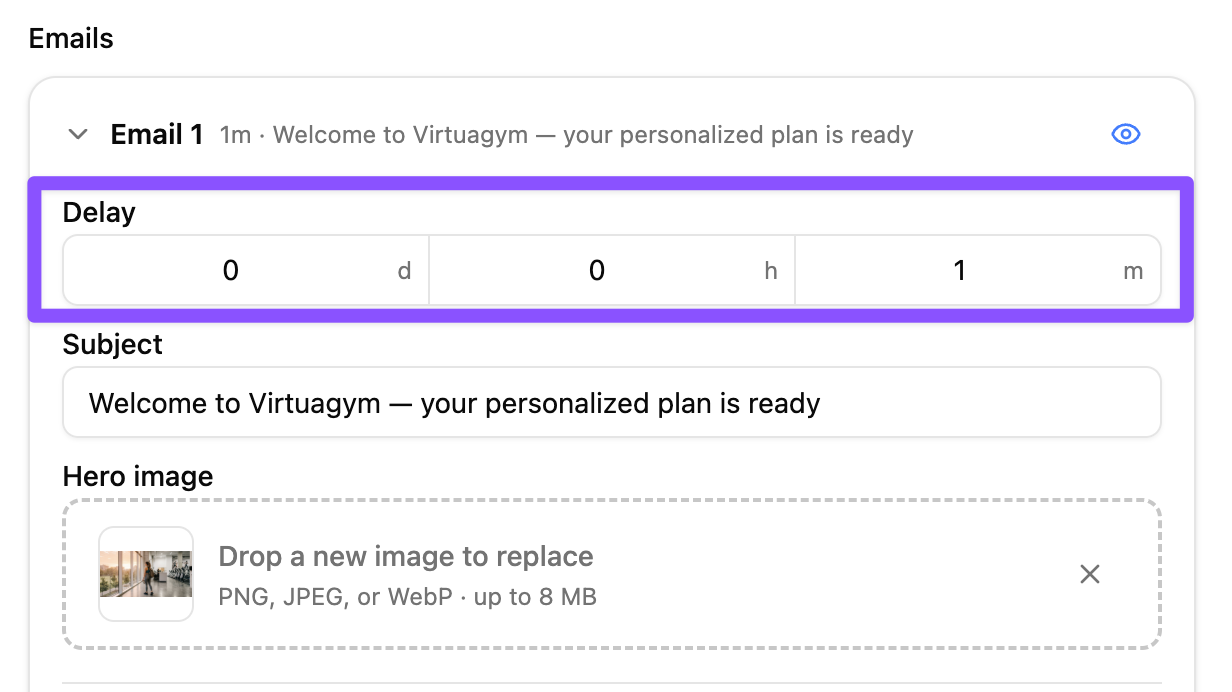
Shorten the first delay. In the campaign editor, set the first email’s Delay to a minute or two, so you don’t wait out your real schedule. Restore your delays after the test.
-
Create a test user. In your app, sign up with an email address that has no profile in the project yet. Every run needs a new address, because a profile that has already run through the campaign won’t enter it again. To receive a translation, set your test device to its language before you sign up.
-
Wait for the first email. Adapty Mail schedules the send for the trigger time plus the delay you set, then picks up due emails once a minute. Delivery adds a few minutes on top.
-
Open the email and click the CTA. You land on your checkout with the email address already filled in.
-
Complete the payment. Pay with a real card, then refund it in Stripe.
Test the email and checkout on their own
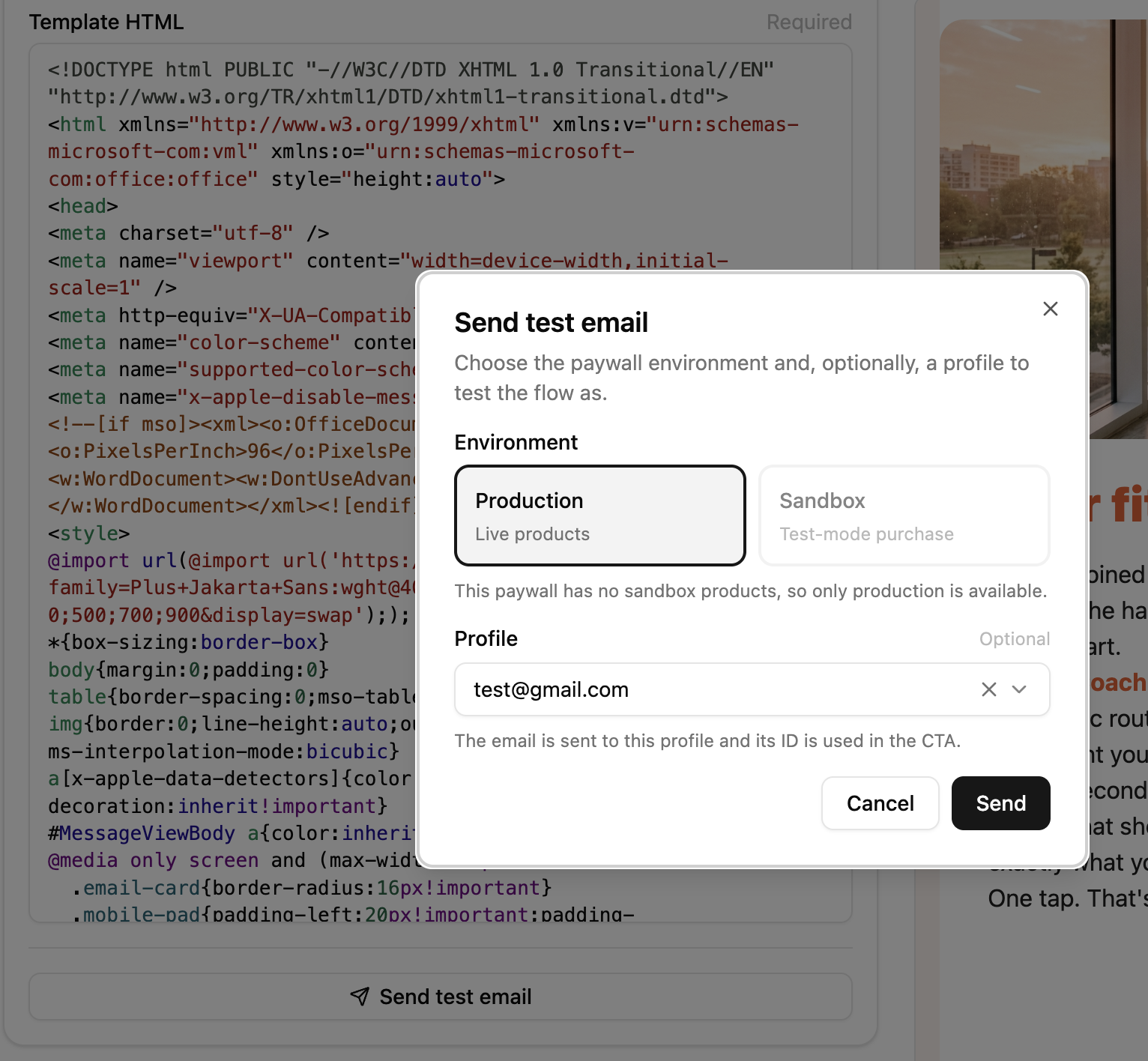
To review the email and the checkout without waiting on the automation, use Send test email in the campaign editor. The button stays disabled until your sending domain is verified and the campaign has an email destination selected.
The modal has three settings:
- Environment: Production opens your live checkout with live products. Sandbox opens the test version, where Stripe’s test card
4242 4242 4242 4242works with any future expiry date and any CVC. Sandbox is selectable only for a paywall generated with sandbox products — a paywall you added by URL shows “This paywall has no sandbox products, so only production is available.” - Profile: Optional. Select a profile to send the email to that profile’s address and fill the CTA with its IDs.
- Custom address: Optional. Type an address to send there instead, with a placeholder profile ID. Selecting a profile clears it, and a profile always wins if both are set.
With neither set, the email goes to your own account address with a placeholder profile ID.
A test send is a standalone email, separate from the live chain. It confirms that the email renders and that the checkout takes payment, and it tells you nothing about whether the automation fires. To confirm the automation, run the live chain.
Confirm access in your app
Once the payment goes through, the subscription reaches the user’s Adapty profile, and your app sees the access level.
Adapty records a sandbox payment as a sandbox transaction, so make sure your access level accepts sandbox transactions before you treat a missing access level as a failure.
Check the result
Open your test profile in Profiles and read its journey. A successful test shows the first email reaching Clicked, the purchase attributed to it, and the rest of the sequence Cancelled.
Adapty Mail registers an open when the tracking pixel loads, and Apple Mail Privacy Protection loads it whether or not anyone read the email. An Opened chip you didn’t earn is normal. Campaign analytics covers what each metric counts.
Learn more
- Create a campaign: Email content, delays, and sequence length.
- Set up checkout: What the checkout page contains, and how personalization fills the CTA.
- Profiles: The full profile view behind the journey timeline.
- Reasons emails stop: Why a profile stops receiving email.