
Reusable styles
Create a style to store text settings or a fill (such as a color, a gradient, or a background image), and reuse it across elements on multiple screens. When you edit a style, the change affects every element and screen that uses it.
Each flow has its own set of styles.
Open the Styles panel to create, browse, and edit your flow styles:
- Text styles: Typography settings (font, weight, size).
- Color styles: Fills, such as colors, gradients, and images. A single color style can include separate versions for light mode and dark mode.
Text styles
Main article: Text content
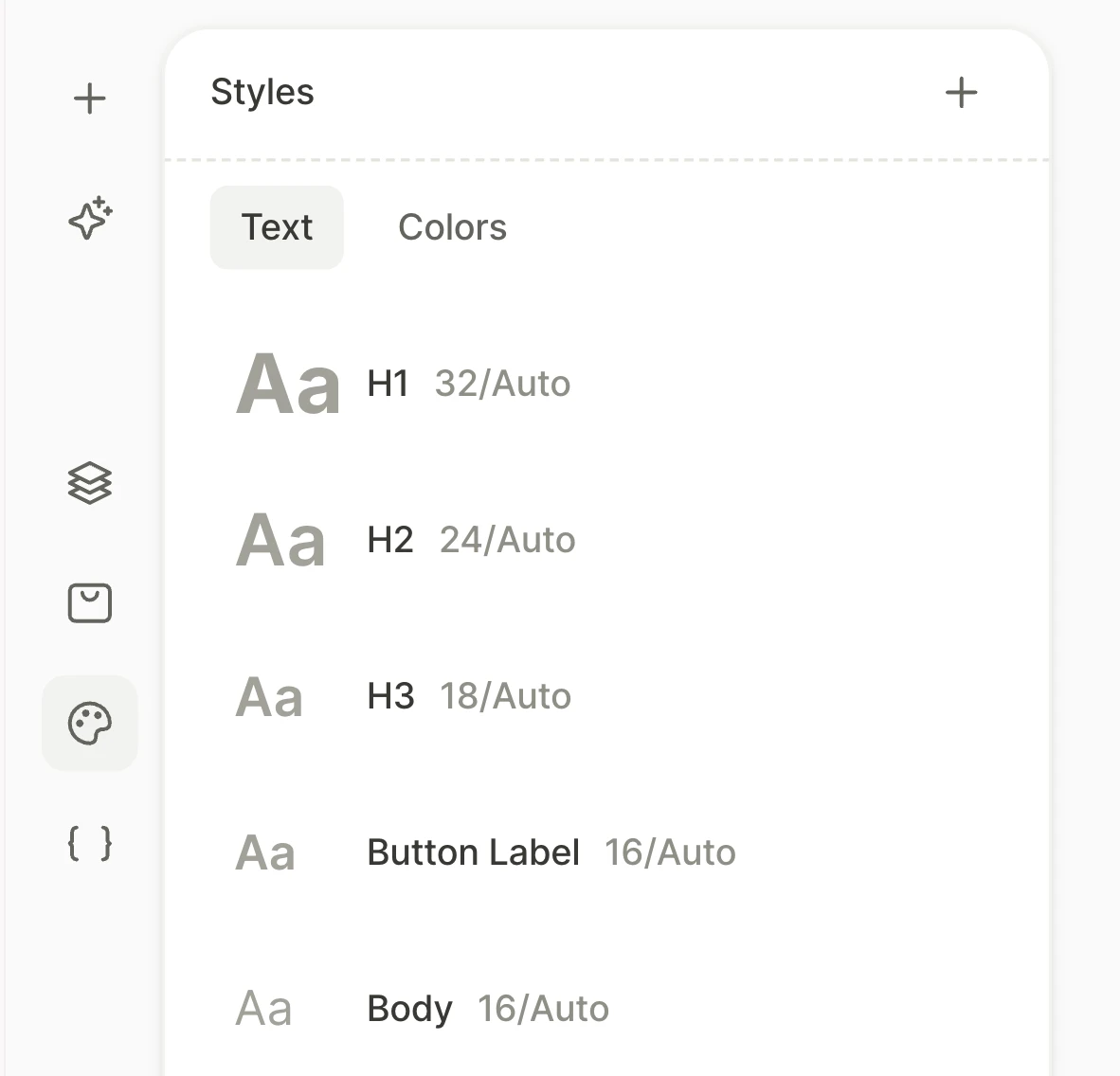
Text styles store a set of typography settings — font family, weight, size, line height, and letter spacing. Every flow template includes default presets, and you can create custom styles.
To create a text style:
- Open the Styles panel.
- In the panel header, click Create style.
- Set Type to Text, enter a name, and configure the typography settings.
- Click Create.
To save the current typography settings of a text element as a new text style, click next to the tabs of the font picker. The element then uses the new style.
To apply a text style, select a text element and choose the style from the font dropdown in the Typography section.
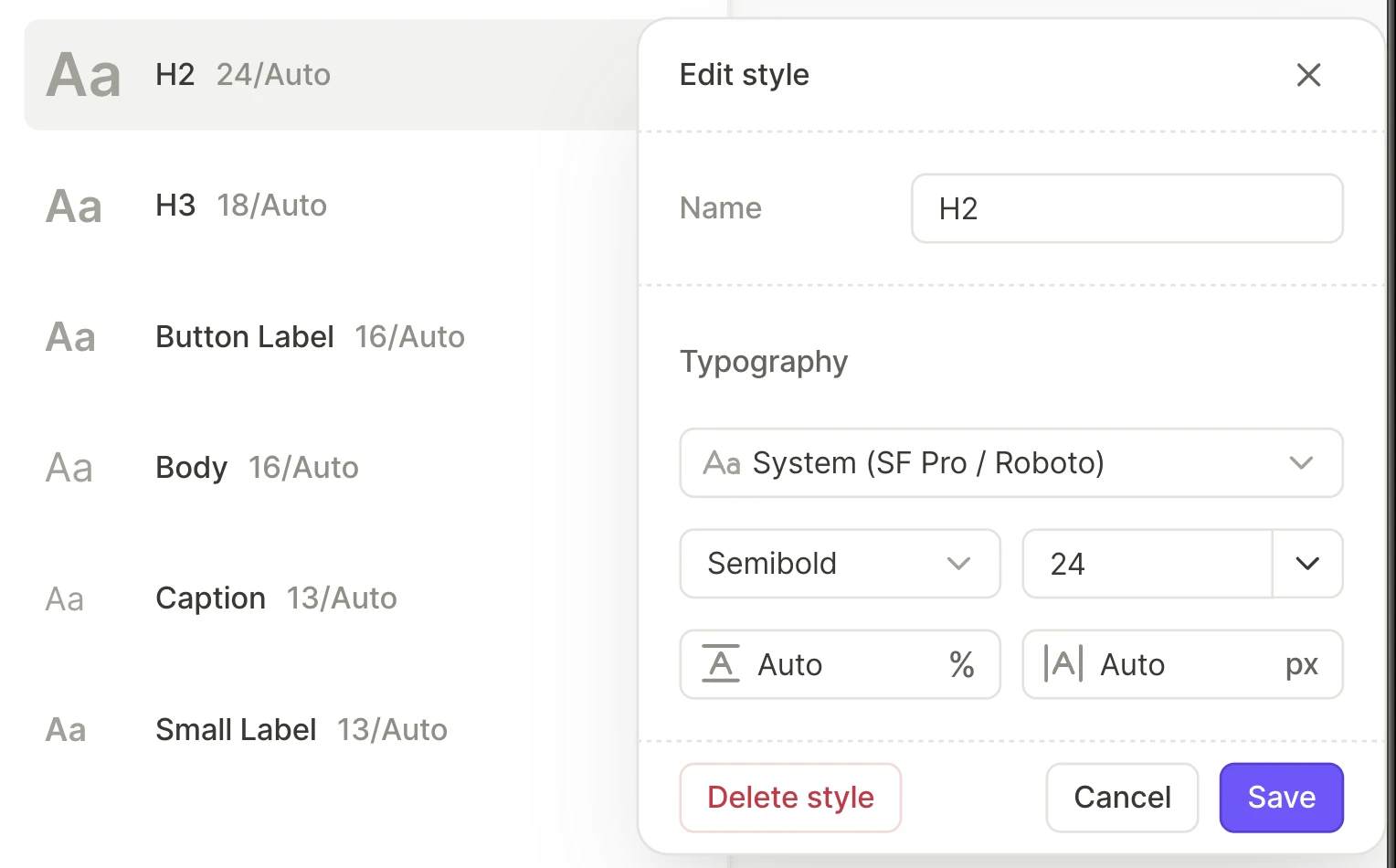
To edit a text style, click its entry in the Styles panel, change its settings, and click Save.
Color styles
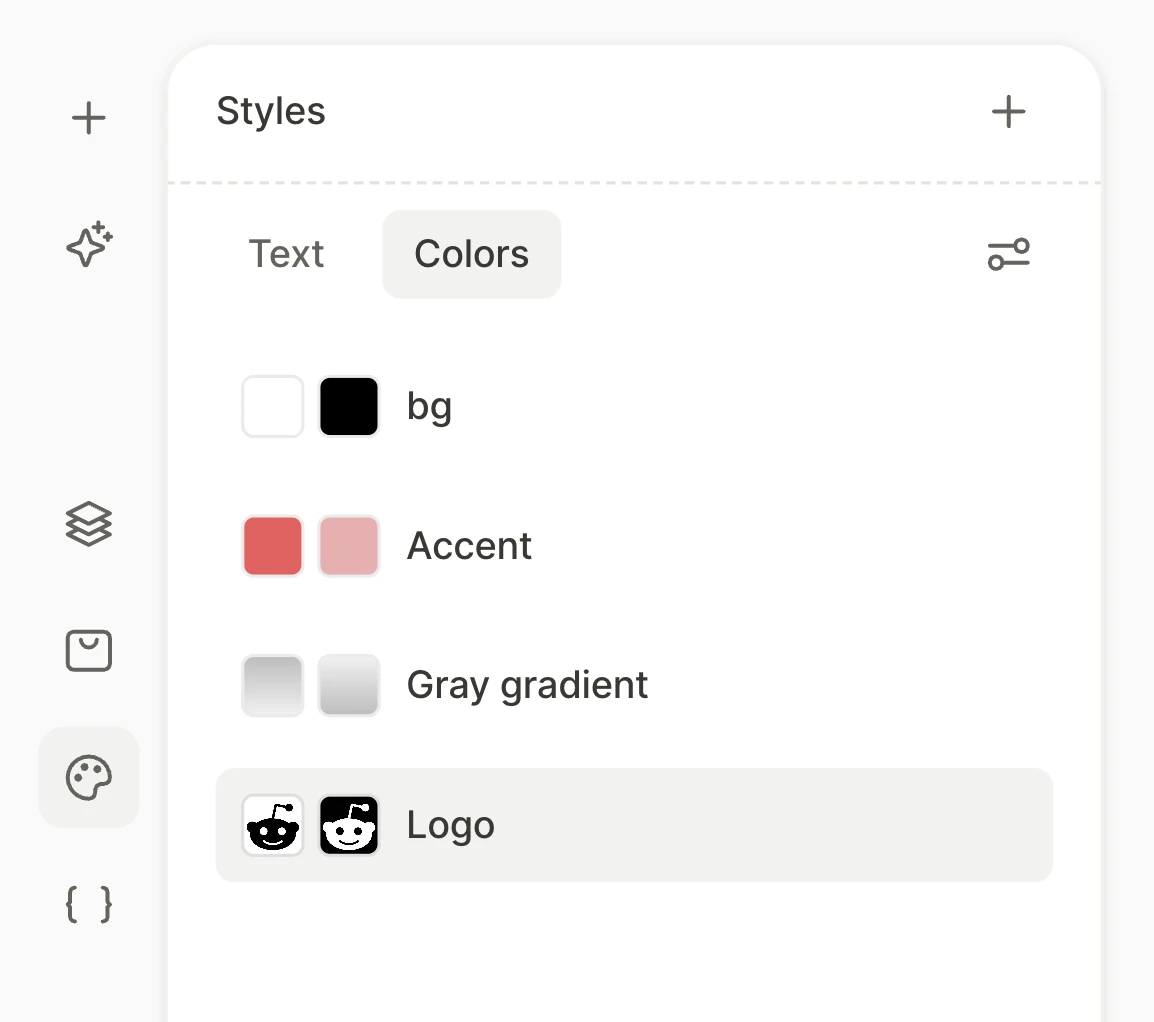
A color style is a saved fill: a color, a gradient, an image, a video, or a stack of them. If you use a dark theme, it can have theme-specific versions. The number in the style entry counts the elements and screens that use it.
Create a color style
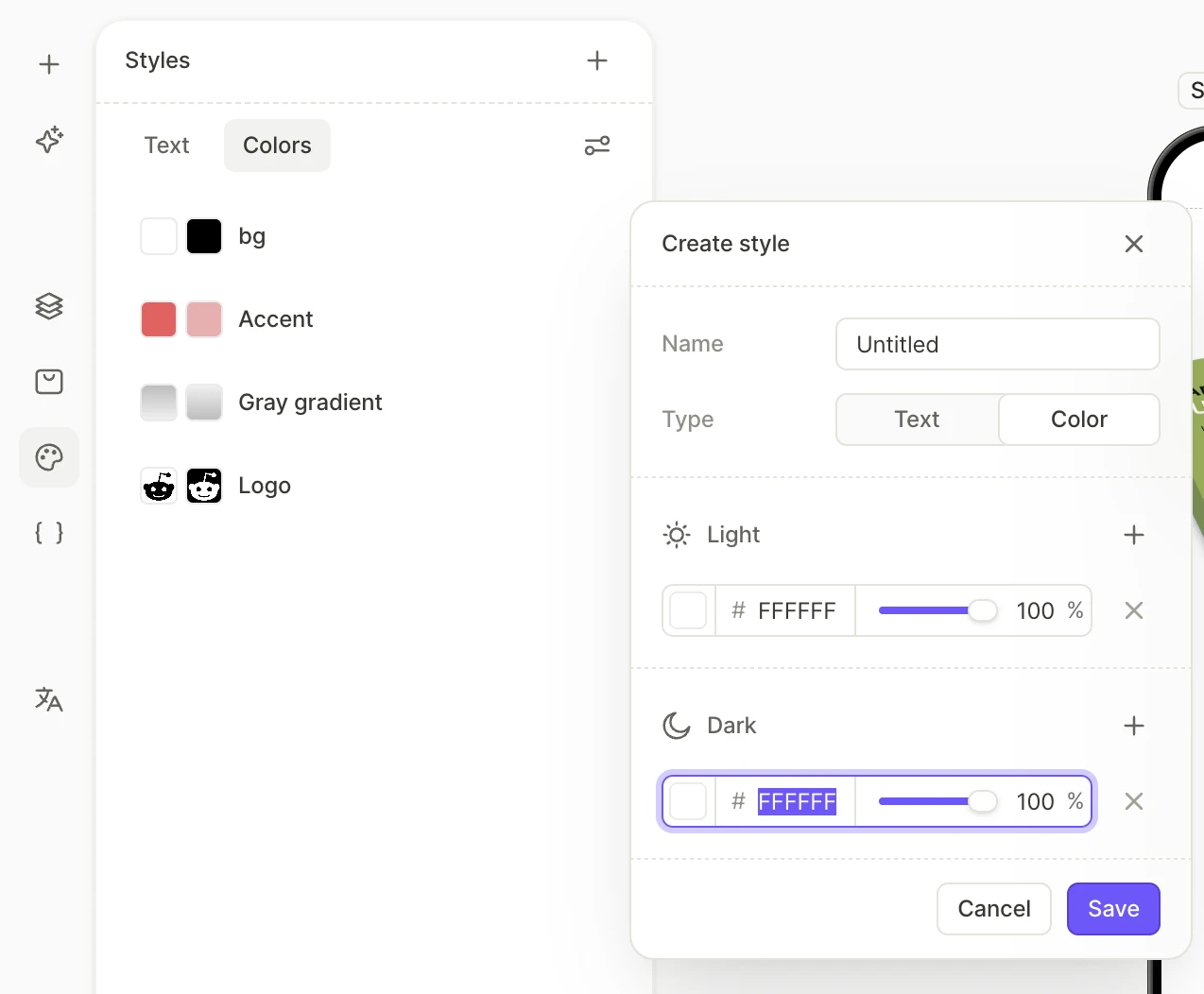
To create a color style:
- Open the Styles panel.
- In the panel header, click Create style.
- Set Type to Color, and enter a name.
- Set up the style. You can change the color or fill type of its layer, and add more layers on top of it.
- Click Save.
To turn the current value of a fill layer or a color into a style, click its swatch, then click the icon next to the Custom and Styles tabs, and click Save. The fill layer or color now uses the style.
Edit a color style
To edit a color style:
- Open the Styles panel.
- Select the Colors tab.
- Click a style entry.
- Each version can hold several layers. Click the swatch to set the layer in accordance with its fill type:
Solid colors
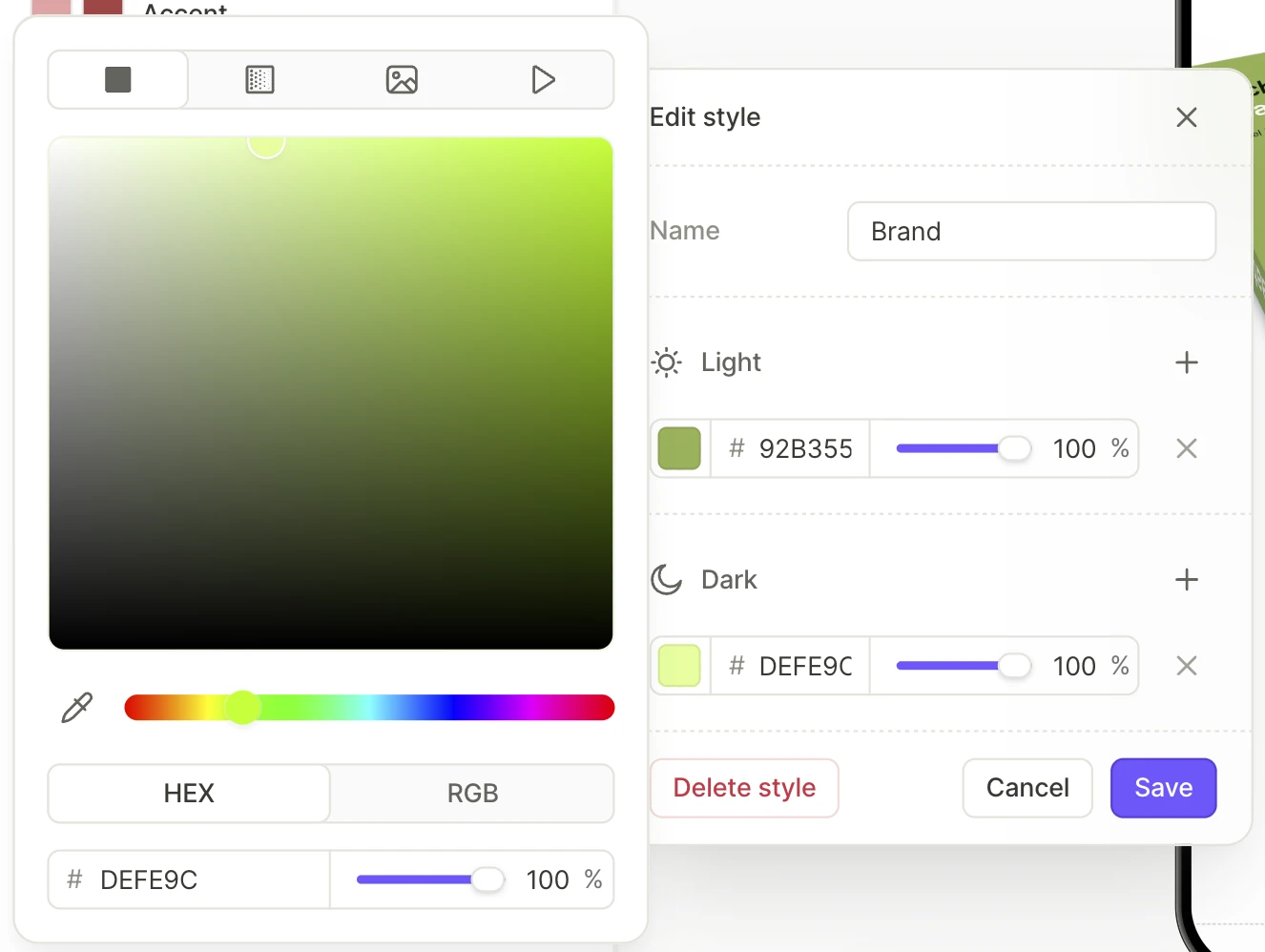
- Set the color: enter a hex value, or click the swatch and pick one.
- Set the opacity with the slider.
- Click Save.
Gradients
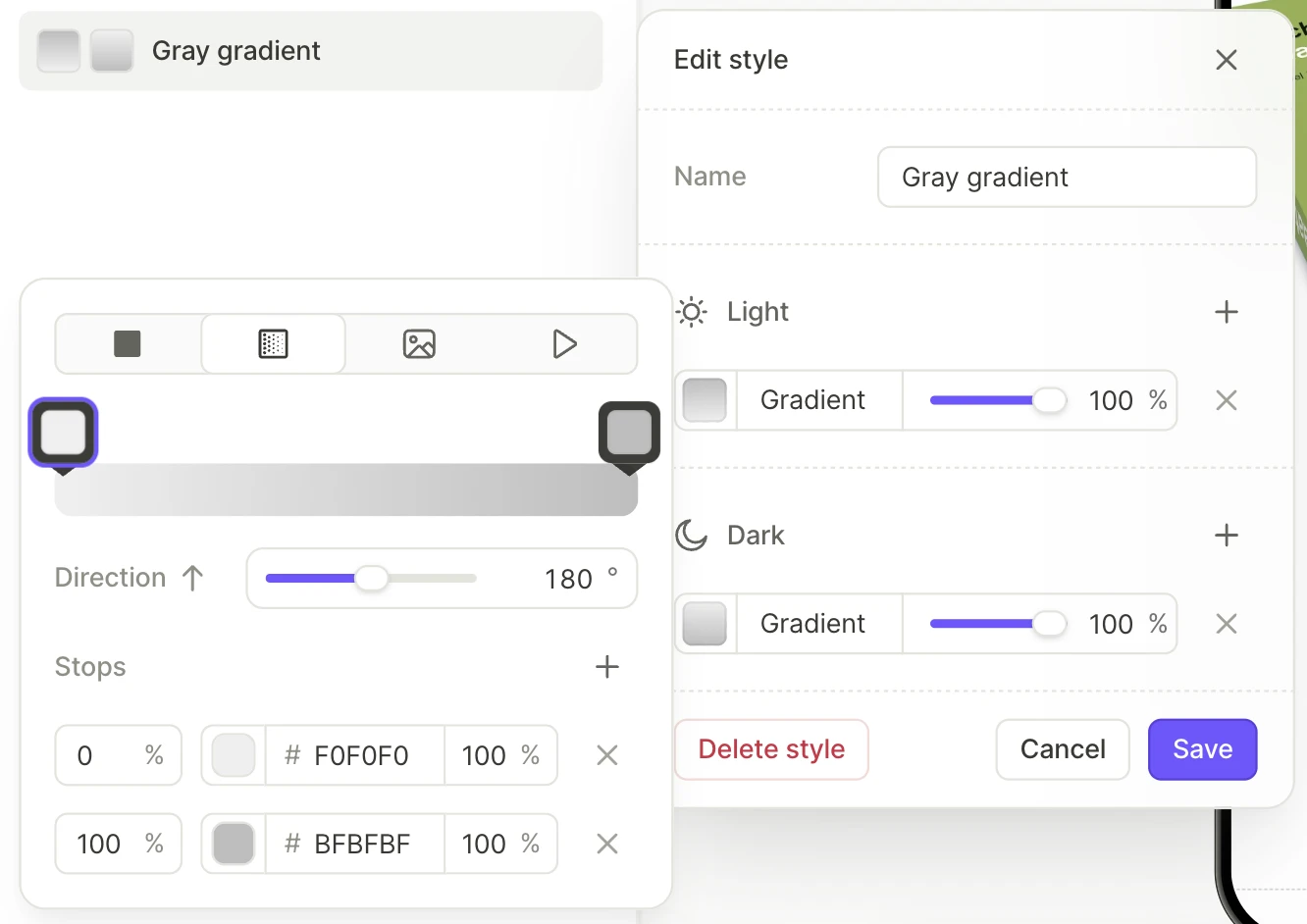
- Select the Gradient fill type.
- Set the stops, stop colors, and Direction.
- Click Save.
To make text elements on top of a background image easier to read, darken the edge of the image behind them. Add a gradient layer on top of the image. Run the gradient from an opaque stop at that edge to a transparent stop at the other.
Images and videos
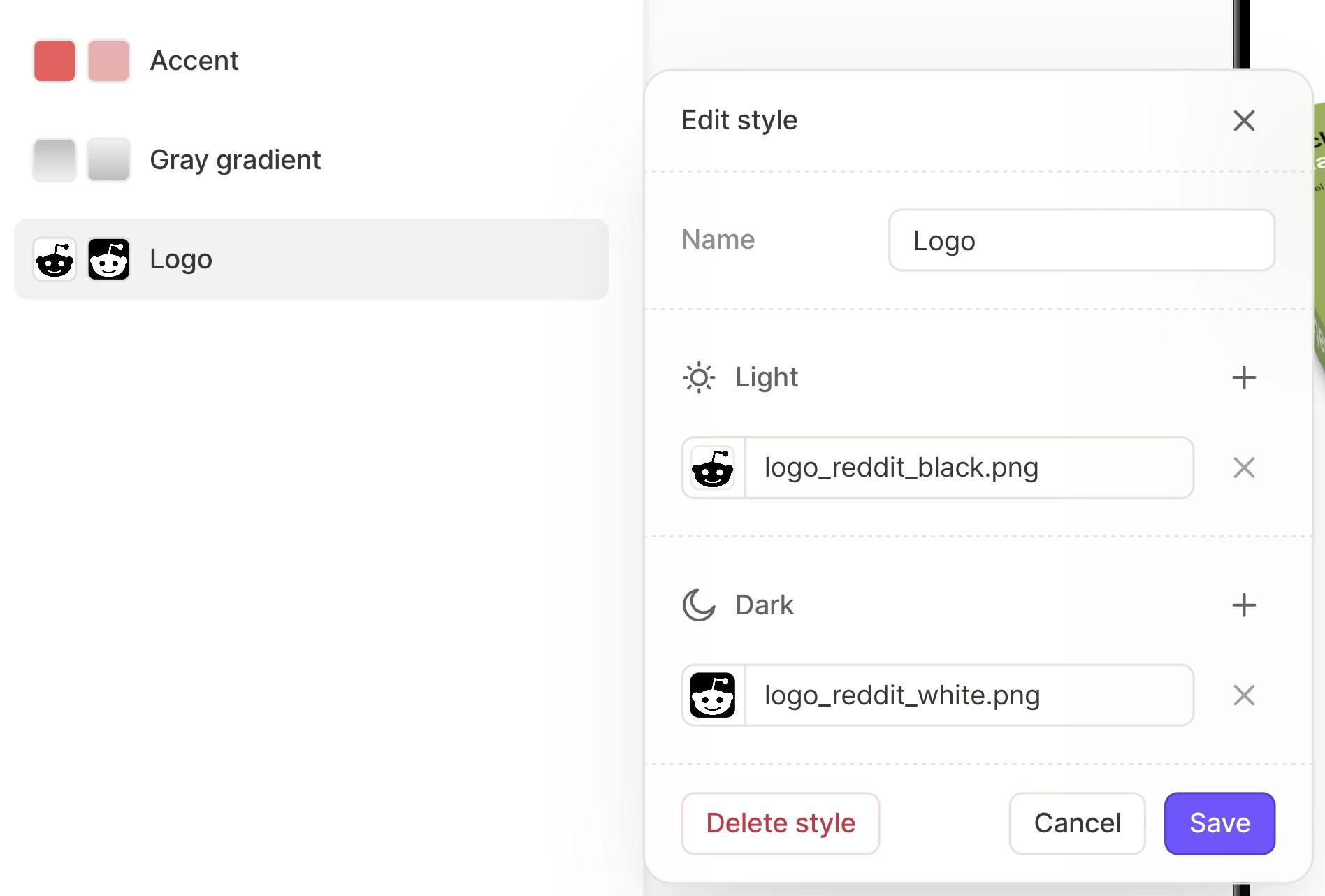
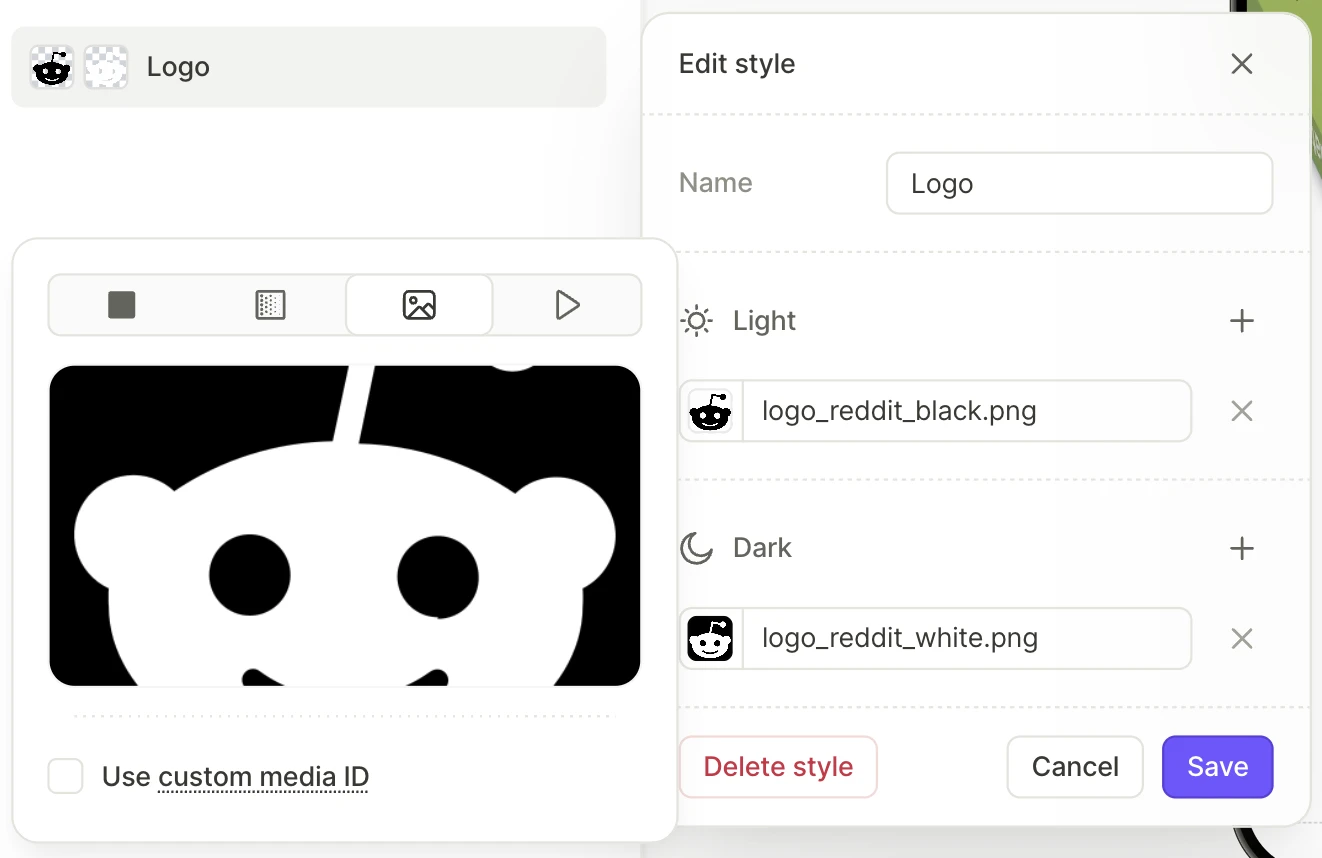
An Image or Video element can’t have a different file for the dark theme. Instead, create a container and set its background to a color style. In each version of the style, set up an image or video layer:
- Select the Image or Video fill type.
- Upload the source file for the locale selected in the bottom toolbar. You can click Replace if there’s already a file uploaded.
- Click Save.
To tint an image or video, add a semi-transparent color layer on top of it.
Multi-layer styles
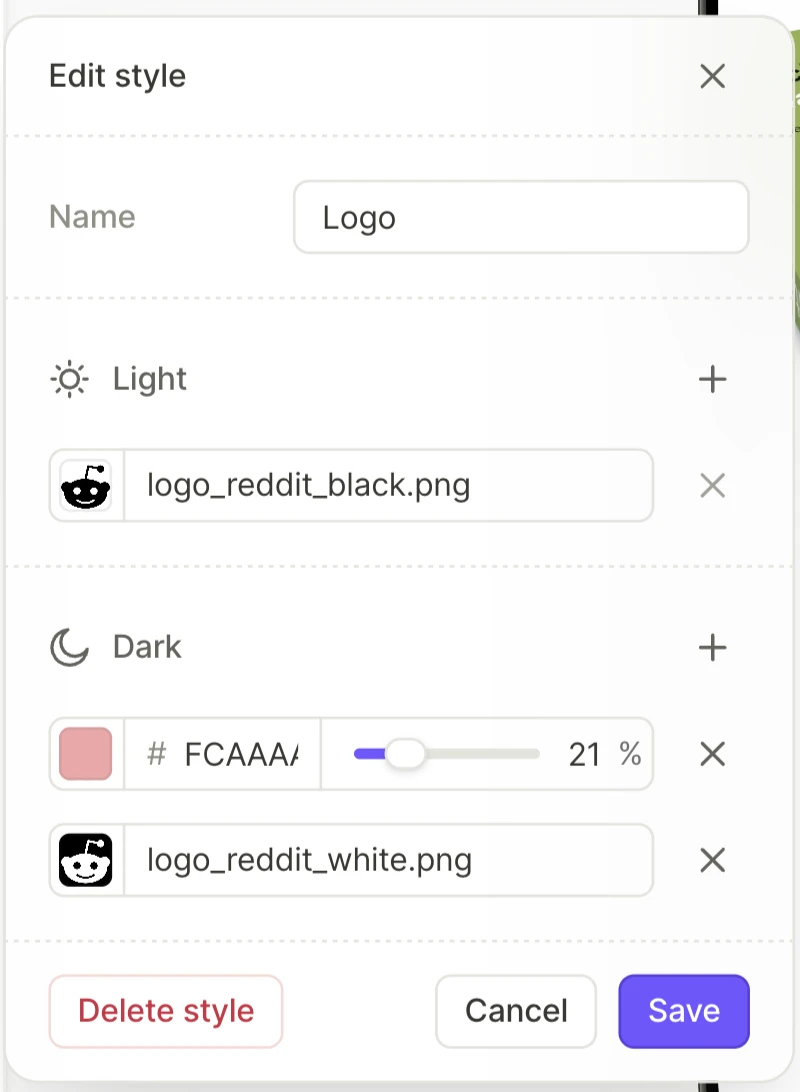
Each version of a color style can hold several layers. You can use multi-layer styles to create more complex visuals, such as tinted images.
To add a layer, click the style entry. Then, in the Properties, Light, or Dark section, click the button. A new layer appears on top of the existing layers. To change the order of the layers, drag their rows. Set up the new layer, and click Save.
Not all layers appear everywhere you apply the style. Some layers are only visible if you apply the style to certain properties or elements:
- Fill (inputs and pickers): Bottom layer only. Other layers are ignored.
- Fill (all other elements): Every layer.
- Border (inputs and pickers): One solid color or gradient only. Image and video layers are ignored.
- Border (all other elements): Solid colors and gradients. Image and video layers are ignored.
- Text color: Solid color layers only. Gradient, image, and video layers are ignored. If a version has no solid color layer, the text has no color in that mode and is invisible.
- Icon, shadow, and other colors: Does not support multi-layer styles. You can only apply a single layer style with a solid color.
Apply a color style
To apply a color style to an element, click the swatch of its fill layer, text color, border color, or icon color. Replace the static value with the style by clicking the Styles tab and selecting the style entry. If no style has the value you need, save the current value as a style.
To apply a style to many elements on a screen, ask the AI Editor, for example: Apply the Card background style to all cards. To set up styles and apply them across the whole flow, use the flow-generator skill.
You can’t apply a color style to an Image or Video element, because these elements have no fill. Instead, create a container and set its background.
Manage styles
In the Styles panel:
- To rename a style, click its entry, change the Name field, and click Save.
- To duplicate a style, right-click its entry and select Duplicate.
- To delete a style, click its entry and click Delete style. When you delete a style that elements use, select the style that replaces it.
- To change the order of the styles, drag their entries up and down the list.
- To copy styles into another flow, select their entries (Shift-click to select several) and press ⌘C / Ctrl+C. Open the same tab (Text or Colors) in the other flow and press ⌘V / Ctrl+V.
Dark mode
Main article: Dark mode

A color style can have a separate value for dark mode. When the user’s device is set to dark mode, the flow uses that value instead.
To use dark values, add a dark theme to the flow. Then change the dark value of each style that should differ in dark mode.