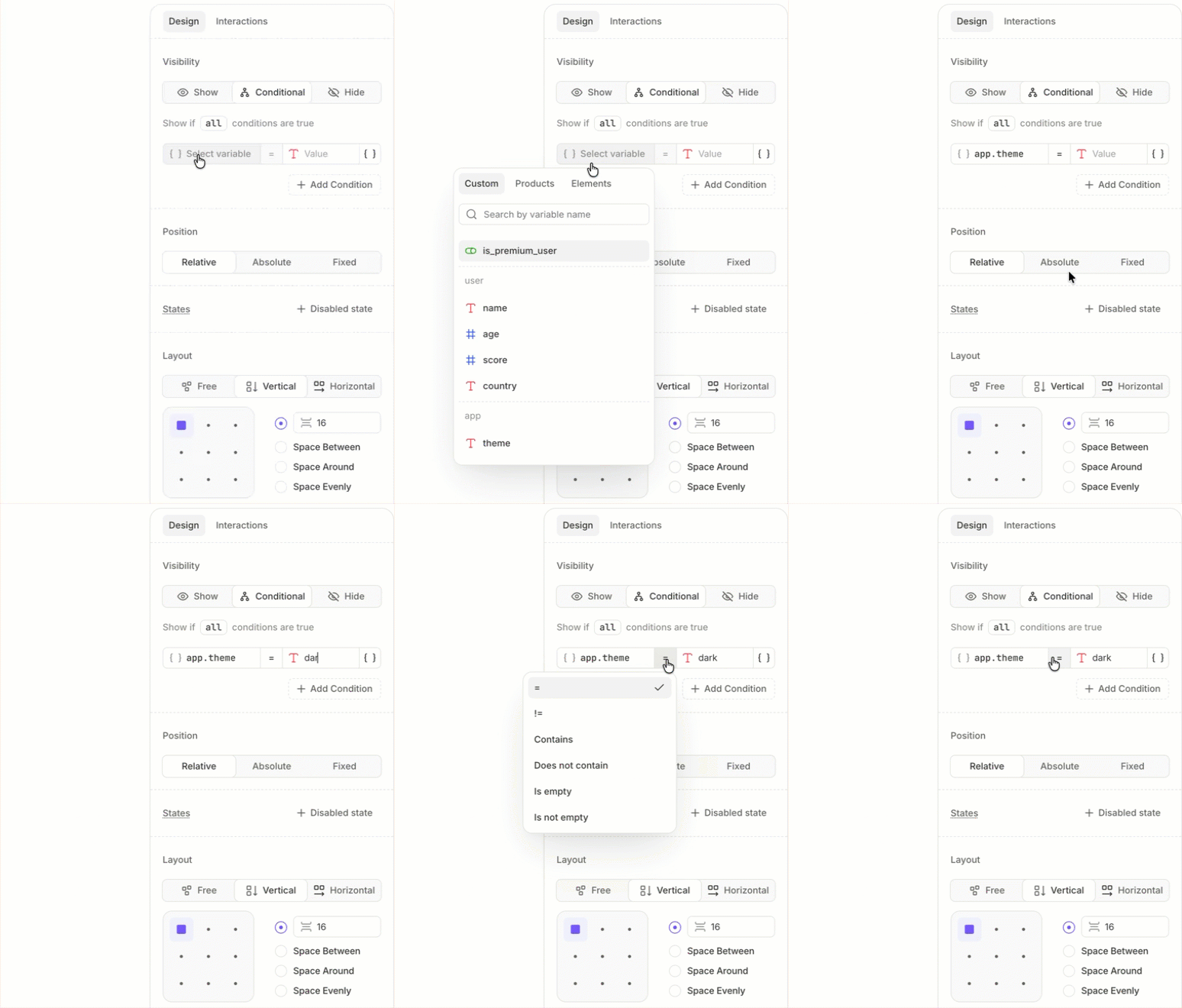
Conditional visibility
You can control whether an element appears by adding a condition to it. A conditional element is only visible to users who meet the specified criteria.
Important
If you show or hide an element using the Show or Hide action, the action overrides the Visibility condition set on that element.
Use Visibility conditions for elements that should always appear or hide based on a fixed criterion. Use actions when visibility should change based on a user’s interaction — for example, showing a button after a user answers a quiz question.
To add a condition to an element:
- Select the element in the canvas or layer panel.
- In the Visibility section of the right panel, select Conditional.
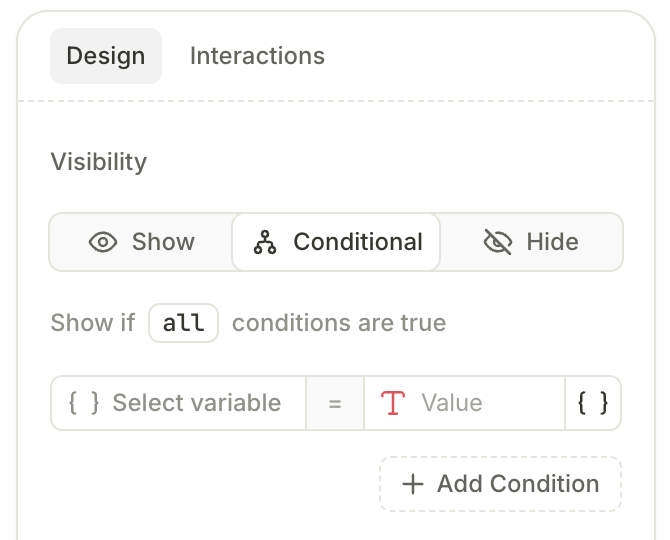
- Set up the condition by choosing a property type from one of three tabs:
- Custom: Variables you create and manage; their values can be updated via user interactions. See Variables for details.
- Products: Properties of the products in your flow, such as price or name.
- Elements: States of other elements in the flow, such as whether a trial toggle is active.
- Enter the Value to match.
- Click the operator to change it if needed.
- (Optional) Click Add condition to add more conditions. Use the selector to require all conditions to match, or any one of them.