
Track changes to your Apple Ads campaigns
The Change History page tracks the changes made to your Apple Ads setup. Each account (campaign group) has its own history. You can select the active campaign group from the dropdown.
The history covers the last 6 months to date, regardless of when you connected the account, or what tools you used to manage it. It lists the changes made to the following entities:
- Campaigns
- Ad groups
- Keywords
- Negative keywords
- Ads
Expand a list entry to find out what the change entailed, and who authorized it.
To view Change History from the terminal or with an AI agent, use the change-history commands of the Adapty CLI.
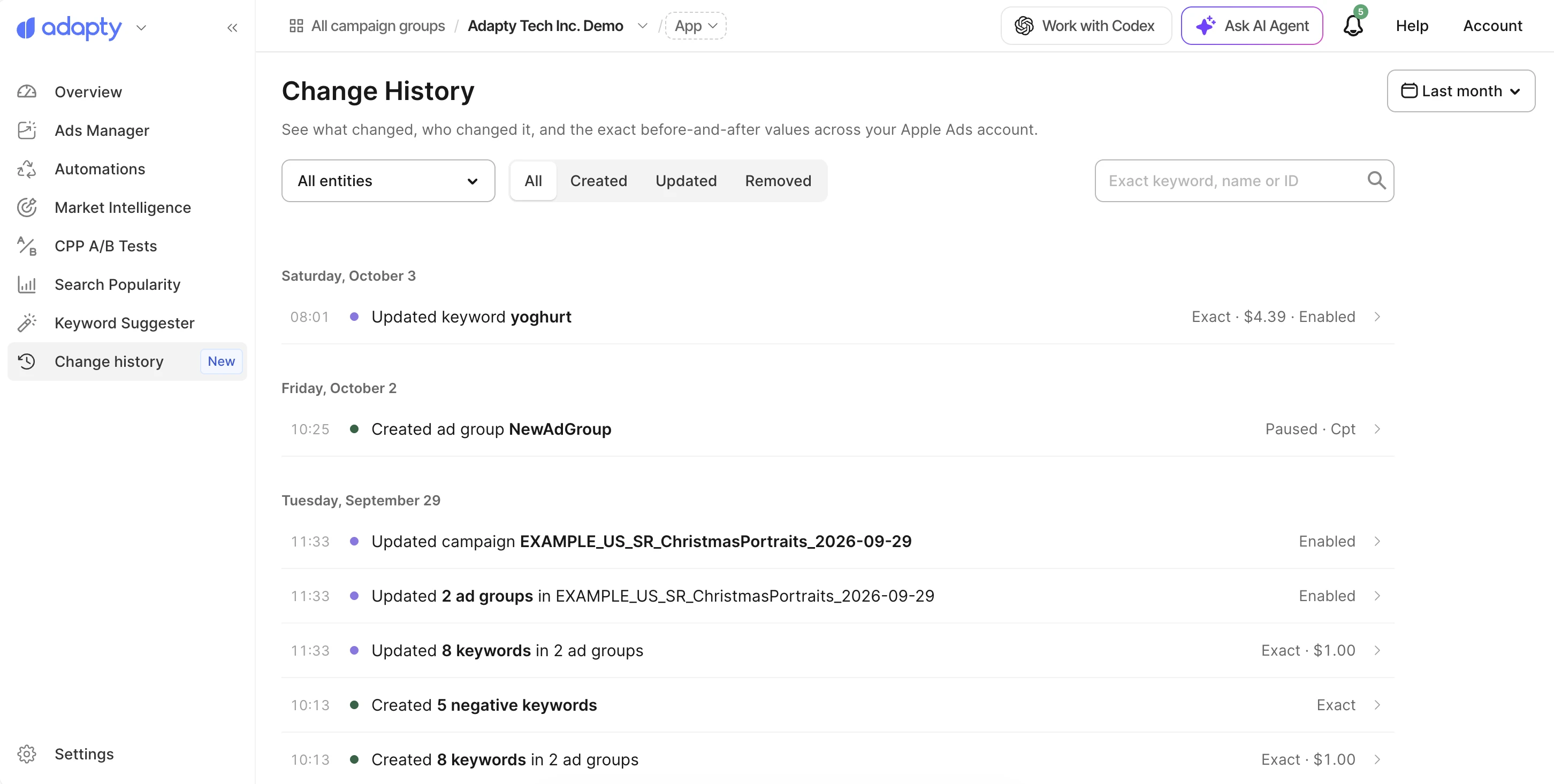
Search, filters, and controls
You can narrow the list of changes with the following filters:
| Control | Limits the list to | Default |
|---|---|---|
| Date range dropdown | One period | Last month |
| Object type dropdown | Campaigns, Ad groups, Keywords, Negative keywords, or Ads | All entities |
| Change type buttons | Created, Updated, or Removed changes | All changes |
| Search field | A single keyword, campaign, or ad group (exact name or ID, case-sensitive) | Empty |
Entry details
Changes are grouped by date, starting with the most recent.
Each entry names the affected object and its location, for example a keyword and its ad group. A bulk action appears as one entry, such as “Updated 8 keywords in 2 ad groups”.
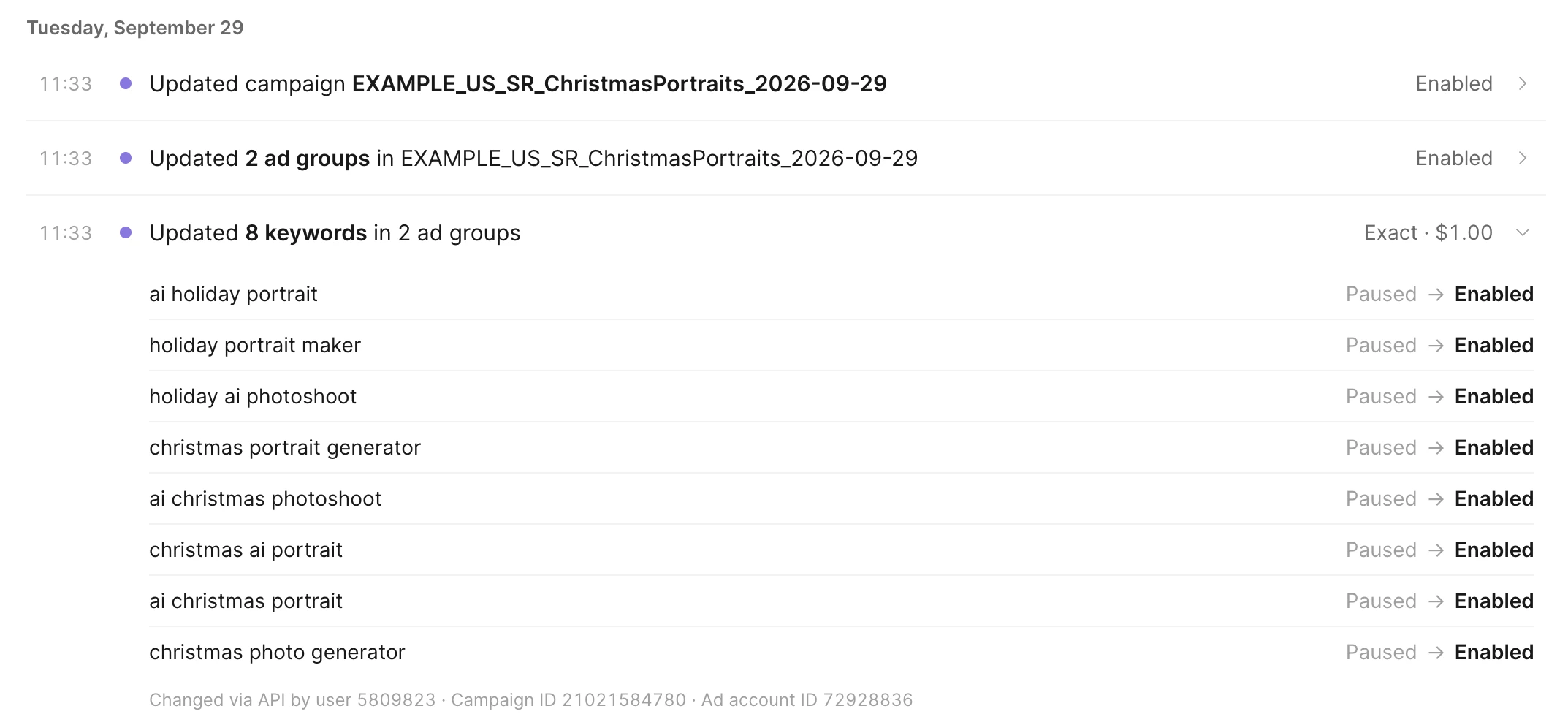
Click the entry to see:
- What changed, depending on the change type:
- Updated: Each changed setting, before and after
- Created and Removed: All settings of the added or deleted object
- The Apple user ID of the person who made the change (Apple doesn’t share usernames)
- The source of the change:
- Apple Ads UI: The Apple Ads dashboard
- API: All other tools, including Adapty Ads Manager
- APPLE_SUPPORT: Apple Support
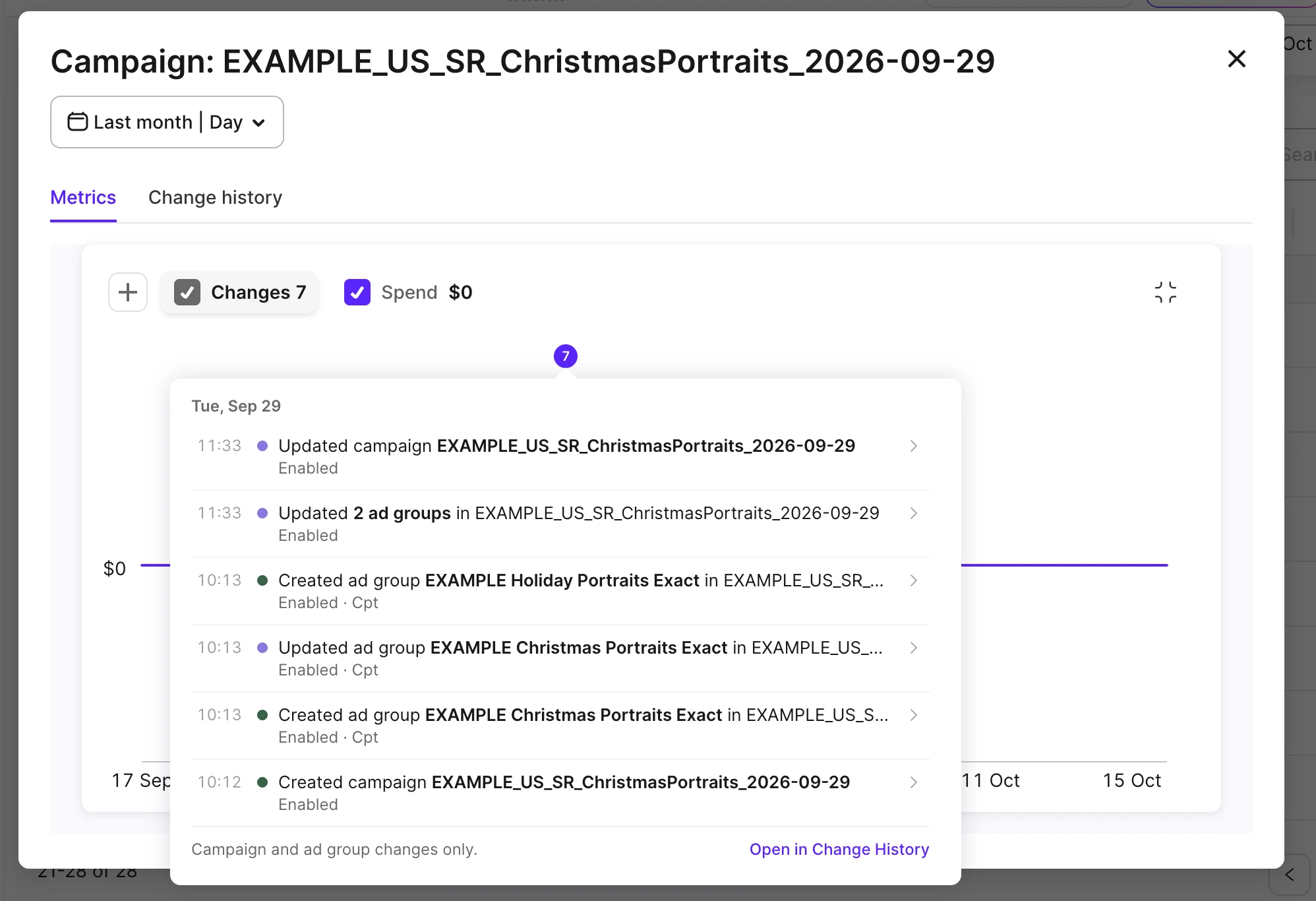
Discover correlations between campaign performance and setting changes
To find changes that may explain a rise or fall in a metric:
Campaigns
- Open the detailed metrics chart for a particular Campaign
- Find the date you want to investigate
- Click the badge above that date.
- If the badge isn’t present, nobody changed the campaign or its ad groups that day.
- If the badge is present, a click will display the change history for the specified date.
Keywords and ad groups
Open the corresponding metrics chart and find the date you want to investigate. Then look for changes made that day on the Change history tab.
Each campaign, ad group, and keyword has its own history. The history of an ad group doesn’t include changes to its campaign or keywords. To see all changes, remove the filters.
Revert a change
You can’t undo a change with a single click.
- Inspect the details of the change you want to revert
- Note the affected property and its previous value
- Follow object-specific instructions to set a new value:
- Campaigns: Edit campaigns and Launch & pause campaigns
- Ad groups: Edit ad groups and Launch & pause ad groups
- Keywords: Edit keywords
- Ads: Edit ads and Launch & pause ads
Attribution limitations
- Apple doesn’t distinguish between different tools that use its API. As such, every change made with a third-party tool is marked API on the Change History page. You can’t tell a change made in Adapty Ads Manager from one made by another tool.
- Apple does not report the internal usernames of third-party tools, including Adapty Ads Manager. If a change originated in the Ads Manager, you can attribute it to a specific user or automation rule from the Bid History.