
Set up Retention Messaging
Before subscribers can see your retention messages, Apple needs a way to reach Adapty when someone cancels. This article shows how to request access from Apple and set up that connection — first in sandbox mode, then in production.
Before you begin
- Add an App Store Connect API key to Adapty. Adapty uses it to register the realtime URL and communicate with Apple.
- Request access from Apple and wait for Apple’s approval. Without approval, Apple rejects the connection.
- Create at least one product for your messages to cover.
Request access from Apple
Apple grants access to the Retention Messaging API per app, and asks for the endpoint URL that answers Apple’s requests. Adapty runs that endpoint for you, so you don’t build or host anything. You submit the URL Adapty gives you.
- In the Adapty Dashboard, go to App settings > iOS SDK. Copy the URL from the Apple Retention Messaging API section. The same URL serves both sandbox and production.
- Open Apple’s request form and submit it with the copied URL.
- Wait for Apple’s decision. Apple runs the review, which takes up to a month. Adapty notifies you once your app is approved.
Until Apple approves your app, the Retention Messaging page shows these same steps and the same URL.
Sandbox setup
Apple requires you to test the connection in a sandbox environment first, so you can verify its reliability before sending production messages.
Configure Sandbox URL
Click Configure Sandbox URL to begin the setup.
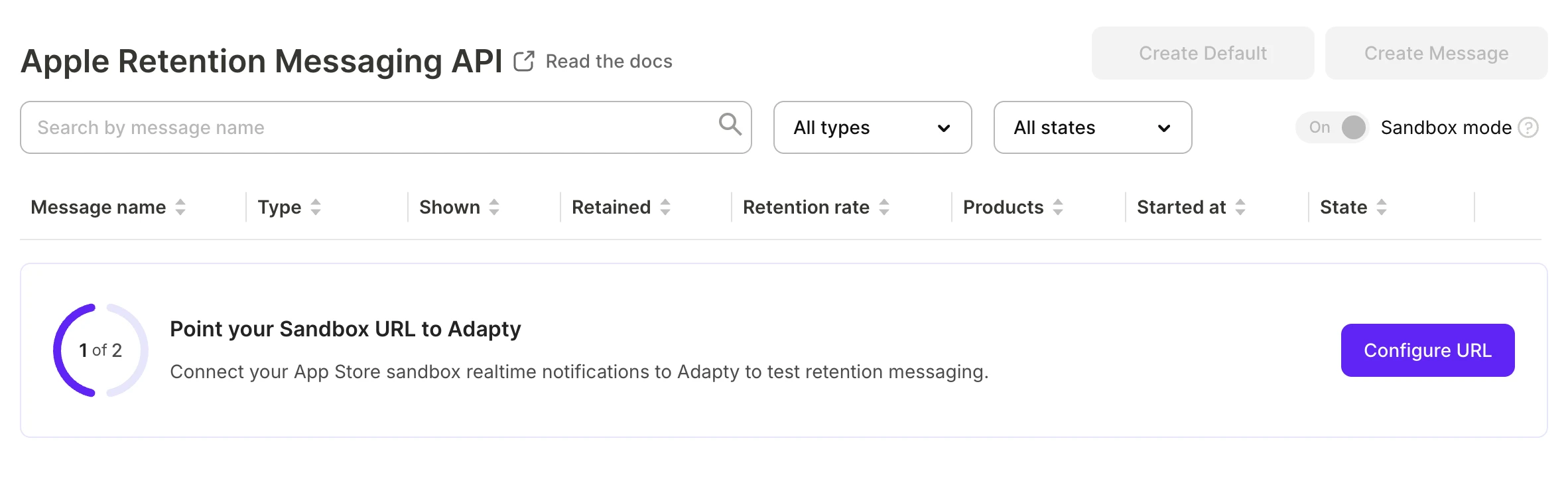
Adapty connects your App Store Connect account to its own realtime endpoint. If a different URL is already set in App Store Connect, the button shows Replace URL instead.
When the connection succeeds, Adapty confirms with “Sandbox URL has been configured.”
Pass the performance test
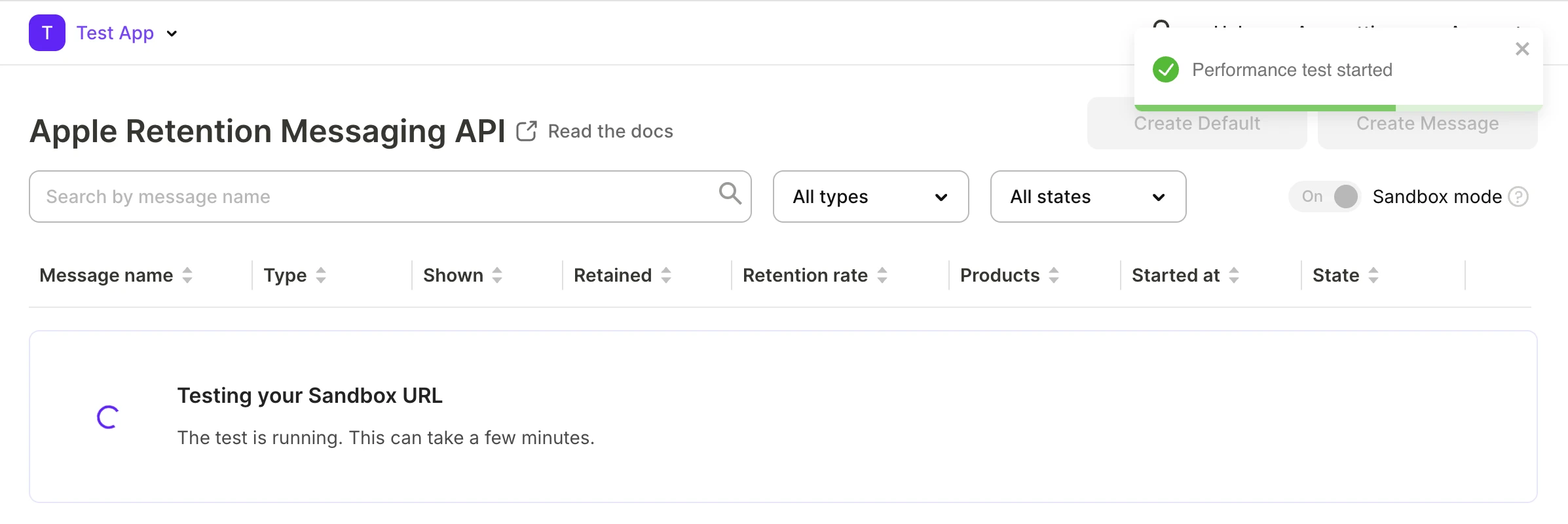
Before you can send production messages, Apple performs a test to confirm that Adapty is quick to respond to its requests. Adapty runs the test against an active sandbox or TestFlight subscription, which you purchase yourself.
Sandbox subscriptions renew on an accelerated schedule and stop after a set number of renewals. A monthly product can therefore lapse mid-test, and the test fails. Cancelling the subscription yourself has the same effect.
- Purchase your longest-duration product — an annual plan, if you sell one — with a sandbox account or through TestFlight. Use your normal App Store Connect product: you don’t create a sandbox-only one.
- Click Start Test right after the purchase. The test can take up to an hour, and the subscription must stay active until the test finishes.
- If the test fails, make a new purchase and click Try Again. If the test keeps failing, contact support@adapty.io.
Switch to production
After the sandbox URL is configured and the performance test passes, Adapty allows you to switch the Sandbox mode toggle off, and enter production mode.

Click Configure Production URL. Adapty registers its endpoint with Apple for production and confirms with “Production URL has been configured.” If a different production URL is already set in App Store Connect, click Replace URL instead.
Next steps
- Create a retention message that subscribers see when they cancel.