
设置留存消息功能
在订阅者看到你的留存消息之前,Apple 需要一种方式在用户取消订阅时联系 Adapty。本文介绍如何向 Apple 申请访问权限并建立该连接——先在沙盒模式下完成,再配置生产环境。
开始之前
- 在 Adapty 中添加 App Store Connect API 密钥。Adapty 使用该密钥注册实时 URL 并与 Apple 通信。
- 向 Apple 申请访问权限,等待 Apple 审核通过。未获批准前,Apple 会拒绝连接请求。
- 至少创建一个产品,以便消息可以关联到对应产品。
向 Apple 申请访问权限
Apple 按应用授予 Retention Messaging API 的访问权限,并要求提供用于响应 Apple 请求的端点 URL。Adapty 已为你托管该端点,无需自行搭建或部署。你只需将 Adapty 提供的 URL 提交给 Apple 即可。
- 在 Adapty 看板中,前往 App settings > iOS SDK。复制 Apple Retention Messaging API 部分中的 URL。该 URL 同时适用于沙盒和生产环境。
- 打开 Apple 的申请表,并将复制的 URL 填写后提交。
- 等待 Apple 的审核结果。Apple 的审核流程最长可能需要一个月。审核通过后,Adapty 会通知您。
在 Apple 批准您的应用之前,Retention Messaging 页面将持续显示上述步骤和相同的 URL。
沙盒设置
Apple 要求你先在沙盒环境中测试连接,以便在发送生产消息之前验证其可靠性。
配置沙盒 URL
点击 Configure Sandbox URL 开始设置。
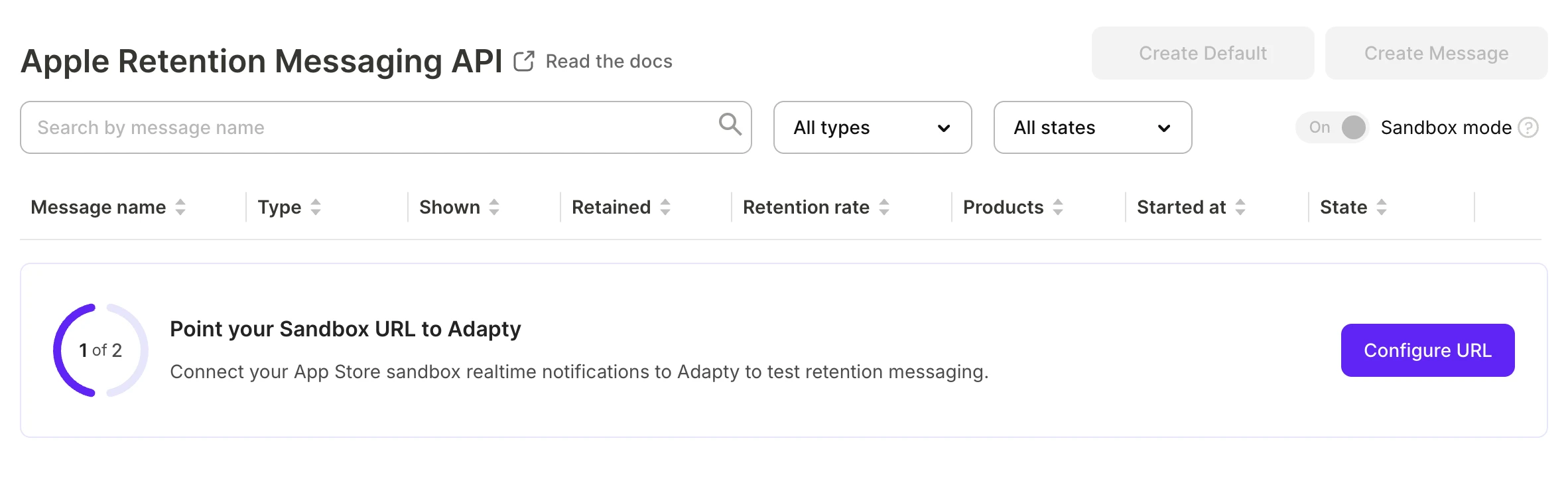
Adapty 会将您的 App Store Connect 账号连接到其自有的实时端点。如果 App Store Connect 中已设置了其他 URL,按钮将显示为 Replace URL。
连接成功后,Adapty 会显示”Sandbox URL has been configured.”来确认配置完成。
通过性能测试
在发送正式消息之前,Apple 会进行测试,以确认 Adapty 能够快速响应其请求。Adapty 将针对一个有效的沙盒或 TestFlight 订阅运行此测试,该订阅需要你自行购买。
沙盒订阅会按加速计划续期,并在达到一定续期次数后停止。因此,月度产品可能会在测试中途失效,导致测试失败。自行取消订阅也会产生相同的效果。
- 使用沙盒账号或通过 TestFlight 购买时长最长的产品——如果你有年度计划,请购买年度计划。使用你在 App Store Connect 中正常配置的产品,无需单独创建仅用于沙盒的产品。
- 购买完成后立即点击 Start Test。测试最多需要一小时,订阅必须在测试完成前保持有效状态。
- 如果测试失败,重新购买后点击 Try Again。如果反复失败,请联系 support@adapty.io。
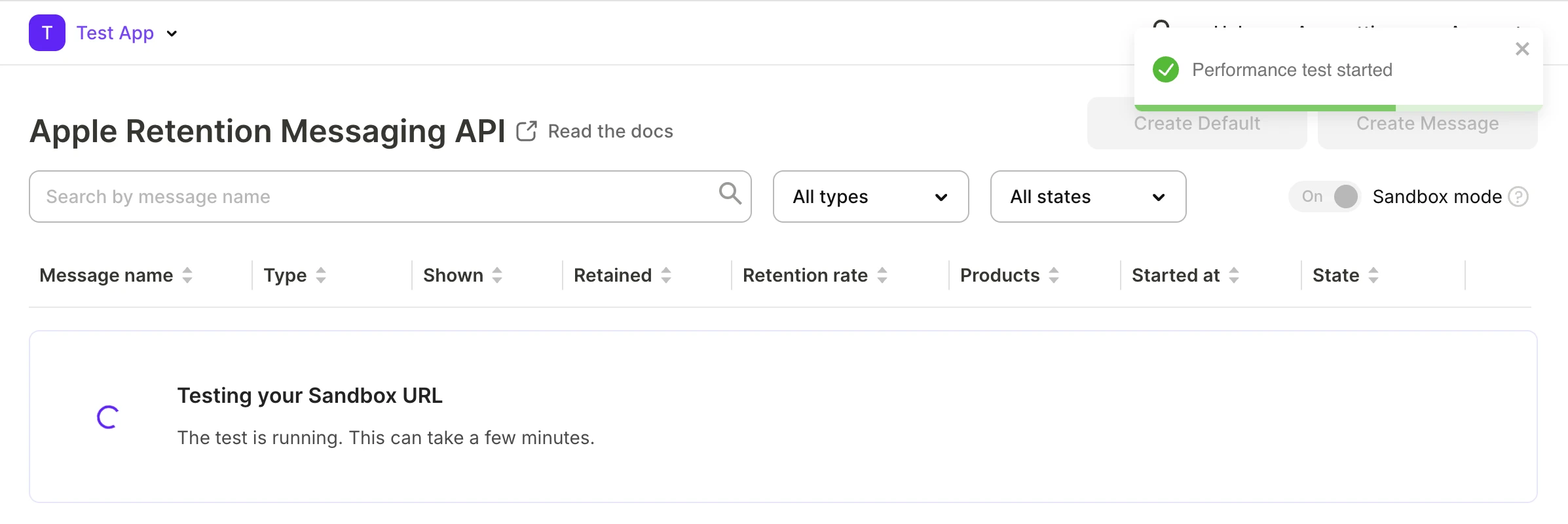
切换到生产环境
沙盒 URL 配置完成且性能测试通过后,Adapty 允许你关闭 Sandbox mode 开关,进入生产模式。

点击 Configure Production URL。Adapty 会向 Apple 注册生产环境端点,并显示”Production URL has been configured.”确认信息。如果 App Store Connect 中已设置了其他生产 URL,请改为点击 Replace URL。
下一步
- 创建留存消息,让订阅者在取消时看到该消息。