Manage keywords in Adapty Ads Manager
Adapty Ads Manager has a two-way integration with Apple Ads: you get near real-time performance data, and you can create and edit keywords directly from the Adapty dashboard in a much more convenient way than in the native UI.
If you create a keyword in the native Apple Ads dashboard, it will automatically appear in Adapty Ads Manager within 24 hours.
In addition to exploring comprehensive analytics, you can manage all your keyword settings:
- Add keywords to ad groups
- Add negative keywords
- Add keywords as SKAG (Single Keyword Ad Group)
- Edit keywords directly in the table
- Perform bulk actions on multiple keywords
- Launch & pause keywords
To find underperforming keywords across your account — for example, keywords with spend but no conversions — ask the AI Agent.
What are keywords
Keywords are the search terms that trigger your ads to appear in App Store search results. They are organized within ad groups, which belong to campaigns. This hierarchical structure allows you to organize and manage your advertising strategy effectively.
Keywords are only applicable for campaigns with Search results placement type. For campaigns with other placement types (Search tab or Product pages), keywords are not used.
Standard keywords
Standard keywords are the primary terms you bid on to trigger your ads. When users search for these terms in the App Store, your ad may appear in the search results.
Negative keywords
Negative keywords prevent your ad from appearing in searches that are not relevant to your app. By adding negative keywords, you can reduce wasted spend on irrelevant searches.
Negative keywords can be added at the ad group level or as cross-group negative keywords that apply to multiple campaigns simultaneously.
Keywords as SKAG (Single Keyword Ad Group)
SKAG (Single Keyword Ad Group) is a strategy where you create individual ad groups, each containing a single keyword. This approach allows you to:
- Gain precise control over bidding for high-value keywords
- Better analyze performance at the keyword level
SKAG is particularly useful for identifying top-performing keywords and maximizing their potential through dedicated ad groups.
Add keywords
To add keywords to an ad group:
Keywords in Maximize Conversions campaigns don’t use bids — bidding is managed automatically by the campaign’s CPA target. The CPT bid field doesn’t apply to them.
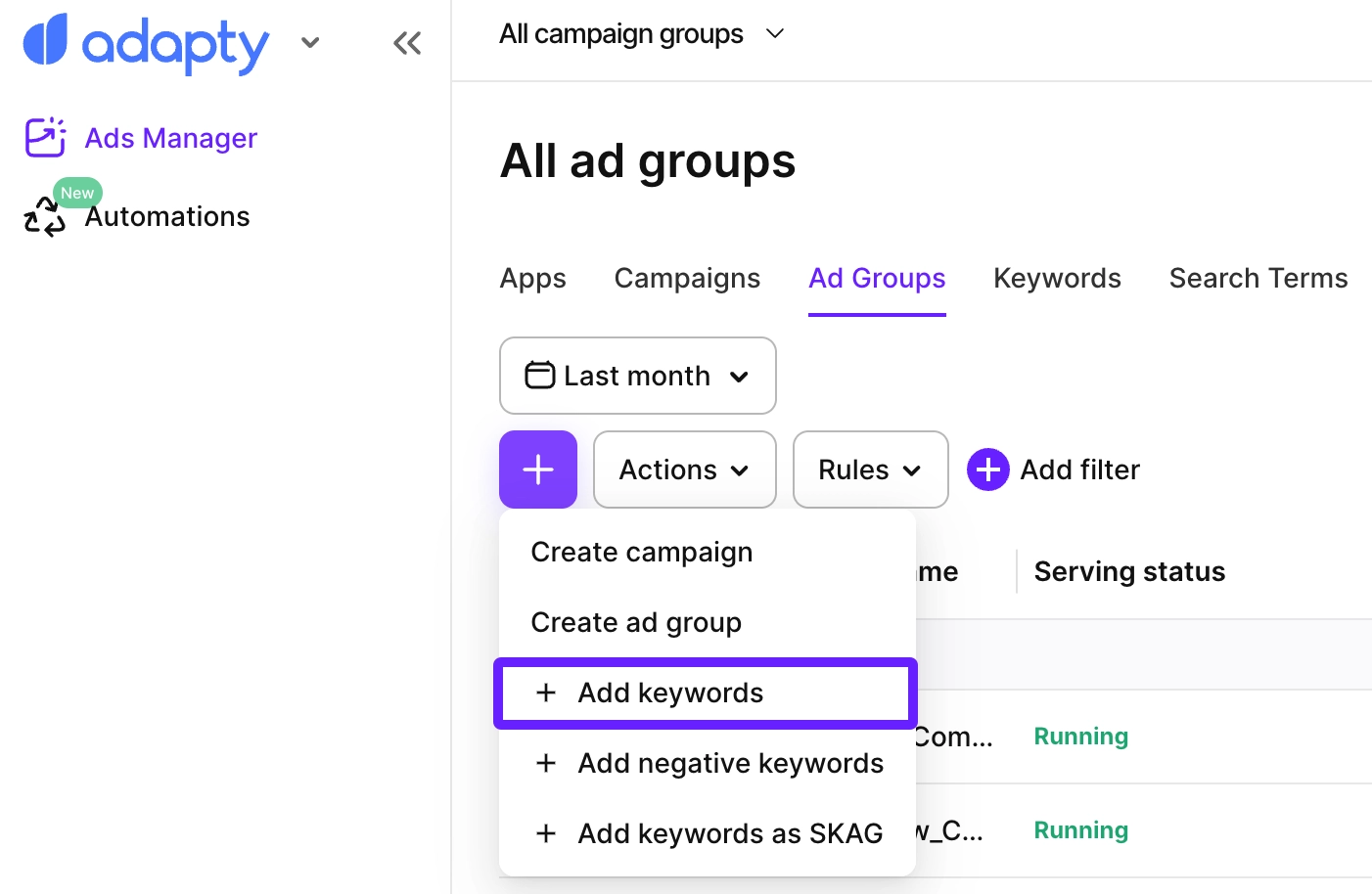
- Go to Ads Manager from the sidebar menu. On any tab, click + above the table, then select Add keywords from the dropdown.
- In the modal, select the campaigns and ad groups you want to add keywords to. After selecting ad groups in one campaign, you can then select another campaign and add more ad groups to the list.
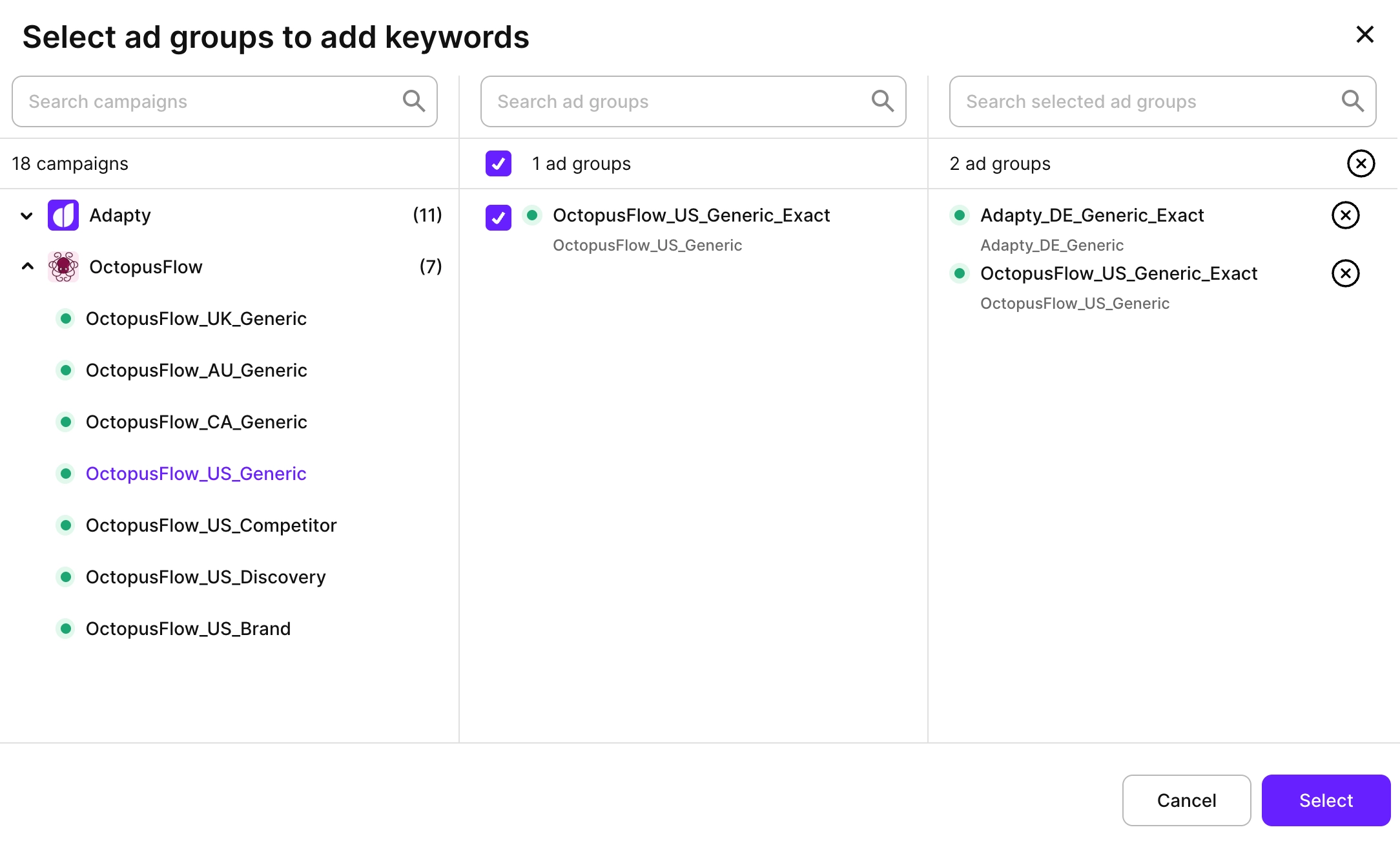
- Click Select to proceed.
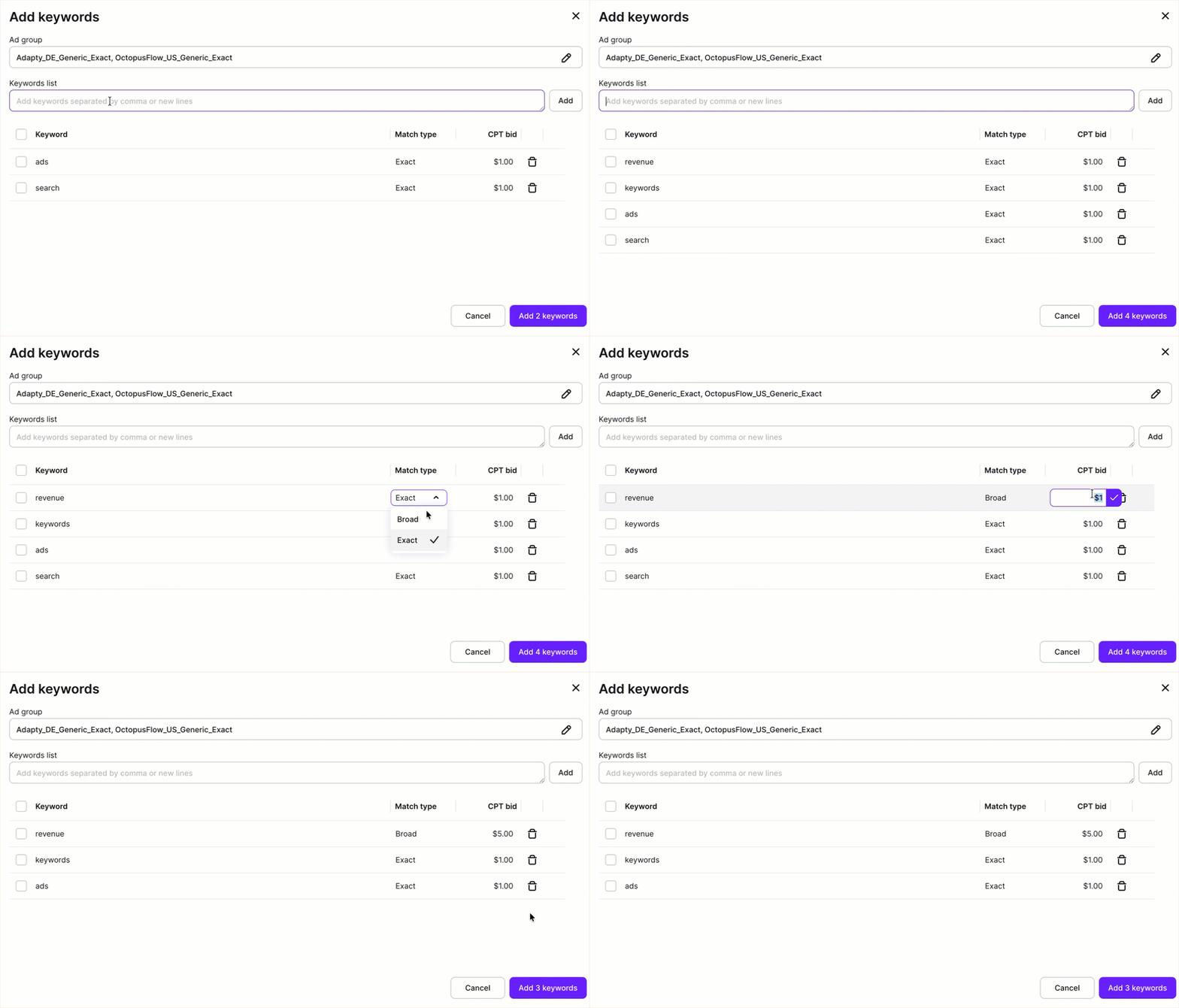
- In the Add keywords dialog, enter keywords in the Keywords list field. If you have a comma-delimited file with keywords, you can paste its contents so Adapty Ads Manager uploads all the keywords in bulk.
- For each keyword in the table, configure:
- Match type: Select Exact or Broad match type
- CPT bid: Set the maximum cost per tap bid for this keyword, or leave it empty to use the ad group’s default max CPT bid
- Review your keywords and click Add X keywords (where X is the number of keywords you’re adding).
Once you save a keyword, its match type cannot be changed. If you need to change the match type, delete the keyword and add it again with the desired match type.
Add negative keywords
To add negative keywords:
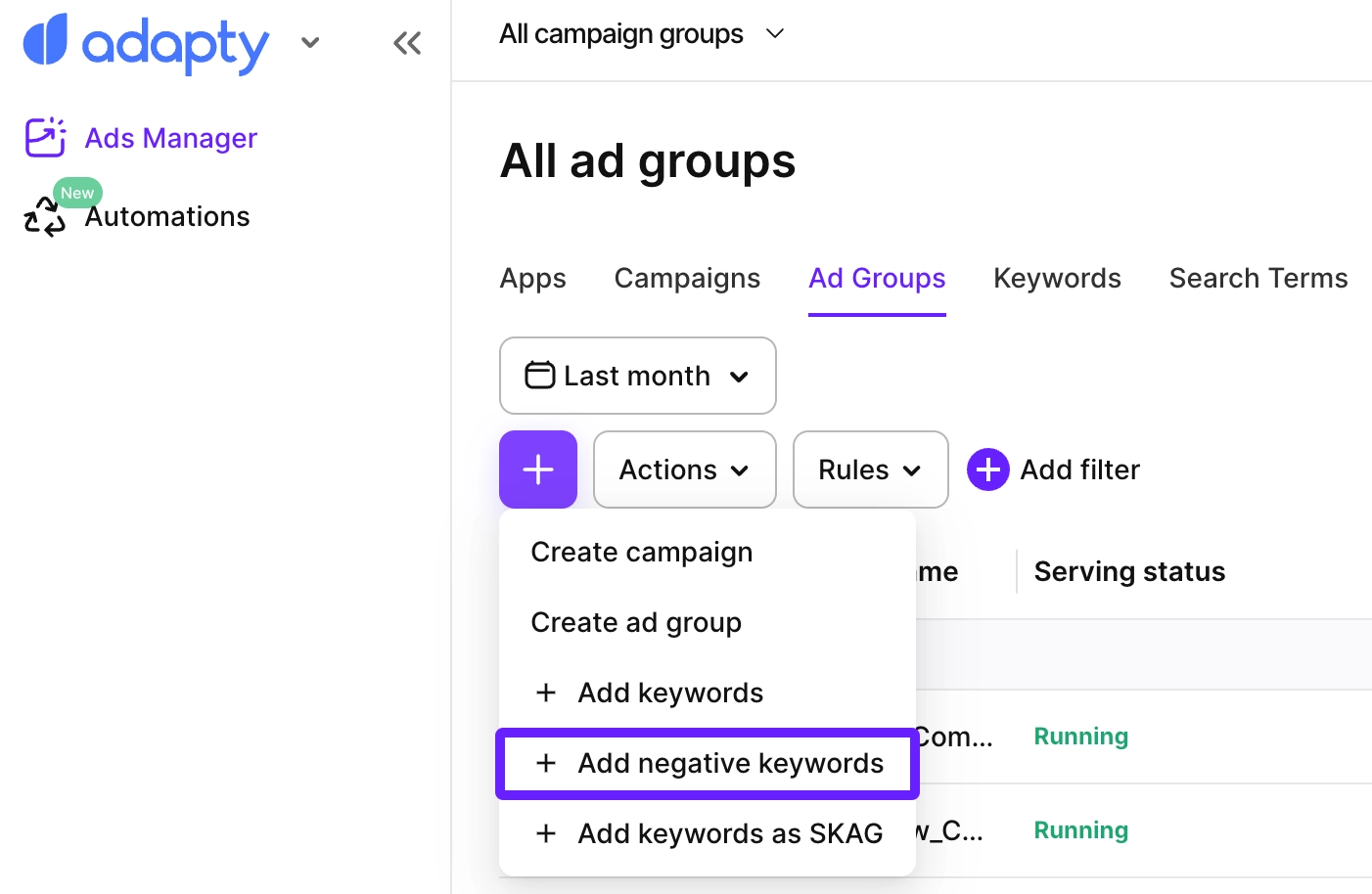
- Go to Ads Manager from the sidebar menu. On any tab, click + above the table, then select Add negative keywords from the dropdown.
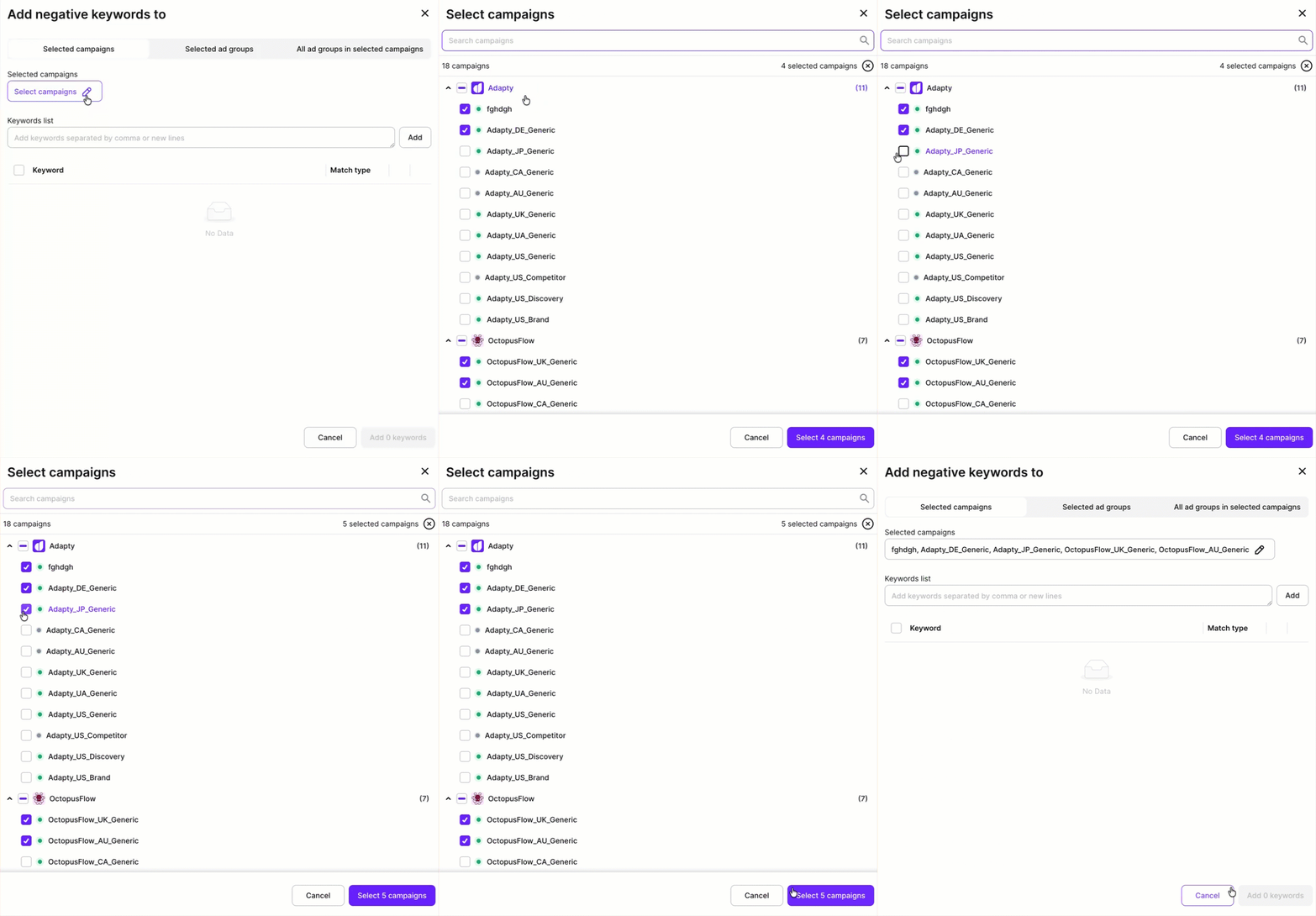
- In the Add negative keywords to modal, select on which level you want to add negative keywords:
- Selected campaigns: Add campaign-level negative keywords.
- Selected ad groups: Add ad-group level negative keywords.
- All ad groups in selected campaigns: Add ad group-level negative keywords to all the ad groups in selected campaigns.
NoteConsider the following:
- Ad group-level negative keywords have higher priority than campaign-level negative keywords.
- If you add negative keywords to all ad groups in selected campaigns, you’ll need to add them manually if you decide to add new ad groups to the campaigns later.
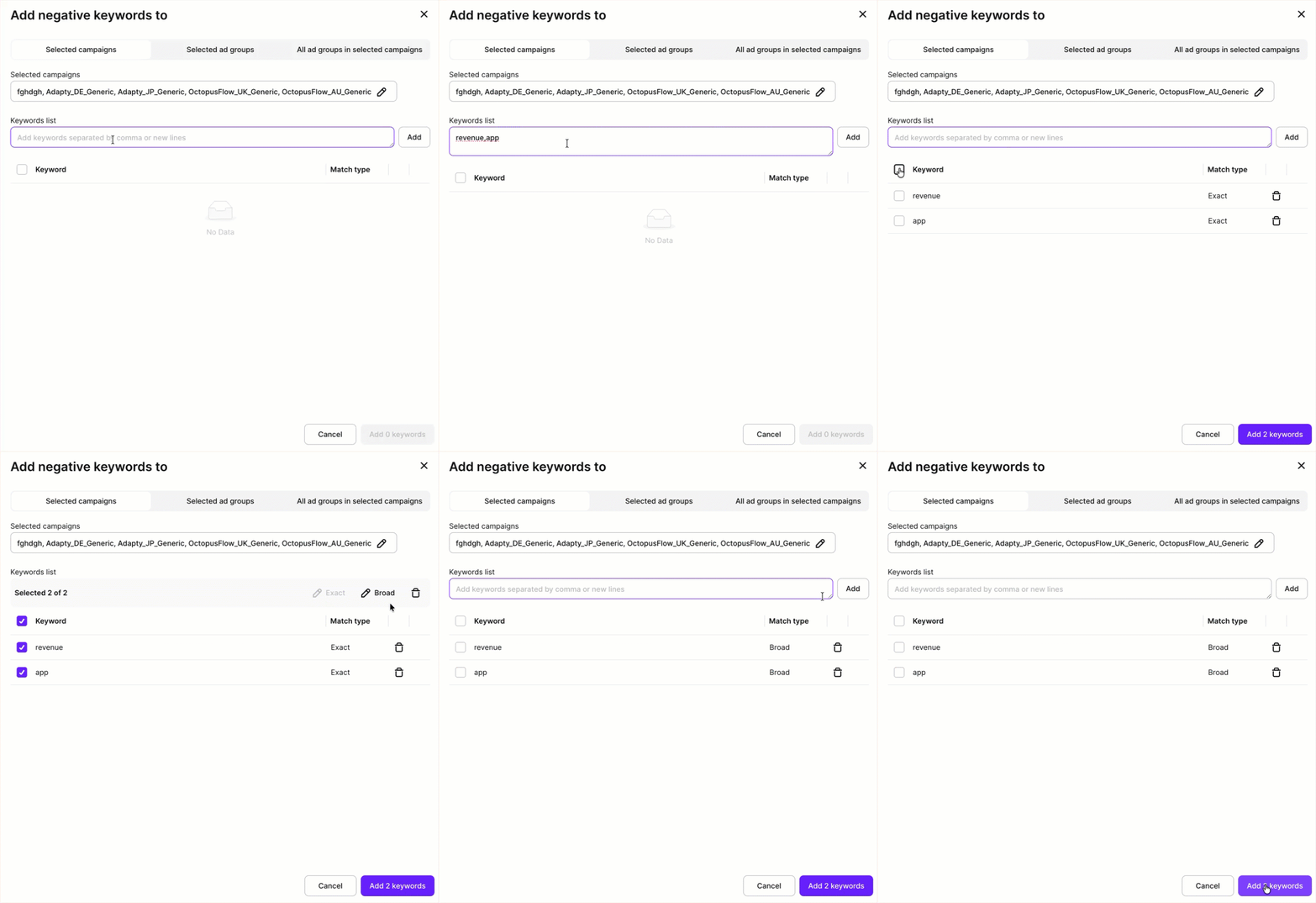
- Enter negative keywords in the Keywords list field. If you have a comma-delimited file with keywords, you can paste its content, so Adapty Ads Manager uploads all the keywords in bulk.
- For each keyword in the table, select the Match type:
- Exact: Excludes only the exact keyword or very close variations.
- Broad: Excludes the keyword and related search terms. Or select checkboxes next to them and change the match type in bulk.
- Review your negative keywords and click Add X keywords (where X is the number of keywords you’re adding).
Cross-group negative keywords are particularly useful when you want to exclude certain search terms across multiple campaigns at once, saving time and ensuring consistency across your advertising strategy.
Add keywords as SKAG
To add keywords as SKAG (Single Keyword Ad Group):
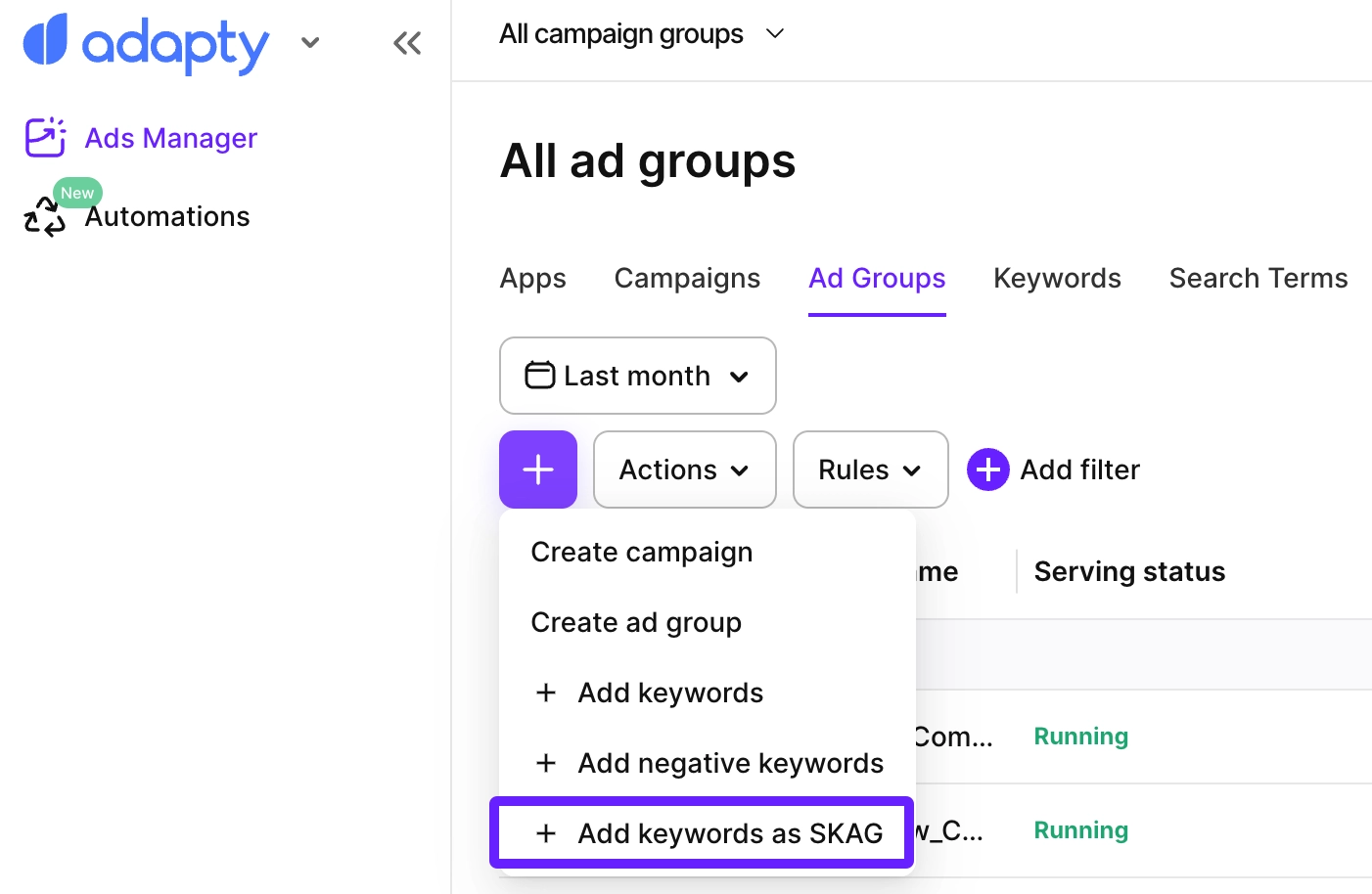
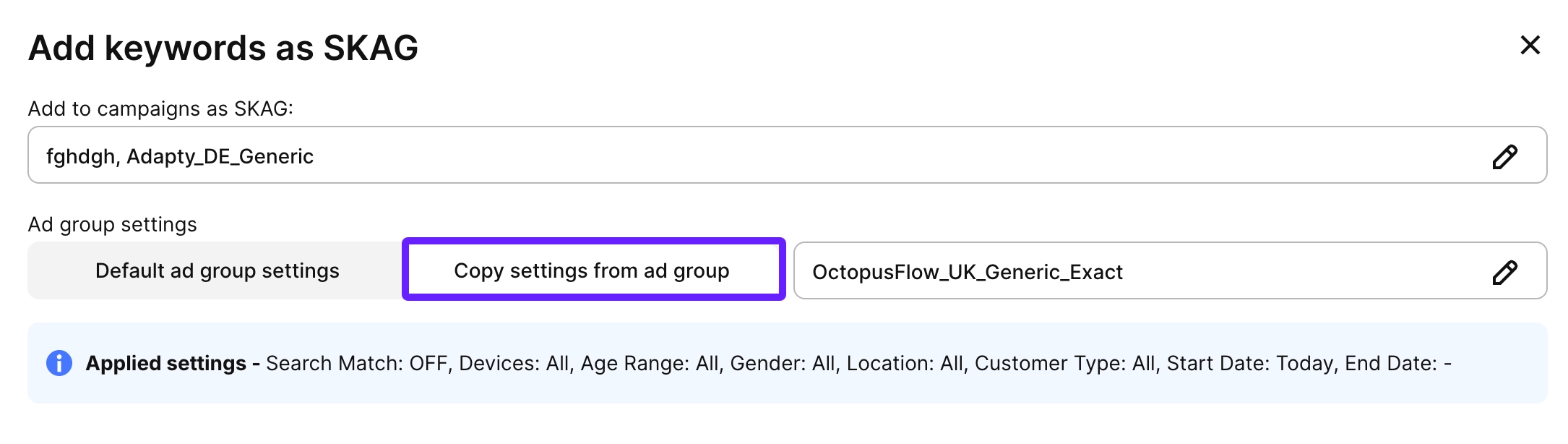
- Go to Ads Manager from the sidebar menu. On any tab, click + above the table, then select Add keywords as SKAG from the dropdown.
- Select the campaigns where you want to create the SKAG ad groups. You can select multiple campaigns.
- By default, new ad groups will be created with the default settings targeting all users. If you want to change it, select Copy settings from ad group and select an existing ad group to copy the settings from.
- Configure the settings for the new ad groups:
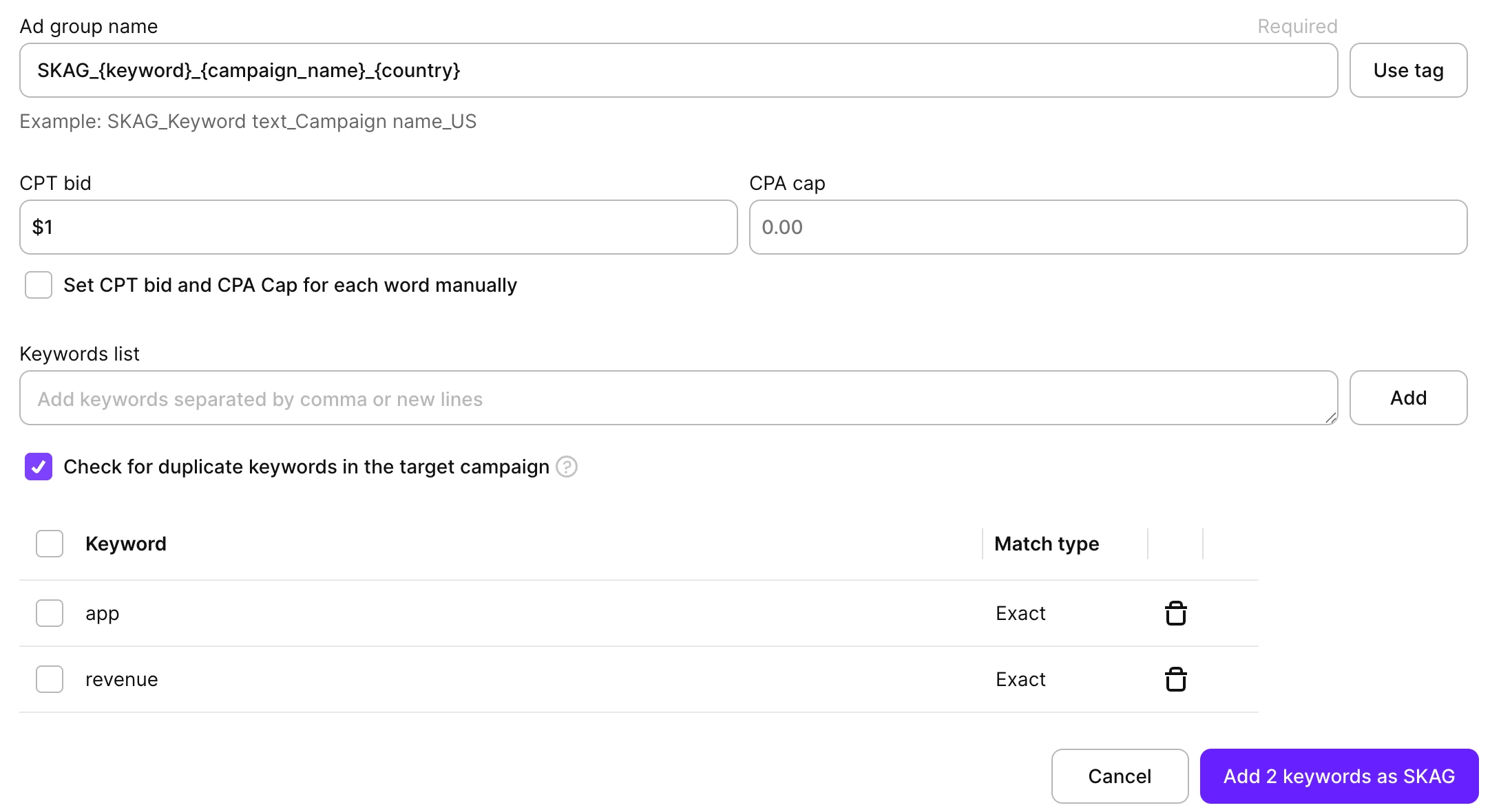
- Ad group name prefix: Optional prefix to add to each ad group name (e.g., “SKAG_” will create “SKAG_keyword1”, “SKAG_keyword2”, etc.). You can click Tag to dynamically add the keyword, campaign name, and country to the group names.
- CPT bid and CPA cap: Set the bid for all the keywords at once or select Set CPT bid and CPA cap for each word manually and set them for each keyword individually.
- Enter keywords in the Keywords list field. If you have a comma-delimited file with keywords, you can paste its content, so Adapty Ads Manager uploads all the keywords in bulk.
- For each keyword in the table, select the Match type:
- Exact: Matches only the exact keyword or very close variations
- Broad: Matches the keyword and related search terms Or select checkboxes next to them and change the match type in bulk.
- Select Check for duplicates in target campaign to ensure there are no identical keywords in the target campaigns.
- Click Create to create the SKAG ad groups.
Each keyword will be placed in its own ad group within each selected campaign, allowing you to manage and optimize them independently.
Edit keywords
To edit existing keywords:
- Go to Ads Manager > Keywords or Ads Manager > Negative keywords and find the keyword you want to edit in the table, or navigate to a campaign page, then to an ad group page, and find the keyword.
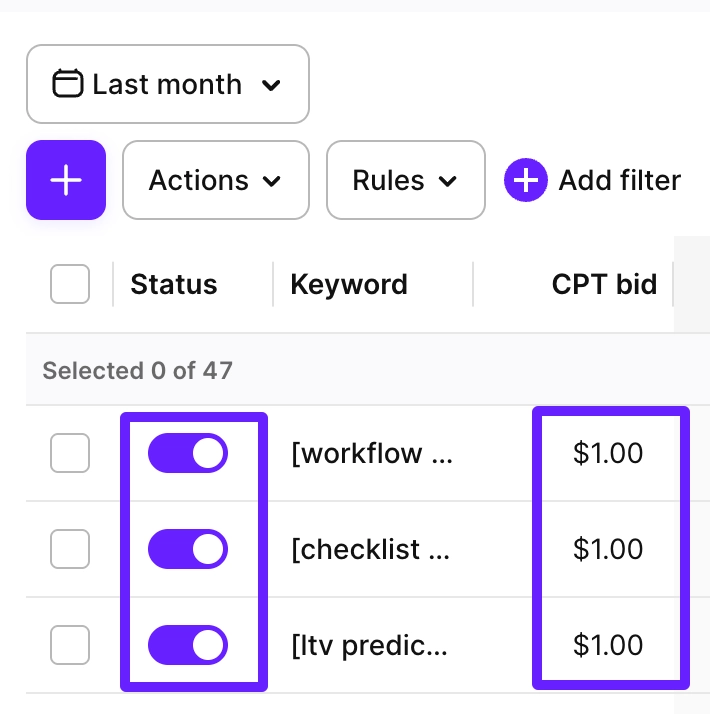
- Edit the values directly in the table:
- CPT bid: Click on the bid value and enter a new maximum cost per tap bid
- Status: Use the toggle switch to pause or activate the keyword
Edits to keywords made directly in Apple Ads sync automatically to Adapty Ads Manager, but may take time to show in Adapty Ads Manager.
To add or re-bid keywords in larger batches, use the Adapty CLI. It reads keywords from a file and applies up to 100 per call — see Ads Manager commands.
Bulk actions
You can perform bulk actions on multiple keywords to save time and manage your keywords more efficiently.
To perform bulk actions:
- Go to Ads Manager > Keywords or Ads Manager > Negative keywords tab.
- Select multiple keywords by checking the boxes next to the keywords you want to manage.
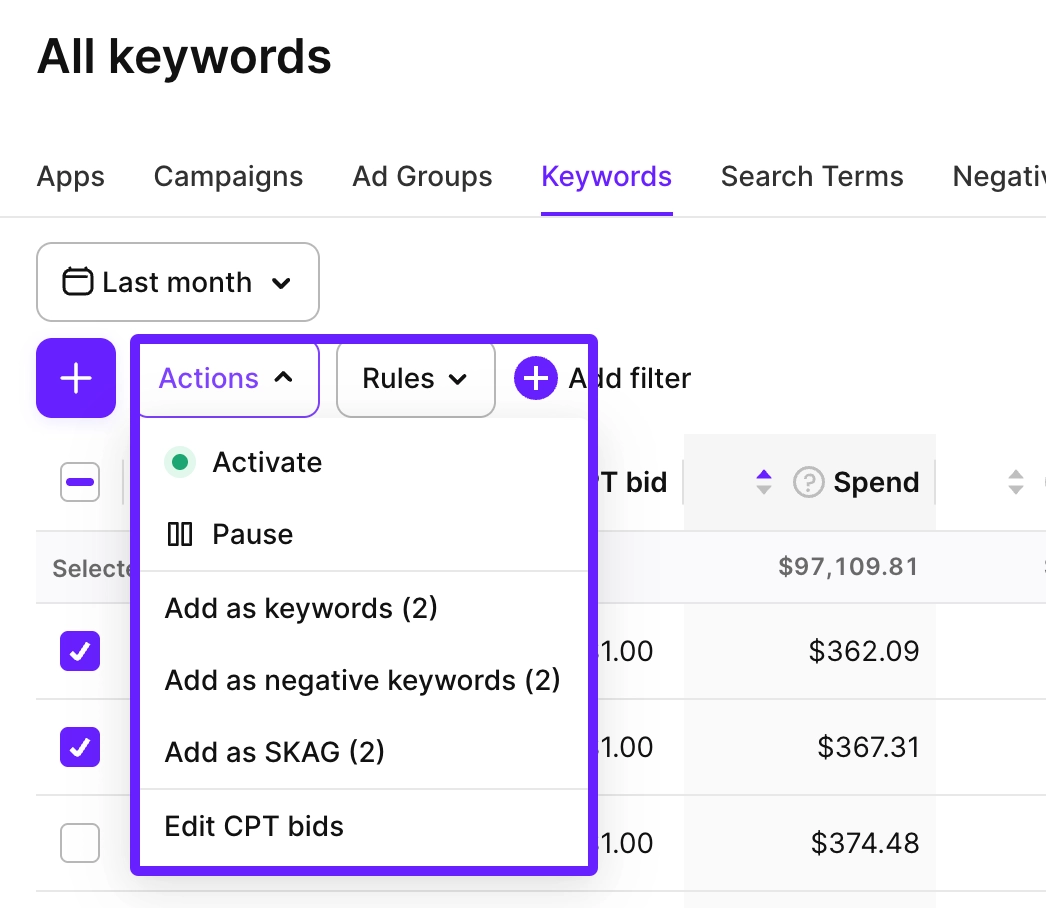
- Click the Actions dropdown and select one of the following options:
- Add as keywords: Add the selected keywords as standard keywords
- Add as negative keywords: Add the selected keywords as negative keywords
- Add as SKAG: Create Single Keyword Ad Groups for the selected keywords
- Activate: Activate the selected keywords
- Pause: Pause the selected keywords
- Create segment from keywords: Create an audience segment from the selected keywords
- Copy keywords: Copy the selected keyword names to your clipboard
- Edit CPT bids: Edit the CPT bids for the selected keywords. You can edit them in different ways:
- Set to: Set several bids to a specific amount.
- Increase by/decrease by: Increase or decrease bids by a specific amount in USD or by the bid percent. Optionally, set the upper bid limit to avoid spending too much accidentally.
- Set to average CPT: Use the CPT (cost-per-tap) metric to align the bid with it. Set a multiplier coefficient. For example, set the multiplier to 0.9 when performance is below expectations, or to 1.1 when it’s outperforming.
- Set to average CPA: Use the CPA (cost-per-acquisition) metric to align the bid with it. Set a multiplier coefficient.
The Negative keywords tab includes a limited set of actions:
- Add as keywords
- Add as negative keywords
- Add as SKAG
- Delete keywords are available.
Bulk actions are particularly useful for:
- Converting keywords between different types (standard, negative, SKAG)
- Quickly adding keywords with other match types for multiple keywords
- Filtering your top-performing keywords and adjusting their bids
- Identifying low-performing keywords and pausing them
Export keywords
To export the keywords table as a CSV, click the download icon above the table and select Export current page or Export all pages.
Export all pages downloads all keywords across all pages in a single file. A progress modal tracks the download; you can cancel it at any time. Two optional filters are available:
- Enabled only: Include only active keywords.
- With spend ≥: Include only keywords with spend above a specified threshold.
- Group by country: Break down each keyword row by country.
The table is exported as it appears on your dashboard, with the columns you have selected to display.

Explore keyword-level charts
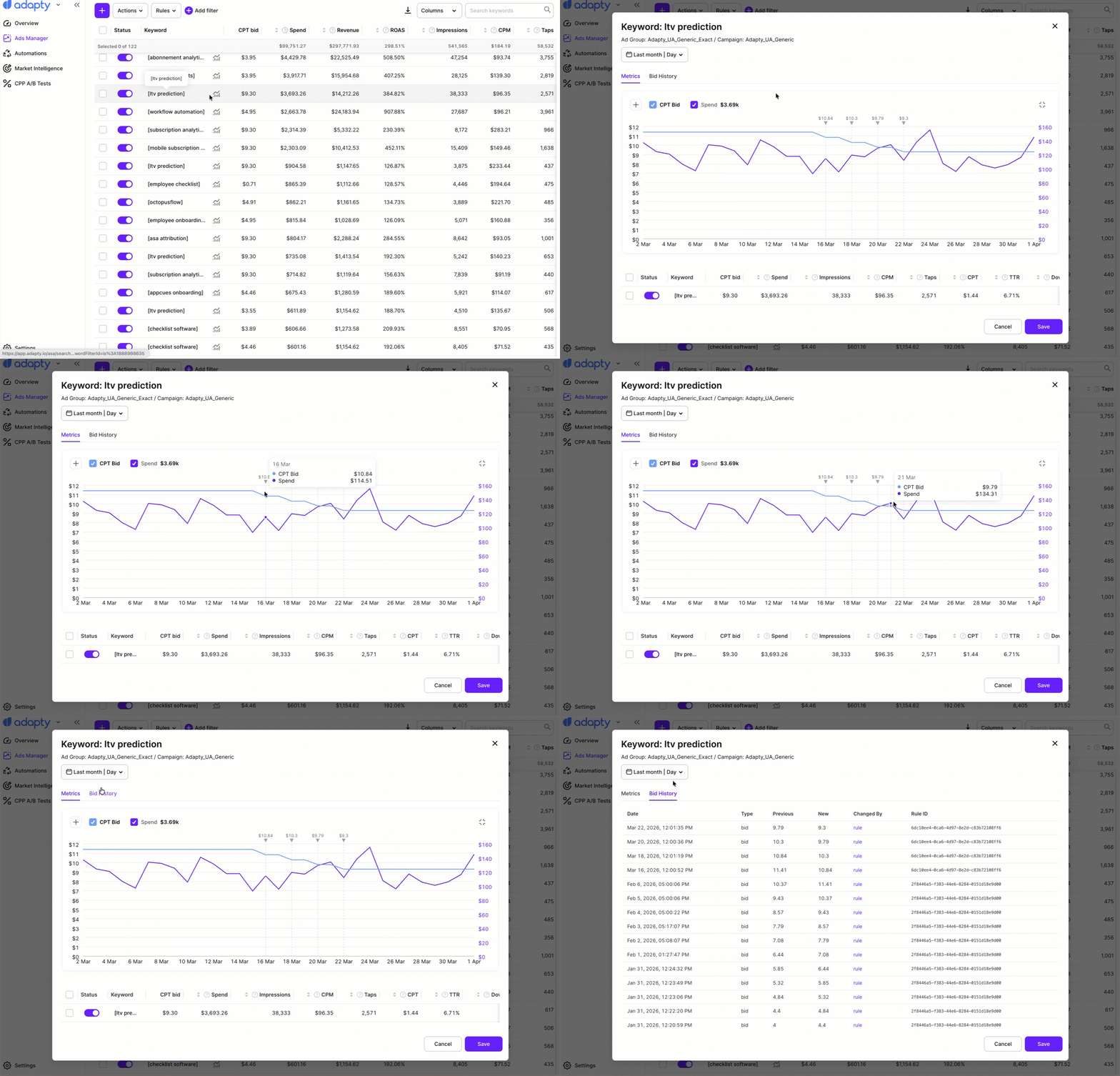
You can open a chart for any keyword directly from the Ads Manager > Keywords table. This enables precise, day-by-day performance analysis for each individual keyword.
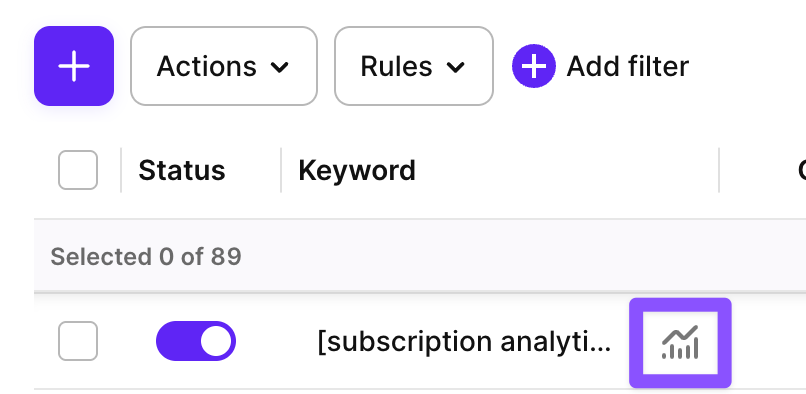
To display a chart, click the chart icon next to the keyword in the table.
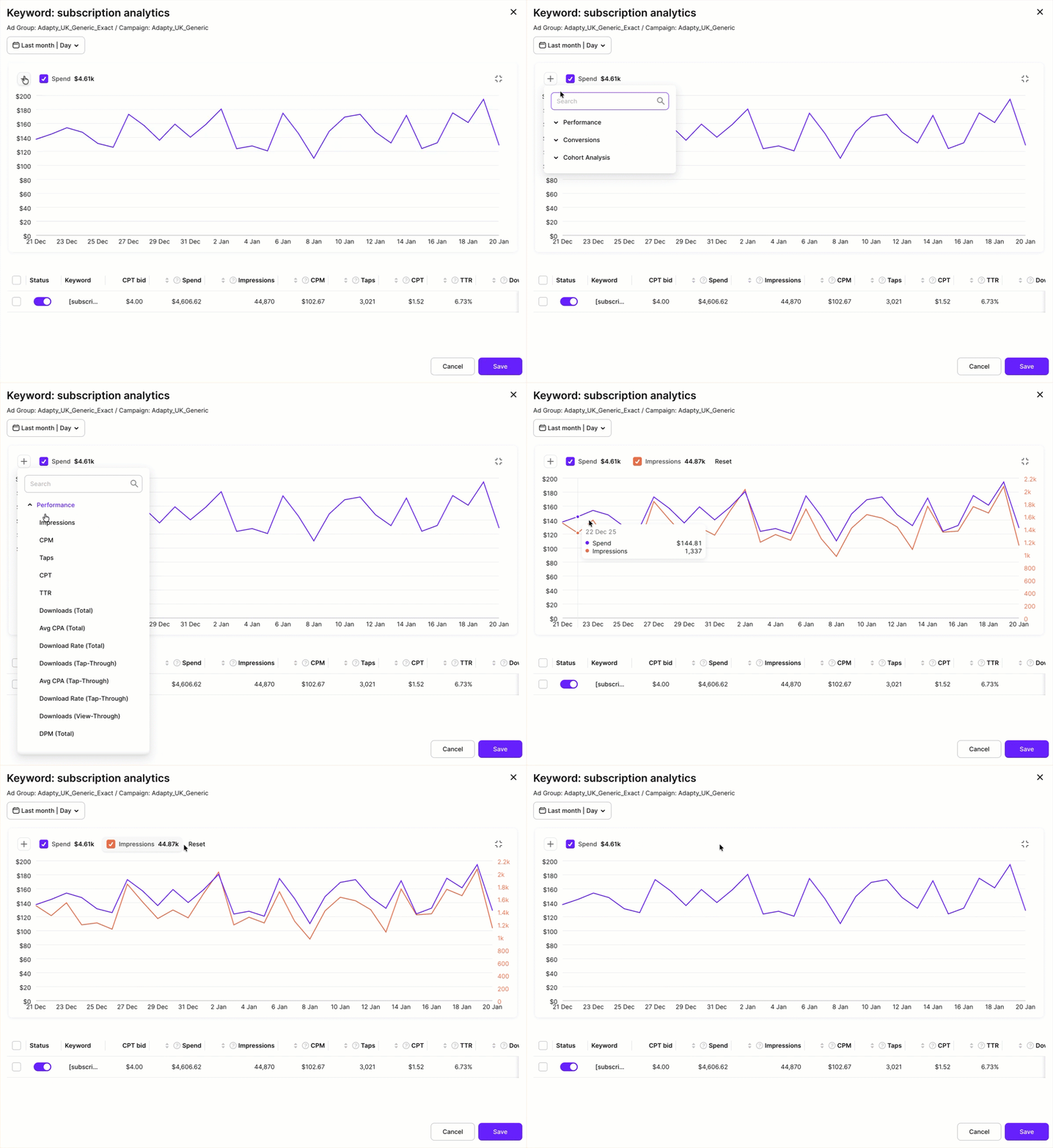
By default, the chart will display the Spend metric for the selected keyword.
You can display multiple metrics at once to spot correlations and changes over time. Click + to add a new metric.
Click Reset to start anew or simply clear the metric checkboxes to hide them.
Bid history
To view bid history for a keyword, click the chart icon next to it in the table. A panel opens with three tabs: Metrics, Bid History, and Change history.
- The Metrics tab shows a chart with metrics over time. You can add and remove metrics the same way as in keyword-level charts — click + to add, or clear checkboxes to hide them. A marker appears at each point where the bid was changed — hover over a marker to see the exact bid amount on that date. Use this to correlate bid changes with shifts in performance: if a metric dropped or spiked after a change, the marker pinpoints when it happened.
- The Bid History tab lists each bid change: its date, type, previous and new values, and what caused it — a manual change or an automation rule (shown with the rule’s ID).
- The Change history tab lists the changes made to the keyword, including those made outside Adapty, with the values before and after.