Manage ad groups in Adapty Ads Manager
Adapty Ads Manager has a two-way integration with Apple Ads: you get near real-time performance data, and you can create and edit campaigns directly from the Adapty dashboard in a much more convenient way than in the native UI.
If you create an ad group in the native Apple Ads dashboard, it will automatically appear in Adapty Ads Manager within 24 hours.
In addition to exploring comprehensive campaign metrics, you can manage all the ad group settings:
- Create ad groups
- Edit existing ad groups
- Launch & pause ad groups
What is ad group
An ad group belongs to a campaign and is where you configure the targeting and bidding strategy for your ads. Each ad group includes bid settings, audience targeting, and keywords that determine when and to whom your ads are shown. Ad groups allow you to organize your advertising strategy within a campaign and test different targeting approaches.
Note that a campaign can’t run without ad groups. Ad groups are the level where you set default bid, audience, and keywords, so without at least one ad group a campaign has no targeting or bidding and won’t serve. Create the campaign first, then add at least one ad group to activate it.
Create ad groups
To create a new Apple Ads ad group:
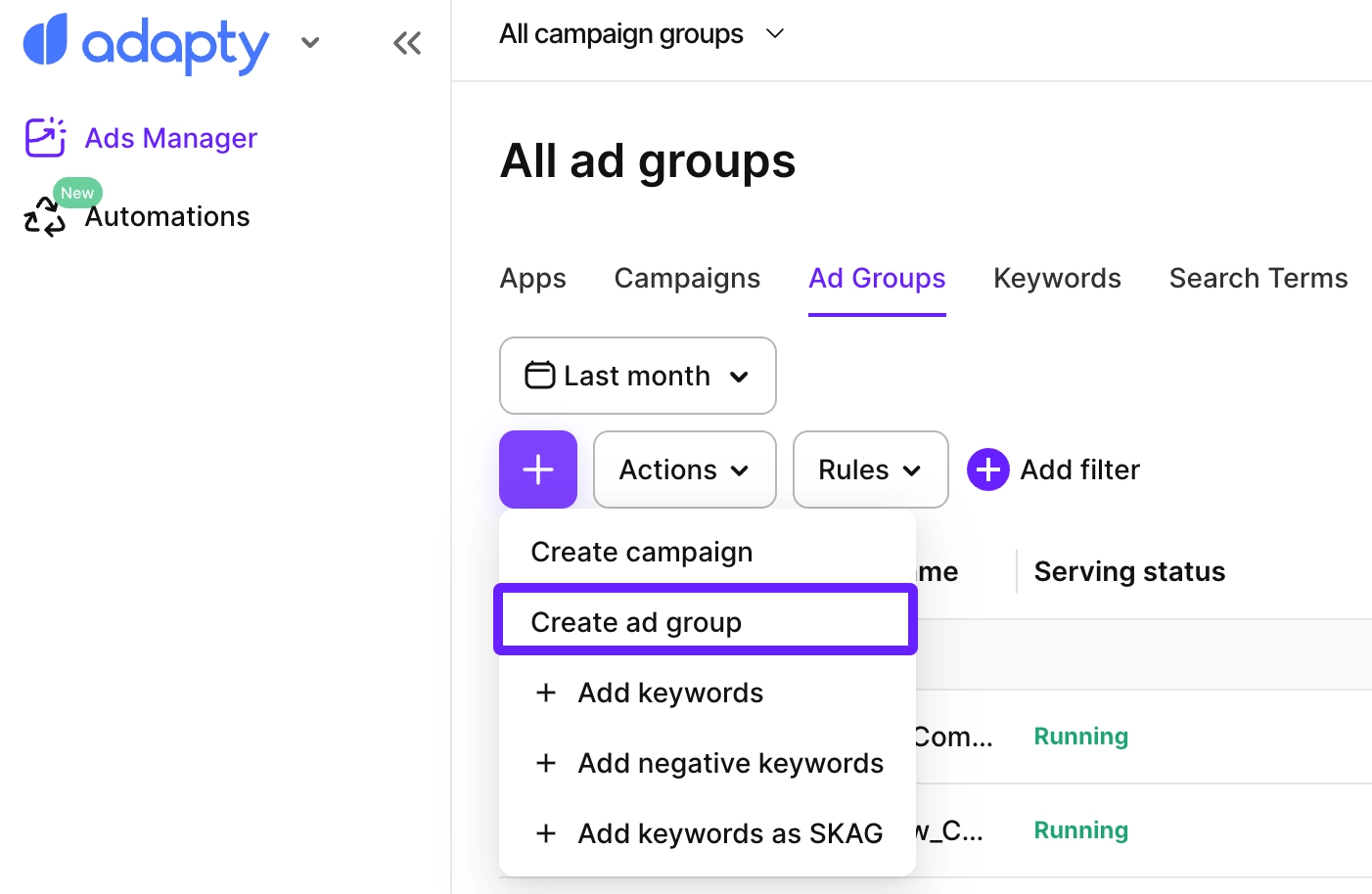
- Go to Ads Manager from the sidebar menu. On any tab, click + above the table, then select Create ad group.
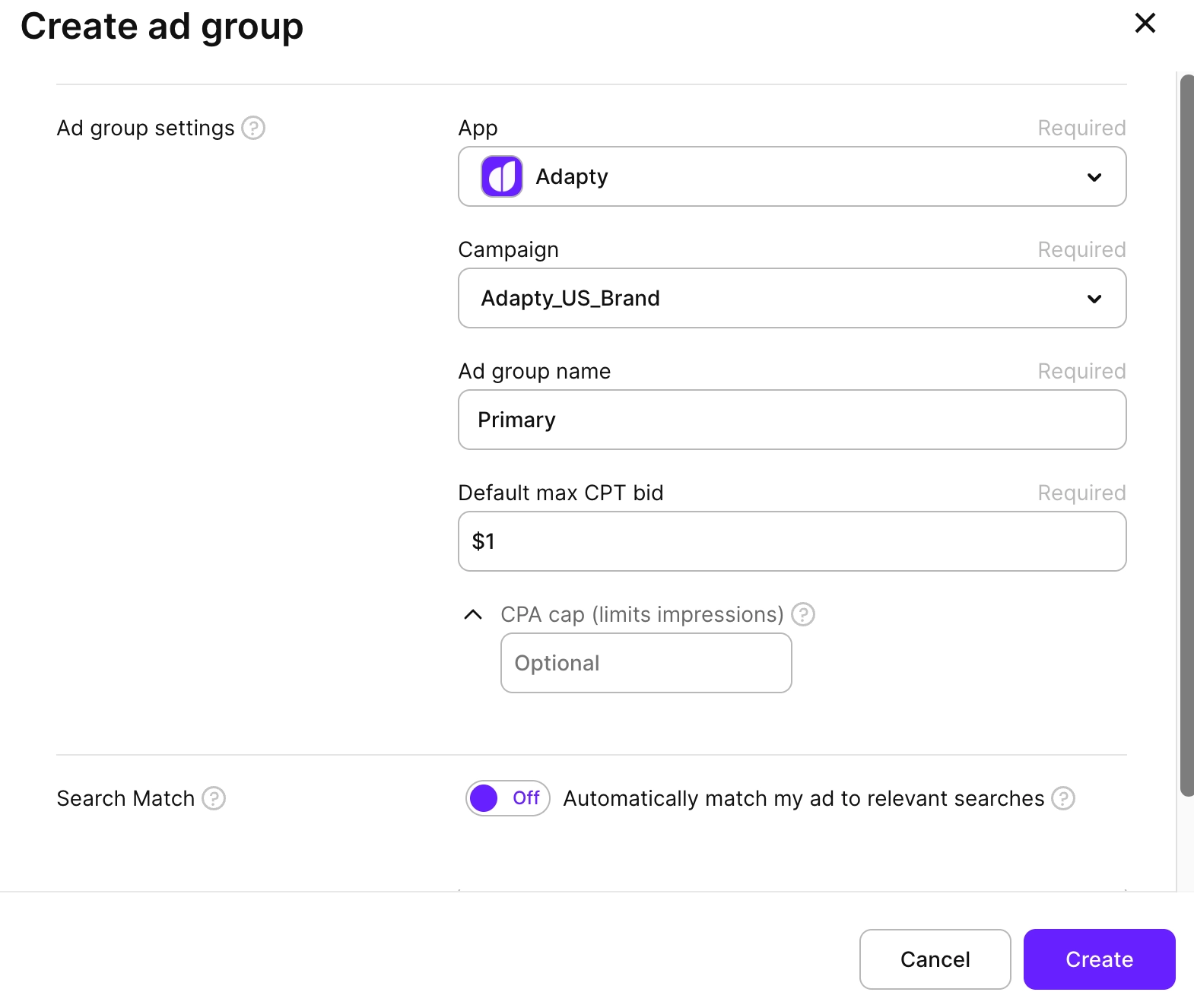
- Select the app you want to add the ad group to.
- Select the campaign you want to add the ad group to.
- Configure the ad group settings:
-
Ad group name: The label you assign to identify and search for your ad group in the dashboard.
-
Default max CPT bid: The maximum amount you’re willing to pay for a tap on your ad. This bid applies to all keywords in the ad group unless you set individual keyword bids.
-
CPA cap (limits impressions) (Optional): This setting specifies the maximum amount you’re willing to spend per tap-through conversion (for example, a download or another target action). It sets a bid ceiling for all keywords in your ad group.
The bid ceiling is calculated by multiplying the CPA cap you provide by your tap-through conversion rate:
CPA Cap × CR (Tap-Through). If the keyword max CPT bid is lower than this value, the lower max CPT bid will be applied.For example, if your CPA cap is $5 and your tap-through conversion rate is 65%, the max bid applied for all keywords in the ad group would be $3.25. If the max CPT is set at $4, the max bid applied would still be $3.25.
-
Search Match: Toggle to automatically match your ad to relevant searches without having to specify keywords. When enabled, Apple Ads may show your ad for searches related to your app’s metadata and category.
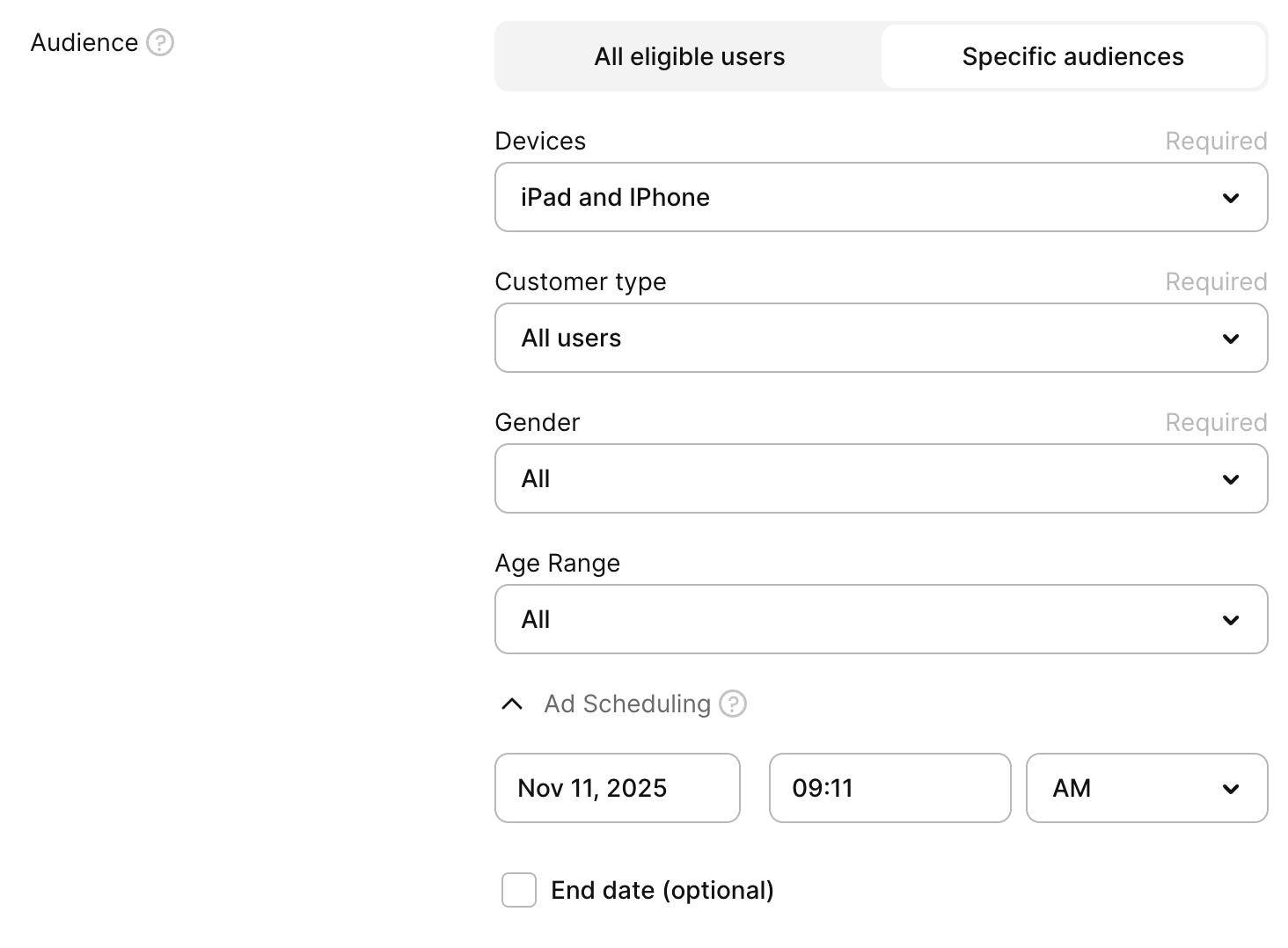
- Audience: The targeting criteria that determines which users see your ads.
- All eligible users: Shows your ads to all users eligible for your campaign.
- Specific audiences: Target specific user segments by configuring:
- Devices: Target iPad, iPhone, or both.
- Customer type: Target all users, new users, or returning users.
- Gender: Target by gender or all users.
- Age range: Target specific age ranges or all users.
- Ad scheduling (Optional, available when you select Specific audiences): Set when your ads start running:
- Start date and time: When your ad group should begin serving ads.
- End date (Optional): When your ad group should stop serving ads.
-
- Click Create.
- If your campaign placement type is Search results, you can now add keywords to start serving ads. For other placement types, you’re all set.
In a Max Conversions campaign, the ad group has a Bidding strategy toggle: Standard or Automated. There’s no Default max CPT bid field. With Automated, you set a target CPA and Apple optimizes the bids for you.
Edit ad groups
To edit any created ad group:
-
Open the campaign settings using either method:
- Click the campaign name in Ads Manager > Ad groups. Then, click Edit ad group on the top right.
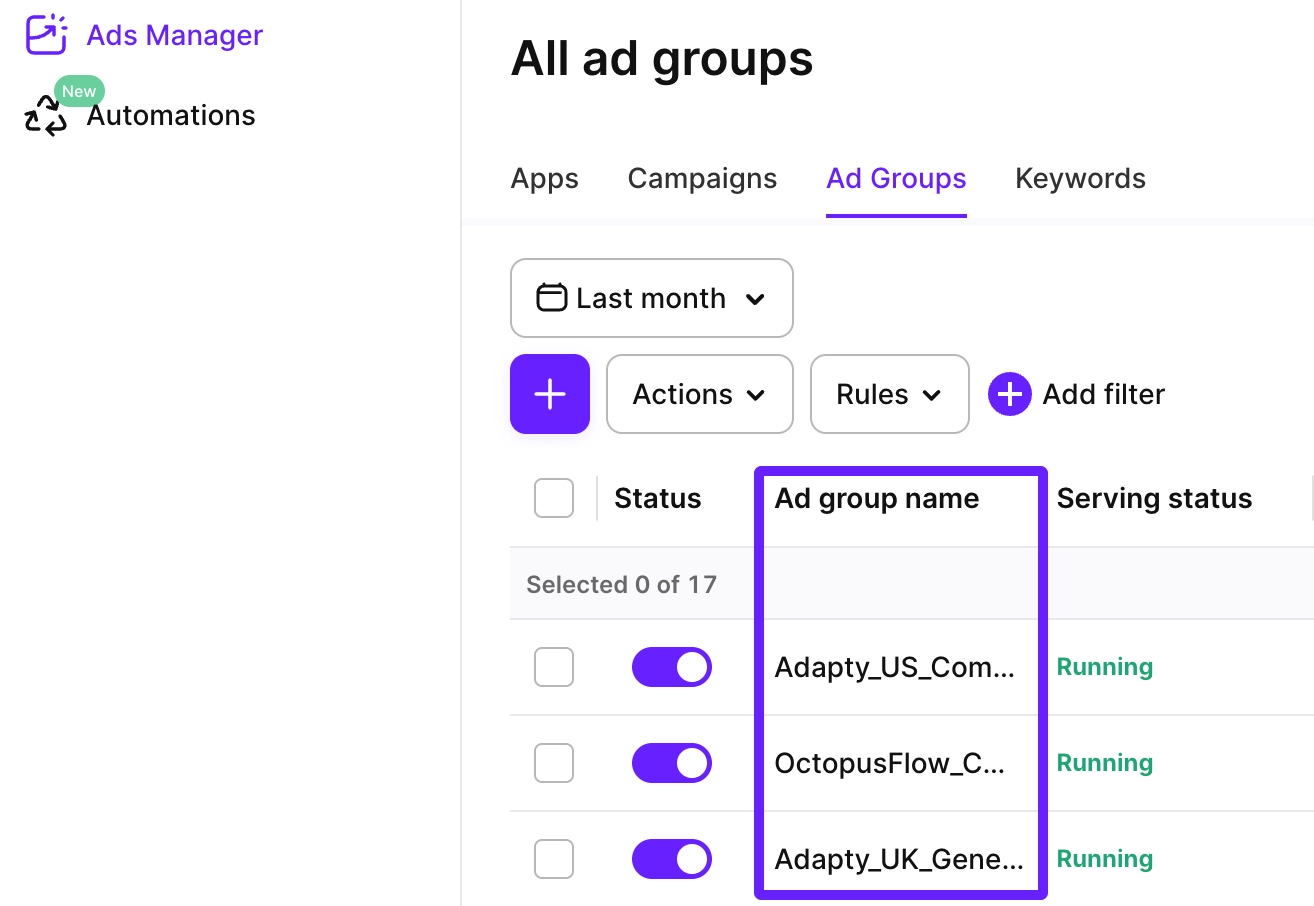
- Or select the checkbox next to the ad group name and click Actions > Edit ad group settings.
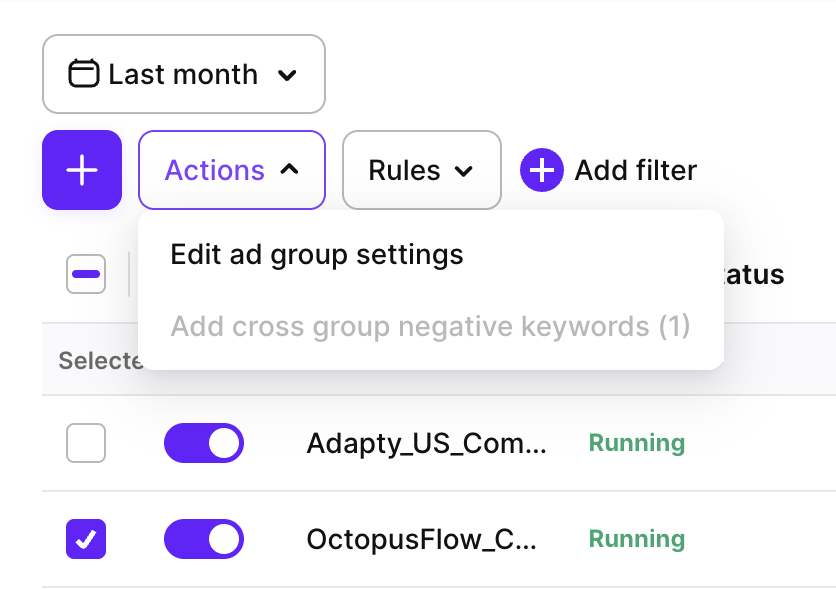
-
Adjust the ad group settings. The app, campaign, audience type, and start date and time can’t be changed. In an automated ad group, only the name is editable.

-
Click Save changes.
To duplicate an ad group, select it in Ads Manager > Ad groups and click Actions > Duplicate ad group.
Edits to an ad group made directly in Apple Ads sync automatically to Adapty Ads Manager, but may take time to show in Adapty Ads Manager.
Export ad groups
To export the ad groups table as a CSV, click the download icon above the table and select Export current page or Export all pages.
Export all pages downloads all ad groups across all pages in a single file. A progress modal tracks the download; you can cancel it at any time. Two optional filters are available:
- Enabled only: Include only active ad groups.
- With spend ≥: Include only ad groups with spend above a specified threshold.
- Group by country: Break down each ad group row by country.
The table is exported as it appears on your dashboard, with the columns you have selected to display.

Launch & pause ad groups
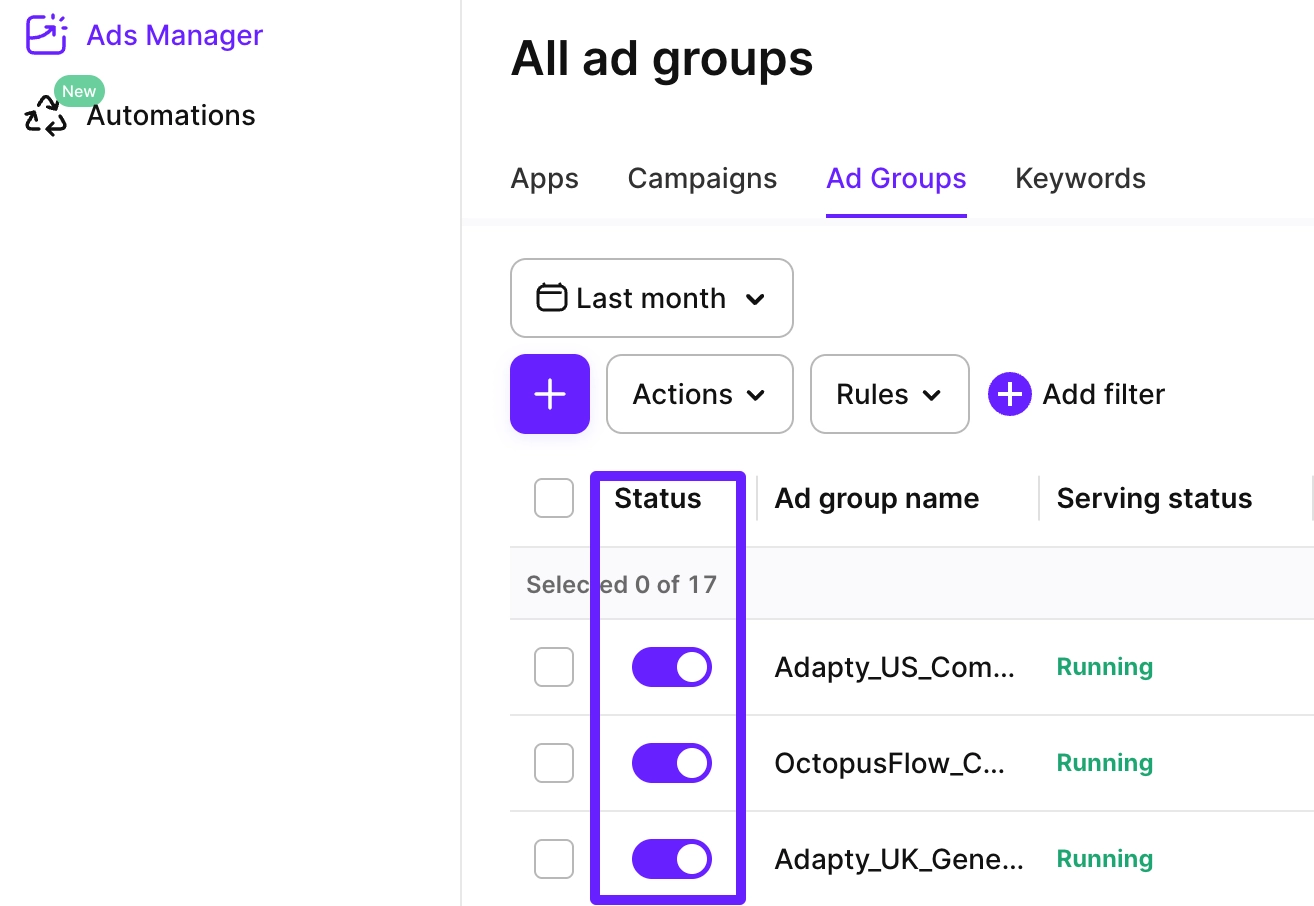
To launch or pause any ad group from Adapty Ads Manager:
- Go to Ads Manager > Ad groups, or navigate to a campaign page to see its ad groups.
- Switch the toggle on or off next to the ad group name in the Status column.