
Variables
Variables let you display dynamic content in your flows — product pricing, offer details, and other data that updates based on each user’s context. Use them to control element visibility and personalize screen content.
To open the Variable management view, click in the left panel. The view includes three tabs:
- Custom: In-flow variables and custom tags — variables you can set from your app.
- Product: Built-in variables that pull localized product and offer data from the store.
- Element: Variables bound to element states on the canvas.
Custom variables
Create a custom variable
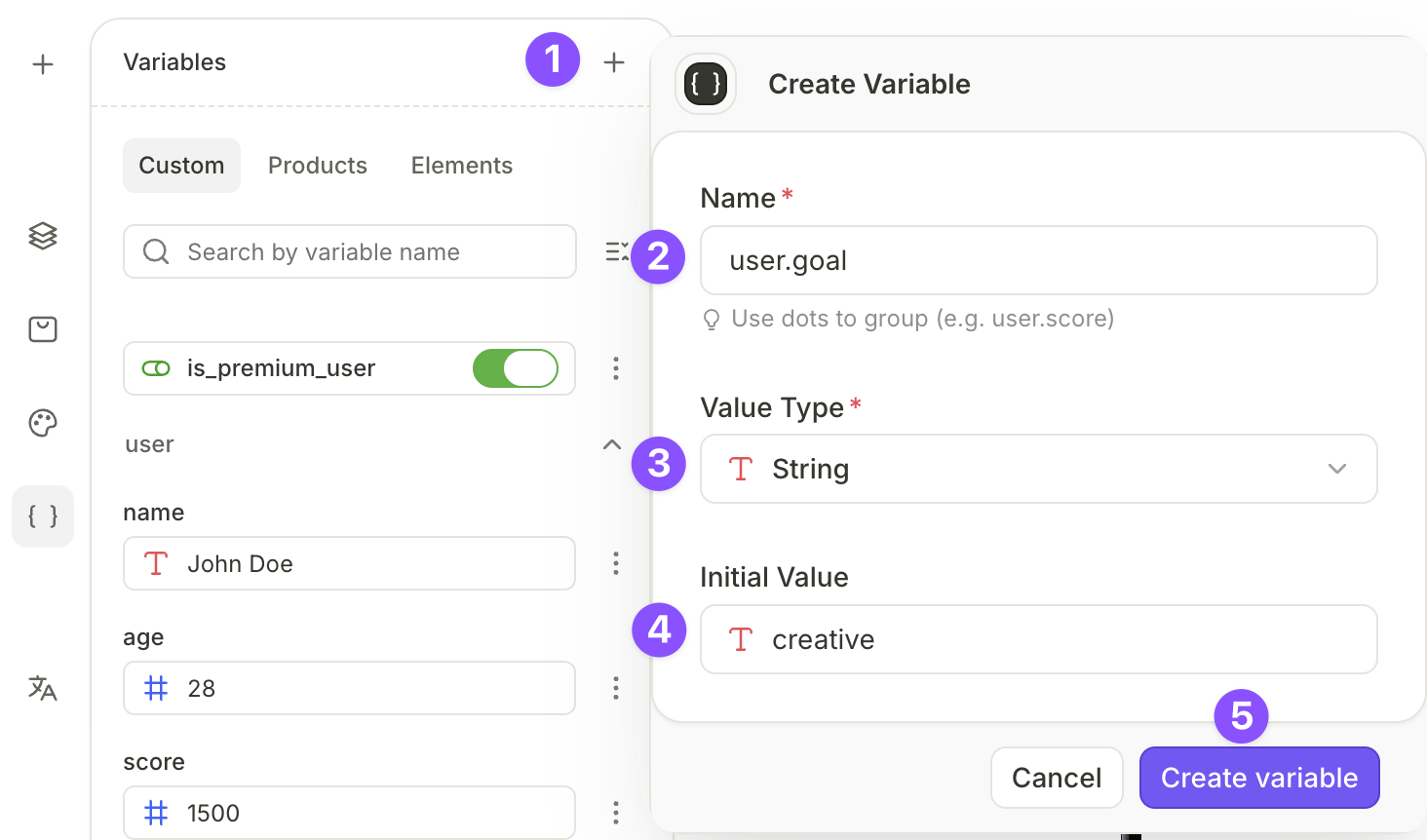
- Open the Variables panel in the flow builder.
- Add a new variable — click .
- Configure the variable Name.
- (Optional) To distinguish between different variables, fill in the Description field. When you hover over the variable’s name in the builder, you’ll see the description.
- Select the Value Type: String, Number, or Boolean. You can only insert a variable into a text element if its type is String or Number.
- In the Initial value field, enter the value the variable holds when the flow starts.
- (Optional, String variables only) To set the variable’s value from your app’s code, select the Value comes from outside the app checkbox. This action is irreversible and locks in the Value Type. The variable becomes a custom tag — your app needs to set its value when you load the flow. If no value is passed, the users see its initial value as a fallback.
- Click Create variable.
Variables are flow-specific. To use a variable in another flow, create it there too.
Use dots in names to group related variables — for example, user.score or user.goal.
Update a variable via an interaction
See the Actions article for more details.
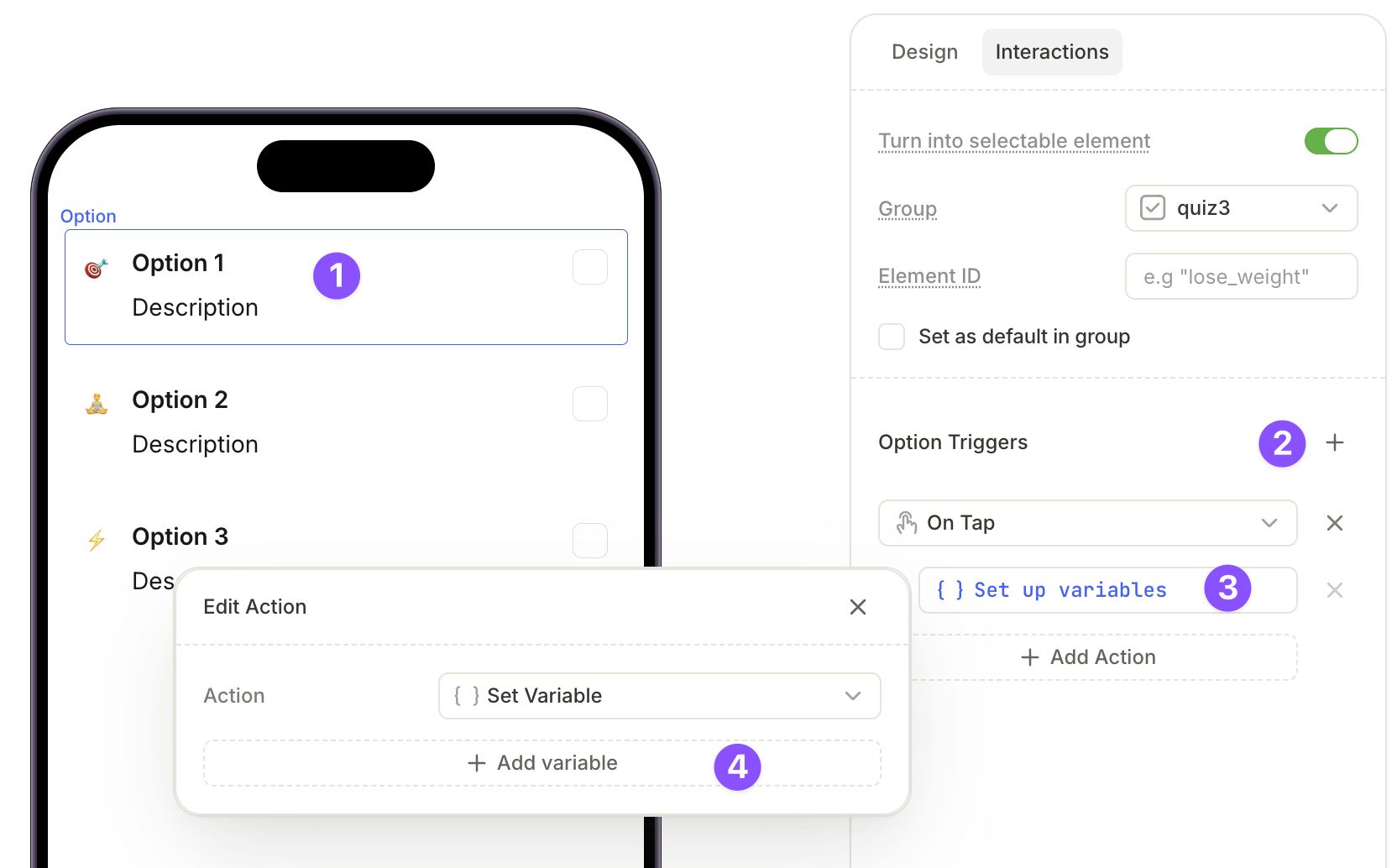
You can update a variable value at runtime by adding a Set variable action to any element.
- Select an element on the canvas.
- In the Interactions tab, click Add trigger.
- Select On tap and click Add action. From the Action type dropdown, select Set variable.
- Click Add variable. Select the variable and set the new value.
For example, you can assign a different value to user.goal based on which quiz answer a user selects, then use that variable to navigate them to a different screen.
Product variables
Product variables pull localized data directly from the app stores. Use them in text fields to display localized prices, titles, and offer details — or in conditions, to show or hide content based on offer eligibility. When you insert a variable for a specific product, the builder adds that product to the screen’s list in the Products panel.
| Variable | Description | Example |
|---|---|---|
prod_title | Localized title of the product | Premium Subscription |
prod_price | Localized price for one billing period | $9.99 |
prod_price_per_day | Subscription price converted to one day. Empty for non-subscriptions. | $0.33 |
prod_price_per_week | Subscription price converted to one week. Empty for non-subscriptions. | $2.33 |
prod_price_per_month | Subscription price converted to one month. Empty for non-subscriptions. | $9.99 |
prod_price_per_year | Subscription price converted to one year. Empty for non-subscriptions. | $119.88 |
offer_price | Localized price of an intro or promo offer. Empty if the user is not eligible for any offer. | $0.99 |
offer_billing_period | Localized billing period of an offer. Same as offer_full_duration for trial and pay-upfront offers. Empty if the user is not eligible. | 1 week |
offer_full_duration | Localized full duration of an offer. Empty if the user is not eligible. | 1 month |
is_free_trial | Returns true if the user is eligible for an offer with a free trial. | true |
is_pay_up_front | Returns true if the user is eligible for a pay-up-front offer. | true |
is_pay_as_you_go | Returns true if the user is eligible for a pay-as-you-go offer. | true |
The prod_price_per_* variables convert the price from the product’s billing period into the period you ask for. The conversion uses fixed period lengths, not calendar dates:
- 1 week = 7 days
- 1 month = 30 days
- 1 year = 12 months, or 365 days
For a $59.99 monthly subscription, prod_price_per_week returns $14.00: $59.99 × 7 ÷ 30 = $13.9977, rounded for display. A month is 30 / 7 ≈ 4.2857 weeks, so multiplying the weekly value by 4 doesn’t return the original price.
Use is_free_trial, is_pay_up_front, and is_pay_as_you_go with conditional visibility to show or hide elements based on the offer a user is eligible for. For example, show a free-trial timeline only when is_free_trial is true.
Offer variable values depend on the offer type the user is eligible for. To illustrate, take a weekly subscription called “Premium Subscription” at $5, with three possible offers:
- Pay As You Go: First 3 weeks for $3 (billed weekly), then $5/week.
- Pay Up Front: First 3 weeks for $8 (billed immediately), then $5/week.
- Free Trial: First week free, then $5/week.
In this example, prod_title returns “Premium Subscription” and prod_price returns $5. The offer variable values depend on which offer the user is eligible for:
| Variable | Pay As You Go | Pay Upfront | Free Trial |
|---|---|---|---|
offer_price | $3 | $8 | $0 |
offer_billing_period | 1 week | 3 weeks | 1 week |
offer_full_duration | 3 weeks | 3 weeks | 1 week |
For Pay Upfront and Free Trial offers, offer_billing_period and offer_full_duration return the same value. For Pay As You Go, they differ because the billing period is one week but the full duration is three weeks.
offer_price, offer_billing_period, and offer_full_duration require a product with an offer. Without one, the flow doesn’t publish.
All of these values come from the store, so the builder preview resolves only some of them: offer values stay unresolved on the canvas, and is_free_trial, is_pay_up_front, and is_pay_as_you_go follow the offer you selected on the product card. See Preview products and offers to preview each offer type while you build.
To learn more about offers and how to configure them, see Offers.
Element variables
Element variables capture the user’s choices — what they selected in quizzes, which tab they are on, and whether a toggle is on.
Element variable types depend on the group:
- Single choice: Single choice quizzes, tabs, and toggles:
selectedOptionId: Element ID to use in conditionsselectedOptionTitle: Element title to use in dynamic text
- Multi-choice: Multi-choice quizzes:
selectedOptionIds: Element IDs to use in conditionsselectedOptionTitles: Element titles to use in dynamic text
- Toggle: Elements that switch between on and off:
isActive: Boolean value
- Product: Product cards:
selectedProduct: The selected product, to use in conditions
Common use cases include:
- Displaying different content based on whether the trial toggle is enabled.
- Navigating users to different screens based on their quiz answers
Use variables in text
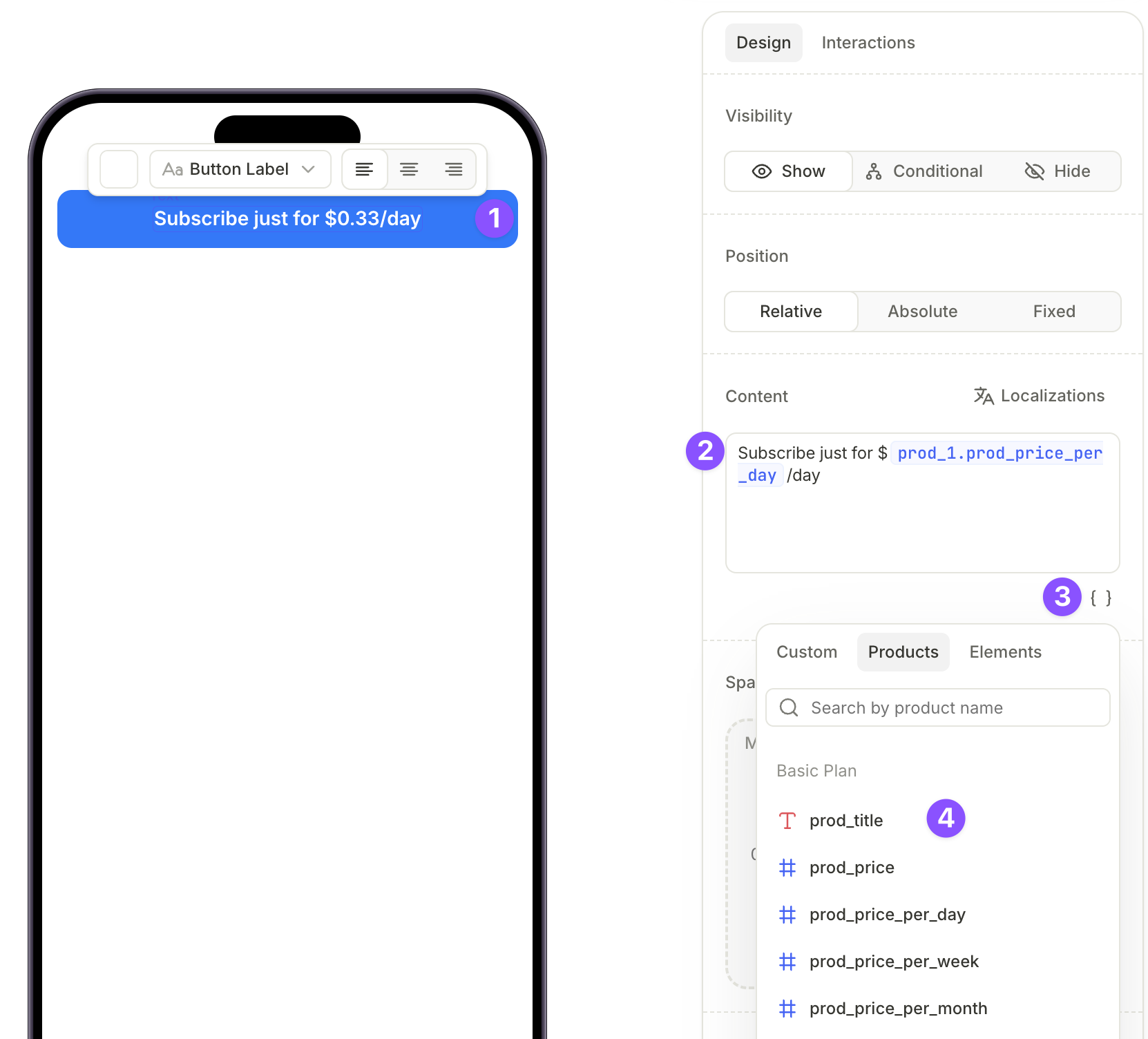
To insert a variable into a text element:
- Select a text element on the canvas.
- In the Design tab, find the Content field and write your text.
- Click in the field.
- Select a variable. On the Product tab, products already listed in the Products panel come first. The rest of your catalog follows under Other products.
You can also use variables in other elements:
- Use variables in links and alerts to make them dynamic
- Create dynamic conditions based on variables. For example, the condition can be
if experience.current > experience.target, navigate to...
Style variables
You can’t apply rich text formatting to a variable on its own. Selecting a variable in the Content field and applying bold, italic, underline, strikethrough, or a color change has no effect.
Rich text settings apply only to the whole text block. To style the text, use the Typography section of the Design tab, or apply a saved text style.
Reuse content across screens
Some content repeats across your flow — a button label like “Continue”, a recurring call to action, or a disclaimer shown on several screens. The same applies to longer text, such as a feature description reused across multiple screens. Instead of typing this content into each element, store it in a custom variable. This helps when you navigate different users to different screens but want consistent wording across them.
- Create a custom variable of type String and set its initial value to the text you want to reuse. For example, name it
button.navigationand set the value toContinue.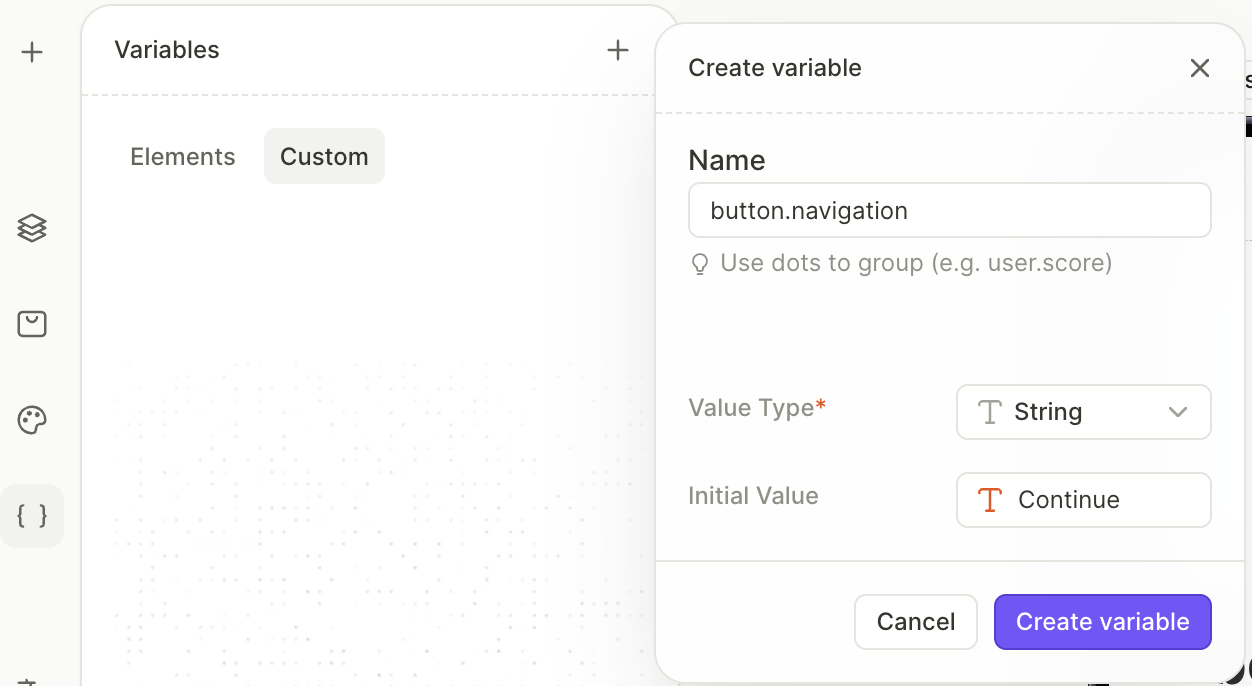
- Insert this variable into the Content field of each element where the text should appear.
To change the text everywhere, update the variable’s initial value once. Every element that uses the variable updates automatically, so you don’t edit each screen by hand.
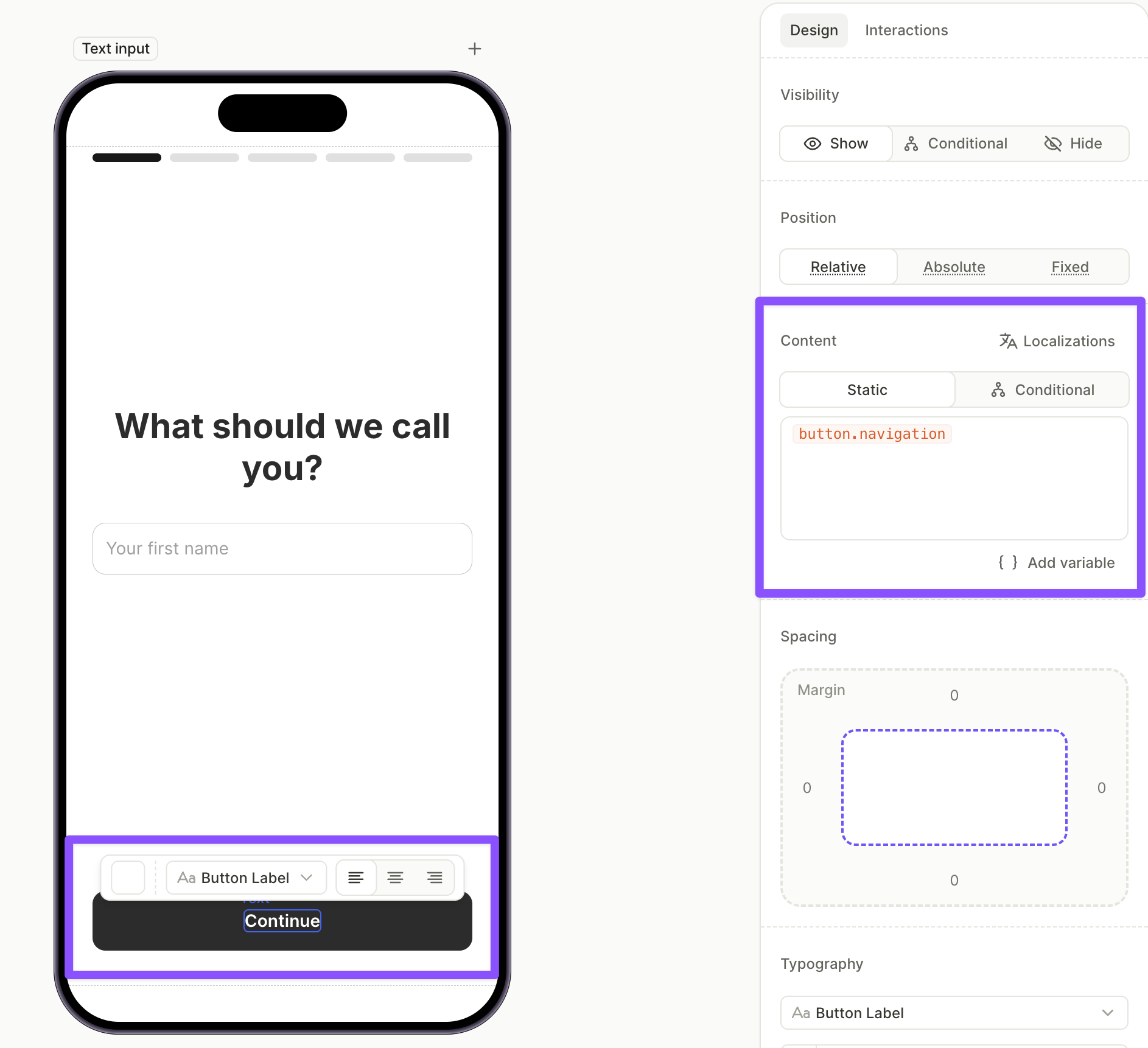
Custom variable values cannot be localized: the variable shows the same value in every locale. To translate the reused text, in the Localizations panel, replace the variable with the translation in each row that contains it.