Automations in Adapty Ads Manager
Automation rules in Adapty Ads Manager act on your Apple Ads performance without manual intervention. You define conditions based on performance metrics, set an action, and schedule when the rule runs.
There are four types of automation rules, one for each level of your account structure:
| Rule type | Runs on | Actions | Use case |
|---|---|---|---|
| Keyword rules | Keywords | Change bid, enable, pause, add as keyword, add as negatives | Manage the full keyword lifecycle based on performance |
| Search term automations | Search terms (actual user queries) | Promote terms to keywords, add as negatives | Build a keyword funnel from discovery traffic |
| Ad group rules | Ad groups | Change default bid, change CPA goal, enable, pause | Adjust bids and spend limits at ad group level |
| Campaign rules | Campaigns | Change daily budget, enable, pause | Control budget and status at campaign level |
Keyword rules
Automatically manage keyword lifecycle — adjust bids, enable or pause keywords, and move them between ad groups — based on campaign performance.
Search term automations
Automatically promote winning search terms to keywords and negate them at source to scale discovery traffic without manual work
Ad group rules
Automatically adjust ad group bids and CPA goals, and enable or pause ad groups, based on campaign performance.
Campaign rules
Automatically adjust campaign daily budgets and enable or pause campaigns based on performance.
To start from a prebuilt rule instead of building one from scratch, click Templates in the Automations header. Templates are available for keyword, search term, and campaign rules — ad group rules don’t have any yet.
Rules can also be managed from the terminal, including a dry run that evaluates a rule without changing anything in Apple Ads — see Ads Manager commands.
Explore logs
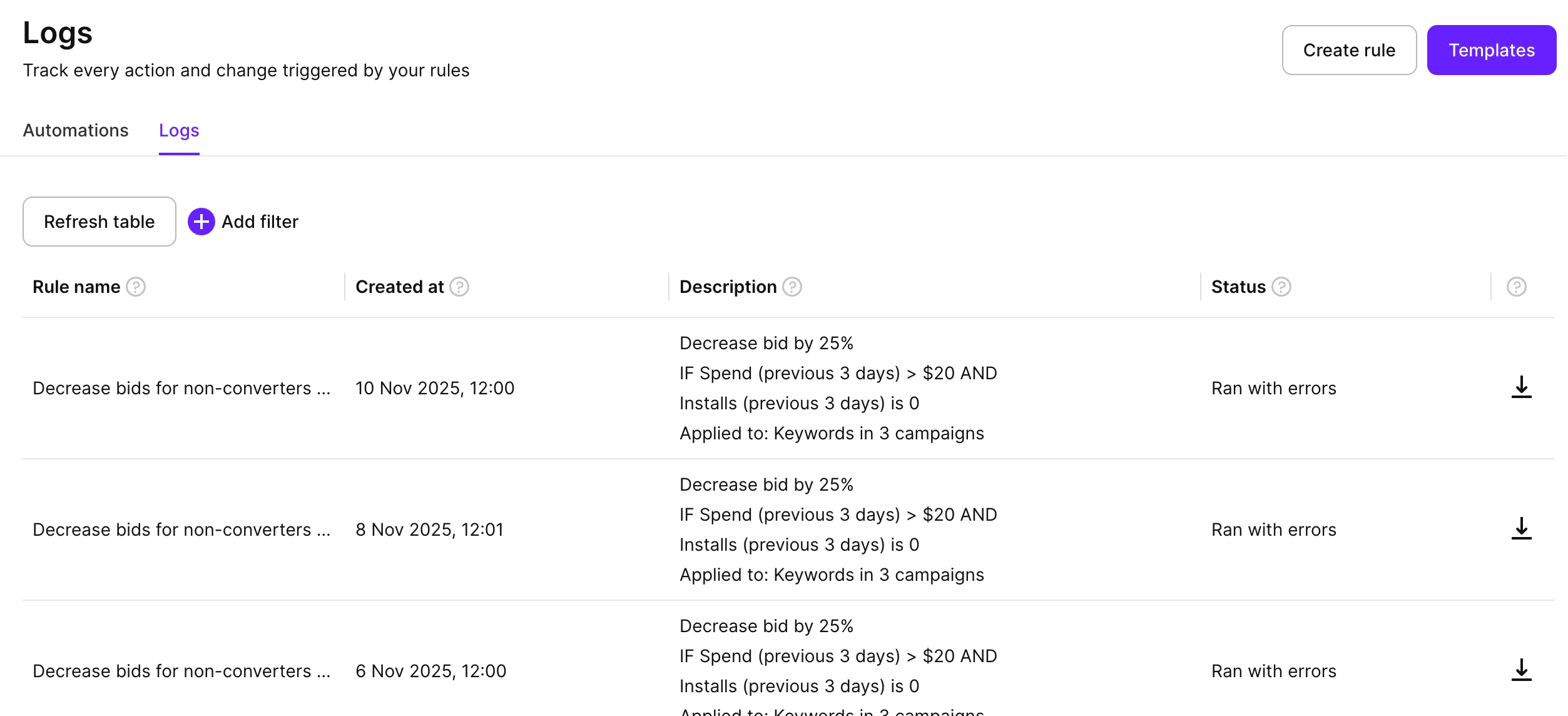
The Logs tab shows a complete history of all rule executions, so you can track performance and troubleshoot issues.
To view logs, in the left sidebar go to Automations and switch to the Logs tab. The table shows:
- Rule name: The name of the automation rule.
- Created at: Date and time when the rule ran.
- Description: Summary of the action taken, conditions applied, and targets (for example, “Decrease bid by 25%, IF Spend (previous 3 days) > $20 AND Installs (previous 3 days) is 0, Applied to: Keywords in 3 campaigns”).
- Status: Execution status — Success, Ran with errors, or Failed.
To export detailed execution data as a CSV, click the download icon next to a log entry. All four rule types produce a downloadable CSV of the items they affected. The columns vary by type — for example:
- Keyword rules: Lists all affected keywords with their previous and new bids.
- Search term automations: Lists each evaluated search term with its source campaign and ad group, target ad group, action result, negation result, bid, and match type.
To filter the table by rule name, use the filter above the table.
If you don’t see the latest updates, click Refresh table to pull fresh data.
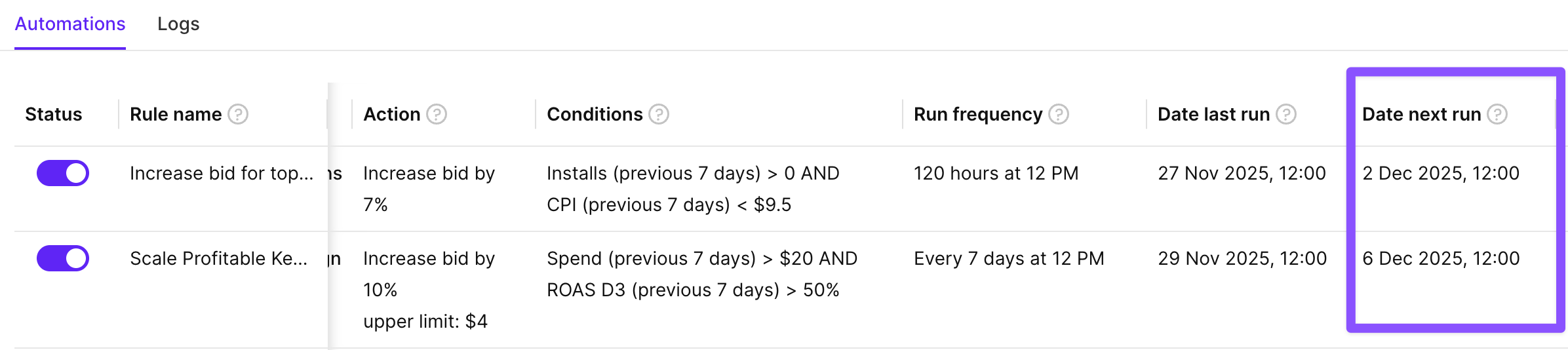
You can also track rule timing in the Automations tab using the Date last run and Date next run columns.
Launch and pause rules
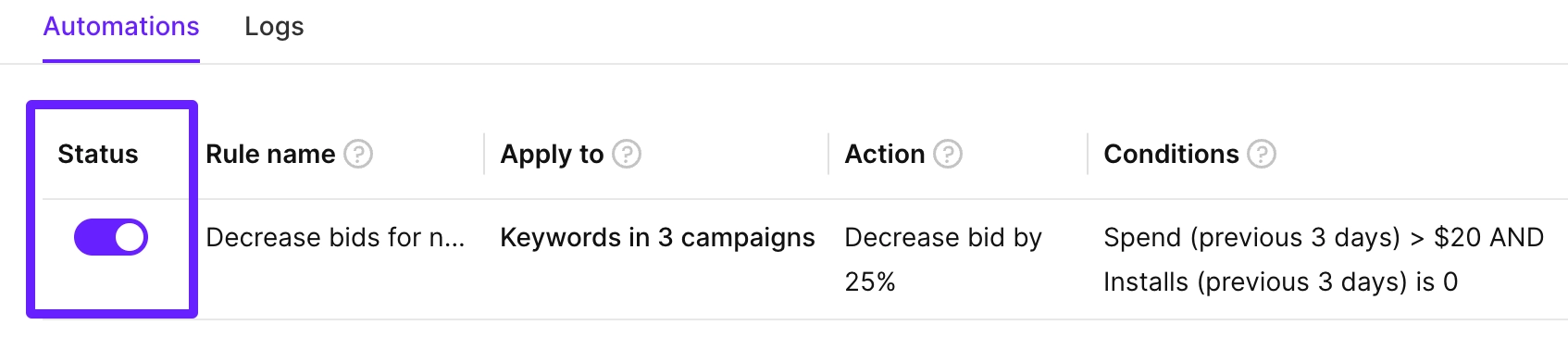
To launch or pause a rule, toggle the switch in the Status column next to the rule.
Pausing allows you to temporarily disable a rule during specific campaign periods or while you make adjustments, without losing the rule configuration.
When a rule is enabled, it can override your manual bid changes the next time it runs if the conditions are met. To rely on manual management temporarily, pause the rule instead of deleting it.
Run a rule immediately
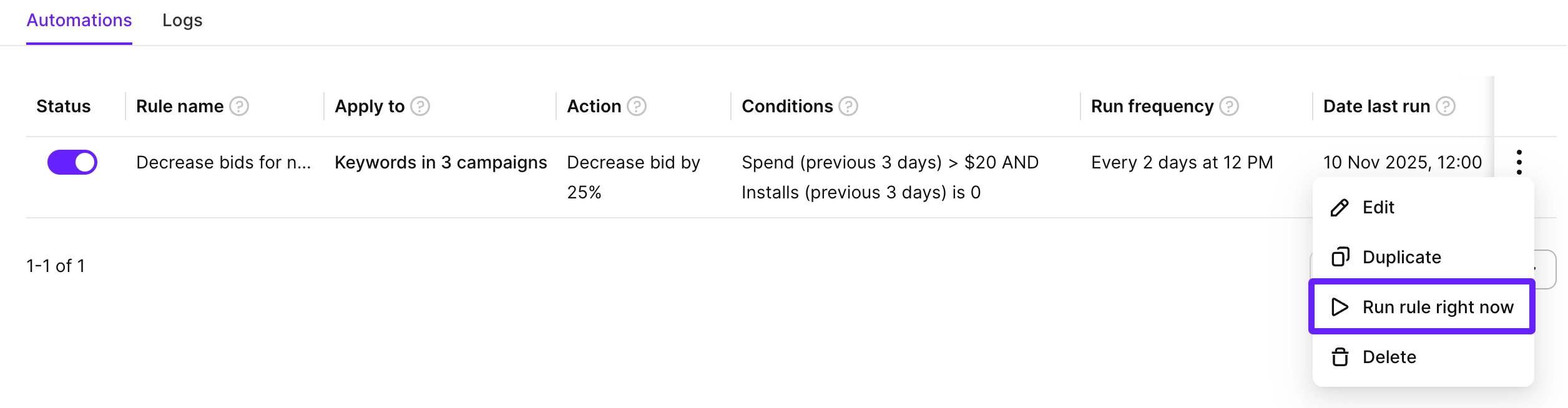
While rules run on their schedule, you can trigger any rule immediately:
- Click the three dots next to the rule.
- Select Run rule right now.
The rule runs immediately and applies its configured action to all matching items. Use this after adding keywords, ad groups, or other structural changes, when you want the rule to run before the next scheduled time.
Duplicate a rule
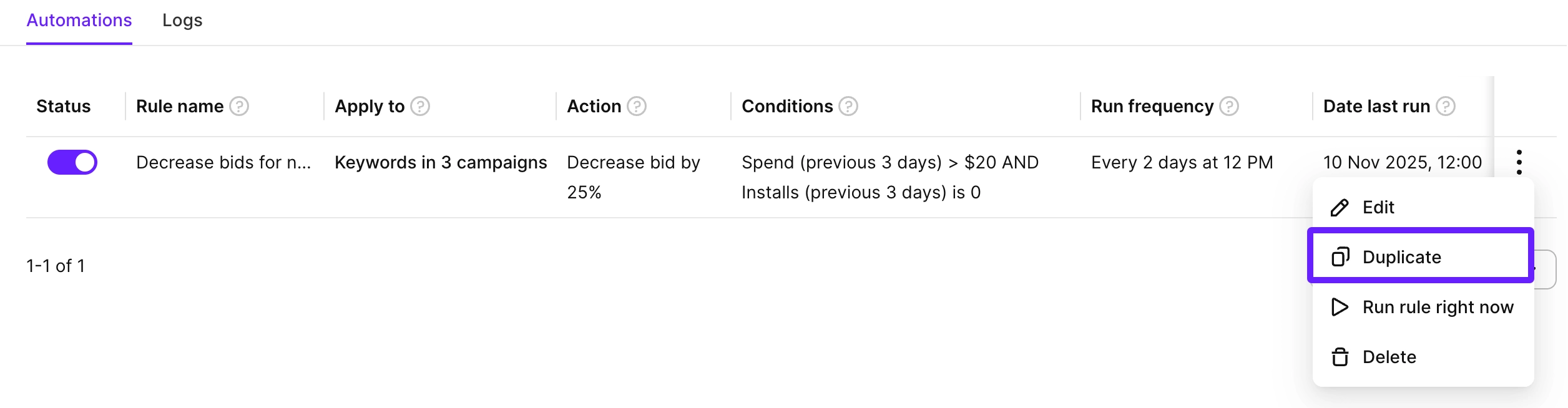
To save time when creating similar rules:
- Click the three dots next to the rule.
- Select Duplicate.
- Edit the duplicated rule as needed and click Save.
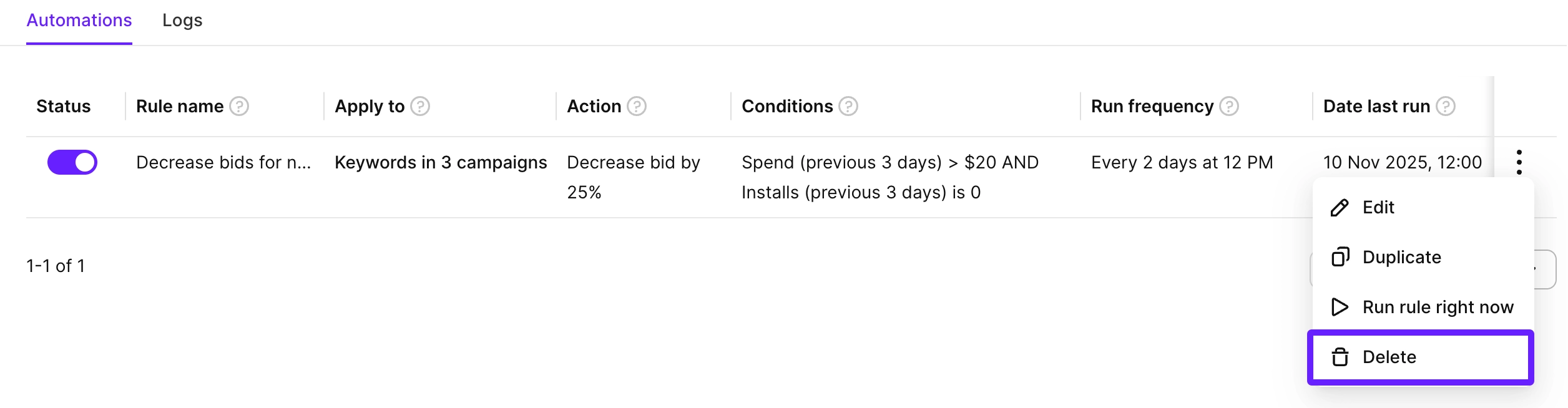
Delete a rule
To remove a rule you no longer need:
- Click the three dots next to the rule.
- Select Delete and confirm.
Deleting a rule is permanent. If you might need the rule later, pause it instead.