
Customize flow with remote config
This guide covers remote config for the Flow & Paywall Builder. For custom paywalls created without it, see Design custom paywall with remote config.
Remote Config lets you store a custom JSON payload that the SDK reads at runtime. Use it to set values like titles, images, fonts, colors, or feature flags without shipping a new app release.
Work with remote config
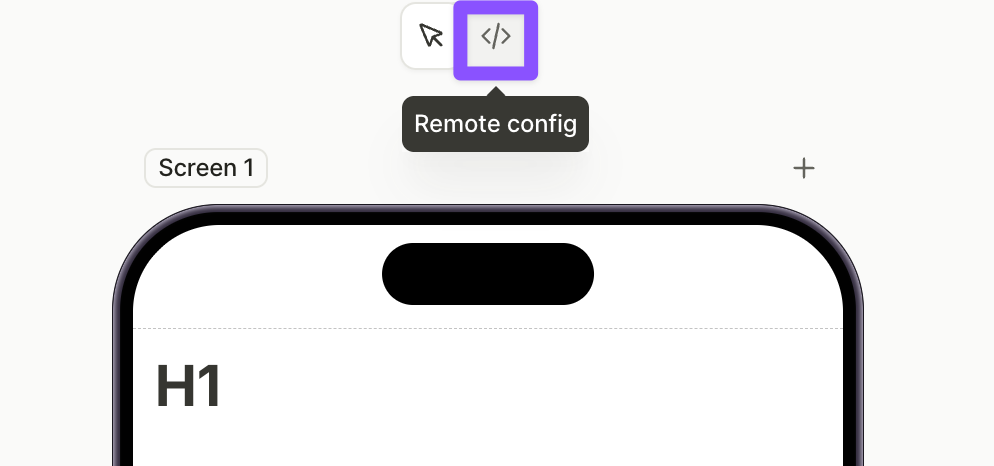
To open the remote config for a flow, click the icon above the screen preview in the builder.
In the JSON view, you can enter any JSON-formatted data. The editor shows one column per locale you’ve added:
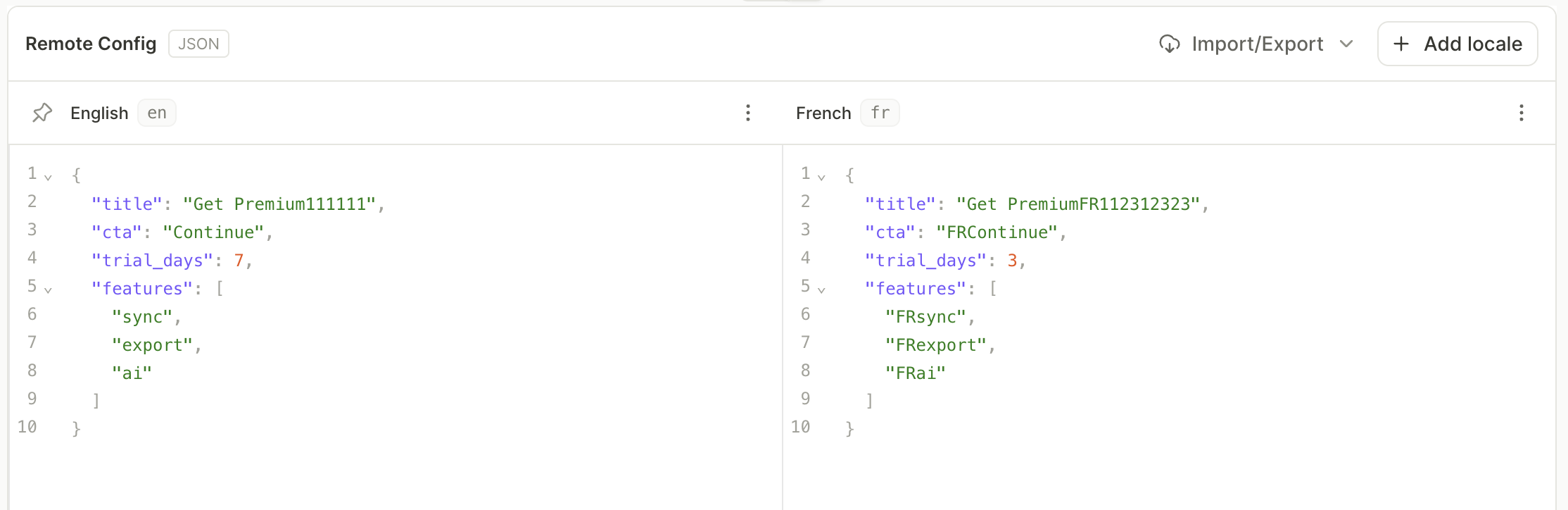
If the remote config contains invalid JSON, you can neither save nor publish the flow. See Common issues for the full list of issues that block previewing and publishing.
You can later access this data from the SDK through the remoteConfigs array on AdaptyFlow. Adapty stores one AdaptyRemoteConfig entry per locale; pick the one matching your user’s locale and read either the parsed dictionary or the raw jsonString to adjust your flow at runtime. Here are some examples of how you can use a remote config.
You can combine any of these patterns, or define your own keys to test alternative copy, layouts, or behavior.
Next, create a placement and add the flow to it. Then render the flow in your app: iOS, Android, React Native, Flutter, Unity, Kotlin Multiplatform, or Capacitor.
Add a locale
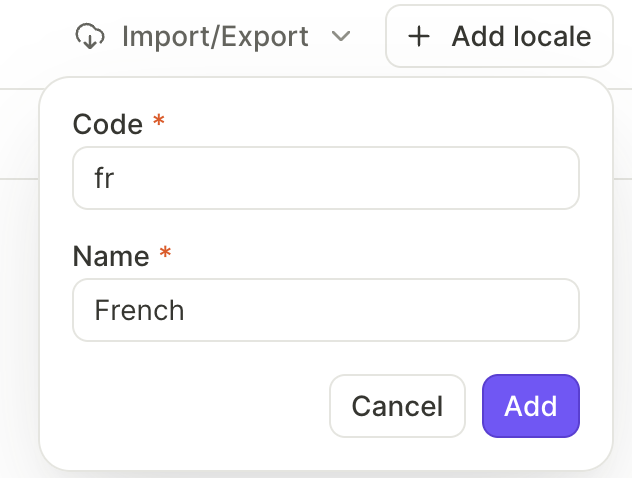
To localize your flow, click Add locale above the editor and select locales.
Adapty adds a new column to the editor for that locale. Edit each column independently — at runtime, the SDK returns the AdaptyRemoteConfig entry whose locale matches the user’s selection.
Import and export JSON
Use the Import/Export menu above the editor to back up, share, or bulk-edit your remote config across all locales at once.
- Export JSON: Downloads a single JSON file containing every locale.
- Import JSON: Uploads a JSON file in the same format. The uploaded file replaces the current remote config.
The file uses locale codes as top-level keys, with each locale’s payload as the value:
{
  "en": {
    "title": "Get Premium",
    "cta": "Continue",
    "trial_days": 7,
    "features": ["sync", "export", "ai"]
  },
  "fr": {
    "title": "Passez à Premium",
    "cta": "Continuer",
    "trial_days": 7,
    "features": ["synchronisation", "exportation", "IA"]
  }
}
Each locale block follows the same JSON structure you’d enter directly into a locale column.