
Set up your sending domain for Adapty Mail
Adapty Mail sends campaigns from your own domain — not from a shared address — so sender reputation stays under your control. One verified domain is enough to launch, and a project can hold up to five.
To get a domain verified with the fewest steps, follow the Get started with Adapty Mail guide. This article is the full reference: setup, verification, warm-up, and sending from more than one domain.
Requirements and limitations
- Root domain: Submit your root domain. It must have a top-level domain suffix (
yourapp.com). Adapty Mail does not accept subdomains (app.yourapp.com) or domains with second-level suffixes (yourapp.co.uk,yourapp.com.br). - ASCII only: Punycode and internationalized domain names aren’t supported.
- Active NS records: The domain must resolve. Adapty Mail performs a DNS lookup during setup and refuses domains without valid NS records.
- One project per domain: A domain can’t be shared across projects. If any project already has it — yours or someone else’s — setup fails.
- A domain name that matches your brand: The name has to be recognizable as your app’s.
yourapp.compasses for an app called Yourapp; an unrelatedanotherapp.comdoesn’t. Adapty uses your brand app name, description and tagline as reference. A project with no brand skips the check. - A domain in good standing: Adapty Mail refuses a domain that Blacklist Master reports as listed on a spam blacklist.
- Up to five domains per project: Each one verifies and warms up on its own.
- Deletion is not reversible: Sending stops at once, and the domain’s verification progress, DNS records and warm-up mailbox are removed. You can add the domain again, but it verifies from scratch with new records. Its campaign emails from the last 30 days still count toward the deliverability score. If you keep the same sending subdomain, its daily send limit carries over. Your own DNS records stay where you put them; remove them yourself.
1. Add the domain
In Adapty Mail, open Settings > DNS, and navigate to the Email domains section.
-
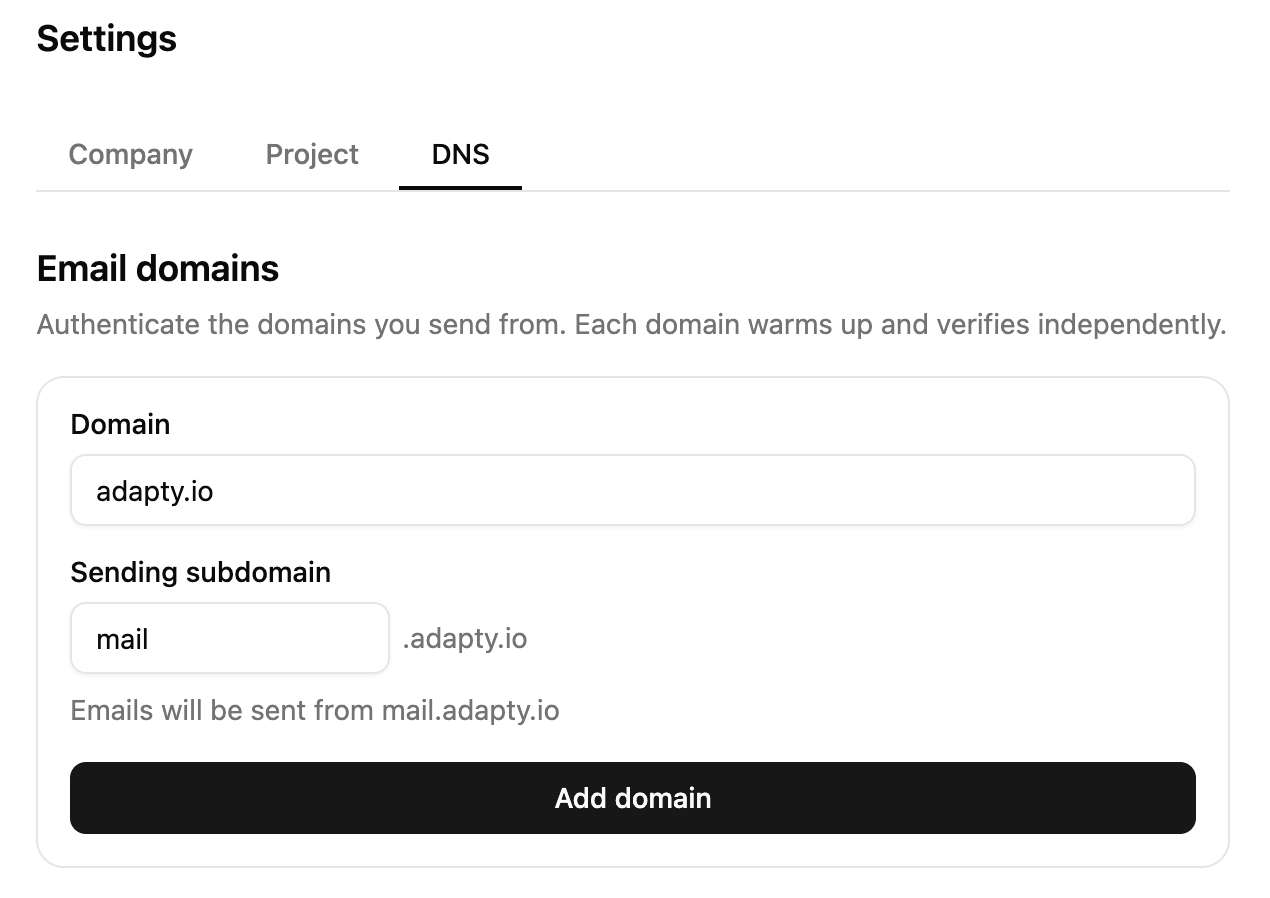
In the Domain field, type your root domain, for example
yourapp.com. -
In the Sending subdomain field, specify the subdomain that will be used to send emails. Leave the field empty to use
mail. The hint under the field previews the full hostname: Emails will be sent from mail.yourapp.com. -
In the Link subdomain field, specify a different subdomain for links and images inside the emails. Leave the field empty to use
go. The hint spells out this host too: Links and images in emails will be served from go.yourapp.com. -
Click Add domain. Adapty Mail validates the input, adds the domain to your project, and shows a card with every DNS record the domain needs.
-
Optionally, add more domains to increase the number of emails you can send per day.
Use custom subdomains
The sending prefix appears in the From address every recipient sees, and the link prefix appears in every link they click. Most projects keep the defaults; if you type your own, both fields follow the same rules:
- Use lowercase letters, digits, and hyphens, with no leading or trailing hyphen, up to 63 characters.
www,smtp,admin,api,mx, anddkimare reserved.- Offensive labels and labels that impersonate a well-known brand —
paypal, for example — are rejected. Ordinary marketing words such asnews,offers, orhellopass. - The two prefixes can’t match each other.
- Both are fixed once the domain is added. To send from a different host, delete the domain and add it again, or add a second domain.
2. Add the DNS records
Add every record on the card to your DNS, exactly as shown. To transfer the whole set at once, click Export and pick CSV, GoDaddy zone file, Cloudflare zone file, or Route 53 zone file.
On Cloudflare, every CNAME must be DNS only — a proxied record resolves to Cloudflare’s address and never verifies. The Cloudflare zone file export sets that for you.
The first three sections are required — the setup is incomplete until the records resolve. The DMARC record on your root domain is optional.
| Section | Host | What it does |
|---|---|---|
| Sending infrastructure | Sending subdomain | Signs your campaigns and routes bounces back to Adapty Mail |
| Warmup mailbox | Sending subdomain | Runs the mailbox that builds your sender reputation during warm-up |
| Media & redirects | Link subdomain | Serves the images and tracked links in your emails from your own domain |
| DMARC policy (optional) | Root domain | Tells receiving providers how to treat mail that fails authentication |
If your root domain already has SPF and DMARC records for your business email, they stay as they are — the required records all go on subdomains.
DNS record reference
DKIM — 3 CNAME records. Cryptographic signatures that prove the email wasn’t altered in transit.
| Field | Format |
|---|---|
| Type | CNAME |
| Name | {token}._domainkey.mail.yourapp.com |
| Value | {token}.dkim.amazonses.com |
MAIL FROM — 1 MX record. Handles bounces.
| Field | Format |
|---|---|
| Type | MX |
| Name | hello.mail.yourapp.com |
| Priority | 10 |
| Value | feedback-smtp.{region}.amazonses.com |
MAIL FROM — 1 TXT record. Authorizes Adapty to send on your behalf.
| Field | Format |
|---|---|
| Type | TXT |
| Name | hello.mail.yourapp.com |
| Value | "v=spf1 include:amazonses.com ~all" |
DMARC — 1 TXT record on your root domain. Optional but recommended.
| Field | Format |
|---|---|
| Type | TXT |
| Name | _dmarc.yourapp.com |
| Value | v=DMARC1; p=reject |
The warm-up mailbox and go.yourapp.com records follow the same shapes, with names and values issued by the mail and hosting providers Adapty Mail uses. Tokens, regions, hostnames, and ownership values are all generated at setup time — copy them from the domain card or an export, never from this reference.
3. Verify the records
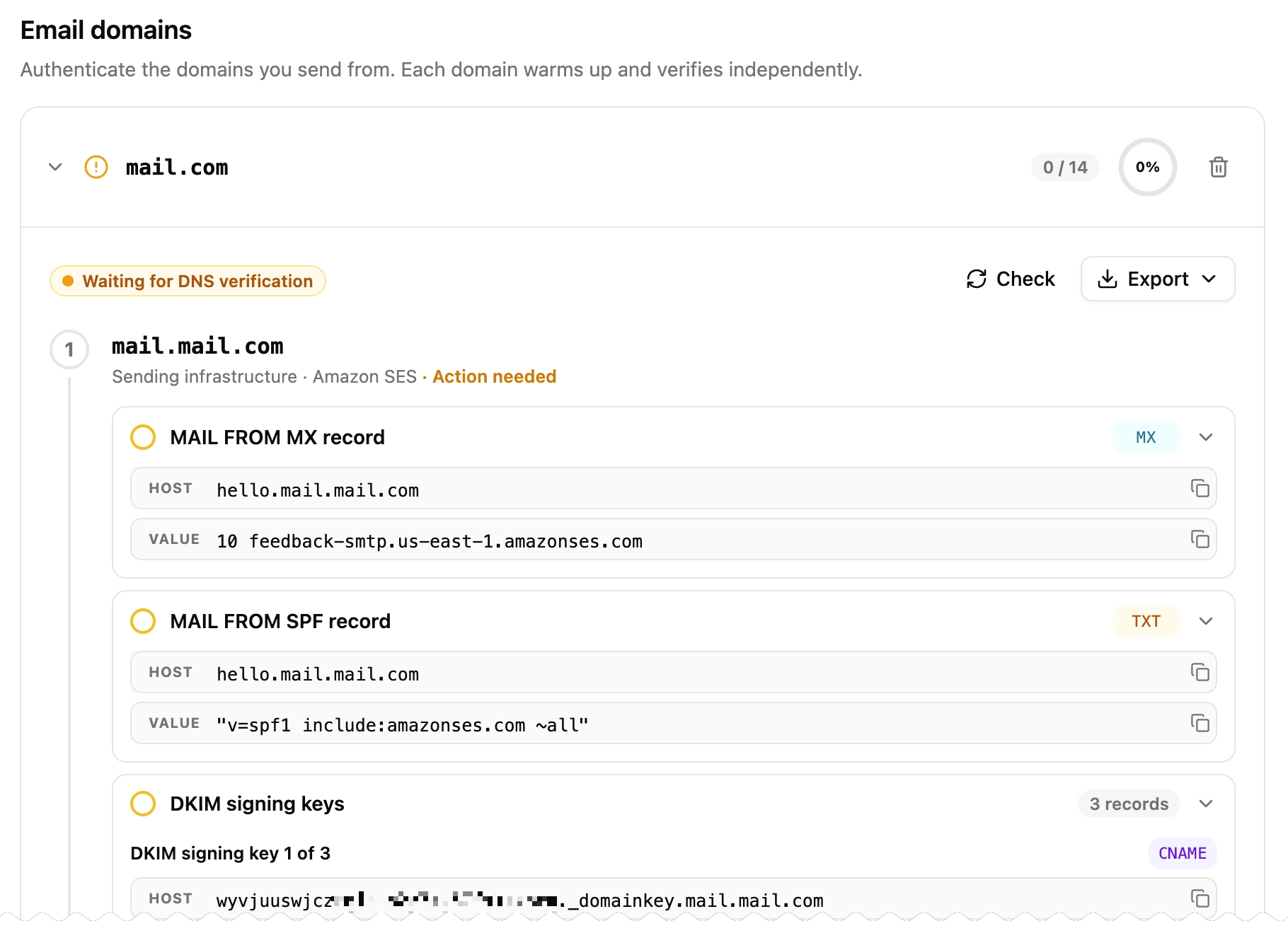
DNS propagation usually takes minutes — up to 48 hours in rare cases. To validate the records, Adapty Mail polls DNS on its own, at regular intervals, until the records are found — or 7 days pass. Click Check on the card to run a check on demand (subject to a 10-second cooldown), or restart automatic checks once they stopped.
A record verifies when it exists in DNS, its value matches the one Adapty Mail gave you, and the provider confirms it. An unverified record carries a chip naming which of those is missing:
| Chip | What it means |
|---|---|
| Missing | The record isn’t in DNS. Add it exactly as the card shows. |
| Wrong value | The record exists, but its value differs. Update it to match. |
| Differs from suggested | Your root domain already has a DMARC record with another value. Adapty Mail’s suggestion isn’t required — replace yours only if you want it. |
| Provider check failed | The provider rejected the record. Confirm the value, then click Check. |
| Awaiting provider | The record is correct in DNS, and the provider hasn’t confirmed it yet. Click Check to refresh. |
Adapty Mail does not run scheduled checks to confirm the validity of already-verified records. Manually trigger a check by clicking Check, or opening Settings > DNS.
Keep the records in place for as long as you plan to send — if the DKIM records disappear, Amazon SES stops signing your email after a grace period, and the domain has to be verified again from scratch.
4. Set the sender name and reply-to address
Once a domain is verified, its card gains an Email sender name field. Adapty Mail fills it with your project name and sends from hello@ on your sending subdomain, so the field’s hint shows the whole From line — Your Company <hello@mail.yourapp.com>. The name is per domain: a project sending from two domains has two to set.
To receive the replies your recipients send, in the same domain card, enter an address in the Reply-to address field, for example support@yourapp.com, and click Save. The hello@ address is the domain’s warm-up mailbox, and nobody reads it, so replies to an email sent without a reply-to address go unanswered. The reply-to address can be on any domain and needs no DNS records. It applies only to emails sent after you save it. Like the sender name, it is set per domain.
Warm-up and daily limits
New domains have no reputation with email providers like Gmail or Yahoo, so high-volume sends from a fresh domain risk landing in spam. Adapty Mail warms every domain up on its own, in two ways that run at the same time. Neither needs configuration.
- A warm-up mailbox: As soon as DNS verifies, Adapty Mail creates a mailbox on your sending subdomain. The mailbox exchanges ordinary conversational mail with test mailboxes at major providers. This two-way mail shows the providers that the domain sends normal email, which builds its reputation. The domain card shows which phase the mailbox is in. No warm-up happens until the Warmup mailbox records are verified.
- A daily send limit: Your campaigns are metered separately from the warm-up mailbox, across 20 tiers. The limit keeps your volume below what would get a new domain flagged as spam, and it rises as you send.
How tiers work
Your domain starts at Tier 1 (100 sends/day). The allowance increases one tier a time, when the existing daily limit is exceeded (both sends and throttled attempts count). The higher limit takes effect the following day.
On a tier’s first day the allowance is released gradually through the day rather than all at once. Advancement is driven by volume alone, and tiers only move upward: there is no automatic step back down. Past the top tier the domain sends without a daily limit.
| Tier | Daily limit |
|---|---|
| 1 | 100 |
| 2 | 200 |
| 3 | 300 |
| 4 | 500 |
| 5 | 750 |
| 6 | 1,000 |
| 7 | 1,500 |
| 8 | 2,500 |
| 9 | 3,500 |
| 10 | 5,000 |
| 11 | 7,000 |
| 12 | 9,000 |
| 13 | 12,000 |
| 14 | 15,000 |
| 15 | 19,000 |
| 16 | 24,000 |
| 17 | 30,000 |
| 18 | 37,000 |
| 19 | 46,000 |
| 20 | 57,000 |
Impact on launch by audience size
| Audience size | Effect at launch |
|---|---|
| Under 100 users | Full audience reached on day one |
| 100–2,000 users | Delivery spreads over several days |
| 2,000+ users | Delivery spreads over 1–2 weeks |
Launch your first campaign as soon as DNS verification completes. The sooner you start sending, the sooner your domain advances through tiers and reaches full daily capacity.
Deliverability
Main article: Monitor domain health
Each domain in Settings > DNS shows a Deliverability score out of 100. Click Details for the full picture — setup tells you the domain is configured, this tells you whether the mail is arriving.
The score combines three signals: the hard bounce rate, the complaint rate, and the inbox rate of the warm-up mailbox. A hard bounce rate of 2% is a warning, and 5% is critical. A complaint weighs far more than a bounce: 0.1% of sends is a warning, 0.5% is critical. Every complaint suppresses the recipient immediately.
Multiple domains
Until your domains complete their warm-up, Adapty limits the number of daily emails each can send per day. As such, using multiple domains increase your email sending capacity.
Adapty uses the following logic to decide which of your domains sends the email:
- One domain per recipient per campaign. To keep the campaign consistent, Adapty Mail uses the same email address to send its emails to the same recipient. If you delete that domain or stop sending from it, the next email goes out from the newest domain with room left.
- Newest domains take priority. A domain added later is preferred over an older one.
When every domain is over its limit, Adapty Mail delays the email — Throttle covers what happens to the recipient from there.
Stop and resume sending
To pause a domain without having to verify it again, click Stop sending on its card. The card then shows Sending off, and Adapty Mail skips the domain when choosing where to send. Click Resume sending to bring it back.
Troubleshooting
| Issue | Solution |
|---|---|
| ”Enter a valid domain (e.g. example.com)“ | Check the input: a root domain with a top-level suffix (yourapp.com), ASCII only, no leading or trailing hyphens. A second-level suffix like yourapp.co.uk is refused. |
| ”Domain does not have valid DNS records” | The root domain itself must resolve. Confirm your NS records are active before retrying. |
| ”Domain is already registered to another project” | Pick a different domain, or contact support if you believe the registration is a mistake. |
| ”This subdomain cannot be used” | The label is reserved or was rejected by screening. Pick another one — see Use custom subdomains. |
| ”This link subdomain cannot be used” | The link subdomain follows the same rules as the sending subdomain, and can’t be identical to it — see Use custom subdomains. |
| ”Please wait before checking again” | Wait 10 seconds between manual checks. Automatic polling continues in the background. |
| Records stay unverified | Check that they match exactly — no trailing dots, correct CNAME targets, one value per record. DNS can take up to 48 hours to propagate. |
| CNAMEs stay unverified on Cloudflare | The records are Proxied. Switch each one to DNS only, then click Check. |
| Warm-up hasn’t started | The warm-up mailbox’s MX, DKIM, and SPF records aren’t verified yet. Add or correct them, then click Check. |
| The link subdomain’s records won’t verify | The card shows the reason under the host. Confirm its CNAME and TXT records, then click Check — the domain isn’t fully set up until this host is active. |
| ”Cannot delete: some identities are verified” | The domain was set up before automatic warm-up and can’t be removed from the dashboard. Contact support. |
| Emails going to spam | Confirm your DMARC record is published. New domains need warm-up time — review warm-up and daily limits. To see which folder emails from the warm-up mailbox reach at major providers, look at the Inbox placement card on the deliverability page. |
| Replies from recipients don’t reach you | Without a reply-to address, replies go to the hello@ mailbox, which nobody reads. Set a reply-to address on the domain card. Emails sent before you set it keep the old address. |
| High bounce rate | Verify your audience list contains valid, opted-in addresses. Reasons emails stop covers what happens to an address that bounces. To find the reason with the most bounces, review the Bounces card on the deliverability page. |
| High complaint rate | Keep spam reports under 0.1% of sends. A complaint weighs far more than a bounce, and the recipient is suppressed at once. To see the complaint rate for the last 30 days, open the deliverability page. |