
Ad group rules in Adapty Ads Manager
Add an ad group rule when you want an ad group’s settings to automatically change based on its performance. Unlike keyword rules, which act on individual keywords, an ad group rule changes the whole ad group at once.
Each rule pairs a condition with an action. For example: if an ad group spends over $50 in three days without a trial, lower its bid by 20%. Adapty checks your ad groups on a schedule you set — hourly, daily, weekly, and so on — and applies the action whenever the condition is met. And because Adapty tracks trials, subscriptions, and revenue, your conditions can respond to actual revenue, not just installs.
Available conditions
A rule watches a set of ad groups and fires when their performance crosses a threshold you set. First, choose which ad groups it watches:
- Ad groups in selected campaign groups
- Ad groups in selected apps
- Ad groups in selected campaigns
- Selected ad groups
Then set the condition that fires the rule. Each condition combines these parts:
| Part | Description | Example |
|---|---|---|
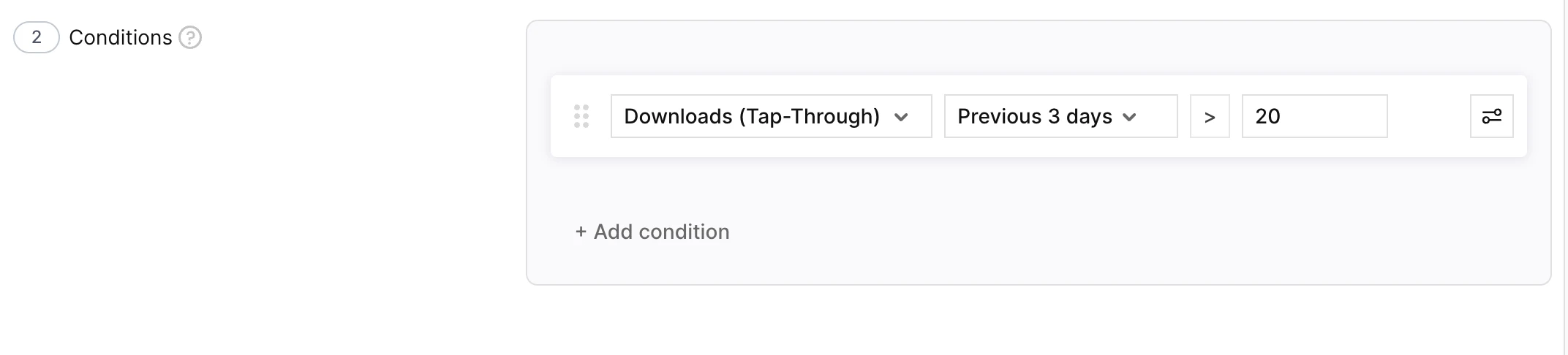
| Metric | Any metric Adapty Ads Manager tracks — spend, installs, trials, subscriptions, revenue, and more. | Spend |
| Time window | The period the metric is measured over. | Previous 3 days |
| Comparison | How the metric is tested against your value. | is greater than |
| Threshold | The value you compare against. | $50 |
Combine several conditions with And or Or for precision targeting — for example, spend > $50 and trials = 0.
Available actions and their settings
When a group meets your condition, Adapty can change its settings by firing one of the following actions:
| Action | What it does | When to use | Configuration |
|---|---|---|---|
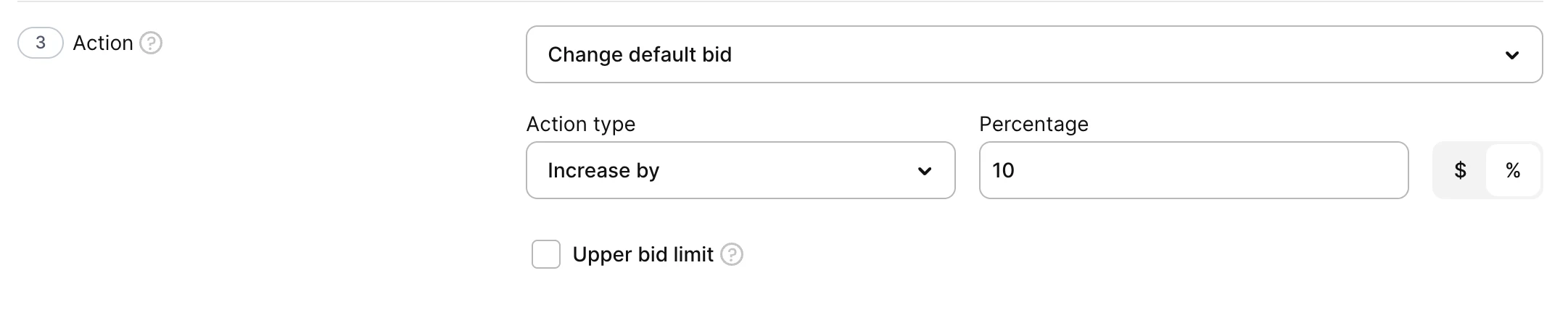
| Change default bid | Increases, decreases, or sets the ad group’s default max cost-per-tap (CPT) bid — the most you’ll pay for one tap on your ad. | Push harder on ad groups that convert; pull back on ones that don’t. | Action type: Increase by, Decrease by, or Set to. Value type: $ (absolute) or % (of the current bid). Limit (optional): An upper limit when increasing, or a lower limit when decreasing — caps how far repeated runs move the bid. |
| Change CPA goal | Increases, decreases, or sets the ad group’s CPA goal (cap) — target cost per acquisition. | Tighten the cost ceiling as you optimize, or loosen it to win more volume. | Action type: Increase by, Decrease by, or Set to. Value type: $ or %. Limit (optional): An upper limit when increasing, or a lower limit when decreasing. |
| Enable ad group | Re-enables a paused ad group. | Bring back ad groups that recover once late trial and subscription revenue lands. | None. |
| Pause ad group | Pauses an active ad group. | Stop ad groups that keep spending without converting. | None. |
Create an ad group rule
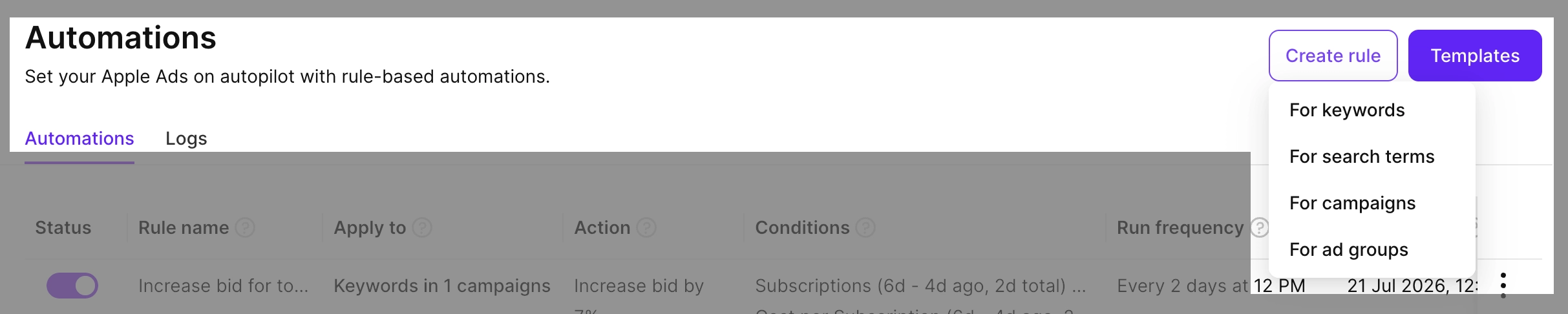
- Go to Automations, click Create rule, and select For ad groups.
- Enter a Rule name.
- Under Apply to, pick a scope and select the ad groups.

- Under Conditions, add one or more conditions. You can combine conditions with logical operators.
- Under Action, pick an action and set its options.
- Under Schedule, set how often the rule runs — from Every hour to Every 90 days, or Once — and its start time (UTC). To also run the rule as soon as you save it, select Run this rule right now.

- Click Save.
After saving, the rule appears in the Automations tab. The Date last run and Date next run columns track its schedule. To confirm status changes across runs, open Automations > Logs. See Automations for instructions on how to pause, duplicate, delete a rule, or run it immediately.