
Adapty Ads Manager'da reklam grubu kuralları
Bir reklam grubunun ayarlarının performansına göre otomatik olarak değişmesini istediğinizde reklam grubu kuralı ekleyin. Tek tek anahtar kelimeler üzerinde işlem yapan anahtar kelime kurallarının aksine, reklam grubu kuralı tüm reklam grubunu bir anda etkiler.
Her kural, bir koşulu bir eyleme bağlar. Örneğin: bir reklam grubu üç günde 50 dolar harcayıp deneme başlatmamışsa teklifini %20 düşür. Adapty, reklam gruplarınızı belirlediğiniz bir programa göre — saatlik, günlük, haftalık vb. — kontrol eder ve koşul sağlandığında eylemi uygular. Üstelik Adapty deneme sürümlerini, abonelikleri ve geliri takip ettiğinden, koşullarınız yalnızca kuruluma değil gerçek gelire göre yanıt verebilir.
Mevcut koşullar
Bir kural, bir dizi reklam grubunu izler ve performansları belirlediğiniz eşiği aştığında tetiklenir. Önce hangi reklam gruplarının izleneceğini seçin:
- Ad groups in selected campaign groups
- Ad groups in selected apps
- Ad groups in selected campaigns
- Selected ad groups
Ardından kuralı tetikleyecek koşulu belirleyin. Her koşul şu parçalardan oluşur:
| Bölüm | Açıklama | Örnek |
|---|---|---|
| Metrik | Adapty Ads Manager’ın takip ettiği herhangi bir metrik — harcama, yükleme, deneme, abonelik, gelir ve daha fazlası. | Spend |
| Zaman penceresi | Metriğin ölçüldüğü dönem. | Previous 3 days |
| Karşılaştırma | Metriğin belirlediğiniz değere göre nasıl test edildiği. | is greater than |
| Eşik | Karşılaştırma yaptığınız değer. | $50 |
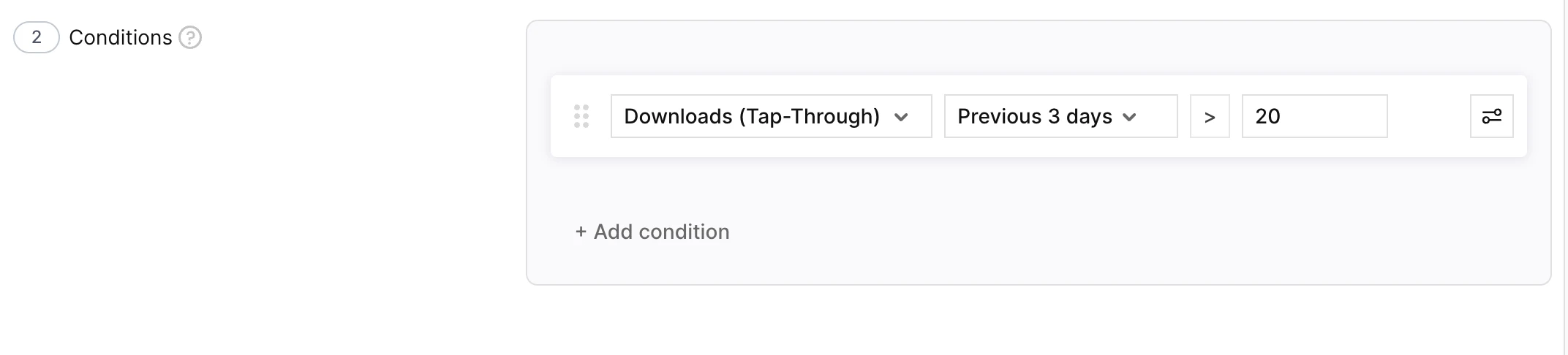
Hassas hedefleme için birden fazla koşulu And veya Or ile birleştirin — örneğin, spend > $50 and trials = 0.
Mevcut eylemler ve ayarları
Bir grup koşulunuzu karşıladığında Adapty, aşağıdaki eylemlerden birini tetikleyerek ayarlarını değiştirebilir:
| Eylem | Ne yapar | Ne zaman kullanılır | Yapılandırma |
|---|---|---|---|
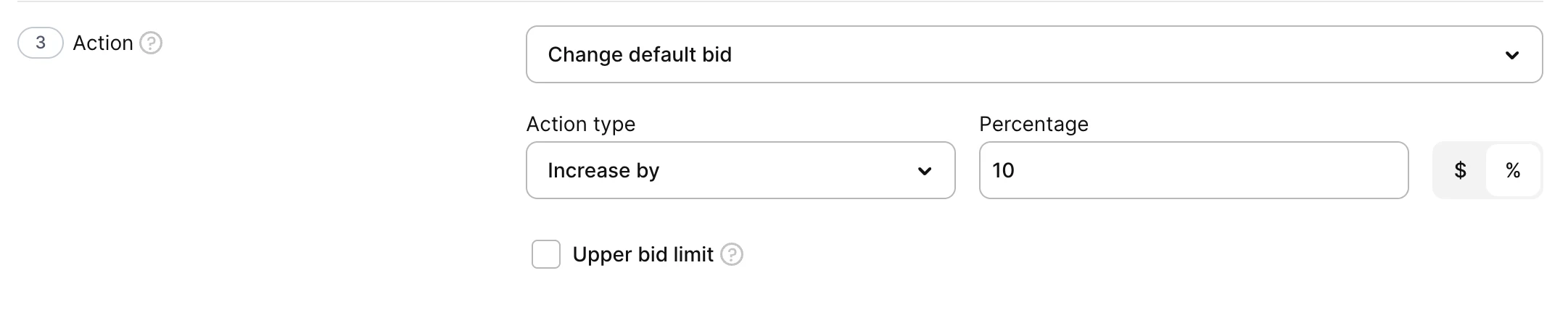
| Change default bid | Reklam grubunun varsayılan maksimum tıklama başına maliyetini (CPT bid) artırır, azaltır veya belirli bir değere ayarlar; bu, reklamınıza yapılan bir tıklama için ödeyeceğiniz en yüksek tutardır. | İyi dönüşüm sağlayan reklam gruplarını güçlendirin; dönüşüm sağlamayanları geri çekin. | Action type: Increase by, Decrease by veya Set to. Value type: $ (mutlak) veya % (mevcut teklifin yüzdesi). Limit (isteğe bağlı): Artırırken üst sınır, azaltırken alt sınır — tekrarlanan çalıştırmaların teklifi ne kadar değiştireceğini sınırlar. |
| Change CPA goal | Reklam grubunun CPA hedefini (üst sınır) artırır, azaltır veya belirli bir değere ayarlar; hedef, edinme başına maliyettir. | Optimize ederken maliyet tavanını sıkılaştırın ya da daha fazla hacim kazanmak için gevşetin. | Action type: Increase by, Decrease by veya Set to. Value type: $ veya %. Limit (isteğe bağlı): Artırırken üst sınır, azaltırken alt sınır. |
| Enable ad group | Duraklatılmış bir reklam grubunu yeniden etkinleştirir. | Geç gelen deneme ve abonelik geliri aktıktan sonra toparlanma gösteren reklam gruplarını geri getirin. | Yok. |
| Pause ad group | Aktif bir reklam grubunu duraklatır. | Dönüşüm sağlamadan harcamaya devam eden reklam gruplarını durdurun. | Yok. |
Reklam grubu kuralı oluşturma
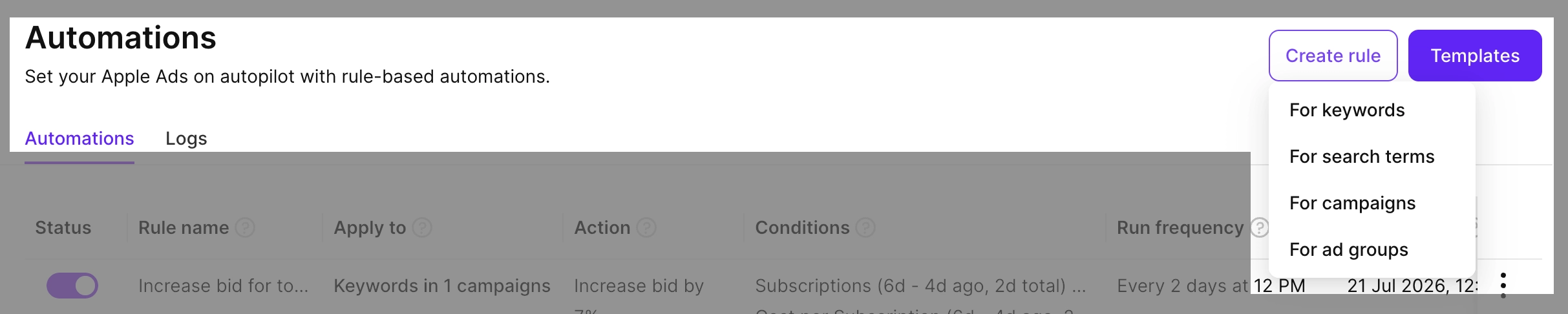
- Automations bölümüne gidin, Create rule düğmesine tıklayın ve For ad groups seçeneğini seçin.
- Bir Rule name girin.
- Apply to bölümünde bir kapsam seçin ve reklam gruplarını belirleyin.

- Conditions bölümünde bir veya daha fazla koşul ekleyin. Koşulları mantıksal operatörlerle birleştirebilirsiniz.
- Action bölümünde bir eylem seçin ve seçeneklerini ayarlayın.
- Schedule bölümünde kuralın ne sıklıkla çalışacağını ayarlayın — Every hour ile Every 90 days arasında veya Once — ve başlangıç saatini (UTC) belirleyin. Kuralı kaydeder kaydetmez hemen çalıştırmak için Run this rule right now seçeneğini işaretleyin.

- Save düğmesine tıklayın.
Kaydettikten sonra kural, Automations sekmesinde görünür. Date last run ve Date next run sütunları kuralın zamanlamasını takip eder. Çalıştırmalar arasındaki durum değişikliklerini onaylamak için Automations > Logs bölümünü açın. Bir kuralı duraklatmak, kopyalamak, silmek veya hemen çalıştırmak için Automations sayfasındaki talimatlara bakın.