
See how flow screens connect
The Flow & Paywall Builder shows one screen at a time, so in a long onboarding with quiz branches it’s hard to see where each answer leads. The flow-generator skill can draw the whole flow as a map: every screen in order, every path between them, and every place where the path splits or stops.
The map is a single HTML file that opens in your browser. It contains the screen previews, so you can send it to a teammate and they can open it without any setup.
The map is part of the flow-generator skill, so there is nothing extra to install — follow the flow-generator installation steps. Drawing the map only reads the flow: it saves nothing to your dashboard.
What it’s for
- Review branching before you publish: See which screen each quiz answer opens, and where the branches join again.
- Catch wiring mistakes: The map flags a screen that nothing leads to and a screen with no way forward. Both pass the publish check, and both strand users on a device.
- Review a flow someone else built: Read a 20-screen onboarding at a glance instead of clicking through it screen by screen.
- Share the structure: Send the file to a designer or a product manager who doesn’t use the Adapty dashboard.
How to use it
The skill opens the map by itself after it builds or rewires a flow of ten or more screens, or after it adds or changes a branch. To open it for any flow, ask in plain language:
How are the screens in my "Sleep onboarding" flow connected?Where does the "Not really" button on the Busy mind screen lead?The skill fetches the flow, renders each screen, and opens the map. To pan, drag the background or scroll. To zoom, use + and −, or click Fit to see the whole flow. To enlarge a screen, click it.
What the map shows
Screens run left to right from the first one. Screens that a branch puts side by side sit in the same column.
| On the map | Meaning |
|---|---|
| Gray arrow | A path that doesn’t depend on an answer. |
| Purple arrow with a label | One case of a branch. The label names the answer that opens it, for example goal = Falling asleep faster. The otherwise label marks the default case. |
| Dashed arrow | Goes back to a screen with a lower number. |
| after timer label | The screen moves on by itself when its timer ends. |
| branches tag | The path splits on this screen. |
| buys, restores, closes flow, back tags | Actions that leave the screen without opening another one. |
| nothing leads here tag | No screen opens this one, so users don’t reach it. |
| no way out tag | No button opens another screen, buys, or closes the flow. A Back button alone doesn’t count. |
To highlight one screen’s paths, hover over it. The other screens and arrows fade.
Examples
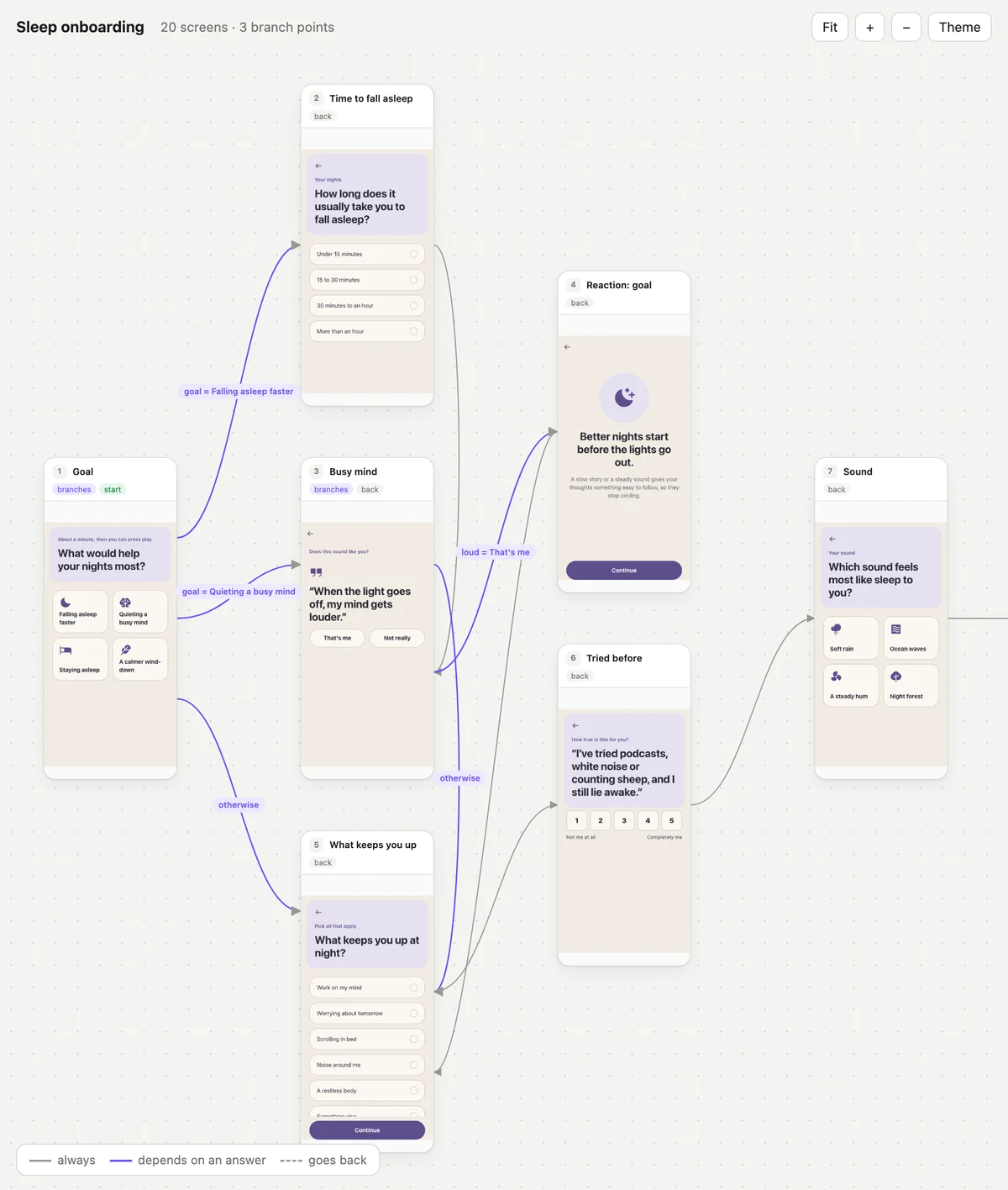
Branching on quiz answers. The Goal screen sends each answer to its own screen, and Busy mind branches again. All three paths join at What keeps you up.
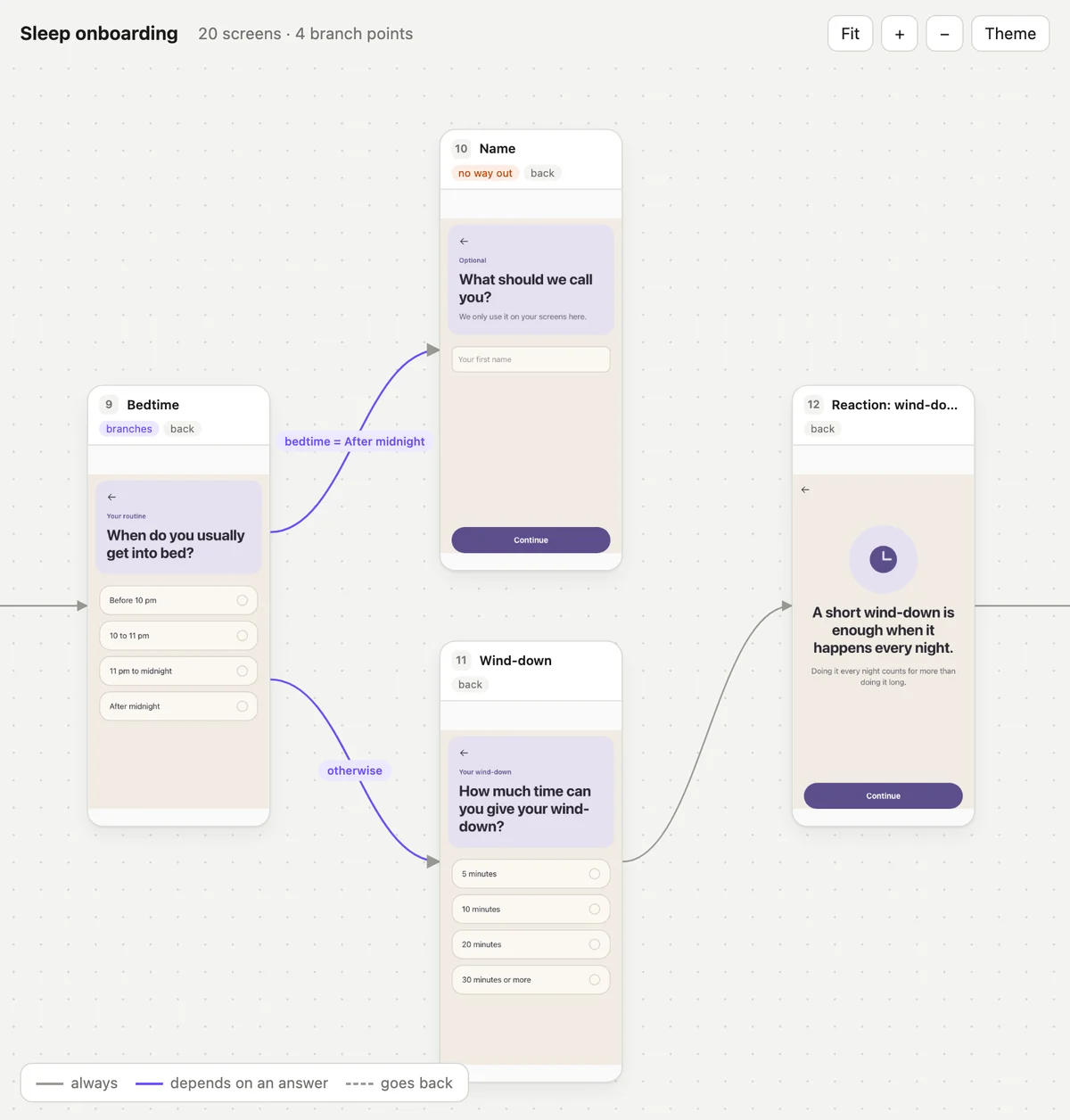
A branch with a dead end. Users who answer After midnight on the Bedtime screen go to Name, but the Continue button on Name has no action. The map flags it as no way out.
Without a browser
If your AI tool runs on a remote machine, the skill prints the same map as text in the chat:
◆ Bedtime
    bedtime = After midnight  →  Name
    otherwise  →  Wind-down
    back
▢ Name
    back
    (no way out)
▢ Wind-down
    “Continue”  →  Reaction: wind-down
A ◆ marks a screen where the path splits. Tags such as back list the actions that leave a screen without opening another one.
Limitations
- It shows the config, not the device: The map draws the paths the flow defines. To confirm that a timer fires or a branch opens the right screen on a phone, use a device preview.
- Screen previews have the same limits as the skill’s preview: Prices show as variable names, and toggles show their off state. See The preview renders one screen, in one state.
- Custom actions end at the flow’s edge: When a button triggers a Custom Action, the map tags the screen with the action ID. The screen your app opens in response isn’t part of the flow, so the map doesn’t show it.
- The map is read-only: To change a path, ask the skill or edit the flow in the Flow & Paywall Builder, then open the map again.