
Styles and appearance
The Design tab in the right panel controls each element’s visual appearance. The available properties depend on the element type, but most elements share common styling options.
For sizing, spacing, and positioning, see Layout and positioning.
Tell the AI Editor to “give the paywall a dark, premium feel” and it restyles every element at once — fills, corners, type, and spacing.
Visibility
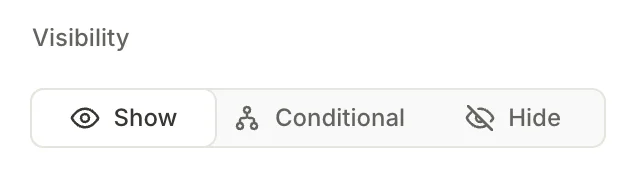
The Visibility toggle determines whether the element appears on screen.
- Show (default): The element is always visible.
- Conditional: The element is visible only when specific conditions are met. See Conditional visibility for more information.
- Hide: The element is always hidden. Use this to temporarily remove an element from the flow without deleting it.
Fill
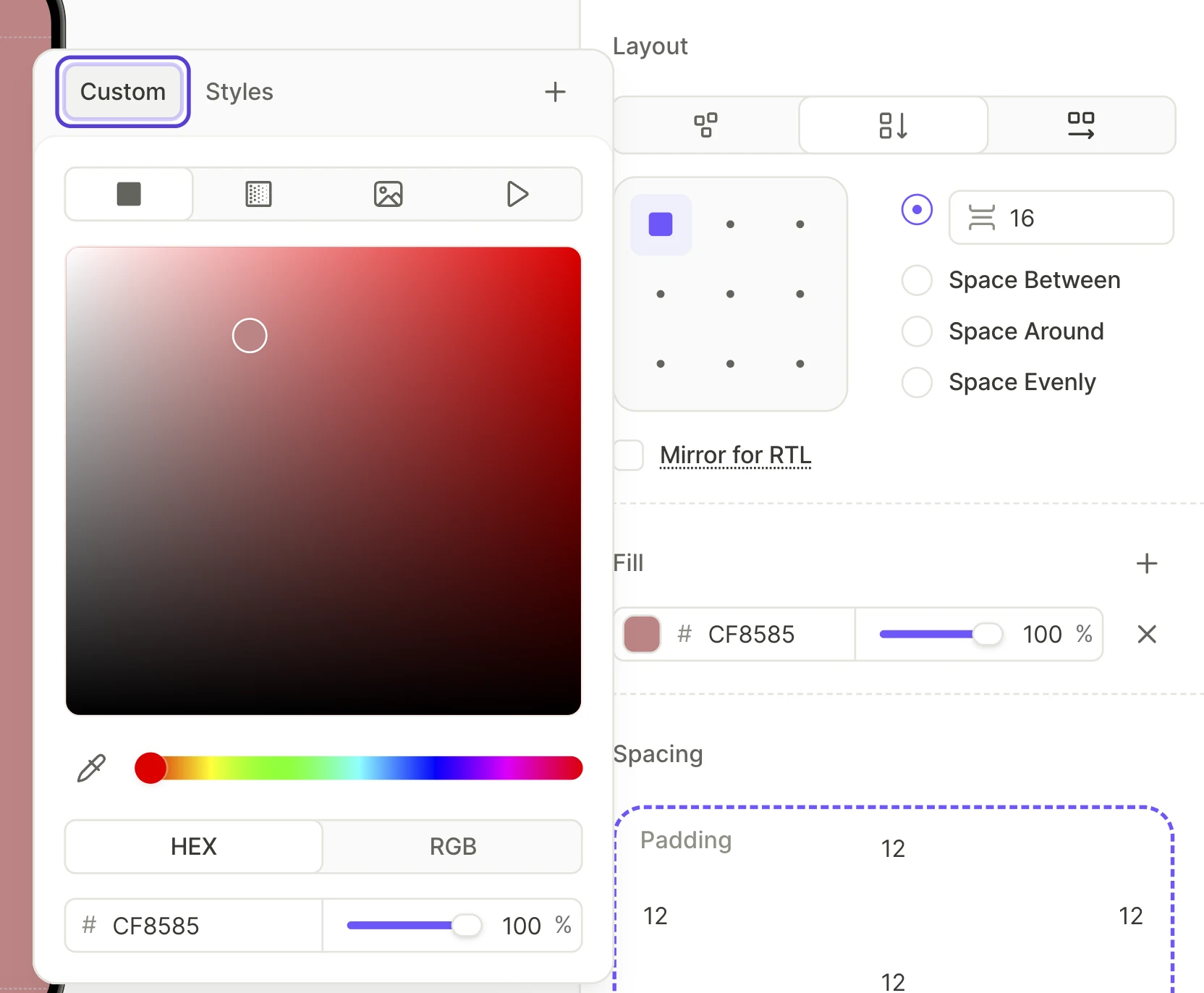
The Fill section sets the background of an element. To fill the entire screen, set the screen background instead.
A fill consists of one or more layers. Each layer has one of the following types:
- Solid color : Use the color picker or enter a hex value. Adjust the opacity to make the background semi-transparent.
- Gradient : Two or more color stops. Drag the stops to adjust the transition, and set the angle with the Direction slider. To change a stop, edit its row under Stops. To add a stop, click the gradient bar or next to Stops. The slider in the layer row changes the opacity of all stops at once.
- Image or Video : An image or video as the background.
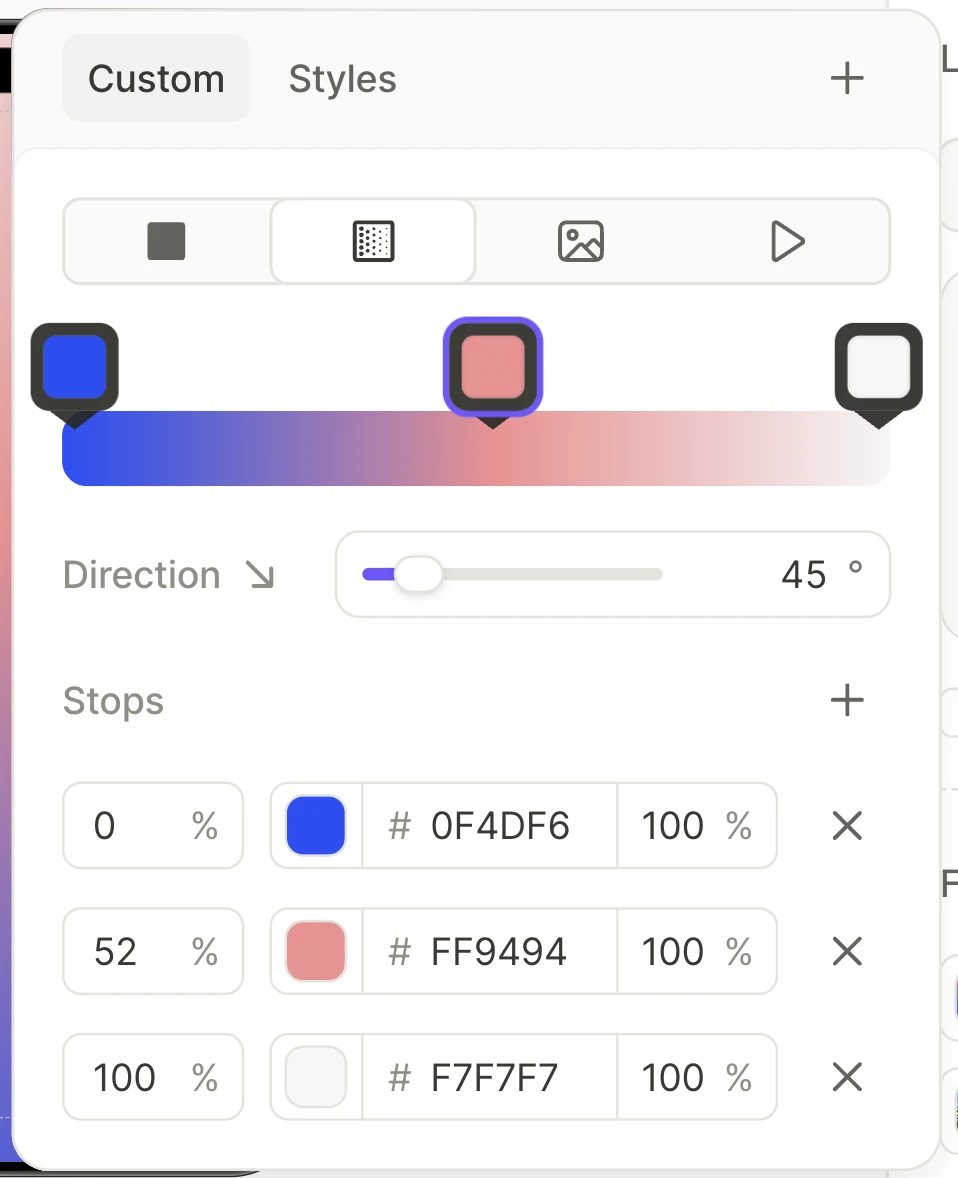
To manage the layers:
- To add a layer, click next to Fill.
- To change the type of a layer, click its swatch and select a type.
- To change the order of the layers, drag their rows.
- To remove a layer, click in its row.
The top layer covers the ones below it, so a semi-transparent layer above an image tints it. Input fields and date/time pickers only show the bottom layer.
To reuse a layer in other elements or give it a dark version, save it as a color style. To reuse an image together with its tint, create a single, multi-layer style.
Border
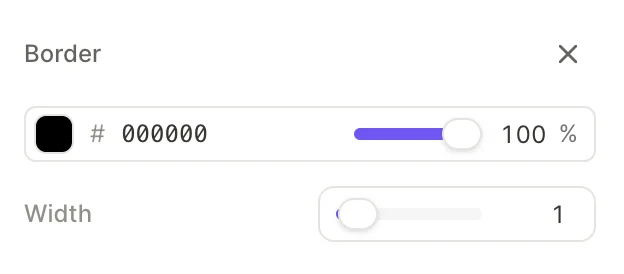

Borders are off by default. Click the next to Border in the right panel to add one. To remove a border, click the next to the Border heading.
When a border is present, configure:
- Color: Use the color picker or enter a hex value. To apply a color style instead, select it from the Styles tab. A border ignores the image and video layers of a style.
- Width: The border thickness in pixels.
To give a border a gradient, apply a color style with a gradient layer to its Color.
Corners
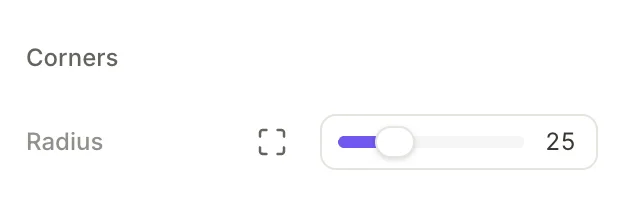
The Corners section controls the border radius (rounded corners).
- Radius slider: Set the same radius for all four corners
- Per-corner toggle : Enable to set a different radius for each individual corner
Effects
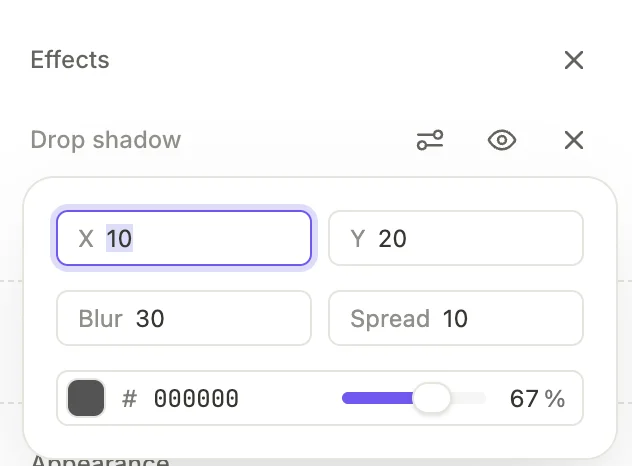

Click the plus button next to Effects to add one or more visual effects:
- Drop shadow: A shadow behind the element
- Inner shadow: A shadow inside the element’s boundaries
- Layer blur: Blurs the element and its children
You can stack multiple effects on the same element. Toggle its visibility to temporarily disable an effect.
Animation
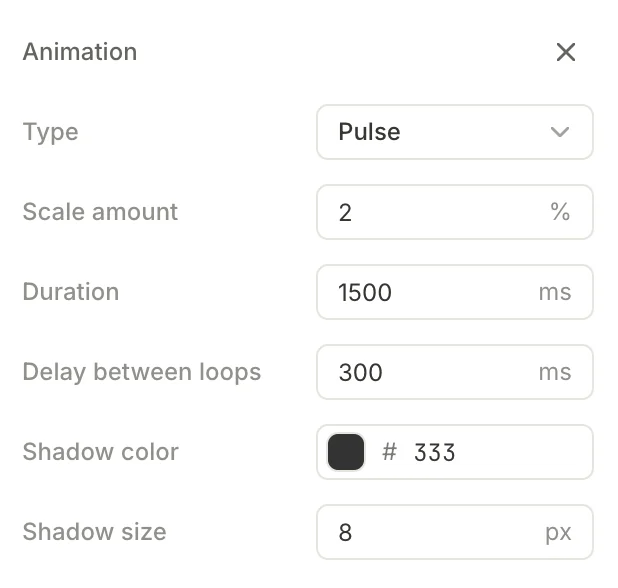
Click the button next to Animation to add an animated effect. Currently, Pulse is the only available animation — the element rhythmically scales up and down to draw attention.
Configure the Pulse animation with the following parameters:
| Parameter | Description |
|---|---|
| Scale amount (%) | How much the element grows relative to its original size |
| Duration (ms) | Length of a single animation cycle |
| Delay between loops (ms) | Pause between repetitions |
| Shadow color | Color of the pulsing shadow effect |
| Shadow size (px) | Size of the pulsing shadow |

Preview the animation
The builder shows static screens by default — animations stay still until you turn them on. Two ways:
- Click the Toggle animations button above the device preview. It turns the screen’s animations on or off — once on, they run continuously until you click again. The button only appears when the active screen contains at least one animation.
- Open the screen’s context menu (the three-dot icon next to the screen layer) and choose Play Animation.
Appearance
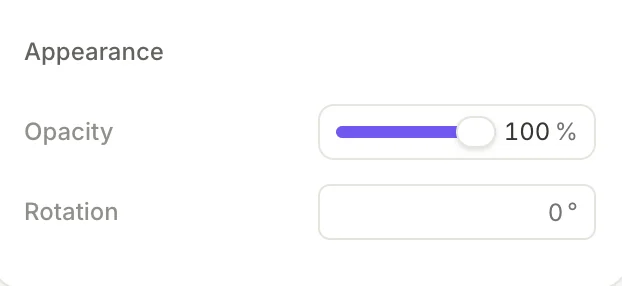
- Opacity: Ranges from 0% (transparent) to 100% (opaque)
- Rotation: Enter a value in degrees to rotate the element
Typography properties (text elements)
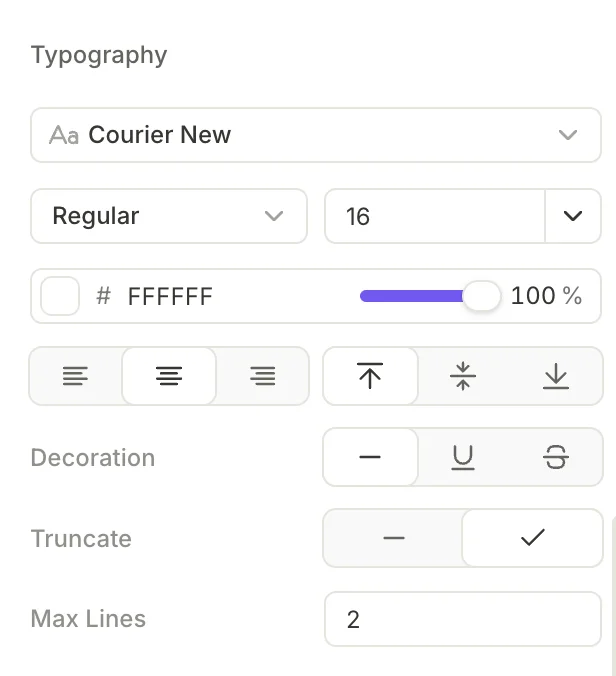

Text elements display a Typography section with the following controls:
Font
See also: Custom fonts
Click the font dropdown to open the font picker. It has two tabs:
- Styles: Lists your project’s saved text styles. Select a style to apply its full typography settings at once.
- Fonts: Lists all available font families. Search or scroll to find the one you need. Built-in fonts can render differently across devices — for consistent rendering, upload a custom font.
To save the current typography settings as a new text style, click next to the tabs. The element then uses the new style.
Size and weight
Bold and Italic have no effect on a custom font unless its family includes a bold or italic face. Upload the correct face yourself.
- Weight: Select a font weight from the dropdown
- Size: Select a size from the dropdown or type a custom value
Text size renders differently per platform: Android scales flow text with the system font size setting, while iOS renders the exact size you set. Test your layout on Android with an increased system font size — text that fits on iOS can wrap or overflow there.
Color
Click the color swatch, and enter a hex value or use the palette. To apply a color style instead, select it from the Styles tab. Text only shows the solid color layers of a style.
Alignment
Two groups of alignment controls:
- Horizontal: Left , Center , or Right
- Vertical: Top , Middle , or Bottom
Decoration
- None : No decoration (default)
- Underline : Adds an underline to the text
- Strikethrough : Adds a strikethrough line
Truncation
Enable truncation to cut off text that exceeds the Max Lines setting. This is useful when supporting multiple languages: if a translated string is longer than the original, truncation prevents it from breaking the layout.
When you select a text element, an inline toolbar also appears above it on the canvas. This toolbar offers quick access to font, weight, size, and alignment without scrolling through the right panel.
State-specific settings (interactive elements)
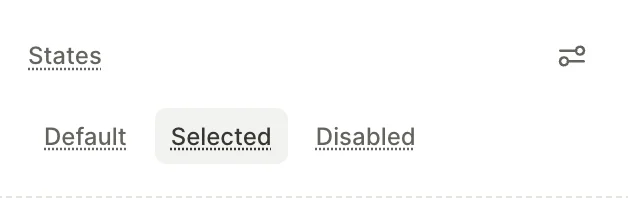

Interactive elements support multiple visual states. When you select such an element, a States section appears in the right panel. Switch between states to configure different visual properties for each.
Each state can override any visual property — fill, border, typography color, opacity, and more.
Selectable states
Main article: Selectable elements
Elements that belong to a selectable group (quiz options, products, tabs, toggles and checkboxes) offer two states by default:
- Default: The element’s normal appearance
- Selected: The appearance when the user has selected this option. Override properties like fill, border color, and text color to highlight the active choice
To style a selectable element when it’s not interactive, add a third state manually. Open States settings and add a Disabled state.
The Disabled state is condition-driven. Select it and click Set conditions to define when the element becomes disabled at runtime, for example when a required field is empty.
Input states
Input fields offer additional states:
- Default: Normal, unfocused appearance
- Active: The field is focused and ready for input
- Invalid: The entered value fails validation
- Disabled: The field is not interactive
Other state-bearing elements
A few elements expose state-specific styling outside the standard Default / Selected / Disabled pattern:
- Progress indicator steps — three states per step: Completed, Current, and Upcoming.
- Carousel dots — two color variants: Color for inactive dots and Active Color for the dot of the current slide.
Reusable styles
Main article: Reusable styles
To keep text and color properties consistent across a flow, save them as reusable styles. When you edit a style, every element and screen that uses it changes.