
Virtual currency balance
Main article: Virtual currencies
Every user profile in Profiles/CRM shows that user’s virtual currency balance, along with a history of every change. From the same profile, your support team can credit or debit a balance by hand — for example, to compensate a user for a failed generation.
View balances in a user profile
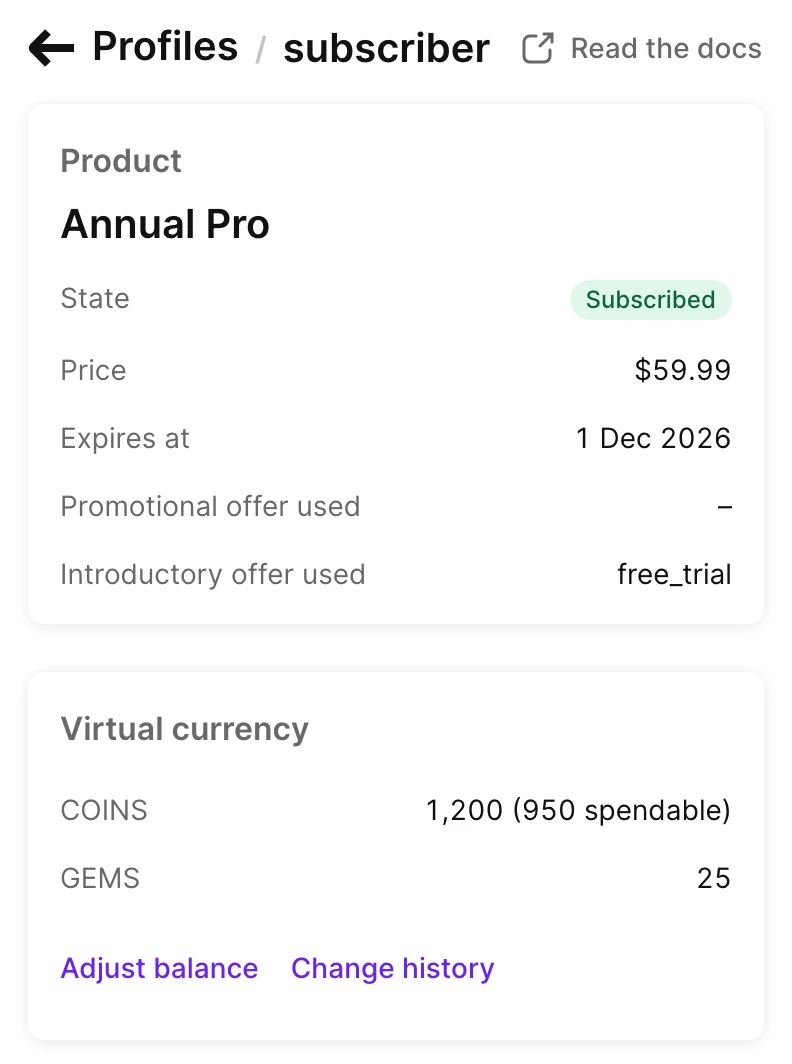
Open the user’s profile. The Virtual currency card lists every currency the user holds.
Each row shows:
- The currency code, such as
COINS. - The current balance, as a whole number.
- The spendable amount in parentheses, such as
1,200 (950 spendable), when the user can’t spend the whole balance right now. Expired credits that Adapty hasn’t removed yet, and credits held for a pending spend, count toward the balance but not toward the spendable amount.
Balances update as the user earns, spends, or receives credits. A balance can’t go below 0: a transaction that tries to spend more than the spendable amount fails with insufficient_balance and changes nothing. A profile with no balances shows an empty card.
To read a balance from your own code instead, call List virtual currency balances in the server-side API.
Adjust a balance manually
To compensate a user, return credits for a failed action, or correct a balance, credit or debit it from the user’s profile. A one-off change doesn’t need the server-side API.
Owners, Admins, and Support members can adjust balances. The Adjust balance link appears when your app has at least one virtual currency.
-
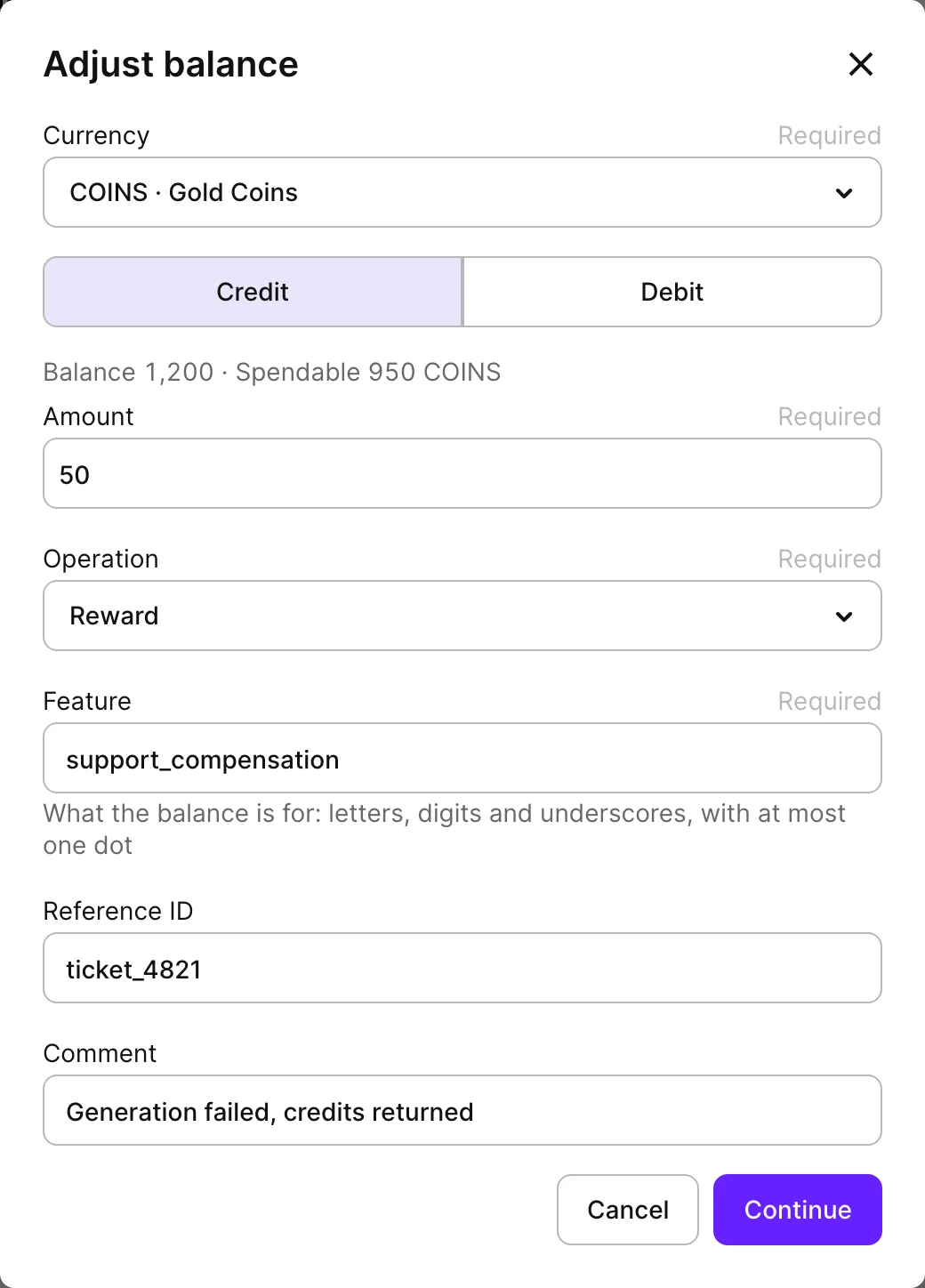
In the user’s profile, in the Virtual currency card, click Adjust balance.
-
Select the Currency. Then select Credit to add credits or Debit to remove them. The line above Amount shows the user’s current balance and spendable amount in that currency.
-
In Amount, enter a whole number greater than 0. You can debit up to the spendable amount.
-
In Operation, select what the change means. For a credit, select Reward, Spend reversal, or Adjustment. For a debit, select Spend, Reward reversal, or Adjustment. Use Adjustment for a correction that is neither a reward nor a reversal. To choose between the others, see Operation.
-
In Feature, enter what the credits are for, such as
support_compensation. Use letters, digits, and_, with at most one dot. For naming advice, see Feature. -
Optionally, in Reference ID, enter the ID of a related object, such as a support ticket. In Comment, explain the change in up to 200 characters. Your team sees the comment in the profile’s event history and in Change history.
-
Click Continue. Review the balance and spendable amount before and after the change, and click Confirm.
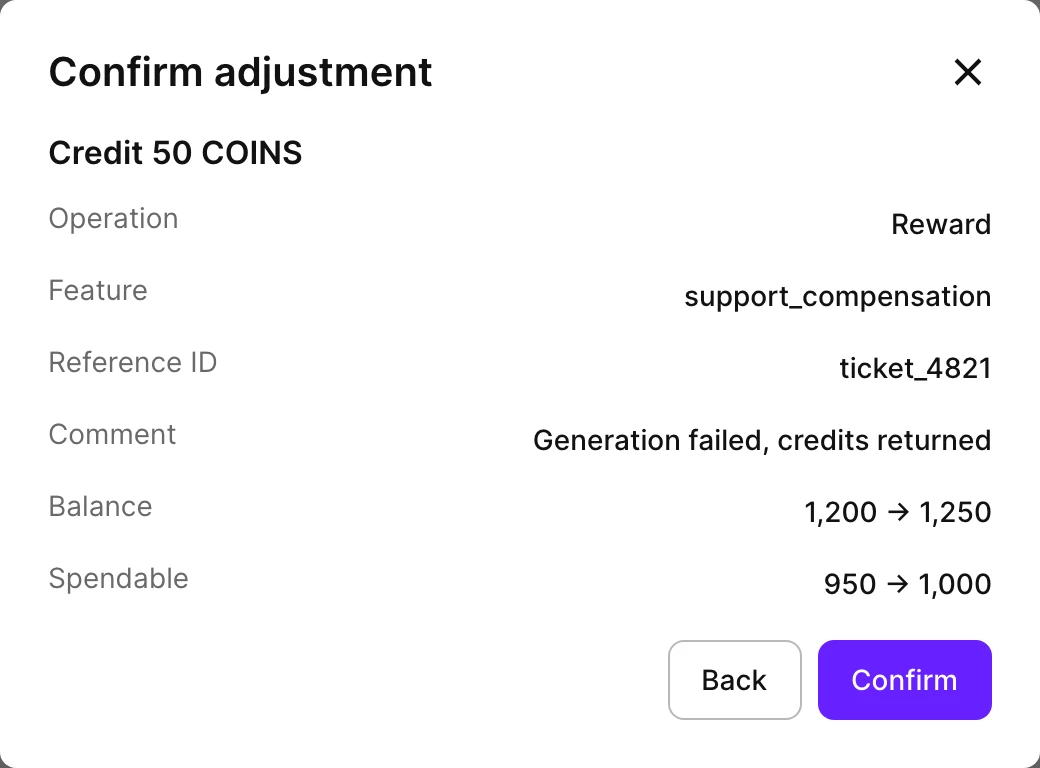
The card shows the new balance, and the change appears at the top of the profile’s event history.
If the form can’t confirm the result, it asks you to click Confirm again. Click it: Adapty doesn’t apply the same adjustment twice.
Adapty doesn’t send manual adjustments to webhooks or analytics integrations. The daily virtual currency export to Amazon S3 or Google Cloud Storage includes them, with transaction_type set to dashboard_transaction.
See who adjusted a balance
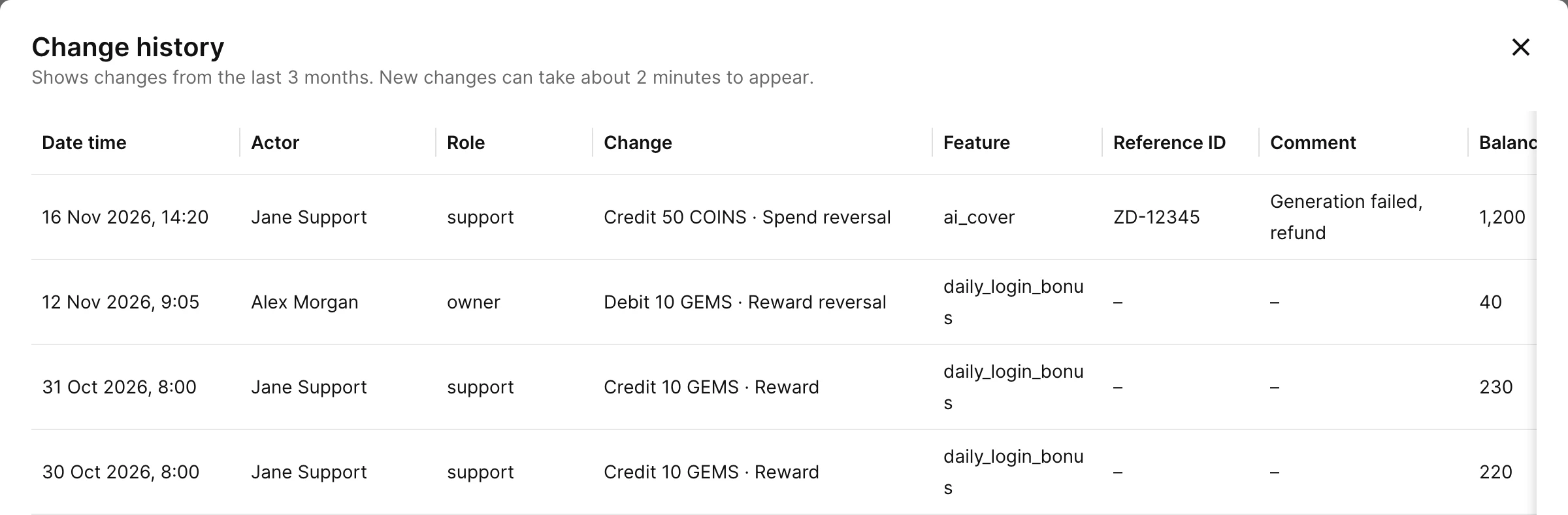
To see which team member adjusted a balance and why, in the Virtual currency card, click Change history. The list shows the manual adjustments of the last 3 months, newest first. Each row shows the team member and their role, the change, its feature, reference ID, and comment, and the balance after the change.
A new adjustment can take about 2 minutes to appear in Change history.
Review balance changes in the event history
Every balance change appears in the profile’s event history, newest first. Each entry names the change and lists the currencies it affected.
Adapty names each entry after what changed the balance:
- Virtual currency credited: A purchase, renewal, or trial start granted credits.
- Virtual currency expired: Expiring credits reset at the end of a billing cycle, or when the subscription ended.
- Virtual currency transaction: A server-side API transaction sent without
operation.
A server-side API transaction sent with operation, and a manual adjustment, are named after their operation:
operation | Entry name |
|---|---|
top_up | Virtual currency credited |
refund | Virtual currency revoked |
spend | Virtual currency debited |
spend_reversal | Virtual currency spend reversed |
reward | Virtual currency rewarded |
reward_reversal | Virtual currency reward reversed |
exchange | Virtual currency exchanged |
expiry | Virtual currency expired |
migration | Virtual currency migrated |
adjustment | Virtual currency adjusted |
The icon next to an entry follows the sign of the amount, not the operation: a credit, a debit, or a neutral icon when one transaction both credits and debits.
Each entry lists, for every currency it changed:
- Virtual currency: The currency name and code, such as
Gold Coins (COINS). - Amount: The signed change — positive for a credit, negative for a debit.
- Balance after: The currency’s balance once the change applied.
One event can change several currencies at once — for example, a single transaction that debits one currency and credits another to convert between them.
Transaction details
To see what a balance change was for, expand the Details block under the entry. It lists only the fields that have a value:
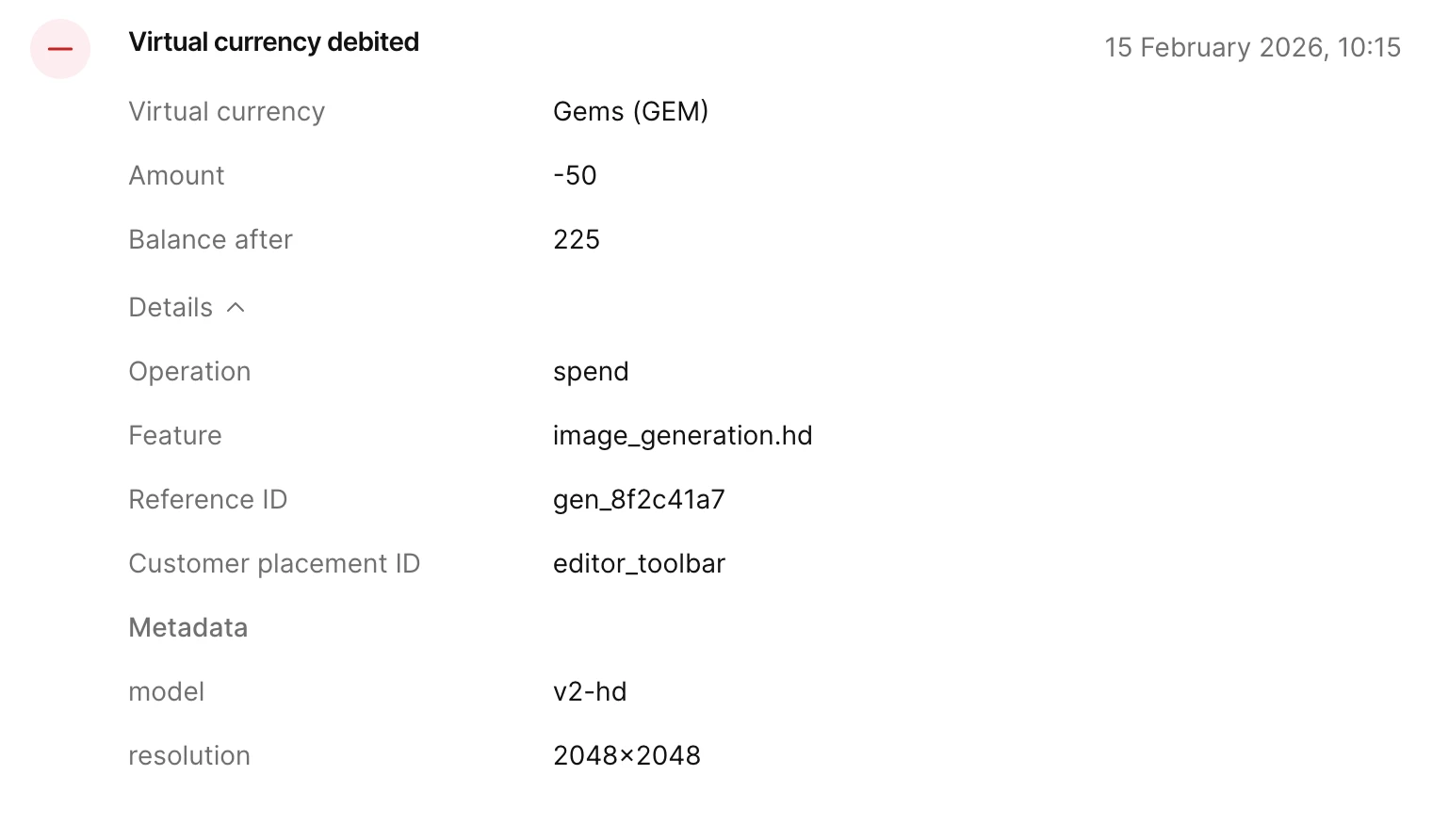
- Store: The store of the purchase that granted the credits.
- Operation: The transaction’s
operation, as your backend sent it or Adapty set it. - Feature: What the credits were spent on or granted for, from
feature. - Reference ID: The ID of the related object in your system, such as a generation, from
reference_id. - Customer placement ID: The screen or place in your app where the transaction happened, from
customer_placement_id. This is your own ID, not an Adapty placement. - Sandbox: Yes for a test transaction sent with
is_sandbox: true, and for a manual adjustment of a test user’s balance. - Metadata: The key-value pairs your backend sent in
metadata, or thecommentof a manual adjustment. Other transactions don’t show metadata.
Your backend sets these fields when it creates a transaction. For a manual adjustment, they come from the Adjust balance form. Transactions recorded before Adapty stored these fields show fewer of them, or no Details block.
Balances, profiles, and devices
A balance always belongs to exactly one profile and never moves to another one. Adapty does not share or transfer balances between profiles the way it can share access levels between user accounts.
In practice, this means:
- Identified users: A customer user ID always resolves to the same profile, so the user sees the same balance on every device where they log in, and keeps it after reinstalling your app.
- Anonymous users: An anonymous profile can earn and spend credits, but it is tied to one app installation on one device. When the same user reinstalls your app, or opens it on another device without logging in, Adapty creates a new anonymous profile with a zero balance. The credits stay on the previous profile, where the user can no longer reach them.
The same applies to segments by balance: a new anonymous profile matches them with a balance of 0.
So, to run a virtual currency economy across devices and reinstalls, identify your users. You can identify them in the app code through the SDK (see Identify users in the quickstart) or from your backend through the server-side API.
Identifying a user late has a caveat of its own: if a user earns credits anonymously and then logs in with a customer user ID that already belongs to another profile, the device switches to that profile and its balance. The credits earned anonymously stay on the old profile and become unreachable. If the customer user ID is new, it attaches to the current profile, and the user keeps the balance. To be safe, identify users before they can earn or buy credits.
In server-side API calls, identify the profile with the adapty-profile-id or adapty-customer-user-id header — both resolve to a single profile. For anonymous profiles, use adapty-profile-id.