
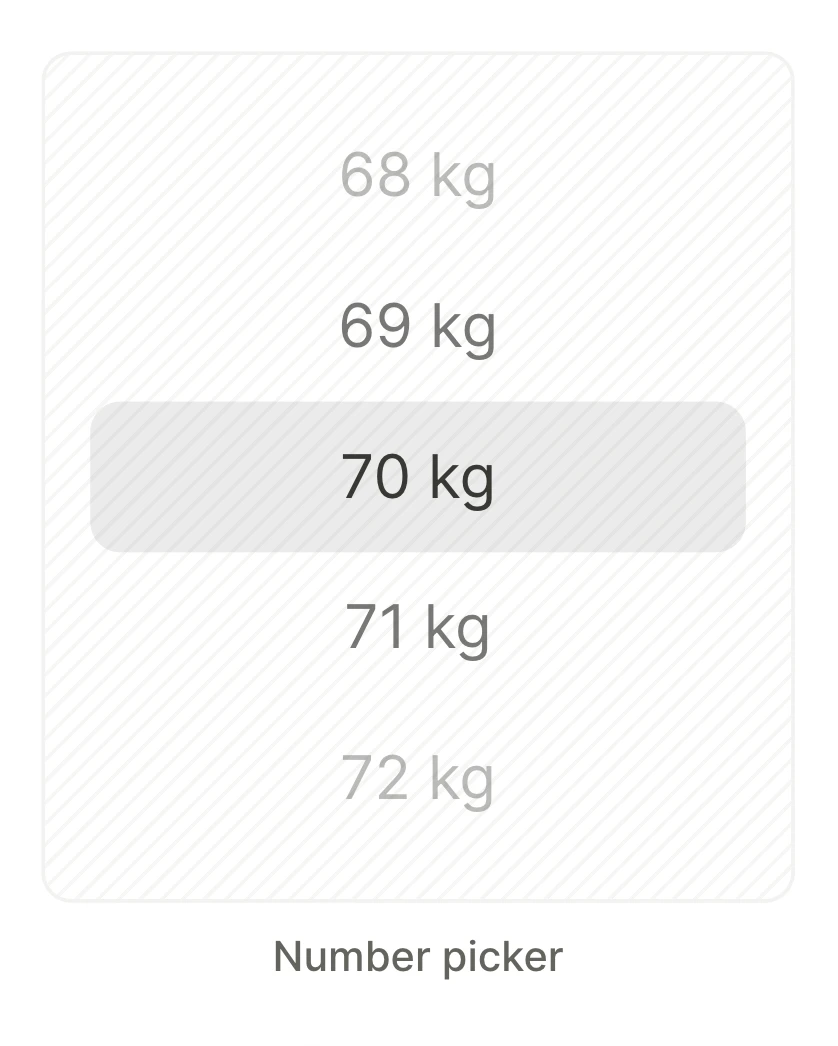
Number picker
To ask users for their age, weight, height, or another number in a range, add a Number picker in the Flow & Paywall Builder. You set the minimum value and the maximum value for a wheel. Users pick a number between them. If users don’t turn the wheel, their answer is the default number. If the answer can be any number, or if users can skip the question, use a Number input instead.
With the number that users pick, you can:
- Read the number in your app code, for example to save it on your backend.
- Show the number in a sentence, such as “You weigh 70 kg”.
- Send users to different screens by the number.
For a date, such as a date of birth, use a Date input. Don’t build a date from three Number pickers: users could pick February 31, and your app code would receive three separate numbers. To ask only for a birth year, add one Number picker, such as from 1940 to 2010.
Add a Number picker
-
Open the Add element panel.
-
In the Forms & Quiz category, click Input > Number picker.
-
On the canvas, replace the Weight text with your question.
-
Select the wheel.
-
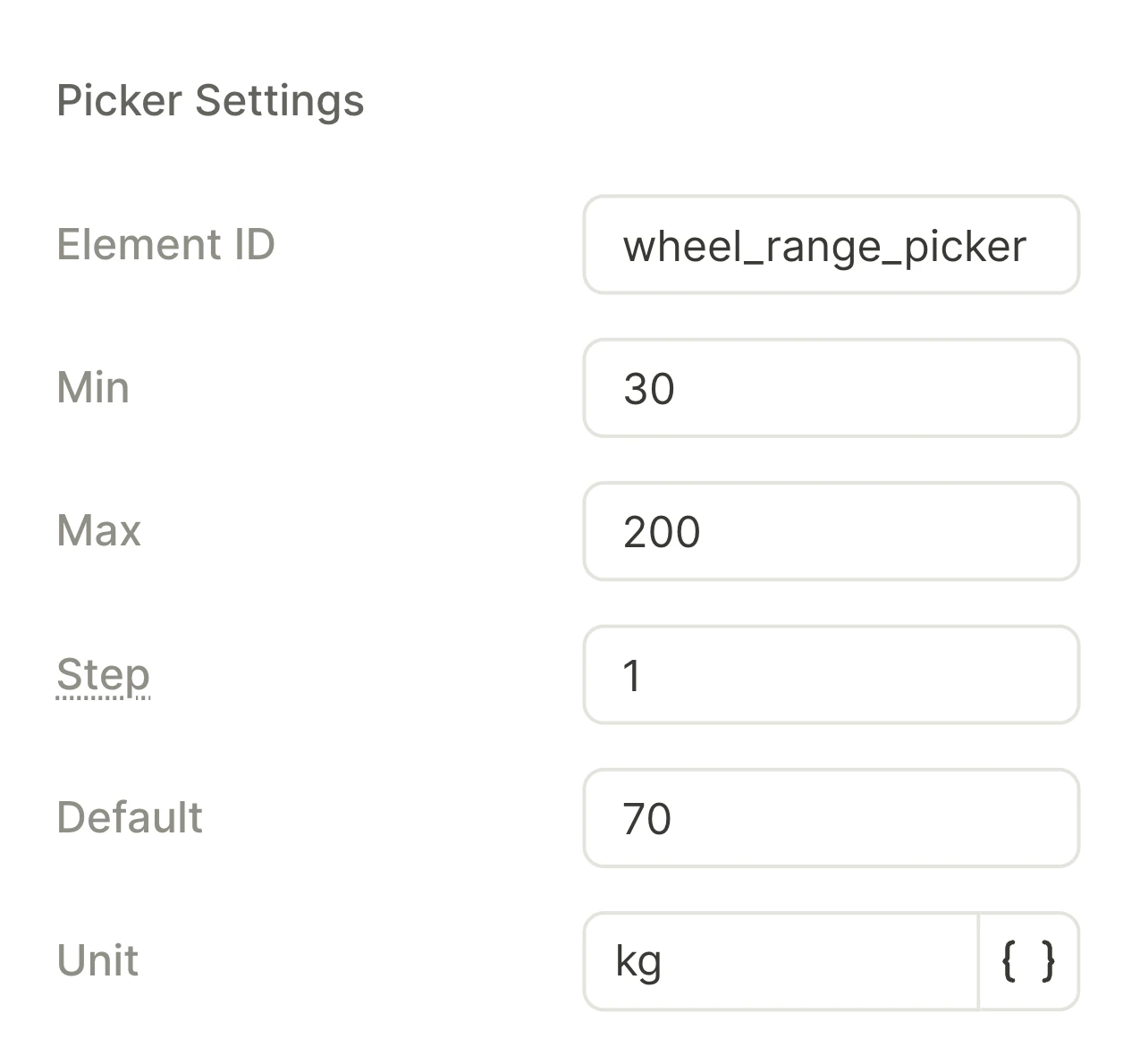
In the Element ID field, replace the generated ID with a name for the answer, such as
weight. In conditions and text elements, the number is the variableweight.value, and your app code receives it with the IDweight. Set the ID when you add the picker, not later. If you change the ID, the builder updates the conditions and text elements, but your app code still looks for the old ID. -
In the Min, Max, and Step fields, set the range, such as from 40 to 150 for a weight in kilograms. For whole numbers, use a whole Min and Step. For numbers with decimals, use a Step such as 0.5.
The builder rounds each number to a multiple of 0.25, so for a height, use centimeters, not meters. If the range needs more than 1000 rows, the builder lowers the Max value.
-
In the Default field, set a common answer, such as 70. If users don’t turn the wheel, their answer is the default number.
-
In the Unit field, set the unit that follows each number, such as
kg. For a number without a unit, clear the field. -
To send the number to your app code, select the button that users tap to confirm the number, such as Continue. Set the action of the button to Navigate to Screen, Navigate Next, or Navigate back. The action can also run inside a conditional action. A button that closes the flow, starts a purchase, or runs a custom action doesn’t send the number.
Offer metric and imperial units
To ask for a weight in kilograms or pounds:
- Add a single-choice quiz with the options kg and lb.
- After the quiz screen, add a screen for kilograms and a screen for pounds. On each screen, add a Number picker with the Element ID
weight_kgorweight_lb, as in Add a Number picker. - On the quiz screen, add a conditional action to the button that users tap to confirm the unit, such as Continue. If users pick kg, navigate to the screen for kilograms, and otherwise to the screen for pounds.
- On the screens for kilograms and pounds, set the navigation action to Navigate to Screen, and select the same next screen on both.
If both pickers share a screen, your app code receives both numbers, even when you hide one of them. With separate screens, users who go back and switch the unit send both numbers too. In your app code, if users last picked kg, read weight_kg, and otherwise weight_lb.
On later screens, the variable of the skipped picker equals its default. To show the weight or branch by it, add a condition that evaluates the quiz answer.
A Number picker has one unit. If you translate the unit into another language, you only change the label after each number. Your app code receives the same numbers in every language.
For a height in feet and inches, add one Number picker in inches, such as from 48 to 96.
Show the number in a text element
To show the number in a sentence, such as “You weigh 70 kg”, insert the variable <Element ID>.value into a text element. The variable has no unit, so type the unit after it. On a device, when the wheel stops on a number, a text element on the same screen updates.
To show a BMI or another value based on the numbers, calculate it in your app code. Then pass the result to a custom tag in a later flow. You can’t calculate values in a flow.
Branch the flow by the number
To send users to different screens by the number, add a conditional action to the button that users tap to confirm the number, such as Continue. For example, for a picker with the Element ID age, if age.value < 18, navigate to a separate screen, and otherwise to the next screen.
To change text or show an element by the number, add conditional text or conditional visibility that evaluates the number. For example, if age.value < 18, show a hint. On a device, the screen with the picker updates when the wheel stops on a number.
Preview the wheel on a device
To turn the wheel and see the screen update, test the flow on a device. On iOS, the wheel is the system wheel. On Android, the Adapty SDK draws its own wheel. On both platforms, every row uses the font and color from the Typography section. In the Size section, you can only set the width of the wheel: each platform sets the height.
On the canvas, you can’t turn the wheel, so its default number appears in text elements, and conditions evaluate it.
Read the number in your app code
Your app code receives the number through the Adapty SDK iOS, Android, React Native, Flutter, Unity, Kotlin Multiplatform, Capacitor , in a flow_user_input event with the following parameters:
element_type:wheel_range_picker.element_id: The Element ID, such asweight.value: The number. If Min or Step has decimals, the number can have them too, such as70.5.
Your app code receives value from a Number input as a string, and from a Number picker as a numeric type. If you replace a Number input with a Number picker, update the app code that reads value.
Your app code receives the event when users tap a button that opens another screen. Before that, a tap on a quiz option or a toggle on the same screen can send the event too. To read the number that users picked, only keep the latest event for each Element ID. If users didn’t turn the wheel, value is the default number. Even a hidden picker sends the event to your app code.
The flow doesn’t send the number to Adapty. To show different flows and paywalls to users by the number later:
- Send the number from your app code to Adapty as a custom user attribute iOS, Android, React Native, Flutter, Unity, Kotlin Multiplatform, Capacitor . Pass the number itself, not text.
- In the Adapty Dashboard, create a Number custom attribute. In its Key field, enter the key from your app code.
- Create a segment by that attribute, and add the segment to an audience.