
Custom tags
A custom tag is a custom variable with a value from your app. After you select Value comes from outside the app in a variable’s settings, your app can set its value through the Adapty SDK. For example, a text element contains “Coins:” and a custom tag. If your app passes “120” for the tag, users see “Coins: 120”.
Use custom tags to show:
- Who the user is: A username in a greeting, such as “Welcome back, DragonSlayer42!”
- What the user has: The number of days in a streak, or a player’s level.
- What your app calculates: A discount for a larger pack, or a BMI based on the user’s answers in an earlier flow.
Values and fallbacks
Your app identifies each value by the name of its custom tag. The value is always a string. Adapty doesn’t format or translate the string, so your app must make each value human-readable before it appears in the flow. For example, pass “1,250”, not “1250.0”.
Users see a custom tag’s Initial value as a fallback in the following cases:
- Your app passes no value for the tag.
- The user hasn’t updated your app to a version that passes the value.
- The name in your app’s code doesn’t match the tag’s full name, including letter case.
- Another custom tag in the same text element has no value. Then every custom tag in that text element shows its Initial value.
To show nothing in place of a tag, pass an empty string. Adapty treats an empty string as a value, so the fallback doesn’t appear.
1. Create a custom tag
-
Open the Variables panel in the flow builder.
-
Add a new variable — click .
-
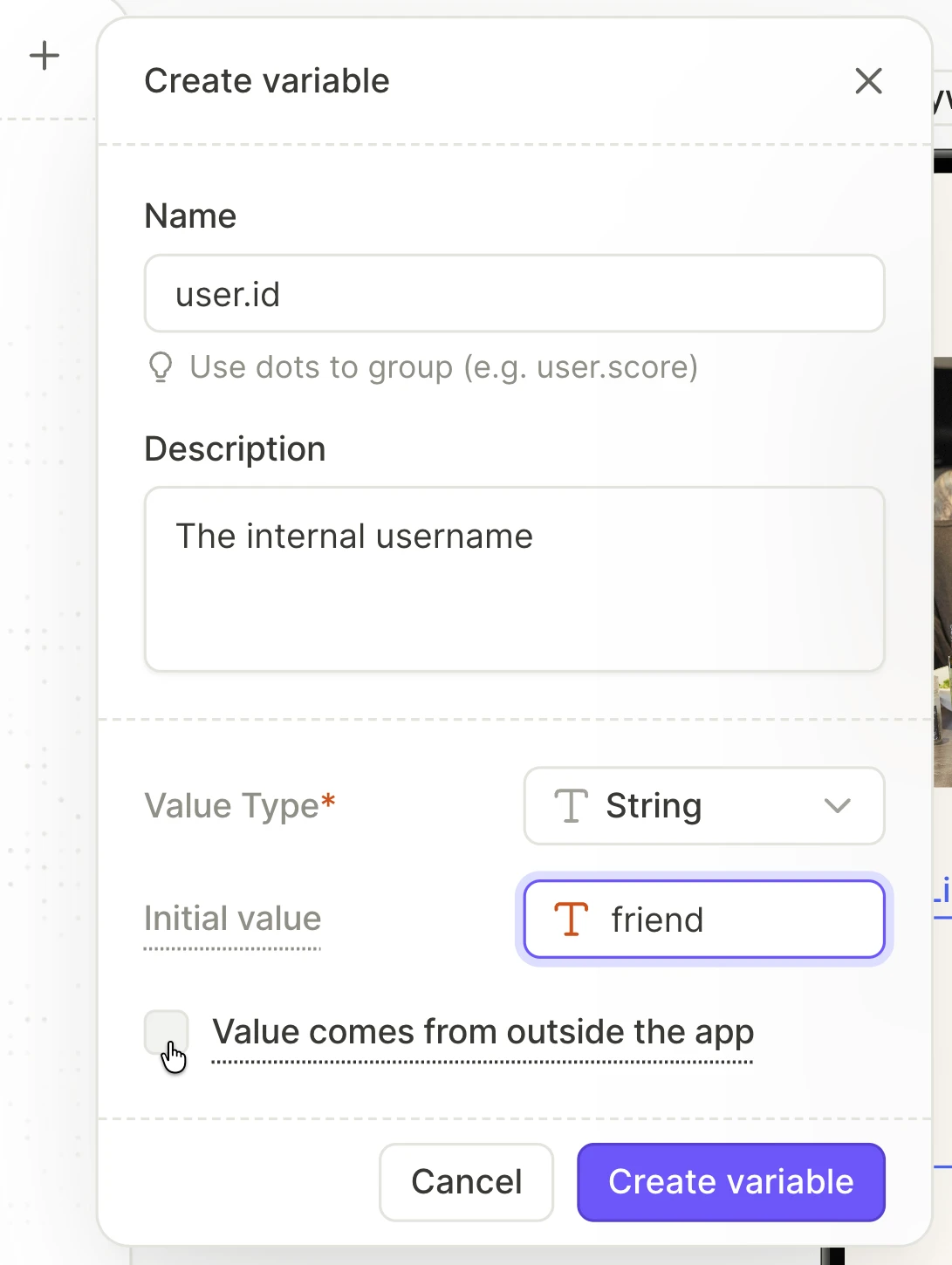
Configure the variable Name. Your app’s code must reference it exactly, including letter case.
- Characters: Use Latin letters (A–Z and a–z), digits,
_, and-. To put the tag in a group, start its name with the group and a dot, such asuser.streak. - Reserved names: In any letter case, don’t use a reserved name, such as
PRICE,TITLE,VALUE, or one that starts withTIMER_. - Uniqueness: Use a name that’s unique within the flow.
- Characters: Use Latin letters (A–Z and a–z), digits,
-
(Optional) To distinguish between different variables, fill in the Description field. When you hover over the variable’s name in the builder, you’ll see the description.
-
In the Initial value field, enter the fallback that users see when your app passes no value:
- A word that fits every user: For the
usernametag in a greeting, enterfriend. Unauthenticated users will see “Welcome back, friend!”. Note that the initial value cannot be localized. - A dash for a balance or a count: To avoid displaying an incorrect balance value for unauthenticated users, enter a dash (
—).
- A word that fits every user: For the
-
(String variables only) Select the Value comes from outside the app checkbox. This action is irreversible and locks in the Value Type.
-
Click Create variable.
Variables are flow-specific. To use a custom tag in another flow, create one there with the same name.
Replace a variable with a custom tag
You can only select the Value comes from outside the app checkbox when you create a variable. To show your app’s value in place of a regular custom variable, such as one from a converted paywall, replace the variable with a custom tag:
- Delete the variable and all its references in the flow.
- Create a custom tag with the same name.
- Insert the custom tag into each text element that used the variable.
2. Add a custom tag to a text element
Select the text element. In the Content section, click Add variable, and select the tag on the Custom tab.
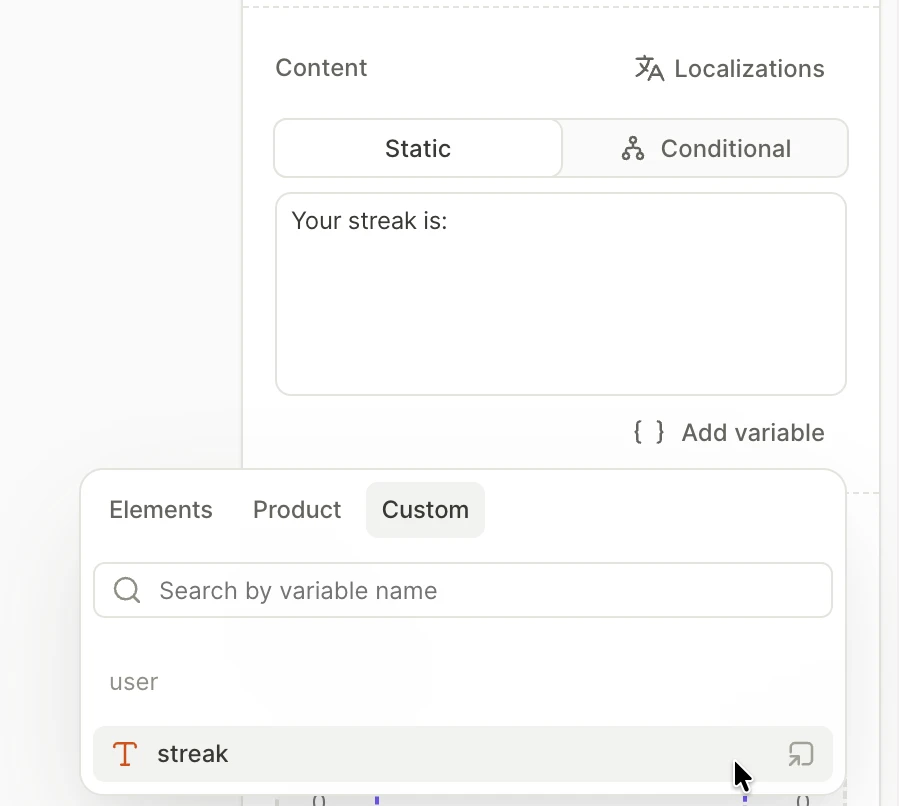
You can insert custom tags into every branch of conditional text, but you can’t select them in its if conditions.
3. Pass the values from your app
Your app’s code must use the exact name of each custom tag, including its group. For example, if the user group contains a streak tag, the tag’s exact name is user.streak.
The setup code depends on your platform:
To test your custom tags, open the flow in your app, after you add the code that sets their values. The builder canvas and the preview on devices only show Initial values: the Adapty mobile app doesn’t set custom tag values.
Limitations
- Text elements only: You can only insert custom tags into text elements. You can’t insert them into the following:
- Set variable actions
- Show alert actions
- Open URL actions
- Input placeholders
- No conditions on custom tags: You can’t select a custom tag in a condition or in conditional visibility. To decide which sentence, elements, and screens users see based on a value from your app:
- Sentence: Build the sentence in your app’s code, and pass it as the tag’s value. For example, for a
coins_messagetag, pass “You have 120 coins” to players with coins, and “Get your first coins” to the rest. - Elements and screens: Set the value as a custom attribute. Then show a separate flow to an audience built from that attribute.
- Sentence: Build the sentence in your app’s code, and pass it as the tag’s value. For example, for a
- No SDK method to update the values in an open flow: To show a result based on what users enter in a flow, pass the result to the next flow, as in the BMI example.