
Flow funnel
The Funnel tab of a flow shows how users move through its screens and on which screen they leave. Flow metrics report how many users start a flow, how many finish it, and what it earns. The funnel shows the path in between, screen by screen. Use it to find the screen that loses users and fix that screen instead of the whole flow. The Funnel analysis chart on the Analytics page is a different funnel: it covers installs, paywall views, trials, and payments for the whole app.
The funnel is built from the screen views of a published flow version. The Adapty SDK reports a screen view each time it renders a flow screen, so no code is required. Only flows shown from a placement are counted.
To open the funnel, on the Flows page, click a flow. On its page, select the Funnel tab.
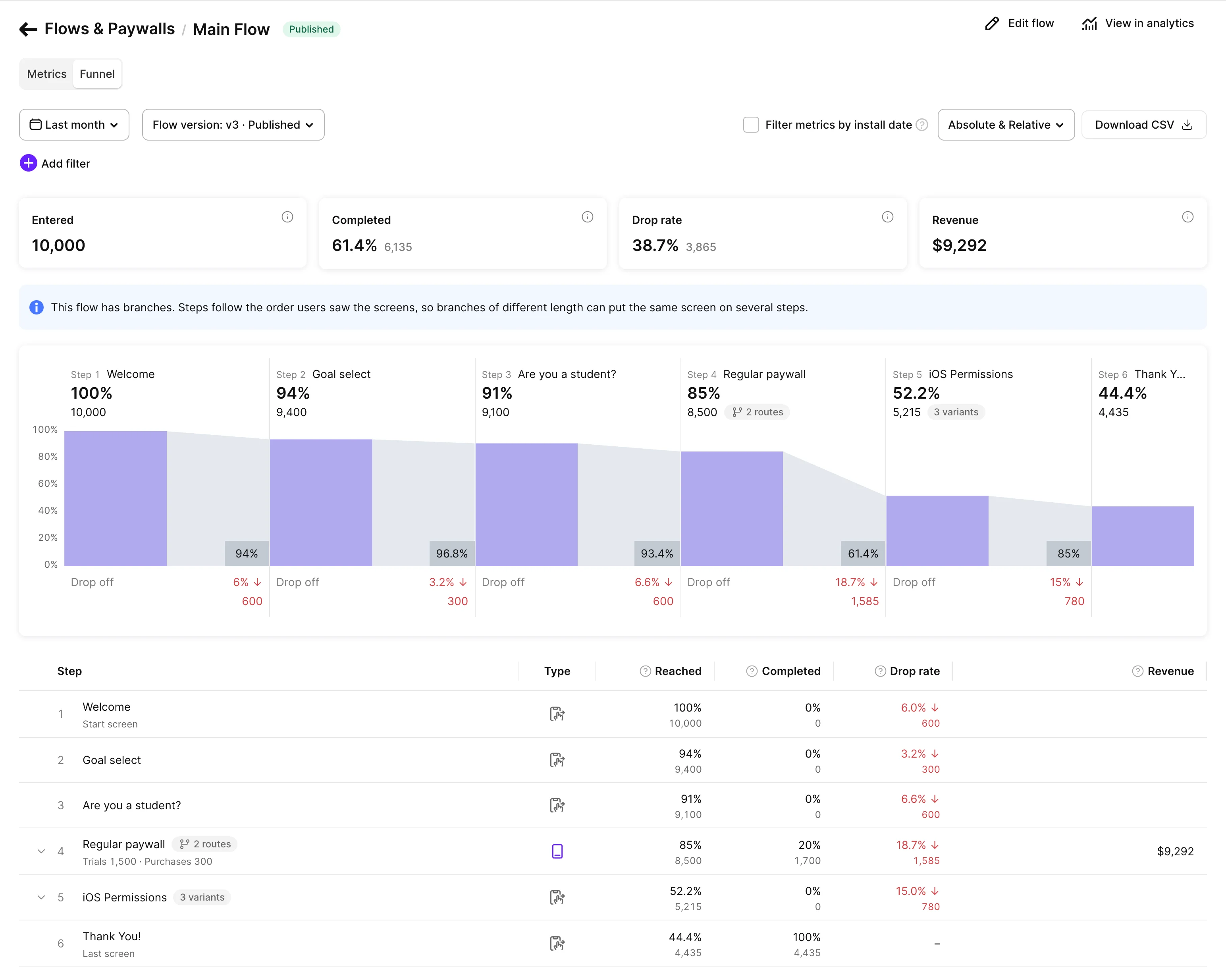
The page has three parts:
- Summary cards: Entered, Completed, Drop rate, and Revenue for the whole flow.
- Chart: One bar per step, with the share of users who reached it, the conversion to the next step, and the drop-off after it.
- Table: One row per step: its type, the users who reached it, the users who completed or left the flow on it, and the revenue of its paywall screens.
Funnel steps
A step is a position in a user’s path through the flow, not a position in the Flow & Paywall Builder. The first step is the screen users saw first, the second step is the screen they saw next, and so on. The first step is captioned Start screen.
Adapty builds one path per user:
- Each time a user opens the flow, a screen counts once, at its first view. A user who goes back to a screen adds no step.
- If a user opens the flow several times, Adapty keeps one run: a run in which the user completed the flow, if there is one, and otherwise the run with the most screens.
- Because each user has one path, every count in the funnel is a count of unique users.
Until the version has data, the table lists its screens in builder order with zero values.
Branches
Screens of different branches at the same position share one step. The step is titled after the screen most users saw. A badge shows how many screens share it: N routes when the step has a paywall screen, N variants when it doesn’t. Expand the step row to see each screen with its share of the step’s users, completions, and drop-off. A paywall screen in the step is labeled Paywall path, numbered when the step has several of them.
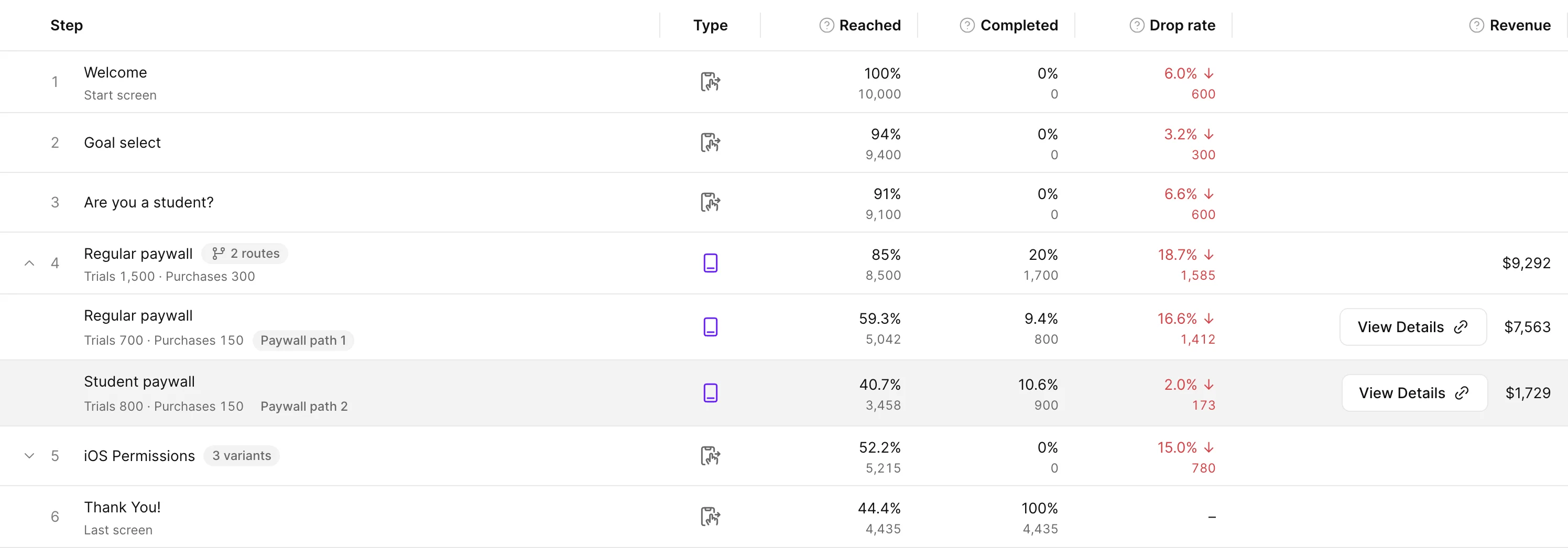
When a flow has branches, a note above the funnel says so.
Completions and drop-offs
A user completes the flow in one of two ways:
- The user starts a trial or makes a purchase on a paywall screen. A purchase closes the flow, so the user completes it on that paywall step, wherever the step is in the flow. A later refund removes the purchase from the step’s Purchases and Revenue, but the user still counts as completed.
- The path ends on a last screen. A last screen is a screen with no navigation to another screen. A flow can have several of them, for example a success screen and a cancel screen. Each of them is captioned Last screen. When a last screen is a paywall, only users who buy on it complete the flow.
Any other path is a drop-off, counted on the step where the path ended. A user who closes a paywall without buying, including after a canceled or failed payment, drops off on that paywall’s step, unless the path then continues to a last screen. Any drop-off above zero is shown in red.
Funnel controls
- Period: The date range. The funnel includes every run of the flow that started in the period, in full, even if the run continued past the period’s end.
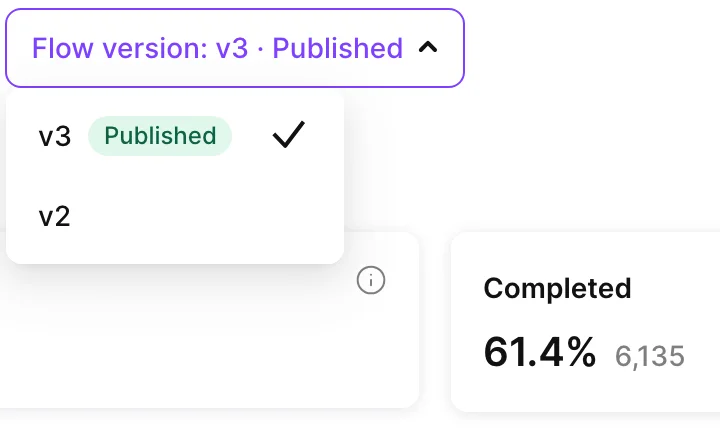
- Flow version: The version the funnel is computed for. The funnel opens on the published version. The list offers every version that was published at some point, and the published one is tagged Published. Screens and metrics differ between versions, and a version has data from the date it was published. After you change a screen and publish the flow, the new version gets its own funnel from that date. To see whether the change helped, select the previous version and compare the step.
- Filter metrics by install date: Counts users who installed the app in the period instead of runs that started in it. See Filter metrics by install date.
- Filters: Country, Store, and attribution, the same as in flow metrics, plus two filters the funnel alone has:
- Platform: Keeps the users who saw the flow on that platform.
- Subscription state: Keeps the users whose current subscription state matches, for example Never subscribed or Active trial. The state updates about once an hour.
- Absolute / Relative: Whether the table shows counts, percentages, or both. The chart always shows both.
- Download CSV: Exports a total row with the summary card values, then one row per step and one row per screen within a step.
A paywall step has a View Details button that opens the paywall’s metrics, where you find its conversion rates and renewals. When several paywall screens share a step, the button appears on each screen row instead.
Filter metrics by install date
Paywall, trial, and purchase metrics can be grouped by two different dates:
- The event date — when the paywall was viewed, the trial started, or the purchase happened.
- The install date — when the user first opened the app.
The two views can show very different numbers for the same date range. The Filter metrics by install date checkbox controls which one the dashboard uses:
- Unchecked (default): Metrics are grouped by event date.
- Checked: Metrics are grouped by install date.
Example. You set the date range to April 1–30 and look at trials.
- Unchecked: Shows trials that started in April, no matter when those users installed.
- Checked: Shows trials from users who installed in April, no matter when their trials started.
The install-date view keeps growing after the period ends. A user who installed in April and starts a trial in July is added to April when they do, so April’s metrics are higher every time you open them. The event-date view doesn’t change that way — each event counts on the day it happened.
Use the install-date view to measure user-acquisition performance for a specific cohort. Use the event-date view to measure paywall or onboarding activity in a specific period.
Metrics definitions
Values that don’t apply are shown as a dash, for example the revenue of an onboarding screen or the drop rate of a last screen that isn’t a paywall.
Entered
Unique users who started the flow, meaning they reached the first screen.
Completed
Unique users who completed the flow: they started a trial or made a purchase on a paywall screen, or reached a last screen. The card shows the share of entered users and the count. In the table, a step’s Completed counts the users who completed the flow on that step. In a screen row within a step, the screen’s completions are a share of the step’s users.
This differs from Completions in flow metrics, which count only the users who reach a last screen. For a flow with a paywall in the middle, the funnel shows more completions.
Drop rate
Share of users who entered the flow but did not complete it.
Reached
Unique users who reached the step, as a share of entered users. In a screen row within a step, the share of the step’s users who saw that screen.
The chart also shows the conversion to the next step, which is the step’s reached users as a share of the previous step’s. Users who did not reach the next step either completed the flow or dropped off on this step.
Drop rate per step
Users whose path ended on the step without completing the flow, as a share of the users who reached it. In a screen row within a step, the screen’s share of the step’s drop-off. Hover over the value to see the screen’s own drop-off rate.
Revenue
Gross revenue in USD from initial purchases on the paywall screens of the flow, minus refunds of those purchases. Renewals are not included, unlike the Revenue in flow metrics, which counts every transaction after the flow was shown.
A purchase counts on the date it was paid. Each paywall step and screen also shows its Trials, the trials started on it, and its Purchases, the initial purchases on it minus their refunds. Trials and purchases are counted the same way as in paywall metrics. A user who starts a trial and converts in the same period counts in both Trials and Purchases, and once in Completed.
The Revenue card can be higher than the sum of the table. The card also counts purchases a user made on a paywall screen of the flow in another run than the one kept for the user’s path, and the table shows only purchases on that path.
Adapty converts other currencies to USD at the currencylayer.com exchange rate (refreshed every 8 hours). The rate is fixed at the time of the transaction — future changes do not affect the conversion result.
Limitations
- Branches of different lengths shift steps: A step is a position in the path. When one branch is longer than another, or a screen is skipped, the same screen lands on different steps for different users. The funnel then shows that screen in more than one step, and its row is labeled Also on steps with the other step numbers.
- Late conversions are not counted: A trial that converts after the period ends is not in the period’s Purchases and Revenue. The last days of a period therefore show lower values than they will later.
- Data is per version: The funnel covers one flow version at a time, from the date that version was published. To see an earlier period, select the version that was published then.