
Set up the Adapty CLI in Claude Cowork
The Adapty Developer CLI works in Claude Cowork, so you can manage your Adapty account from a chat instead of a terminal. Cowork runs commands in a sandbox that reaches only allowlisted domains, so the CLI needs a one-time setup in Claude before it can sign in to your account.
What you need:
- The Claude desktop app with Cowork
- An Adapty account
- For corporate Claude workspaces, help from your workspace administrator — see Allow the Adapty domains
Add the Adapty plugin
The Adapty plugin includes the skills Claude follows to install, authenticate, and drive the CLI, including the Apple Ads skill for Ads Manager work.
To add the plugin:
- In Claude, open Settings → Plugins.
- Click Add → Add marketplace.
- Select Add from a repository.
- In the URL field, paste
https://github.com/adaptyteam/apple-ads-cli. - Click Sync.
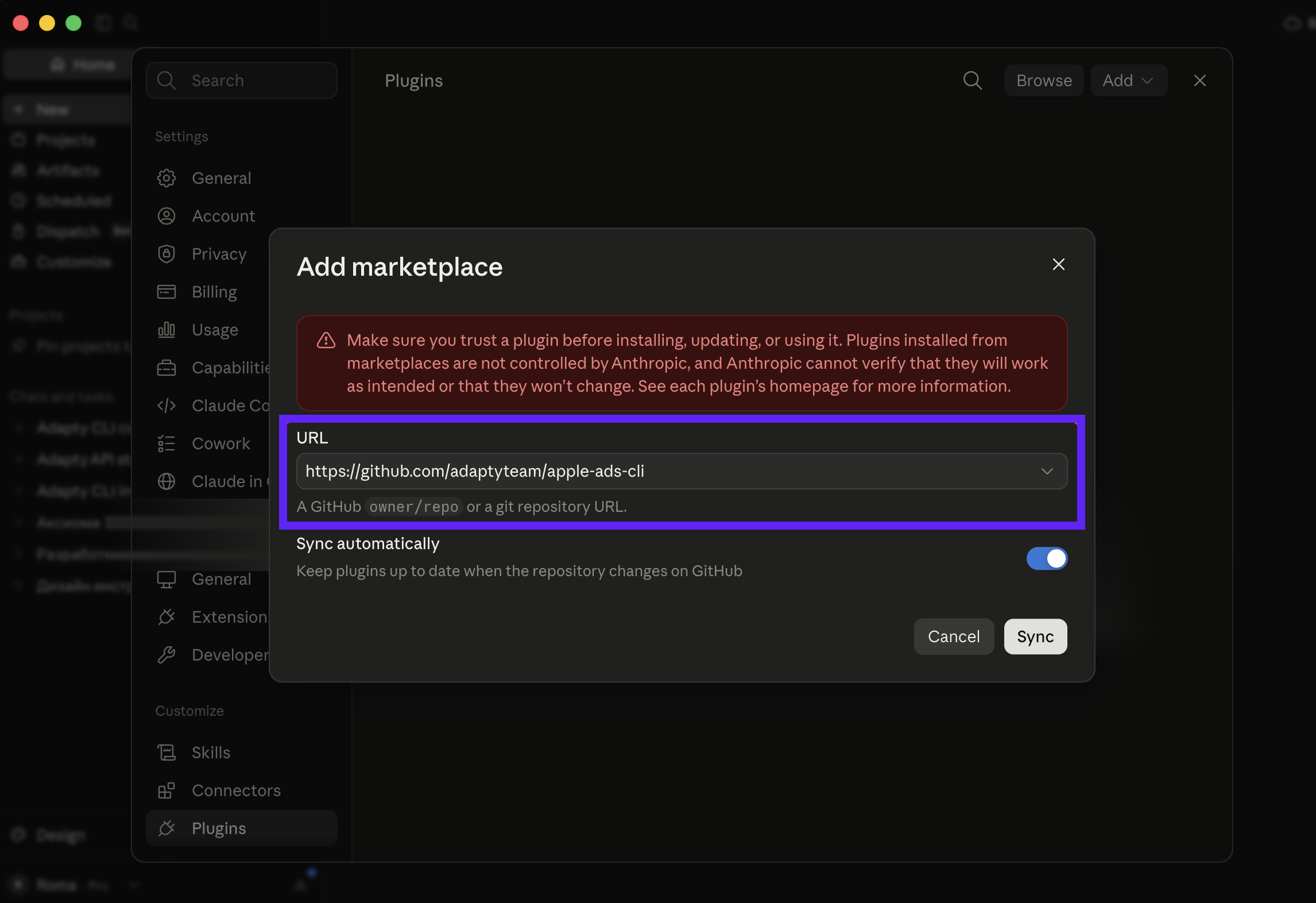
The Adapty plugins appear under Personal in the plugin directory.
Allow the Adapty domains
Until you allow Adapty in the sandbox’s domain allowlist, the CLI can’t sign in or read your account.
Allow both adapty.io and *.adapty.io. A wildcard doesn’t cover the apex domain in most allowlist implementations. The CLI itself reaches api.adapty.io, and an agent that reads the Adapty documentation while it works reaches the apex.
Cowork applies these settings when a task starts. If you change the access mode or add a domain during a conversation, that conversation keeps the settings it started with — start a new task.
Personal accounts
You set the allowlist yourself:
- In Claude, open Settings → Capabilities.
- Turn on Code execution and file creation. The Allow network egress block stays hidden until you do.
- Turn on Allow network egress.
- In Domain allowlist, select Package managers only.
- Under Additional allowed domains, add
adapty.io, then add*.adapty.io.
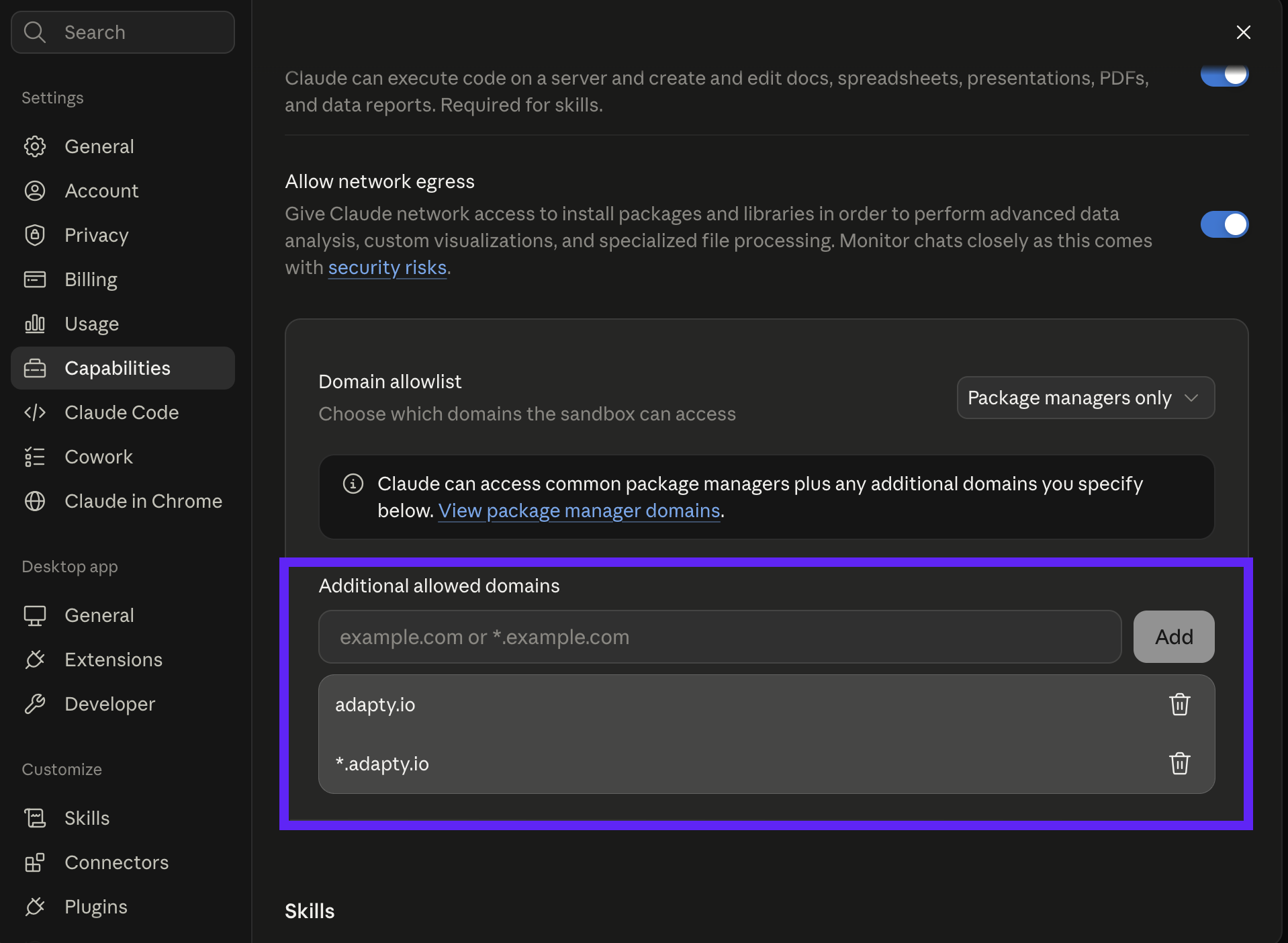
The other access mode, All domains, lets the sandbox reach any site. With that selected, you don’t add the Adapty domains at all.
Corporate workspaces
An administrator controls the allowlist. Ask them to add both domains for the workspace.
Install and authorize the CLI
Each Cowork task starts on a clean machine: no CLI, no token, and no config carries over from a previous session, so the install and login steps repeat at the start of each task.
To install and authorize the CLI:
-
Start a new task in Cowork.
-
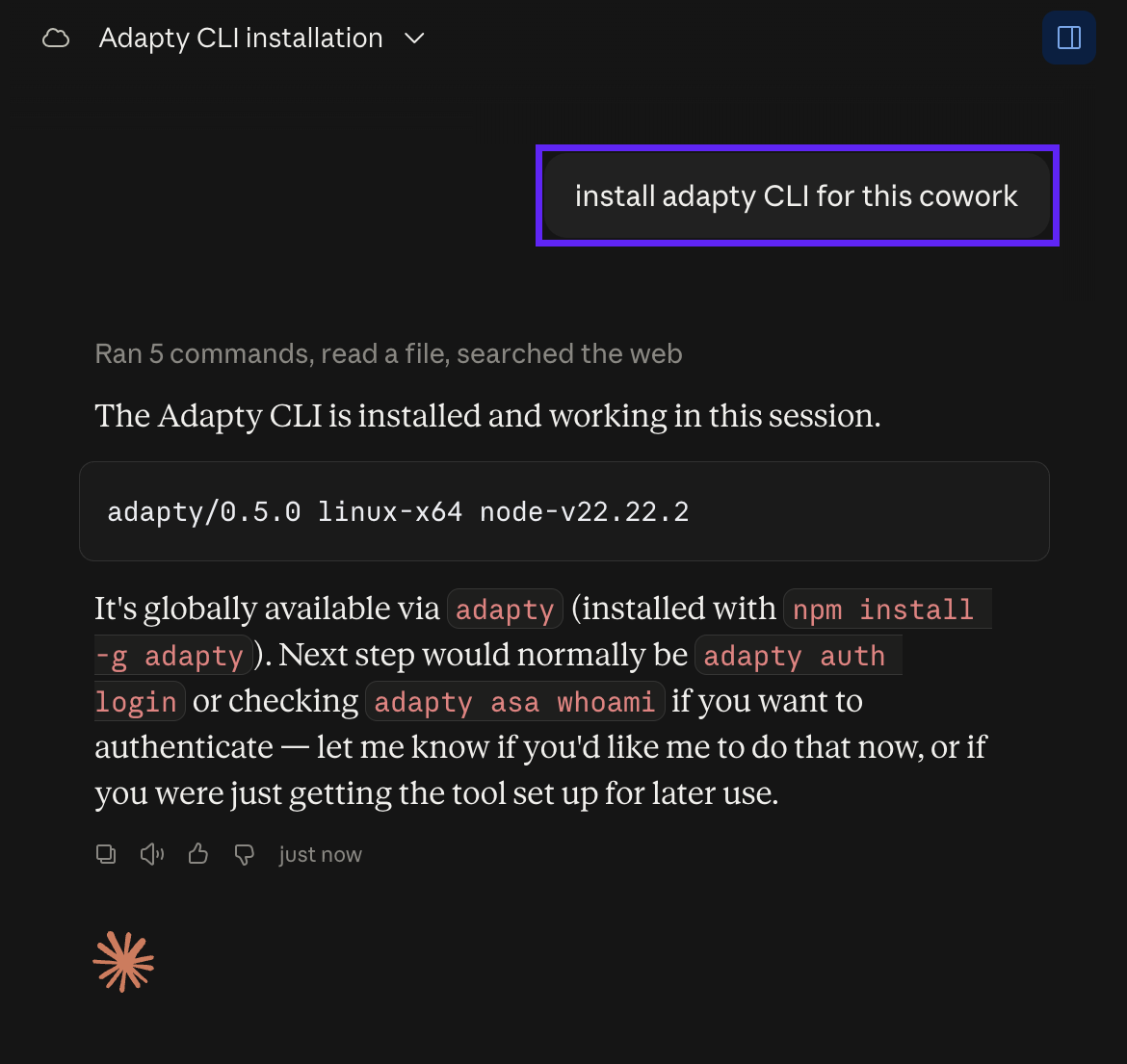
Ask Claude to install the Adapty CLI — for example, “Install the Adapty CLI”. Cowork may ask permission to open installation links — allow it.
-
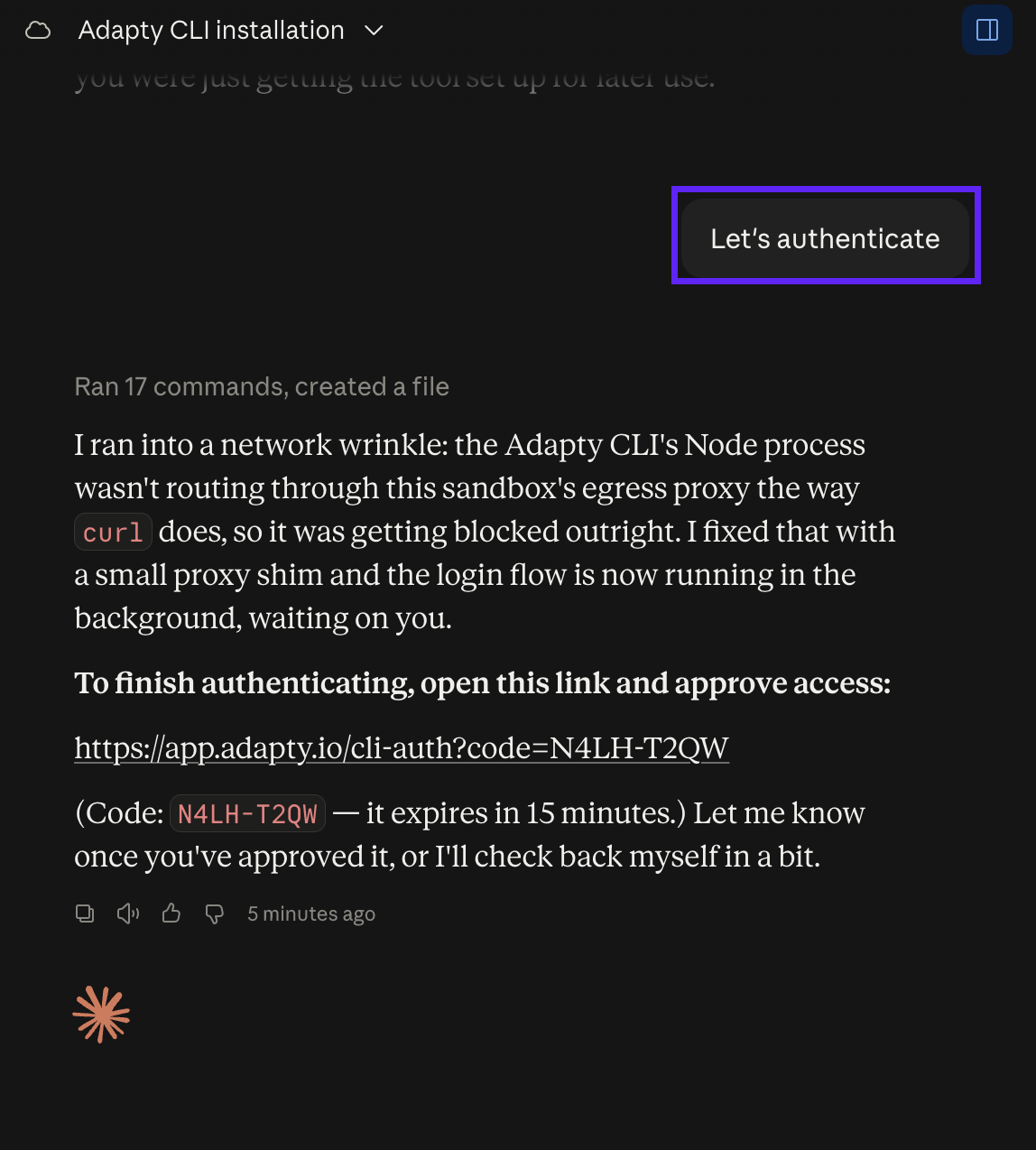
After the installation, Cowork offers to sign in to Adapty — agree, and it posts an authorization link with a device code. The code expires in about 15 minutes.
-
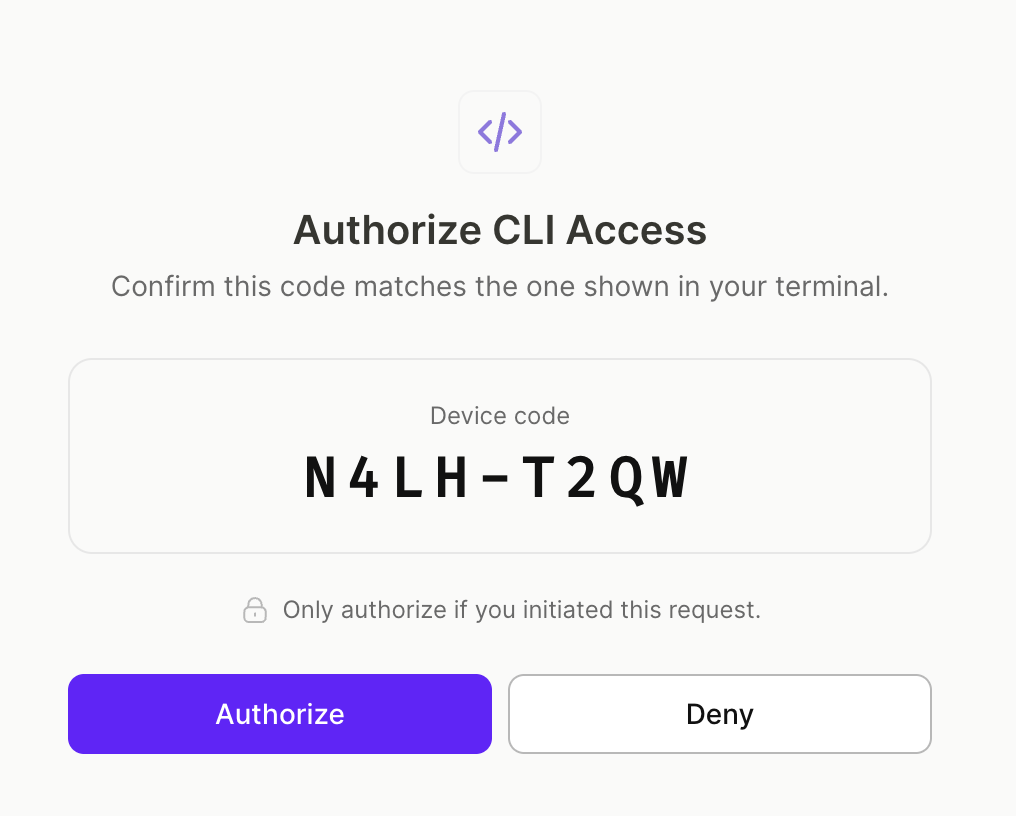
Open the link. The Adapty CLI authorization page opens in your browser.
-
Verify that the code on the page matches the code Cowork gave you, then click Authorize. If the codes don’t match, click Deny and ask Cowork for a new link.
-
Back in the chat, tell Cowork you’ve authorized — for example, “done”. Cowork verifies the login and prints your account details.
The CLI is ready. To set up your app, products, and paywalls from the chat, follow the quickstart guide.
Troubleshooting
| Problem | How to fix it |
|---|---|
| Skills don’t appear after you click Sync | Verify the repository URL is https://github.com/adaptyteam/apple-ads-cli, then click Sync again. |
| Network errors during installation or authorization | Add both adapty.io and *.adapty.io to the domain allowlist. Settings apply when a task starts, so start a new task after adding them. |
| The authorization link doesn’t open or is rejected | The code expires in about 15 minutes. Ask Cowork to generate a new link. |
| The code in the browser doesn’t match the code in the chat | Don’t click Authorize. Ask Cowork for a new link and start over. |