
Double opt-in in Adapty Mail
With double opt-in on, every new profile receives a confirmation email first. Until the person clicks it, no marketing reaches them. Use it to target markets that require opt-in consent, such as the EU or Canada. Address verification already proves that a mailbox exists; double opt-in proves that the person who typed the address is the one reading it. The setting needs no code changes in your app.
Double opt-in doesn’t replace the consent you collect when you ask for the address in the first place — compliance covers what you need to handle.
The setting only applies to profiles created after you turn it on, from every entry point. Profiles that already existed keep receiving campaigns as before. To cover your whole audience, turn double opt-in on before you start sending.
FunnelFox profiles are included too, even when the funnel already collected consent.
A profile whose email_consent is false doesn’t receive the confirmation request: the person already declined marketing email, and Adapty Mail sends them none.
How it works
Adapty Mail creates a profile the moment it receives an email address, from any entry point. With double opt-in on, that moment starts a sequence of two emails:
- The first email goes out one minute after the profile is created and asks the person to confirm the address. It ignores the usual send window, so a signup at 3am gets its request at 3am.
- If they don’t confirm, one reminder follows about 72 hours later, shifted into the send window if it would land outside it. Adapty Mail doesn’t ask again.
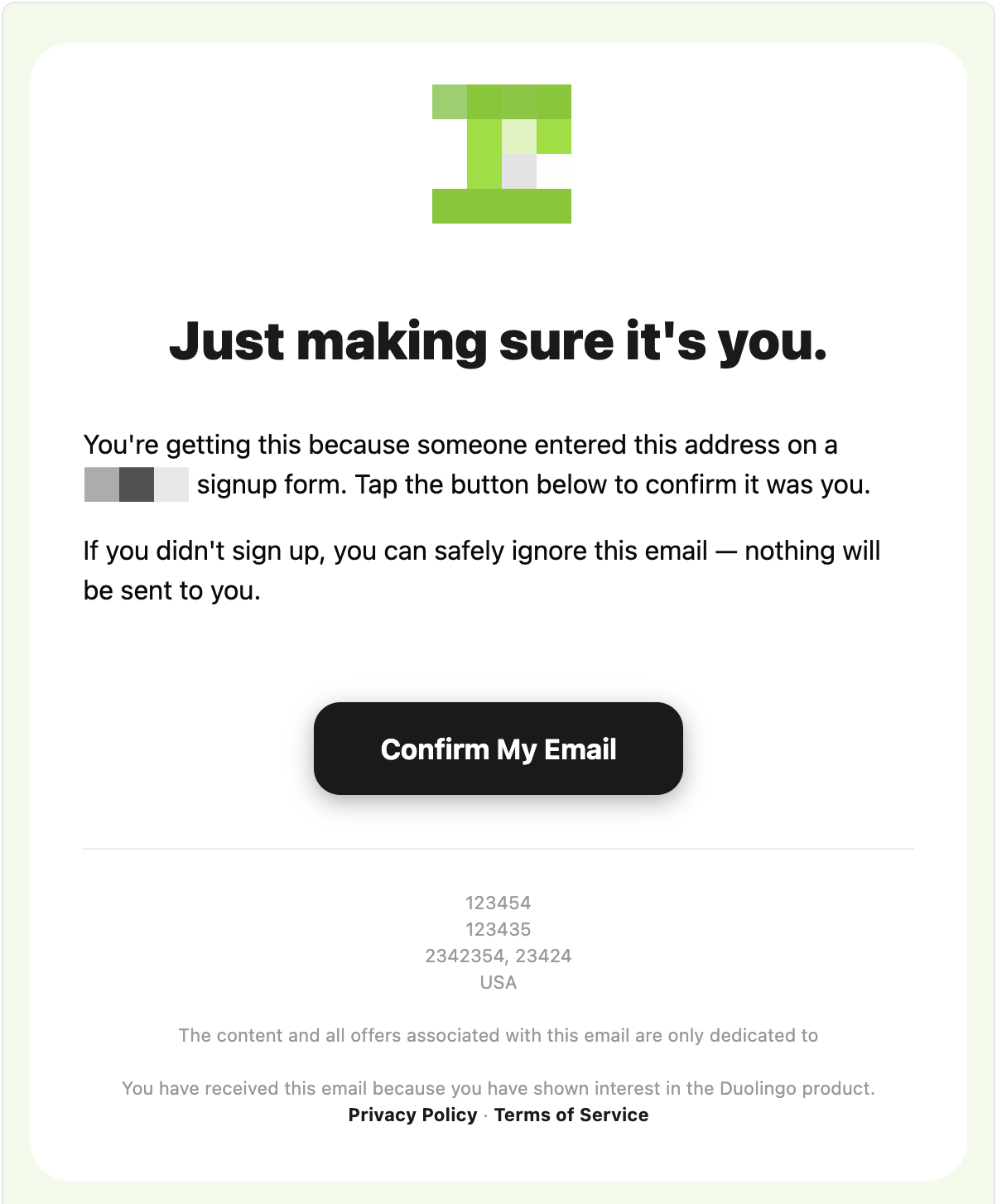
The confirmation button opens a page in your brand’s colors showing the masked address. Loading that page confirms nothing — the person has to click there too, so mailbox scanners that follow links can’t confirm on their behalf. The link never expires, so either email still works months later.
If the person hasn’t bought anything yet, the button reads Confirm and open my offer, and the page sends them to your web paywall a moment after the click.
Confirming has three effects:
- The reminder is dropped: any confirmation email still scheduled is cancelled.
- The marketing block lifts: Adapty Mail evaluates your marketing flows for that person immediately, and they enter any flow they match. If they match none, nothing is sent until they do.
- Adapty Mail never asks again: the confirmation is stored once, and turning the setting off and on doesn’t trigger a new request.
In the profile’s journey, the confirmation emails appear as email events, and the confirmation itself shows as Confirmed.
Turn on double opt-in
Before you turn it on, make sure the project has at least one web paywall. Adapty Mail generates the confirmation campaign with AI and needs a paywall to send confirmed users to. Without one, the switch fails with the “Failed to update double opt-in” message.
To turn on double opt-in, go to Settings > Project. In the Double opt-in section, turn on the switch. It can take a minute to respond, because Adapty Mail generates the confirmation emails before it saves the setting.
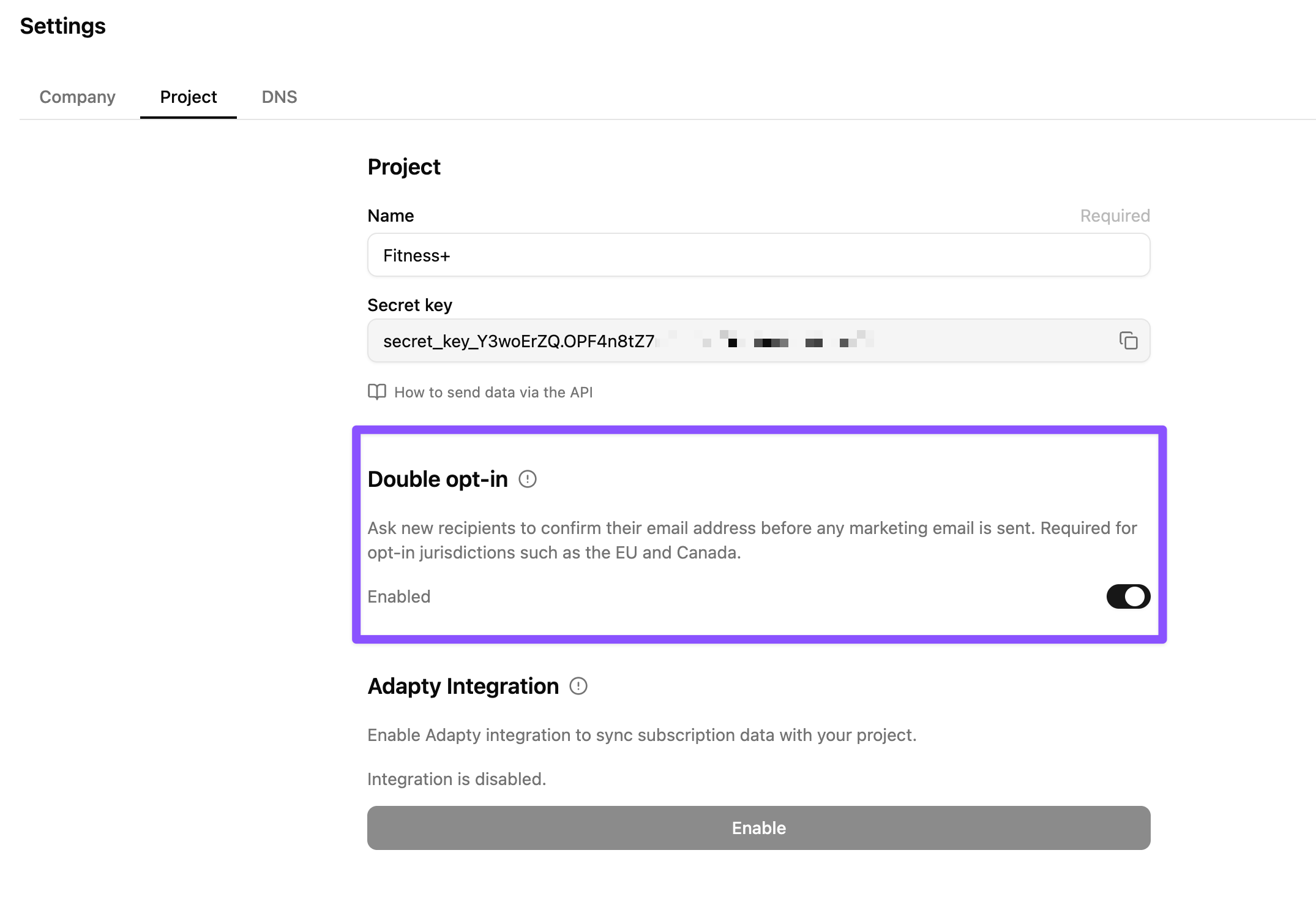
Turning the switch on builds both halves of the sequence: a transactional campaign holding the confirmation emails, and a flow that sends it to every new profile.
- Campaign: named Double opt-in, in Campaigns > Transactional.
- Flow: in Flows > Transactional > Double opt-in, where All Users is paired with that campaign.
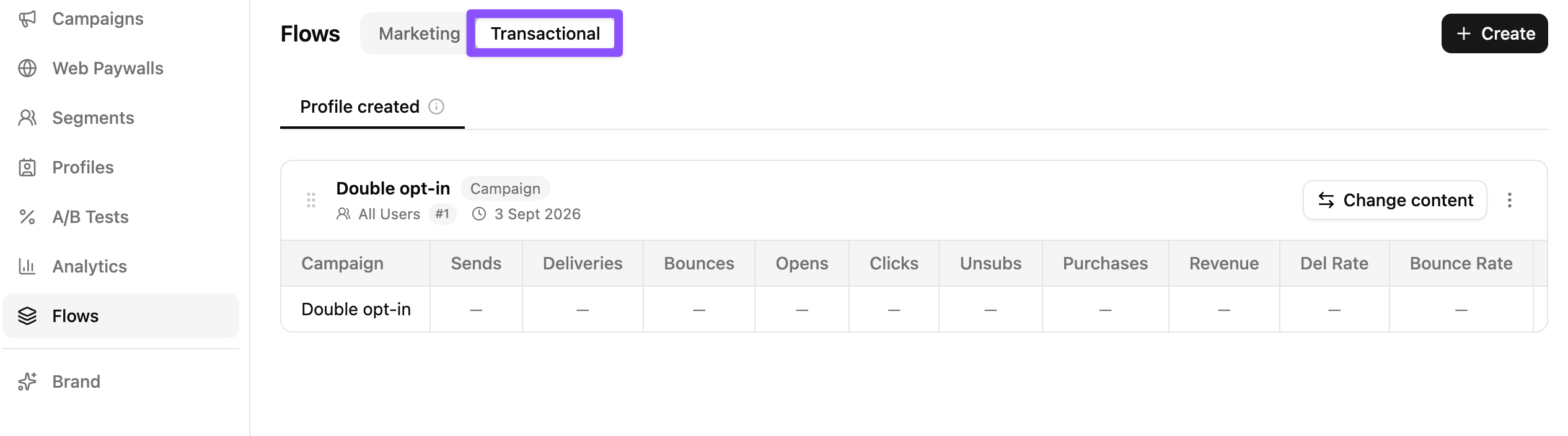
The flow behaves like any other flow. Don’t empty it while the setting is on: with nobody asked to confirm, no new profile ever receives marketing.
Test double opt-in
To see the whole sequence once before real users enter it, run one test profile through it:
- In your app, sign up with an email address that has no profile in the project yet, or post a profile with a new address through the Adapty Mail API.
- In Adapty Mail, go to Profiles, open the new profile, and wait for the Double opt-in email to appear in its journey. Delivery takes a few minutes after the one-minute delay.
- In the email, click the confirmation button and confirm on the page that opens.
- Back in the journey, the email should show Confirmed. If a marketing flow matches the profile, its first email should be scheduled right after.
For the marketing part of the chain, follow Test your Adapty Mail flow.
Edit the confirmation email
A confirmation email follows stricter rules than a marketing email:
- The confirm button is the destination link: The button must use
{{ destination_url }}. For a double opt-in campaign, Adapty Mail replaces it with a per-recipient confirmation link instead of your paywall URL. - No selling: The copy can’t mention prices, discounts, trials, or deadlines. The generator rejects copy that does.
- No other links: The email has no link other than the confirm button, and no footer unsubscribe link. Adapty Mail also omits the
List-Unsubscribeheader, so mail clients don’t show an unsubscribe button for a confirmation request.
To regenerate the emails, open the campaign from Campaigns > Transactional and click Generate emails. The dialog offers a Purpose dropdown, which is set to Double opt-in, and a Custom prompt field. The sequence length, delays, and layout are fixed by the purpose, so the tone, image, and email-count options of a marketing campaign don’t appear.
To reach recipients in their language, localize the Double opt-in campaign.
Turn off double opt-in
To turn off double opt-in, go to Settings > Project. In the Double opt-in section, turn off the switch.
Adapty Mail finishes the Double opt-in flow, including any segments you added to it yourself. The campaign stays, so turning the setting back on reuses its emails instead of generating them again.
After you turn it off:
- New profiles enter marketing flows without confirming.
- Profiles that were waiting for a confirmation are no longer blocked, but nothing re-evaluates them on the spot. They enter a marketing flow the next time an event arrives for them.
- If you turn the setting on again, profiles created while it was off count as existing and aren’t asked to confirm.
Limitations
- Confirmation emails count in Campaign analytics: The Double opt-in campaign appears as a campaign of its own on the Analytics page, and its sends, opens, and clicks are part of the totals. To read your marketing numbers alone, group by Campaigns and clear its visibility checkbox.
- No confirmation status in Profiles: The Profiles list and the profile page don’t show whether an address is confirmed or pending. The journey is the only place where the confirmation appears.
- No per-country rules: The setting applies to every new profile in the project, whatever its country. Sending
email_consentastruedoesn’t skip the confirmation. - Existing profiles are exempt: Profiles created before you turned the setting on are never asked to confirm. To collect confirmations from them, you have to ask outside Adapty Mail.
- The confirmation page is in English: Recipients see it in English even if you localize the confirmation emails.