
Add the App Store Connect API key to Adapty
Adapty uses the App Store Connect API key to work with your products in App Store Connect:
- Create products and subscription groups.
- Find your existing products by ID when you add a product in Adapty.
- Show the App Store status of each product in Adapty.
- Import prices daily, and export the price changes you make in Adapty.
- Suggest products for Switch Plan in Retention Messaging.
Adapty only changes App Store Connect when you act in Adapty, such as when you create a product or change prices. To show statuses and import prices, it only reads from App Store Connect.
Generate the key on the Team Keys tab in App Store Connect, then connect it in App settings in Adapty. If the key stops working or needs a change, replace it.
The App Store Connect API key is different from the In-App Purchase key, though App Store Connect labels the IDs of both keys Issuer ID and Key ID.
To enter all the credentials in App settings > iOS SDK at once, follow Configure App Store integration.
Generate a team key in App Store Connect
-
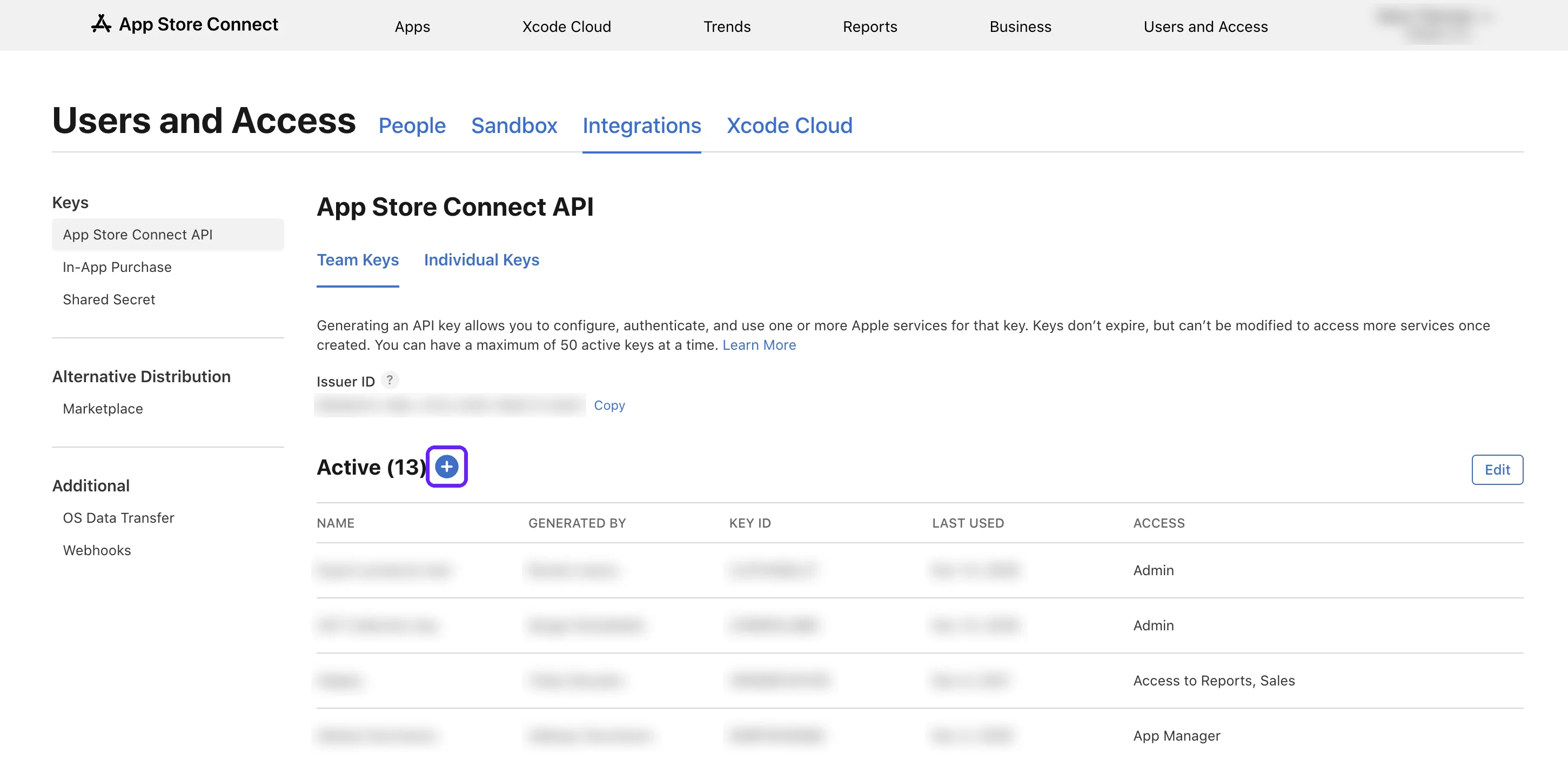
In App Store Connect, go to Users and Access > Integrations > App Store Connect API, and open the Team Keys tab. Adapty needs a team key: individual keys have no Issuer ID.
One team key serves every app of your App Store Connect team. If an active key on this tab has Admin access and you have its file, reuse it and skip steps 2-4.
If your team doesn’t have App Store Connect API access yet, the Account Holder requests it. Apple reviews each request.
-
To generate a key, you need the Account Holder or Admin role in App Store Connect. Without either role, ask someone who has one to generate a key with Admin access and send you the file with its Issuer ID and Key ID.
If the tab already lists active keys, click +. Otherwise, click Generate API Key.
-
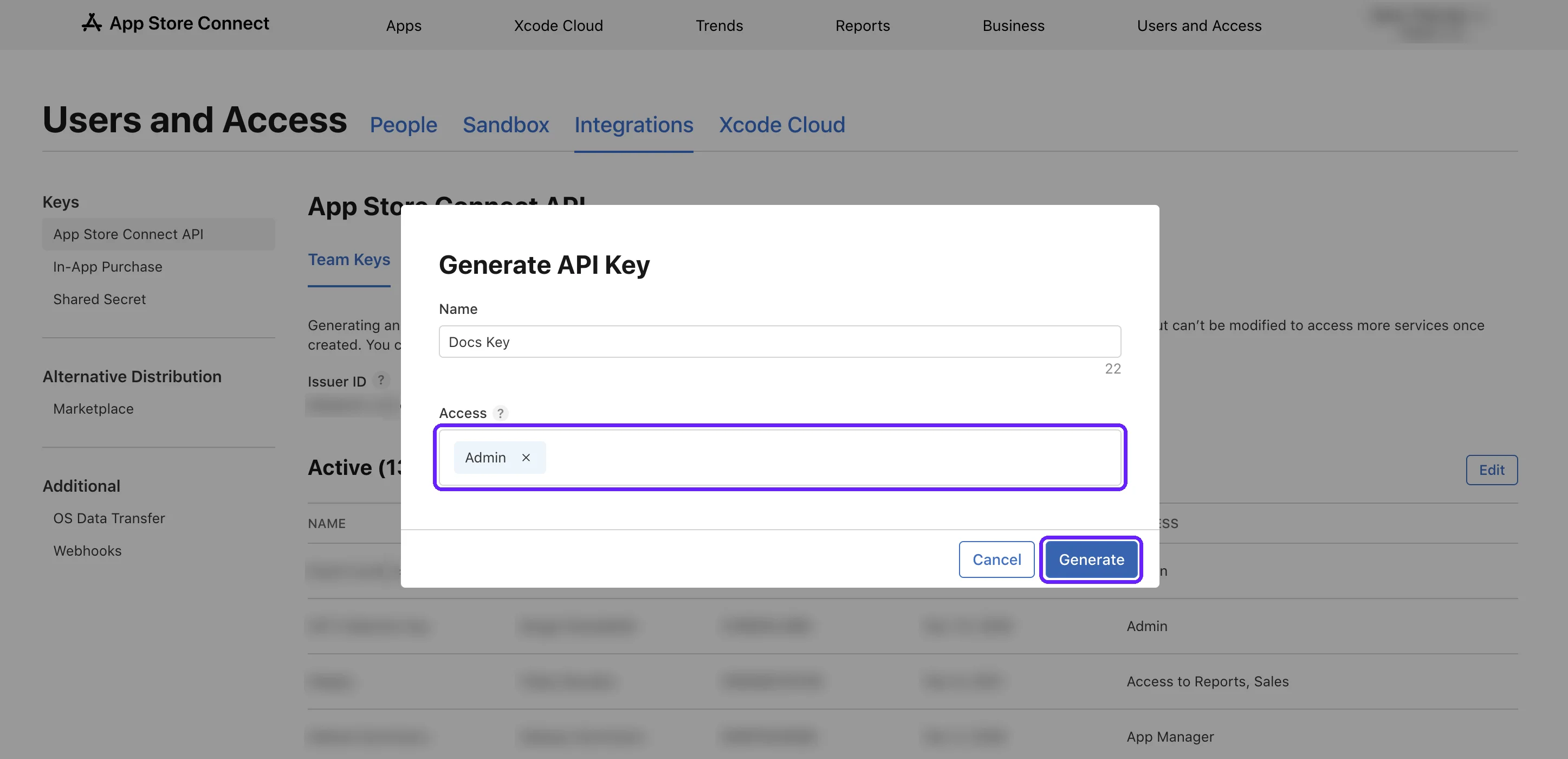
Enter a name for the key, and set Access to Admin. Access determines what Adapty can do with the key, whatever your own role is. You can’t change Access after you generate the key. Click Generate.
-
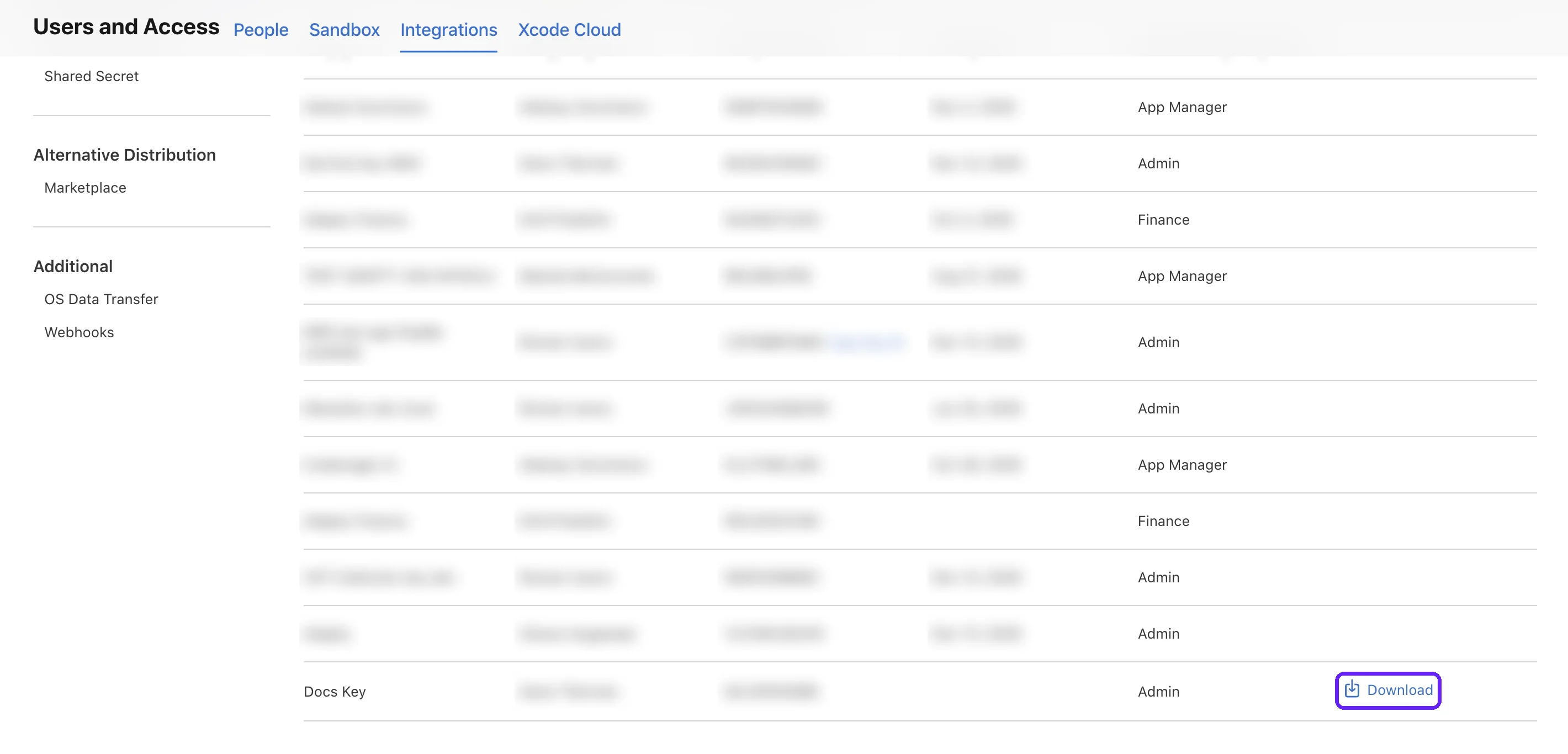
You can only download each key once. Next to the new key, click Download. Keep the file secure: you upload it to each Adapty app that uses the key.
Connect the key in Adapty
-
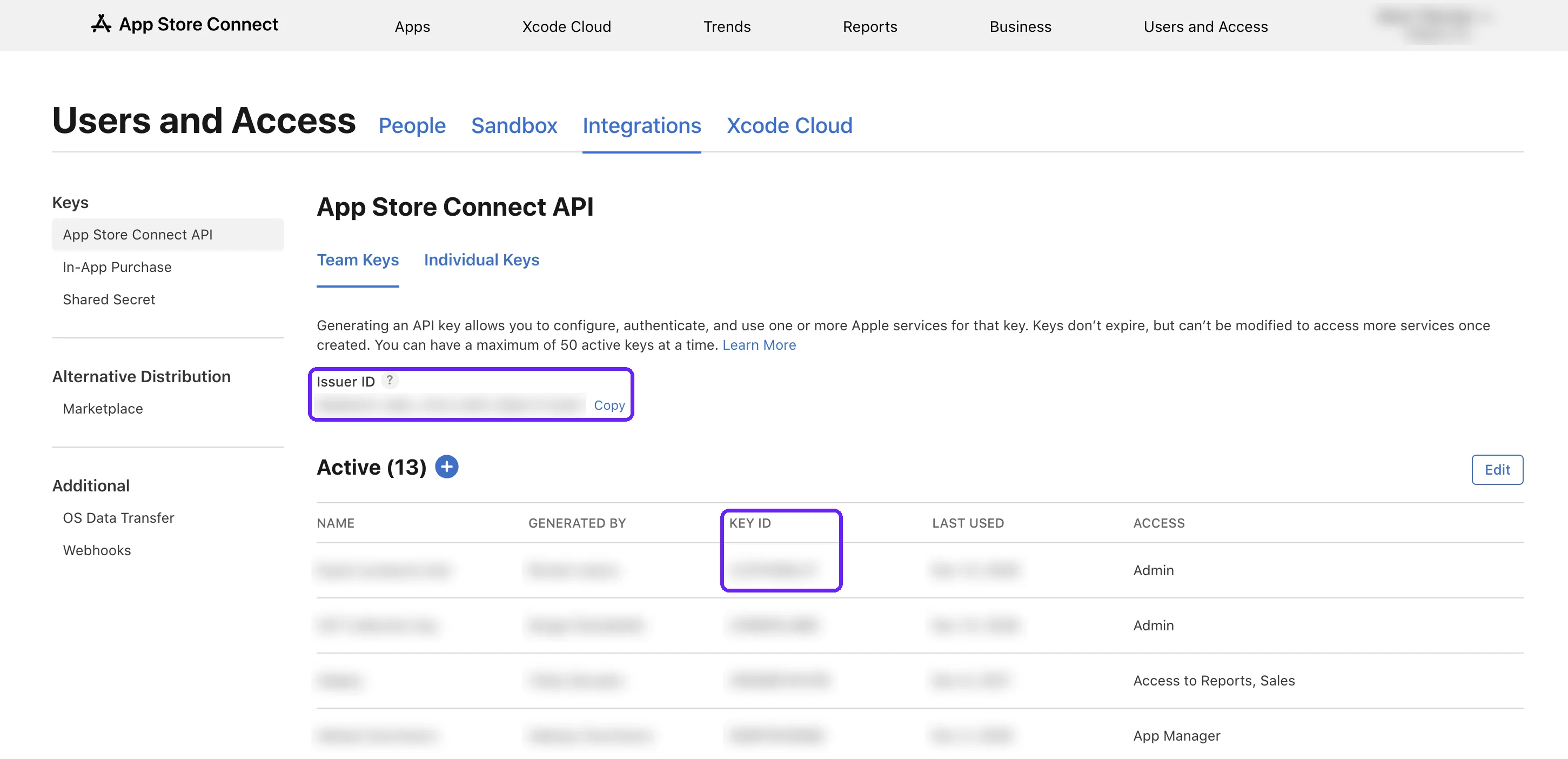
To find the Issuer ID and the Key ID of your team key, in App Store Connect, go to Users and Access > Integrations > App Store Connect API, and open the Team Keys tab. If someone else generated the key and sent you its Issuer ID, Key ID, and file, skip this step.
-
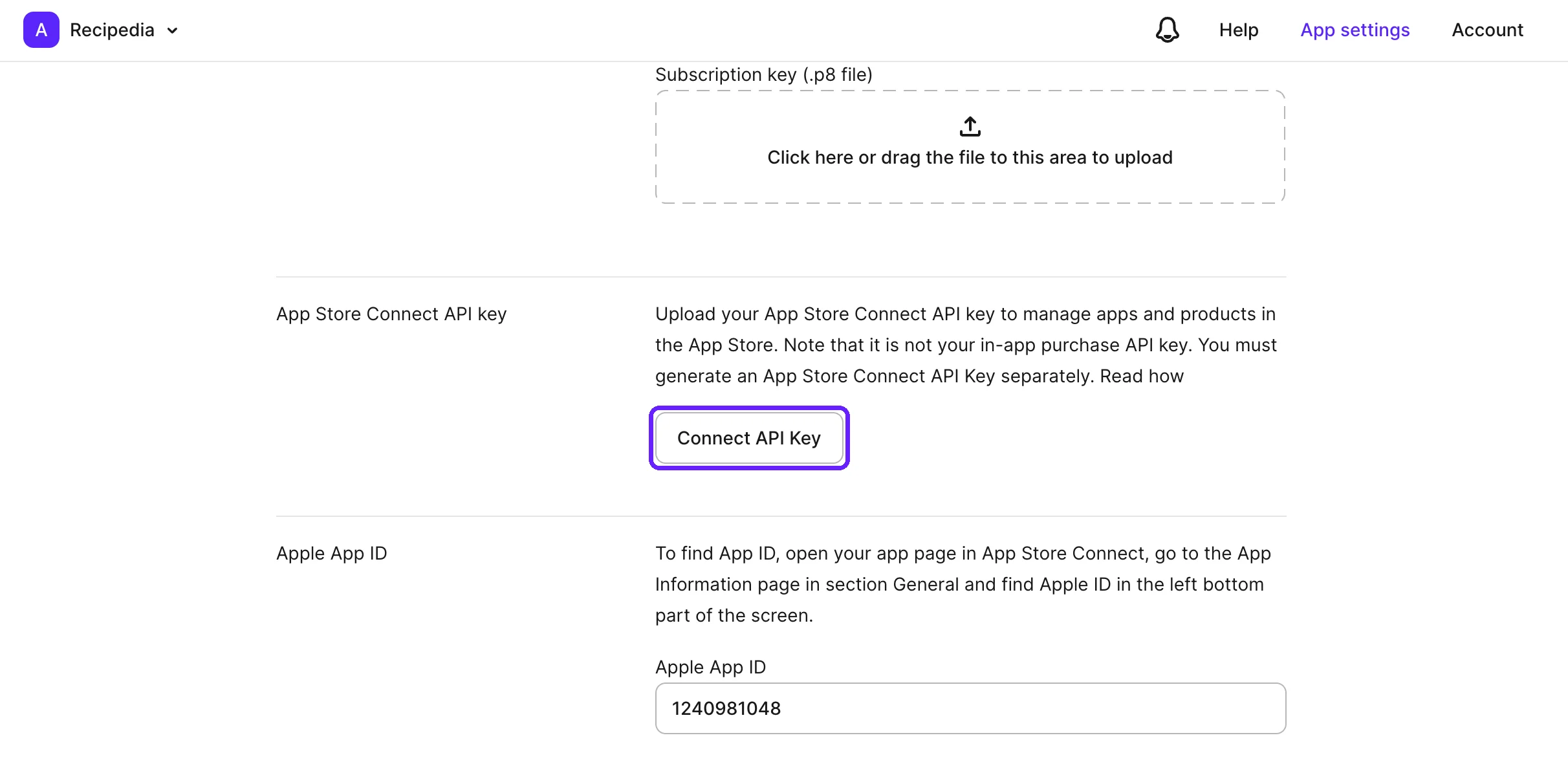
In Adapty, go to App settings > iOS SDK. In the App Store Connect API key section, click Connect API Key.
-
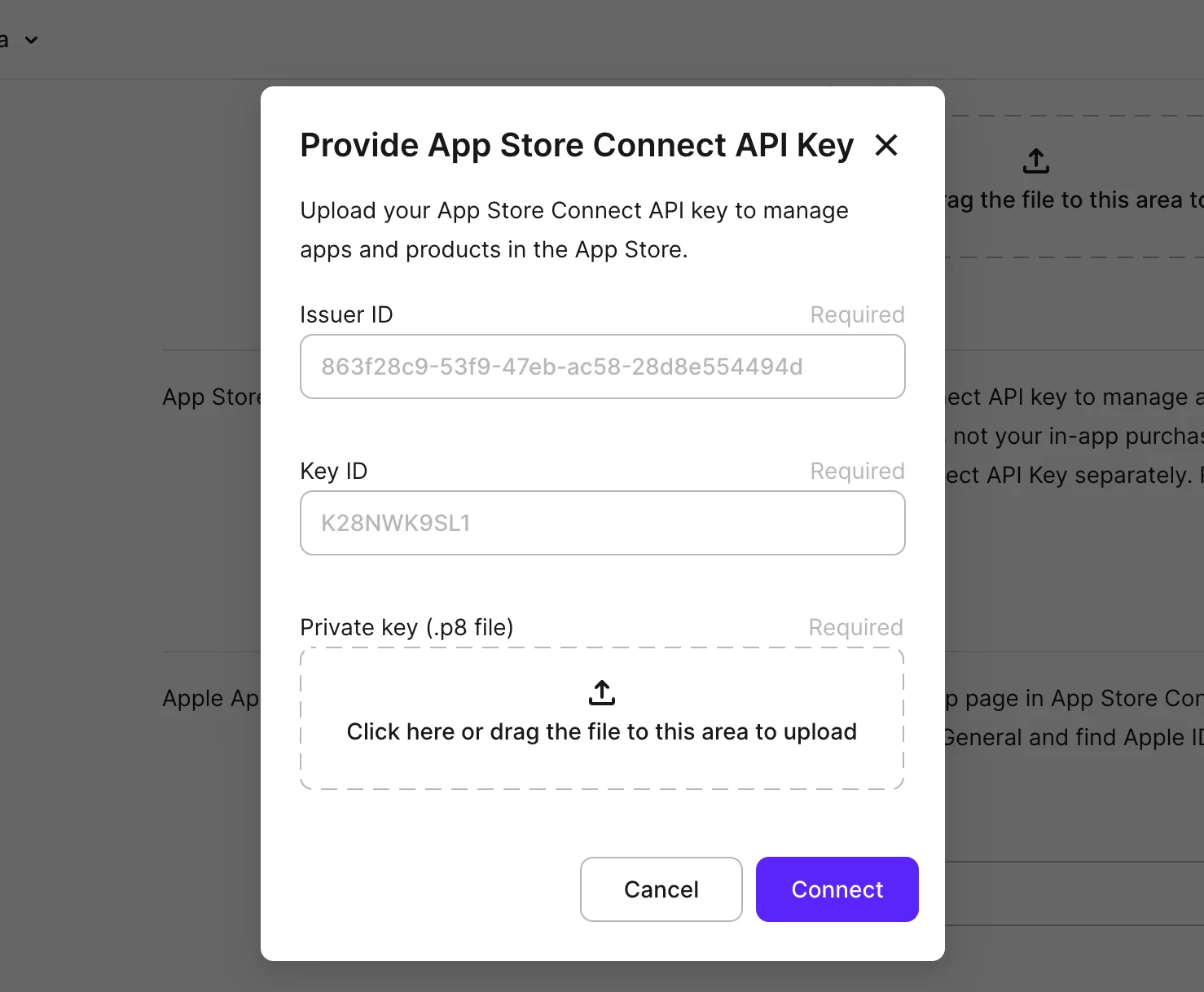
Fill in the fields:
- Issuer ID: Copy it from the Team Keys tab in App Store Connect.
- Key ID: Copy it from the Active list on the Team Keys tab, next to the key you downloaded.
- Private key (.p8 file): Upload the file you downloaded for the team key.
-
You can replace a connected key later, but you can’t remove it. Make sure the key comes from the App Store Connect team that owns this app, and click Connect. From then on, you select each App Store Product ID from your products in App Store Connect, rather than type it.
Adapty doesn’t verify the key with Apple when you connect it. A wrong key fails with no message about the key: products show no App Store status, and the App Store Product ID dropdown stays empty. To fix a wrong key, replace it.
Replace the key
If the key stops working or needs a different Access setting, connect a new key in Adapty before you revoke the old one.
Without a working key, Adapty can’t:
- Create products.
- Find your existing products by ID.
- Sync product status and prices.
A key that stops working still shows as connected in Adapty. The signs are products with no App Store status and an empty App Store Product ID dropdown.
Adapty doesn’t show the Key ID of a connected key. If you don’t know which key Adapty uses, replace it with a new key.
When your app moves to another Apple developer account, connect a team key from the new owner.
To replace the key:
- Generate a new team key.
- In Adapty, go to App settings > iOS SDK. In the App Store Connect API key section, click Edit. Enter the values of the new key, and click Save changes.
- One team key serves every app of your App Store Connect team. If other apps of your team use Adapty, connect the new key for them too. Replace the old key on any of your servers that use it.
- A revoked key stops working in every app that uses it, and you can’t restore it. If you know which key the new one replaces, go to App Store Connect and revoke that key.