
Integrate Google Ads with Adapty Attribution
Adapty Attribution’s Google Ads integration works in both directions. Adapty pulls spend, impressions, and clicks from your Google Ads accounts, and sends installs, trials, and purchases back to Google, so Google can optimize your campaigns on real revenue.
How it works
Adapty connects to two kinds of Google Ads campaigns. They attribute installs in different ways, and each kind has its own tab and setup.
App campaigns (Android)
Adapty connects to Google Ads as a third-party app analytics provider, through your app’s App Link ID. These campaigns need no tracking link.
- A user installs your app from an App campaign ad and opens it for the first time.
- Adapty asks Google whether an App campaign drove the install.
- Google attributes the install to its campaign, ad group, ad, and keyword.
- Adapty sends the user’s trials and purchases to Google through the same link ID.
Other campaigns (iOS and Android)
You add Adapty’s tracking template to the campaign in Google Ads.
- A user clicks the ad, and Google adds a click ID to the click.
- The click passes through Adapty on its way to the store or your web funnel.
- Adapty attributes the install or web purchase to that click.
- Adapty sends conversions to the Google Ads account you select, matched by the click ID.
For iOS users who don’t allow tracking, Google uses a privacy-safe click ID (gbraid or wbraid) instead of gclid. Adapty accepts all three.
SKAdNetwork
Neither kind of campaign uses SKAdNetwork (SKAN), Apple’s framework that reports ad installs without identifying the user. So for this integration:
- You don’t need to set up SKAN or SKAN conversion values.
- SKAN settings you already use in Google Ads don’t affect the events Adapty sends to Google or the data Adapty Attribution shows.
Supported campaign types
| Campaign type | Where the ads run | Tab in Adapty Attribution | Platforms |
|---|---|---|---|
| App campaigns for installs (UAC) | Google Search, Google Play, YouTube, and the Display Network, to get installs of your app | App Campaigns | Android |
| Search | Google Search results, for the keywords you choose | Other Campaigns | iOS, Android |
| Performance Max | All Google channels from one campaign: Search, YouTube, Display, Discover, Gmail, and Maps | Other Campaigns | iOS, Android |
| Demand Gen | YouTube in-feed and Shorts, Discover, and Gmail, as image and video ads | Other Campaigns | iOS, Android |
| Display | Banner ads on sites and apps in the Google Display Network | Other Campaigns | iOS, Android |
| Video | Video ads on YouTube | Other Campaigns | iOS, Android |
| Shopping | Product ads from your Google Merchant Center feed | Other Campaigns | iOS, Android |
To promote an iOS app, use Other campaigns. Performance Max campaigns also go to the Other Campaigns tab when their goal is app installs, because Adapty tracks them by the tracking template, not by the App Link ID.
App campaigns for engagement aren’t supported: Adapty sends Google only the events of installs that Google attributed to an App campaign, and engagement campaigns target users who already have the app.
Step 1. Connect your Google account
- In Adapty Attribution, go to Integrations from the left sidebar and select Google Ads.
- Click Sign in with Google.
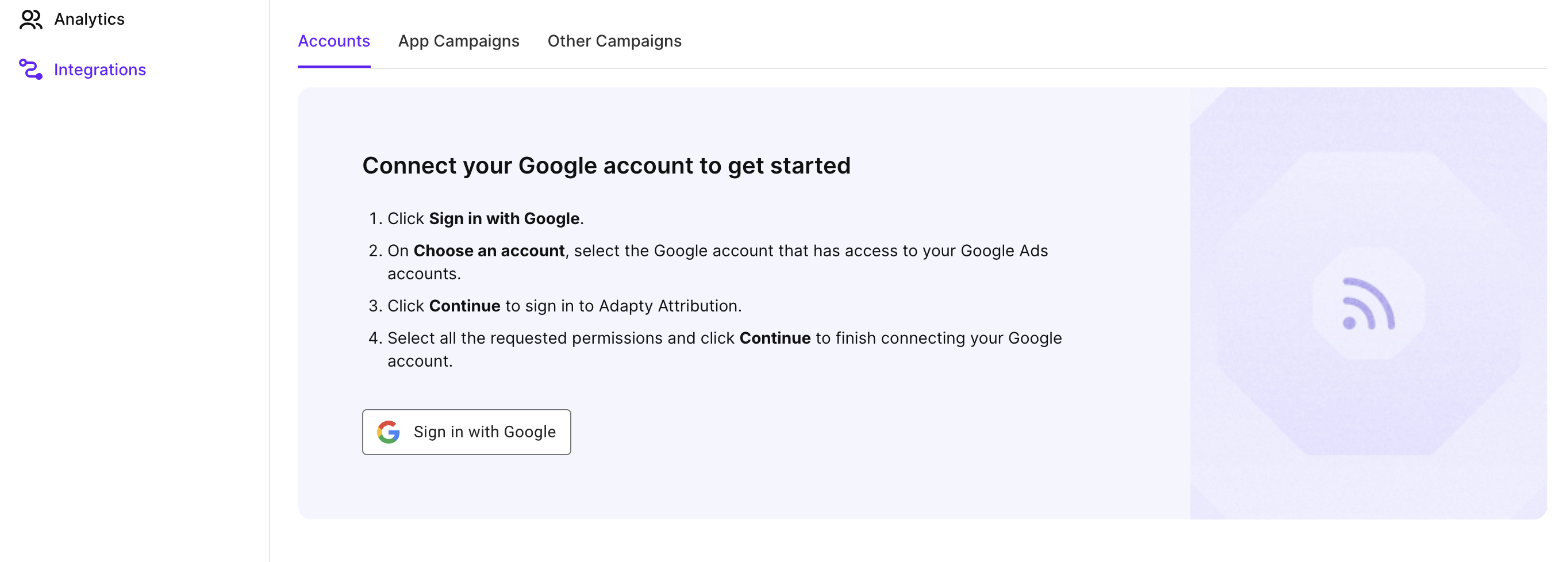
- Select the Google account that has access to your Google Ads accounts and click Continue.
- Select all the requested permissions and click Continue.
After that, Adapty syncs every Google Ads account your Google account can access, including the client accounts under a manager account. To add ad accounts that another Google account can access, click Sign in with Google again.
Step 2. Add campaigns
Set up the campaign types you run. App campaigns and Other campaigns have separate configurations, and you can use both in the same app.
App campaigns
To send in-app events to your Google App campaigns, create a configuration in Adapty Attribution, then link it to your Android app in Google Ads with an App Link ID.
In Adapty Attribution, create the configuration:
- In Integrations > Google Ads, switch to the App Campaigns tab and click Create configuration. Adapty creates a configuration for your current app and opens it.

- Copy the Provider ID value. You need it to create the App Link ID in Google Ads.
In Google Ads, create the App Link ID:
- Click the Tools icon and select Data manager.
- Click + Connect Product, select Third-party app analytics, and click Continue.
- Click Create link ID.
- From the provider list, select Other provider and paste the Provider ID you copied from Adapty Attribution.
- Select Android as the platform and find your app in the Look up your app field.
- Click Create link ID and copy the generated link ID.
Google Ads shows the link ID as Unverified until it receives the first event from Adapty.
In Adapty Attribution, add the link ID:
- In the configuration, paste the link ID into the Android App Link ID field. Each link ID can belong to one configuration only.

- Map events and click Save.
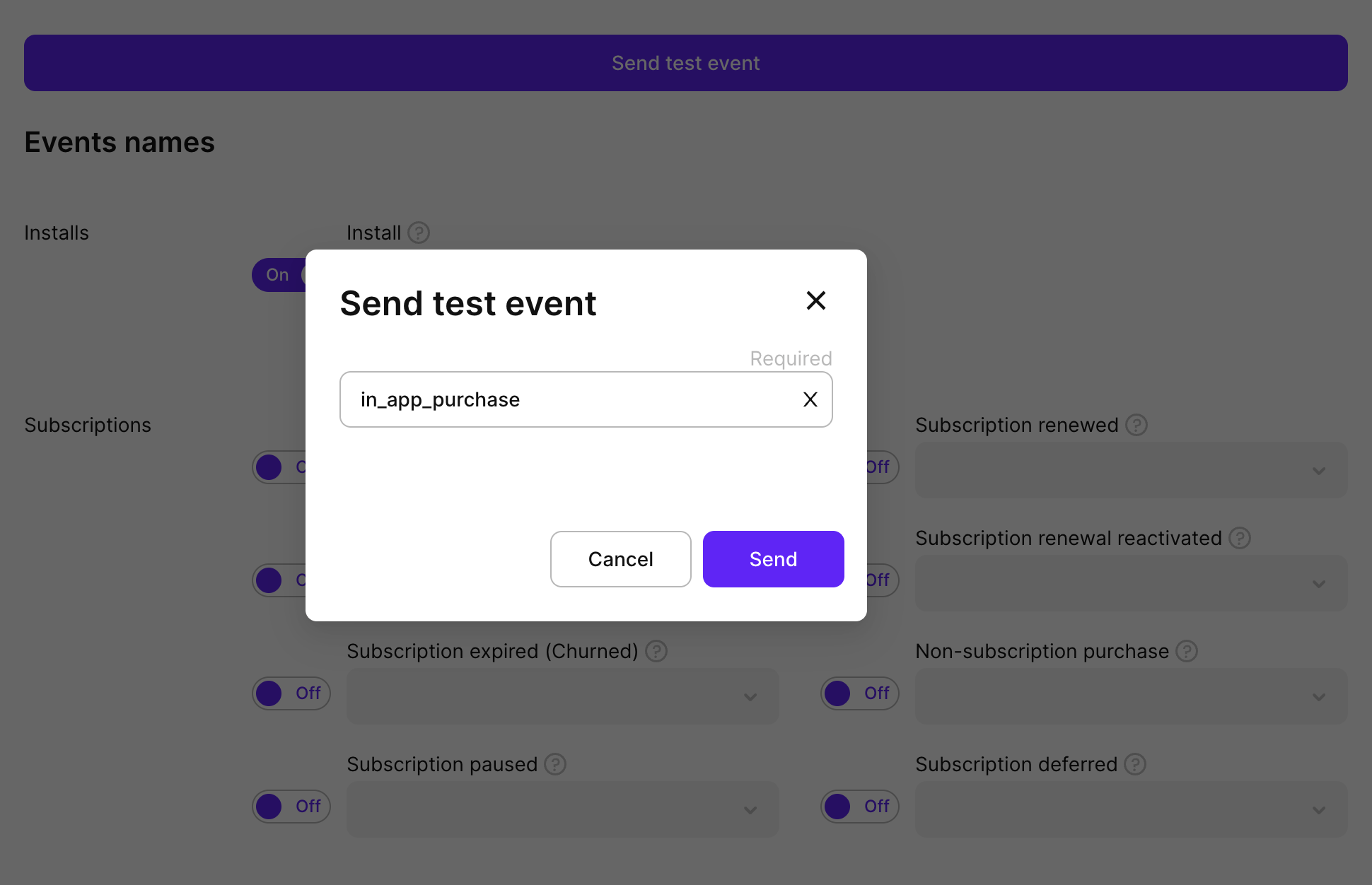
- To verify the connection, click Send test event, select an event, and send it. Google adds each event it receives to your app’s conversion actions in Google Ads, so you can select them as your campaign’s optimization goal.
Google Ads needs about 24 hours to recognize a new link ID, so the test event can fail until then. If it does, see Troubleshooting.
For users in the European Economic Area and the United Kingdom, Adapty sends the events with the consent signals set to denied. You don’t need to configure consent in Adapty Attribution.
Other campaigns
To track Search, Display, Shopping, and other click-based campaigns for iOS and Android, create a configuration for them in Adapty Attribution and add its tracking template to the campaign in Google Ads. You need one configuration for each Google Ads account that serves your ads.
Auto-tagging must be on in your Google Ads account settings. Adapty matches conversions to ads by the click ID that auto-tagging adds, and sends no conversion for a click without it.
-
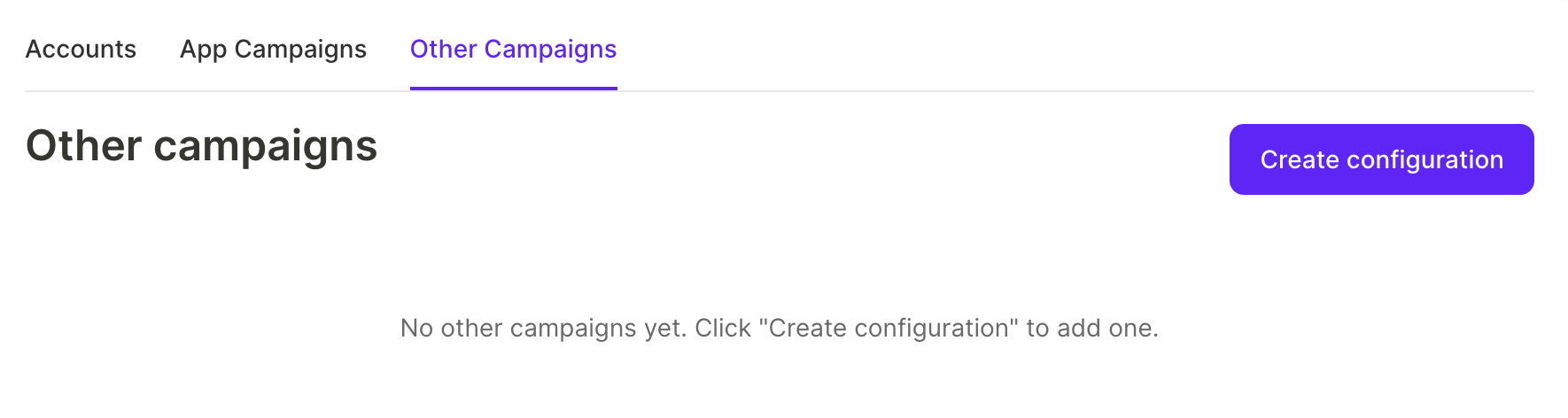
In Integrations > Google Ads, switch to the Other Campaigns tab and click Create configuration.
-
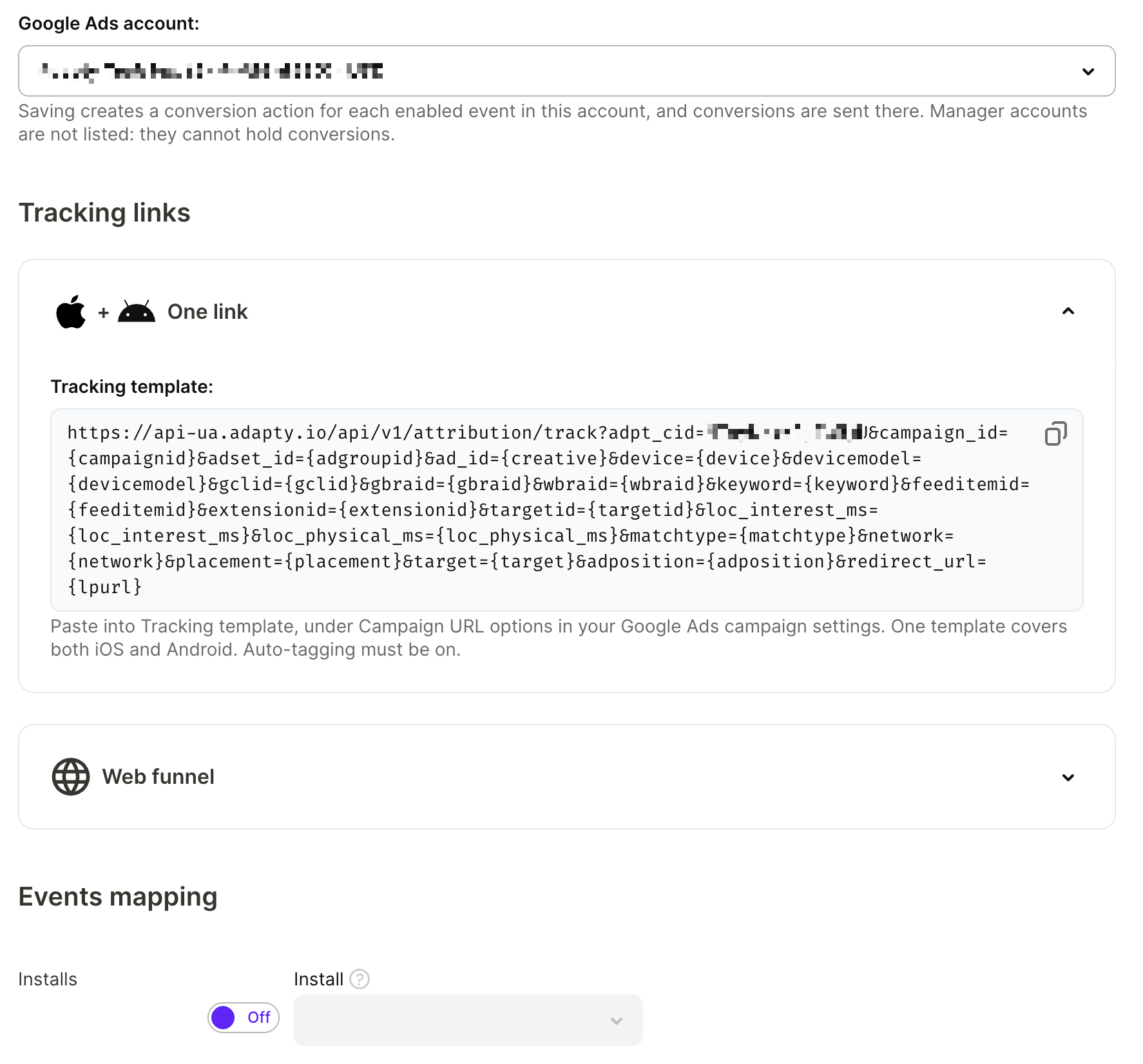
In the Google Ads account dropdown, select the client account that serves the ads. Google accepts a conversion only in the account that served its ad. Manager accounts aren’t listed, because they can’t hold conversions.
-
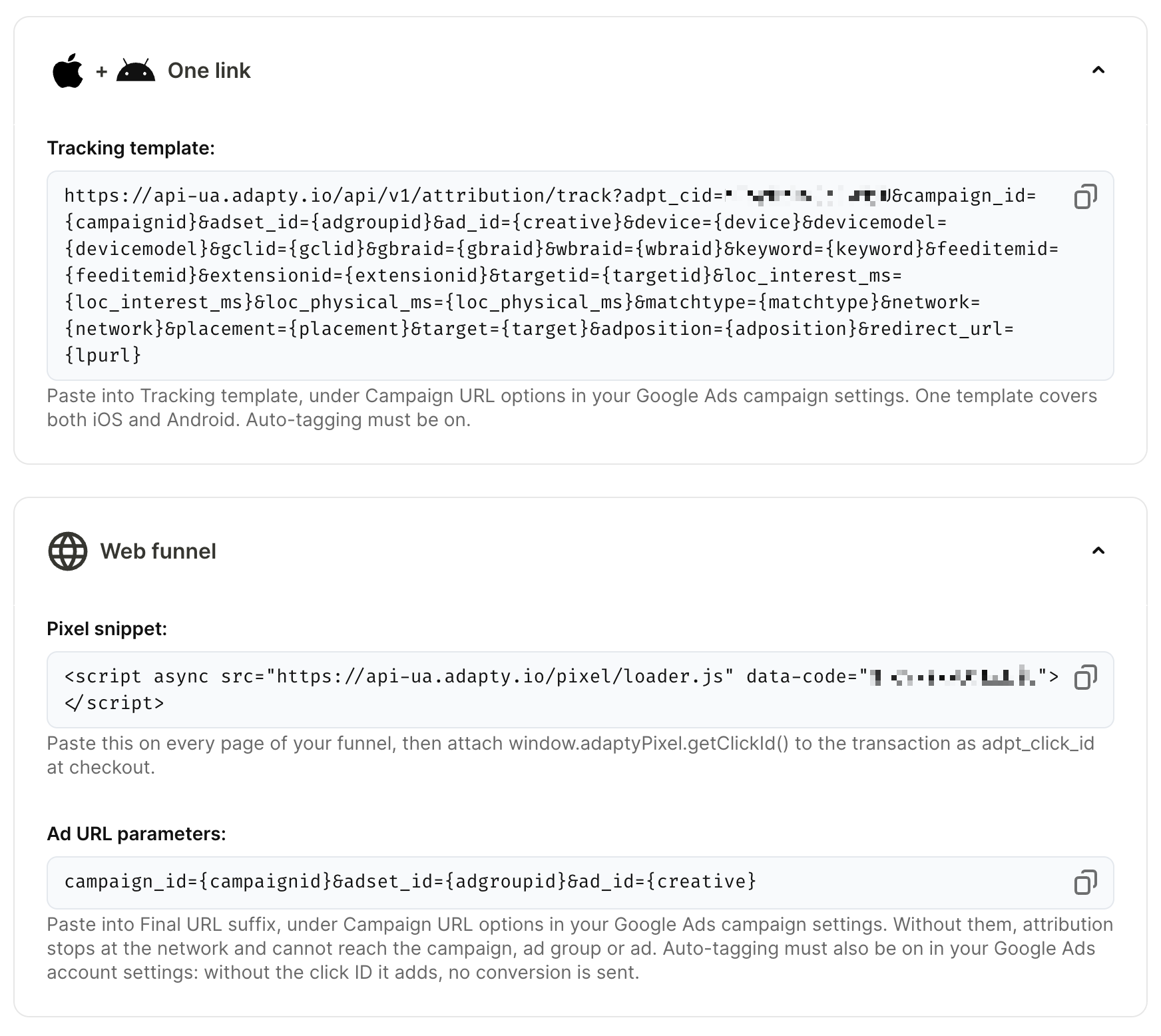
Copy the Tracking template value. Then, in Google Ads, open the campaign settings and paste it in Campaign URL options > Tracking template. One template covers both iOS and Android.
-
If the ads lead to a web funnel, expand the Web funnel section:
- Copy the Pixel snippet and install it on your funnel.
- Copy the Ad URL parameters and, in the Google Ads campaign settings, paste them in Campaign URL options > Final URL suffix. Without them, Adapty attributes a purchase to Google Ads, but not to its campaign, ad group, or ad.
-
Map events and click Save.
When you save the configuration, Adapty creates a conversion action in the selected Google Ads account for each event you enabled. If Google refuses, Adapty shows an error and doesn’t save the configuration. Select a client account you can edit, or reconnect your Google account if its access has expired.
If you connected your Google account before September 11, 2026, reconnect it before you add Other campaigns. A connection made before that date lacks the permission Adapty needs to send conversions for these campaigns. Click Sign in with Google and select all the requested permissions.
Step 3. Map events
To choose which events Google receives, in the Events mapping section, toggle on each event you want to send and select or type its name in Google Ads. Event names can’t contain commas.
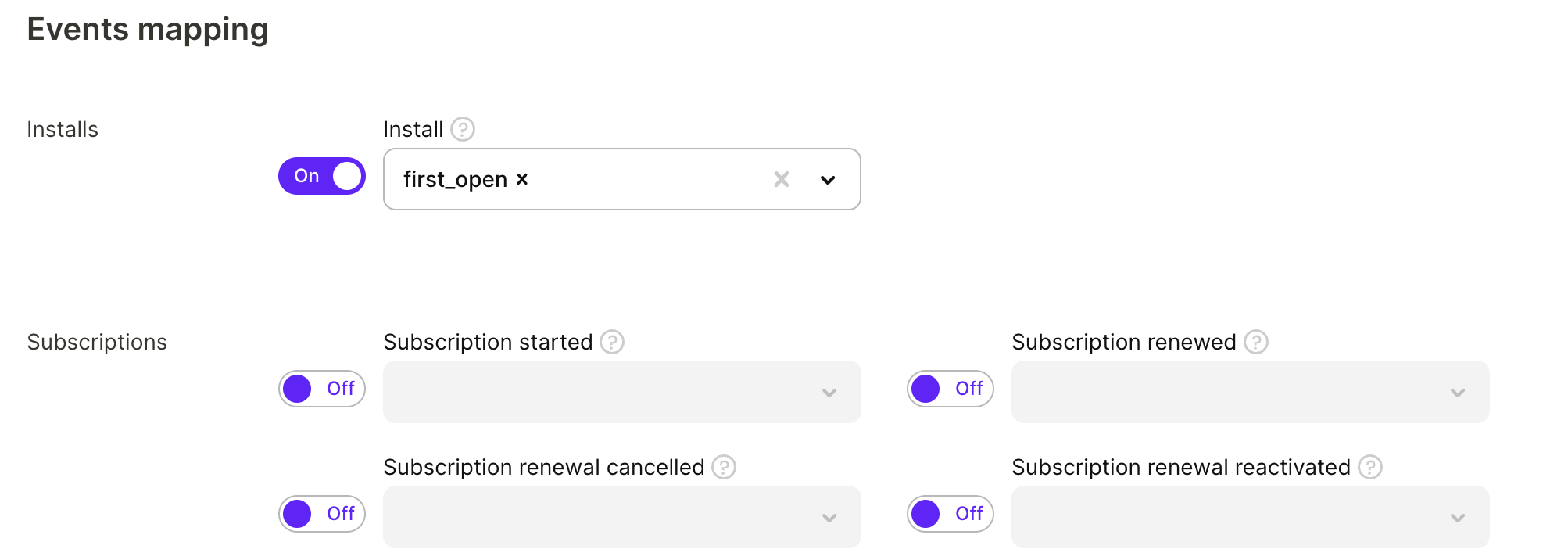
The names work differently for the two campaign types:
- App campaigns: Install is always on and maps to
first_openby default. For any event, you can select one of Google’s standard app events:first_open,session_start,in_app_purchase,ecommerce_purchase,view_item,view_item_list,add_to_cart, orview_search_results. Adapty sends any other name you type as a custom app event. - Other campaigns: Each event’s default name is its Adapty event name, such as
trial_started. The name you select or type becomes the name of the conversion action Adapty creates in Google Ads, exactly as typed.
Click Save.
Additional configuration
Revenue override
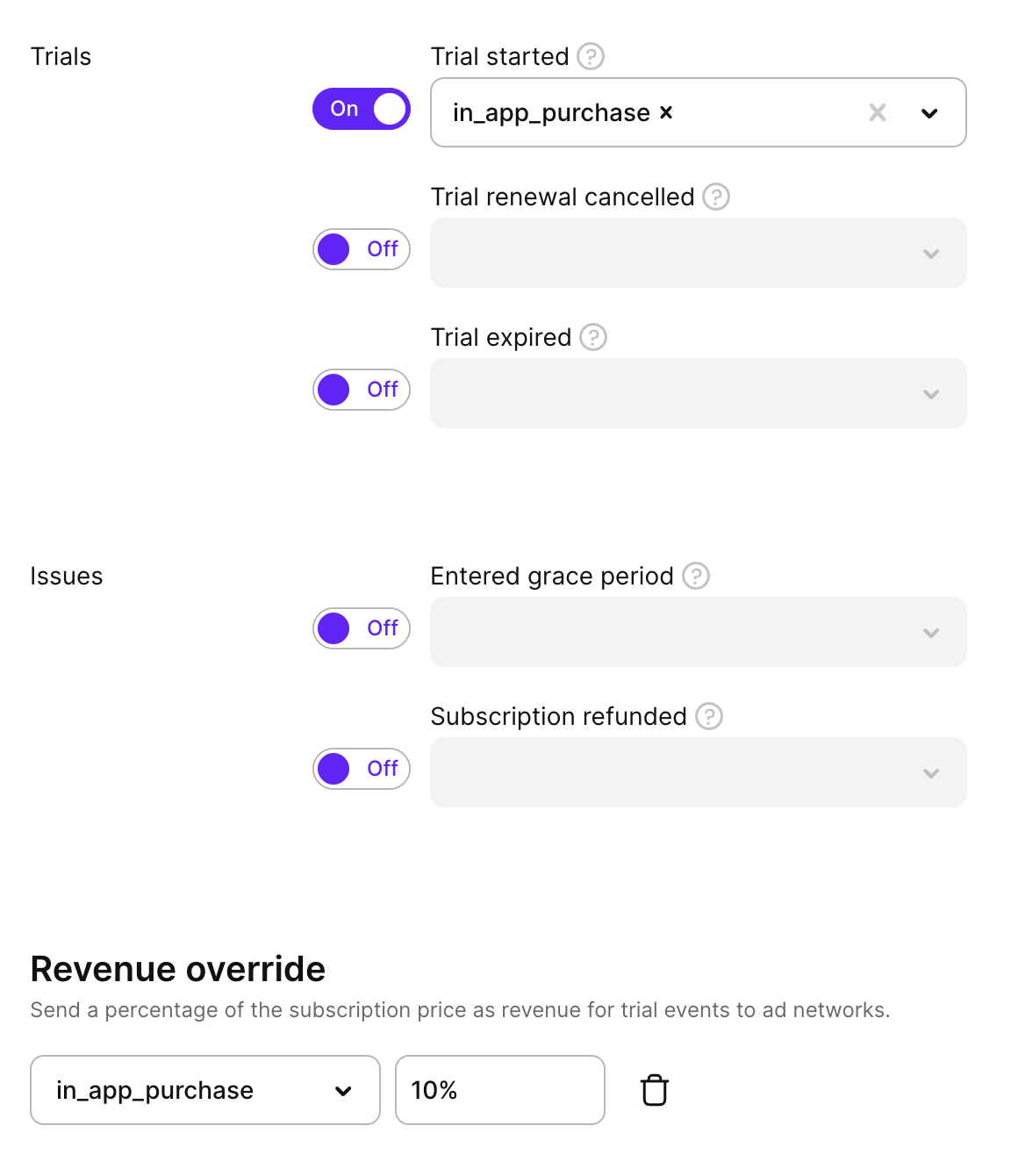
If you track trial events and want Google to attribute revenue to them, use the Revenue override section. It appears when the Trial started event is enabled. The override applies to Trial started only — Trial converted and Subscription started always carry their actual revenue.
For each trial event target, set the percentage of the subscription price to report as revenue. For example, at 30%, Adapty sends 30% of the subscription price as the conversion value for trial events.
To add an override:
- Enable Trial started in the Events mapping section.
- In Revenue override, click Add event.
- Select the target event and enter a revenue percentage (0–100).
- Click Save.
Qualified trial
Adapty Attribution delays the trial event by up to 24 hours and sends it only if the user hasn’t cancelled. If an MMP also forwards trial_started or trial_active, Google receives the same trial more than once.
A trial qualifies once it survives a given number of hours without being cancelled. Use the Qualified trial section to hold trial events until they qualify, so that Google receives only the trials users kept. The section is available for both App campaigns and Other campaigns.
For each trial event target, set the number of hours to wait. Adapty counts the hours from the trial start and sends the event when the deadline passes. If the user turns off auto-renewal before the deadline, Adapty never sends the event. If the user turns auto-renewal back on before the deadline, Adapty sends the event as planned.
To hold a trial event until it qualifies:
- Enable Trial started in the Events mapping section.
- In Qualified trial, click Add event.
- Select the target event and enter the number of hours to wait, from 1 to 24.
- Click Save.

Revenue override and Qualified trial work independently, and you can apply both to the same trial event. Revenue override changes the value Google receives; Qualified trial changes when Google receives it. With both, Adapty holds the event until the trial qualifies, then sends it with the overridden revenue.
Google Ads data in Adapty Attribution
Adapty refreshes Google Ads spend, impressions, and clicks every 4 hours. Each refresh also pulls the previous 3 days again, because Google keeps adjusting recent numbers.
In Adapty Attribution analytics, Google Ads data is available at four levels: campaign, ad group, ad, and keyword. Keyword-level spend exists only for Search campaigns, and Performance Max campaigns report at the campaign level only. The country breakdown depends on the level:
- Campaign and ad group: Exact, as Google reports it.
- Ad: Estimated. Google doesn’t report ads by country, so Adapty splits each ad’s numbers across countries the same way its ad group’s numbers split.
- Keyword: Not available.
An install that carries a Google Ads click ID that doesn’t match any campaign in your connected Google Ads accounts appears under the Google Play channel. For how Adapty picks between Google Ads and other sources that claim the same install, see Channels.
Troubleshooting
Test event fails for a new link ID
Google Ads needs about 24 hours to recognize a new link ID. Until then, the test event fails and Google attributes no events to your campaigns. A failed test event in the first 24 hours doesn’t mean the setup is wrong.
Wait 24 hours and send the test event again. Don’t replace the link ID in the meantime, because a new link ID starts its own wait.
If the test event still fails after 24 hours, make sure you pasted the link ID you created in Data manager, not another Google Ads identifier.
Google account shows Inactive
A Google account shows Inactive when Google no longer accepts Adapty’s access, for example after you remove Adapty’s access in your Google account settings or the access expires. While the account is inactive, Adapty doesn’t refresh spend for its ad accounts or send conversions to Google.
To restore the connection, in Integrations > Google Ads, click Sign in with Google and select the same Google account.