
Flow metrics
Adapty collects a series of metrics to help you measure the performance of your flows. Unlike paywall metrics, flow metrics include completion tracking, so you can see how many of the users who start a flow reach the end of it. All metrics are updated in real-time, except for views, which are updated once every several minutes. This document outlines the metrics available, their definitions, and how they are calculated.
Flow revenue is calculated from all transactions that occurred after the flow has been shown.
Flow metrics are available in the flow list, which gives you an overview of all your flows’ performance. This consolidated view presents aggregated metrics for each flow, allowing you to compare their effectiveness and identify areas for improvement.
For a more granular analysis of each flow, navigate to the flow detail metrics. There you will find comprehensive metrics specific to the selected flow, offering deeper insight into its performance.
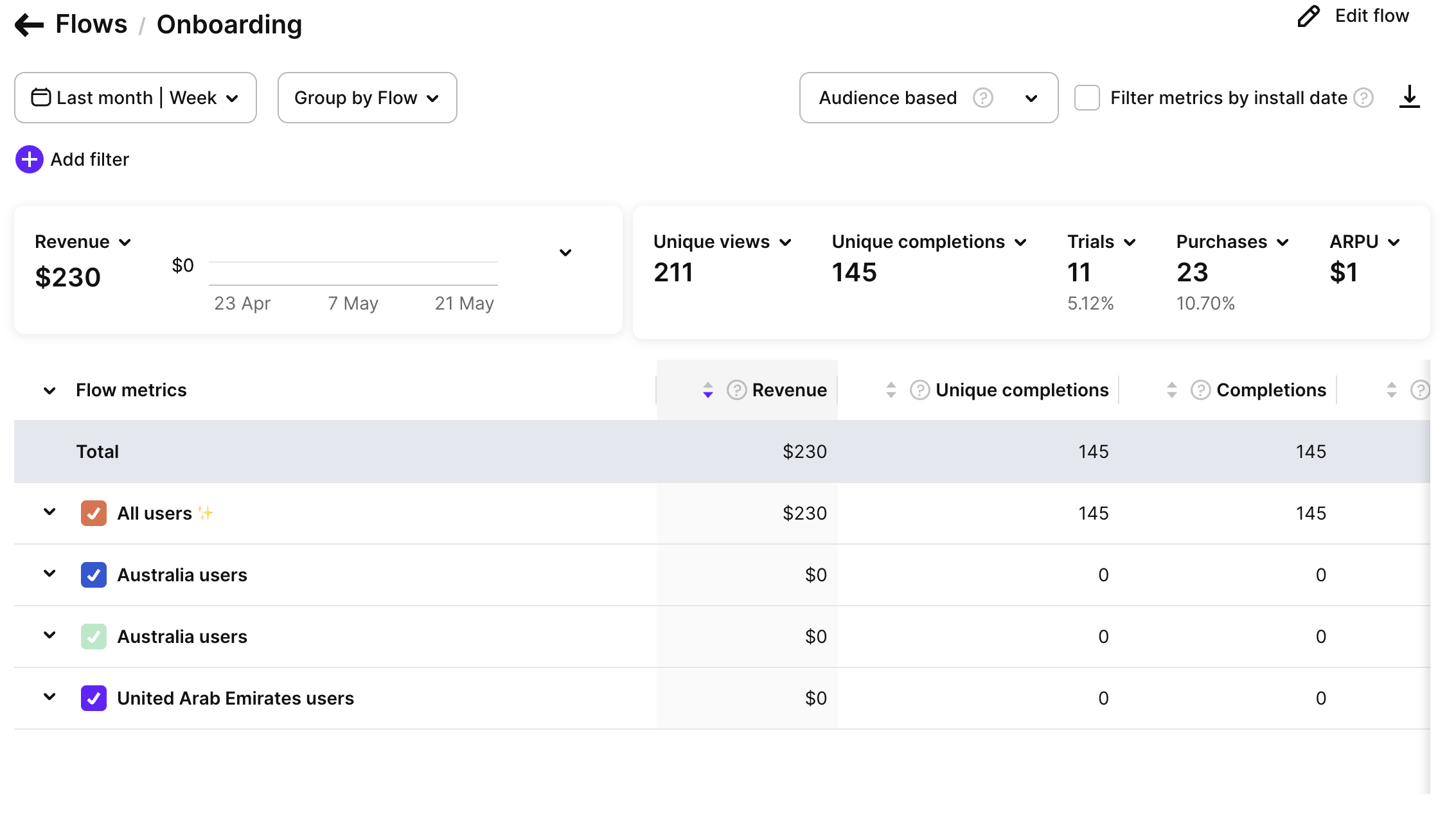
For metrics this page doesn’t compute, such as MRR or active subscriptions, filter the Charts page by flow.
Metrics controls
The system displays metrics based on the selected time period and organizes them as an expandable tree in the left-side column. In the placement-based view, the levels are placement, audience, A/B test, flow variation, screen, and product. The audience-based view drops the placement level.
A screen row shows the revenue, purchases, and trials attributed to that screen. Its Views and Completions are not a per-screen funnel: Views counts only the users who started the flow on that screen, and Completions only those who ended it there. Every screen in between reports zero for both.
For Published flows, the metrics cover the period from the flow’s publish date until the current date. Draft and archived flows are included in the metrics table, but if no data is available, they appear without any displayed metrics.
View options for metrics data
The flow page offers two viewing options for metrics data:
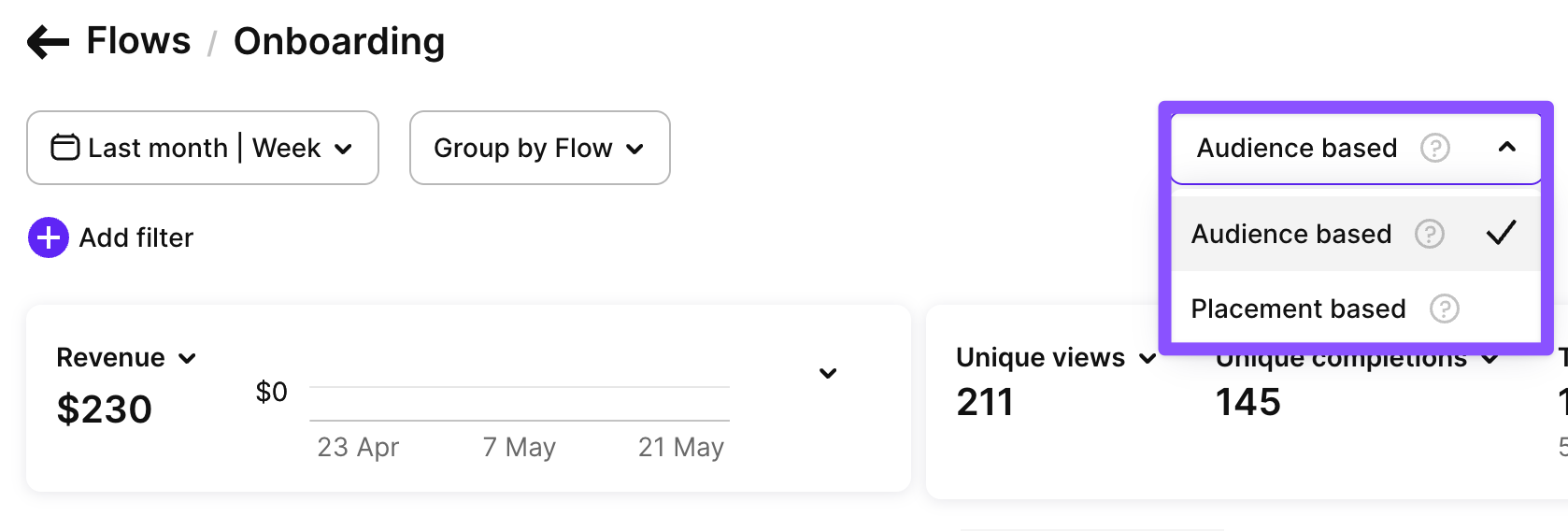
- Placement-based view: Metrics are grouped by the placements associated with the flow. Use this view to compare how the same flow performs across different placements.
- Audience-based view: Metrics are grouped by the target audience of the flow. Use this view to assess metrics specific to different audience segments.
The dropdown at the top of the flow page allows you to select the preferred view.
Filter metrics by install date
The Filter metrics by install date checkbox lets you analyze data based on when users installed your app, instead of when transactions or views happened. This is useful for measuring user acquisition performance for a specific cohort of users.

Time ranges
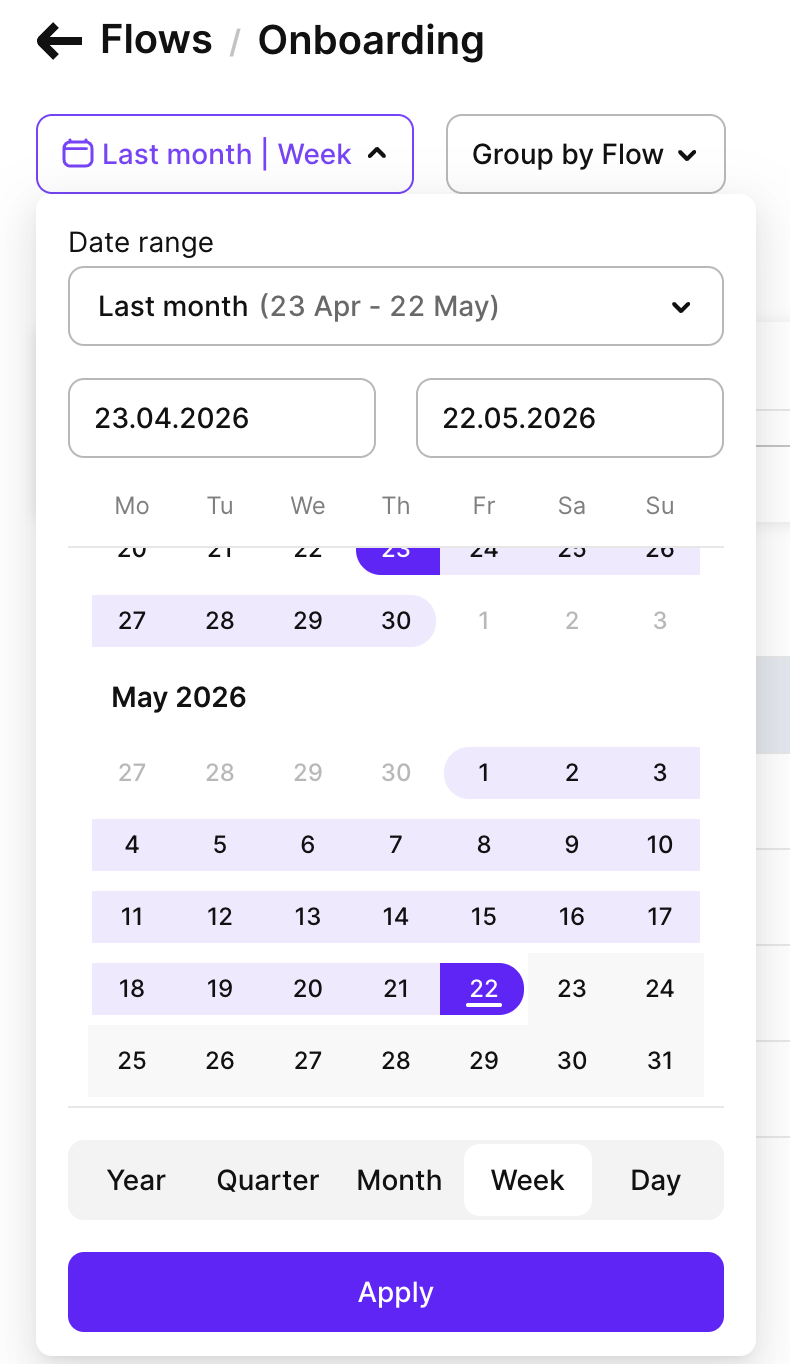
You can analyze metrics data using a time range, allowing you to focus on specific durations such as days, weeks, months, or custom date ranges.
Filters and groups
Adapty offers tools for filtering and customizing metrics analysis to suit your needs. The metrics page gives you access to various time ranges, grouping options, and filtering possibilities.
- Filter by: Attribution (reported by, status, channel, campaign, ad group, ad set, creative), Country, Store.
- Group by: Flow (default), Country, or Store. Grouping options appear in the dropdown only when there is data for that dimension — for example, if all flow views come from a single country, Country won’t be offered.
You can find more information about the available controls, filters, grouping options, and how to use them in this documentation.
Single metric chart
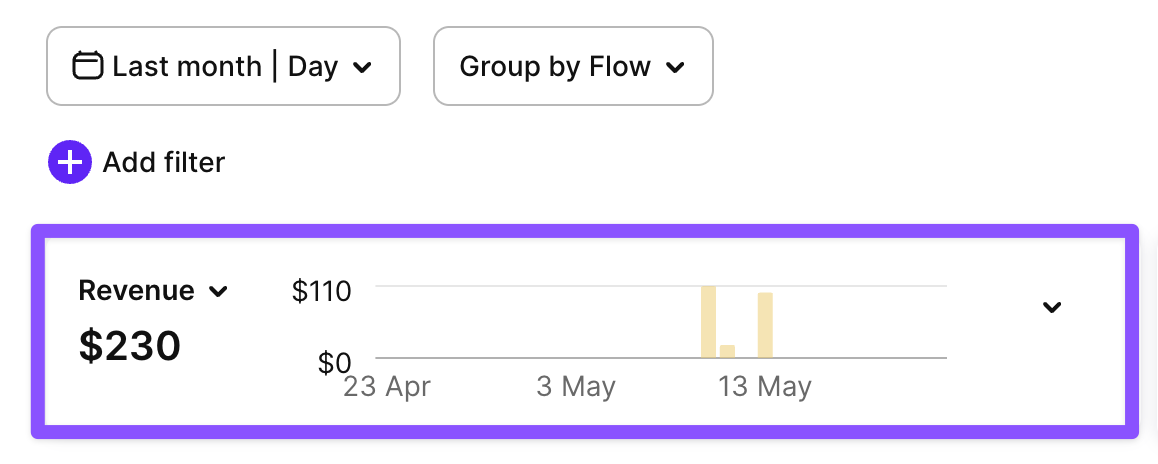
The chart section shows your data in a simple bar graph. The chart helps you quickly see:
- The exact numbers for each metric.
- Period-specific data.
A total sum appears next to the chart, giving you the complete picture at a glance.
Click the arrow icon to expand the chart.
Total metrics summary
Next to the single metric chart, there is a total metrics summary section. This section shows the cumulative values for the selected metrics at a specific point in time. You can change the displayed metric using a dropdown menu.

Metrics definitions
Views & unique views
Views count the number of times users start your flow (reach the first screen). If someone starts it twice, that counts as two views but one unique view. This metric helps you understand how often your flow has been shown.
Completions & unique completions
Completions count the number of times users reach the last screen of your flow. If someone completes it twice, that counts as two completions but one unique completion.
Unique completions rate
The number of unique completions divided by the number of unique views. Use this metric to compare how many users finish one flow against another, or one variation against another.
Adapty converts other currencies to USD at the currencylayer.com exchange rate (refreshed every 8 hours). The rate is fixed at the time of the transaction — future changes do not affect the conversion result.
Revenue
Revenue shows your total earnings in USD from purchases and renewals attributed to the flow. This is the amount before any deductions, including the App Store / Play Store commission.
Proceeds
Proceeds show what you receive after the App Store / Play Store takes their commission, but before taxes.
Notify Adapty if your app is enrolled in a reduced commission program. To ensure correct calculations, specify your Small Business Program and Reduced Service Fee program status in your app settings.
Net proceeds
Your final earnings after both store commissions and taxes are deducted.
ARPPU
ARPPU is the average revenue per paying user. It’s calculated as total revenue divided by the number of unique paying users. $15,000 revenue / 1,000 paying users = $15 ARPPU.
ARPU
ARPU is the average revenue per user who viewed the flow. It’s calculated as total revenue divided by the number of unique viewers.
ARPAS
ARPAS is the average revenue per active subscriber. It’s calculated by dividing total revenue by the number of subscribers who have activated a trial or subscription. For example: $5,000 revenue / 1,000 subscribers = $5 ARPAS.
CR purchases & unique CR purchases
Conversion rate to purchases shows what percentage of flow views result in purchases. For example, 10 purchases from 100 views is a 10% conversion rate. Unique CR purchases measures what percentage of unique users who view your flow end up making a purchase, counting each user only once regardless of how many times they see it.
CR trials & unique CR trials
Conversion rate to trials shows what percentage of flow views result in starting a trial. For example, 10 trials from 100 views is a 10% conversion rate. Unique CR trials measures what percentage of unique users who view your flow start a trial, counting each user only once regardless of how many times they see it.
Purchases
Purchases count all transactions on your flow, except renewals. This includes:
- New direct purchases.
- Trial conversions of trials activated on the flow.
- Plan changes (upgrades, downgrades, cross-grades).
- Subscription restores on the flow, such as when a subscription is reinstated after expiration without auto-renewal.
This metric gives you a complete picture of new transaction activity from your flow.
Trials
Trials count the number of users who started free trial periods through your flow. Use this metric to track how well your trial offer attracts users before they decide to pay.
Trials cancelled
Trials cancelled shows how many users turned off auto-renewal during their trial period. This tells you how many people decided not to continue with a paid subscription after trying your service.
Refunds
Refunds count how many purchases and subscriptions were returned for a refund, regardless of the reason.
Refund rate
Refund rate shows the percentage of first-time purchases refunded. Example: 5 refunds from 1,000 first-time purchases = 0.5% refund rate. Renewals are not counted in this calculation.
Filter analytics by flow
Main article: Analytics controls
The flow metrics page covers views, completions, conversion, and revenue. Metrics such as MRR, active subscriptions, churn, grace period, and billing issues exist only on the Charts page. To see them for a particular flow, filter these metrics by Flow or Flow screen:
- Flow: One flow, with all its screens counted together.
- Flow screen: One screen of a flow. Screens are nested under their flow, and use the following naming convention:
<position>. <screen name>, for example9. Paywall A.
To compare flows or screens side by side on one chart, group by the same attributes instead of filtering.
The filter lists only flows and screens with at least one transaction.