
CPP A/B Tests in Adapty Ads Manager
CPP A/B Tests let you compare custom product pages (CPPs) against each other inside Apple Ads. You select 2 to 4 product pages, and Adapty Ads Manager rotates traffic between them, collects performance data, and tells you which page converts best.
You can include your default product page as one of the variants, so you can test whether a custom page performs better than your current default.
Prerequisites
Before you create a CPP A/B test, make sure:
- Adapty Ads Manager is connected: Follow the setup guide if you haven’t done so.
- The source ad group has traffic: The ad group you test must be at least 28 days old and have impressions, taps, and installs over that period. Adapty Ads Manager uses this history to estimate the test duration and the required sample size.
- You have at least one custom product page: Create CPPs in App Store Connect first. Adapty Ads Manager reads them automatically.
Create a CPP A/B test
To create a test, in the left sidebar, go to CPP A/B Tests and click Create A/B Tests.
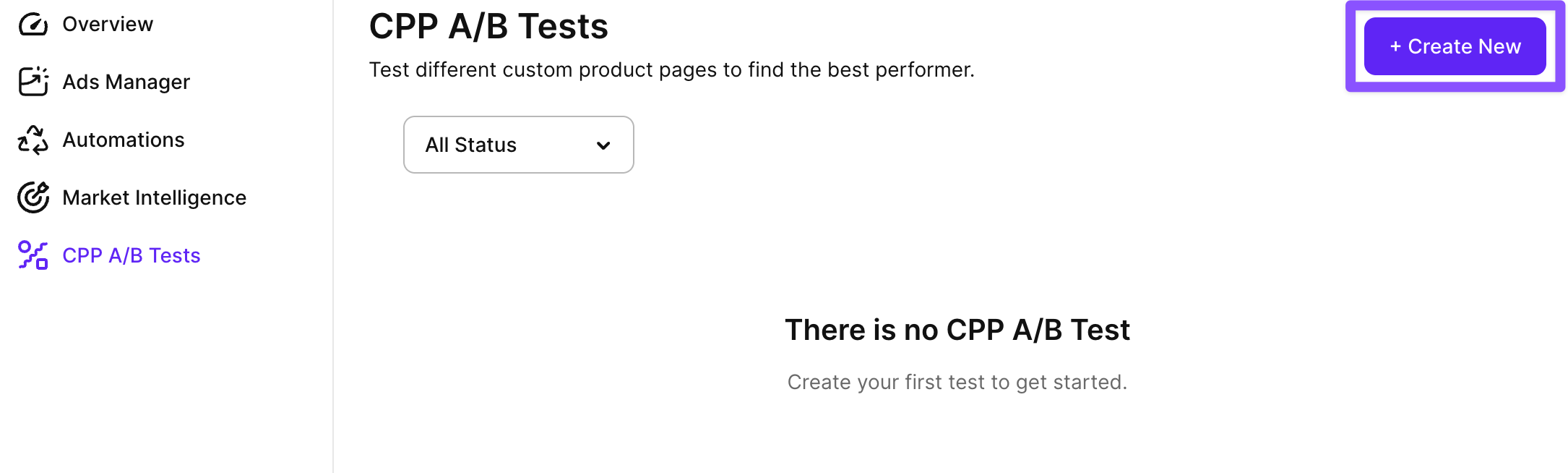
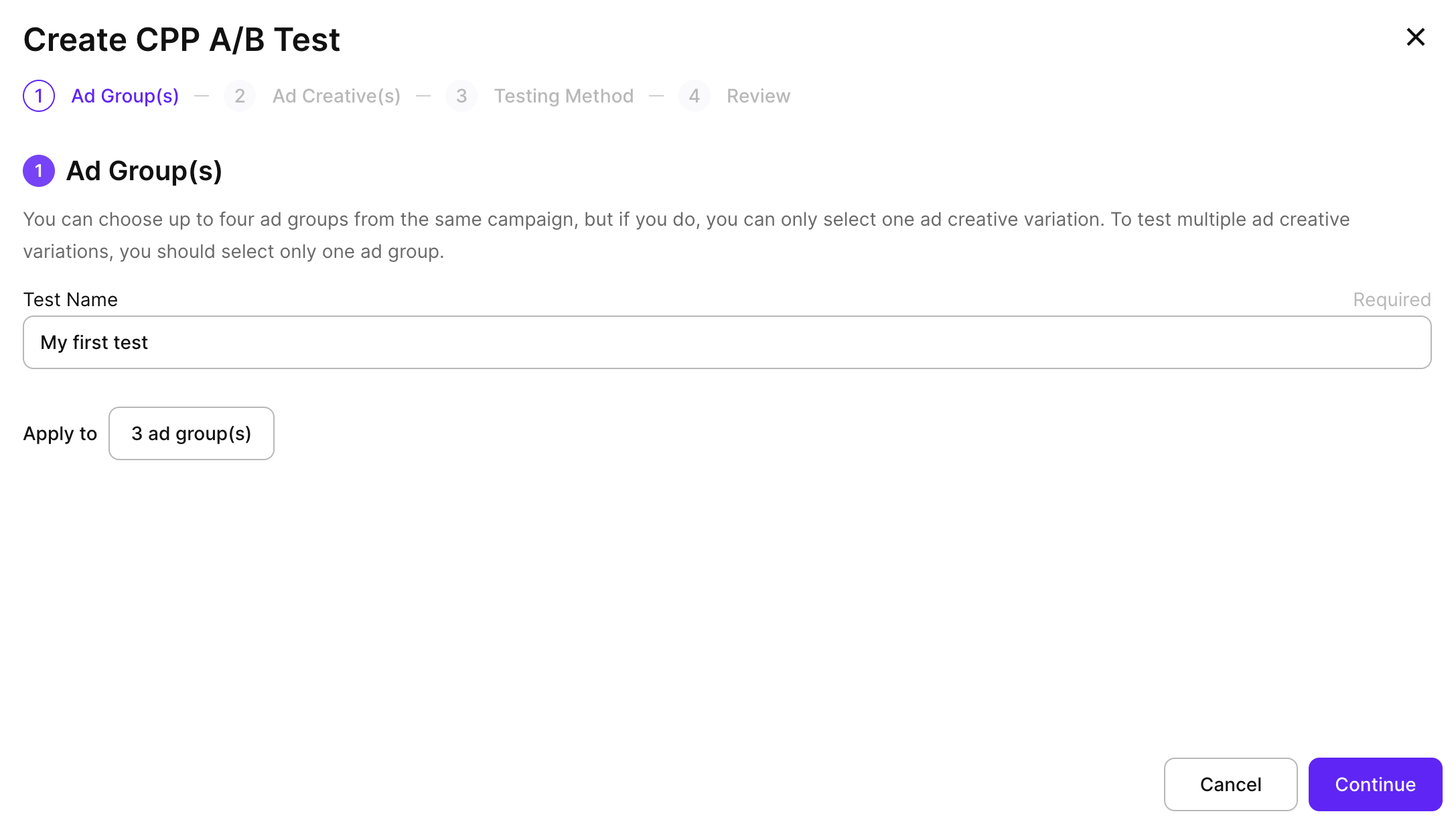
The wizard has four steps: Ad Group(s), Ad Creative(s), Testing Method, and Review.
1. Ad Group(s)
Enter a Test Name and click Select Ad Group to pick the ad group whose CPPs you want to test. You can select up to four ad groups from the same campaign, but only if you plan to test a single ad creative across them. To compare multiple CPPs, select one ad group.
2. Ad Creative(s)
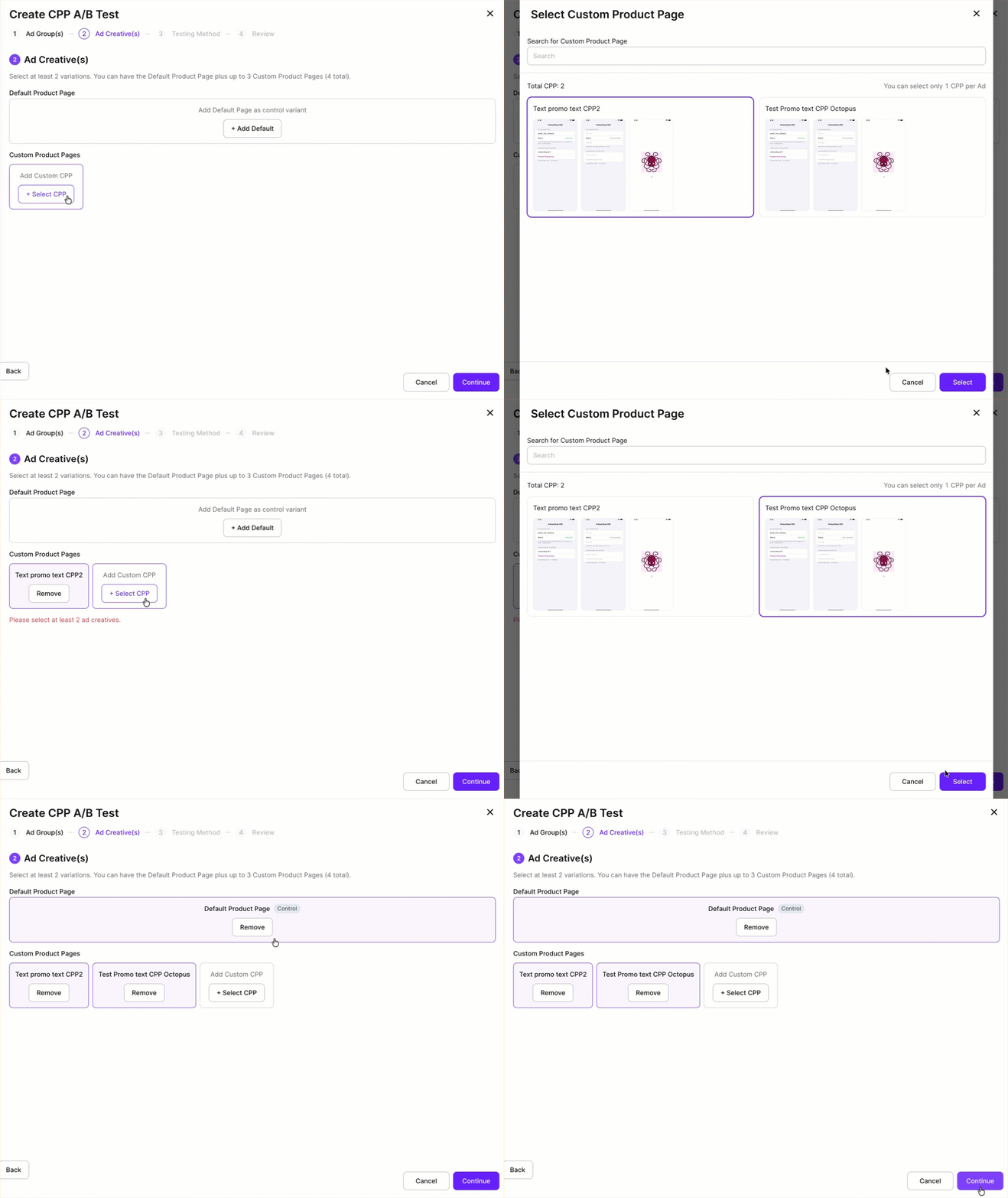
Pick the CPPs you want to compare. You can include the Default Product Page (marked as Control) plus up to three Custom Product Pages, for a total of 2 to 4 variants.
- Default Product Page: Click + Add Default to include your existing default product page as the control variant.
- Custom Product Pages: Click + Select CPP to choose a custom product page from App Store Connect.
3. Testing Method
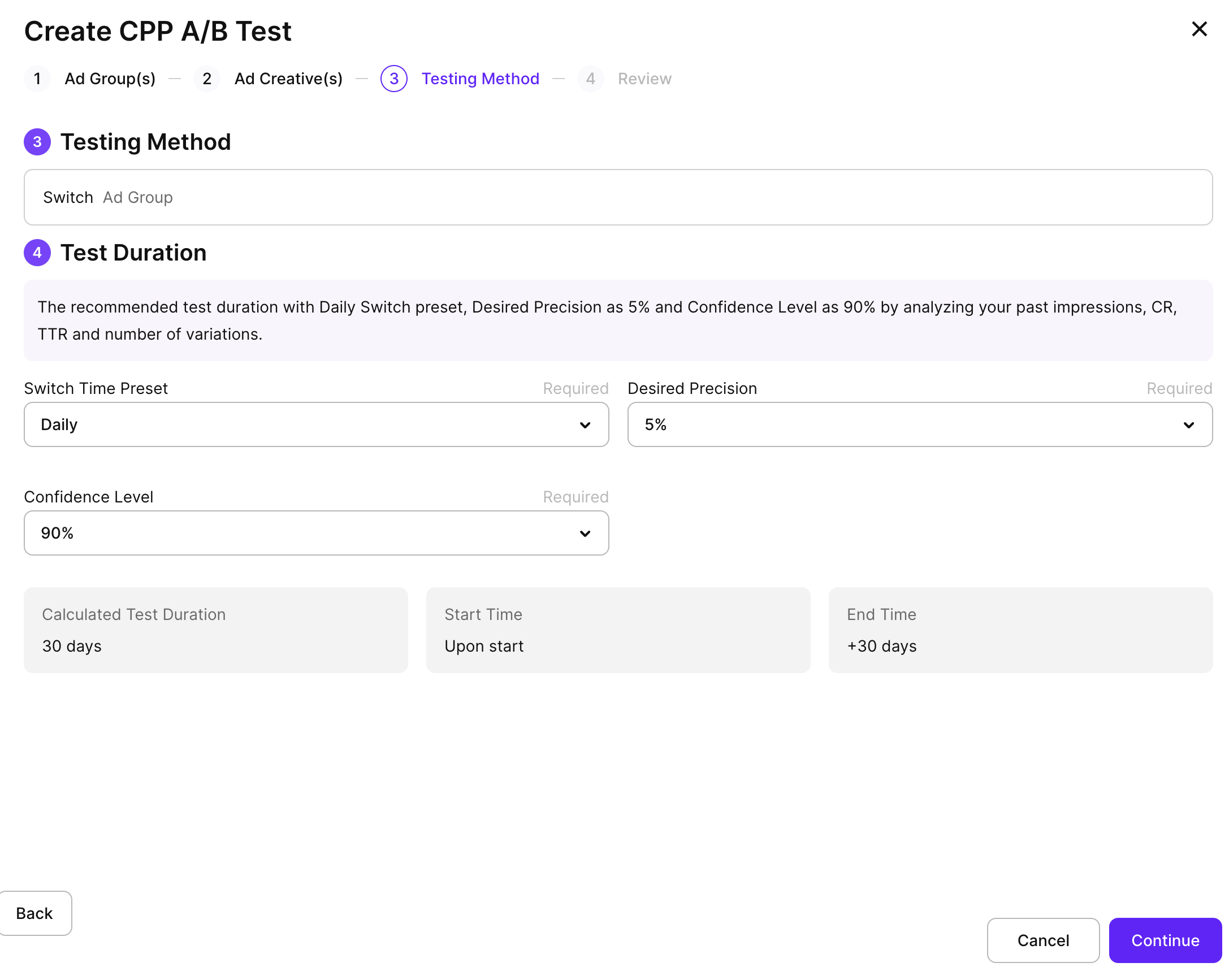
Configure how the test runs. Adapty Ads Manager calculates the Calculated Test Duration, Start Time, and End Time automatically — the values update whenever you change one of the three settings below.
Switch Time Preset
How often the system rotates between variants. If you select one that’s too high for the traffic level, the system automatically downgrades it.
| Interval | Typical traffic level | Slot duration | Typical test length |
|---|---|---|---|
| Hourly | High (5,000+ impressions per day) | 7 hours | Days |
| Daily | Normal | 24 hours | Weeks |
| Weekly | Low (fewer than 400 impressions a day) | 7 days | Months |
A slot is the base time a variant runs before the system considers switching to the next one.
Desired Precision
The smallest difference in conversion rate the test can reliably detect. Options: 1%, 2%, 3%, 4%, 5%. Default: 5%. A test with 1% precision spots tiny differences but needs more data and runs longer. A test with 5% precision finishes faster but only catches larger differences.
| Precision | When to use |
|---|---|
| 1–2% | You expect small differences between CPPs and have high-traffic ad groups. |
| 3–4% | Balanced default for most tests. |
| 5% | You expect a clear winner and want results quickly. |
Confidence Level
How sure you want to be that the result is real and not random noise. Options: 80%, 85%, 90%, 95%, 99%. Default: 90%. A higher confidence level needs more data.
| Confidence | Trade-off |
|---|---|
| 80–85% | Faster to finish, but a higher chance the result is noise. |
| 90% | Recommended default for most tests. |
| 95–99% | Most conservative. Requires the most data and the longest test. |
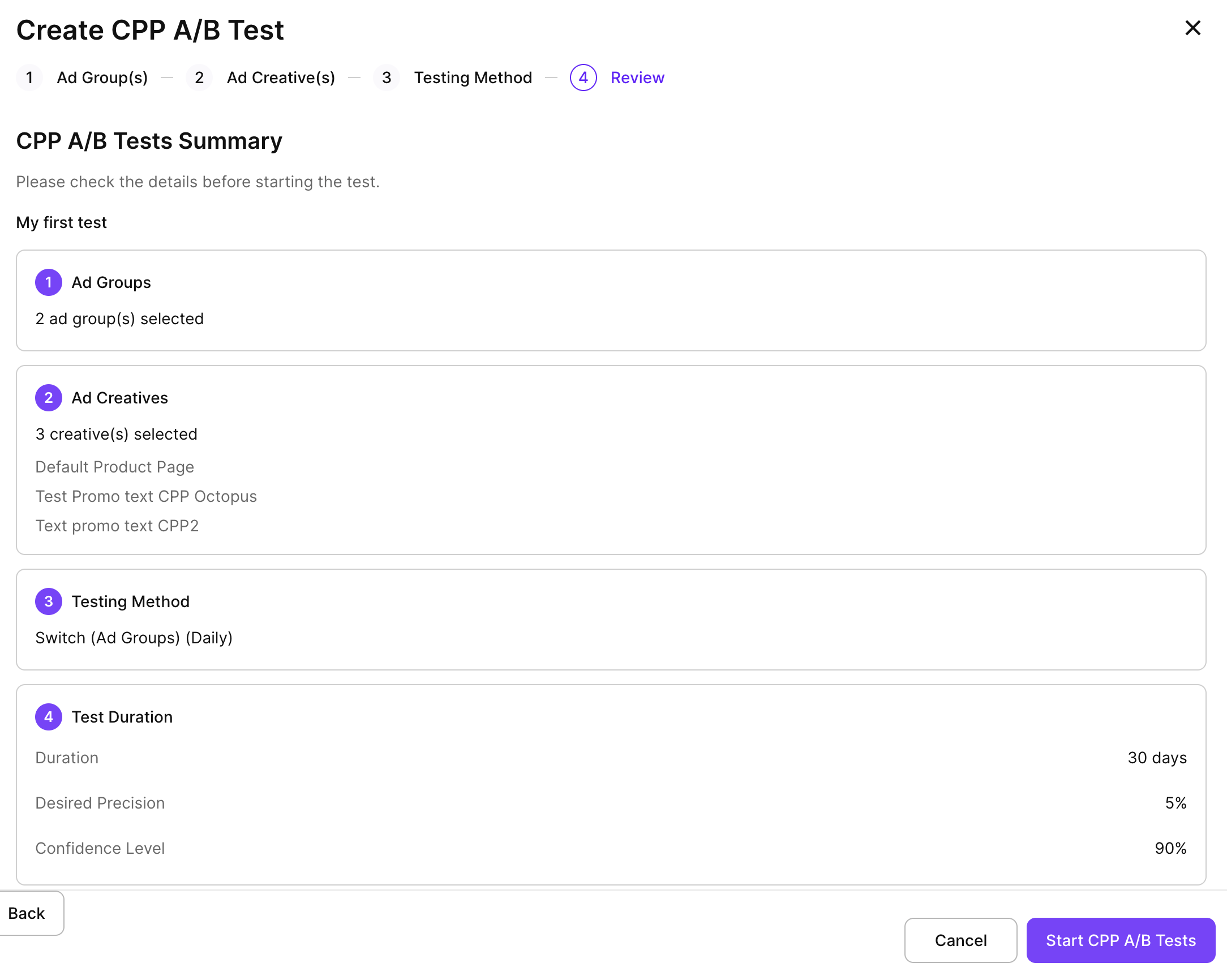
4. Review
Verify the summary — selected ad groups, creatives, testing method, duration, precision, and confidence level — then click Start CPP A/B Tests.
After you start the test, the system clones the ad group for each variant, activates the first variant, and the test status moves to Running within a few minutes.
Monitor a running test
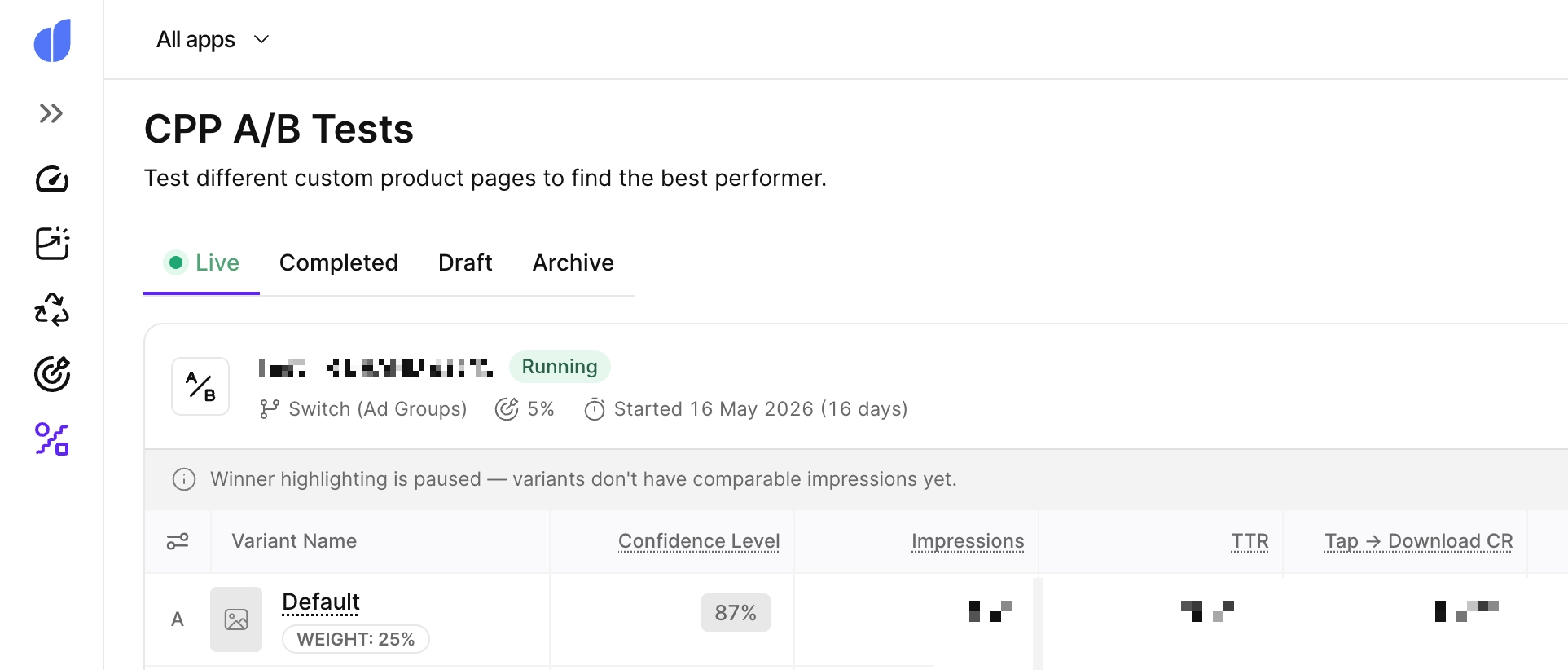
To open the test list, go to CPP A/B Tests in the left sidebar. The four tabs at the top of the page filter tests by state:
- Live: Tests currently running.
- Completed: Tests that have finished.
- Draft: Tests that haven’t been started yet.
- Archive: Older tests you no longer need in the main view.
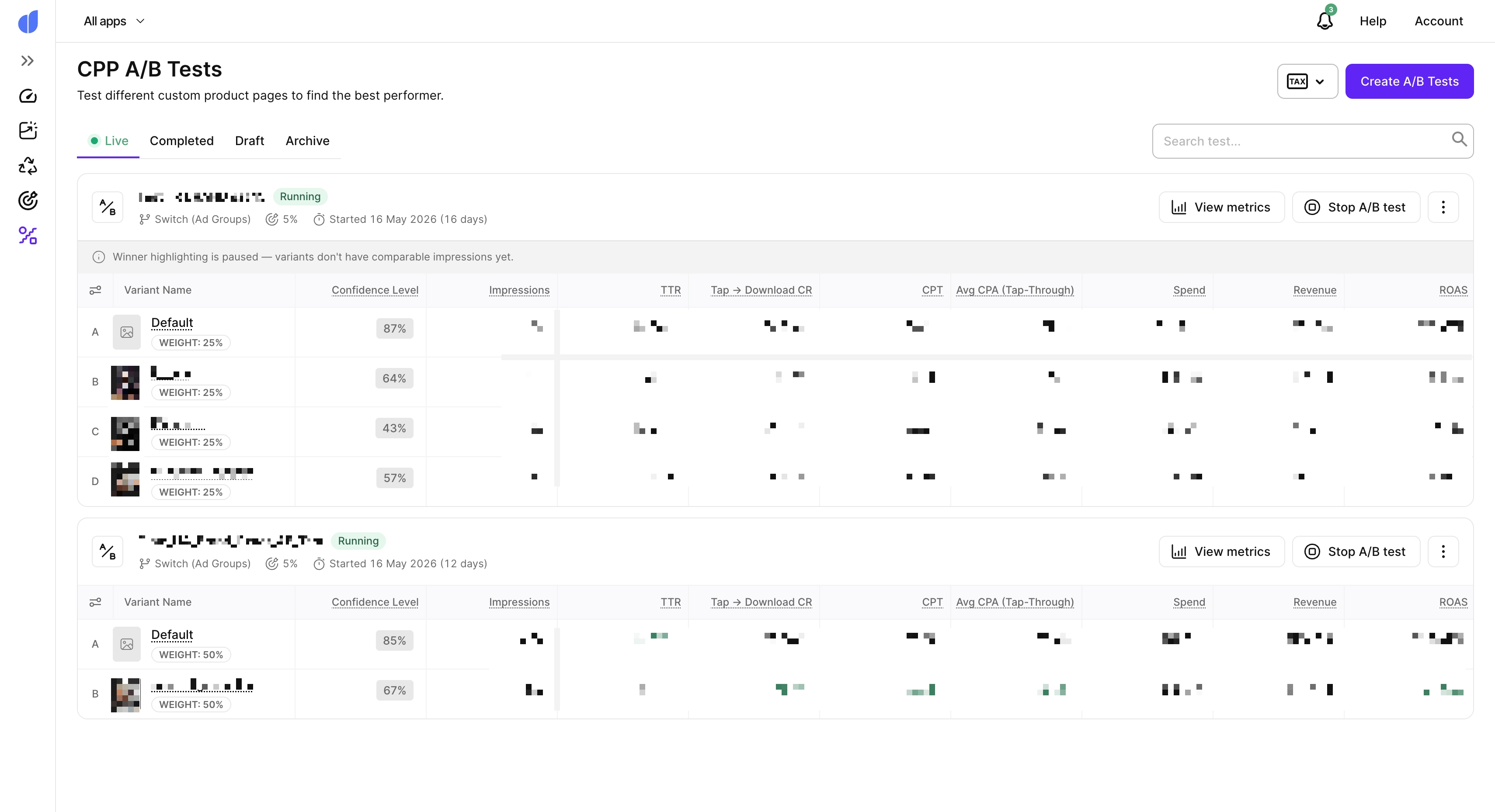
Each test card shows its name, status, switch interval, desired precision, and how long it has been running. Click View metrics to expand the variant table.
Variant performance
The variant table compares performance across all variants in the test:
| Column | Description |
|---|---|
| Variant Name | The CPP being tested. Variant A is always the first variant you added. |
| Confidence Level | How close the variant is to the required sample size, as a percentage from 0 to 100. |
| Impressions | The number of times Apple showed an ad for this variant. |
| TTR | Tap-through rate: taps divided by impressions. |
| Tap → Download CR | Conversion from tap to download. |
| CPT | Average cost per tap. |
| Avg CPA (Tap-Through) | Average cost per acquisition based on tap-through downloads. |
| Spend | Total spend attributed to the variant. |
| Revenue | Total revenue attributed to the variant. |
| ROAS | Return on ad spend: revenue divided by spend. |
Until each variant has comparable impressions, Adapty Ads Manager doesn’t highlight a winner. While the data is still coming in, you’ll see a banner above the table: Winner highlighting is paused — variants don’t have comparable impressions yet.
Detailed metrics
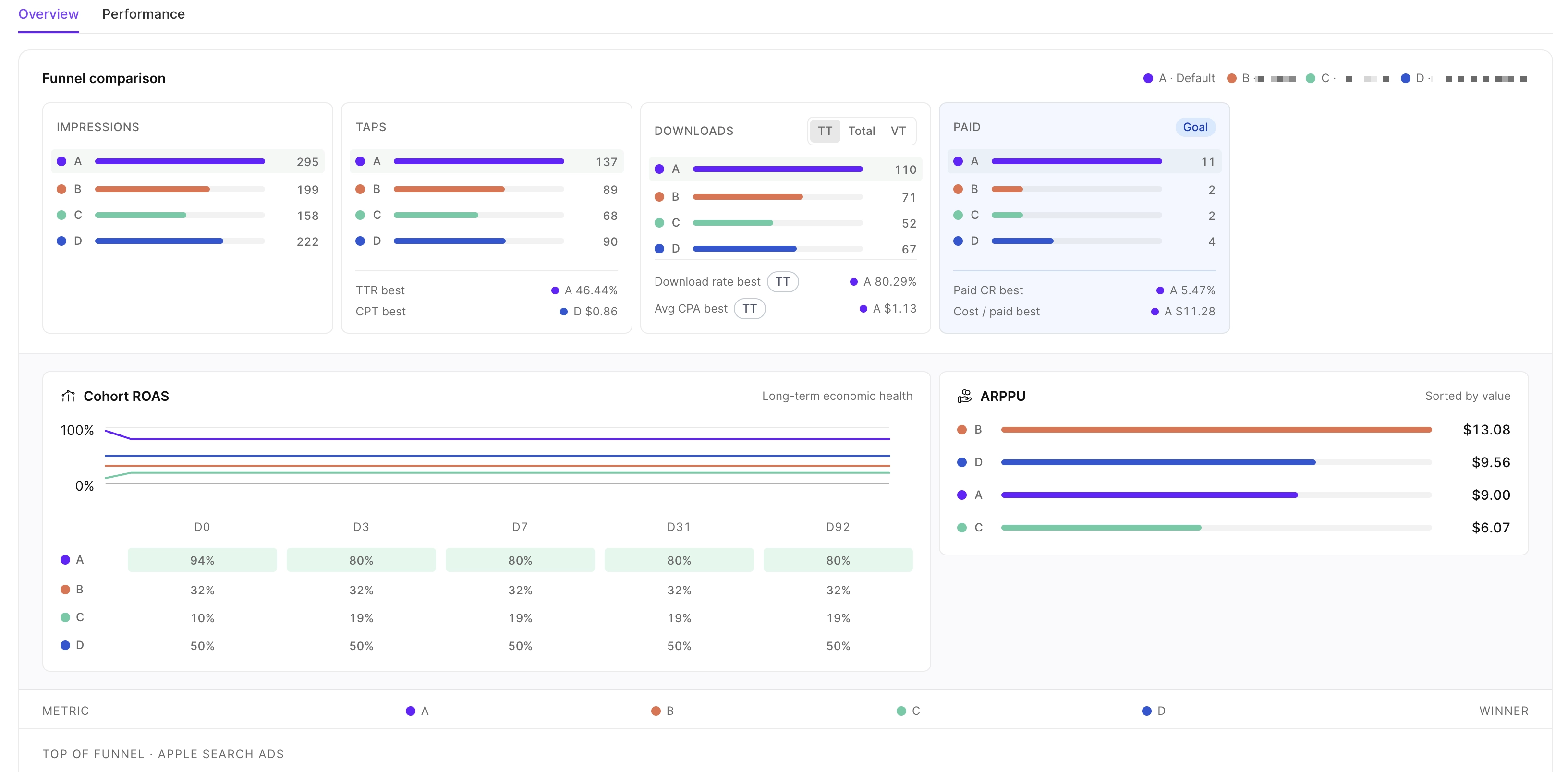
For a deeper view of the test, click View metrics to open the detailed metrics page. It includes cohort retention curves, ARPPU comparison, and a metrics table grouped into two sections:
- Top of funnel · Apple Search Ads: TTR, Download Rate, CPM, CPT, and Avg CPA per variant.
- Bottom of funnel · Monetization: Paid users, Paid CR, Cost per Paid, ARPPU, Revenue, and ROAS per variant.
The Winner column shows which variant leads on each metric. A variant is marked as the overall winner only once it leads on the primary metric and reaches a confidence level of at least 95%.
For metric definitions, see Metrics in Adapty Ads Manager.
Stop a test
You can stop a test at any time. The test will be marked as Stopped, the original ad group will be restored, and the cloned ad groups will be paused.
To stop a running test:
- Go to CPP A/B Tests in the left sidebar.
- Click Stop A/B test on the test card, or open the test and click Stop Test.
- Confirm in the Stop A/B Test? dialog.
Stopping a test is final — you can’t resume it. The results collected so far remain available on the Completed tab.
Test statuses
Every test moves through a fixed set of statuses:
| Status | Meaning |
|---|---|
| Draft | Test created but not started. You can still edit it. |
| Starting | Setup in progress — the system is cloning ad groups and creating ads. |
| Running | Test is live. Variants are rotated and metrics are collected. |
| Completed | Scheduled duration expired or confidence was reached. The original ad group is restored. |
| Stopped | You stopped the test manually. The original ad group is restored. |
| Failed | Setup failed or too many consecutive errors occurred. You can restart a failed test. |
How it works
Adapty Ads Manager uses the Ad Group Switch method:
- When the test starts, the system clones the source ad group once per variant. Each clone points to a different CPP (one of them can be your default page).
- Only one clone runs at a time. The system rotates which clone is active on a fixed schedule (hourly, daily, or weekly).
- The original ad group is paused while the test runs. It is restored to its previous state when the test ends.
- Adapty Ads Manager collects per-variant impressions, taps, and downloads, and tracks how close each variant is to a statistically meaningful sample.
- The test ends automatically once each variant has enough data, or when the scheduled duration is reached.
What to expect while a test runs
A few things are worth knowing about how a running test behaves on the dashboard:
- Variants don’t switch on a fixed clock: The switch interval is a baseline, but Adapty Ads Manager adjusts timing so each variant collects a fair share of impressions. A variant may stay active longer than one slot if it’s behind on impressions.
- The End Time can move forward: If a variant is short on data as the scheduled end approaches, the test is extended automatically to keep collecting taps. The new End Time appears on the test card.
- When the test ends, the original ad group is restored: All cloned ad groups are paused and the source ad group returns to its pre-test status. Results stay available on the Completed tab.