
Authentication in the Adapty Developer CLI
The CLI requires authentication to call the Adapty API.
One login covers the whole CLI. The Ads Manager commands reach a different service, but they use the same stored token — there is no second login step.
Log in
To log in:
- In your terminal, run:
adapty auth login - The CLI prints a verification code in
XXXX-XXXXformat and opens the Adapty Dashboard in your browser. - On the authorization page, confirm the code matches your terminal output.
- Click Authorize. The browser shows “CLI authorized! You can close this tab.”
- Back in the terminal, the CLI confirms you are authenticated.
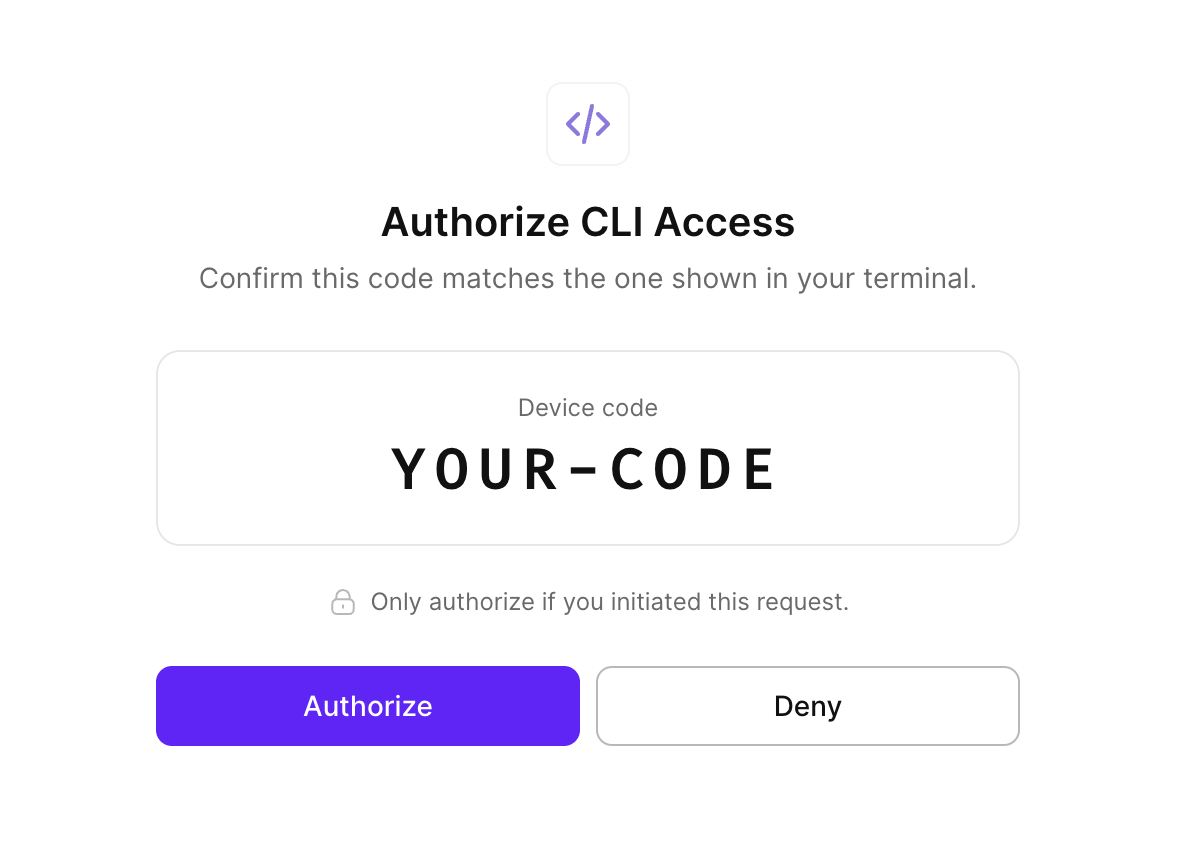
If the code expires before you authorize, or if you click Deny, run the following command again to restart the flow:
adapty auth loginManage authentication
Check authentication status
To see your current authentication state, run:
adapty auth statusWhen authenticated, the output shows your name, a masked token prefix, and the path to the local config file:
User: Jane Doe
Token: abcd1234****
Config: ~/.config/adapty/config.json
Starting with CLI 0.9.1, a login stores your name and no email. An Email: line appears only for a session saved by an earlier version. In scripts that read adapty auth status --json, use the name field to identify the user.
When not authenticated:
Not authenticated. Run `adapty auth login`.Verify your token
To confirm your token is valid and see your account details, run:
adapty auth whoamiUnlike adapty auth status, this command makes a live request to the server to verify the token.
Log out
To clear your stored credentials locally, run:
adapty auth logoutThis clears ~/.config/adapty/config.json and the migration saved by adapty migrations create or adapty migrations use. The token remains valid server-side until it expires — if you need to invalidate it immediately, use adapty auth revoke instead.
Revoke your token
To invalidate the token on the server and clear it locally, run:
adapty auth revokeIf the token has a saved migration, the CLI clears it too, but only after the server confirms the revocation. Use this when you want to fully invalidate a token — for example, if your credentials may have been compromised. After revoking, run adapty auth login to authenticate again.
Token errors
If a token is revoked or becomes invalid, CLI commands return a 401 error. To re-authenticate, run:
adapty auth login