
Segments in Adapty Mail
A segment is a reusable audience slice. You define it once — in Segments — and reference it from flows and A/B tests. Segments are filter definitions, not snapshots: they’re evaluated on demand when a flow trigger fires, so membership always reflects the latest profile data.
Create a segment
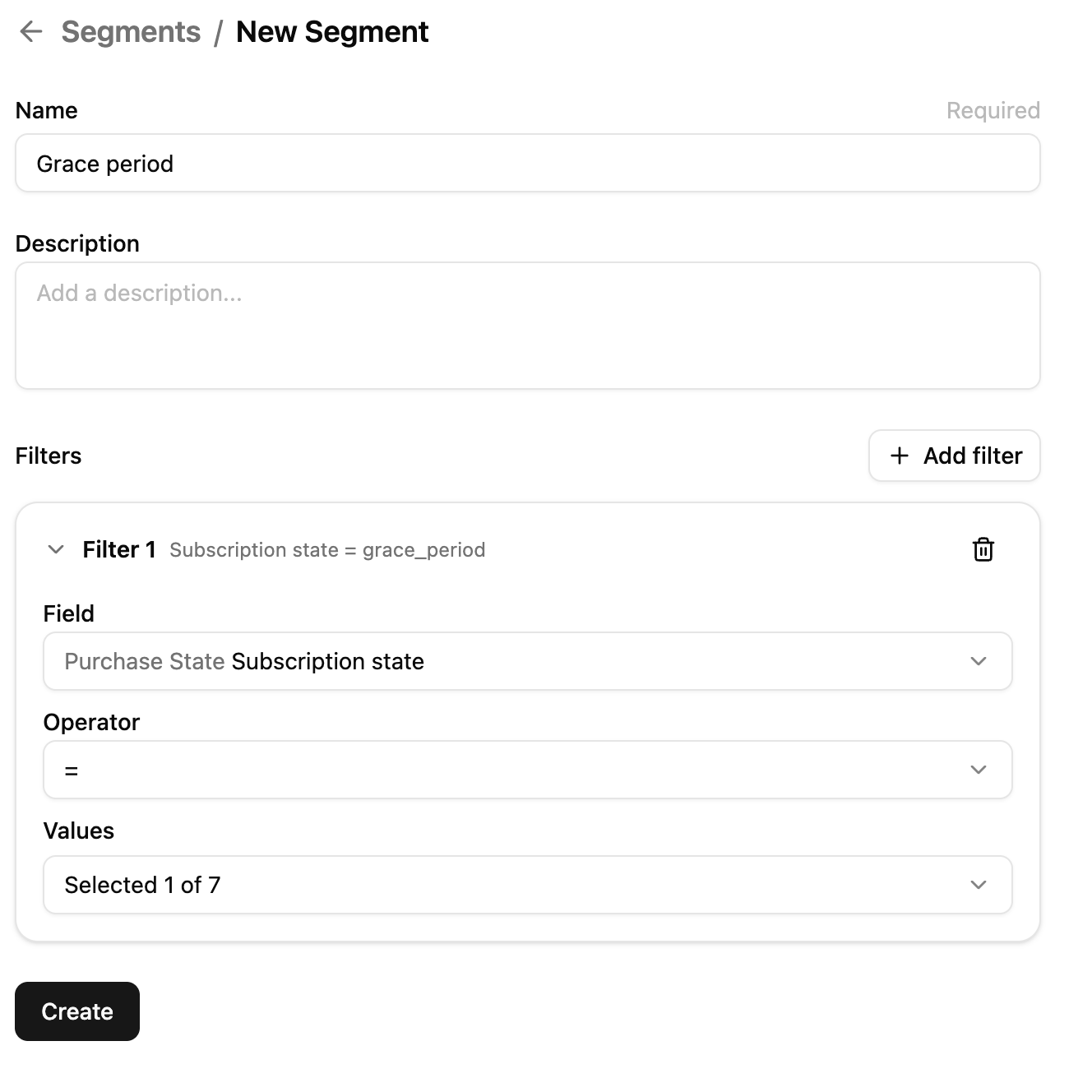
- In Adapty Mail, go to Segments and click + Create. The create page opens with the title New Segment.
- Give the segment a Name (required) and an optional Description.
- Under Filters, click Add filter for each rule you want. Each filter becomes a collapsible card labeled Filter 1, Filter 2, and so on.
- For each filter, pick a field, pick an operator, and enter the comparison value.
- Save the segment.
Filters are combined with AND — a user must match every filter to be in the segment. OR logic and nested groups aren’t supported. Each field can appear only once per segment; to compare the same field across multiple values, split the logic into separate segments.
Import a segment from Adapty
Instead of building a segment from filters, you can import an existing audience segment from the main Adapty dashboard.
- On the Segments page, click Import.
- Review the list. Importable segments show a checkbox and their filter conditions. Segments that can’t be imported are grayed out with the specific reason, such as an unsupported field (for example, Apple Ads attribution data), an unsupported operator, or a subscription state with no Adapty Mail equivalent.
- Check the segments you want and click Import.
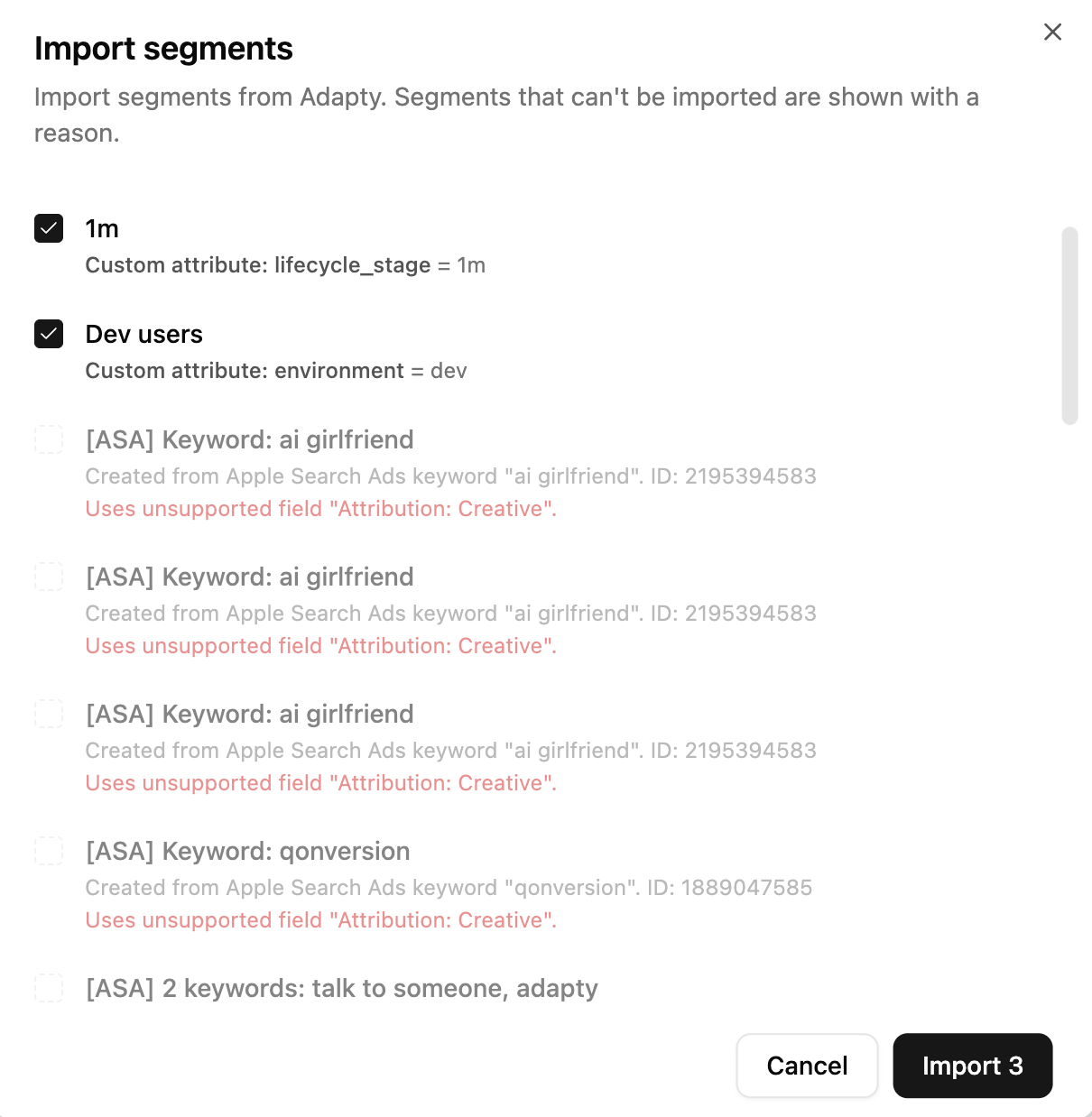
Import creates an independent copy of the segment’s filters at the time of import — it isn’t kept in sync with the original Adapty segment, and importing the same segment again creates a separate copy each time, since Adapty Mail doesn’t detect duplicates.
Imported segments start in Draft state, the same as segments you build manually, so you can edit their filters right away.
Available filter fields
| Group | Field | Type |
|---|---|---|
| Profile | String | |
| Profile | Gender | String |
| Profile | Age | Number |
| Profile | Country | String |
| Profile | Store country | String |
| Profile | Created at | Date |
| Device info | Device | String |
| Device info | Locale | String |
| Device info | OS | String |
| Device info | Platform | String |
| Device info | App version | Version |
| Purchase state | Total revenue (USD) | Number |
| Purchase state | Subscription state | String |
| Purchase state | Subscription purchased at | Date |
| Purchase state | Subscription expires at | Date |
| Purchase state | One-time purchase state | String |
| Purchase state | One-time purchased at | Date |
Device info fields are filled only when your entry point sends them. Send data via the API covers what that payload carries.
Subscription state values: Never purchased, Subscribed, Auto-renew off, Billing issue, Grace period, Expired, Refunded.
One-time purchase state values: Never purchased, Purchased, Refunded.
Operators available per field type:
- String: equals, not equals, is set, is not set.
- Number: equals, not equals, less than, greater than, less than or equal, greater than or equal, between, is set, is not set.
- Date: equals, not equals, before, after, on or before, on or after, between, is set, is not set.
- Version: the same comparisons as Number, applied in version order —
1.10.0ranks above1.9.0.
The All Users system segment
Adapty Mail ships with a built-in All Users segment that has no filters — every user in the project qualifies. You can’t edit or delete it. When used in a flow, it serves as the catch-all bottom row (see Flows for the priority rule).
Lifecycle
A segment’s state is calculated from how it’s being used:
- Draft: Created, not attached to any flow or A/B test.
- Live: Attached to an active flow or A/B test.
- Inactive: Was attached, but the A/B test finished or you removed the segment from the flow.
- Archived: Soft-deleted and hidden from the main list.
The Segments page has a state filter in the toolbar so you can narrow the list to any of these states.
Edit and delete a segment
- Name and description: Always editable.
- Filters: Editable only while the segment is a Draft. Once a flow or an A/B test has used it, the filters are read-only for good — Live, Inactive, and Archived all lock them. Renaming and the description stay open. To change targeting, create a new segment and swap it into the flow.
- Delete: Soft-deletes the segment. Live segments can’t be deleted — remove them from the flow (or finish the A/B test) first.
Limitations
- No OR logic, no nesting: Filters combine with AND only.
- One field per segment: A segment can’t have two filters on the same field (for example, two country checks).
- No size preview: The editor doesn’t show how many users currently match the filters.
- Filters locked after first use: Only a Draft segment’s filters can change. Any segment that has been used is read-only except for its name and description.