
Agent skill for working with flows
The flow-generator skill lets an AI coding tool build and edit your flows from the terminal. Tell it what to build or change, in plain language, and the tool reads the flow’s builder config through the Adapty CLI, rewrites it, renders a preview, and saves a draft once you approve it.
A skill is a set of instructions your AI tool loads on demand. This one covers the parts of the flow config that are easy to get wrong: which edits stop a publish, which references break when you delete a screen, and what a rendered preview can and cannot prove.
The flow-generator skill is experimental, and it saves changes directly to flows in your dashboard. Run it against a draft or a copy first, and review every change in the Flow & Paywall Builder before you publish.
Before you start
- An AI coding tool that supports skills: Claude Code, GitHub Copilot CLI, OpenAI Codex, and Gemini CLI all work.
- Products in your Adapty catalog: Before it designs a screen that sells, the skill lists your products and asks which ones belong on it. If none fit, it can create one from the store product IDs you supply, and it asks first.
What you can do with it
Author a flow from scratch
- From a description: “A paywall for my fitness app, two plans, annual preselected.” The skill picks the composition, builds it from render-verified patterns — tabs, plan cards, toggles, countdowns, progress bars, bottom sheets — and uses the products you chose from your catalog.
- From a screenshot or a design: Hand it a reference and it matches the layout, colors, typography, and icon style, then tells you every difference it couldn’t close. The reference can be a competitor’s paywall, one of your own screens, or a frame from your design tool. If your AI tool is connected to that design tool over MCP, it reads the frame directly — nobody has to export a screenshot or re-describe the design in words.
- Graded against what converts: When you didn’t give it a design, the skill runs Adapty’s
paywall-teardownlibrary over the screen it built and fixes what ranks highest, before you ever see it. You get a screen built to the patterns that sell in your category, not a generic layout.
Change a flow you already have
- Localize into new markets: Adds a locale and fills every localizable field — headlines, button labels, plan captions, image slots, and input placeholders. This is the fastest way to take one working paywall into ten languages.
- Rewrite copy across every locale at once: Changes wording without touching structure, and edits around price variables instead of through them, so prices keep resolving.
- Restructure the flow: Adds, removes, and reorders screens, then repairs the navigation the change breaks and reports any screen left unreachable.
- Add quizzes and branching: Builds selectable groups, option IDs, and the conditional actions that route each answer to its own screen — the personalization step that turns an onboarding into a qualified paywall visit.
- Spin up variants for a test: Creates a fresh flow seeded from one that already works, then applies the change you’re testing. Theme, fonts, locales, and products carry over, so the variant differs only where you meant it to.
- Re-skin for a season or a campaign: Samples colors from a reference image and applies a new theme across the flow, instead of restyling each screen by hand.
What it produces
A paywall with a plan timeline
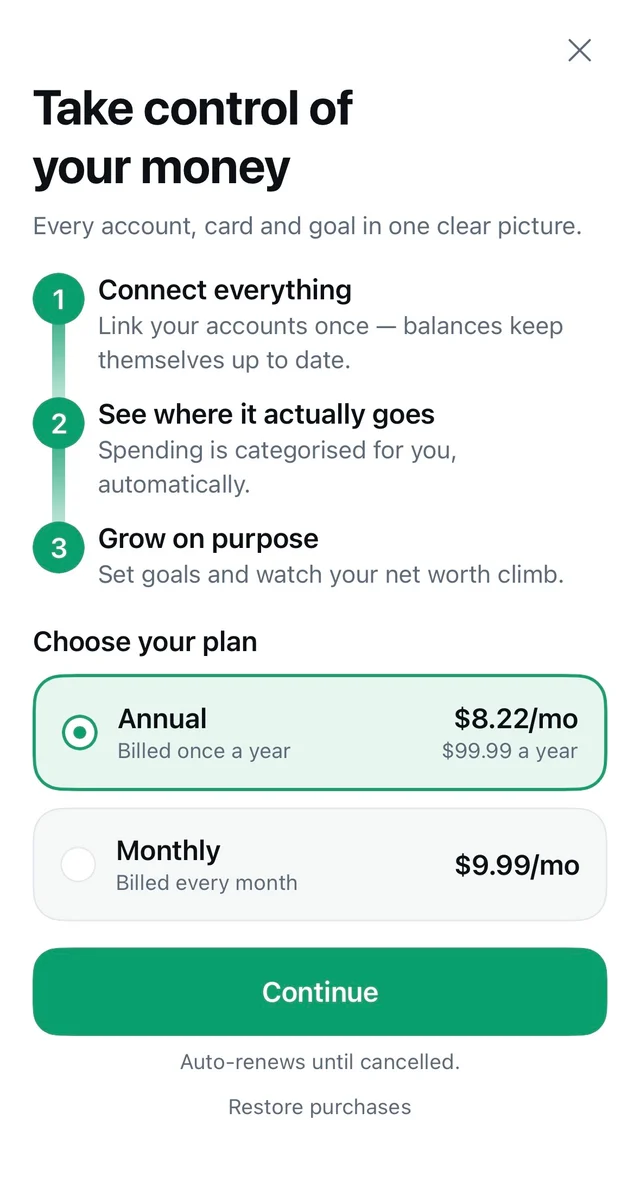
A numbered timeline over two plan cards. Rendered on a device, so the store has resolved the prices — including the per-month price Adapty computes for the annual plan.
A paywall from one sentence
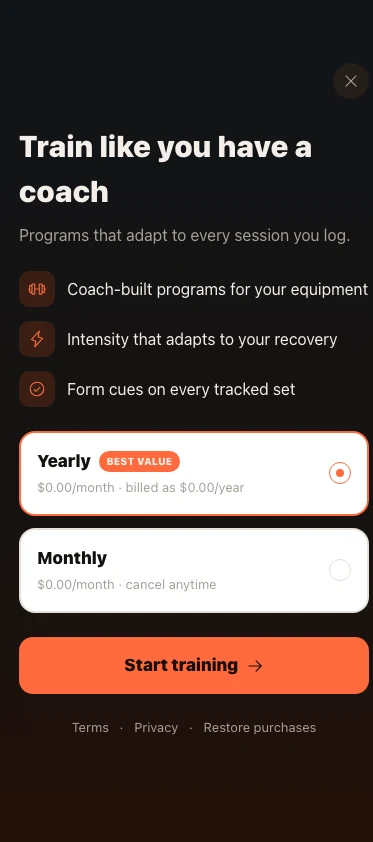
The brief was “add a paywall screen” — no reference, no source flow. The $0.00 is a preview stub, and the badge reads Best value because nobody supplied a discount.
A three-screen flow
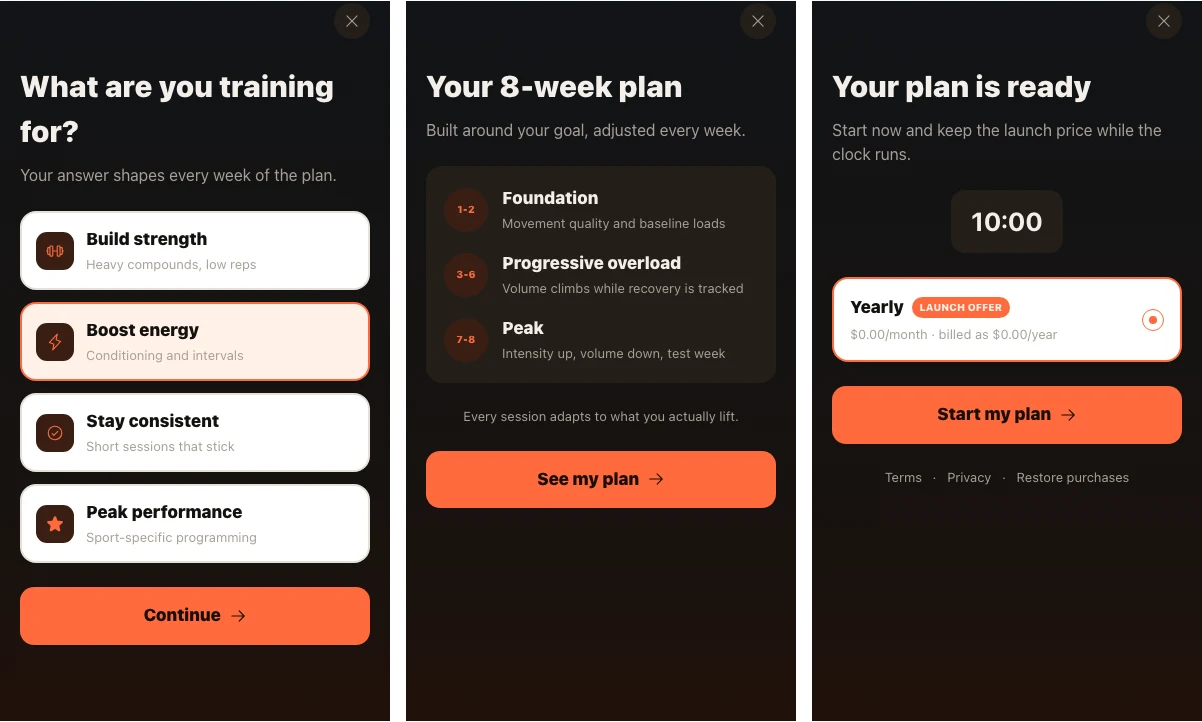
Quiz, plan, offer, with the navigation wired between them. The countdown draws, but only a device can prove it fires.
Install the skill
The skill is part of the adapty-skills plugin.
To install the plugin, in your terminal, run:
npx adapty skills installRestart your agent to load the skills. For other installation methods, see the plugin README.
Claude Code doesn’t update the plugin on its own. To get new skills as they ship, in Claude Code, run /plugin, open Marketplaces, select adapty, and choose Enable auto-update. For the update command in other agents, see the plugin README.
Then describe what you want in plain language. Most requests are one of these:
- Describe the flow: What the app does, what the screen has to sell, which plan to preselect.
- Point it at a design: A screenshot, one of your own screens, or a frame in your design tool.
- Ask for a specific edit: Name the flow and the change — a new locale, different copy, an extra screen, a branch on a quiz answer.
- Answer its questions: It asks which products to put on a screen, and for any real number it refuses to invent.
How it works
Everything the skill builds converges on a local file. Nothing reaches your dashboard until the last step.
-
Set up and authenticate. The skill installs or updates the Adapty CLI if it needs to, then verifies your Adapty login and reads your app ID. If you aren’t logged in, it opens the browser login and waits for you to finish.
-
Pick or create the flow. For an edit, it fetches the flow’s config and reports what it found — screens, locales, products, and the navigation graph — so a wrong flow is caught before anything changes. It takes a backup of the fetched config first. For new work, it creates a fresh flow rather than generating over one that already has content.
-
Validate the config. The skill runs two validations against the local file and one against Adapty. The local pair confirms that internal references still agree and that properties are well-formed.
adapty flows config validatethen runs the same service that gates publishing, so a green result means the config is publishable. None of the three saves anything. -
Preview and iterate. The skill renders each changed screen as a screenshot and looks at it. When you supplied a reference image, it compares the render against the file element by element — color, typeface, icon style, proportions — and closes the differences it can reach. Anything that looks wrong returns the skill to step 3, which costs a screenshot rather than a save.
-
Approve and save. Overwriting a config that already exists needs your explicit yes. The skill shows you a rendered before-and-after for every screen it touched, lists the changes that have nothing to see, opens one screen live in your browser, and names the backup file. Only then does it write.
After the run
The skill leaves you a saved draft. To get it in front of users:
- Open the flow in the Flow & Paywall Builder. If you already had the flow open in a browser tab, refresh the page — the Flow & Paywall Builder doesn’t pick up a write made through the CLI.
- Review what changed. Adapty marks a flow that was Published before the save as Dirty, and everyone on your team sees that status. Your users keep seeing the last published version.
- Preview on a real device. Preview flows covers the QR-code flow through the Adapty mobile app. Test whatever the skill reported as unverified — branching, toggles, and any locale other than the one it rendered.
- Publish. Click Publish to Live in the top right of the Flow & Paywall Builder, or run
adapty flows publishfrom the terminal. A flow that isn’t in a placement still reaches nobody, and a Draft flow can’t be added to one — so publish first. See Save & publish flows.
If the result is wrong, restore from the backup: the skill copies the config before its first edit and names the file in its approval message. Ask it to write that file back, or fix the flow by hand in the Flow & Paywall Builder. Either way a saved draft changes nothing for your users.
Example prompts
The skill carries the commands, the config format, and its own verification steps, so a prompt doesn’t have to spell any of that out. Say which flow, and what should be true when it’s done.
Translate a paywall
Add Brazilian Portuguese to my "Summer 2026" paywall. Translate every
localizable field, not just the headline, and tell me what you couldn't.
Build from a design
Build a new paywall flow from the "Winter promo" frame in our Figma file.
Show me my products first and let me pick which ones go on it.
Add a quiz that branches
Add a quiz screen before my paywall: "What's your main goal?" with three
options, each routing to its own benefit screen, then on to the paywall.
Rewrite copy
Rewrite the headline and CTA on my onboarding to be shorter and more direct.
Keep the price variables working, and apply it to every locale.
Spin up a test variant
Copy my "Main paywall" into a new flow and make the monthly plan the
preselected one. Leave the original alone.
Re-skin for a campaign
Re-theme my paywall flow to match the colors in ./design/spring.png.
Copy and layout stay as they are.
Add a screen
Add a social proof screen between the quiz and the paywall in my activation
flow — star rating and two testimonials. Ask me for the real numbers.
Give it your images
The skill uploads an image from your computer and binds the returned URL into the flow, so you don’t add media in the Flow & Paywall Builder by hand. It needs a file path, not a picture: when you paste or attach an image into the chat, your AI tool receives the pixels but no file, so there’s nothing to upload.
Put the assets in a folder on your computer, then point the tool at it:
The hero images are in ./design/paywall/. Use hero-calm.png on the first
screen and the three icons in ./design/paywall/icons/ for the benefit rows.
Formats and size limits match a manual upload in the Flow & Paywall Builder — see Images, videos, and icons. SVG is the one exception: it fails to upload, so the skill draws single-color glyphs inline instead.
Each upload adds a separate asset to your media library, and no CLI command removes one, so re-running a build leaves copies behind.
If you name a file the tool can’t find, it asks rather than substituting one that looks close. A wrong file produces a screen that renders correctly with the wrong picture in it, which nothing in the workflow catches.
Bring your own agent
Adapty also has an AI Editor inside the Flow & Paywall Builder. The difference isn’t which one has more features — it’s whose environment the work happens in.
The AI Editor is Adapty’s agent, working on the screen you have open. The skill is the opposite arrangement: your agent, your model, your tooling, and Adapty as one more tool it knows how to operate. Everything your AI tool can already reach comes with it — your repo, your design files, your MCP servers, your own prompts and context.
| AI Editor | flow-generator skill | |
|---|---|---|
| Whose agent | Adapty’s, in the browser | Yours, in your terminal |
| What it can see | The screen you have open, plus the images you attach | Anything your AI tool can reach |
| Scope of one prompt | One screen | The whole flow — screens, navigation, locales |
| Localization | Not covered | Adds a locale and fills every localizable field |
| Undo | One click per prompt | A backup file, plus your approval before each save |
| Setup | None | Adapty CLI plus the skill |
Use the AI Editor when you’re already in the builder and want to restyle the screen in front of you. Use the skill when you’d rather not leave your own environment to get flow work done.
What the skill won’t do
The skill treats your flows as live content, because a published flow is serving real users.
- Publishing stays yours: The skill stops at a saved draft and never publishes. Publish it yourself in the Flow & Paywall Builder, or with
adapty flows publish. - Overwriting needs your approval: A save replaces the whole config, with no partial write and no undo. The approval names the flow, its ID, its status, and the backup file the skill took before editing.
- A concurrent edit fails the write: Every write after the first sends the config’s
updated_attimestamp back to Adapty. If a teammate saved the flow in the meantime, Adapty rejects the write instead of overwriting their work. - Deleting a flow stays a dashboard action: The CLI has no delete command, so a flow the skill created for you stays until you remove it from the dashboard.
- Real numbers and assets come from you: Ratings, review counts, discount percentages, and store prices are never invented. When a pattern calls for one you haven’t supplied, the skill asks for it or leaves the element out, and says which it did.
Reads, validation, and previews cost nothing and change nothing. Saving a config is the one action that reaches your dashboard, and it needs your approval.
Limitations
Runs take time
The skill validates and re-renders after every change it makes, which is what keeps a broken config off your dashboard — and it makes a run slower than a chat reply. A small edit finishes in a few minutes. Authoring a multi-screen flow with branching takes 10 to 40 minutes. Start it and come back rather than watching it.
Videos and custom fonts stay manual
The skill uploads images, not videos, and it doesn’t upload custom font files. For both, it builds the slot and hands the upload to you:
- Video: The skill places a media element where the video belongs, so the layout is already right when you swap in the file in the Flow & Paywall Builder.
- Fonts: The skill creates the text styles your design calls for and points them at a placeholder face. Upload the font in the Flow & Paywall Builder and assign it to those styles.
The preview renders one screen, in one state
The skill’s preview page draws a single screen and doesn’t walk the flow. It can’t show you any of the following. Test each one on a real device — Preview flows covers how:
- Navigation and branching: A button carrying a navigation action leaves the preview where it is, so a conditional route can’t fire. Every screen is a separate render.
- Toggle and multi-choice selection: A toggle row and a multi-choice row draw in their off state whatever their default is. Single-choice rows and product cards do render their selected state.
- Any locale but the one it draws: The preview ignores the flow’s default locale and the order of the locale list, so a translation can’t be verified visually at all. Switch locale in the Flow & Paywall Builder and look for text that overflows its container.
- Anything resolving at runtime: Real prices, store currency, and user input. A price variable renders as its literal token, which is longer than any price and can push text under a docked button — an overlap that disappears once the price resolves.
- Screen sizes the page doesn’t know: A layout whose safety depends on viewport height needs a short phone to prove it.
What’s next
- flow-audit skill — read-only check on whether the draft this skill leaves you is ready for production, before you publish it.
- Save & publish flows — finish the draft the skill leaves you.
- Common issues — what stops a flow from publishing.
- Add a locale in Adapty Flow & Paywall Builder — use the builder UI to streamline the translation process.
- Manage Adapty with AI agents and coding tools — the other Adapty skills and AI tooling.