
Search Popularity in Adapty Ads Manager
Search Popularity shows the App Store search terms that rank highest for a selected market, App Store category, and completed week or month, together with Apple-provided popularity signals. Use it to see the language users search with in a specific market before you build a keyword list, refresh a campaign, or enter a new country.
Popularity is a relative research signal, not search volume or a performance forecast.
Use it to:
- Research a market before entering it: Review the leading search terms in a target country and category before you spend budget there.
- Prioritize keyword research with Apple data: Compare candidate terms by rank and popularity instead of intuition.
- Track seasonal and period changes: Move between completed weeks or months to compare which terms rise and fall.
Search Popularity shows what is prominent in one market. To expand a term you found here into related phrases and category context, use it as a seed in Keyword Suggester.
View popular search terms
To load a result set, in the left sidebar, go to Search Popularity.
- Select a Market. Data availability can vary by market.
- Select an App Store category.
- Select the Period type — Week or Month — and move to the period with the arrows. Weekly data covers completed Sunday–Saturday weeks; monthly data covers full calendar months.
- Click Show results.
The page loads the complete result set — up to 500 terms — for the selected market, category, and period.
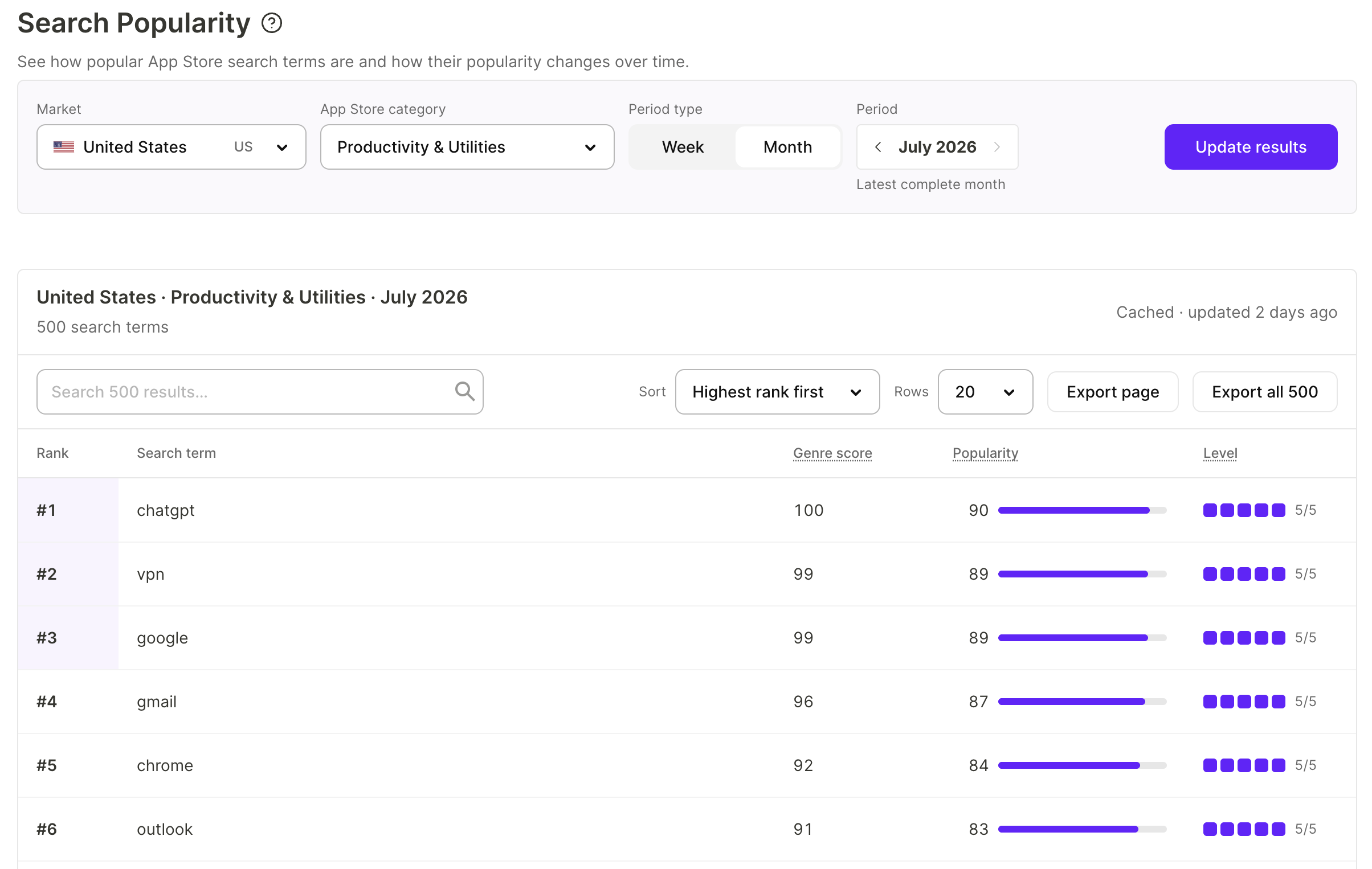
Apple may still be processing the latest completed week. If the page reports that the week isn’t available yet, load the previous period instead.
After you change the filters, the table keeps showing the previous selection until you click Update results. A notice above the table states which market, category, and period the visible results belong to.
Explore and export the results
- Search: Filters the loaded terms by text. The counter shows how many terms match.
- Sort: Orders the table by rank — Highest rank first or Lowest rank first.
- Rows: Sets how many terms one page shows.
- Export page: Downloads the visible page as a CSV file.
- Export all: Downloads the complete result set as a CSV file, with its market, category, and period context. With an active search, it downloads the matching terms only.
When you’re ready to bid on terms from your research, add them to an ad group as described in Manage keywords.
How to read the metrics
| Column | Meaning |
|---|---|
| Rank | The term’s position within the selected market, category, and period. A lower rank is a higher position. |
| Genre score | A relative popularity value returned by Apple for the selected App Store category. |
| Popularity | A normalized popularity score from 1 to 100. It is a relative signal, not a percentage and not search volume. |
| Level | A coarse popularity level from 1 to 5 that makes broad differences easier to scan. It is not an app rating. |
Data limitations
- Popularity values are relative Apple signals. They are not search volume, percentages, installs, conversion rates, or a performance forecast.
- A result set contains up to 500 terms for the selected market, category, and period.
- Only completed periods are available: Sunday–Saturday weeks and full calendar months.
- Results are cached for up to six hours and are not real-time.