
Get started with Adapty Mail
In this guide, you will set up Adapty Mail and launch your first marketing campaign. Transactional campaigns (service messages, like a signup confirmation) are beyond the scope of this article.
The setup has ten parts:
- Before you start
- 1. Choose your account type
- 2. Connect your data
- 3. Set up your brand
- 4. Set up your sending domain
- 5. Add your company address
- 6. Select the email destination type
- 7. Set up a web paywall
- 8. Generate a campaign with AI
- 9. Launch a flow
- 10. Start sending
- Troubleshooting
- Learn more
Adapty Mail tracks your progress in the onboarding checklist and hides it once every step is done.
Before you start
Make sure these are in place before you start:
- DNS access: You can add records to your root domain.
- Payments: You have a Stripe account with your subscription products configured. To use a different provider, host the checkout yourself — see Set up checkout.
1. Choose your account type
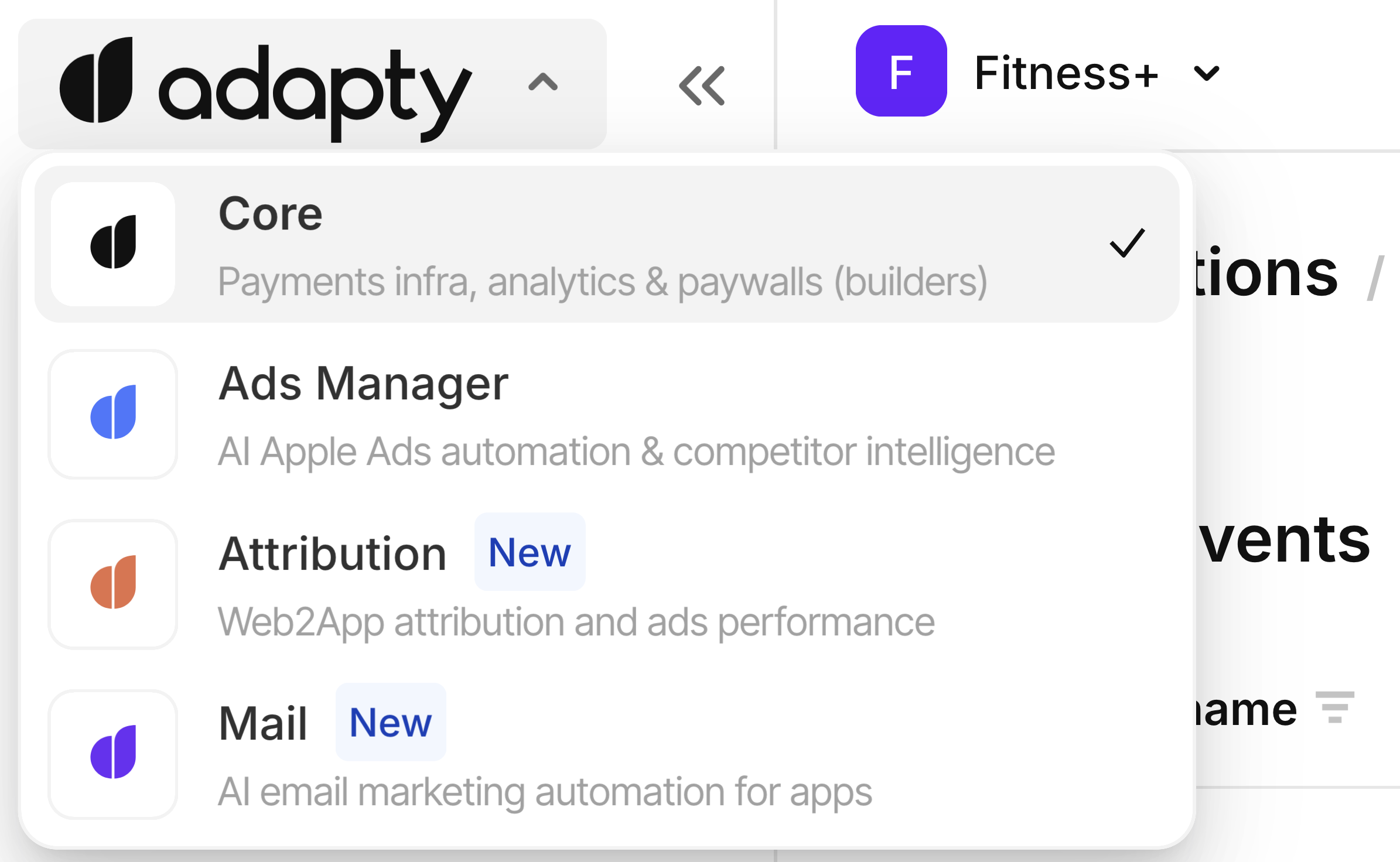
Choose carefully — a project you create yourself in Adapty Mail can’t be linked to Adapty later.
The account type determines what your Adapty Mail project can do:
| Adapty-linked (recommended) | Standalone | |
|---|---|---|
| Sign up | Sign in with your Adapty account and open Mail. Adapty creates a project linked to your app. The data exchange between Adapty Mail and the SDK is disabled until the final step of the setup. You don’t have to move your purchases to Adapty: the easy-to-setup observer mode, which only reports your transactions, is enough. | Sign up for Adapty Mail only with an email address and a password. No Adapty account and nothing to install in your app — you bring the data yourself, through FunnelFox or the API. |
| Checkout page (Step 7) | Generate with AI — a hosted checkout page built around your brand, with Stripe payments wired in — or your own hosted paywall | Your own hosted paywall |
| Segments | Import from Adapty, or build in Mail | Build in Mail |
| Brand — what your emails are generated from: name, logo, colors, and tone (Step 3) | Built from your app’s store listing before you arrive, if it has one | Built from a store URL you paste |
| Purchase data (Step 2) | One click in Settings > Project; FunnelFox and the API also work | Secret key pasted into the Adapty dashboard or FunnelFox, or the API |
| Team | Teammates join when they open Mail from your Adapty company; email invites too | Email invites |
2. Connect your data
Adapty Mail picks recipients, places each person in a flow, and attributes revenue to the email that drove the purchase. Three kinds of data drive all of it:
- Their email address (mandatory): The address that receives your emails, subject to address verification.
- Their customer user ID (optional, but recommended): The unique identifier for the user. Adapty stores it in the user’s profile so the same person is recognized across devices. Without one, Adapty creates a new profile every time they reinstall your app or log out.
- Their subscription events feed (optional, but recommended): Trials, renewals, cancellations, and refunds, as they happen. These allow you to target users based on their behavior, and tie revenue back to the email that drove the purchase. Without the event feed, the only sequence a user can receive is the one for people who never purchased.
Follow the instructions to create an entry point for this data:
- Adapty: Use this if your app already runs the Adapty SDK. Adapty forwards profiles, emails, and subscription events for you, so you need no server of your own. In your app, add user identification and email collection. See Connect Adapty to Adapty Mail.
- Adapty Mail API: Use this if you already run a backend that holds this data, if your app has no Adapty SDK, or if you import subscribers from somewhere else. You post profiles and transaction events yourself. The secret key on Settings > Project authenticates the requests. See Send emails and transactions via the Adapty Mail API.
- FunnelFox: Use this if you acquire and charge users through FunnelFox web funnels. FunnelFox already holds their emails, purchases, and subscription events, and forwards them to Adapty Mail on its own — no SDK work, and no requests to write. See the FunnelFox integration guide.
- A combination: You can use more than one entry point at once. Adapty Mail matches people by email address. Two sources reporting the same address land on one profile; two different addresses create separate profiles, even when
customer_user_idis identical.
Adapty Mail starts sending emails once the rest of the setup is in place.
3. Set up your brand
Adapty Mail can’t generate emails or web paywalls without a brand. Your brand stores the information Adapty Mail needs to match your app’s look and voice — name, logo, colors, fonts, tone of voice, features, and reviews. You supply the store listing, and Adapty Mail builds the brand from it.
- In Adapty Mail, open Brand.
- If the page shows a filled-in brand, review it and move on. If it shows the Set up your brand screen, continue below.
- Under Store, pick App Store or Google Play, then paste your listing URL.
Note
The setup screen takes an App Store or Google Play listing and nothing else. If your app has no store listing — a web-to-app funnel, for example — contact Adapty support before you continue.
- Click Build my brand. Adapty Mail fetches the page, parses reviews, and infers your brand voice. It usually finishes in under a minute.
- To review sections, edit them by hand, or add landing-page and social sources, see Brand.
4. Set up your sending domain
Adapty Mail sends emails from your private domain. You add DNS records once, and every campaign uses the same verified domain.
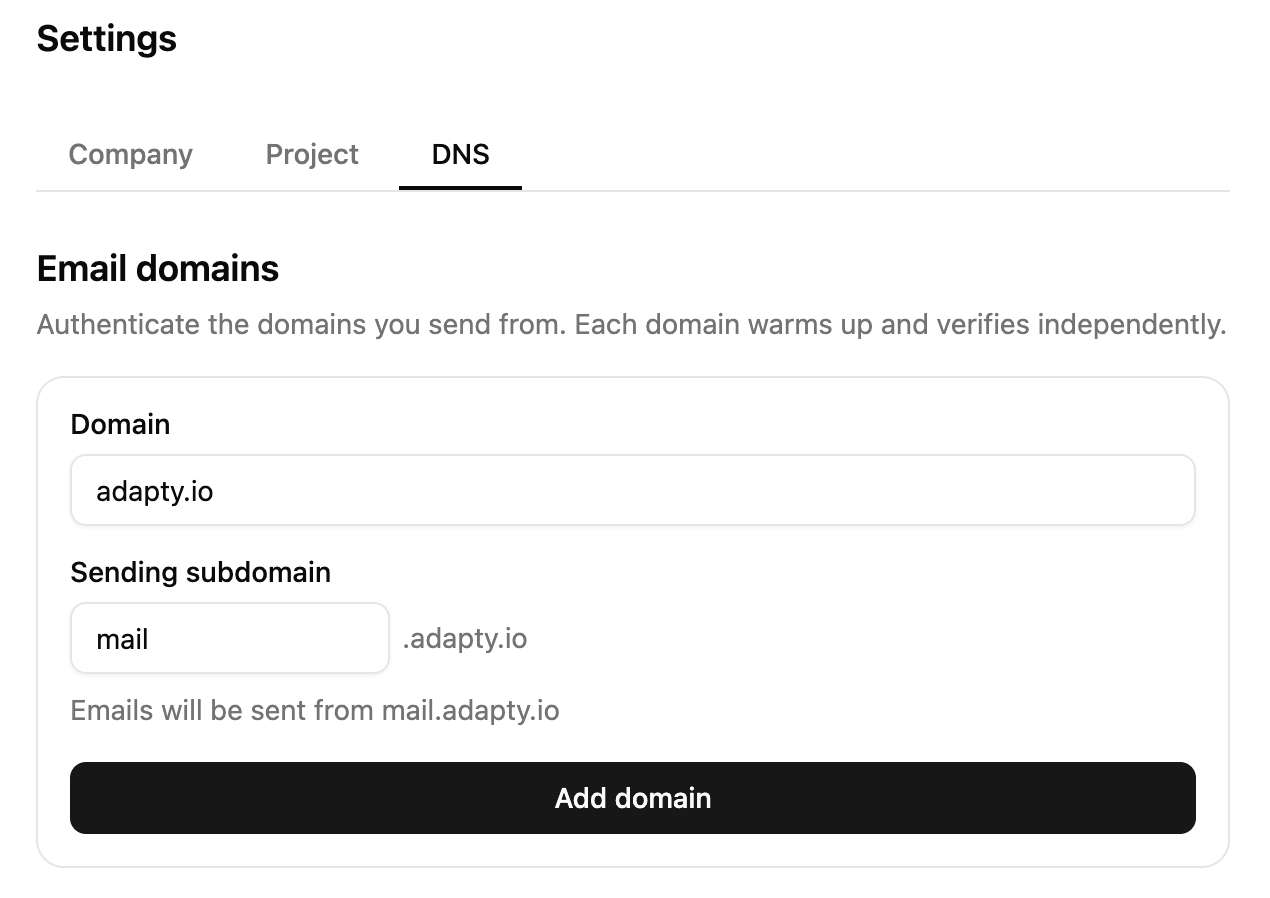
To register your first domain, in Adapty Mail go to Settings > DNS > the Email domains section.
-
In the Domain field, type your root domain. It must have a top-level domain suffix (
yourapp.com). Adapty Mail does not accept subdomains (app.yourapp.com) or domains with second-level suffixes (yourapp.co.uk,yourapp.com.br). -
In the Sending subdomain field, type the prefix your emails go out from, or leave it empty to use
mail. Emails then come fromhello@mail.yourapp.com. -
Click Add domain.
-
In your domain registrar, add every DNS record the new domain card lists. They come in three groups: your sending subdomain’s DKIM and MAIL FROM records, the records for the mailbox that warms the domain up, and the records for
go.yourapp.com, which serves images and tracked links. For what each group authenticates, see Which records you add. To take them all at once, click Export. -
Optionally, add the suggested DMARC TXT record on your root domain (recommended).
-
Click Check to verify immediately, or leave the card and let Adapty Mail poll DNS.
Verification timing at a glance:
- Automatic polling: The first check runs 1 minute after you add the domain, then intervals double up to once per hour until the records are found.
- Manual check: Click Check any time to trigger an immediate check.
- DNS propagation: Usually minutes, up to 48 hours in rare cases.
- Verification window: 7 days. If it lapses, your DNS records stay in place — add your domain again in Settings > DNS to start a new window.
One verified domain is enough to start using Adapty Mail. A project can hold up to five domains, and you can add the rest later.
For details on each record type and domain warm-up, see Set up your sending domain.
5. Add your company address
Anti-spam laws require a physical postal address in every marketing email. Adapty Mail puts yours in the footer of every campaign email, and blocks campaign generation until you fill it in.
- In Adapty Mail, go to Settings > Company.
- In the Company address section, fill in Legal company name, Address line 1, City, Postal code, and Country. Address line 2 and State / Region are optional.
- Click Save.
6. Select the email destination type
Give your emails somewhere to land. An email destination is a page address you save and reuse — any number of campaigns can point at the same one. For different campaign types, Adapty Mail offers different destination types, covered in depth in Email destinations. A campaign without a destination cannot be saved. This guide builds a marketing campaign, which needs a web paywall.
| Destination type | Destination content | Where to use it |
|---|---|---|
| Web Paywall | A checkout page in the browser, where purchases are web payments rather than App Store or Google Play transactions. | Marketing campaigns |
| Deep Link | One of the screens in your app. If the device doesn’t have the app installed, the link lands at the store listing. | App activation emails, after a purchase on the web |
| Cancellation Page | Account and subscription management page — hosted by you or your billing provider. | One-off emails that tell a new subscriber where to manage their subscription |
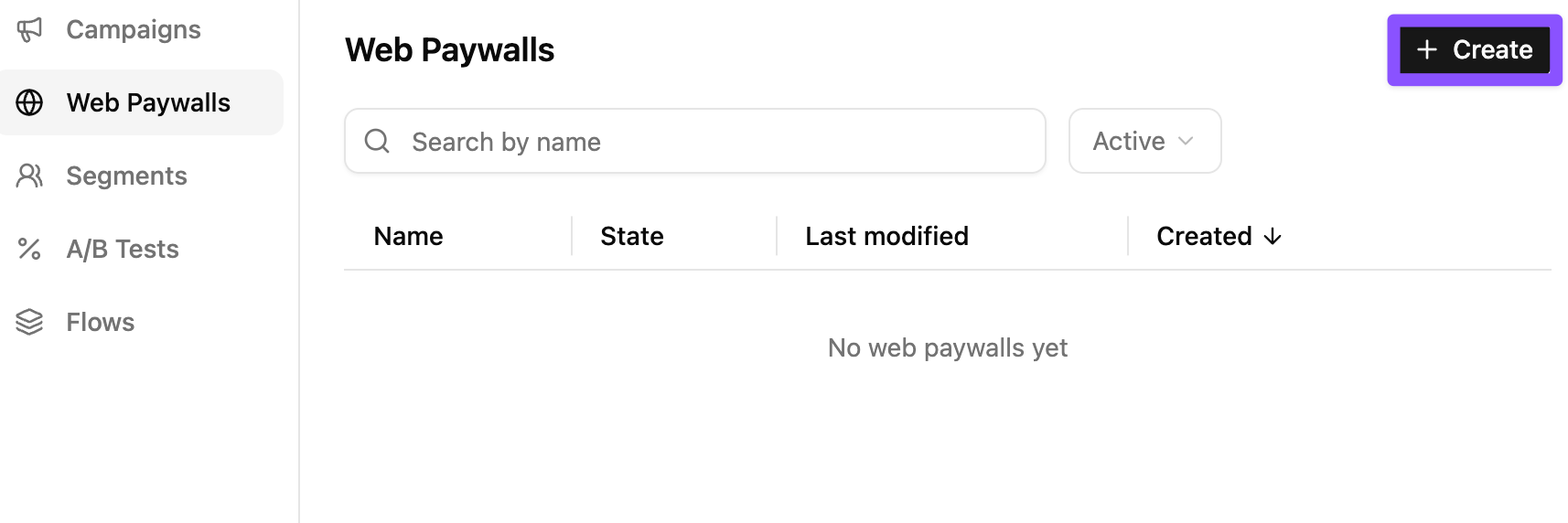
In Adapty Mail, go to Email Destinations, keep Web Paywall selected, and click Create. Give the destination a Name.
7. Set up a web paywall
Fill in the URL field on the destination you just created. Adapty Mail can build the paywall for you, or you can host your own:
| Option | How the page gets made | Requirements |
|---|---|---|
| Generate with AI | Adapty Mail builds it in the bundled builder, powered by FunnelFox. | Stripe, and a project linked to an Adapty app |
| Use your own hosted paywall | You build and host it. Adapty Mail redirects to it with the recipient’s details in the URL. | Any payment provider, plus your own code that carries the external_profile_id from the URL to a transaction event. |
Option A: Generate with AI
Under the URL field, find the generate one with AI link. Click it.
Expand the Generation setup panel and complete its six steps in order. Each button opens the page where that step happens, so click Refresh when you come back.
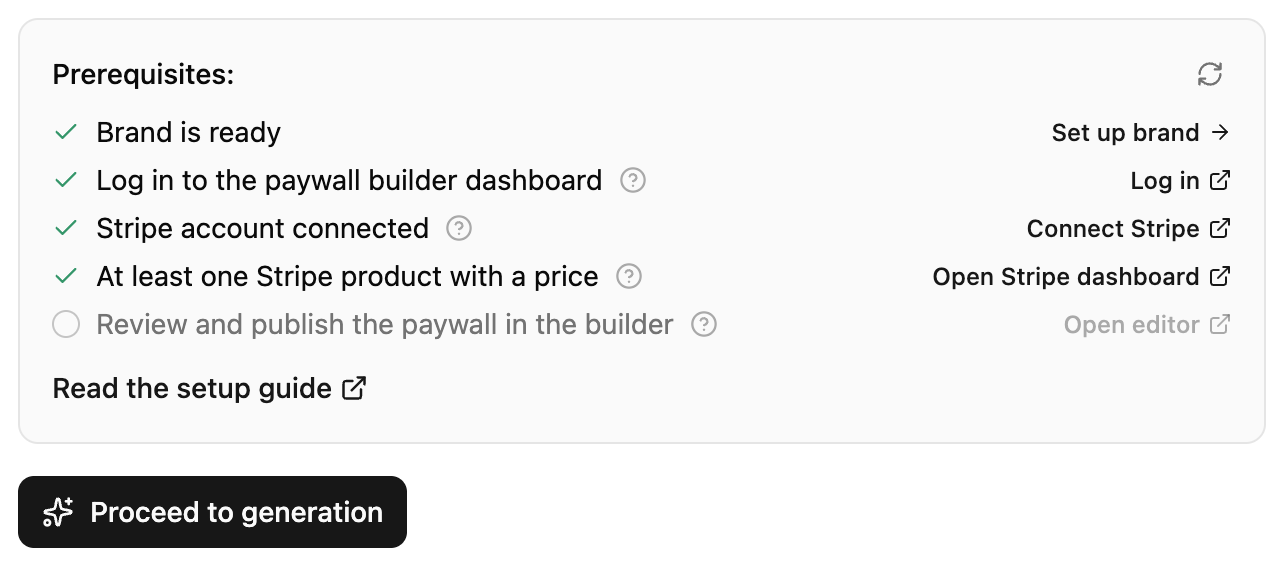
| Checklist item | What to do |
|---|---|
| 1. Brand is ready | Already ticked if you’ve set up your brand. If not, click Set up brand. |
| 2. Log in to the paywall builder dashboard | Click Log in to authenticate the builder. |
| 3. Stripe account connected | Click Connect Stripe and connect your account. |
| 4. At least one Stripe product with a price | Click Open Stripe dashboard and add a product with a price. |
| 5. Generate the paywall | 5.1. Click Generate. 5.2. Pick up to three plans. Click Add plan for each one after the first. 5.3. Give each plan a production price, a sandbox price, or both, all in one currency. Fill the same column for every plan — a partly filled column blocks generation. Without sandbox prices, test emails hit the production paywall, where test purchases don’t work. 5.4. Click Generate paywall. It takes a few minutes, and the URL field fills itself when it’s done. |
| 6. Review and publish the paywall in the builder | Click Open editor, then review and publish. Disabled until you’ve generated the paywall. |
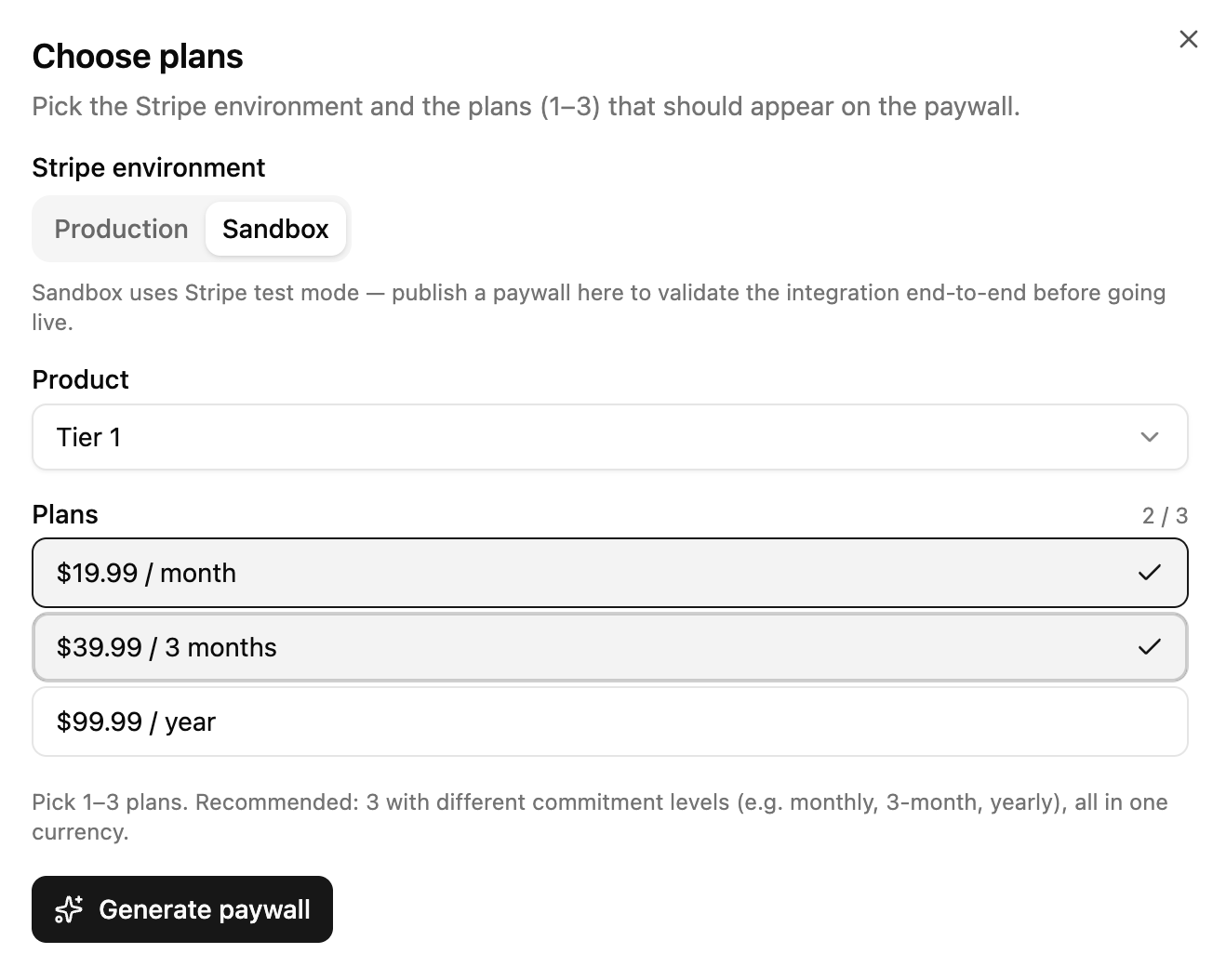
The paywall must be published before it can serve checkout traffic. Unpublished paywalls return an error when users click email checkout links.
Once the paywall is published, click Save.
Option B: Use your own hosted paywall
-
Paste the URL of your hosted paywall into URL, with placeholders as query parameters. It must use HTTPS. Adapty Mail substitutes the placeholders per recipient so the checkout page can identify the visitor. Example:
https://example.com/paywall?email={email}&adapty_profile_id={adapty.external_profile_id}The Create page lists the placeholders you can use, and blocks the save if it finds one it doesn’t recognize. See Set up checkout for what each one resolves to.
-
Click Save.
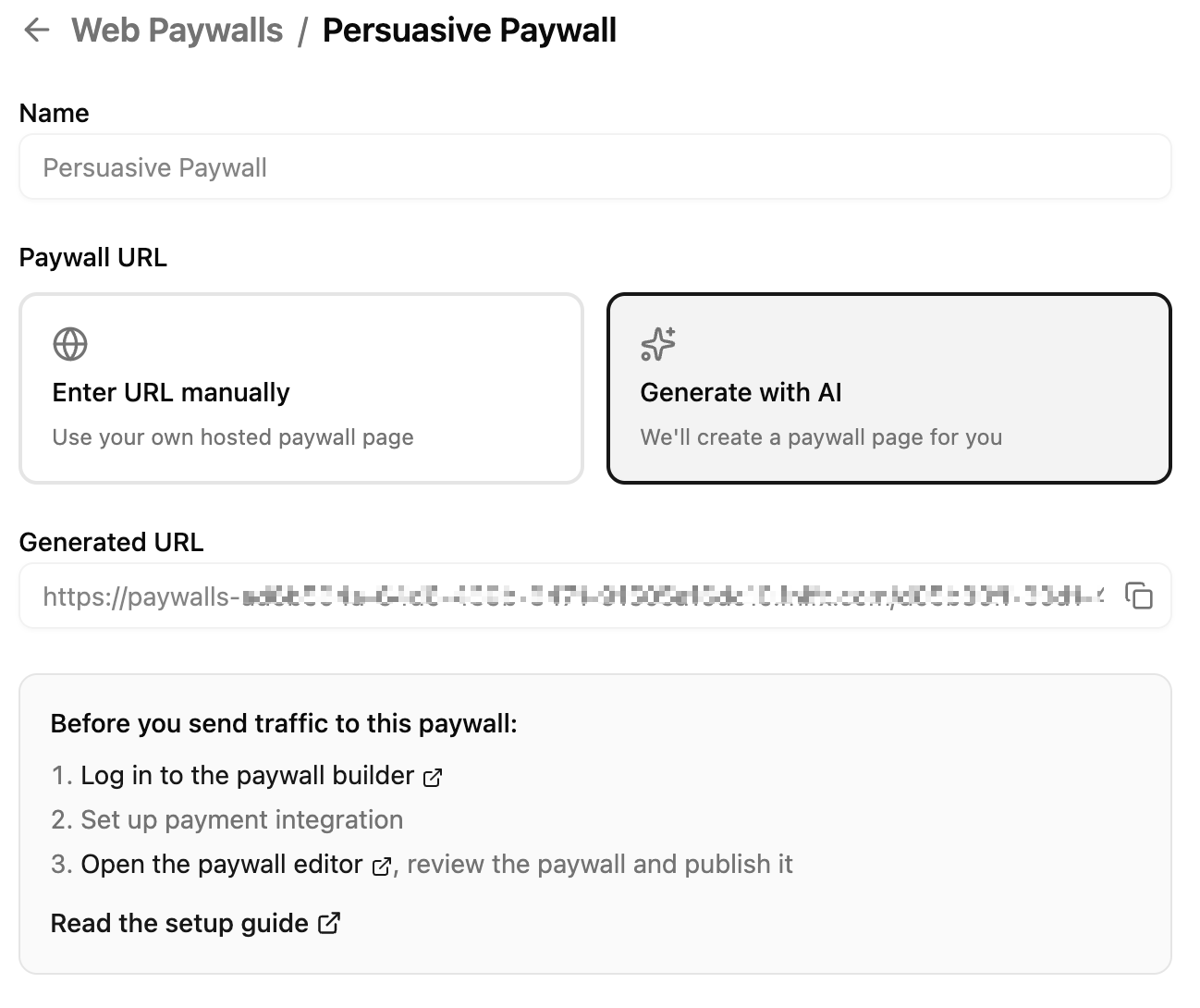
Set up checkout covers the full generation walkthrough, what the generated page contains, and what a self-hosted page has to do.
8. Generate a campaign with AI
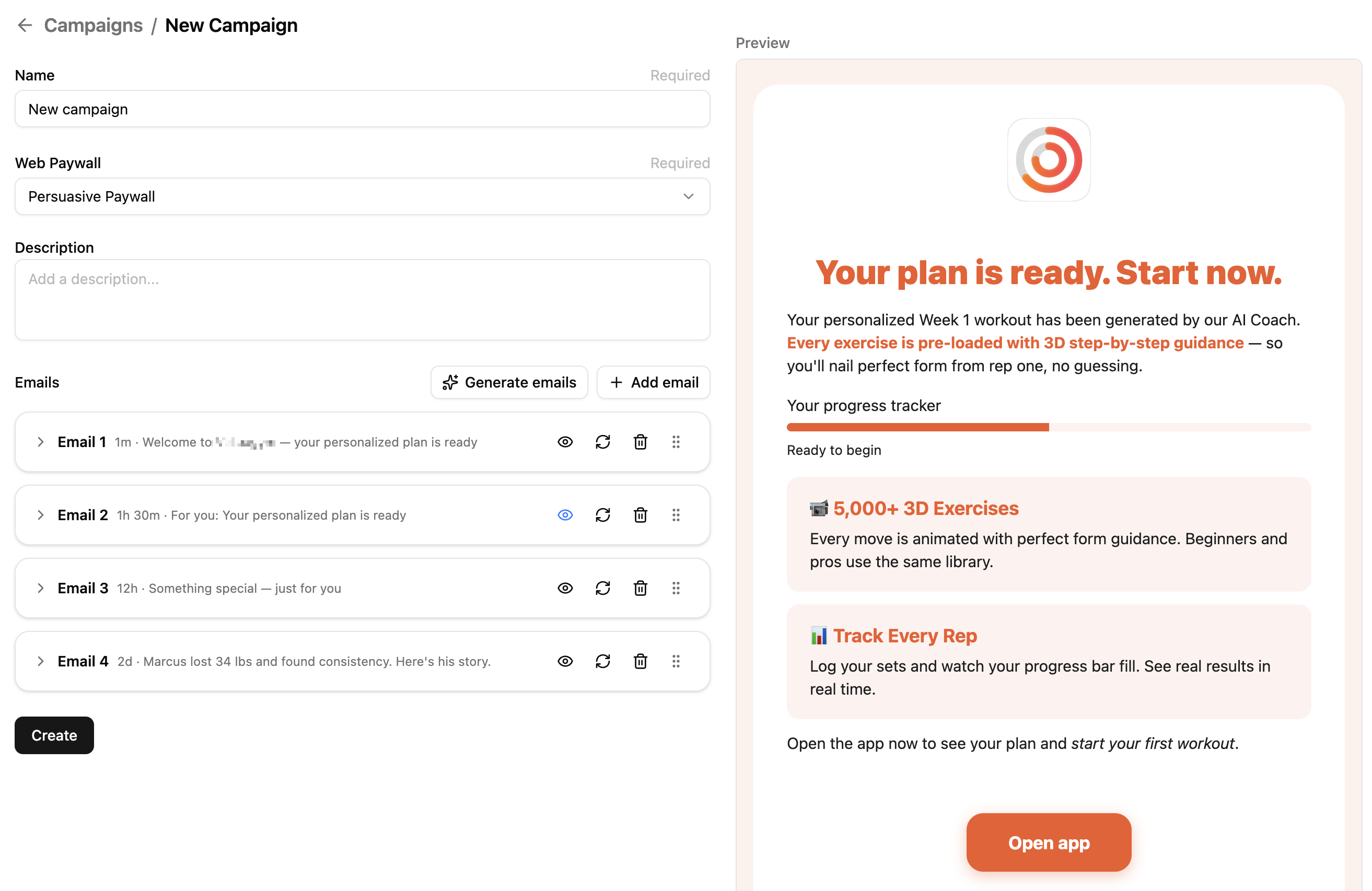
A campaign is a sequence of up to 15 emails that one recipient receives over time. AI writes the whole sequence from the brand you set up in Step 3: copy, design, hero images, and personalized checkout links.
-
In Adapty Mail, go to Campaigns and click Create.
-
In the New marketing campaign dialog, select why the customer is getting these emails: a purchase they never made, a renewal they cancelled, a payment that failed. You can’t change this later, and the campaign only appears in the flow for the situation you pick. Click Continue.
-
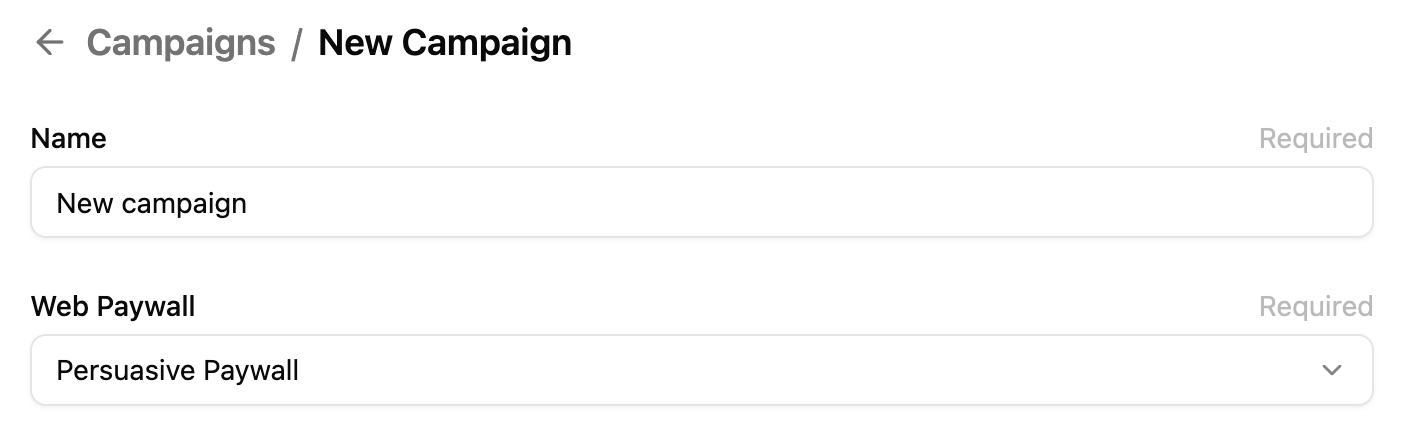
Set the campaign name.
-
In the Email Destination (Web Paywall) dropdown, select the web paywall you added on the previous step.
-
Click Generate emails.
-
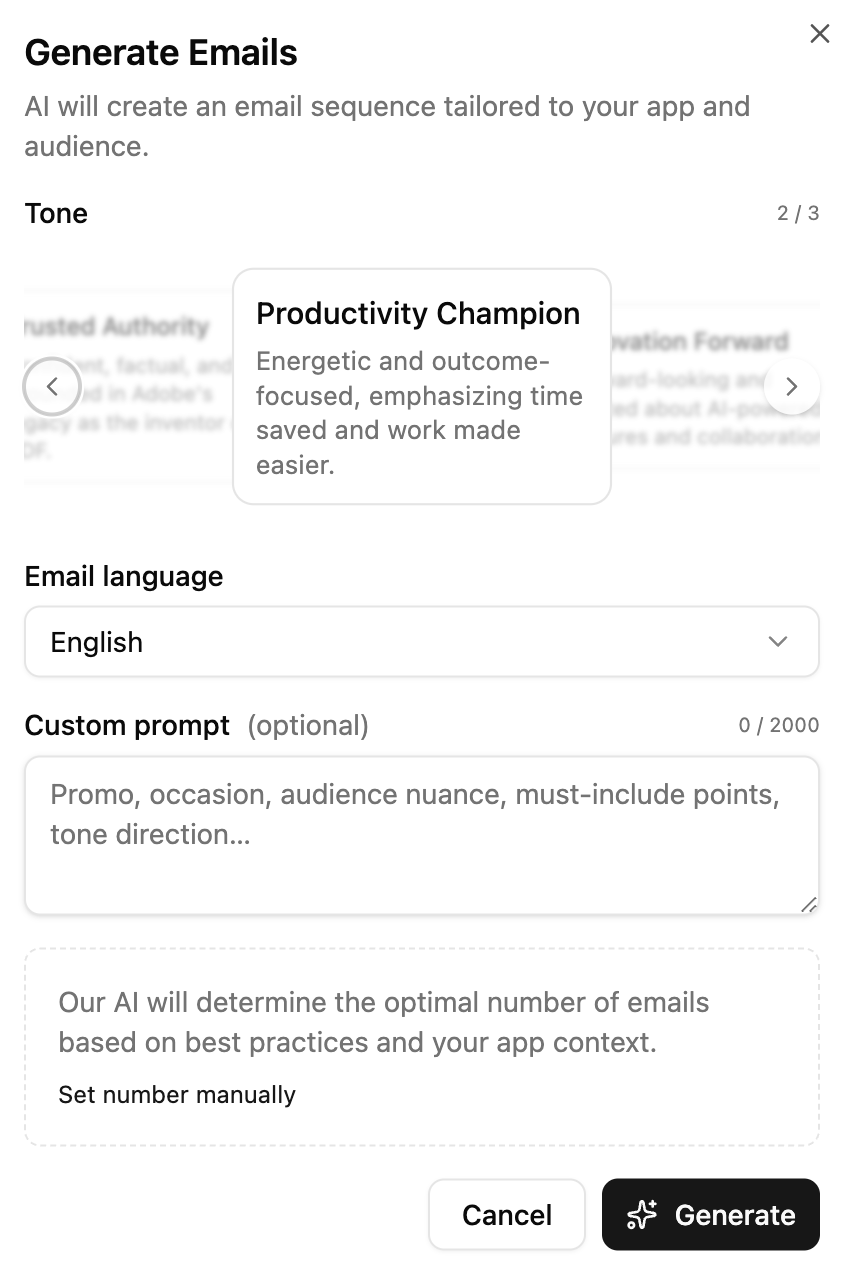
Fill out the generation dialog — tone, an optional custom prompt (up to 2,000 characters), and the number of emails (1–15, default 4). See Create a campaign for what each field does.
-
Click Generate. Generation usually takes a few minutes. The system times out after 5 minutes if it can’t complete — retry if that happens.
-
Preview each email. The preview header has a Theme toggle (Auto, Light, Dark) that controls how the preview renders — generated content is identical across modes. You can regenerate individual emails, edit the copy, or open the HTML editor for fine-grained control.
-
Click Create to save the campaign.
Adapty Mail saves the campaign as a draft. It sends nothing until you attach it to a flow in the next step. To reach recipients in their language, localize the campaign before you launch the flow.
9. Launch a flow
Adapty Mail includes its own flows. A flow connects triggers (subscription events) with campaigns (email sequences). Each of the triggers — a subscription expiring, a payment failing, and so on — has its own flow. A flow can send one campaign to everyone who hits the trigger, or use segments to send different groups different campaigns.
-
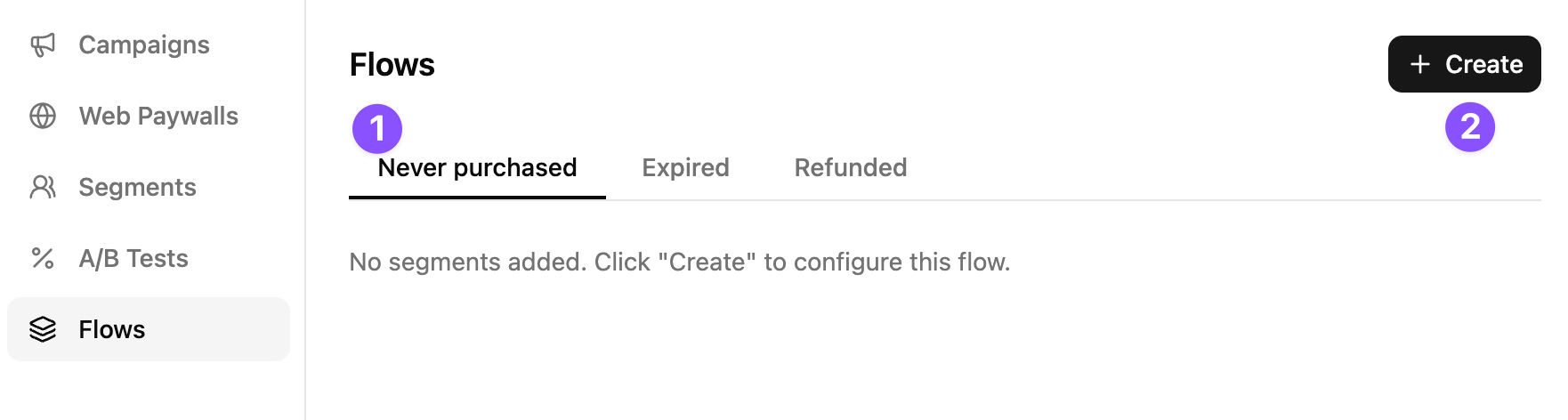
In Adapty Mail, go to Flows, then open the trigger you want to configure:
- Never purchased — users who signed up but haven’t made a purchase yet.
- Renewal cancelled — users who turned off auto-renewal but still have an active subscription.
- Billing issue — payment failed, declined or expired card, or grace period.
- Expired — subscription has lapsed and access is gone.
- Refunded — users who requested a refund after purchase.
See Flows for the goal and tone guidance behind each trigger.
-
Click Create to open the dialog.
-
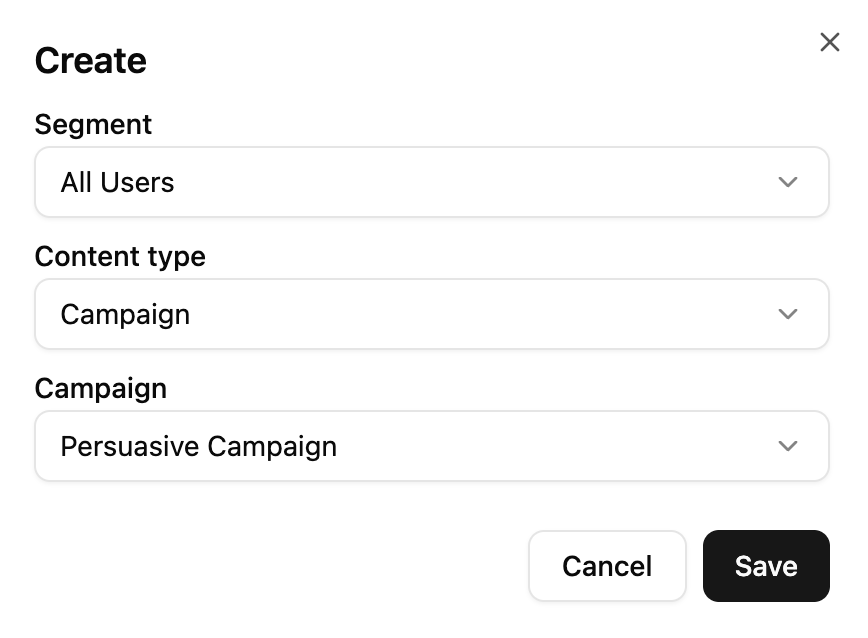
In the dialog:
- Pick a Segment. All Users targets everyone who hits this trigger, and it’s enough to launch. To narrow the audience later, create a different segment — a filtered subsection of your users, based on their country, age, or subscription state.
- Set content type to Campaign (the A/B Test option is covered in A/B testing).
- Select the Campaign you saved in Step 8.
-
Click Save. The flow is live — there’s no launch button.
- A user who hits the trigger and matches the segment joins the campaign immediately. The first email follows after its Delay.
- Each email has its own Delay — how long after the previous one it goes out. You can edit them in the campaign editor.
- Adapty Mail only sends between 08:00 and 21:00 in the recipient’s timezone. A send due outside those hours shifts to the nearest edge of the window.
- The first email is exempt when it’s due within two hours of the trigger. It goes out on time, even at night.
You can add more rows to the same trigger, each with its own segment and campaign. Adapty Mail checks them top to bottom and uses the first segment that matches. Keep All Users last — Adapty Mail won’t save a flow with it anywhere else.
If new recipients must confirm their address before they receive marketing, turn on double opt-in before this step. Only profiles created after you turn it on are asked to confirm.
10. Start sending
Your campaign is wired up but not firing yet — no user data is reaching Adapty Mail. Start the data flowing through the entry point you chose. Whether your project is linked to Adapty (Step 1) changes only how you switch the Adapty feed on, not what arrives:
| Your data comes from | Your Mail project is linked to an Adapty app | What to do |
|---|---|---|
| The Adapty SDK | Yes | In Adapty Mail, go to Settings > Project and, in the Data integration section, click Enable Adapty integration. |
| The Adapty SDK | No | Adapty can feed a project it isn’t linked to — it only needs the key. Copy the secret key from Settings > Project and paste it in the Adapty dashboard under Integrations > Adapty Mail. |
| Your backend, via the Adapty Mail API | Either | Start posting profiles and transaction events. Profiles you send before finishing this setup never receive anything, which is why this step comes last. |
| FunnelFox | Either | Copy the secret key from Settings > Project and paste it in FunnelFox under Integrations > Adapty Mail. Data starts arriving within about a minute. |
From here, users who hit the trigger and match your segment enter the campaign. Before you let real users in, test the whole chain with one test user.
Troubleshooting
| Issue | Solution |
|---|---|
| Generate emails is greyed out | Your brand or company address is missing. The button’s tooltip names which. See Step 3 and Step 5 |
| Paywall generation is blocked | The panel names the cause: no brand, no connected Stripe account, or no Stripe products with prices. Fix it, then Refresh the checklist |
| Campaign won’t save | Every campaign needs a destination. Create one in Step 6 |
| A destination can’t be edited | A destination becomes read-only once you attach it to a campaign. Create a new destination and select it instead. |
| DNS records won’t verify | Check that they match exactly — no trailing dots, correct CNAME targets, one value per record. DNS can take up to 48 hours to propagate |
| Verification window expired | Add the domain again in Settings > DNS to start a new window. The records at your registrar still apply — nothing to re-add there |
| Email generation timed out | Generation stops after 5 minutes. Retry, and contact Adapty support if it keeps failing |
| A test recipient never gets the email | The profile’s address may have failed the check Adapty Mail runs on every new profile. Test with a different address |
For errors outside initial setup, see the troubleshooting sections in Set up your sending domain and Set up checkout.
Learn more
- Test your flow: Run a test user through the whole chain before you launch.
- Connect Adapty to Adapty Mail: SDK setup, and strategies for getting email coverage if your app doesn’t collect them yet.
- Set up your sending domain: DNS record details, warm-up tiers, and troubleshooting.
- Set up checkout: What the checkout page contains, and how personalization works.
- Campaign analytics: Track delivery, engagement, and revenue.
- A/B testing: Test multiple sequence versions.