
Create a retention message
Retention messages allow you to reach out to churning subscribers during the cancellation process. When a customer reaches the iOS Cancel Subscription screen, Apple shows them the message that matches their product and locale.
There are two kinds of retention messages:
- Default: A simple win-back message with a headline, body, and an optional image. Used as fallback when a promo message is unavailable.
- Promo: A win-back message that offers subscribers a special deal or a different plan. You can only create promo messages for products that already have a Default message assigned.
Before you begin
- Create at least one product for the message to cover.
- Test Retention Messaging in sandbox mode.
Create a message
Open the Retention Messaging page in the Adapty Dashboard. Click Create Default for a default message, or Create Message for a promo message.

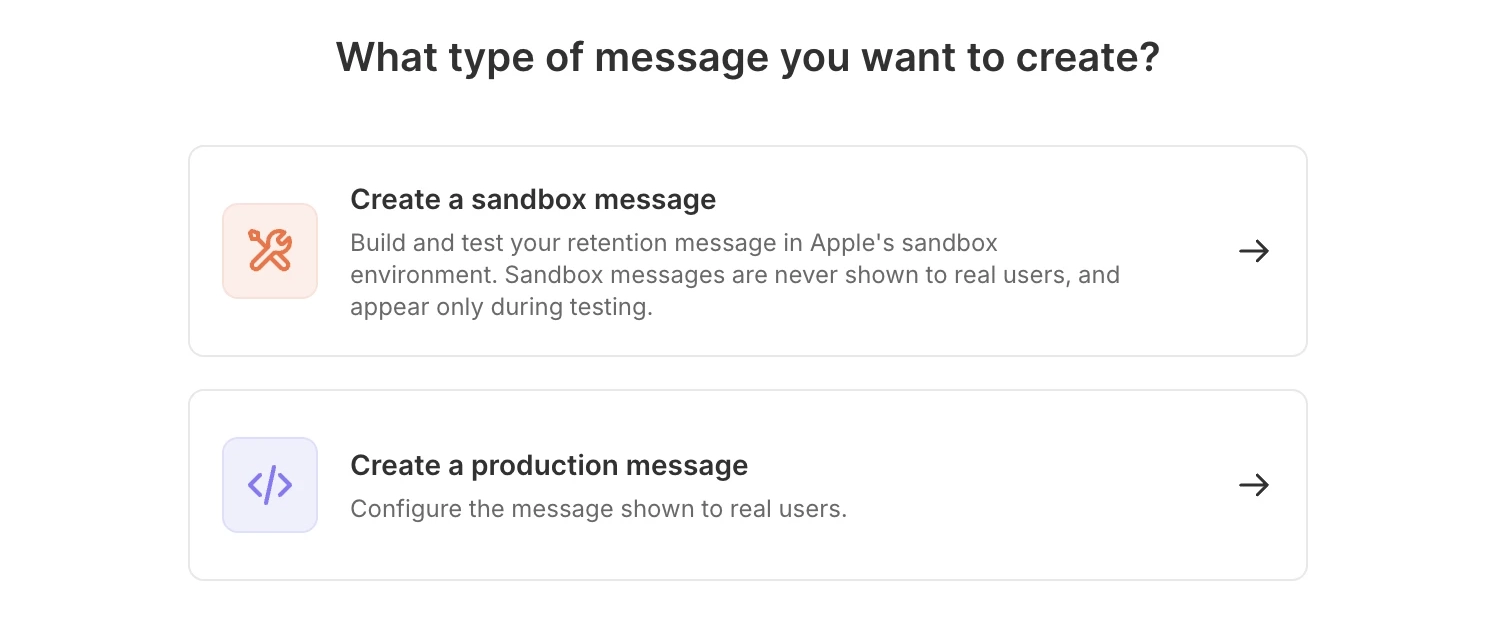
Select the environment — a sandbox message for testing, or a production message for real users. The production option stays disabled until you configure the production URL and pass the sandbox performance test.
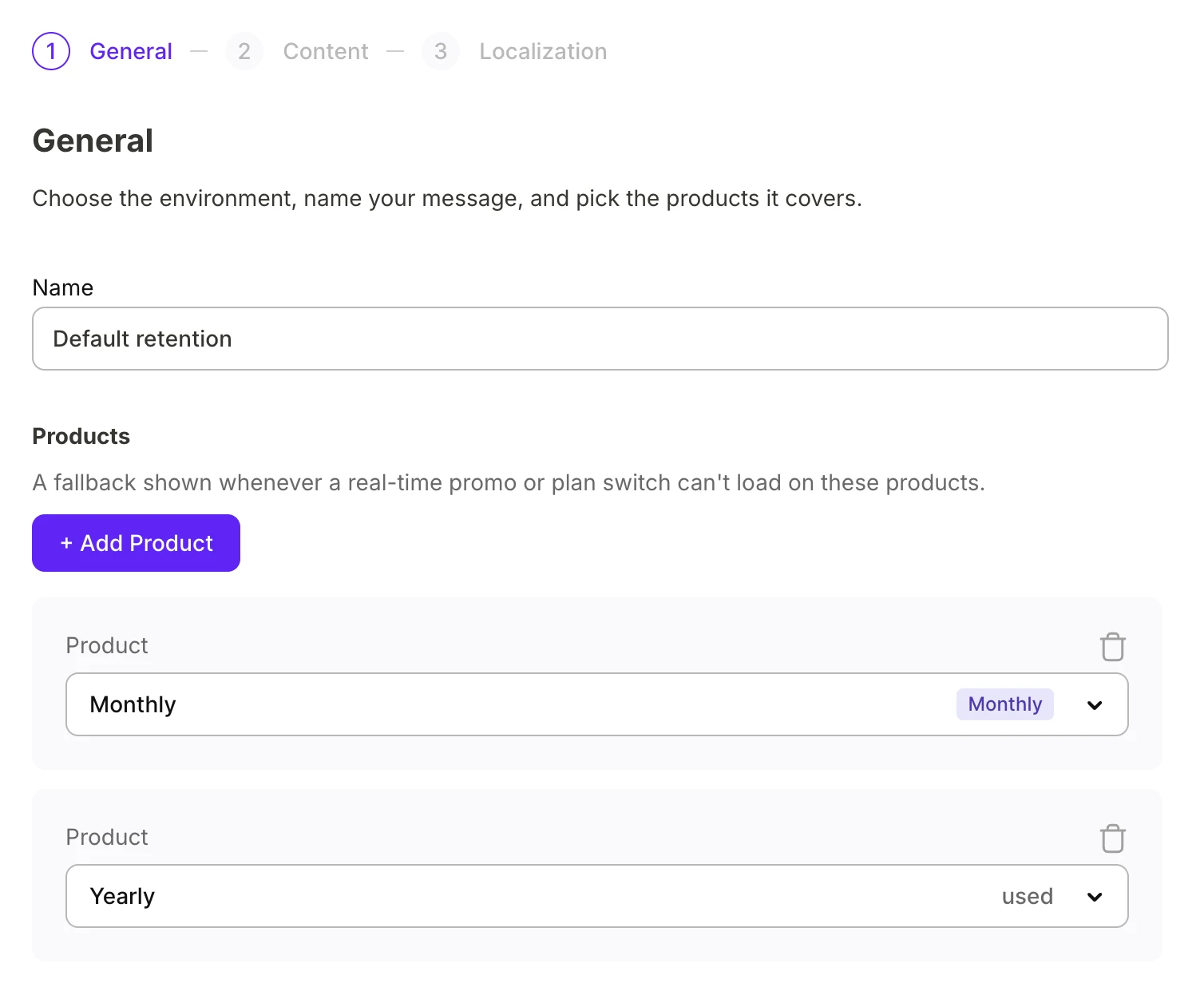
General
Name the message and add the products that will trigger the message when cancelled.
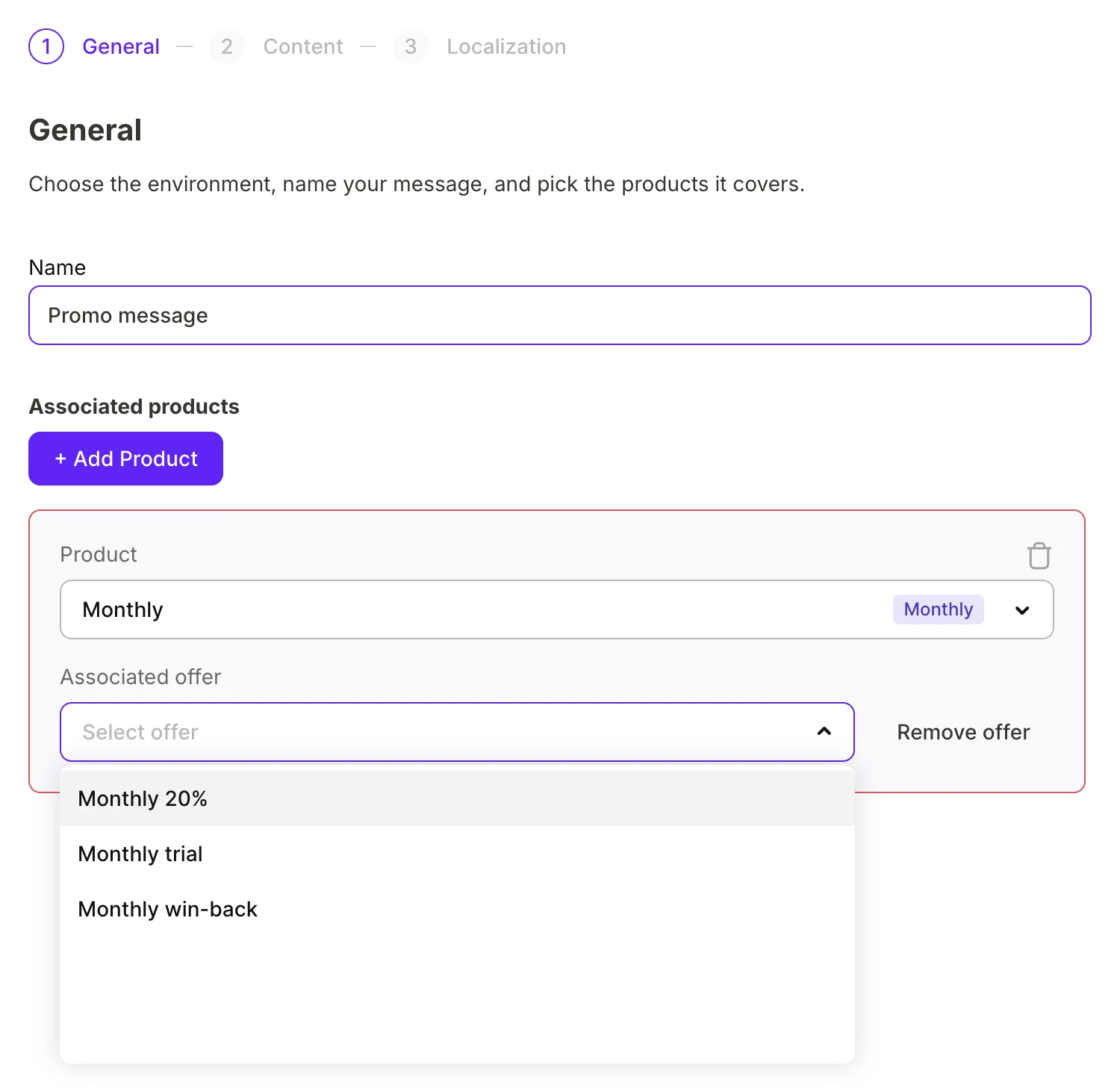
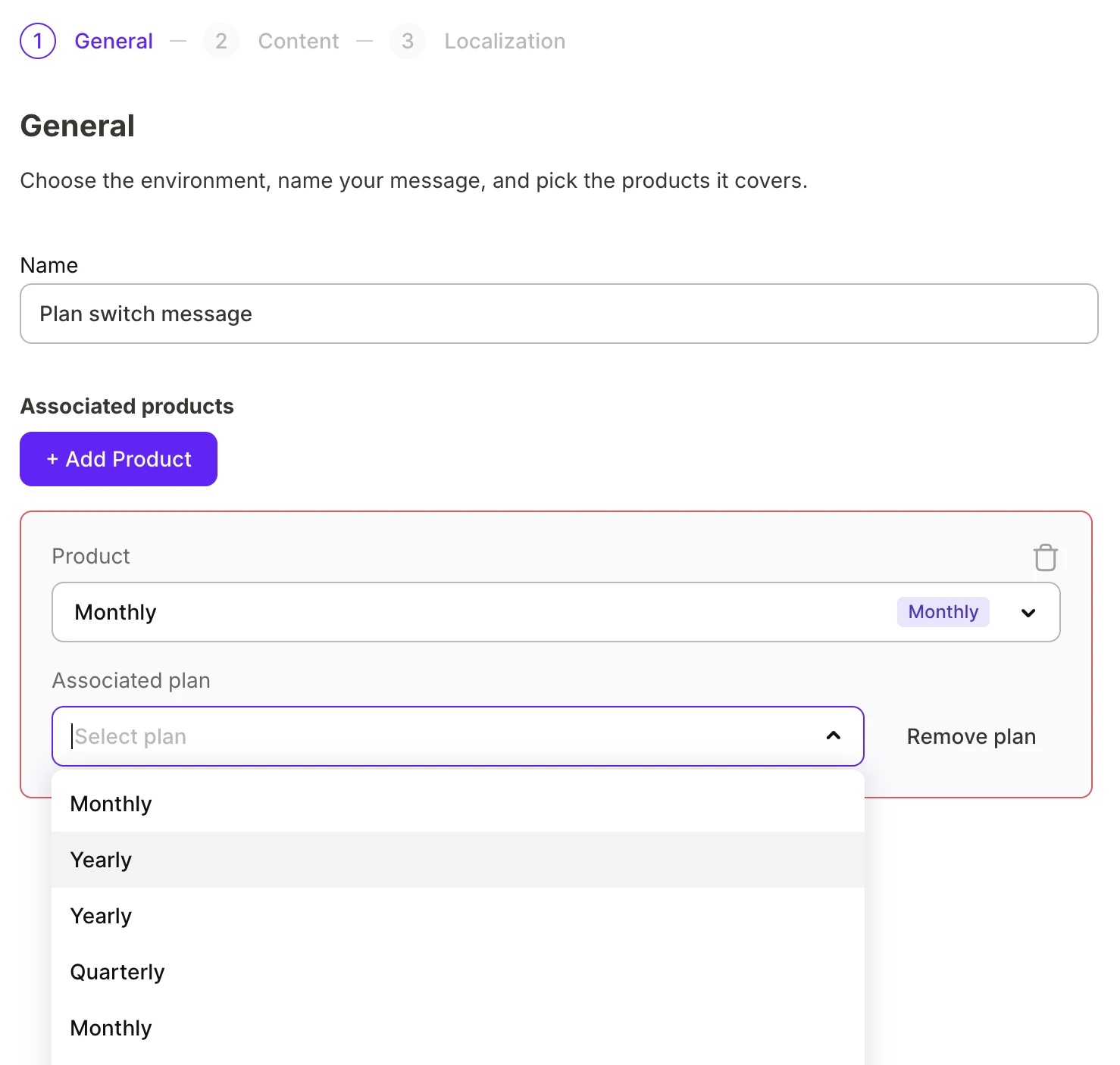
For a promo message, configure the incentive that will persuade the subscriber to stay:
-
Promo offer: A promotional offer you previously set up for the product.
-
Plan switch: A different product from your catalog.
Content
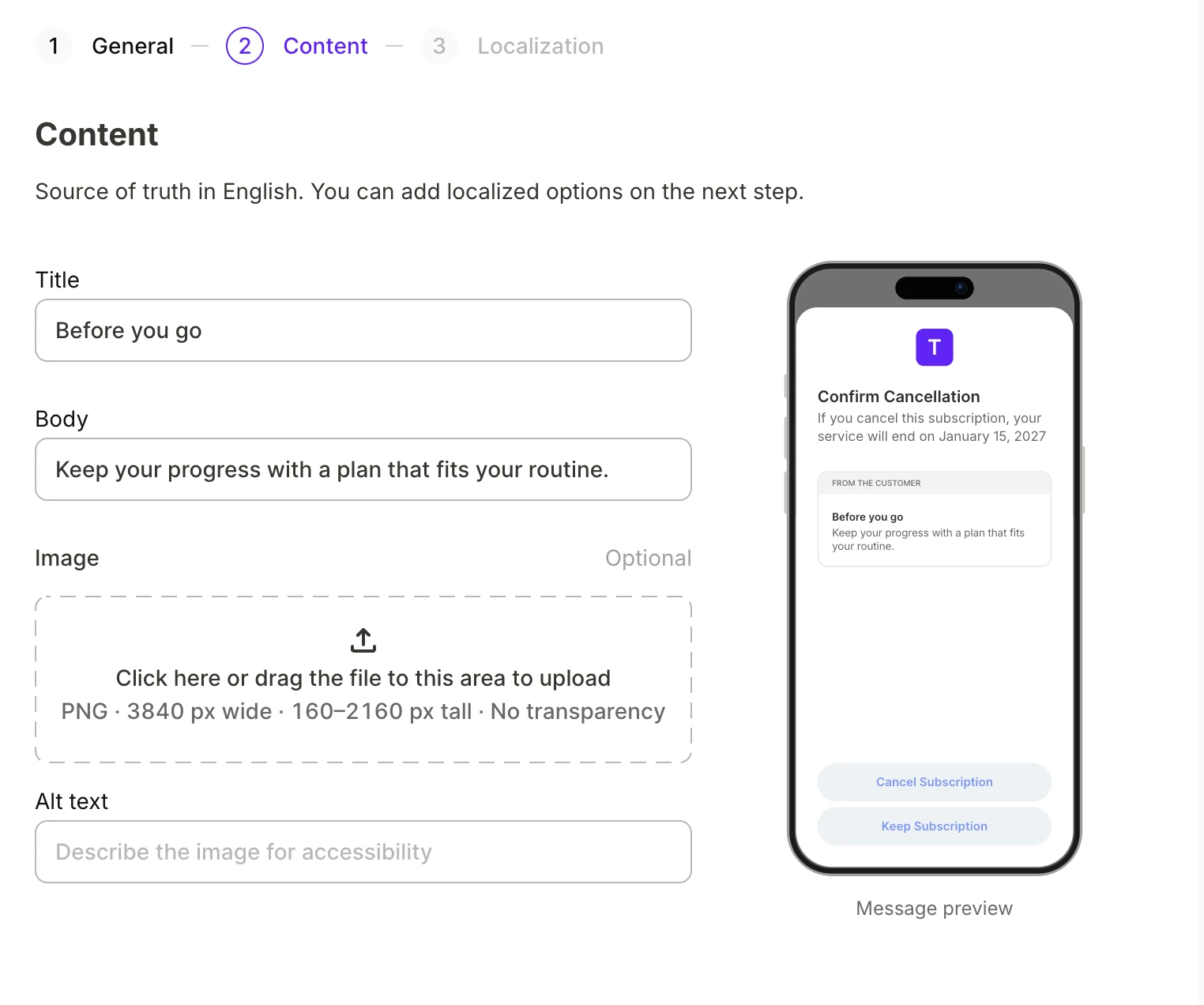
Write the message in English. A preview on the right shows the message on the Cancel Subscription screen as you type.
The Default message may include an image.
Localization
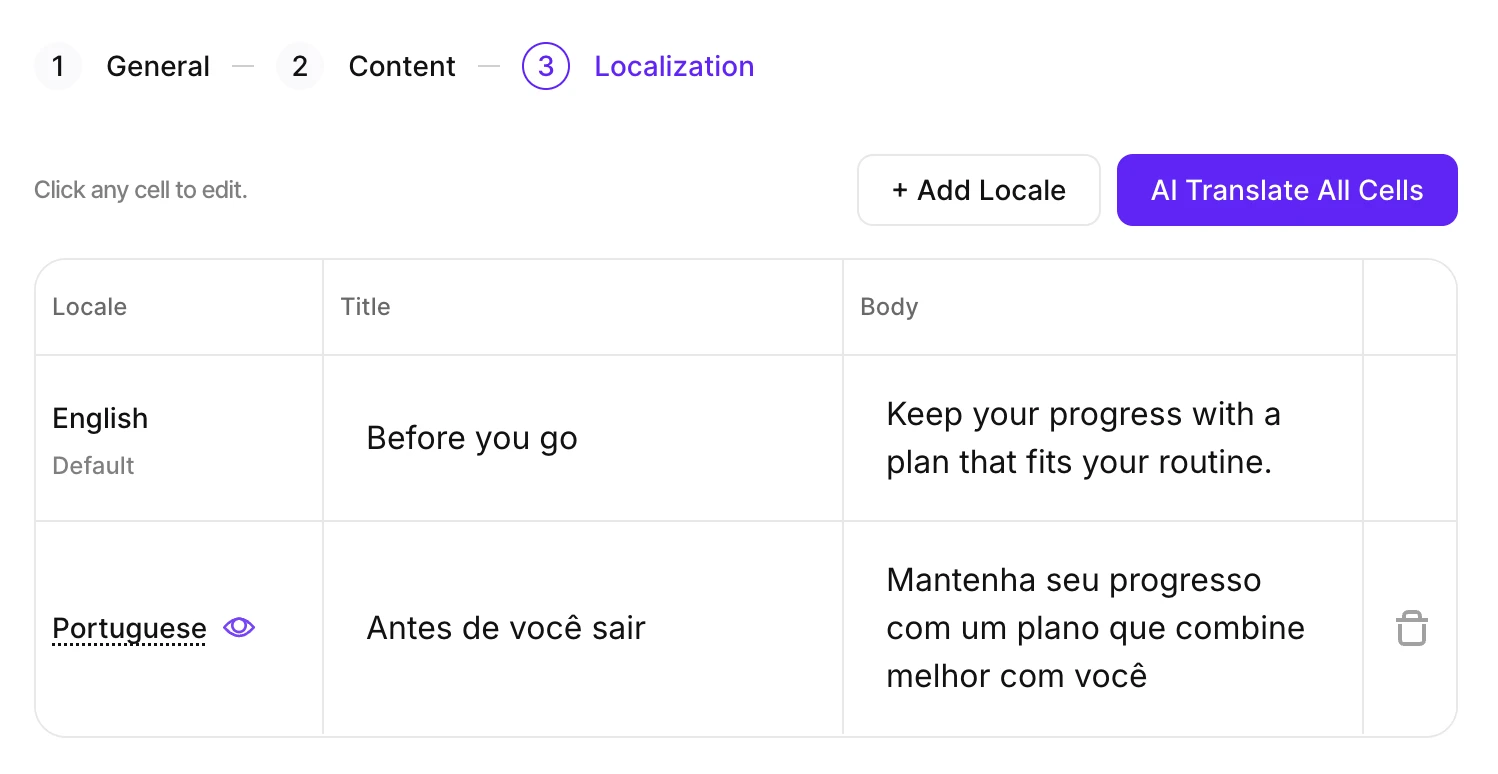
English is the source language. Add the other languages your subscribers use, then translate the content.
- Click Add Locale and choose which locales to support.
- Click AI Translate All Cells to automatically translate the content.
- Click any cell to edit a translation.
Every locale must fit the same limits as the English source: 66 characters for the title, 144 for the body. A translation that runs longer blocks Submit To Review until you shorten it.
Hover over a locale to preview it on the Cancel Subscription screen.
Adapty falls back to the en-US version if Apple hasn’t yet approved a translation for the target locale.
Submit for review
When the message is ready, click Submit To Review. Adapty uploads the message to Apple in every locale you added, and Apple starts reviewing it. Monitor the status of your submission on the Retention Messaging page.
Adapty saves the message only when you submit it.
Message states
After you submit the message, Apple reviews its every locale. Each locale is reviewed separately, but the message only goes live when all the locales are approved. The State column on the Retention Messaging page allows you to track the message’s progress:
| State | What it means |
|---|---|
| In review | Apple hasn’t yet received the message, or completed the review for all the locales. |
| Live | Apple approved the message, and Adapty serves it to cancelling subscribers. |
| Rejected | Apple turned down the submission in at least one locale — try submitting an alternative version. |
| Inactive | You deactivated the message. You can now create a new one for the same products. |
You can edit any message at any time — including messages that are being actively served to your customers. If you edit a Live message, or add a new locale to it, the message instantly loses its live status, and becomes an In review message again.
Deactivate and reactivate
To remove a message from Apple without deleting it from Adapty, open the menu in the message’s row and click Deactivate.
To bring it back, click Activate. Reactivation skips Apple’s review, and the message can take a few minutes to reach all subscribers.
A product can have at most one default message and one promo message. If another message of the same type claimed the product while this one was inactive, activation fails.
Next steps
- Track how the message performs once it goes live.