
Integrate Paddle with Adapty Attribution
Connect your Paddle account to Adapty Attribution to attribute purchases made in your web funnel to the ads that drove them. Once connected, purchases, renewals, refunds, and chargebacks from Paddle appear in Adapty Attribution analytics, and conversion events can be sent back to the ad networks for campaign optimization.
How it works
- The Adapty web pixel assigns every funnel visitor a click ID and captures the ad data from the landing URL.
- At checkout, your funnel attaches the click ID to the Paddle transaction.
- Adapty receives the transaction through a webhook it creates in your Paddle account and matches it to the ad click.
Web purchases have no app install event. Adapty cohorts them by the date of the first trial start or purchase — see Analytics.
Before you start
Set up the Adapty web pixel on your funnel. Without the pixel, there is no click ID to attach, and transactions can’t be attributed to ads.
Step 1. Attach the click ID at checkout
When you open the checkout or create the transaction, read the click ID and add it to the Paddle customData under the adpt_click_id key:
const adptClickId = window.adaptyPixel.getClickId();

customData: { adpt_click_id: adptClickId }
Attach the click ID only to the initial transaction. Paddle copies a subscription’s custom data onto renewal transactions, so Adapty attributes renewals, refunds, and chargebacks automatically.
The click_id is a short random identifier, not a secret and not personal data. It is visible in your Paddle dashboard, which is expected.
Step 2. Connect your Paddle account
First, create the key in Paddle. In your Paddle dashboard, go to Developer Tools → Authentication and create an API key with these permissions:
| Resource | Access |
|---|---|
| Transactions | Read |
| Adjustments | Read |
| Notification settings | Write |
Write access on notification settings lets Adapty create the webhook destination that delivers your payments — there is nothing to configure by hand in Paddle. Everything else stays read-only: Adapty never writes to your payment data. A key without a required permission is rejected at connection time with an error naming the missing one.
Use a live key. Paddle keys are environment-specific, and Adapty discards sandbox events as they arrive, so a sandbox key connects successfully and shows as Valid, but no data ever appears. To verify the integration, connect the live key and make a real purchase.
Then, add the key in Adapty:
- In Adapty Attribution, go to Integrations > Paddle.
- Paste the key into API key. Optionally, enter a Name to tell accounts apart — by default, Adapty uses the key’s last 4 characters.
- Click Connect.
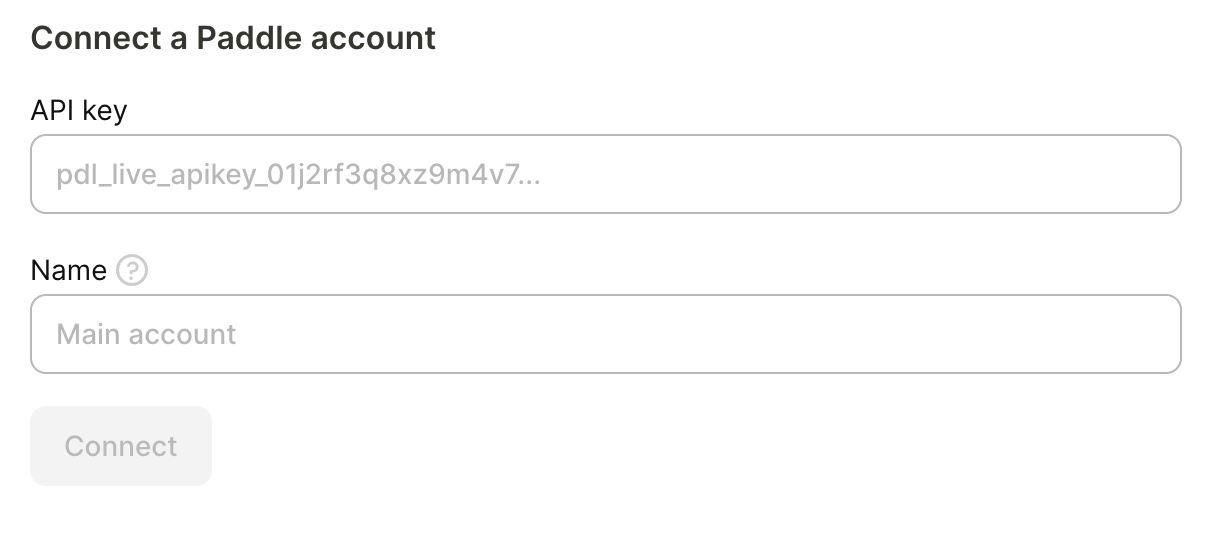
The connected account appears in the table with its environment, key status, and webhook state. The connection applies to the app you are configuring. To receive the same Paddle account’s payments in another app, add the same key there.
Adapty imports transactions starting from the moment you connect the account. To bring in earlier transactions, contact us at support@adapty.io.
Verify the integration
Make a real purchase through your funnel — Adapty discards sandbox purchases. The purchase should appear in Adapty Attribution analytics within a couple of hours. If your visit came from an ad with tagged URLs, the purchase is attributed to that campaign, ad set, and ad; otherwise, it counts as organic.
Send conversion events to the ad network
Attributed web purchases follow the same event mapping as the rest of the campaign: the events you enable in the campaign configuration’s Events names section are sent back to the pixel you associated with the campaign. See the mapping setup for Meta Ads and TikTok for Business.