
Formulas
A formula is a custom variable with a calculated value: a number or a date. A formula can read the answers users give in the flow, other custom variables, the selected product, and the current day. With formulas in the Flow & Paywall Builder, a flow can show calculated values without code in your app:
- A result from answers: A sum of quiz scores, a BMI from a weight and a height, or a height in feet and inches.
- A price: The selected product’s price after a 20% discount.
- A date: The end date of a free trial.
The flow calculates the result of a formula on the device. When a value that the formula reads changes, the flow updates the result. You can show the result in a text element, and you can use it in conditions.
Create a formula
- Open the Variables panel in the flow builder.
- Add a new variable — click .
- Enter the variable Name, such as
bmi. Other formulas use this name to read the result. - In the Value Type dropdown, select Formula.
- In the Expression field, enter the formula, such as
round({{weight}} * 10000 / ({{height}} * {{height}}), 1), whereweightandheightare Number variables. For the rules, see Write a formula. - Click Create variable.
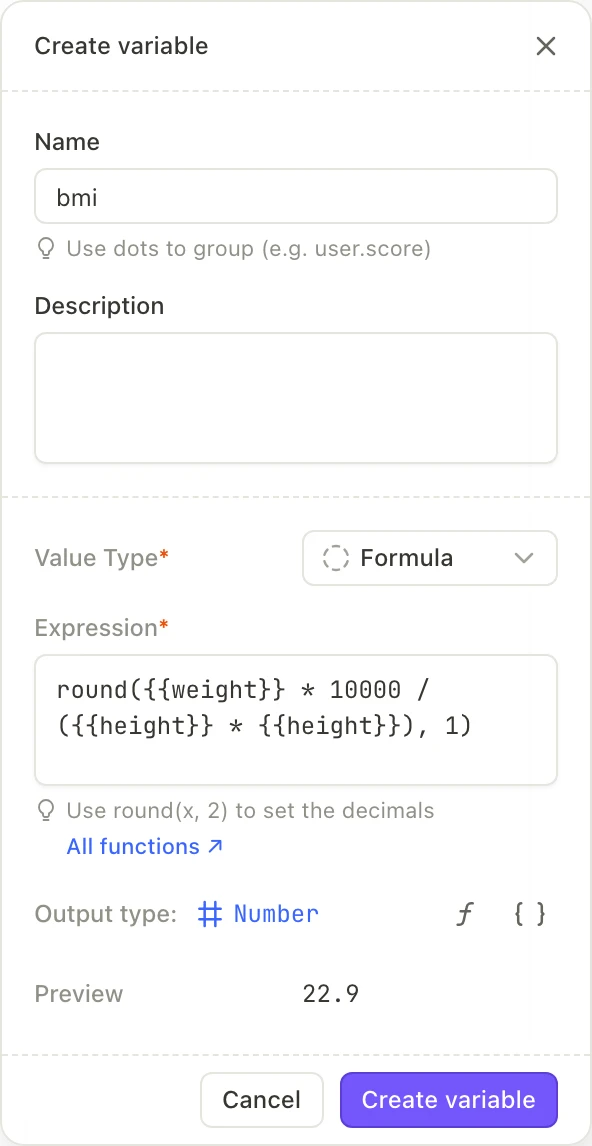
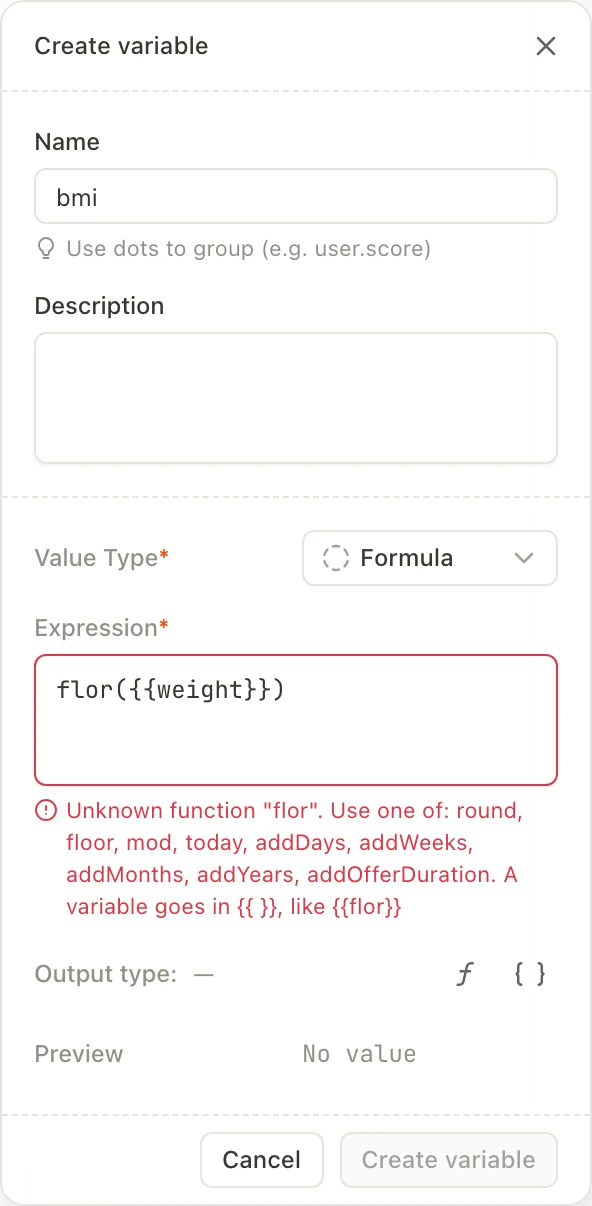
When you leave the Expression field, the builder validates the formula. If the formula has an error, the error text appears under the field. While the error shows, the Create variable button, or Save for an existing variable, is disabled. When you edit the expression, the error disappears and the button is available again.
Without an error, a hint shows under the field. For a Date formula, the hint is “Use a formula to set a date that updates automatically. Use negative n to go back in time”. For other formulas, the hint is “Use round(x, 2) to set the decimals”.
Under the field, the builder also shows:
- Output type: Number or Date, the type of the result. The builder sets it from the formula: the result is a Date when the formula is a date function or a Date value alone, such as
{{trial_start}}. Any other formula gives a Number. - Date format: Only for a Date formula. How text elements show the result. See Show a date in a text element.
- Preview: The result, calculated from Initial values and product prices. See Preview a formula in the builder.
A formula always depends on other values, so it has no Initial value. For the same reason, your app can’t set a formula.
Insert references and functions
To add a reference or a function without typing it, use the two buttons on the Output type line. Each button adds text at the cursor in the Expression field:
- Insert variable: Lists the values that the formula can read, in three groups: Variables, Answers, and Selected product. Select a value to insert its reference, such as
{{weight.value}}. - Insert function: Lists the functions, each with a description and an example. To find a function, type its name in the search field. Select a function to insert its name and an opening parenthesis, such as
addDays(. Then type the arguments and the closing parenthesis.
The Insert variable list shows only the values that the formula can read. It doesn’t show String, Boolean, or Array variables, or the formula that you edit.
Write a formula
A formula combines numbers, references to values, operators, and functions. Function names and variable names are case-sensitive: Round(2.5) is an error.
References
Put each reference in double braces:
| Reference | What the formula reads | Example |
|---|---|---|
{{<variable name>}} | A custom variable of type Number, Date, or Formula | {{discount}} |
{{<Element ID>.value}} | The answer in a Text or Number input, a Number picker, or a Date or Date & Time input | {{weight.value}} |
{{<Group ID>.selectedProduct.prod_price}} | The price of the product that users selected in a product group, as a number | {{products.selectedProduct.prod_price}} |
{{<Group ID>.selectedProduct.offer_price}} | The offer price of the selected product, as a number | {{products.selectedProduct.offer_price}} |
{{<Group ID>.selectedProduct}} | The selected product, only as the second argument of addOfferDuration | {{products.selectedProduct}} |
A formula reads a typed answer as a number when the answer is digits, with an optional minus in front and an optional fraction after one decimal point or one decimal comma. The formula ignores spaces at the start and the end. For example, 12, -5, 1.5, and 1,5 are numbers. Any other answer, such as abc, 1,5,0, or 1e3, gives the formula no value. In a Number input that a formula reads, users can type only a number. With the Decimal (Point) and Decimal (Comma) formats, users can type a decimal point or a decimal comma, so the decimal key of every keyboard works.
A Date or Date & Time input gives the calendar day that users picked.
A formula can read another formula, but not itself, and two formulas can’t read each other. When you rename a variable, an Element ID, or a Group ID, the formula shows the new name and reads the same value. When you delete a variable that a formula reads, the formula shows {{deleted variable}} in its place and has an error.
A name that matches two values is an error. For example, if a custom variable is named age.value and an input has the Element ID age, {{age.value}} matches both. Rename the custom variable.
Numbers and operators
- Numbers: Always use a decimal point, such as
0.8. Inside a function, a comma separates the arguments:round(2,5)isround(2, 5), which gives 2, not 2.5. Outside a function, a comma in a number is an error. A minus before a number or a reference makes it negative, such as-3. - Operators:
+,-,*, and/. The flow calculates*and/before+and-, and operators of the same level from left to right. Use parentheses to change the order:({{a}} + {{b}}) / 2.
Number formulas
A Number formula returns a number.
Number functions
| Function | Result | Example |
|---|---|---|
round(n) | n rounded to a whole number. A value exactly in the middle rounds away from zero. | round(2.5) = 3, round(-2.5) = -3 |
round(n, digits) | n rounded to digits decimal places. digits is a whole number from 0 to 6 that you type in the formula, not a reference or a calculation. | round(23.12, 1) = 23.1, round(1.005, 2) = 1.01 |
floor(n) | The largest whole number that isn’t larger than n | floor(2.7) = 2, floor(-2.5) = -3 |
mod(a, b) | The remainder of a divided by b, with the sign of b, as the MOD function of spreadsheets | mod(7, 3) = 1, mod(-7, 3) = 2, mod(5.5, 2) = 1.5 |
A zero result of round, floor, and mod is always 0, never -0.
Show a number in a text element
To show a formula or a Date variable, insert the variable into a text element from the Custom tab of the variable picker. Dates and numbers with round on the top level appear in the language of the device, not in the language of the flow.
How a Number formula appears depends on the function on the top level of the formula:
roundon the top level: The number has exactly the number of decimals thatroundsets. It uses the decimal separator of the device language, without thousands separators or a currency sign. For example,round(23.12, 1)shows “23.1” in English and “23,1” in Russian, andround(15.04, 1)shows “15.0” in English.- Any other formula: The number appears in its plain form, with a decimal point in every language. Some decimal numbers show a long tail of digits:
9.99 * 0.8shows “7.992000000000001”. To set the number of decimals, putroundon the top level of the formula, such asround(9.99 * 0.8, 2).
A Number variable and a formula with floor or mod on the top level appear in the plain form too.
Compare numbers in conditions
You can select a formula or a Date variable in a condition, such as a conditional visibility rule or a conditional action:
- Number formulas: Use the same operators as for a Number variable: Equals, Does not equal, Greater than, Less than, Is empty, and Is not empty. Compare the formula with a number or with another Number value, such as
bmiGreater than25. The operators don’t include “greater than or equal” or “less than or equal”. To match a whole number of 10 or more, such as a quiz score, usescoreGreater than9.
Date formulas
A Date formula returns a date. To use a fixed day in a formula, such as a trial start date, store it in a Date variable.
Create a Date variable
- Open the Variables panel, and click .
- Enter the variable Name, such as
trial_start. - In the Value Type dropdown, select Date.
- (Optional) In the Initial value field, enter a date as
DD.MM.YYYY, such as17.11.2026, or click the field and pick the day in the calendar, then click Apply. The builder doesn’t accept a date that doesn’t exist, such as31.02.2027. Without an Initial value, the variable has no value until a Set variable action sets it. - (Optional) In the Date format dropdown, select how text elements show the date. See Show a date in a text element.
- Click Create variable.
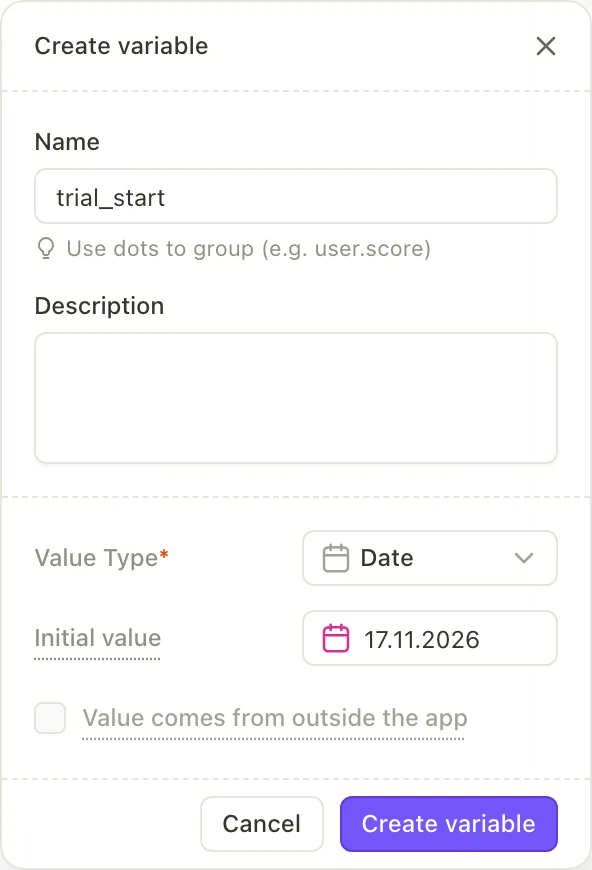
A Date variable holds a day without a time or a time zone.
To change a Date variable when users tap an element, add a Set variable action, select the Date variable, and enter the new date as DD.MM.YYYY or pick it in the calendar. A Set variable action can’t change a formula, because a formula always depends on other values.
Date functions
| Function | Result | Example |
|---|---|---|
today() | The current day on the device | today() |
addDays(date, n) | date plus n days | addDays(today(), 7) |
addWeeks(date, n) | date plus n weeks | addWeeks({{trial_start}}, 2) |
addMonths(date, n) | date plus n months | addMonths({{trial_start}}, 1) |
addYears(date, n) | date plus n years | addYears({{birth_date.value}}, 18) |
addOfferDuration(date, product) | date plus the length of the product’s offer | addOfferDuration(today(), {{products.selectedProduct}}) |
The date functions follow these rules:
today(): Gives the start of the current day in the time zone of the device. The flow reads the day when it opens, so the value doesn’t change at midnight while the flow is open.- Negative and fractional
n: A negativenmoves the date back. The flow drops the fractional part ofn:addWeeks(date, 1.5)adds 1 week, andaddDays(date, -1.9)moves the date back 1 day. - Short months: When the target month doesn’t have the day, the result is the last day of that month. For example, January 31, 2027 plus 1 month is February 28, 2027, and February 29, 2028 plus 1 year is February 28, 2029.
addOfferDuration: Adds each phase of the product’s offer that the Adapty SDK passes to the flow, in order. For each phase, the function adds the phase’s period multiplied by its number of periods in one step: a 7-day free trial that starts on November 10, 2026 ends on November 17, 2026. If the product has no offer, or a phase of the offer has an unknown period, the result has no value.
Inside a formula, a Date can only be the first argument of a date function. A Date in a calculation, such as {{trial_start}} + 1, is an error. A Number can’t be the first argument of a date function. A String, Boolean, or Array variable can’t be a part of a formula.
Show a date in a text element
To show a formula or a Date variable, insert the variable into a text element from the Custom tab of the variable picker. Dates and numbers with round on the top level appear in the language of the device, not in the language of the flow.
A Date variable and a Date formula have a Date format in the variable settings. Each text element that shows the variable uses this format, and when you change it, all these text elements change. A new variable has the Medium format.
To use another format in one text element, in the Content field, click the variable, and select a format. To return to the format of the variable, select Variable default. The formats are:
| Date format | English example |
|---|---|
| Short | 11/17/26 |
| Medium | Nov 17, 2026 |
| Long | November 17, 2026 |
| Month D | November 17 |
| Mon D | Nov 17 |
Short, Medium, and Long follow the date order of the device language. Month D and Mon D show the month before the day in every language, such as “ноября 17” in Russian.
Compare dates in conditions
You can select a formula or a Date variable in a condition, such as a conditional visibility rule or a conditional action:
- Date variables and Date formulas: Use Equals, Does not equal, Earlier than, or Later than. Compare the date with another date, or with a date that you enter as
DD.MM.YYYYor pick in the calendar.
A date comparison compares calendar days, not times. For example, a date that users picked at 21:00 on November 17, 2026 equals 17.11.2026. You can’t compare a date with a number.
Formulas without a value
A formula has no value when one of its values is not available on the device:
- An answer is empty, or isn’t a number.
- The product prices didn’t load.
- The selected product has no offer, and the formula reads
offer_priceor callsaddOfferDuration. - The formula divides by zero, as in
{{a}} / 0ormod({{a}}, 0). - A Date variable that the formula reads has no value.
A formula that reads a formula without a value has no value too. Without a value, a formula works this way:
- Text elements: The formula shows nothing.
- Conditions: Is empty is true. Equals, Does not equal, and all comparisons of the formula are false.
The flow updates the result of a formula when a value that the formula reads changes: when users type an answer, a Set variable action changes a variable, or the product prices load. If users go back and clear an answer, the formula has no value on the next screen. Until the flow changes a custom variable, a formula reads the variable’s Initial value.
Preview a formula in the builder
The builder calculates the result of a formula from the Initial values of custom variables and prod_price of the selected product. The Preview under the Expression field shows No value when the formula reads any of the following:
- An answer that users type or pick
offer_price- The offer of
addOfferDuration - A variable without a value, such as a Date variable without an Initial value
In these cases, a text element on the canvas shows the variable name in braces, such as {{trial_end}}. To see the values of answers, preview the flow in the Adapty mobile app. Offer values need a build of your app with real products.
On the canvas, dates and numbers with round on the top level appear in the language that you select for the preview.
Examples
Show a sum of answers
On a screen, add three Number inputs with the Element IDs a1, a2, and a3. Create a formula sum:
{{a1.value}} + {{a2.value}} + {{a3.value}}On the next screen, insert sum into a text element. If users enter 2, 3, and 4, the text shows “9”. If users go back and change 4 to 5, the text shows “10”.
Show a BMI and a “High” label
Add a Number input with the Element ID weight for the weight in kilograms, and one with the Element ID height for the height in centimeters. Create a formula bmi:
round({{weight.value}} * 10000 / ({{height.value}} * {{height.value}}), 1)Insert bmi into a text element. For a BMI of 23.12, users see “23.1” with an English device language, and “23,1” with a Russian one. To show a “High” label only for a BMI over 25, add a text element with the word “High”, and give it a conditional visibility rule: bmi Greater than 25.
Show a discounted price
Create a formula discounted that takes 20% off the price of the selected product:
{{products.selectedProduct.prod_price}} * 0.8Then create a formula shown that rounds it to two decimals:
round({{discounted}}, 2)Insert shown into a text element. For a product with the price 9.99, the text shows “7.99”. When users select a product with the price 100, the text shows “80.00”. The number has no currency sign. If the price of the selected product didn’t load, the text is empty.
Show the end of a trial and a reminder date
Create a formula trial_end:
addOfferDuration(today(), {{products.selectedProduct}})Then create a formula reminder for three days before the trial ends:
addDays({{trial_end}}, -3)For a product with a 7-day free trial, on November 10, 2026, trial_end is November 17, 2026, and reminder is November 14, 2026. With the Medium date format, the text shows “Nov 17, 2026”. With Month D, it shows “November 17”.
Show a height in feet and inches
Add a Number input with the Element ID height for the height in centimeters. Create three formulas:
total:round({{height.value}} / 2.54), the height in whole inches.feet:floor({{total}} / 12).inches:mod({{total}}, 12).
In a text element, insert feet, type “ft”, insert inches, and type “in”. For 180 cm, the text shows “5 ft 11 in”. For 140 cm, it shows “4 ft 7 in”.
Troubleshooting
When you leave the Expression field, the builder shows the first error of the formula under the field. Some examples:
| Error text | Cause and fix |
|---|---|
addDays() needs a date and a number | A function has a wrong number of arguments or an argument of the wrong type. Use the arguments from the Number functions or Date functions table. |
Unknown function "flor". Use one of: … | The function name is misspelled, or its letter case is different. Use a function from the list in the error. To read a variable, put its name in {{ }}. |
Use a dot in a decimal number, like 1.5 | A number outside a function has a comma. Replace the comma with a decimal point. Inside a function, the builder reads a comma as the separator between arguments, so use a decimal point there too. |
{{…}} is not a variable, an answer or a product field of this flow | No variable, Element ID, or product group has this name. Fix the name, or create the variable. |
This variable no longer exists. Pick another one. | You deleted a variable that the formula reads. The expression shows it as {{deleted variable}}. Replace it with another reference. |
{{…}} is the name of a variable and of an element answer: rename the variable | The name matches two values. Rename the custom variable. |
{{…}} uses this formula: formulas cannot use each other in a loop | Two or more formulas read each other. Remove one of the references. |
A formula with an error blocks publishing. The Can’t publish yet dialog lists each formula with an error under Variables. For the errors that can appear when you publish, see Common issues.
Limitations
- Numbers and dates only: A formula only returns a number or a date. To show text that depends on the result, add conditional text to a text element. For example, to show “High” for a BMI over 25, set the if condition to
bmiGreater than25, and enter “High” under then. - Product prices: A formula only reads the price of the selected product in each product group. It can’t read the price of a product that users haven’t selected, such as the monthly plan when users select the yearly one. To show the result when the screen opens, select Set as default on one of the product cards.
- Offers on iOS and Android: On iOS, the Adapty SDK passes one offer to the flow. Among the offers available to the user, a win-back offer comes first, then a promotional offer, then an introductory offer. On Android, the Adapty SDK passes only the first phase of the introductory offer. For a free trial followed by a discounted price,
addOfferDurationon Android adds only the trial.