
Pass data to flows in React Native SDK
A custom tag is a custom variable with a value from your app. After you select Value comes from outside the app in a variable’s settings, your app can set its value through the Adapty SDK. For example, a text element contains “Coins:” and a custom tag. If your app passes “120” for the tag, users see “Coins: 120”.
Before you start
You need the Adapty SDK v4 or later. Versions before v4 don’t display flows.
Add custom tags to the flow
To show your app’s values in a flow, set up custom tags in the builder:
-
Create a custom tag for each value that your app passes.
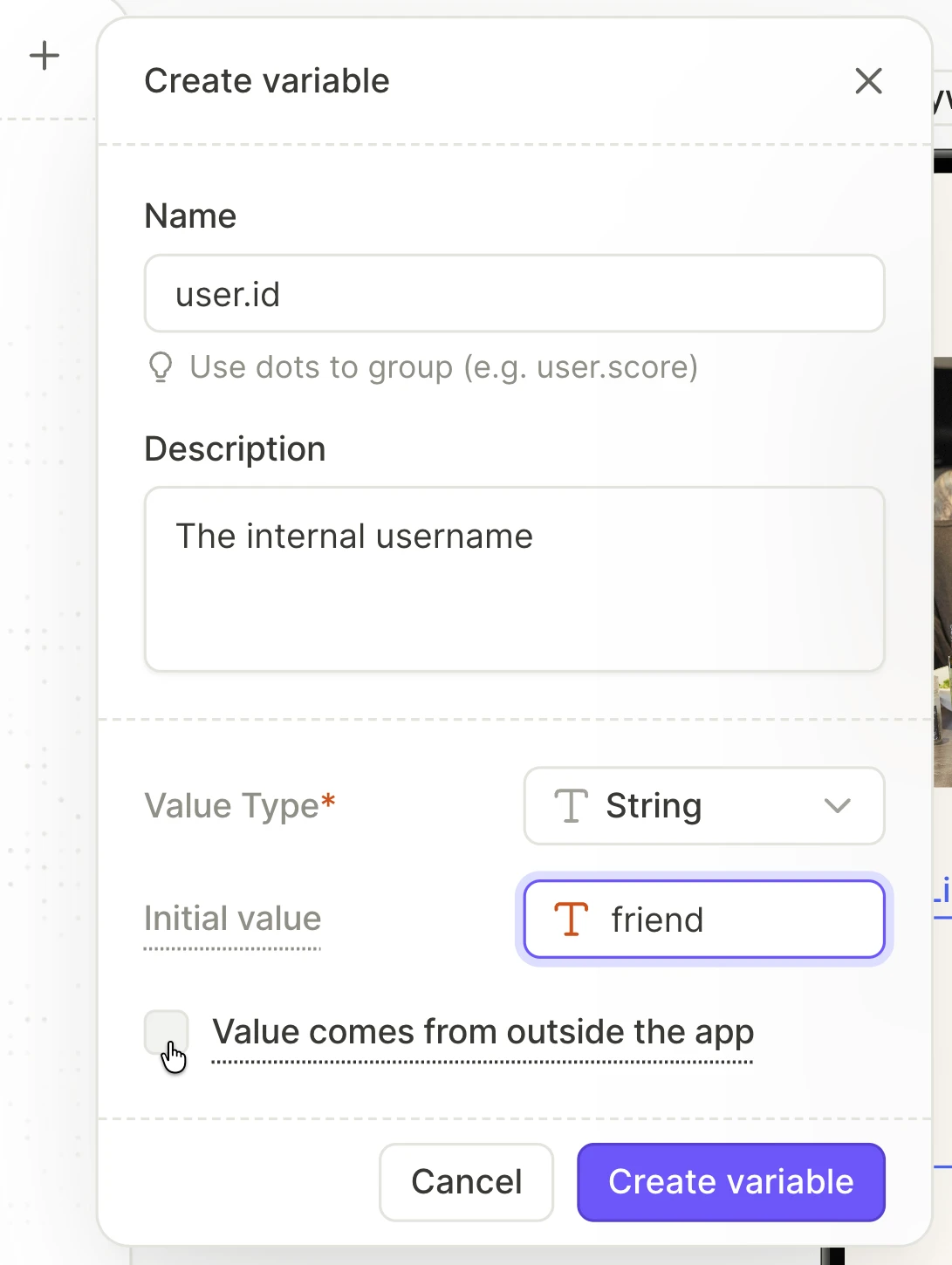
-
Note each tag’s full name, including its group. Your app’s code passes each value under this name. For example, if the
usergroup contains astreaktag, the tag’s full name isuser.streak.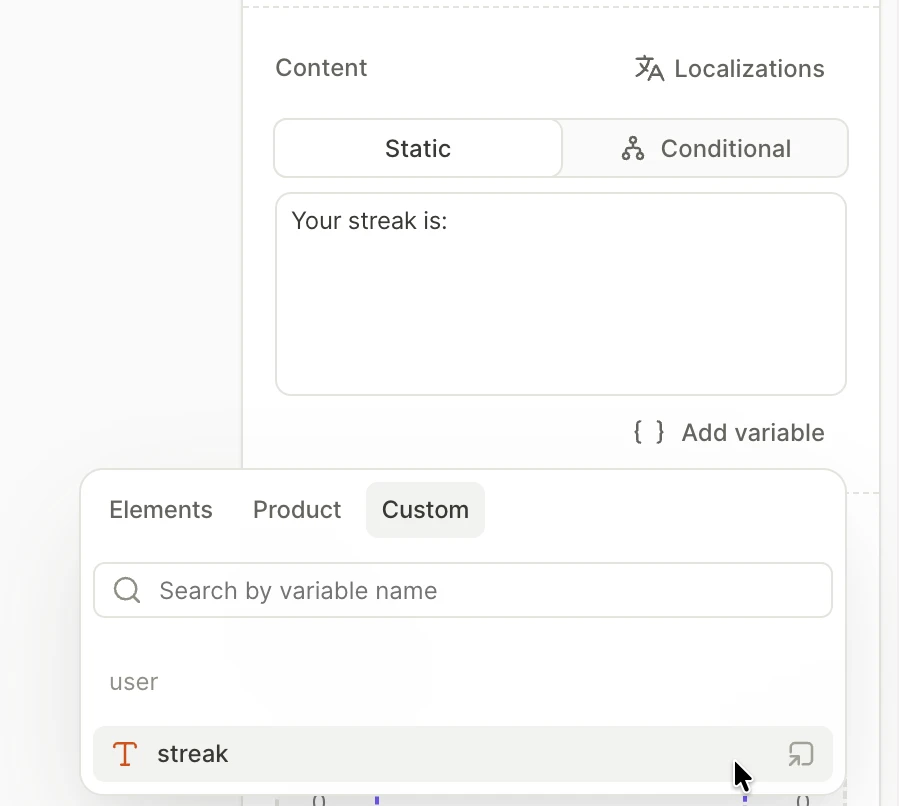
Pass custom tag values
Pass your app’s values in the customTags field of the view parameters, as an object. With the AdaptyFlowView component, the parameters are its params prop. With createFlowView, they are its second argument.
- Each key is the full name of a custom tag, such as
user.streak. - Each value is the string that users see in place of the tag.
- Each value must be human-readable, such as “1,250”, not “1250.0”. Adapty doesn’t format or translate it.
createFlowView reads the values once, when it creates the view, so they don’t change while the flow is open. If params of a mounted AdaptyFlowView change, the component recreates the flow view, and the flow starts again from its first screen. Keep params the same while the flow is open.
To test your custom tags, open the flow in your app, after you add the code that sets their values. The builder canvas and the preview on devices only show Initial values: the Adapty mobile app doesn’t set custom tag values.
If your app already sets custom tag values for old Paywall Builder paywalls, review how custom tags in flows differ.
What users see without a value
Users see a custom tag’s Initial value as a fallback in the following cases:
- Your app passes no value for the tag.
- The user hasn’t updated your app to a version that passes the value.
- The name in your app’s code doesn’t match the tag’s full name, including letter case.
- Another custom tag in the same text element has no value. Then every custom tag in that text element shows its Initial value.
To show nothing in place of a tag, pass an empty string. Adapty treats an empty string as a value, so the fallback doesn’t appear.
Example: show a BMI from onboarding answers
A flow can collect answers from users, and a custom tag can show a value from your app. Combine the two to show users a result that your app calculates from their answers, such as a score, a recommended plan, or a health metric:
- A flow collects the answers and sends them to your app.
- Your app calculates the result.
- Your app passes the result to the next flow as a custom tag value.
In this example, an onboarding flow collects the user’s weight and height. When the user closes the onboarding flow after its last screen, your app calculates their body mass index (BMI). Then it opens a paywall flow that shows the BMI.
Set up the flows
-
Create two flows: an onboarding flow that collects the user’s weight and height, and a paywall flow that shows their BMI.
-
Add two Number inputs to the onboarding flow:
- One for the weight in kilograms, with the Element ID
weight. - One for the height in centimeters, with the Element ID
height.
For both inputs, set the Format to Integer. An input sends its value as text, exactly as the user types it, and the sample code doesn’t read “70.5” and “70,5” the same way. Whole numbers have no decimal separator, so the code reads them the same in every locale.
- One for the weight in kilograms, with the Element ID
-
To make sure your app receives both values, end the onboarding flow with a screen that has no inputs. On that screen, add a button with the Close flow action. Inputs send their values when they lose focus or when the user moves to another screen. The Close flow action doesn’t send them. The sample code only opens the paywall if the user reached the last screen.
-
In the paywall flow, create a custom tag named
bmi. In the Initial value field, enter a dash (—). Users see the dash if your app passes no BMI. -
Add a text element with the words “Your BMI:” to the paywall flow. After these words, insert the
bmicustom tag. -
Add the onboarding flow to a placement, such as
onboarding. Add the paywall flow to a placement with the IDbmi_paywall. The code in Pass the BMI to the paywall fetches the paywall by this ID.
Pass the BMI to the paywall
Collect the weight and the height from the onboarding flow’s flow_user_input events, as in Process data from flows. To know that the user reached the last screen, watch for a flow_screen_showed event with is_last_screen set to true, as in Track flow screen views. When the user closes the onboarding flow after that screen, calculate the BMI. Then create the paywall’s view, and pass the BMI for the bmi custom tag.
Register the following handlers on onboardingView, the view that createFlowView returns for the onboarding flow. The AdaptyFlowView component has no onDisappeared handler, so this example doesn’t work with it.
import { adapty, createFlowView } from 'react-native-adapty';

const bodyAnswers = {};
let reachedLastScreen = false;

const unsubscribe = onboardingView.setEventHandlers({
  onAnalytics(name, params) {
    if (name === 'flow_screen_showed' && params.is_last_screen) {
      reachedLastScreen = true;
    }
    if (name === 'flow_user_input' && typeof params.value === 'string') {
      bodyAnswers[params.element_id] = params.value;
    }
    return false; // keep the flow open
  },
  onDisappeared() {
    // Number inputs send their values as strings.
    const weight = Number(bodyAnswers.weight);
    const height = Number(bodyAnswers.height);
    const finished = reachedLastScreen;
    delete bodyAnswers.weight;
    delete bodyAnswers.height;
    reachedLastScreen = false;

    if (finished && weight > 0 && height > 0) {
      const heightInMeters = height / 100;
      const bmi = weight / (heightInMeters * heightInMeters);
      showBmiPaywall(bmi.toLocaleString(undefined, { maximumFractionDigits: 1 }));
    }
    return false;
  },
});

async function showBmiPaywall(bmi) {
  try {
    const flow = await adapty.getFlow('bmi_paywall');
    const view = await createFlowView(flow, { customTags: { 'bmi': bmi } });
    await view.present();
  } catch (error) {
    // handle the error
  }
}
toLocaleString uses the decimal separator of the user’s locale: “22.7” in English, “22,7” in German.
Save the BMI to the user’s profile
To show users different flows based on their BMI, save it as a custom attribute of their profile. In the Adapty Dashboard, create a Number custom attribute with the key bmi. Then show each flow to an audience built from the attribute.
Call the updateProfile method in onDisappeared, right after the line that calculates bmi. Pass that number, not the formatted string, so that a segment can compare the BMI with a threshold. onDisappeared can’t be async, so handle the result with .catch instead of await:
adapty
  .updateProfile({ codableCustomAttributes: { bmi } })
  .catch((error) => {
    // handle the error
  });