
Search and Performance Max campaigns
Use this guide for the following Google Ads setup:
- What you advertise: An iOS app on the App Store, an Android app on Google Play, or a web funnel.
- Campaign types:
- Search: Shows your ads in Google Search results. Use it for an app or a web funnel.
- Performance Max: Shows your ads across all Google channels, such as Search, YouTube, and Gmail. Use it for a web funnel.
In a Search campaign, you can’t target Android alone, so the ads for an Android app also reach iOS users. To only reach Android users, use Android App campaigns.
How it works
When you connect the campaigns to Adapty Attribution:
- Google receives trial and purchase events from Adapty.
- Using the information from Adapty, Google bids for people who are likely to start a trial or buy a subscription.
- Adapty Attribution shows the revenue and ROAS of each campaign, with the spend that Adapty pulls from Google Ads. For Search campaigns, you can see this data for each ad group, ad, and keyword.
In this guide, you add the tracking template from Adapty Attribution to your campaigns. A tracking template is a link that Google Ads loads in the background every time someone clicks your ad. Through this link, Google Ads sends each ad click to Adapty. Adapty then matches installs and web purchases to these clicks.
Before you begin
Make sure that:
- If you advertise an app, it’s released on the App Store or Google Play.
- If you advertise a web funnel, its purchases reach Adapty Attribution:
- For a FunnelFox funnel: Through the FunnelFox integration.
- For any other funnel: Through the Stripe or Paddle integration.
- If you advertise a FunnelFox funnel, the Google Ads integration in FunnelFox sends its purchases to Google. Adapty doesn’t send FunnelFox purchases to Google.
- The Adapty SDK in your app has Adapty Attribution enabled.
- You have a Google Ads account in Expert Mode, so that you can create Search and Performance Max campaigns.
- Your Google Ads account has a payment method.
- Auto-tagging is on in your Google Ads account, so that Google can match the conversions from Adapty to your ads. To turn it on, in Google Ads, click the Admin icon and select Account settings. In the Auto-tagging section, select the Tag the URL that people click through from my ad checkbox and click Save.
- Your Google account, such as you@appname.com, has the Standard or Admin access level in your Google Ads account.
- Your Google account is connected to Adapty Attribution. If you connected it before September 11, 2026, reconnect it so that Adapty can send conversions to Google Ads.
Setup
Through your connected Google account, Adapty refreshes the spend of your campaigns every 4 hours and sends conversions to Google Ads. Search and Performance Max campaigns also need the tracking template from Adapty Attribution. Through this template, Google Ads sends each ad click to Adapty. You don’t need a new tracking template for each campaign.
To use campaigns that already run, complete steps 1 and 2, then add the tracking template to them.
1. Create the configuration in Adapty Attribution
A configuration connects your app in Adapty to the Google Ads account where you run your campaigns. It gives you the tracking template and sets up the conversion actions that Google uses to optimize bidding. A conversion action counts one type of event in Google Ads, such as started trials.
One configuration covers both the iOS and the Android version of your app. If you run the campaigns of your app in several Google Ads accounts, create a configuration for each account. Each configuration has a separate tracking template for the campaigns in its account.
-
Switch to the app that you want to advertise.
-
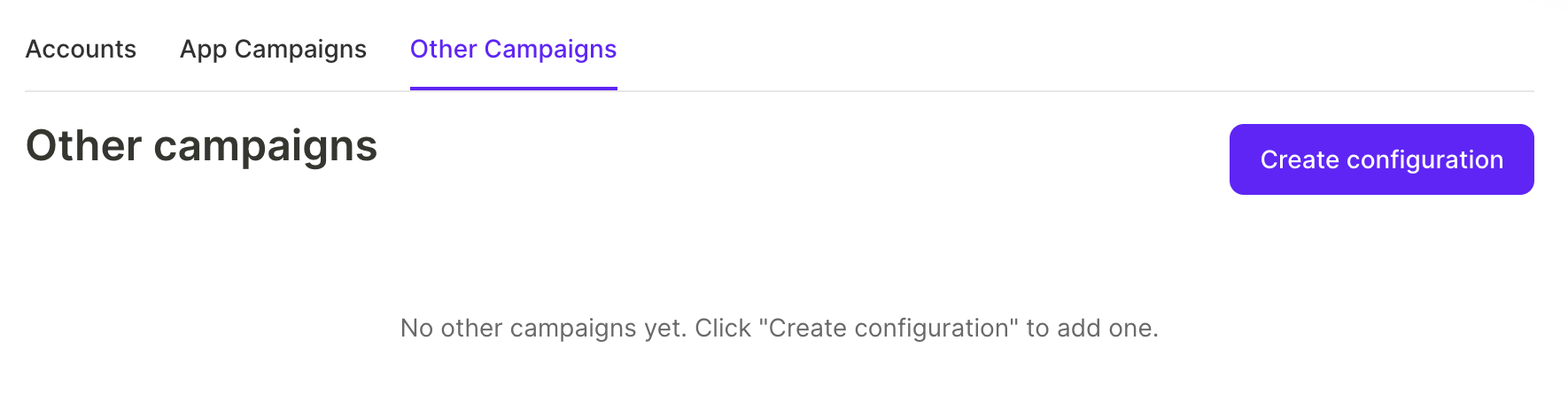
Go to Integrations > Google Ads. On the Other Campaigns tab, click Create configuration.
-
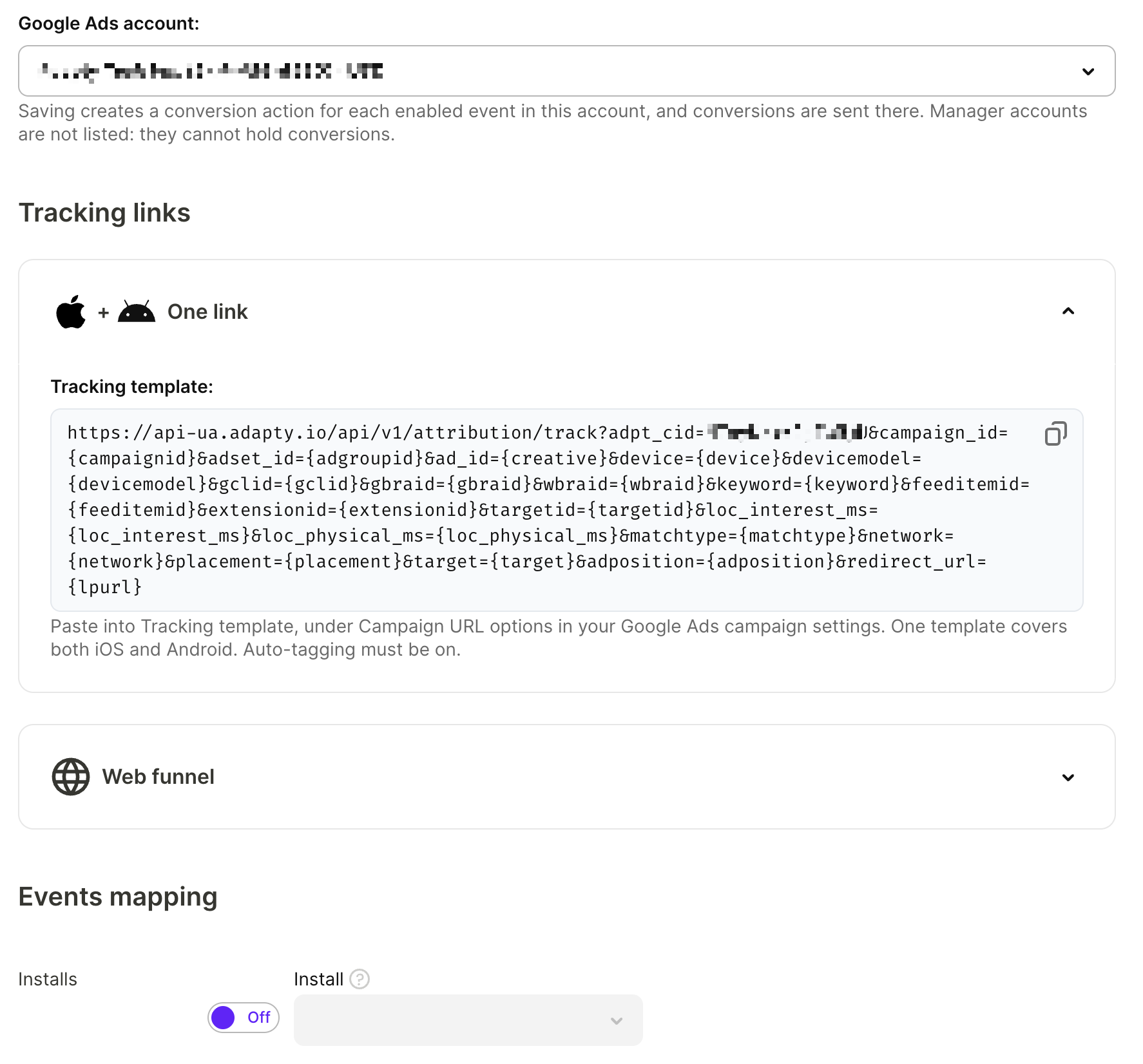
From the Google Ads account dropdown, select the account where you run your campaigns. Google only accepts a conversion in the account with the ad that the user clicked. You can’t select a manager account, which has other Google Ads accounts under it.
-
Select which events Adapty sends to Google. To report revenue to Google for started trials, set up Revenue override. To only send Google the trials that users keep, set up Qualified trial.
-
Click Save. Adapty creates a conversion action for each event that you turned on. If a conversion action already has a name that you mapped to an event, make sure that Adapty can reuse it. Publish new campaigns at least 6 hours after you save, so that Google accepts conversions from their first ad clicks.
-
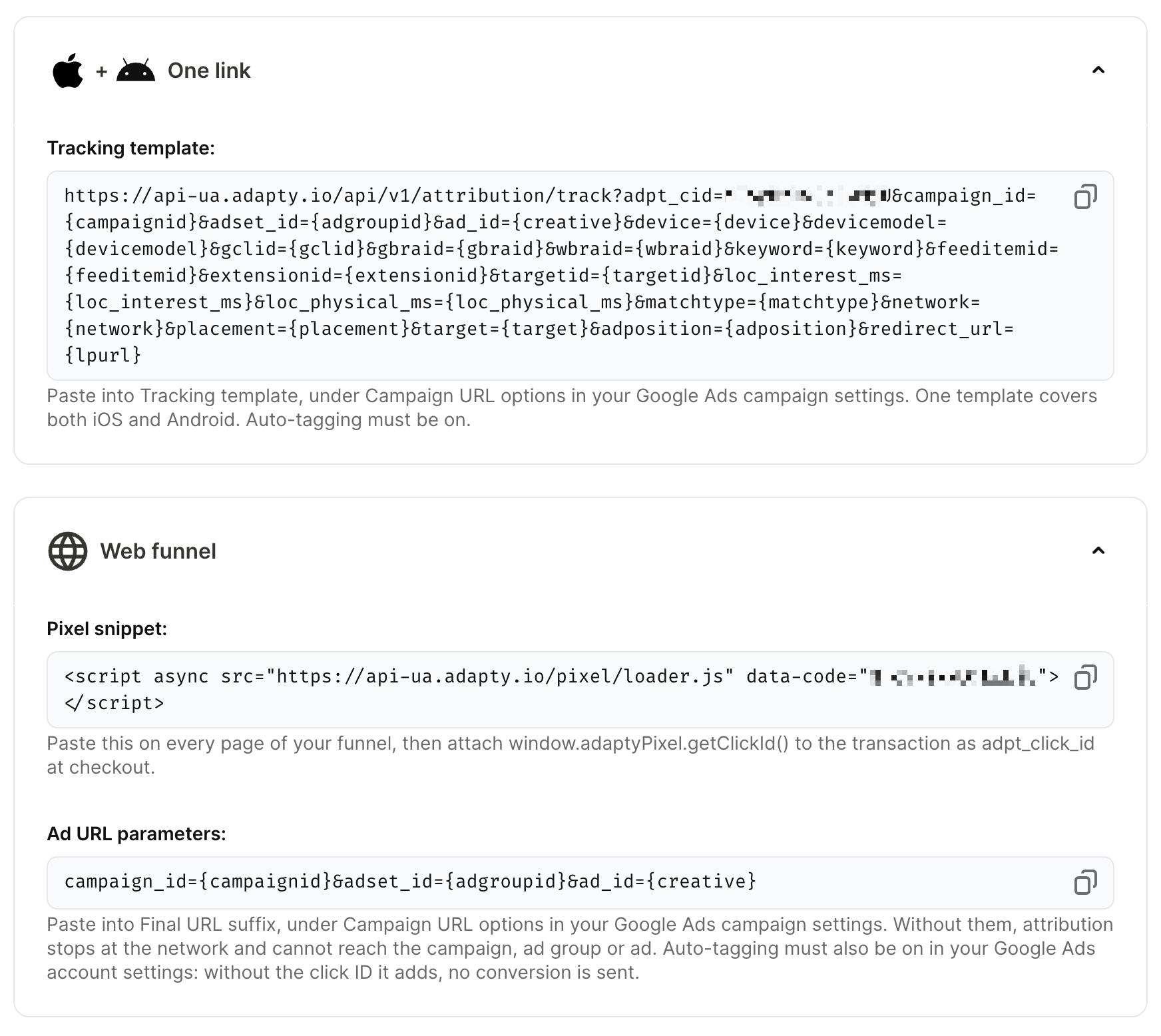
If your ads lead to a web funnel, expand the Web funnel panel. The panel has the Ad URL parameters value that you paste into your campaign settings in Google Ads. If your funnel doesn’t run on FunnelFox, set up the Adapty web pixel:
- Paste the Pixel snippet on every page of the funnel.
- At checkout, attach the
click_idfrom the pixel to the transaction.
2. Have Google count every conversion
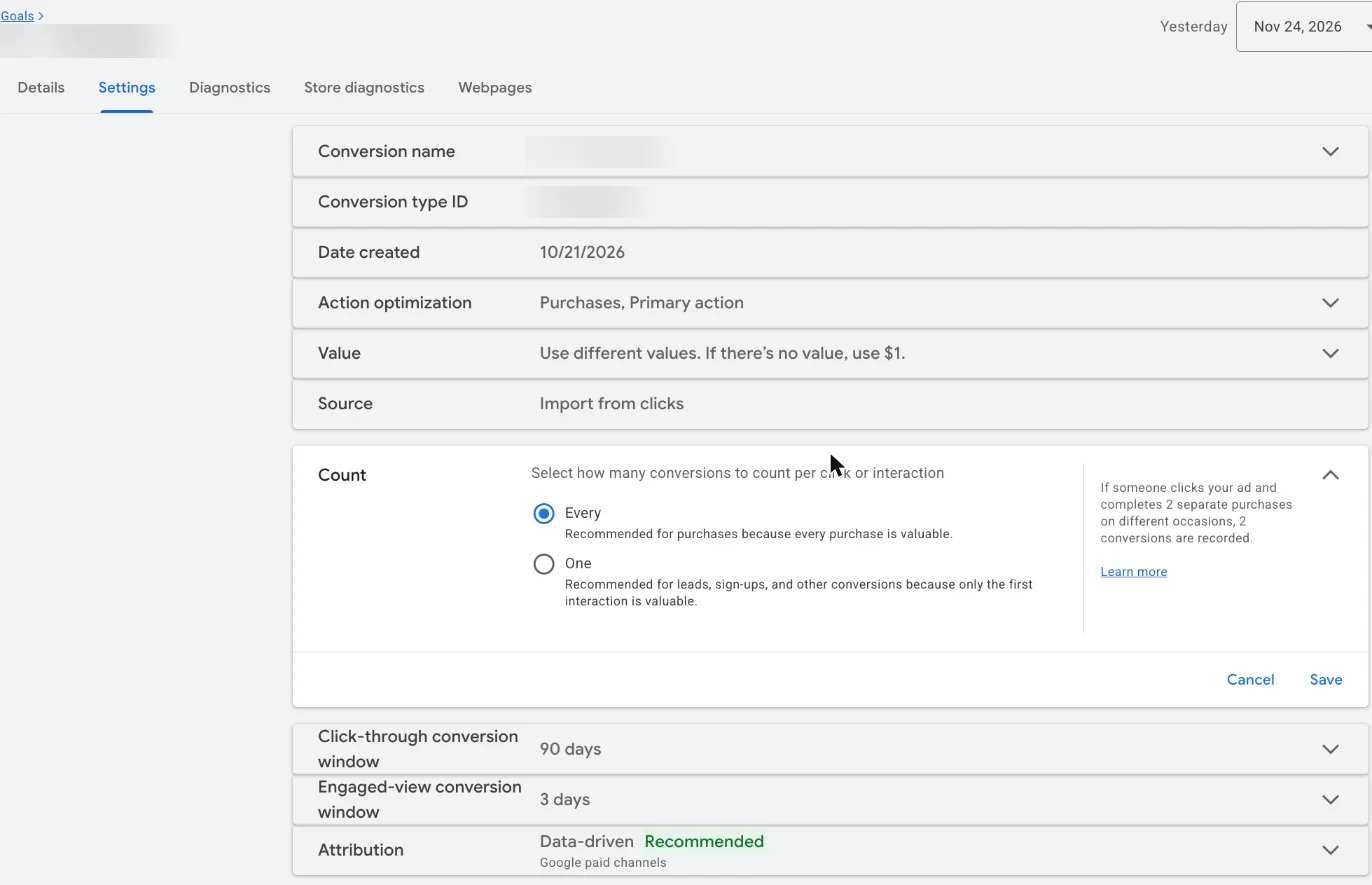
To have Google accept conversions from iOS users who don’t allow tracking, make sure each conversion action counts every conversion. For each conversion action that Adapty created or reused:
- In Google Ads, go to Goals > Conversions > All conversions. Click the conversion action, such as
trial_started. - Select the Settings tab.
- Click the Count setting. Select Every, and click Save.
3. Set up your campaigns
Follow the instructions for each campaign that you set up:
- New Search campaign: For an app or a web funnel.
- New Performance Max campaign: For a web funnel, to show the ads across all Google channels.
- Existing campaign: For a Search or Performance Max campaign that already runs.
New Search campaign
-
In Google Ads, open the Campaigns menu and select Campaigns. Click the plus button and select New campaign.
-
Select Create a campaign without guidance as the objective, and Search as the campaign type.
-
In the Use these conversion goals for campaign performance optimization section, only keep the goal that contains the conversion action to optimize for, such as
trial_started. If that goal isn’t listed, click Add goal and select it.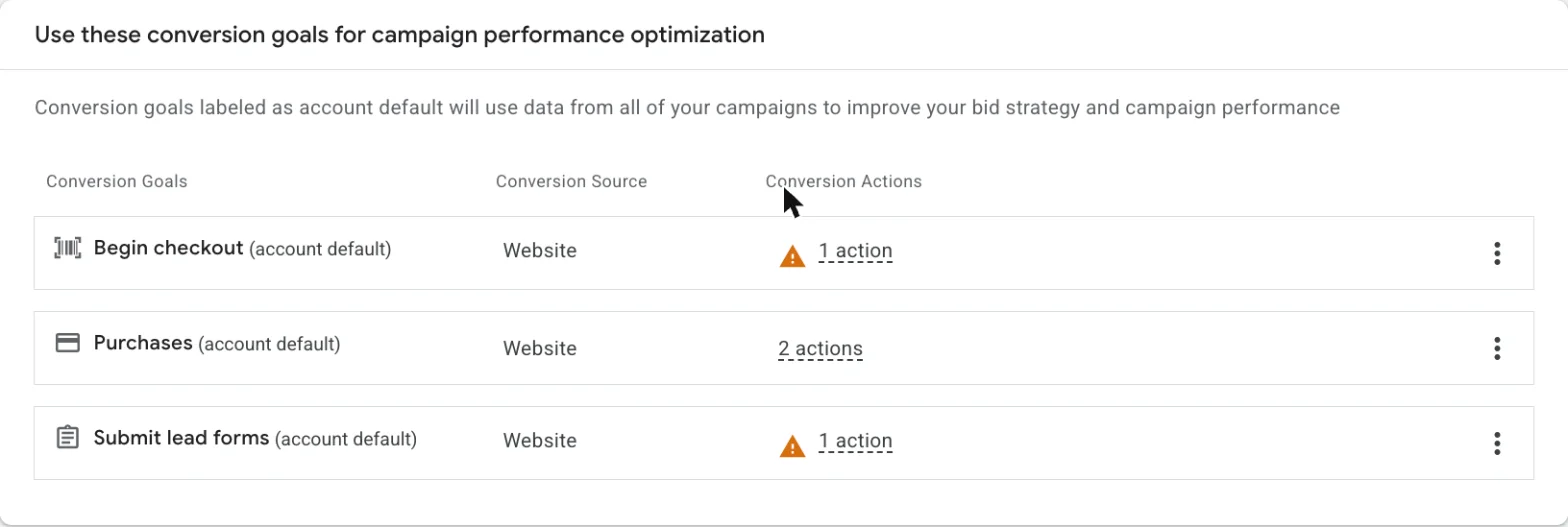
-
Enter a campaign name, and click Continue.
-
In the Bidding section, keep Maximize conversions as the focus. Google then spends the full budget to bring as many conversions as possible. To have Google aim for a specific cost per conversion instead, enter the amount in the Set a target CPA prompt, and click Apply. If you already run campaigns, base the amount on the Cost per trial or Cost per subscription that Adapty Attribution analytics shows for them.
-
In the Networks section, select where else Google shows the ads:
- Google search partners: Other search sites.
- Display Network: Other websites, when part of the Search budget goes unspent.
Adapty Attribution reports these networks as part of the campaign, not separately. To compare their revenue in Adapty Attribution, run them in separate campaigns.
-
Select the locations to target. To only show ads to people in these locations, in the Location options section, select Presence.
-
If the campaign settings have a Languages section, select the languages of your ads. Google doesn’t translate them.
-
To help Google bid for likely buyers, add audience segments. By default, audience segments don’t limit who sees the ads.
-
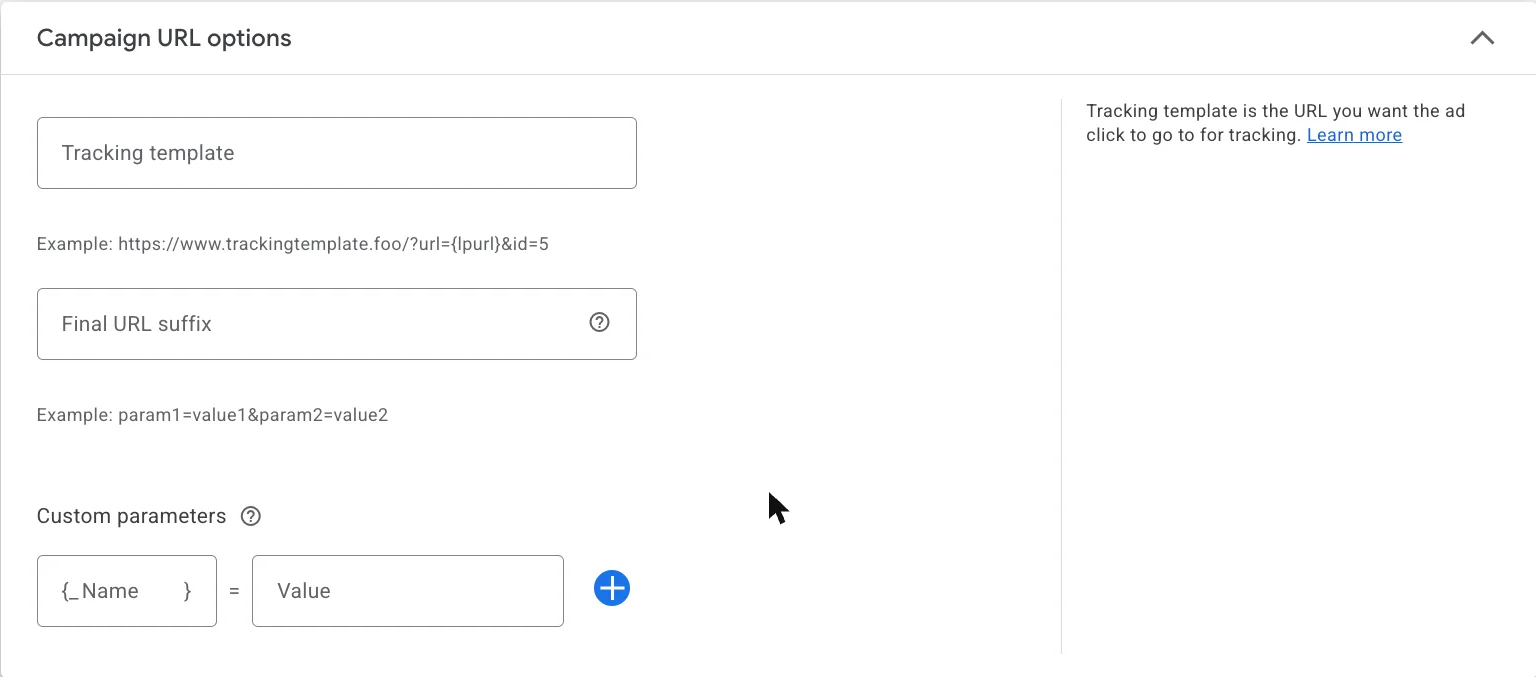
Expand More settings and open Campaign URL options:
- Paste the Tracking template value from your Adapty configuration into the Tracking template field.
- If your ads lead to a web funnel, paste the Ad URL parameters value into the Final URL suffix field. With these parameters, Adapty Attribution shows funnel purchases by campaign, ad group, and ad.
Don’t add tracking templates to ad groups, ads, or keywords in the campaign. Otherwise, Google Ads doesn’t send Adapty their clicks.
-
By default, the campaign starts when Google approves its ads, runs all day, and has no end date. To change these defaults, set the dates and the ad schedule in More settings. A later start date also gives Google the 6 hours it needs before it accepts conversions for new conversion actions.
-
Add keywords to the ad group, one per line. By default, Google matches each keyword to related searches. To narrow the matches, put a keyword in quotes, or in square brackets for the closest ones. Adapty Attribution shows installs and revenue for each keyword, so you can see which keywords bring paying users.
-
Create the ad. In the Final URL field, enter the page your ads lead to:
- For an iOS app: the App Store page of your app, such as
https://apps.apple.com/app/id123456789. - For an Android app: the Google Play page of your app, such as
https://play.google.com/store/apps/details?id=com.example.app. - For a web funnel: the first page of the funnel.
Then, write a few headlines and descriptions. Google assembles the ads from them. Adapty Attribution shows the revenue of each ad, so you can compare ads by the subscriptions they bring, not only by clicks.
- For an iOS app: the App Store page of your app, such as
-
Set the average daily budget. On some days, Google spends up to twice this amount, but no more than 30.4 times it in a month. Adapty Attribution shows the actual daily spend.
-
Publish the campaign.
-
If your ads lead to the App Store or Google Play, exclude computers after you publish. Go to Insights and reports > When and where ads showed > Devices. Then, set the Bid adj. value for computers to -100%.
New Performance Max campaign for a web funnel
-
In Google Ads, open the Campaigns menu and select Campaigns. Click the plus button and select New campaign.
-
Select Create a campaign without guidance as the objective, and Performance Max as the campaign type. In the Final URL field, enter the first page of the funnel.
-
In the conversion goals section, only keep the goal that contains the conversion action to optimize for. If that goal isn’t listed, click Add goal and select it.
-
Click Continue and enter a campaign name.
-
In the Bidding section, keep Maximize conversions as the focus. To have Google aim for a specific cost per conversion, select the Set a target cost per action checkbox and enter the amount. If you already run campaigns, base the amount on the Cost per trial or Cost per subscription that Adapty Attribution analytics shows for them.
-
Select the locations to target, and the languages of your ads.
-
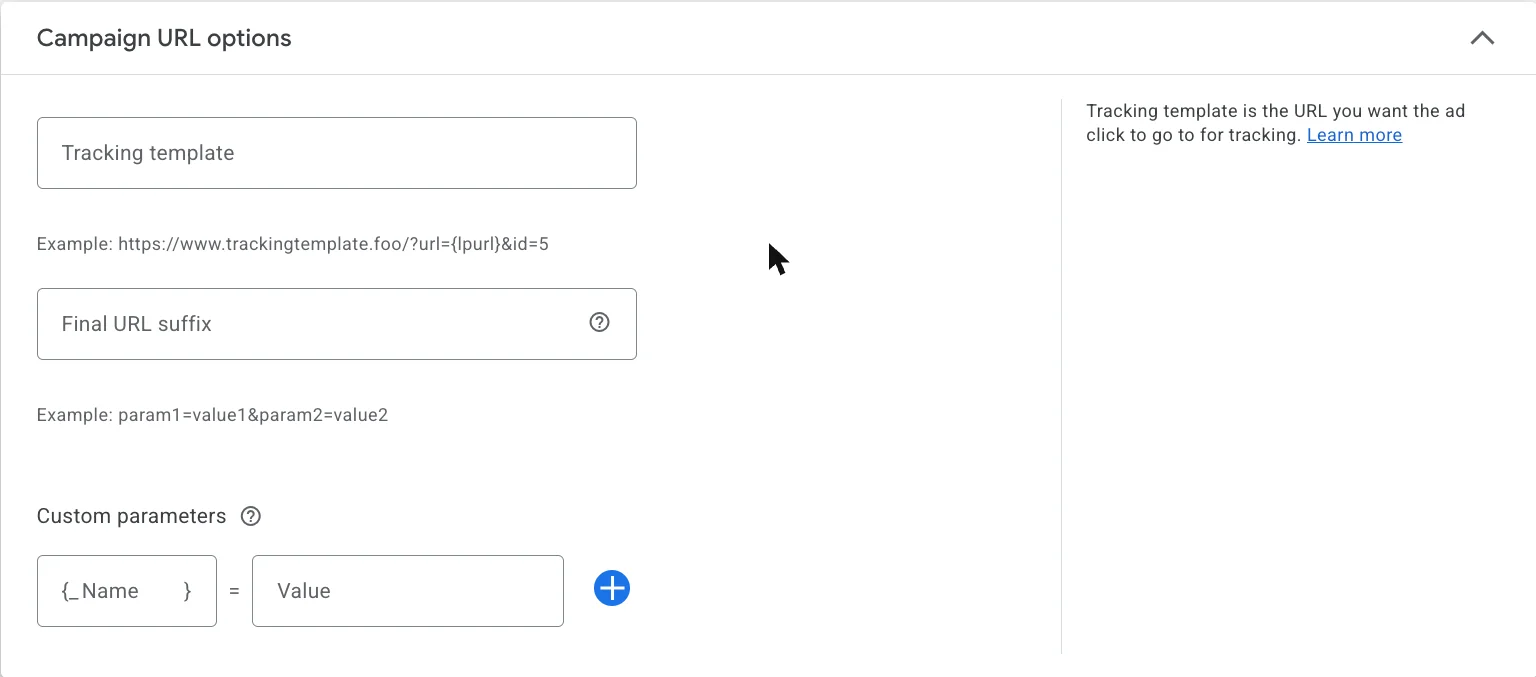
Expand More settings and open Campaign URL options:
- Paste the Tracking template value from your Adapty configuration into the Tracking template field.
- Paste the Ad URL parameters value into the Final URL suffix field.
-
By default, the campaign starts when Google approves its ads, runs all day, and has no end date. To change these defaults, set the dates and the ad schedule in More settings. A later start date also gives Google the 6 hours it needs before it accepts conversions for new conversion actions.
-
Fill in the asset group. In the Final URL field, enter the first page of the funnel. Then, add the assets, such as headlines, descriptions, images, and logos. Google assembles the ads from them.
In Adapty Attribution, you can only group Performance Max data by Campaign. To compare assets, use the reports in Google Ads.
-
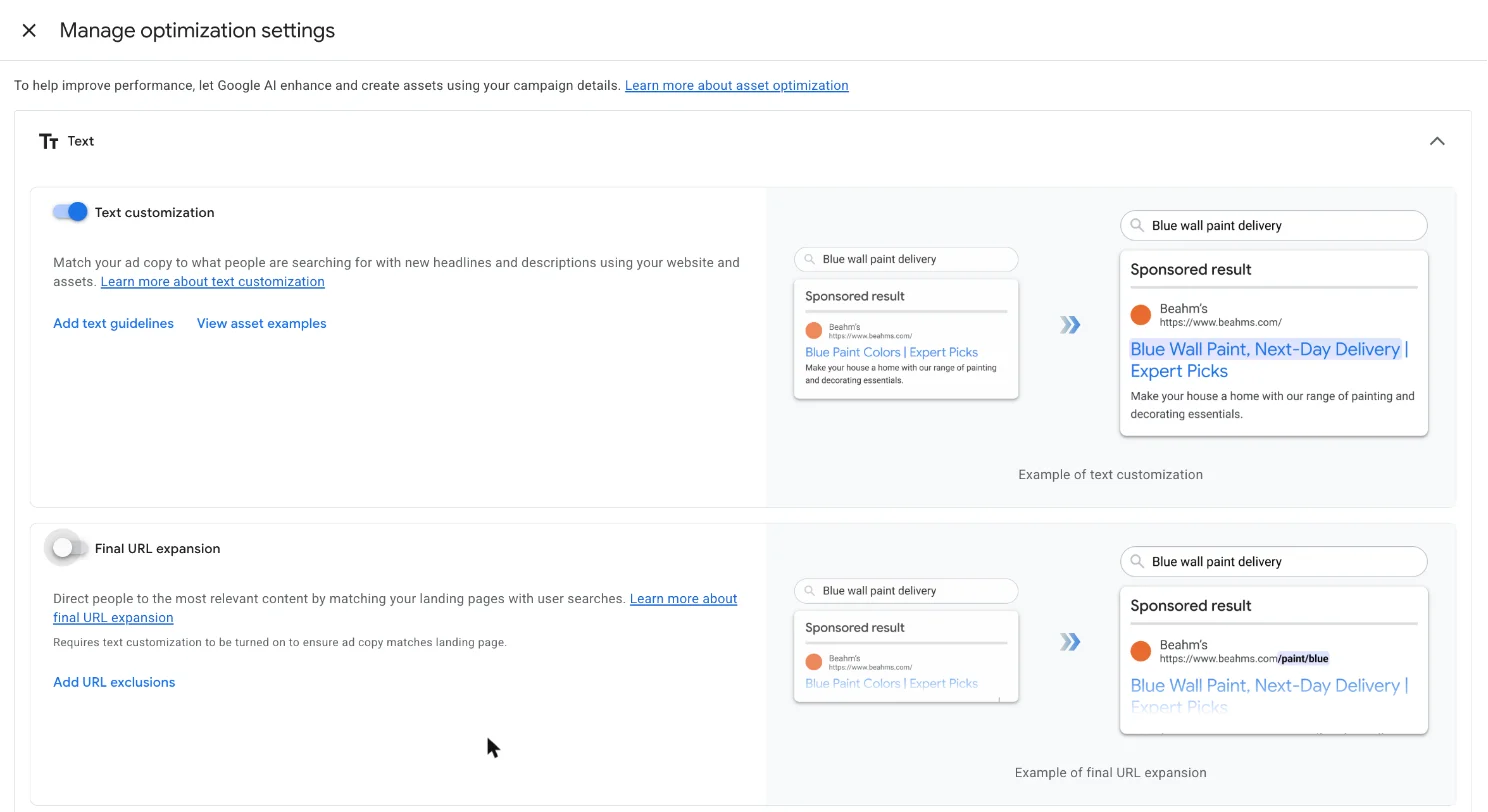
To have every ad lead to the first page of the funnel, in the Asset optimization section of the asset group, click Manage optimization settings. Under Text, turn off Final URL expansion and click Save.
-
To guide Google toward likely buyers, add audience signals to the asset group. Google can still show the ads to people outside these signals.
-
Set the average daily budget to at least 3 times your cost per conversion, as Google recommends. Adapty Attribution shows this cost as Cost per trial or Cost per subscription.
-
Click Publish campaign.
Existing campaign
To add the tracking template to a campaign that already runs, change the campaign settings:
- In Google Ads, open the Campaigns menu and select Campaigns. Select the Settings tab, then select the campaign.
- Under Additional settings, open Campaign URL options. Paste the Tracking template value from your Adapty configuration into the Tracking template field. For a web funnel, also paste the Ad URL parameters value into the Final URL suffix field. Click Save.
- Open Conversion goals, only select the goal that contains the conversion action to optimize for, and click Save.
- For a Performance Max campaign, open each asset group. To have every ad lead to the first page of the funnel, in the Asset optimization section, click Manage optimization settings. Under Text, turn off Final URL expansion and click Save.
If ad groups, ads, or keywords in the campaign have tracking templates of their own, remove them. Otherwise, Google Ads doesn’t send Adapty their clicks.
Google takes 24–48 hours to start using the new tracking template. Adapty Attribution only shows the installs and purchases from ad clicks after that.
After you publish
- Wait for the ad review: Google reviews each ad before it runs. During the review, the ad status is Under review. Most reviews finish within one business day. Once the ad passes the review, its status changes to Eligible. The ad then runs, unless you set a later start date.
- Avoid large changes while Google learns: Google bidding needs time to learn which clicks bring the conversions that Adapty sends to Google. If you edit the campaign during this time, you can disrupt the learning. Keep the conversion action to optimize for unchanged, and change the budget gradually. For a Performance Max campaign, the learning usually takes 1–2 weeks.
- See the installs, revenue, and ROAS in Adapty Attribution: Open Adapty Attribution analytics. Adapty refreshes the spend, impressions, and clicks from Google Ads every 4 hours.
Troubleshooting
Adapty Attribution doesn’t save the configuration
If Adapty can’t create a conversion action, it shows an error and doesn’t save the configuration. To fix the error:
- Make sure your Google account has the Standard or Admin access level in the selected Google Ads account.
- If Adapty no longer has access to your Google account, reconnect it.
- If another type of conversion action, such as a website tag, already has a name that you mapped to an event, type a different name.
Google Ads shows no conversions from Adapty
To see the conversions that Adapty sends to Google, in Google Ads, go to Goals > Conversions > All conversions. If the conversion action to optimize for has no conversions there, make sure that:
- If you connected your Google account before September 11, 2026, you reconnected it.
- Auto-tagging is on.
- In the Adapty configuration, you selected the Google Ads account where you run the campaign.
- You saved the Adapty configuration at least 6 hours before the conversions happened.
- Each conversion action counts every conversion.
- For a FunnelFox funnel, you set up the Google Ads integration in FunnelFox. Adapty doesn’t send FunnelFox purchases to Google.
- For a web funnel that doesn’t run on FunnelFox:
- Its purchases reach Adapty Attribution.
- Every page has the Adapty web pixel.
- Each transaction has the
click_idfrom the pixel.
- The campaign uses the goal that contains the conversion action to optimize for.
- The campaign has the tracking template from the Adapty configuration of the app that you advertise.
- No ad group, ad, or keyword in the campaign has its own tracking template.
- For an existing campaign, you added the tracking template at least 48 hours ago.
Adapty Attribution shows no installs or revenue for the campaign
Make sure that:
- The campaign has the tracking template from the Adapty configuration of the app that you advertise.
- No ad group, ad, or keyword in the campaign has its own tracking template.
- For an existing campaign, you added the tracking template at least 48 hours ago.
- For a web funnel, its purchases reach Adapty Attribution.
- For a web funnel that doesn’t run on FunnelFox:
- Every page has the Adapty web pixel.
- Each transaction has the
click_idfrom the pixel.
- For a web funnel, the campaign has the Ad URL parameters value in the Final URL suffix field.