
Spend and sell virtual currency in flows
Follow this recipe to combine flows with virtual currency in your iOS app. The recipe shows how to:
- Show the currency balance in a flow, and keep it current while the flow is open.
- Spend currency when a user taps a native button in a flow, and show a spinner while the spend runs.
- Show users how much more currency they need.
- Offer currency packs and a subscription in a flow.
- Close one flow and open another from your app code.
Because the packs and the subscription are in a flow, you can change them without an app release, and A/B test them. The A/B test report counts the purchases. Spends don’t appear in it: your backend sends them to Adapty with no link to the test.
By the end of this recipe, you have two flows for a game. In the out-of-energy flow, players spend diamonds on energy. In the top-up flow, they buy diamonds. The same steps work for any app where users spend virtual currency, such as credits per AI generation or coins per drama episode. In your app, replace the energy options and the diamonds with your own options and currency. The finished example works as follows:
- A player runs out of energy, and your app code opens the out-of-energy flow. The player sees the diamond balance and two buttons, one per option: an energy refill for 10 diamonds, and an hour of unlimited energy for 30.
- The player taps a button, and your app code calls your backend to spend the diamonds. While the spend runs, the player sees a spinner in the button.
- If the spend goes through, the player sees a checkmark. Your app code closes the flow, and the game gives the player the energy.
- If the balance is too low, your app code closes the out-of-energy flow and opens the top-up flow. The player sees how many more diamonds they need, and buys a diamond pack or the subscription.
- After the purchase, your app code opens the out-of-energy flow again. The player sees the new balance, and taps a button to spend diamonds.
Before you start
-
Have users sign in, so that they keep their balance on every device and after a reinstall. When a user signs in, identify the user in your app code with a customer user ID. Your backend needs this ID to identify the user to Adapty.
-
To show the balance and the buttons in the flows, update your app to Adapty iOS SDK 4.4 or later.
-
Set up a backend that calls the server-side API with your secret API key. Keep the key on your backend: anyone with the key can add diamonds to any balance.
-
In App Store Connect, create a consumable product for each diamond pack, and an auto-renewable subscription. Then add each product to Adapty.
-
Create a virtual currency with the code
DIAMONDS. Link each product toDIAMONDS, and set how many diamonds Adapty adds to the balance:- Diamond pack: The Credit amount, for each purchase.
- Subscription: The Credit per cycle, for each billing period. When a user starts a free trial, Adapty only adds the Credit on trial start.
Set each of the three values to at least 30 diamonds, the price of an hour of unlimited energy. With these values, every purchase in the top-up flow covers the missing diamonds.
1. Build the flow where players spend diamonds
In the Flow & Paywall Builder, create the out-of-energy flow. Add the flow to a placement with the ID out_of_energy. When a player runs out of energy, the code in step 2 opens the flow from this placement.
To give players a way to close the flow without a spend, add a Close button.
Show the diamond balance
To show the diamond balance, use a custom element: an element where users see a native view from your app code. When your app code changes the balance while the flow is open, such as after a spend, users see the new balance.
-
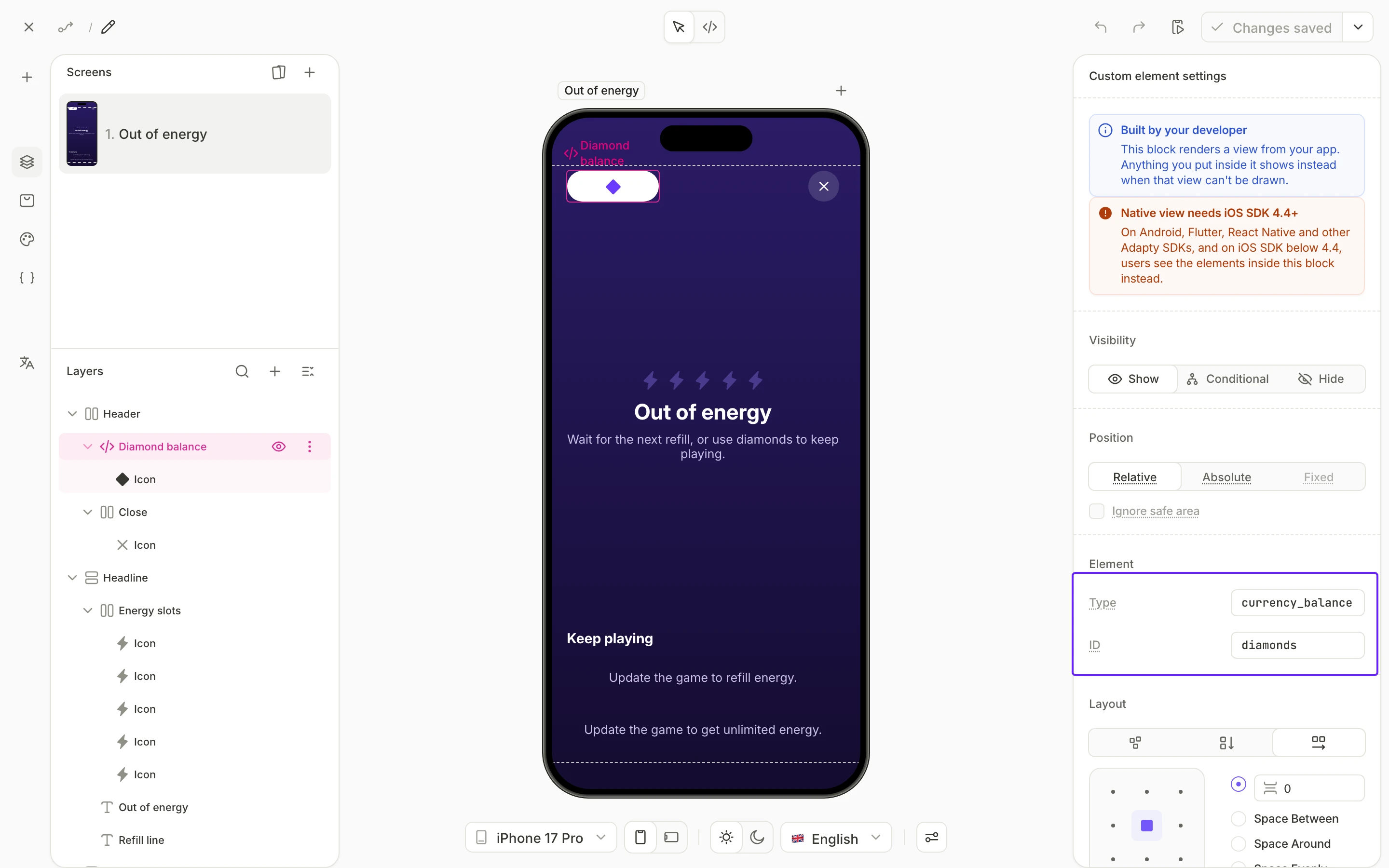
Add a custom element to the screen, and enter its Type and ID:
- Type:
currency_balance. - ID:
diamonds.
The code in step 2 matches the balance view to the custom element by this Type and ID.
- Type:
-
Inside the custom element, add a diamond Icon. In app versions without the balance view, users see the icon as the fallback.
Add buttons for an energy refill and unlimited energy
To show a spinner and then a checkmark in the button that users tap, add both buttons as custom elements. Users see neither a spinner nor a checkmark in a builder button with a custom action. A custom action is one-way: your app code can’t return the result of the spend to the flow. The text and look of the buttons come from your app code. To change the text or look, release an app update.
-
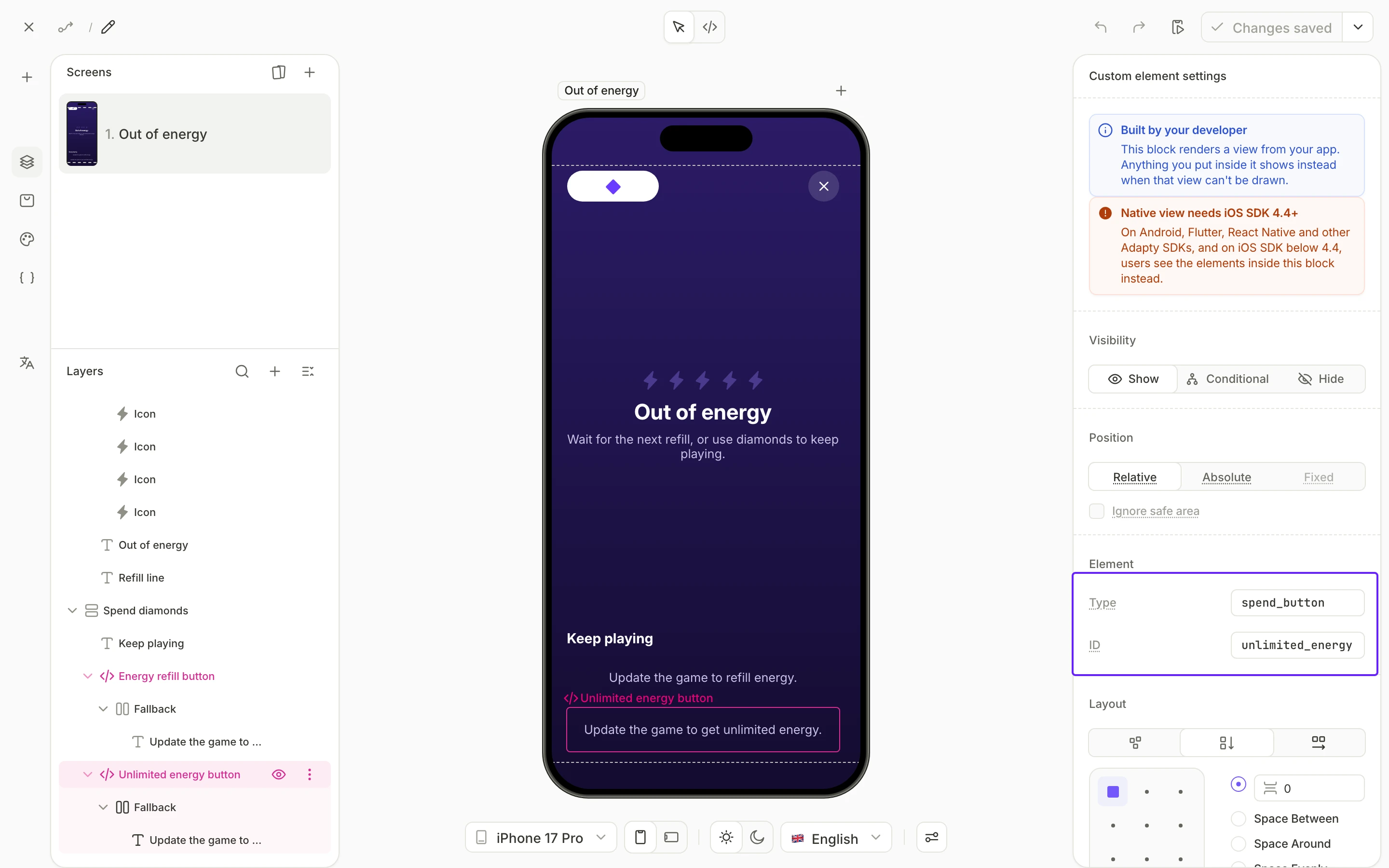
Add a custom element for the energy refill, and enter its Type and ID:
- Type:
spend_button. - ID:
energy_refill.
- Type:
-
Add a second custom element for unlimited energy, with the same Type and the ID
unlimited_energy.The code in step 2 matches one button view to both custom elements by their Type. The code reads the option of each button from its ID.
-
Lower the Fixed height of each custom element from 200 to the height that the button needs.
-
Inside each custom element, add a text element, and enter the words for its option:
- Energy refill: “Update the game to refill energy.”
- Unlimited energy: “Update the game to get unlimited energy.”
In app versions without the button view, users see this text as the fallback, with no button to tap.
2. Spend diamonds when a player taps a button
In this step, you write the backend code and the app code for the out-of-energy flow. After this step, players with enough diamonds can spend them in the flow.
Spend diamonds from your backend
When a player taps a button in the out-of-energy flow, your app code calls your backend to spend diamonds on the option of that button. Your app code can’t send the spend to Adapty, because the request needs your secret API key. Your backend calls Create virtual currency transaction with a negative amount, as in the Virtual currency quickstart tutorial. Send the spend without a balance request first: Adapty verifies the balance as part of the spend.
Keep the cost of each option on your backend: 10 diamonds for an energy refill, and 30 for an hour of unlimited energy. Your app code only sends the option to your backend, so a modified version of your app can’t lower the cost.
curl -X POST https://api.adapty.io/api/v2/server-side-api/vc/transactions/ \
  -H "Authorization: Api-Key {your secret key}" \
  -H "adapty-customer-user-id: player-42" \
  -H "Idempotency-Key: 5221577a-8b4c-419a-a0f5-028e4598b265" \
  -H "Content-Type: application/json" \
  -d '{
        "items": [{"currency_code": "DIAMONDS", "amount": -30}],
        "operation": "spend",
        "feature": "unlimited_energy",
        "customer_placement_id": "out_of_energy",
        "reference_id": "energy_order_7781"
      }'
The request identifies the spend, the player, and the option:
Idempotency-Key: A UUID v4 that your app code creates for each new spend, to protect the user from being debited multiple times for the same transaction. If you need to retry a transaction (for example, due to a network failure), reuse the key from the original transaction. The key stays valid for 1 hour. Once a transaction with the key succeeds, later requests with that key return the original transaction and don’t change the balance.adapty-customer-user-id: The customer user ID of the signed-in user. In your backend, read it from the sign-in session.feature: A label for the option, such asunlimited_energy. With this label, you can see what each spend was for in the event history of the player.
Two optional fields help you trace a spend later. Both appear in the transaction details of the event history:
customer_placement_id: The ID of the screen in your app where the spend happened. With it, you can see which screen each spend came from. In this recipe, use the placement ID of the out-of-energy flow,out_of_energy.reference_id: The ID of the related record in your backend, such as the energy order that the spend pays for. With it, your support team can match a spend to what the user received.
If the spend goes through, give the player the energy from your backend: Adapty keeps the diamond balance, not the energy. Give the energy once per transaction_id of the response, because a retry with the same Idempotency-Key returns the original transaction. The balances array of the response includes the available value of DIAMONDS: the diamonds that the player can spend now. Return this value to your app code.
If the balance can’t cover the cost, the request fails with HTTP status 400 and doesn’t change the balance. To detect this error, compare error_code with insufficient_balance. Then calculate how many diamonds the player needs: read the balance with List virtual currency balances, and subtract the available value of DIAMONDS from the cost. Return the result and the available value to your app code.
If the result is 0 or less, Adapty added diamonds to the balance after the spend failed, such as for a subscription renewal. In this case, retry the request with the same Idempotency-Key, and return the result of the retry instead. Adapty doesn’t keep the key of a failed spend, so it accepts the second request.
When the first request with the same Idempotency-Key is still in progress, the retry fails with HTTP status 409 and the idempotency_in_flight error code. Wait for the number of seconds in the Retry-After header of the response, and retry the request with the same key.
Spend requests from all your users count toward one limit: by default, 600 requests per minute for your app. A request over the limit fails with HTTP status 429 and the rate_limited error code. If you expect more spend requests at peak times, ask support which rate limit applies to your app.
On your backend, add an endpoint for the balance: call List virtual currency balances, and return the available value of DIAMONDS. The app code in this recipe calls this endpoint before the out-of-energy flow opens, and after a purchase.
When you turn on credit expiration for the subscription, remind users to spend their credits in time. The expiry.expiring array of List virtual currency balances lists how many credits expire and when. Show the soonest amount in a flow with a custom tag, such as “30 diamonds expire in 2 days”.
Create the balance view
Create a model for the diamond balance, and a SwiftUI view for the currency_balance custom element. The code later in this step and in step 4 sets the balance in the model from the responses of your backend. The view observes the model, so it redraws when the balance changes:
import Combine
import SwiftUI

// The diamond balance that your app keeps up to date
@MainActor
final class DiamondWallet: ObservableObject {
    @Published var balance: Int? // nil until your backend returns a balance
}

struct DiamondBalanceView: View {
    @ObservedObject var wallet: DiamondWallet

    var body: some View {
        Label(wallet.balance?.formatted() ?? "—", systemImage: "diamond.fill")
    }
}
DiamondBalanceView uses the system text color, which turns white when the device is in dark mode. A flow keeps its light colors unless you add a dark theme to it. If your flows have no dark theme, set a fixed text color in the view, such as .foregroundStyle(.black).
To display the view in both flows, return it from your app-wide resolver, which matches each custom element to a view by its Type and ID. Add a wallet property of the DiamondWallet type, and a case that returns DiamondBalanceView for the currency_balance Type and the diamonds ID. The highlighted lines show what to add. If your app has no app-wide resolver yet, copy the whole code:
import AdaptyUIBuilder
import SwiftUI

struct CustomElementsResolver: AdaptyUICustomElementsResolver {
    let wallet: DiamondWallet

    func view(
        forType type: String,
        id: String,
        context: AdaptyUICustomElementContext
    ) -> AnyView? {
        switch type {
        case "currency_balance" where id == "diamonds":
            return AnyView(DiamondBalanceView(wallet: wallet))
        // the other cases of your resolver
        default:
            return nil
        }
    }
}
Create the resolver with a DiamondWallet, and set it as the app-wide resolver. Call AdaptyUI.setCustomElementsResolver(_:) once, such as at app launch:
import AdaptyUI

@MainActor let diamondWallet = DiamondWallet()

// keep this instance: a resolver for one flow can reuse it
@MainActor let customElementsResolver = CustomElementsResolver(wallet: diamondWallet)

// at app launch, such as in application(_:didFinishLaunchingWithOptions:)
AdaptyUI.setCustomElementsResolver(customElementsResolver)
Create the button view
Create one SwiftUI view for both buttons. The view receives the button text, and a closure that spends the diamonds and returns true when the spend goes through. While the spend runs, players see a spinner in the button, and the button ignores more taps. After the spend goes through, players see a checkmark:
import SwiftUI

struct SpendButton: View {
    let title: String
    let spend: @MainActor () async -> Bool // true when the spend goes through

    @State private var phase = Phase.ready
    private enum Phase { case ready, spending, done }

    var body: some View {
        Button {
            guard phase == .ready else { return } // ignore more taps while the spend runs
            phase = .spending
            // a Task keeps running when the flow closes and this view disappears
            Task {
                phase = await spend() ? .done : .ready
            }
        } label: {
            Group {
                switch phase {
                case .ready: Text(title)
                case .spending: ProgressView().tint(.white) // white on the filled button
                case .done: Image(systemName: "checkmark")
                }
            }
            .frame(maxWidth: .infinity) // the full width of the custom element
        }
        .buttonStyle(.borderedProminent)
    }
}
Connect the buttons to your backend
Create an enum for the two options. As the raw value of each option, use the ID of its custom element:
// the options to spend diamonds on, with the IDs of their custom elements
enum EnergyOption: String {
    case energyRefill = "energy_refill"
    case unlimitedEnergy = "unlimited_energy"

    // keep the numbers equal to the costs on your backend
    var title: String {
        switch self {
        case .energyRefill: return "Energy refill · 10 ◆"
        case .unlimitedEnergy: return "Unlimited energy for 1 hour · 30 ◆"
        }
    }
}
The following code is for UIKit. In the view controller that opens the out-of-energy flow, add a method that spends diamonds on an option. The method sends the option to your backend, and sets the balance in diamondWallet from the response. Then the method does one of the following:
- The spend goes through: The method returns
true, and players see the checkmark in the button. After one second, the code closes the flow. - The balance is too low: The method calls
openTopUpFlow, the function that opens the top-up flow.
private var outOfEnergyFlow: AdaptyFlowController? // set when the out-of-energy flow opens

// true when the spend goes through
func spendDiamonds(on option: EnergyOption) async -> Bool {
    do {
        // the client of your backend: your backend sends the spend to Adapty
        let result = try await GameBackend.shared.spendDiamonds(
            on: option.rawValue,
            idempotencyKey: UUID() // a new key for each spend; UUID() creates a version 4 UUID
        )
        switch result {
        case let .spent(available):
            diamondWallet.balance = available
            // your backend gave the player the energy: show it in the game
            Task {
                try? await Task.sleep(for: .seconds(1)) // players see the checkmark first
                outOfEnergyFlow?.dismiss(animated: true)
            }
            return true
        case let .insufficientBalance(diamondsNeeded, available):
            diamondWallet.balance = available
            await openTopUpFlow(diamondsNeeded: diamondsNeeded)
            return false
        }
    } catch {
        // handle the error
        return false
    }
}
Then write a resolver for the out-of-energy flow. For each custom element with the spend_button Type, the resolver reads the option from the ID, and returns a SpendButton that calls the spend method. A resolver that you attach to a flow replaces the app-wide resolver in that flow. To show the balance in the out-of-energy flow, this resolver calls the app-wide resolver:
import AdaptyUIBuilder
import SwiftUI

struct OutOfEnergyResolver: AdaptyUICustomElementsResolver {
    let spend: @MainActor (EnergyOption) async -> Bool // the spend method of your view controller
    let appWideResolver: any AdaptyUICustomElementsResolver

    func view(
        forType type: String,
        id: String,
        context: AdaptyUICustomElementContext
    ) -> AnyView? {
        // the ID tells the buttons apart: energy_refill or unlimited_energy
        if type == "spend_button", let option = EnergyOption(rawValue: id) {
            return AnyView(SpendButton(title: option.title) { await spend(option) })
        }
        // other custom elements, such as the balance: the views of the app-wide resolver
        return appWideResolver.view(forType: type, id: id, context: context)
    }
}
Open the out-of-energy flow from your app code
When a player runs out of energy, open the out-of-energy flow with the following function. The function asks your backend for the balance first, so that players see it when the flow opens. Then the function attaches OutOfEnergyResolver to the flow, and keeps the flow controller in outOfEnergyFlow. With this reference, spendDiamonds can close the flow:
// call when a player runs out of energy
func openOutOfEnergyFlow() async {
    // the balance that players see when the flow opens; without it, players see a dash
    if let available = try? await GameBackend.shared.diamondBalance() {
        diamondWallet.balance = available
    }
    do {
        let flow = try await Adapty.getFlow(placementId: "out_of_energy")
        let flowConfiguration = try await AdaptyUI.getFlowConfiguration(
            forFlow: flow,
            customElementsResolver: OutOfEnergyResolver(
                spend: { [weak self] option in
                    await self?.spendDiamonds(on: option) ?? false
                },
                appWideResolver: customElementsResolver // the instance that you set app-wide
            )
        )
        let flowController = try AdaptyUI.flowController(
            with: flowConfiguration,
            delegate: self
        )
        outOfEnergyFlow = flowController
        present(flowController, animated: true)
    } catch {
        // handle the error
    }
}
As the delegate of the out-of-energy flow, the view controller must also implement the delegate methods for purchases and restores. For didFinishPurchase, use the code from step 4.
In SwiftUI, attach OutOfEnergyResolver when you fetch the flow configuration. In the spend closure of the resolver, call your spend method. Present the flow configuration with the .flow modifier, and use its closures instead of the delegate methods. The closures receive no view controller. To close the flow, set isPresented to false.
3. Build the flow where players buy diamonds
In the Flow & Paywall Builder, create the top-up flow. Add the flow to a placement with the ID out_of_diamonds. When the balance is too low for a spend, the code in step 4 opens the flow from this placement.
To show a different top-up flow depending on the balance, add an audience with a segment by virtual currency balance to the out_of_diamonds placement. For example, show a separate flow to users with 0 diamonds. Adapty reads the balance each time your app code fetches the flow, so a spend or a purchase can change the flow that the user sees next.
To show the diamond balance in this flow too, add a custom element with the same Type and ID as in the out-of-energy flow: currency_balance and diamonds. Inside the custom element, add the diamond Icon as the fallback. Players see the same balance view in both flows, and you don’t need to add code for it.
Show how many diamonds the player needs
To tell players how many more diamonds they need, use a custom tag: a placeholder that you insert into a text element. The code in step 4 passes the number to the tag once, when it opens the flow. The words around the number stay in the builder, where you can edit and translate them.
-
Create a custom tag named
diamonds_needed, and enter a dash (—) in its Initial value field. If your app code passes no number for the tag, players see the dash. -
Add a text element with the words “You need more diamonds”. After “need”, insert the
diamonds_neededcustom tag.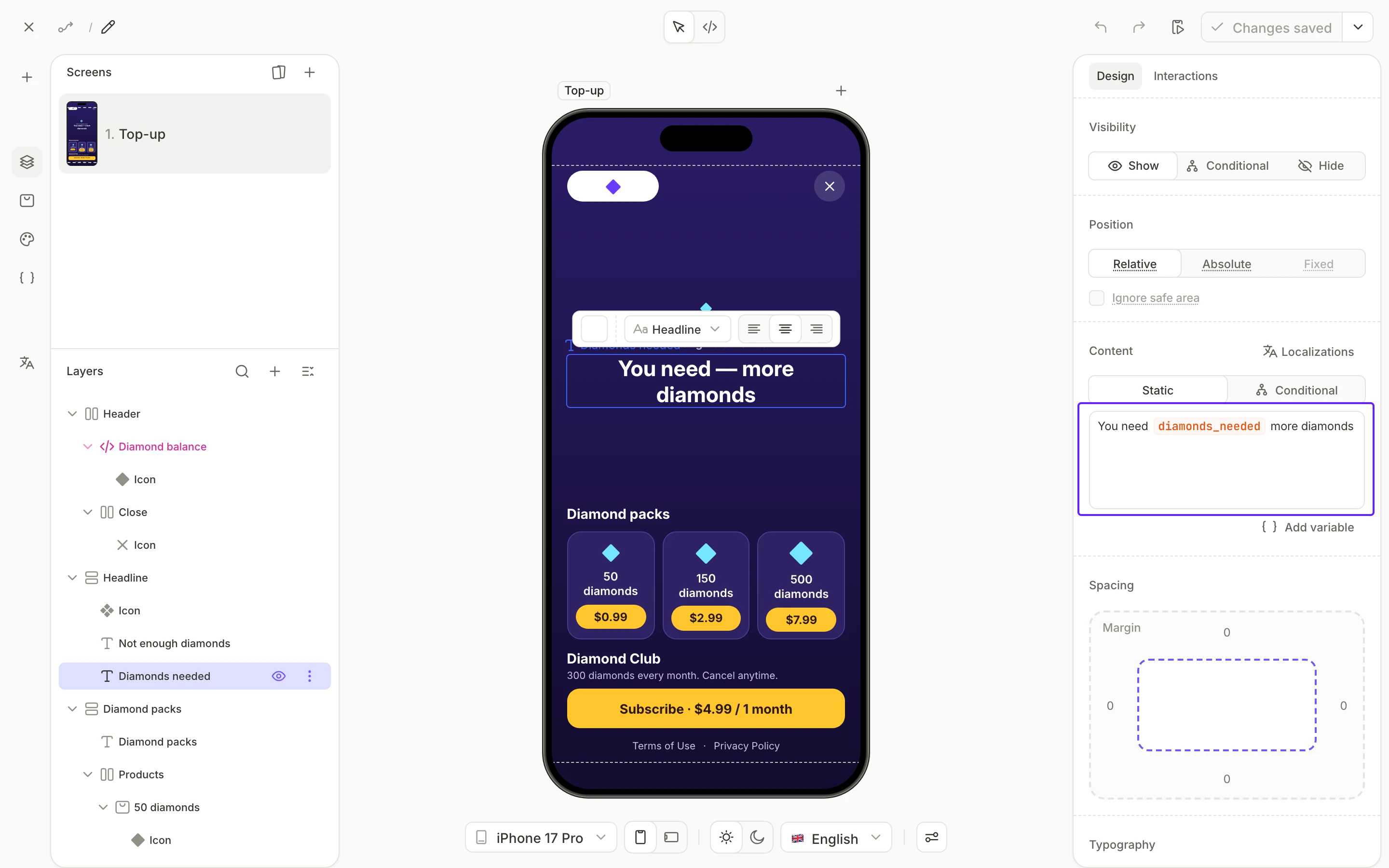
Add diamond packs and a subscription
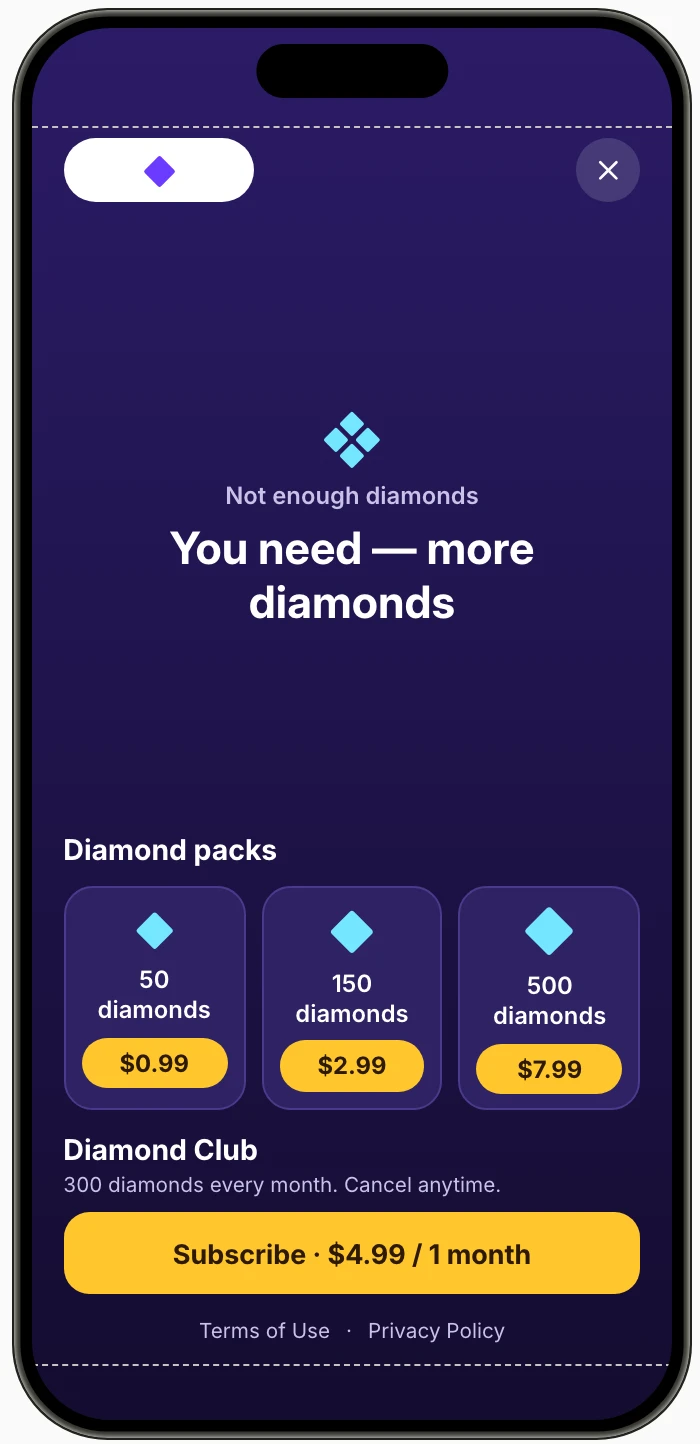
- Add a Products element with the diamond packs. To start the purchase of a pack when a player taps its card, attach the Purchase action to each card.
- To offer the subscription on the same screen as the packs, add a purchase button. In the Purchase action of the button, select the subscription from the Product dropdown. In the button text, insert the
prod_priceandprod_billing_periodvariables of the subscription. - In a text element of each card, type how many diamonds the player receives, such as “500 diamonds”. Add a text element for the subscription, and type how many diamonds the player receives for each billing period, such as “300 diamonds every month”. Keep each number equal to the Credit amount or Credit per cycle of the product: no product variable holds this number. If the name of each pack in the app store already includes the number, such as “500 Diamonds”, insert the
prod_titlevariable instead. - To give players a way to close the flow without a purchase, add a Close button. Add the footer links: app stores require the Terms of Use and Privacy Policy links wherever players can buy a subscription.
4. Close one flow and open the other
After this step, players without enough diamonds can buy more in the top-up flow, and then spend them. In this recipe, one view controller is the delegate of both flows. To tell the flows apart in a delegate method, compare the controller.flowPlacementId property with the placement ID of each flow. In SwiftUI, present the top-up flow with a second .flow modifier, and open one flow from the didDisappear closure of the other.
Open the top-up flow when a player doesn’t have enough diamonds
The following function passes the number of missing diamonds to the diamonds_needed tag, and opens the top-up flow. A view controller presents one flow at a time, so the function first closes the out-of-energy flow, and then opens the top-up flow:
func openTopUpFlow(diamondsNeeded: Int) async {
    // with no value, players see the Initial value of the tag
    let tags = diamondsNeeded > 0 ? ["diamonds_needed": diamondsNeeded.formatted()] : [:]
    do {
        let flow = try await Adapty.getFlow(placementId: "out_of_diamonds")
        let flowConfiguration = try await AdaptyUI.getFlowConfiguration(
            forFlow: flow,
            tagResolver: tags
        )
        let flowController = try AdaptyUI.flowController(
            with: flowConfiguration,
            delegate: self
        )
        // a view controller presents one flow at a time
        outOfEnergyFlow?.dismiss(animated: true) {
            self.present(flowController, animated: true)
        }
    } catch {
        // handle the error
    }
}
Open the out-of-energy flow again after a purchase
When a player buys a pack or the subscription in the top-up flow, Adapty usually adds the diamonds to the balance first. Then the Adapty SDK calls didFinishPurchase, but doesn’t close the flow. In this method, the following code asks your backend for the new balance, closes the top-up flow, and opens the out-of-energy flow again. The player sees the new balance there, and taps a button to spend diamonds. Don’t spend diamonds right after the purchase: the player may no longer want the energy.
func flowController(
    _ controller: AdaptyFlowController,
    didFinishPurchase product: AdaptyPaywallProduct,
    purchaseResult: AdaptyPurchaseResult
) {
    // canceled or pending: the flow stays open
    guard purchaseResult.isPurchaseSuccess,
          controller.flowPlacementId == "out_of_diamonds" // the top-up flow
    else { return }
    Task {
        let balanceBefore = diamondWallet.balance ?? 0
        if let available = try? await GameBackend.shared.diamondBalance() {
            diamondWallet.balance = available
        }
        let diamondsArrived = (diamondWallet.balance ?? 0) > balanceBefore
        controller.dismiss(animated: true) {
            if diamondsArrived {
                Task { await self.openOutOfEnergyFlow() } // the player taps a button again
            } else {
                // Adapty adds the diamonds later: tell the player in your own UI
            }
        }
    }
}
When the player cancels the purchase, or when the purchase is pending, the code leaves the top-up flow open. The Adapty SDK also calls didFinishPurchase in these cases, but the balance stays the same.
When a purchase succeeds but the balance from your backend stays the same, the code closes the top-up flow and doesn’t open the out-of-energy flow. In either flow, the player would see the old balance right after the purchase. The balance stays the same when the Adapty SDK can’t validate the purchase with Adapty right away. Adapty adds the diamonds later, when the Adapty SDK sends the purchase to Adapty again, such as at the next app launch. Until then, tell the player in your own UI that the diamonds are on the way.
Don’t add diamonds from your backend when a user buys a product linked to DIAMONDS: Adapty adds these diamonds, and the user would receive them twice.
5. Test on a device
The Flow & Paywall Builder can’t run your app code, so on its canvas, you only see the fallbacks of the custom elements.
To see the diamonds from purchases, test with a sandbox account. In the sandbox, a subscription renews every few minutes, and Adapty adds diamonds at each renewal. With a StoreKit configuration file in Xcode, the Adapty SDK doesn’t validate purchases with Adapty, and Adapty adds no diamonds.
To test the recipe:
- Publish both flows. To see the latest published versions instead of cached ones, register the device as a test device.
- Run your app with the recipe code, and sign in as a player with no diamonds. Run out of energy in the game. Verify that the out-of-energy flow opens with a balance of 0.
- Tap the unlimited energy button. Verify that a spinner appears in the button, and then the top-up flow opens with the text “You need 30 more diamonds”.
- Buy a diamond pack. Verify that the out-of-energy flow opens again with the new balance.
- Tap the energy refill button. Verify that a checkmark appears in the button, the flow closes, and the game gives the player an energy refill.
- In the Adapty Dashboard, open the profile of the player. Debit the balance to less than 10 with the Adjustment operation. Run out of energy again, tap the energy refill button, and buy the subscription in the top-up flow. Verify that the out-of-energy flow opens again with the new balance.
- Tap the unlimited energy button. Verify that a checkmark appears in the button, the flow closes, and the game gives the player unlimited energy.
-
In the event history of the player, verify the following entries:
- Virtual currency credited: For each purchase or renewal that adds diamonds.
- Virtual currency debited: For each spend that goes through, with the
energy_refillorunlimited_energylabel. Adapty names this entry after thespendoperation. Withoutoperation, Adapty names it Virtual currency transaction. - Virtual currency adjusted: For each manual debit with the Adjustment operation, such as the one in step 6.
- Virtual currency expired: For subscription diamonds that expire unspent.
To find out why a fallback appears instead of the balance or a button, follow the steps to test custom elements.