
Keep flows light
To make a flow open sooner, cut what makes its assets heavy. Before your app shows a flow for the first time, it loads the assets of the flow from Adapty. The heavier the assets, the longer users wait for the first screen, most of all on a slow connection.
Assets that load before the first screen
The app loads the assets of the whole flow, every screen included. They consist of three parts:
- Image previews and icons: A small copy of each image, and every icon. Users see the preview until the full-size image loads.
- Text content in every locale: All text content of the flow, translated into each locale.
- Screens, elements, and actions: The layout, styles, and actions of every screen, and links to the full-size images and videos.
Full-size images and videos load separately from these assets, by link. They don’t delay the first screen: users see the previews until the files load. To show first-screen media without previews, bundle the files with the app iOS, Android, React Native, Flutter, Unity, Kotlin Multiplatform, Capacitor .
Fonts weigh almost nothing: the assets only carry their names, and the font files come with the app.
The app loads the assets of a flow from Adapty the first time it shows the flow on a device. After you publish a new version, the app loads them again. In between, the app reads the assets from the device, and users don’t wait.
See the size of a flow
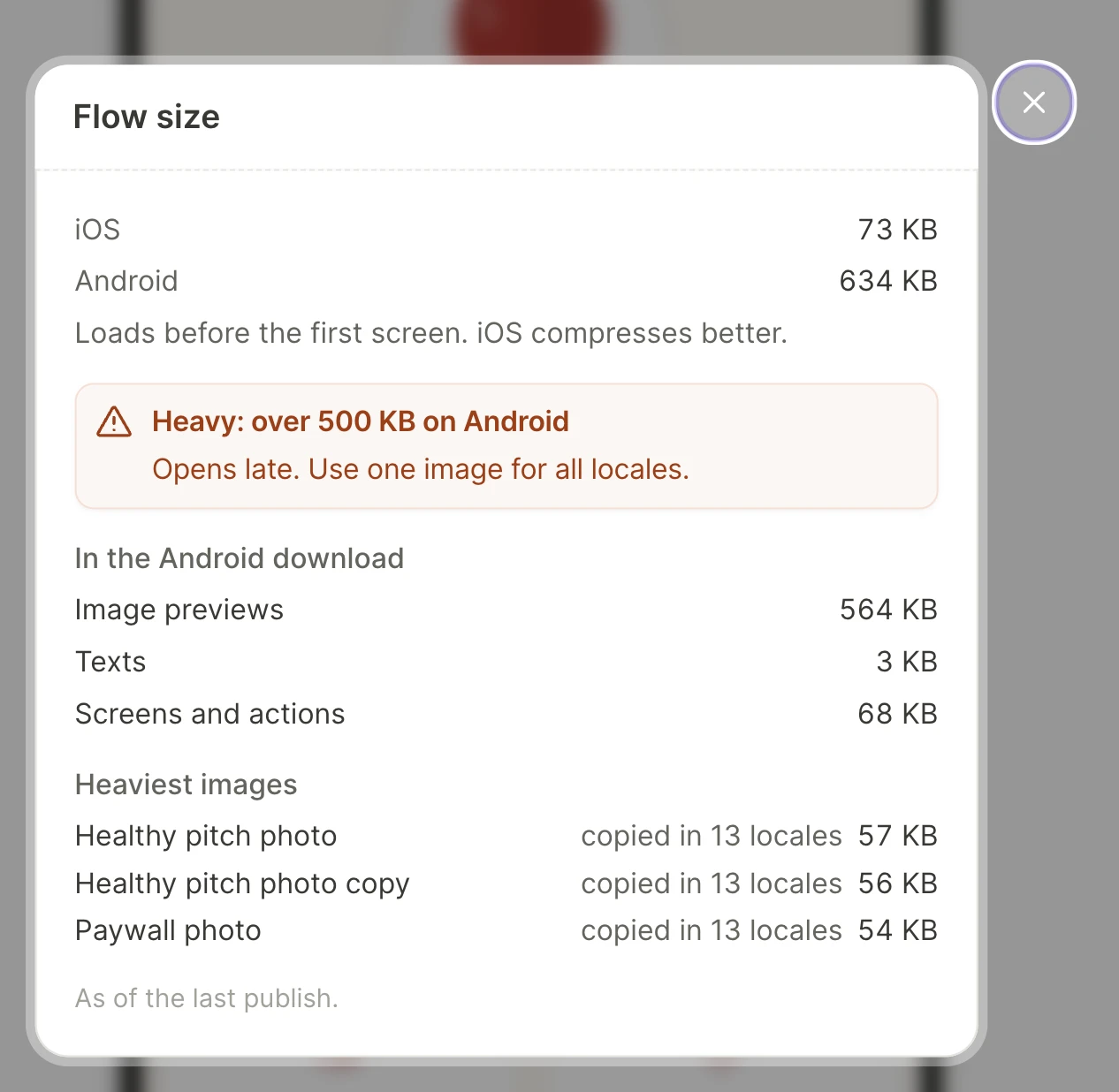
To see how big the published version of a flow is, open the Flow actions menu and select Show flow size. The Flow size dialog shows how much the app downloads and what weighs the most:
| Number | What it shows | How to make it smaller |
|---|---|---|
| iOS and Android | How much the app downloads on each platform before the first screen. | Any section of Make a flow lighter |
| Image previews | The size of image previews and icons in the Android download. | Reuse a background image through a color style, Remove what the flow doesn’t need |
| Texts | The size of the text content of every locale in the Android download. | Delete locales you don’t need |
| Screens and actions | The size of the layout, styles, and actions of every screen in the Android download. | Remove what the flow doesn’t need |
| Heaviest images | Up to three images with the heaviest previews. Each row names the screen or element that shows the image. copied in N locales means that several locales have their own copy of the preview. | For an image with copies, use one image for all locales. For other images, remove what the flow doesn’t need. |
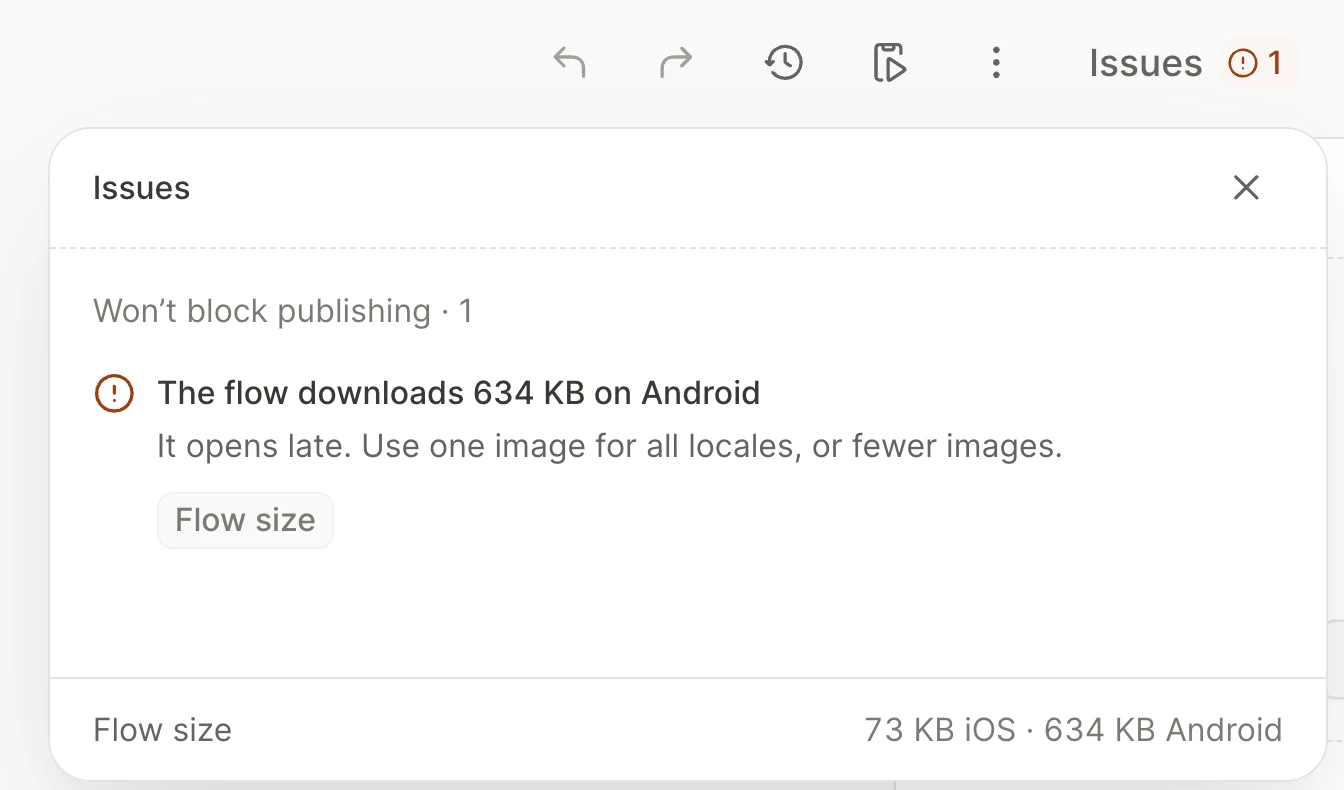
When the Android download weighs over 500 KB, the Issues panel lists a warning about the size of the flow. To open the panel, click Issues in the top bar. The warning names the size of the download and a fix for its heaviest part. To open the Flow size dialog, click the warning.
Under the warning about the flow, the panel lists up to five images that each make up at least 10% of the Android download. Each warning names the image and how much it adds on Android. To select the element or screen that shows the image, click its warning. Then upload a smaller file. If the image has a copy in several locales, use one image for all locales instead.
The builder measures the assets when you publish the flow. To see how your changes affect the size, or to clear the warning, publish the flow again.
To find out whether a flow is heavy before it reaches users, ask the flow-generator skill to save or publish the flow. Before each save and each publish, the skill measures the flow and its images and videos. If anything is heavy, the skill names it and offers a fix.
Make a flow lighter
To decide where to start, check which part weighs the most in the Flow size dialog.
Use one image for all locales
A locale with its own image file adds another preview to the assets. When the default image suits every locale, open the Localizations panel and reset the row of the image.
Reuse a background image through a color style
Each screen or element with its own background image adds a preview to the assets, even when several of them show the same file. To add a single preview instead, save the image in a color style. Then apply the style to every screen and element that has the image as its background.
Delete locales you don’t need
Each locale adds its translation of the text content to the assets. If no users need a locale, delete it.
Remove what the flow doesn’t need
Each Image element adds a preview to the assets, even when several of them show the same file. Detailed photos have the heaviest previews. Remove the images the flow doesn’t need.
The assets also cover every screen and element, even a screen that no action opens. Delete the screens and elements the flow doesn’t need.
Keep image files small
Full-size images don’t delay the first screen, but users see the preview of an image until its file loads. A smaller file loads sooner.
When you upload an image file over 1 MB, the Flow & Paywall Builder shows a Large image warning. To keep image files small, save them as WebP.